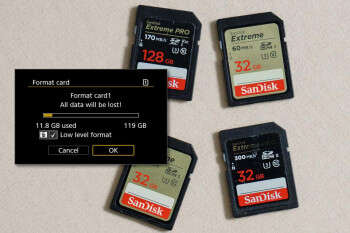
Format the SDHC card in your camera using the camera’s Format option (FAT32 for SDHC).
I’ve worked with cameras and memory cards for years, and I’ll walk you through how to format SDHC card for camera the right way. This guide shows step-by-step camera formatting, desktop alternatives, file system choices, common mistakes, and recovery tips. Read on to learn safe, fast, and camera-friendly ways to format SDHC cards and keep your photos and videos healthy.
:max_bytes(150000):strip_icc()/GettyImages-136612668-5c640cc5c9e77c00010a4ff4.jpg)
Why format an SDHC card for a camera
Formatting clears the card and sets the right file system for your camera. Cameras write files in specific ways. Formatting in-camera prepares the card to store photos and video with no hidden errors. When you learn how to format SDHC card for camera, you lower the risk of file corruption and improve write speed. Formatting is not the same as deleting files. Formatting rebuilds the file table so the camera can manage space cleanly.

When you should format your SDHC card for camera
Format before first use in a camera. Format after a long shoot or many deletes. Format after switching the card between devices. Format when the camera shows write errors or odd behavior. Formatting often fixes small issues that can cause lost photos. If you plan to sell or hand off a card, format it to remove data and reset structure.
What file system and format settings to use
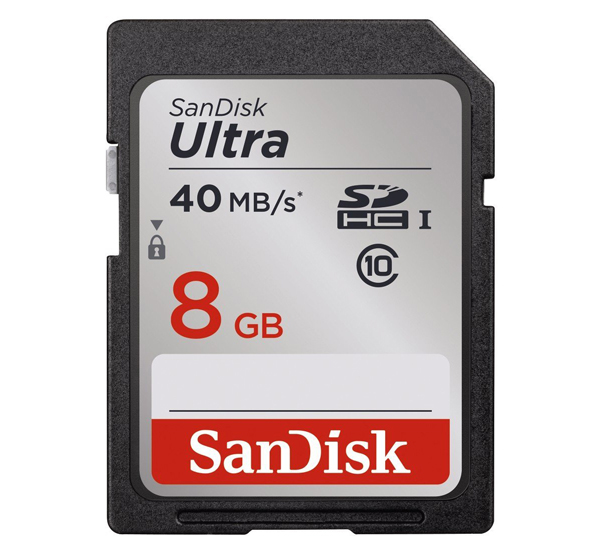
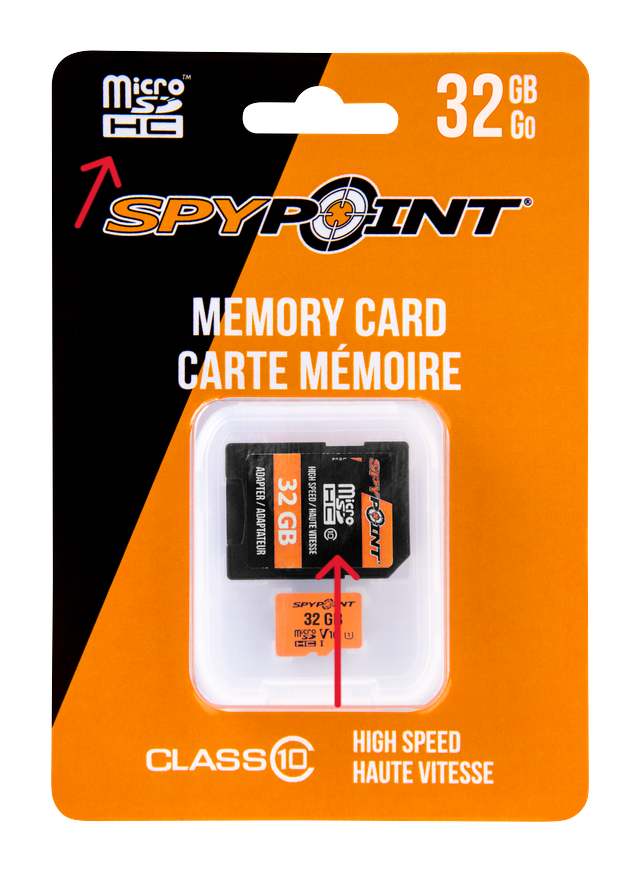
SDHC cards (up to 32 GB) use FAT32. Most cameras expect FAT32 on SDHC. SDXC cards (64 GB and up) use exFAT and are different. When you format an SDHC card for camera, use the camera’s default settings. Avoid changing cluster size unless you know the camera needs it. The camera knows best for photo and video file sizes.
Step-by-step: format SDHC card in the camera (recommended)
- Power off the camera.
- Insert the SDHC card with the write-protect switch toward the camera body.
- Power on the camera.
- Open the menu and find the Format or Format Card option. It is often under Setup or Settings.
- Select Format and confirm. Wait until the camera says complete.
- Take a test photo to verify the card is writable.
Tips:
- Always back up photos before formatting.
- Use the camera’s Format option, not delete all or a computer format, when possible.
- If the camera offers Quick Format vs Full Format, Full Format is best if you suspect issues.
I prefer formatting in-camera. It avoids compatibility problems. Cameras write hidden folders and file tables in their own way. When I skipped camera formatting once, the camera could not read the card properly. After formatting in the camera, the issue was gone.

How to format SDHC card for camera on Windows
- Back up any files from the card to your PC.
- Insert the card into a card reader or slot.
- Open File Explorer, right-click the card, and choose Format.
- Choose FAT32 as the File System and Quick Format if the card is healthy.
- Click Start and wait for completion.
If the Format option does not show FAT32, use the SD Association’s formatter tool or disk management. For stubborn cards, format using the command line with care. Always prefer camera formatting after a Windows format to ensure compatibility.
How to format SDHC card for camera on macOS
- Back up files first.
- Insert the card in a reader and open Disk Utility.
- Select the card device (not the partition).
- Click Erase, choose MS-DOS (FAT) for Format and GUID or Master Boot Record for Scheme depending on camera (use Master Boot Record for most cameras).
- Click Erase and wait.
After macOS formatting, put the card back in the camera and use the camera’s Format once. That ensures the camera creates its own folder layout.
Use of the SD Formatter (recommended for cards)
The SD Association provides an official formatter that follows SD standards. It fixes subtle issues better than the OS formatter. To use it:
- Back up files.
- Run SD Formatter on the card in a card reader.
- Choose Format and do NOT use override options unless advised.
This tool is widely recommended by manufacturers for SD, SDHC, and SDXC cards. It often solves card errors when camera or OS tools fail.

Common problems and quick fixes
Card shows locked or write-protected
- Check the small physical lock switch on the SDHC card.
- Slide it up to unlock. Reinsert the card and format.
Camera won’t format the card
- Try a different card slot or reader.
- Format on PC with FAT32, then format in-camera.
Files disappear after format
- Formatting erases file table. Use recovery tools only if you need files back.
- Regular backups prevent pain.
Card unreadable or corrupted
- Run low-level format with SD Formatter.
- Replace the card if errors persist.

How to recover files after accidental format
Stop using the card immediately to avoid overwriting data. Use reputable recovery software to scan and recover JPG, RAW, and video files. If recovery matters a lot, consider professional data-recovery services. Recovery works best if no new photos were written after formatting.
Tips to extend SDHC card life and avoid corruption
- Format the card in-camera regularly.
- Don’t remove the card while the camera is writing.
- Avoid using cheap or counterfeit cards.
- Use one card per camera when shooting important events.
- Keep cards cool and dry.
- Replace cards that show frequent errors or slow writes.
Personal experience and lessons learned
I once lost an event’s RAW files after using a cheap card and switching it between a camera and a phone. I had not formatted the card in the camera. After that, I always format new cards in the camera and buy brand-name cards. I also keep a backup workflow that copies images to two places after each shoot. Those small habits saved me time and stress many times.
Best practices checklist: how to format SDHC card for camera
- Back up any photos and videos.
- Check and unlock the write-protect switch.
- Format in the camera using the camera’s Format option.
- If formatting on a computer, choose FAT32 for SDHC.
- Use official SD Formatter for stubborn errors.
- Always test the card with a sample shot after formatting.
PAA-style questions (quick answers in-line)
Can I format an SDHC card on my camera and PC interchangeably?
Yes. You can use both, but format in-camera last to ensure folder structure matches the camera. Camera formatting is the safest for long-term use.
Does formatting delete all data permanently?
Formatting removes file tables and makes files hard to find but not always unrecoverable. Stop using the card to improve recovery chances.
Should I use quick format or full format?
Quick format is fine for regular use. Full format or a low-level format helps fix errors and is better if you suspect corruption.
Frequently Asked Questions of how to format sdhc card for camera
How do I format an SDHC card using my camera?
Open the camera menu, find Format or Format Card under Setup, select it, and confirm. Wait until the camera reports the format is complete before removing the card.
Will formatting an SDHC card erase photos permanently?
Formatting removes references to files and makes them inaccessible, but data may be recoverable until overwritten. Stop using the card if you need to recover files.
What file system should I choose for SDHC cards?
Choose FAT32 for SDHC cards (up to 32 GB). Most cameras expect FAT32 on SDHC for full compatibility.
Can I format SDHC card on Windows if FAT32 is not available?
Yes, you can use the SD Association’s formatter tool or Disk Management. Windows may hide FAT32 for large drives, but SDHC sizes typically support FAT32 in Windows.
Is it better to format in camera or on a computer?
Formatting in-camera is better for camera-specific folder structure and stability. Use a computer only when the camera cannot format or for full low-level fixes.
My camera shows format failed. What should I do?
Check the write-protect switch, try a different card reader, run SD Formatter, and test another card. If errors persist, replace the card.
Conclusion
Formatting an SDHC card for camera is quick and important. Back up files, use the camera’s Format option, and pick FAT32 for SDHC. When problems appear, use the SD Formatter tool and avoid writing new data if you need recovery. Follow the checklist and habits here to protect your photos and keep cards reliable. Try these steps on your next shoot, and leave a comment if you want help with a specific camera model or error.

Everett Ashford is a tech reviewer at mytechgrid.com specializing in SSDs, cameras, TVs, earbuds, headphones, and other consumer electronics. He provides honest, data-driven reviews based on hands-on testing and real-world performance analysis. Everett simplifies complex tech details to help readers make smart, confident buying decisions.