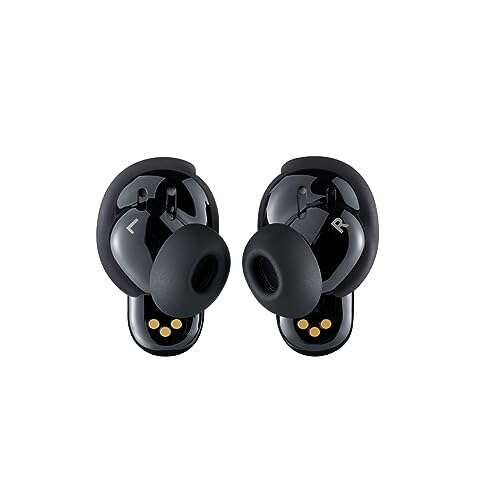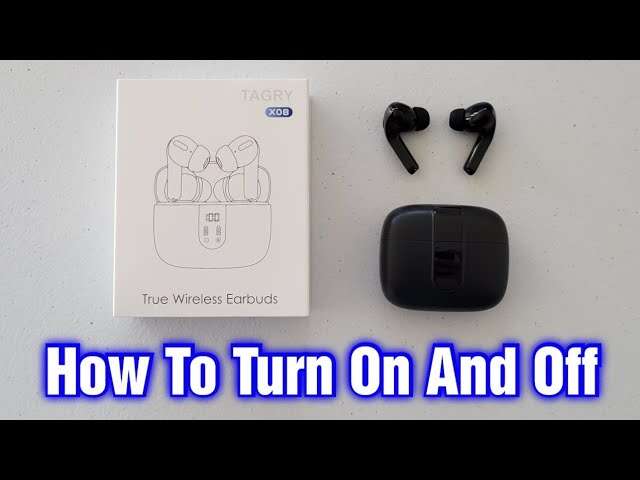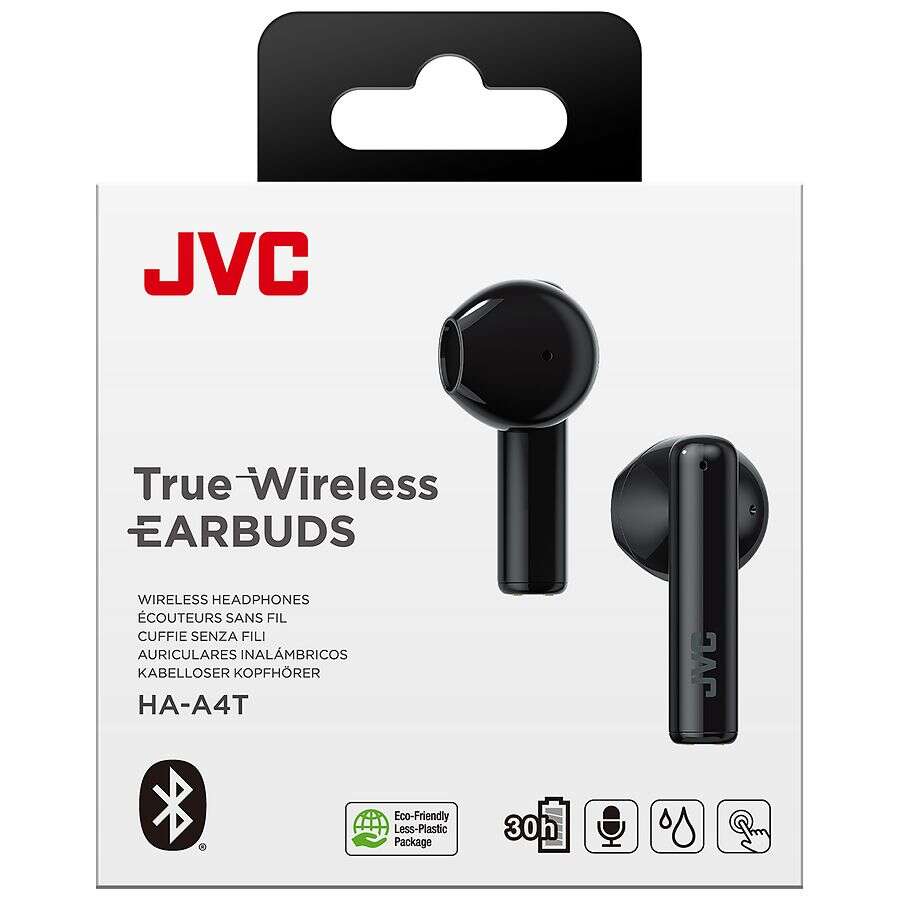
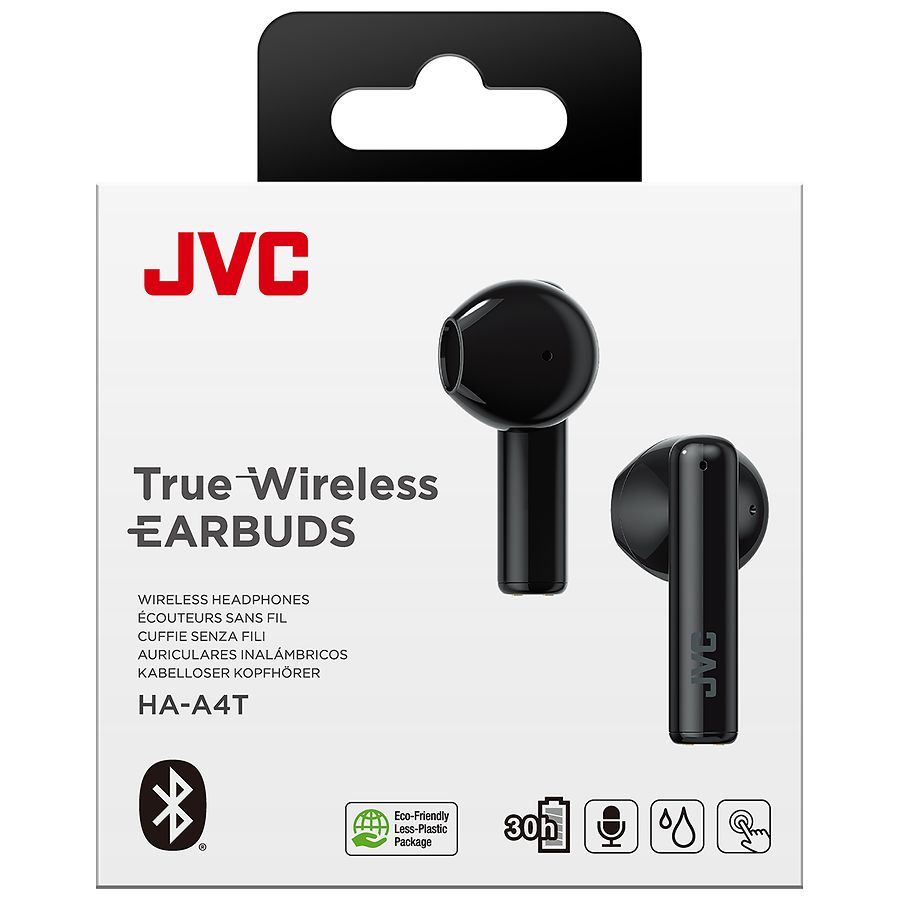
Turn on Bluetooth, put both earbuds in pairing mode, and select "JVC" from your device list.
I’ve paired many earbuds and tested several JVC models, so I’ll walk you through exactly how to connect JVC earbuds step by step. This guide explains pairing basics, device-specific tips, troubleshooting tricks, and real-world lessons so you can pair quickly and keep a stable connection. Read on to master how to connect JVC earbuds with phones, laptops, and other gadgets.

How Bluetooth pairing works on JVC earbuds
Bluetooth pairing is the link between your JVC earbuds and a source device. The earbuds broadcast a small radio signal. Your phone or computer detects that signal and creates a secure connection.
Most JVC earbuds use a standard Bluetooth protocol. Some models support Bluetooth 5.0 or later. Newer versions give better range, faster reconnection, and lower power use.
Key terms to know:
- Pairing — the first-time setup where devices exchange credentials.
- Reconnecting — automatic link after initial pairing.
- Pairing mode — the state where earbuds can be discovered by devices.
Understanding these basics helps you when a connection fails. You’ll know whether the issue is the earbuds, the host device, or Bluetooth itself.
Step-by-step: How to connect JVC earbuds to a smartphone
Follow these steps to pair most JVC earbuds to an Android or iPhone. The exact button names vary by model, but the flow is the same.
- Charge the earbuds for at least 20 minutes if new.
- Turn off Bluetooth on other nearby devices to reduce interference.
- Open the charging case and remove the earbuds. Many JVC models enter pairing mode automatically when removed the first time.
- If they don’t, press and hold the touch sensor or multi-function button on each earbud for 3–5 seconds. Watch for a blinking LED or voice prompt.
- On your phone go to Settings > Bluetooth and turn Bluetooth on.
- Wait for “JVC” or the model name to appear under available devices. Tap it to pair.
- Listen for a confirmation tone or voice message saying “connected.”
- If asked for a PIN, try 0000 or 1234 (rare with modern JVC models).
Troubleshooting quick checks:
- Make sure the earbuds are not already connected to another device.
- Keep the phone and earbuds within 3 feet during initial pairing.
- Restart Bluetooth on your phone if the JVC device does not appear.
This routine covers the common models and typical behaviors. If you have a specific JVC model, follow its quick start page for model-specific steps.

How to connect JVC earbuds to a laptop or PC
Pairing to a laptop is similar to a phone. Windows and macOS both support Bluetooth audio. Here’s a quick route for each.
Windows
- Open Settings > Devices > Bluetooth & other devices.
- Turn on Bluetooth and click Add Bluetooth or other device > Bluetooth.
- Put the JVC earbuds in pairing mode.
- Select the JVC earbuds from the list and wait for confirmation.
- In Sound settings set the earbuds as the output device if needed.
macOS
- Open System Settings (or System Preferences) > Bluetooth.
- Turn Bluetooth on and put earbuds in pairing mode.
- Click Connect next to the JVC earbuds.
- Set the earbuds as the output device in Sound settings.
If your PC lacks Bluetooth, use a USB Bluetooth adapter. Pick one supporting at least Bluetooth 4.0 for good audio performance.
Troubleshooting common pairing problems
You may see common issues. Here’s how to fix them quickly.
Problem: Earbuds won’t show on device list
- Ensure earbuds are charged and in pairing mode.
- Turn Bluetooth off and on on the host device.
- Remove other saved JVC entries and retry.
Problem: Connected but no sound
- Check the device’s audio output setting.
- Reconnect or restart the app playing audio.
- Reset the earbuds if the issue persists.
Problem: One earbud not working
- Put both earbuds back in the case and take them out together to force re-sync.
- Check firmware updates for your JVC model.
- If persistent, perform a full reset (see manual).
Problem: Constant dropouts or lag
- Move closer to the device.
- Turn off nearby Bluetooth devices that might interfere.
- Update device drivers or operating system if you’re on a computer.
Reset steps (typical)
- Place earbuds in case.
- Hold the pairing button for 10–15 seconds until LEDs flash.
- Re-pair with your device.
These fixes cover most simple and mid-level problems. If the earbuds still fail, contact support or check for hardware warranty options.

Advanced tips and settings for better connectivity
These tips help power users get stronger connections and longer battery life.
- Update firmware — Check the JVC app or support page for firmware updates that improve Bluetooth performance.
- Use single-ear mode — Many JVC earbuds support mono use. Enable it if you want one ear open and to save battery.
- Adjust codecs — On Android, you can change Bluetooth codecs in developer options to improve latency or sound. SBC is standard; AAC or aptX may be available for better quality.
- Optimize range — Avoid barriers like concrete or metal. Hold the source device at chest level for best line of sight.
- Manage Bluetooth profiles — Disable unused profiles (like HFP) if you only want music audio to reduce fails.
These steps often yield noticeable improvements. They assume basic comfort with phone or PC settings.
Compatibility, battery, and maintenance
Compatibility overview
- Most JVC earbuds work with iOS, Android, Windows, and macOS.
- Voice assistants and in-line controls depend on the model and OS.
Battery care
- Fully charge before first use.
- Avoid leaving earbuds at 0% for long.
- Store in case when not in use to preserve battery life.
Care and cleaning
- Wipe ear tips with a dry cloth.
- Avoid liquid exposure to charging ports.
- Replace silicone tips if worn for a better seal and sound.
Knowing these small things extends life and keeps pairing simple.
Personal experience and lessons learned
I’ve paired JVC earbuds across several phones and laptops. The most common issue I saw was interference from multiple paired devices. Turning off Bluetooth on non-essential devices fixed it in minutes.
A simple habit I use:
- Put earbuds in pairing mode, then turn on Bluetooth on the host device. This order cuts discovery time.
Lesson learned: Always check LED patterns or voice prompts. They tell you whether earbuds are in pairing, charging, or low-battery mode. Ignoring those signals wastes time.
I recommend writing the model name on the case if you own many pairs. It makes picking the right device easier when multiple “JVC” listings appear.
Common quick questions about pairing (PAA-style)
What if my JVC earbuds won’t enter pairing mode?
Put them in the case and press and hold the pairing buttons for 10 seconds. Look for a flashing LED or a voice prompt.
Why do my earbuds connect to the wrong device?
They may have been paired previously. Turn off Bluetooth on other devices or remove the JVC pairing entry from those devices.
Can I pair JVC earbuds with two devices at once?
Some models support multipoint pairing. Check your model’s specs. If not supported, switch devices manually by disconnecting then pairing.
Do JVC earbuds need a PIN for pairing?
Most modern JVC earbuds don’t need a PIN. If prompted, common defaults are 0000 or 1234.
How do I update JVC earbud firmware?
Use the official app if available or check the JVC support site for firmware files and instructions.
Frequently Asked Questions of how to connect jvc earbuds
How do I put my JVC earbuds into pairing mode?
Press and hold the touch sensor or multifunction button for 3–5 seconds until the LED blinks or you hear a voice prompt. If that doesn’t work, place them in the case and repeat the press-and-hold.
Why won’t my phone find my JVC earbuds?
They may not be in pairing mode, or Bluetooth on the phone may need toggling. Move closer to the earbuds and turn off other Bluetooth devices that might interfere.
How do I reset my JVC earbuds to factory settings?
Most models reset by holding the buttons for 10–15 seconds while in the case. Check your manual for model-specific reset steps if this doesn’t work.
Why does only one earbud play sound after pairing?
This usually means the earbuds lost sync. Put them in the case, take them out together, and re-pair. If needed, perform a reset.
How do I connect JVC earbuds to two devices?
If your model supports multipoint, pair to the first device, then put the earbuds in pairing mode and pair the second device. If the model does not support multipoint, you must disconnect and then pair each device when switching.
Can I use my JVC earbuds with a TV or gaming console?
Yes, if the TV or console supports Bluetooth audio. For devices without Bluetooth, use a Bluetooth transmitter that plugs into the audio output.
Conclusion
You now have clear, actionable steps to connect JVC earbuds to phones, laptops, and other devices. Start with charging and the correct pairing sequence. Use the troubleshooting checks if something fails. Keep firmware updated and follow simple care tips to keep connections reliable.
Try these steps now and pair your JVC earbuds with confidence. If this helped, leave a comment about your model or subscribe for more practical guides and troubleshooting tips.

Everett Ashford is a tech reviewer at mytechgrid.com specializing in SSDs, cameras, TVs, earbuds, headphones, and other consumer electronics. He provides honest, data-driven reviews based on hands-on testing and real-world performance analysis. Everett simplifies complex tech details to help readers make smart, confident buying decisions.