To connect Sennheiser earbuds to a Mac, turn on Bluetooth, select the earbuds, and click Connect.
Learning how to connect Sennheiser earbuds to Mac takes only a few minutes, but small details matter. Pairing mode, battery level, macOS settings, and sound output can all affect the result. This guide explains the full process, fixes common connection problems, and shares practical tips for stable audio during music, calls, and video meetings.

How to connect Sennheiser earbuds to Mac
Sennheiser earbuds use Bluetooth to connect with a Mac. The steps are similar across MacBook Air, MacBook Pro, iMac, Mac mini, and Mac Studio models.


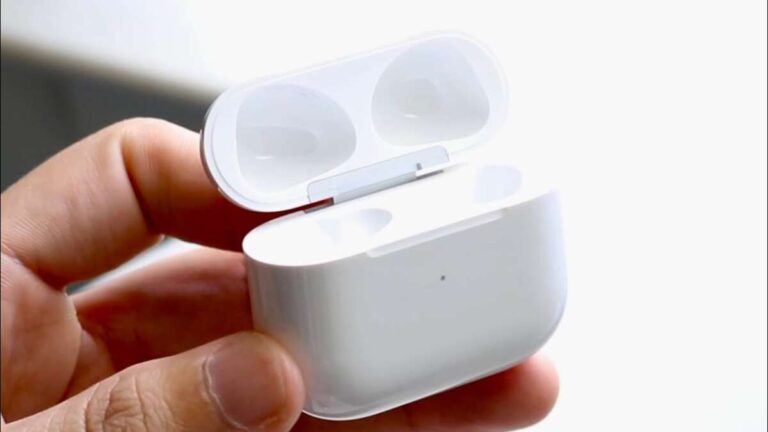
Before you start, place both earbuds in the charging case and check that they have enough power. Keep the earbuds near your Mac. Bluetooth usually works well across a room, but close range makes the first pairing more reliable.
Follow these steps:
- Open the charging case and remove both Sennheiser earbuds.
- Put the earbuds into pairing mode.
- On your Mac, click the Apple menu in the top-left corner.
- Select System Settings.
- Click Bluetooth in the left sidebar.
- Turn Bluetooth on if it is off.
- Find your Sennheiser earbuds under Nearby Devices.
- Click Connect next to the earbuds’ name.
- Wait for the status to change to Connected.
- Play a short audio clip to test the connection.
If your earbuds do not appear, place them back in the case, close the lid, and open it again. Many Sennheiser models enter pairing mode automatically when used for the first time. If they have connected to another phone or tablet, you may need to press and hold the touch control or case button until the LED flashes.
The exact pairing method can vary by model. Momentum True Wireless, CX, Sport, and Accentum earbuds may use different button or touch controls. Check the instructions for your specific model if the earbuds do not enter pairing mode.
Prepare your Sennheiser earbuds before pairing
Good preparation prevents most Bluetooth pairing issues. Think of pairing as introducing two devices. Both must be awake, close, and ready to communicate.
Use this checklist before you connect:


• Charge the earbuds and charging case.
• Turn off Bluetooth on your phone for a moment if the earbuds keep connecting to it.
• Place the earbuds within a few feet of the Mac.
• Remove old ear tips or debris that may stop the earbuds from charging.
• Close music, video, and call apps during the first connection.
• Make sure macOS is updated when possible.
A low battery can cause strange behavior. The earbuds may appear in Bluetooth settings but fail to connect. They may also connect for a few seconds and then disappear. Charging them for at least 10 to 15 minutes often solves this issue.
It also helps to disconnect the earbuds from nearby devices. Bluetooth earbuds often try to reconnect to the last device they used. If your phone is on the desk beside your Mac, it may “grab” the earbuds first.
In my experience helping users with wireless audio, this is one of the most common mistakes. People often think the Mac is broken, but the earbuds are quietly connected to a phone in another room.
Put Sennheiser earbuds into pairing mode
Pairing mode makes the earbuds visible to your Mac. Without it, the Mac may show Bluetooth as active but will not list the earbuds.
For many Sennheiser models, you can enter pairing mode by following these steps:
- Remove both earbuds from the charging case.
- Touch and hold the control area on one or both earbuds.
- Continue holding until you hear a pairing sound or see a flashing LED.
- Open Bluetooth settings on your Mac.
- Select the Sennheiser earbuds when they appear.
Some models use the charging case button instead. With these earbuds, place both units in the case, leave the lid open, and hold the case button until the status light flashes.
The LED color and sound prompt depend on the model. A flashing blue, white, or red-and-blue light may indicate pairing mode, but you should use the model’s manual to confirm the meaning.
If the earbuds are already listed under My Devices but say Not Connected, click Connect. You may not need to place them into pairing mode again.


Avoid tapping the earbuds repeatedly while pairing. Touch controls can pause music, activate an assistant, or end pairing mode. A steady press is usually better than several quick taps.
Connect Sennheiser earbuds to Mac through Bluetooth settings
The most dependable way to connect Sennheiser earbuds to Mac is through System Settings. This method also helps you confirm whether the Mac recognizes the earbuds.
Here is the full process:
- Click the Apple menu.
- Open System Settings.
- Select Bluetooth.
- Turn on Bluetooth.
- Locate the Sennheiser earbuds in the device list.
- Click Connect.
- Wait for the Connected label.
- Close System Settings and test the sound.
On older versions of macOS, the menu may say System Preferences instead of System Settings. Choose Bluetooth, find the earbuds, and click Pair or Connect.
You can also connect from the Control Center:
- Click the Control Center icon in the menu bar.
- Select Bluetooth.
- Choose your Sennheiser earbuds.
- Click Connect.
The Bluetooth menu is useful for quick reconnections. However, System Settings gives you more information when something goes wrong.
If the earbuds connect but audio still comes from the Mac speakers, open System Settings and select Sound. Under Output, choose your Sennheiser earbuds. This step is often missed because a Bluetooth connection does not always change the audio output automatically.

Choose Sennheiser earbuds as the Mac audio output
Connecting the earbuds and selecting them for sound are related but separate steps. Your Mac can show the earbuds as connected while still sending audio to its built-in speakers.
To select the earbuds:
- Open the Apple menu.
- Choose System Settings.
- Click Sound.
- Select Output.
- Choose your Sennheiser earbuds.
- Adjust the output volume.
You can also change the output device from the Control Center. Click the sound control, then select the earbuds under the available output devices.
Test the connection with a short song or video. Check both the left and right earbuds. If one side is quiet, place both earbuds in the case, wait a few seconds, and remove them again.
During a video call, the app may use a different microphone or speaker setting. Open the audio settings inside Zoom, Microsoft Teams, FaceTime, Google Meet, or another calling app. Select the Sennheiser earbuds for both speaker and microphone when available.
Bluetooth headsets may sound less rich during calls because the Mac switches to a two-way communication mode. This is normal for many Bluetooth devices. For the best music quality, close apps that use the microphone when you are not on a call.
How to reconnect Sennheiser earbuds to Mac automatically
After the first pairing, your Mac should remember the earbuds. The next time you open the case near the Mac, they may connect automatically.


Automatic reconnection works best when:
• Bluetooth is enabled on the Mac.
• The earbuds have enough battery.
• The earbuds are not connected to another device.
• The earbuds are stored in the Mac’s Bluetooth device list.
• You use the same macOS user account.
If the earbuds do not reconnect, open System Settings, click Bluetooth, and select Connect next to their name. You can also remove the earbuds from the list and pair them again.
To remove them:
- Open System Settings.
- Select Bluetooth.
- Find the Sennheiser earbuds.
- Click the information button beside the device.
- Choose Forget This Device.
- Confirm the removal.
- Put the earbuds into pairing mode.
- Pair them again.
Forgetting the device is often more effective than repeatedly clicking Connect. It clears the old Bluetooth record and gives the Mac a fresh start.
Fix common problems when connecting Sennheiser earbuds to Mac
Bluetooth problems are usually simple to fix. Work through these solutions in order instead of changing many settings at once.
The earbuds do not appear
Make sure the earbuds are in pairing mode. Turn Bluetooth off and on again on the Mac, then search for the earbuds once more.
If they still do not appear, move them away from other active Bluetooth devices. Turn off Bluetooth on your phone temporarily, as the earbuds may be connecting there.
The Mac says the earbuds are connected, but there is no sound
Open System Settings, select Sound, and choose the Sennheiser earbuds under Output. Also check the volume inside the app you are using.
Some apps keep using the previous audio device until you restart the app. Close and reopen the music player, browser, or meeting app after selecting the earbuds.


The sound cuts out
Keep the Mac and earbuds close together. Walls, crowded wireless areas, and other Bluetooth devices can affect the signal.
Make sure both earbuds are charged. If the problem happens only during calls, the Mac may be switching to headset mode. Select the built-in Mac microphone for the call and use the earbuds only for output.
Only one earbud works
Put both earbuds into the case and confirm that each one is charging. Clean the charging contacts gently with a dry cotton swab.
If one earbud remains silent, forget the earbuds in macOS and reset them using the instructions for your model. A reset usually clears the link between the left and right earbuds.
The earbuds connect to the wrong device
Disable Bluetooth on nearby phones, tablets, and laptops. After the earbuds connect to the Mac, you can turn Bluetooth back on for those devices.
Some Sennheiser models support multipoint connections. This feature allows two devices to remain connected, but switching between them can sometimes create confusion. Turn multipoint off in the Sennheiser control app if you want a simpler Mac-only connection.
The microphone sounds poor
This is often a Bluetooth limitation rather than a fault. When the earbuds’ microphone is active, macOS may reduce audio quality to support two-way communication.
For important calls, use the Mac’s built-in microphone while keeping the Sennheiser earbuds selected as the speaker. This setup often produces clearer music and better call audio.
Reset Sennheiser earbuds and Bluetooth on Mac
A reset can help when the earbuds refuse to pair, repeatedly disconnect, or appear under an outdated name. The reset process differs by Sennheiser model, so use the instructions made for your earbuds.
Before resetting, try these basic steps:
- Place both earbuds in the charging case.
- Close the lid.
- Restart the Mac.
- Reopen the case.
- Put the earbuds into pairing mode.
- Try connecting again.
If that fails, forget the earbuds in macOS before performing a factory reset. This prevents the Mac from trying to use the same damaged pairing record.
A typical reset may require touching both earbuds at the same time or holding a case button for several seconds. Do not guess if your model uses a different process. Check the printed guide or the manufacturer’s support instructions for the correct sequence.
After a reset, the earbuds may lose saved connections, equalizer settings, or multipoint preferences. You will need to pair them with your Mac and other devices again.
It is also wise to update the earbuds through the official Sennheiser Smart Control app on a supported phone. Firmware updates can improve stability, but they do not guarantee that every Bluetooth issue will disappear.

Tips for better Sennheiser earbud performance on Mac
Once you know how to connect Sennheiser earbuds to Mac, a few habits can make the connection more stable.
• Keep macOS and the earbud firmware current.
• Charge the case before long work sessions.
• Store the earbuds in the case when not in use.
• Avoid using several Bluetooth audio devices at the same time.
• Keep the Mac away from crowded wireless equipment when possible.
• Select the earbuds manually under Sound if audio changes unexpectedly.
• Use the Mac microphone for long calls if headset mode lowers music quality.
• Forget old Bluetooth devices that you no longer use.
A useful habit is to test the earbuds before an important meeting. Connect them, play a short clip, and check the microphone in the meeting app. This takes less than a minute and avoids the familiar panic of searching for audio settings while everyone waits.
Bluetooth is convenient, but it is not always perfect. The actual range depends on the Mac model, earbud model, nearby wireless signals, and physical obstacles. If you need zero delay for professional recording or gaming, wired headphones may still be a better choice.

Frequently asked questions about how to connect Sennheiser earbuds to Mac
Why are my Sennheiser earbuds not showing up on my Mac?
Put the earbuds into pairing mode and keep them close to the Mac. If they are connected to a phone, turn off Bluetooth on that phone temporarily, then restart Bluetooth on the Mac.
Can I connect Sennheiser earbuds to a MacBook?
Yes. Sennheiser earbuds can connect to MacBook Air and MacBook Pro models through Bluetooth. Open System Settings, choose Bluetooth, and select the earbuds from the device list.
Why do my Sennheiser earbuds connect but have no sound?
The Mac may still be using its built-in speakers. Open System Settings, select Sound, choose Output, and select your Sennheiser earbuds.
How do I put Sennheiser earbuds into pairing mode?
For many models, remove both earbuds from the case and press or touch the controls until the indicator flashes. Some models use a button on the charging case, so check the instructions for your exact model.
Can Sennheiser earbuds connect to a Mac and phone at the same time?
Some Sennheiser models support multipoint Bluetooth, while others do not. If switching causes connection problems, disconnect the earbuds from the phone or disable multipoint in the Sennheiser control app.
How do I fix one Sennheiser earbud not working on my Mac?
Place both earbuds in the case and make sure each one charges. If that does not help, forget the earbuds in macOS and reset them using the instructions for your model.
Do Sennheiser earbuds work with Mac video calls?
Yes. They can work with FaceTime, Zoom, Teams, Google Meet, and other Mac apps. Select the earbuds as the speaker and microphone inside the call app, or use the Mac microphone for clearer voice quality.
Conclusion
Learning how to connect Sennheiser earbuds to Mac is usually a quick process: charge the earbuds, enter pairing mode, select them in Bluetooth settings, and choose them as the sound output. If pairing fails, disconnect nearby devices, forget the old Bluetooth record, restart both devices, or reset the earbuds according to the model guide.
Once connected, test music and call audio before an important meeting. Use these steps as a simple checklist, and your Sennheiser earbuds should deliver reliable wireless sound on your Mac. If you have a model-specific tip, share it in the comments or explore more Mac and Bluetooth guides for additional help.

Everett Ashford is a tech reviewer at mytechgrid.com specializing in SSDs, cameras, TVs, earbuds, headphones, and other consumer electronics. He provides honest, data-driven reviews based on hands-on testing and real-world performance analysis. Everett simplifies complex tech details to help readers make smart, confident buying decisions.