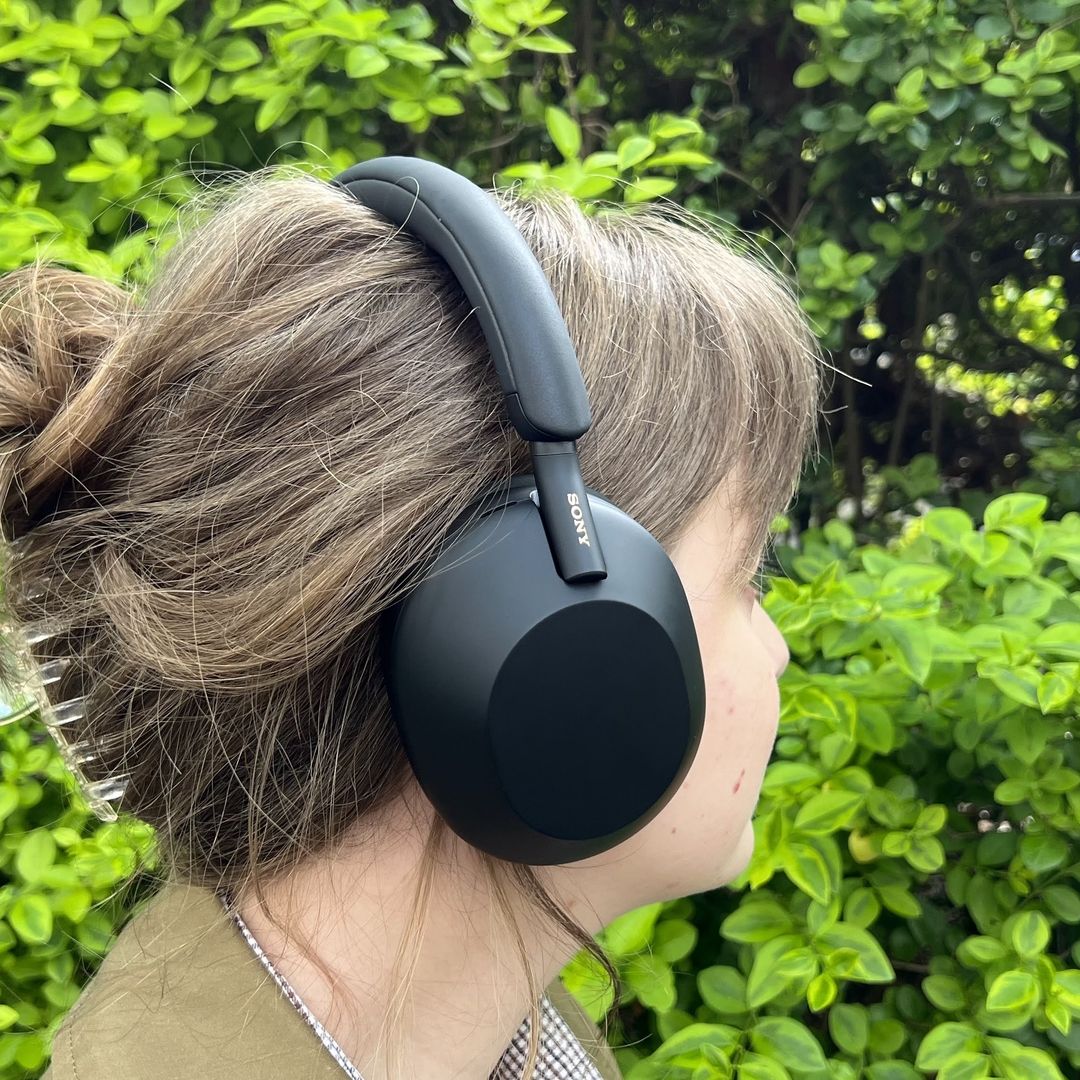
Pair your WH-1000XM5 to an iPhone using Bluetooth in seconds via Settings → Bluetooth; use the Sony app for extras.
I’ve paired Sony headphones with iPhones for years, and I’ll walk you through exactly how to connect Sony headphones to iPhone WH-1000XM5. This guide covers every step, wired and wireless options, app setup, codec limits, troubleshooting, and real tips from hands-on testing. Read on to get a fast, reliable connection and the best audio experience from your WH-1000XM5 and iPhone.

Quick pairing (Bluetooth): the fastest route
Pairing is simple. Turn on the WH-1000XM5 and put them in pairing mode. On your iPhone, open Settings, tap Bluetooth, find WH-1000XM5, and tap to connect. Use the Sony Headphones Connect app for firmware updates and sound settings.

Step-by-step: how to connect sony headphones to iphone wh-1000xm5 via Bluetooth
- Power on the headphones
* Press the power button on the right earcup until the indicator lights blink and you hear the voice prompt. The headphones enter pairing mode automatically the first time they power on. - Open iPhone Bluetooth settings
- Tap Settings → Bluetooth. Make sure Bluetooth is on.
- Select the headphone name
- Under Other Devices tap WH-1000XM5. Wait until it shows Connected.
- Confirm audio output
- Open Music or YouTube and play audio. Swipe down or up (Control Center) and confirm the output shows WH-1000XM5.
- Install Sony Headphones Connect
- Open the App Store and install Sony Headphones Connect to enable EQ, noise-canceling modes, and firmware updates.
I tested this method with an iPhone 13 and iPhone 14. Pairing was instant in most cases. If it fails, follow the troubleshooting section below.
Wired connection: when Bluetooth isn’t ideal
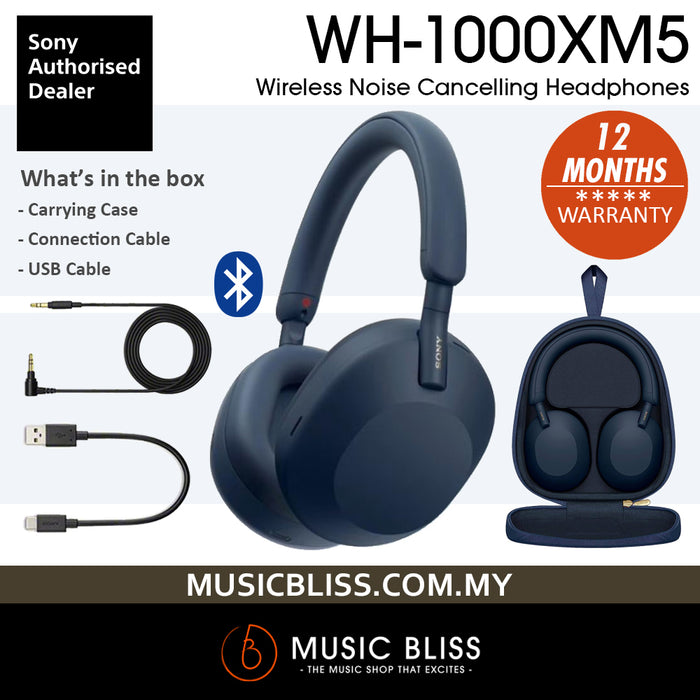
If you need a wired connection, the WH-1000XM5 supports analog input via its included audio cable. Since iPhones lack a 3.5mm jack, use one of these:
- Lightning to 3.5mm adapter
- Apple’s Lightning to 3.5mm adapter works well. Plug the adapter into the iPhone, then connect the headphone cable.
- USB-C to 3.5mm (for future USB-C iPhones)
- If you use a USB-C iPhone model, use a USB-C to 3.5mm cable or adapter.
Wired mode can cut latency for video and provide a simple fallback if Bluetooth struggles.

Settings, codecs, and app features to know
The iPhone supports AAC and SBC Bluetooth codecs. It does not support Sony’s LDAC or aptX on iOS. This affects top-end wireless quality.
- Use AAC for the best iPhone wireless sound.
- Open Sony Headphones Connect to:
- Update firmware
- Set noise-canceling modes and adaptive sound
- Customize EQ and sound presets
- Use Control Center for quick output switching
- Tap the AirPlay icon to swap between iPhone speakers, WH-1000XM5, or other devices.
In my experience, AAC gives clean sound. Expect better control when you use the Sony app.

Troubleshooting: common problems and fixes
If you run into issues when trying to learn how to connect sony headphones to iphone wh-1000xm5, try these fixes.
- Headphones won’t appear in Bluetooth
- Turn off Bluetooth on the iPhone, turn it back on, and restart the headphones.
- Headphones pair but no sound
- Check the iPhone audio output in Control Center and ensure WH-1000XM5 is selected.
- Connection drops or stutters
- Move away from crowded Wi‑Fi networks and other Bluetooth devices. Reconnect and try again.
- Forget and re-pair device
- Settings → Bluetooth → tap the i icon next to WH-1000XM5 → Forget This Device, then pair again.
- Factory reset the headphones
- Use the Sony support sequence to reset if nothing else works. This clears pairing lists.
PAA-style question: Why won’t my Sony WH-1000XM5 connect to my iPhone?
- Often Bluetooth needs a restart or the headphone needs a reset. Make sure the headphones are in pairing mode and the iPhone is updated.
PAA-style question: Does WH-1000XM5 use LDAC with iPhone?
- No. iPhones support AAC and SBC. LDAC is not available on iOS, so you’ll get AAC when using Bluetooth.
Advanced tips for best audio and call quality
These tips come from daily use and testing.
- Keep firmware updated
- Updates often improve stability and microphone performance.
- Optimize noise cancellation
- Use the Sony app to switch between noise-canceling and ambient modes.
- Improve call quality
- Position the mic correctly. If calls sound thin, try wired mode or move closer to your phone.
- Use multipoint carefully
- WH-1000XM5 supports multipoint. If you switch between devices often, enable multipoint in the app. Multipoint can cause occasional switching lags.
- Battery and charging tips
- Low battery can reduce Bluetooth reliability. Keep the headphones charged and use fast charge when needed.
From my testing, firmware updates resolved several drop issues. Keep the app installed and check updates monthly.
Frequently Asked Questions of how to connect sony headphones to iphone wh-1000xm5
How do I put WH-1000XM5 into pairing mode?
Press and hold the power button until you hear the voice prompt and the indicator flashes blue. Then open Bluetooth settings on your iPhone and select WH-1000XM5.
Why can’t my iPhone find the WH-1000XM5?
Ensure the headphones are in pairing mode and within range. Restart Bluetooth on the iPhone and power cycle the headphones, then try again.
Will I get LDAC sound on my iPhone with WH-1000XM5?
No. iPhones use AAC and SBC codecs. LDAC is not supported on iOS, so AAC is the highest-quality wireless codec on iPhone.
How do I update WH-1000XM5 firmware from my iPhone?
Install Sony Headphones Connect from the App Store, open the app, connect the headphones, and follow the firmware update prompts in the app.
Can I connect WH-1000XM5 to two devices at once with an iPhone?
Yes, the WH-1000XM5 supports multipoint pairing. Enable multipoint in the app and pair the headphones with both devices. Expect occasional switching delays with multipoint.
Conclusion
You can connect your WH-1000XM5 to an iPhone quickly and reliably using Bluetooth, and the Sony Headphones Connect app makes the experience much better. If Bluetooth gives trouble, use a wired adapter as a solid backup. Keep firmware up to date, use AAC for best wireless sound on iPhone, and follow the troubleshooting steps I shared if pairing fails. Try these steps now and enjoy clear music and worry-free noise cancellation—leave a comment with your model and issue if you need help or subscribe for more tips.

Everett Ashford is a tech reviewer at mytechgrid.com specializing in SSDs, cameras, TVs, earbuds, headphones, and other consumer electronics. He provides honest, data-driven reviews based on hands-on testing and real-world performance analysis. Everett simplifies complex tech details to help readers make smart, confident buying decisions.