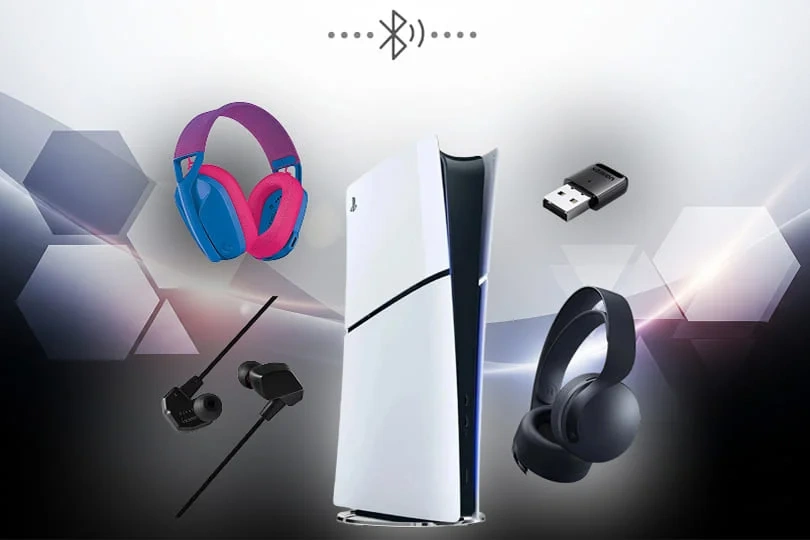
Use a compatible USB Bluetooth transmitter, a wired cable, or a supported USB adapter to connect Bose headphones to PS5.
Learning how to connect Bose headphones to PS5 is simple once you understand one key limit: the console does not support most Bluetooth audio devices directly. This guide explains the best wireless and wired methods, microphone limits, sound settings, common errors, and practical fixes so you can start gaming without guesswork.
Does the PS5 support Bose Bluetooth headphones?
The PS5 does not normally connect to Bose Bluetooth headphones as a standard Bluetooth audio device. You may see your Bose headphones in the console’s Bluetooth accessory search, but the connection often fails because Sony limits regular Bluetooth audio to reduce delay and interference.
This does not mean your Bose headphones are useless for gaming. You can still use them with a USB Bluetooth transmitter, a compatible wireless adapter, the DualSense controller’s headphone jack, or your television’s Bluetooth feature.
When people ask how to connect Bose headphones to PS5, they usually mean one of these Bose models:
• Bose QuietComfort 35 and QuietComfort 45
• Bose QuietComfort headphones
• Bose Noise Cancelling Headphones 700
• Bose Ultra Headphones
• Bose Sport and SoundSport wireless headphones
• Bose gaming headsets with a USB receiver
The exact steps can vary by model. Headphones with a detachable 3.5 mm cable offer the easiest wired option. Models designed only for Bluetooth need a transmitter or another workaround.
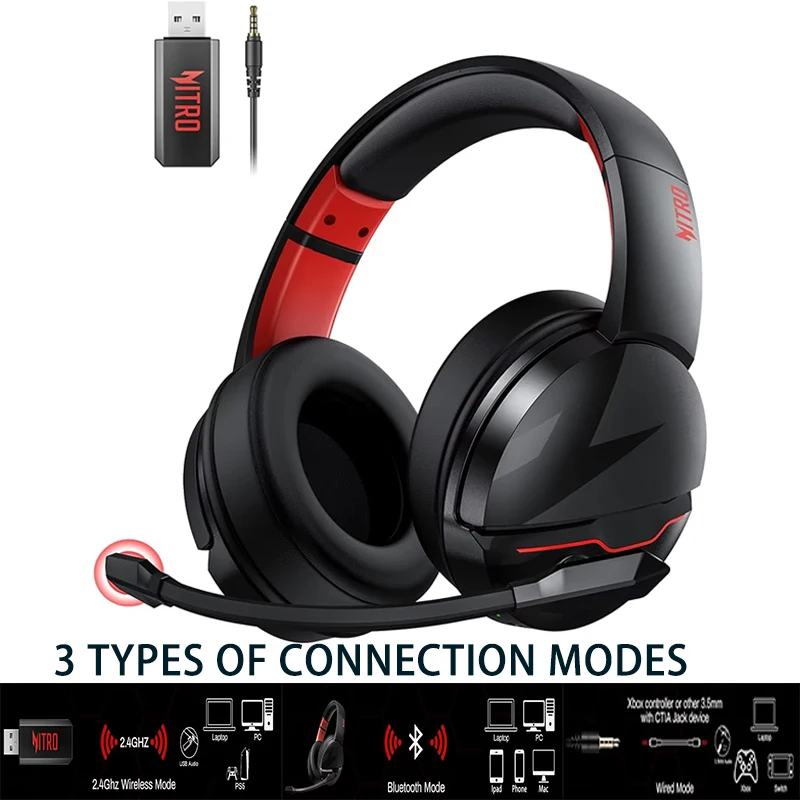
Method 1: Connect Bose headphones to PS5 with a USB Bluetooth transmitter
A USB Bluetooth transmitter is usually the best way to use Bose headphones wirelessly with a PS5. The small adapter plugs into the console and sends game audio to your headphones.
Choose a transmitter made for PS5 or USB audio. A model with low-latency support, such as aptX Low Latency, can reduce the delay between an action and the sound. However, both the transmitter and headphones must support the same low-latency format for it to work.
Steps to pair the headphones
- Turn on your PS5 and open Settings.
- Select Accessories.
- Plug the Bluetooth transmitter into a USB-A or USB-C port on the PS5.
- Put the transmitter into pairing mode.
- Turn on your Bose headphones.
- Press and hold the Bluetooth or power button until the headphones enter pairing mode.
- Wait for the transmitter and headphones to connect.
- Open Settings again and select Sound.
- Choose Audio Output.
- Set the output device to the USB headset or USB audio device.
- Adjust Output to Headphones and volume levels as needed.
Some transmitters pair automatically. Others use a small button or switch. Read the adapter’s instructions if the lights do not flash as expected.
What to expect from this method
This setup can deliver clear game audio without a cable connected to the controller. It works well for story games, sports games, and casual online play.
There are limits. Many USB transmitters send audio only and do not carry microphone input back to the PS5. You may hear other players but need to use the DualSense microphone or a separate USB microphone for voice chat.
A common mistake is buying a regular Bluetooth USB dongle meant for a computer. Many of those adapters do not work as USB audio devices on PS5. Look for a transmitter that clearly states PS5 compatibility.

Method 2: Use a wired connection through the DualSense controller
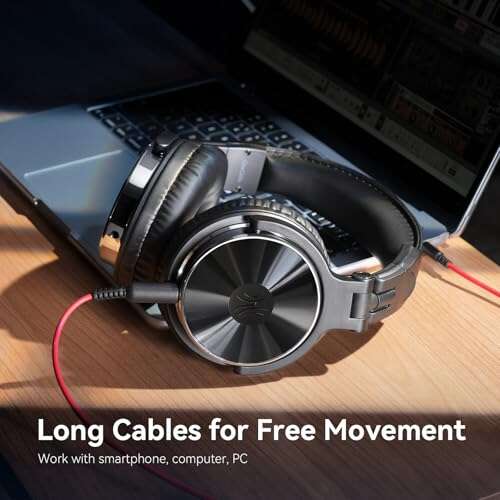
A wired connection is the most reliable way to connect Bose headphones to PS5. It avoids Bluetooth delay and usually provides stable game audio with very little setup.
You need a Bose model with a 3.5 mm audio input and a compatible audio cable. Many QuietComfort headphones include this cable, but some newer models may require you to buy one separately.
Wired setup steps
- Turn on the PS5.
- Connect the 3.5 mm cable to your Bose headphones.
- Plug the other end into the 3.5 mm jack under the DualSense controller.
- Open Settings on the PS5.
- Select Sound, then Audio Output.
- Choose Headphones connected to the controller.
- Set Output to Headphones to All Audio.
- Adjust the volume under Volume.
- Test the sound in a game or the PS5 home screen.
The headphones may work even when powered off because the controller sends an analog audio signal through the cable. Turning the headphones on can still improve sound quality or allow noise cancellation on supported Bose models.
Why wired audio is often better for competitive games
Wireless audio can introduce a small delay. You may notice it when playing a rhythm game, a fighting game, or a competitive shooter. A wired connection keeps sound closely aligned with on-screen action.
The cable also avoids pairing problems, battery drain, and wireless interference. In my recommended gaming setups, wired audio is still the first choice when timing matters more than convenience.
The main drawback is movement. The cable runs from your head to the controller, so it may feel less comfortable during long sessions. A short, flexible cable can make this setup easier to manage.

Method 3: Connect Bose headphones through your TV
If your TV supports Bluetooth audio, you may be able to connect Bose headphones to the television instead of the PS5. The console sends game audio to the TV through HDMI, and the TV sends that sound to the headphones.
This method is useful when you want a wireless connection without buying a PS5 USB transmitter.
How to pair Bose headphones with a TV
- Turn on the TV and PS5.
- Switch the TV input to the HDMI port used by the PS5.
- Put the Bose headphones into pairing mode.
- Open the TV’s Bluetooth or Sound settings.
- Select your Bose headphones from the device list.
- Confirm the connection.
- Play a game and adjust the TV or headphone volume.
TV menus differ by brand. Look for names such as Bluetooth Speaker List, Sound Output, Wireless Speaker, or Audio Device.
This method may not support PS5 voice chat. The TV receives game sound, but it usually does not send your voice from the Bose headphones back to the console. You may need the DualSense controller microphone or a separate microphone for chat.
Some televisions also add noticeable audio delay. If voices and actions do not match, check the TV’s Game Mode, audio delay, or lip-sync settings. A dedicated USB transmitter is often better for fast games.
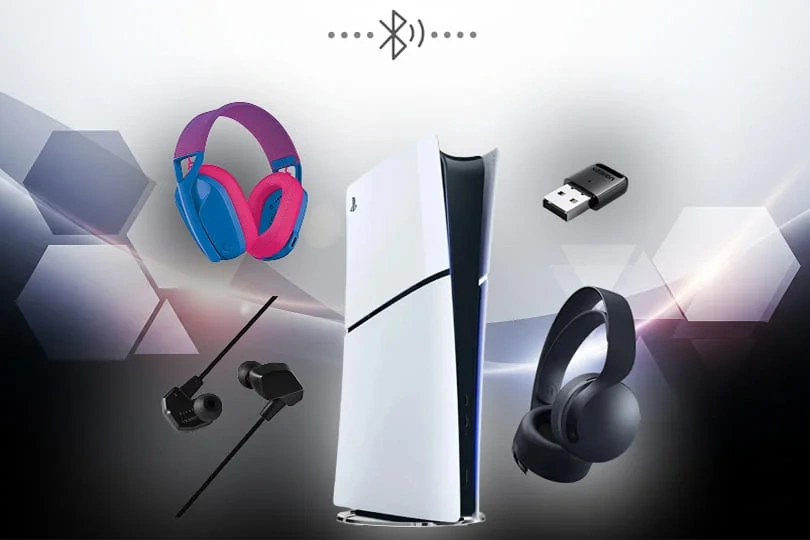
Method 4: Use a Bose gaming headset with its USB receiver
Some Bose gaming headsets or compatible wireless gaming products use a dedicated USB receiver. These products are different from normal Bose Bluetooth headphones because the receiver is built for low-latency console audio.
Connect the receiver to the PS5, then follow the product’s pairing instructions. After that, go to Settings, Sound, and Audio Output to select the USB headset.
A dedicated receiver may support both game sound and microphone chat. This makes it more suitable for multiplayer games than a basic Bluetooth transmitter.
Before buying an adapter, check the product page for these features:
• PS5 support
• USB audio support
• Microphone support
• Game and chat audio
• USB-A or USB-C compatibility
• Low-latency performance
• Support for your Bose model
Do not assume that every Bose wireless headset will work with every receiver. Bluetooth pairing and proprietary wireless pairing are not always interchangeable.

How to adjust PS5 sound settings for Bose headphones
Correct output settings matter as much as the physical connection. Even when your Bose headphones are paired, the PS5 may continue sending sound to the TV.
Open Settings, then select Sound and Audio Output. Choose the device that represents your transmitter, USB receiver, or controller connection.
Useful settings include:
• Output Device: Select the connected Bose audio path.
• Output to Headphones: Choose All Audio for game and system sound.
• Headphones Volume: Raise the level if the sound is too quiet.
• Microphone: Select the DualSense microphone or a supported USB microphone.
• Audio Format Priority: Linear PCM is a safe choice for most headset setups.
• 3D Audio for Headphones: Test this setting and keep it on if it improves positional sound.
PS5 3D Audio can change how footsteps, voices, and effects sound. Bose headphones do not need a special Bose setting for basic 3D Audio, but the result depends on the headset, game, and personal preference.
If the sound feels flat, test both stereo and 3D Audio. A setting that sounds good in a racing game may not sound best in a first-person shooter.
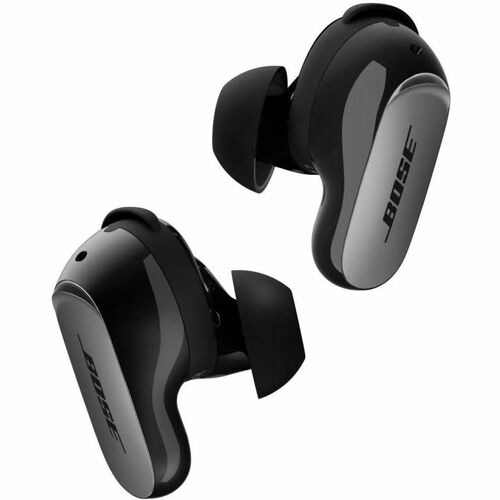
How to use the Bose microphone for PS5 voice chat
Microphone support is the most confusing part of connecting Bose headphones to PS5. Listening and speaking are separate functions, and some adapters support only listening.
A Bose Bluetooth headset may play game audio through a transmitter but fail to send microphone audio to the PS5. This is common with simple transmitters because they act as one-way audio devices.
For voice chat, try these options:
• Use the DualSense controller’s built-in microphone.
• Connect a compatible USB microphone to the PS5.
• Use a USB transmitter that specifically supports microphone input.
• Use a Bose headset with a PS5-compatible wireless receiver.
• Use a wired Bose connection with a cable that supports a microphone, if the model and controller recognize it.
To check the microphone, open Settings, select Sound, and choose Microphone. Select Input Device and speak while watching the input level.
In practice, the DualSense microphone is a useful backup. It is not as clear as a dedicated microphone, but it can handle short party chats without extra hardware.

Common problems when connecting Bose headphones to PS5
Even when you follow the right steps, wireless audio can fail. Most problems come from compatibility, pairing mode, or incorrect output settings.
The PS5 says Bluetooth audio is not supported
This message is normal for many Bose headphones. The PS5 blocks standard Bluetooth audio devices, so use a PS5-compatible USB transmitter, a wired controller connection, or a Bluetooth-enabled TV.
The headphones connect but produce no sound
Check the PS5 output device first. Then confirm that Output to Headphones is set to All Audio. Also raise the headphone volume and make sure the TV is not still selected as the output device.
There is audio delay
Move the transmitter closer to the headphones and remove other Bluetooth devices from the area. If the delay continues, use a low-latency transmitter or connect the Bose headphones with a 3.5 mm cable.
The headphones keep disconnecting
Charge the headphones, restart the PS5, and remove the headphones from nearby phones or computers. Bose headphones may reconnect to a phone automatically, which can interrupt the PS5 connection.
The microphone does not work
The transmitter may support audio output only. Select the DualSense microphone or connect a separate USB microphone. If you need full game and chat support, use a receiver that clearly lists two-way voice support.
The Bose app cannot find the headphones
The Bose Music or Bose Connect app is mainly for managing the headphones. It does not make the PS5 accept standard Bluetooth audio. Pair the headphones with the PS5 transmitter instead of relying on the mobile app.

Tips for the best Bose and PS5 experience
A few small changes can make the setup more stable and comfortable.
• Charge the headphones before pairing them. Low battery power can cause dropouts.
• Turn off Bluetooth on your phone during testing. This prevents automatic reconnection.
• Use the PS5 USB port recommended by the transmitter maker.
• Keep the transmitter away from large metal objects and other wireless devices.
• Update Bose firmware through the Bose app before connecting.
• Update the PS5 system software when an accessory fails to work.
• Test game audio and party chat separately.
• Use a wired cable for competitive games where timing matters.
• Keep the DualSense microphone available as a backup.
• Buy adapters with a return policy in case your Bose model is incompatible.
I have found that many connection problems come from testing too many devices at once. Start with the headphones, the PS5, and one adapter. Once the basic audio works, add a microphone or other accessories.
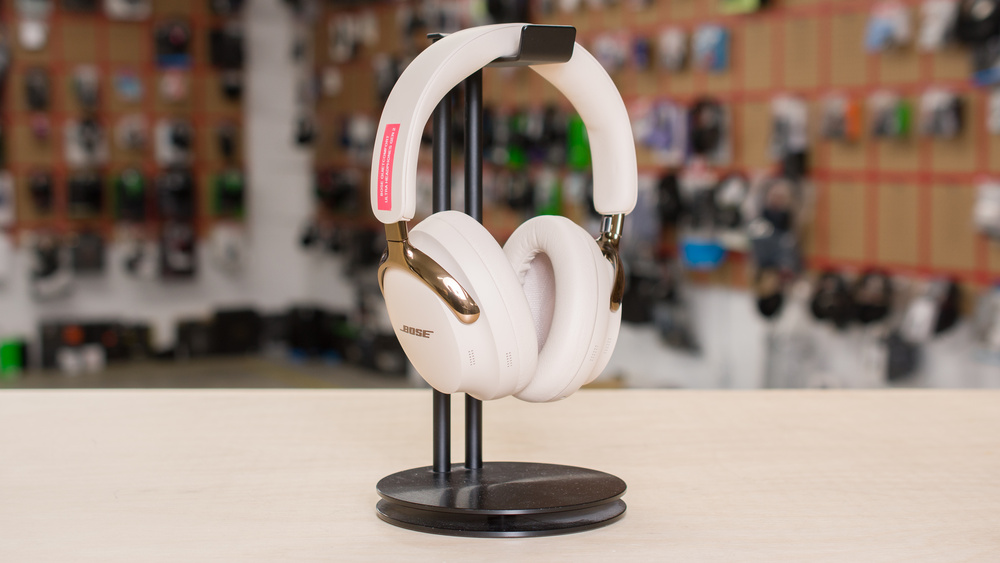
Also, remember that noise cancellation does not remove every gaming sound. Bose noise cancellation can reduce room noise, while the game’s own mix controls footsteps, dialogue, and effects. Adjust both the Bose volume and the PS5 game audio settings.
Which connection method should you choose?
The best method depends on your priorities.
| Connection method | Best for | Main limitation |
|---|---|---|
| USB Bluetooth transmitter | Wireless game audio | Microphone may not work |
| 3.5 mm cable to DualSense | Reliable sound and low delay | Cable limits movement |
| TV Bluetooth | Simple wireless setup | Possible delay and no PS5 chat |
| Dedicated USB receiver | Game audio and voice chat | Costs more and needs compatibility |
| Separate USB microphone | Clear voice chat | Requires another device |
For most users, a USB transmitter is the best wireless answer to how to connect Bose headphones to PS5. For competitive gaming, a wired cable is often the safest choice. For multiplayer chat, a dedicated receiver or separate microphone offers the most complete experience.
Frequently Asked Questions of how to connect bose headphones to ps5
Can I connect Bose headphones directly to a PS5?
Most Bose Bluetooth headphones cannot connect directly to a PS5 because the console does not support ordinary Bluetooth audio. Use a compatible USB Bluetooth transmitter, a wired cable through the DualSense controller, or your TV’s Bluetooth feature.
Why does my PS5 not find my Bose headphones?
The PS5 may detect the headphones but reject them because standard Bluetooth audio is restricted. A PS5-compatible USB transmitter or wired connection solves this limitation.
Can I use Bose headphones for PS5 voice chat?
Yes, but it depends on the connection method. A basic Bluetooth transmitter may provide sound only, while the DualSense microphone, USB microphone, or a compatible two-way wireless receiver can provide voice chat.
Do Bose QuietComfort headphones work with PS5?
Bose QuietComfort headphones can work with PS5 through a 3.5 mm cable, a compatible USB Bluetooth transmitter, or a Bluetooth-enabled TV. The exact features depend on the model and whether you need microphone support.
How do I reduce Bluetooth delay on PS5?
Use a low-latency transmitter that matches your headphone technology, keep the adapter close to the headset, and reduce nearby wireless interference. For the lowest delay, connect the headphones to the DualSense controller with a 3.5 mm cable.
Can I use Bose noise cancellation while gaming on PS5?
Yes. Many Bose headphones can use noise cancellation while receiving audio through a wired cable or wireless connection. Battery-powered models may need to remain switched on for full noise-control features.
Conclusion
Connecting Bose headphones to a PS5 usually requires more than ordinary Bluetooth pairing. A PS5-compatible USB transmitter gives you wireless game audio, while a 3.5 mm cable offers the lowest delay and simplest setup. For voice chat, check microphone support carefully or use the DualSense microphone or a separate USB microphone.
Start with the method that matches your needs, test the PS5 audio output settings, and avoid adapters that do not clearly list PS5 support. Once you know how to connect Bose headphones to PS5, you can enjoy clean sound, better focus, and a more comfortable gaming session. Share your Bose model and setup in the comments if you want to help other players choose the right connection method.

Everett Ashford is a tech reviewer at mytechgrid.com specializing in SSDs, cameras, TVs, earbuds, headphones, and other consumer electronics. He provides honest, data-driven reviews based on hands-on testing and real-world performance analysis. Everett simplifies complex tech details to help readers make smart, confident buying decisions.