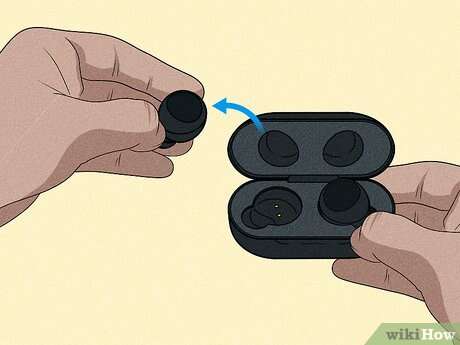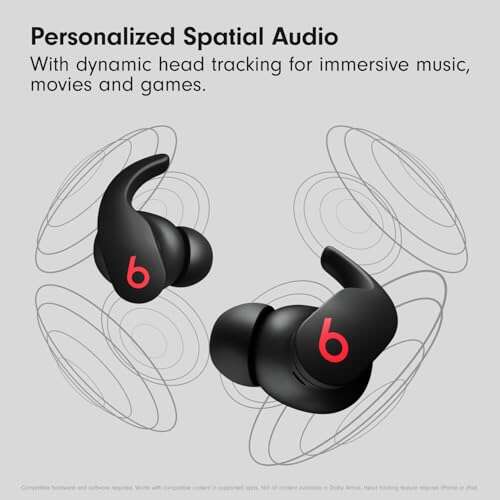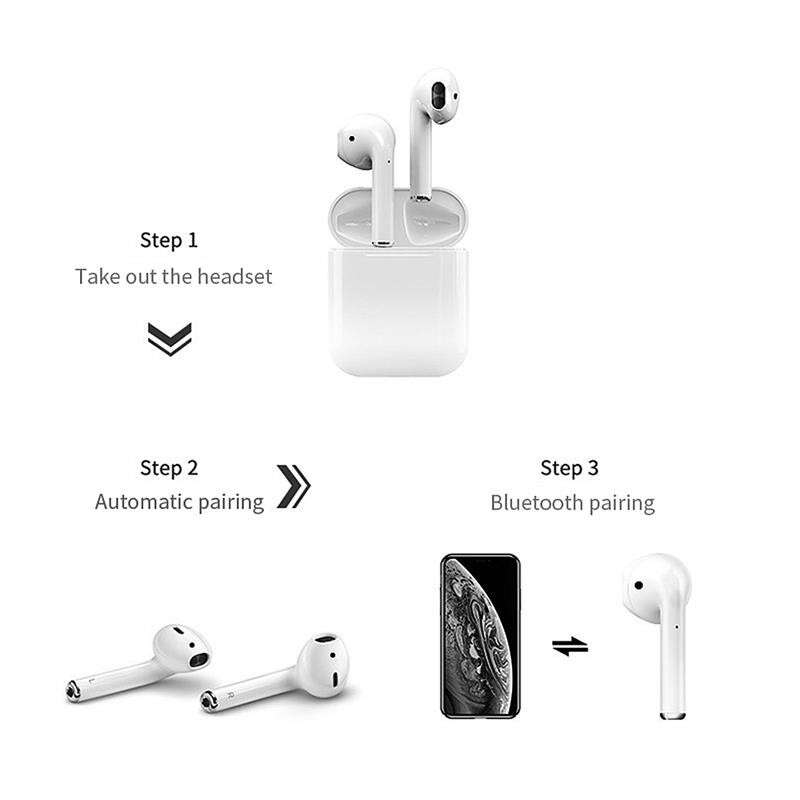
Open Bluetooth on Android, place TWS earbuds in pairing mode, then select them from available devices.
Learning how to connect TWS earbuds to Android is usually simple, but small details can cause trouble. Pairing mode, battery level, Bluetooth settings, and old saved connections all matter. This guide explains the full process in clear steps, along with fixes for connection problems, sound issues, and earbuds that refuse to appear.
What Are TWS Earbuds?
TWS means “True Wireless Stereo.” These earbuds have no cable between the left and right sides, so each earbud connects through a small wireless system. They use Bluetooth to connect with devices such as Android phones, tablets, laptops, and smart TVs.
Most TWS earbuds work with Android phones from many brands, including Samsung, Google Pixel, Motorola, OnePlus, Xiaomi, and Nokia. The menus may look different from one phone to another, but the main Bluetooth steps stay nearly the same.
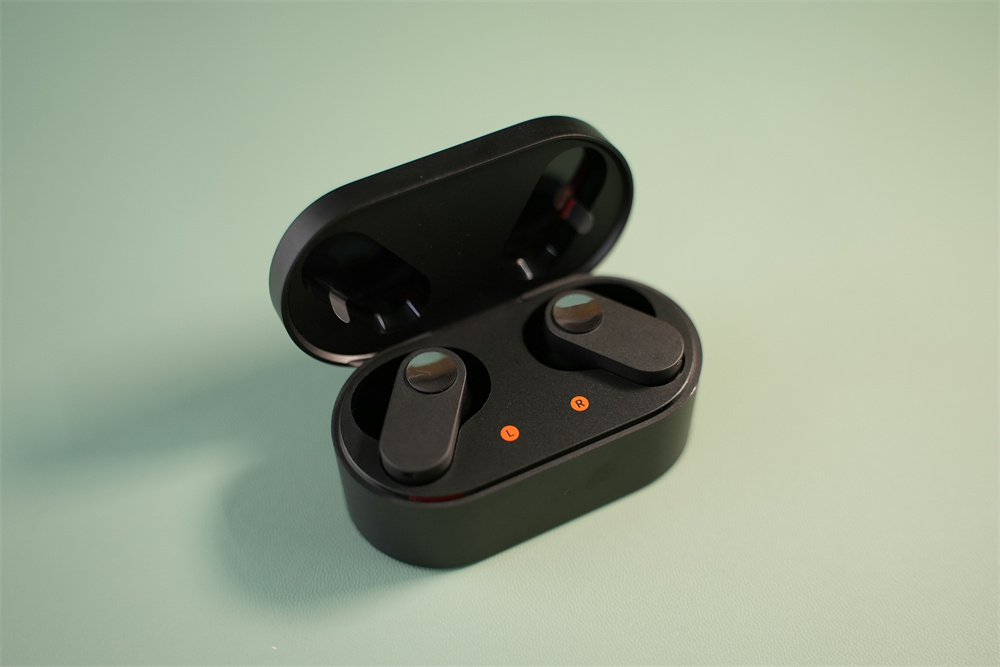
A TWS charging case normally does three jobs:
• Stores the earbuds
• Charges the earbuds
• Helps place the earbuds into pairing mode
Some models enter pairing mode as soon as you open the case. Others require you to press and hold a button on the case or touch both earbuds.

How to Connect TWS Earbuds to Android
Before starting, charge the earbuds and the case for a few minutes. Low power can prevent pairing or cause the connection to drop during setup.
Follow these steps to connect TWS earbuds to Android:
- Place both earbuds inside the charging case.
- Open the case lid.
- Press and hold the case button for a few seconds.
- Watch for a flashing white, blue, or red-and-blue light.
- Unlock your Android phone.
- Open the Settings app.
- Tap Connected devices, Connections, or Bluetooth.
- Turn on Bluetooth.
- Tap Pair new device or Scan for devices.
- Select the name of your TWS earbuds.
- Tap Pair or Confirm if Android shows a pairing request.
- Remove the earbuds from the case and test the sound.
The exact earbud name may include the brand and model number. For example, it may appear as “SoundCore A20,” “Redmi Buds,” or “JBL Tune.” If you see two separate entries for the left and right earbuds, wait before selecting either one. Most TWS models should appear as one combined device.
After pairing, Android usually reconnects to the earbuds whenever Bluetooth is on and the earbuds are removed from the case. If automatic reconnection does not work, open the Bluetooth menu and tap the saved earbud name.

How to Put TWS Earbuds in Pairing Mode
Pairing mode makes the earbuds visible to nearby devices. Without it, your Android phone may scan for Bluetooth devices but fail to find the earbuds.
Most TWS earbuds enter pairing mode in one of these ways:
• Open the charging case while both earbuds are inside.
• Press and hold the button on the charging case.
• Remove both earbuds and touch their controls for several seconds.
• Return the earbuds to the case, close the lid, then open it again.
• Reset the earbuds if they are still linked to another phone.
A flashing light often confirms pairing mode. However, light colors vary by brand. Some earbuds use a voice prompt such as “Pairing” or “Ready to connect.”
If the earbuds connect to someone else’s phone nearby, turn off Bluetooth on that phone for a moment. TWS earbuds often reconnect to the last device they used, much like a key returning to the last lock it opened.
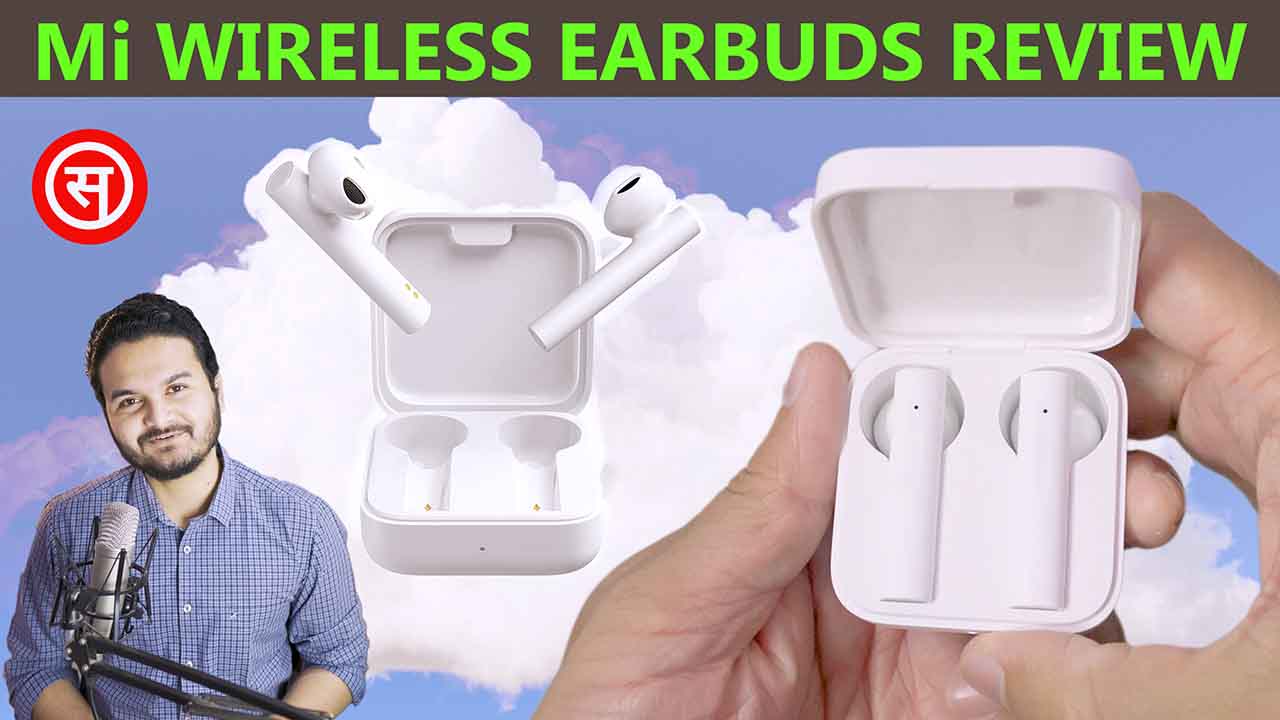
How to Connect TWS Earbuds to a New Android Phone
If your earbuds already connect to another phone, you may need to disconnect them first. Many earbuds can remember several devices but connect to only one device at a time unless they support multipoint Bluetooth.
To move the earbuds to a new Android phone:
- Turn off Bluetooth on the old phone, or move it out of range.
- Put the earbuds into the charging case.
- Open the lid and activate pairing mode.
- Open Bluetooth settings on the new Android phone.
- Tap Pair new device.
- Choose the earbuds from the list.
- Confirm the pairing request.
Some modern earbuds support Google Fast Pair. When supported, a pop-up may appear near the Android phone. Tap Connect and follow the on-screen instructions.
Fast Pair may require Bluetooth and Location to be turned on. Location is used to improve nearby device discovery. It does not mean the earbuds are tracking your physical location.

How to Reconnect TWS Earbuds After Pairing
Once you know how to connect TWS earbuds to Android, reconnecting should be quick. Open the charging case, remove the earbuds, and keep the phone’s Bluetooth turned on.
If they do not reconnect automatically, use these steps:
- Open Settings on your Android phone.
- Tap Connected devices or Bluetooth.
- Find the earbuds under Saved devices.
- Tap the earbud name.
- Wait for the status to change to Connected.
Keep the phone and earbuds within a few feet during reconnection. Walls, crowded wireless areas, and nearby Bluetooth devices can sometimes slow the process.
You can also check the earbud battery level from the Bluetooth menu. Android may show one battery percentage for the set, while some phones show separate levels for the left earbud, right earbud, and charging case.
What to Do If Android Cannot Find TWS Earbuds
If your Android phone does not show the earbuds, do not immediately assume they are defective. The earbuds may be connected to another device, out of battery, or not in pairing mode.
Try these fixes in order:
• Turn Bluetooth off, wait 10 seconds, and turn it on again.
• Restart the Android phone.
• Charge the earbuds and case.
• Keep the earbuds close to the phone.
• Turn off Bluetooth on nearby phones, tablets, and laptops.
• Put the earbuds back into pairing mode.
• Tap Scan or Pair new device again.
• Remove thick protective cases that may block the case button.
• Check whether the earbuds appear under Previously connected devices.
If the earbuds still do not appear, reset them. The reset method depends on the model, but it often involves placing both earbuds in the case and holding the case button for 10 to 15 seconds.
Resetting removes old pairing information. It is often the best solution when the earbuds were connected to a different phone or when the two earbuds are no longer synchronized.

How to Fix TWS Earbuds That Connect but Have No Sound
Sometimes Android shows the earbuds as connected, but audio still plays through the phone speaker. This usually happens because media audio is disabled or another sound device is active.
Check the following settings:
- Open Settings.
- Tap Connected devices or Bluetooth.
- Tap the gear icon beside the earbud name.
- Make sure Media audio is enabled.
- Raise the phone’s media volume.
- Pause audio on other connected Bluetooth devices.
On some Android phones, you can select the audio output from the volume panel. Tap the media output icon and choose the TWS earbuds.
If only one earbud produces sound, place both earbuds in the case and charge them. Then remove both at the same time. If the problem remains, reset the earbuds and pair them again.
Earwax, dust, or moisture can also block the speaker grille. Clean the earbuds gently with a dry, soft brush. Do not push sharp objects into the mesh or pour liquid into the earbuds.

How to Fix TWS Earbuds That Keep Disconnecting
A stable Bluetooth connection depends on distance, battery power, software, and wireless interference. Most Bluetooth earbuds work best when the phone is nearby and there are few obstacles between the devices.
Use these practical solutions:
• Fully charge the earbuds.
• Keep the Android phone within about 30 feet in open space.
• Avoid carrying the phone in a bag surrounded by metal objects.
• Close apps that may control audio or aggressively save battery.
• Install available Android system updates.
• Update the earbud firmware through the brand’s companion app.
• Forget the earbuds and pair them again.
• Reset the earbuds if the problem continues.
Battery Saver or Adaptive Battery settings can sometimes limit background Bluetooth behavior. The names differ by Android version, so check the battery settings if disconnections happen when the screen is off.
Bluetooth uses the 2.4 GHz wireless band, which is also used by many Wi-Fi networks and other devices. Interference is not always the cause, but testing the earbuds in another room can help identify it.
How to Forget and Pair TWS Earbuds Again
Removing an old Bluetooth record often fixes pairing errors. Android may keep outdated information about the earbuds, especially after a firmware update or reset.