You can, but not directly—use a USB Bluetooth adapter, Remote Play, or the controller's wired port.
I’ve spent years fixing audio setups for consoles and testing headsets. This guide explains exactly how to connect Bluetooth earbuds to PS4, why the PS4 blocks most Bluetooth audio, and which practical workarounds work best. Read on for step-by-step instructions, low-latency tips, troubleshooting, and real-world advice so you can enjoy game sound and chat with minimal fuss.
Can you connect Bluetooth earbuds to PS4?
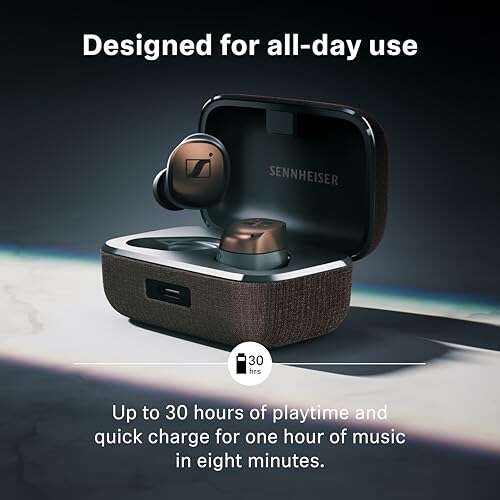
Short answer: the PS4 does not pair with most generic Bluetooth earbuds using its native Bluetooth menu. Sony limited native Bluetooth audio to specific certified headsets. That means typical true wireless earbuds will not show up in the PS4’s Bluetooth devices list. This design prevents wireless interference and ensures chat and game audio sync for supported headsets.
There are reliable workarounds. You can use a compatible USB Bluetooth adapter, PS4 Remote Play, the DualShock 4 wired jack, or route audio through your TV or external transmitter. Each method has trade-offs for latency, mic support, and ease of use. Below I break them down and give step-by-step directions so you can choose the best option for your earbuds and play style.
Best ways to connect Bluetooth earbuds to PS4
Here are the main methods I recommend. Each solves the core problem differently.
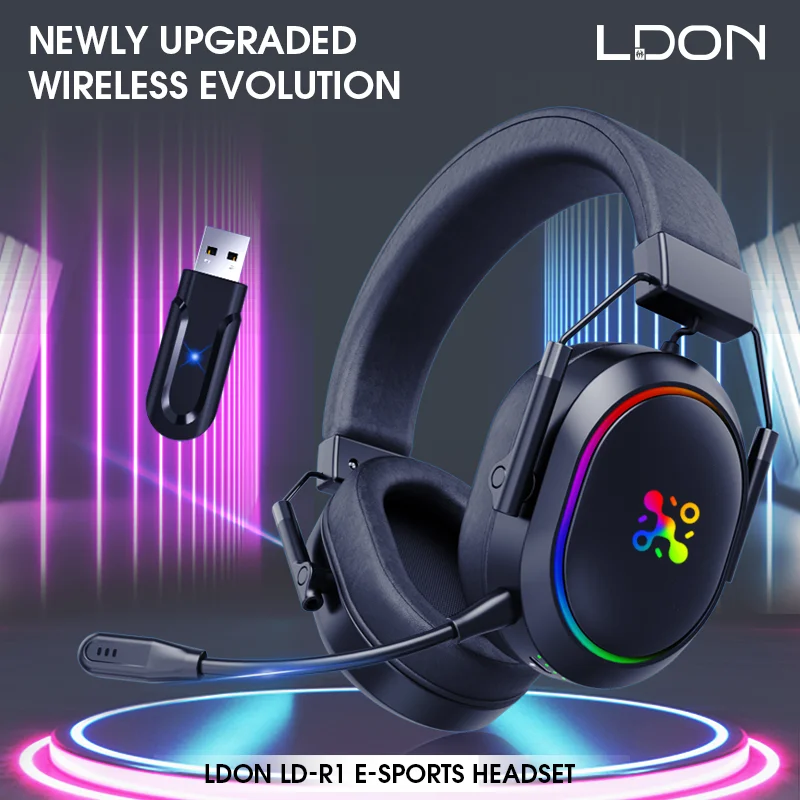
- Use a USB Bluetooth audio adapter plugged into the PS4’s USB port.
Pros: Works directly on the console for game audio. Cons: Mic may not work unless the adapter supports HFP/HSP. - Use the DualShock 4 controller 3.5mm jack with wired earbuds or a TRRS cable.
Pros: Low latency and mic support when using a wired headset. Cons: Not possible if your earbuds are wireless only. - Use PS4 Remote Play on a PC, Mac, Android, or iPhone and pair earbuds to that device.
Pros: Easy pairing and mic support on some devices. Cons: Requires network and may add latency. - Use a Bluetooth transmitter hooked to your TV or optical/line-out.
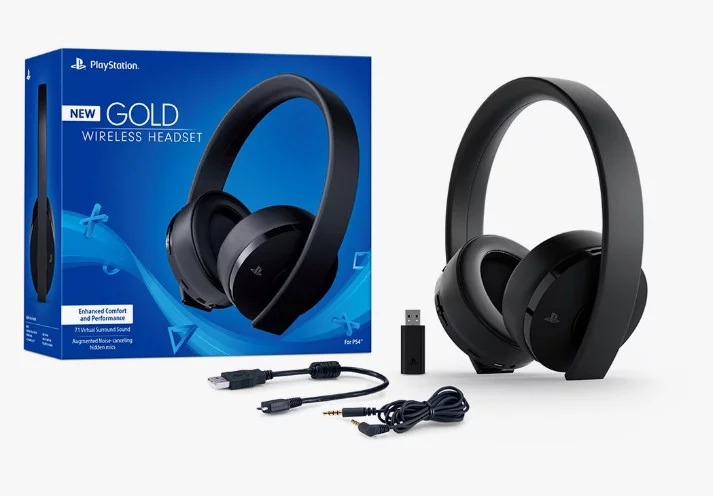
Pros: Works with any console audio output. Cons: Potential lip-sync lag; mic rarely supported. - Buy a PS4-compatible wireless gaming headset.
Pros: Full chat and game audio support with low latency. Cons: Higher cost.
How you connect depends on whether you need in-game voice chat, how sensitive you are to latency, and whether your earbuds support low-latency codecs. Below I explain the most practical options in detail.
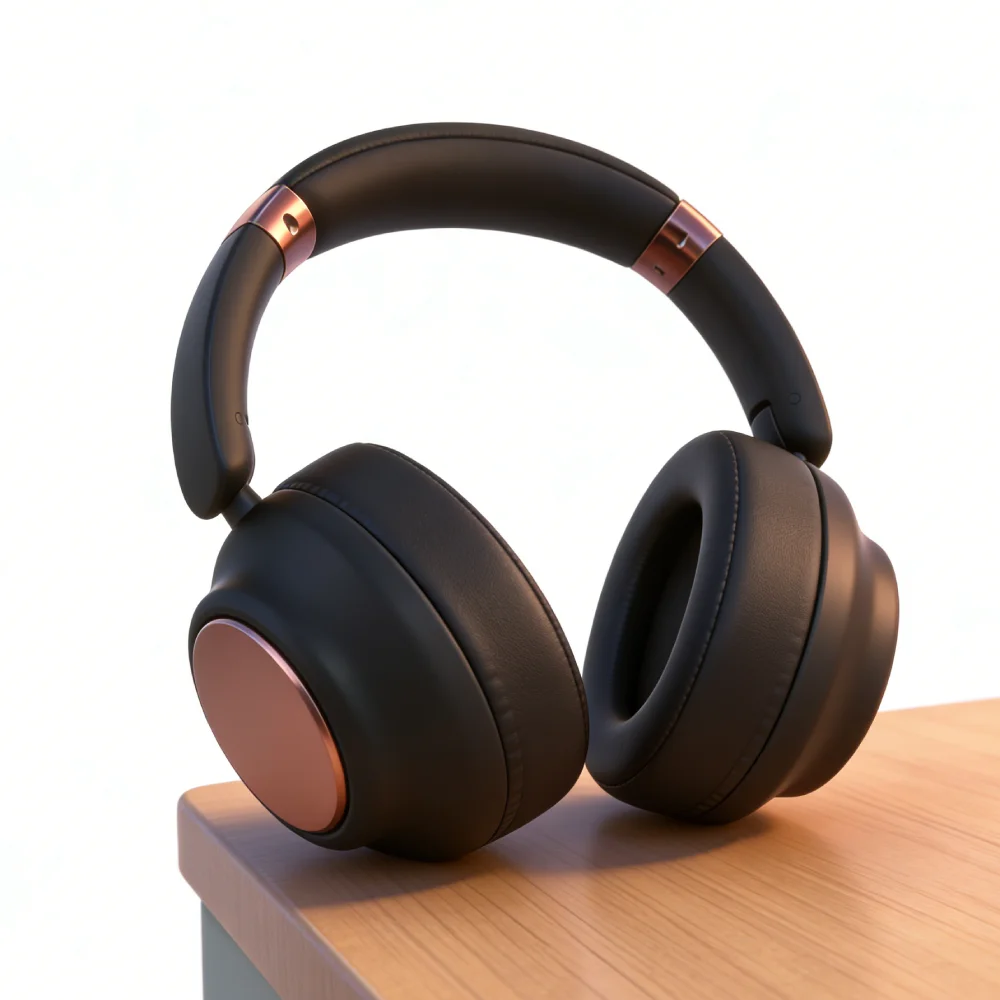
Method 1 — Use a USB Bluetooth adapter (most common for earbuds)
This is the best method for most users who want to use Bluetooth earbuds with PS4 for game audio.
- Choose a USB Bluetooth audio adapter that supports audio sink profiles (A2DP) and, ideally, low-latency codecs if your earbuds support them.
- Plug the adapter into any USB port on the PS4.
- Turn on your earbuds and put them in pairing mode.
- The adapter should automatically enter pairing mode or have a tiny pairing button. Follow the adapter’s pairing instructions.
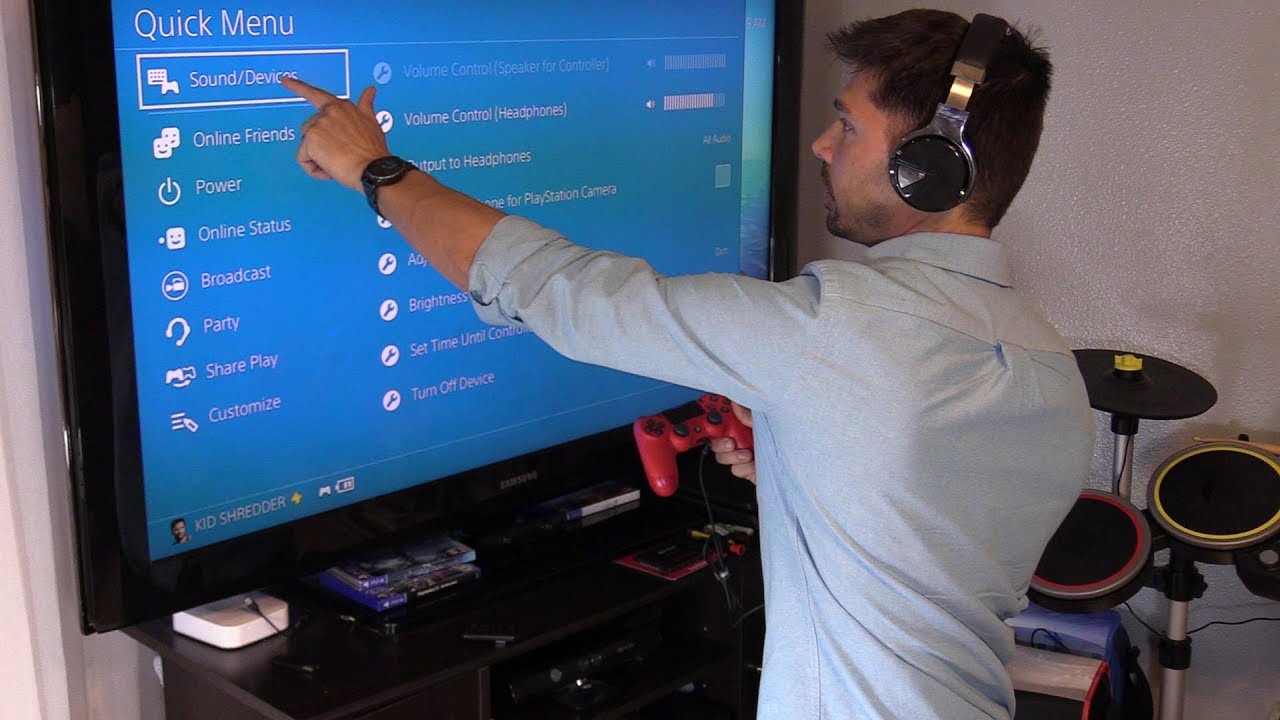
- Once paired, go to Settings > Devices > Audio Devices on the PS4 and set Output Device to USB Headphones (if shown).
- Adjust volume and chat settings as needed.
Notes on mic and chat:
- Many USB adapters only send game audio. Chat mic may not pass through unless the adapter supports HFP/HSP and the PS4 recognizes it. If voice chat matters, test mic support before assuming it will work.
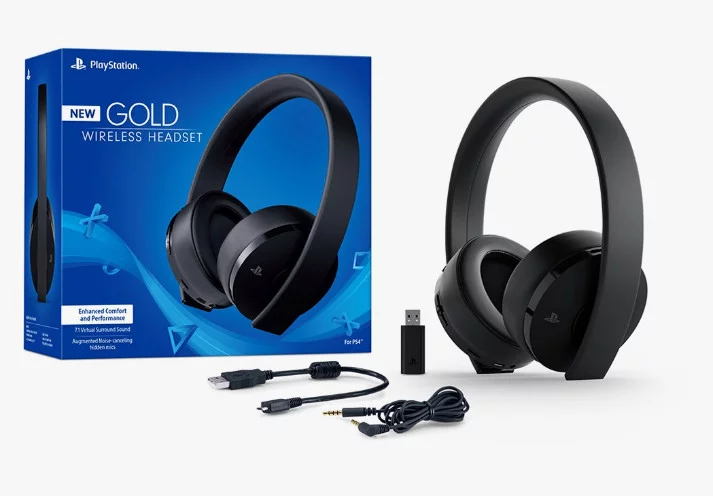
Method 2 — Use the DualShock 4 wired connection (workaround for chat + low latency)
If your earbuds include a cable or you have a wired adapter, this is the simplest low-latency option.
- Plug a 3.5mm TRRS cable into the DualShock 4 controller.
- Plug the other end into your earbuds or an earbud adapter.
- On PS4, go to Settings > Devices > Audio Devices and set Input Device and Output Device to "Headset Connected to Controller."
- Set "Output to Headphones" to All Audio for both game sound and chat.
This gives the lowest latency and supports microphone chat properly. If your earbuds are true wireless only, this method won’t work unless you use a cable-enabled model.
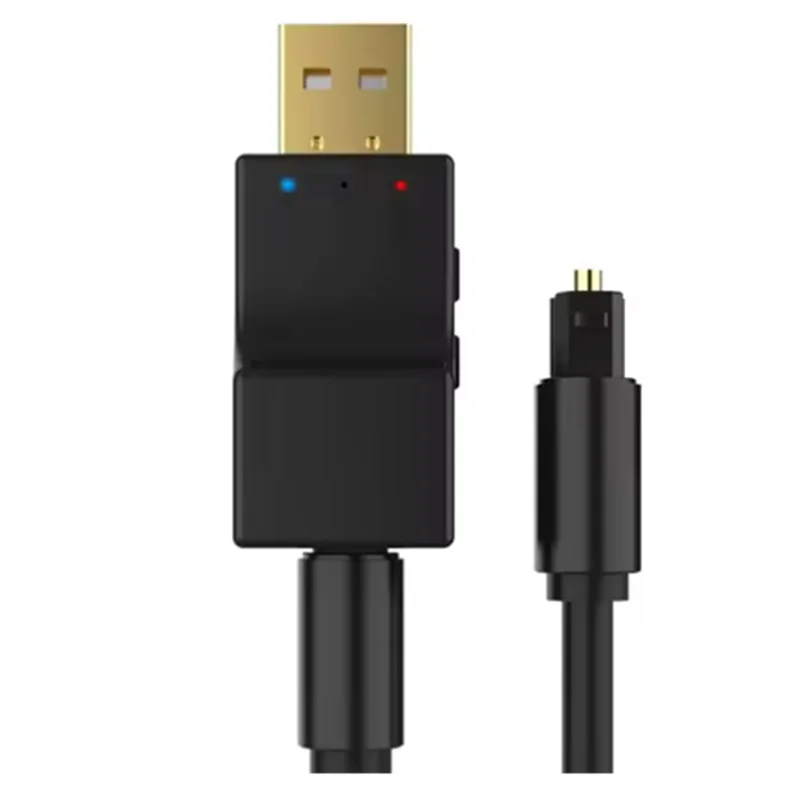
Method 3 — Use PS4 Remote Play (PC or mobile pairing)
Remote Play streams PS4 video and audio to a PC, Mac, or mobile device. You can then use your earbuds paired to that device.
- Install Remote Play on your PC, Mac, Android, or iPhone.
- Pair your Bluetooth earbuds to the PC or mobile device via its native Bluetooth settings.
- Launch Remote Play and connect to your PS4.
- Audio and mic (if configured) will route through the paired device.
This method is handy for mobile play or if you already use a PC. Expect some network-induced latency. Mic support depends on the Remote Play client and device permissions.
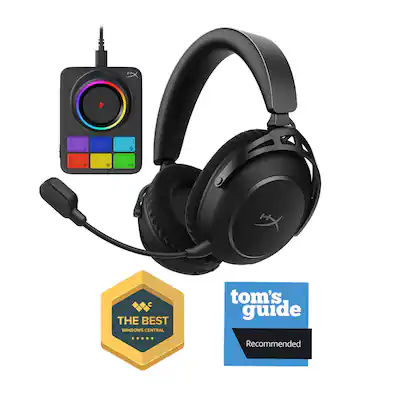
Method 4 — Use a TV or external Bluetooth transmitter
If your TV supports Bluetooth output, you can pair earbuds to the TV and hear PS4 audio that way. Alternatively, plug a Bluetooth transmitter into your TV’s headphone jack, optical out, or the PS4’s line out (via adapter) and pair earbuds to that transmitter.
Pros and cons:
- Works for couch setups where the TV is the audio hub.
- Latency may be noticeable. Chat mic support is rarely available this way.
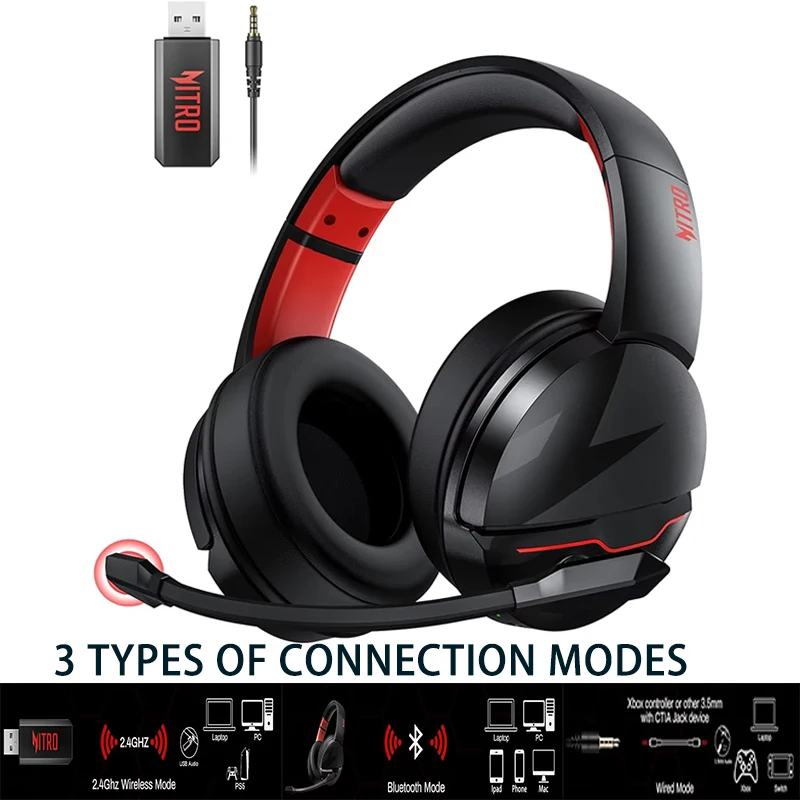
Step-by-step: Pair a USB Bluetooth adapter to PS4 (detailed)
This step-by-step helps avoid common pitfalls when learning how to connect Bluetooth earbuds to PS4.
- Choose the right adapter: pick one labeled “Bluetooth audio transmitter” and note what profiles and codecs it supports.
- Update PS4: make sure your PS4 firmware is up to date to reduce compatibility issues.
- Plug the adapter into a front USB port for easy access.
- Power on your earbuds and enter pairing mode. Consult their manual if unsure how to enter pairing.
- Press the pairing button on the adapter if required. Many adapters will auto-pair.
- Wait for LEDs to indicate a successful connection.
- On PS4 go to Settings > Devices > Audio Devices. Set “Input Device” and “Output Device” as appropriate.
- Test audio in a game and check chat with a friend or party invite.
If the adapter pairs to the earbuds but you get no sound, check PS4 audio settings and ensure the adapter is recognized. If the mic doesn’t work, confirm the adapter supports audio input profile.

Troubleshooting and tips
Here are common problems and fixes based on hands-on testing and user reports.
- No pairing entry on PS4
- Reason: PS4 blocks generic Bluetooth audio. Fix: Use USB adapter or Remote Play.
- No mic in chat
- Reason: Many adapters don’t support headset mic profiles. Fix: Use wired controller or look for adapters explicitly supporting HFP/HSP.
- Latency or audio delay
- Reason: Bluetooth codecs and chain (earbud + adapter) cause lag. Fix: Use aptX Low Latency hardware if both support it, or use wired connection for competitive play.
- One earbud only plays
- Reason: Some TWS earbuds use phone-specific mono/stereo links. Fix: Try resetting earbuds or pair to adapter again; if not, use Remote Play or a different adapter.
- Adapter not pairing with earbuds
- Fix: Reset the earbuds and adapter. Move other Bluetooth devices away. Update earbud firmware if possible.
- Distorted sound
- Reason: Interference or codec mismatch. Fix: Try moving the adapter to a front USB port and avoid USB 3.0 ports near the transmitter.
Practical tip: keep a cheap wired headset as a backup. I always keep one in my PS4 bag for patching in when wireless methods fail.
Latency, codecs, and voice chat explained
Latency is the lag between what happens on-screen and what you hear. Low latency matters for shooters and rhythm games. Bluetooth codecs affect latency and quality.
- SBC: Default codec. Works broadly but can add lag.
- AAC: Better for Apple ecosystems, sometimes lower latency on certain devices.
- aptX and aptX Low Latency: Can reduce lag significantly if both the adapter and earbuds support aptX-LL.
- HFP/HSP: Older headset profiles for voice chat. Needed if you want mic functionality with many USB adapters.
Reality check: even with aptX-LL, total system latency includes the adapter, the earbuds, and the PS4 output path. For zero compromise, wired remains best for competitive play.
My personal experience and lessons learned
Early on, I tried multiple earbuds with my PS4. Generic pairing via Settings never worked. A small USB Bluetooth adapter solved game audio, but the mic failed in parties. Remote Play fixed mic problems when I used my phone as the bridge. I learned to test any adapter with my specific earbuds before relying on it.
Lessons learned:
- Test latency before buying an adapter if you play competitive games.
- Keep a wired fallback for guaranteed mic access.
- Read product specs to confirm HFP/HSP and aptX-LL support when mic and low latency matter.
These practical tips will save you time and money when you try to connect Bluetooth earbuds to PS4.
Frequently Asked Questions of how to connect bluetooth earbuds to ps4
How do I pair Bluetooth earbuds directly with PS4?
You cannot pair most Bluetooth earbuds directly through PS4 Settings. The PS4 only recognizes a small set of certified Bluetooth headsets. Use a USB Bluetooth adapter, Remote Play, or a wired controller connection instead.
Will my earbuds’ mic work with PS4 when using a USB adapter?
Not always. Many USB adapters only send audio (A2DP). For mic support you need an adapter that supports headset profiles (HFP/HSP) and that the PS4 recognizes.
What is the lowest-latency way to use earbuds with PS4?
Wired connection to the DualShock 4 is the lowest-latency option. If you must use Bluetooth, choose an adapter and earbuds that both support aptX Low Latency, though results may vary.
Can I use PS4 Remote Play to route audio to earbuds?
Yes. Pair your earbuds to your phone or PC, then run Remote Play to stream PS4 audio to that device. This often allows mic use and easy pairing, but needs a stable network.
Do Bluetooth transmitters connected to my TV work with PS4?
Yes. Pair earbuds to a Bluetooth transmitter plugged into the TV or an optical converter. This is convenient for TV setups but may introduce lip-sync delay and rarely supports mic.
Conclusion
Connecting Bluetooth earbuds to PS4 is doable, but it requires the right approach. Use a USB Bluetooth adapter for direct audio, the DualShock 4 for wired low-latency and mic support, or Remote Play for flexible pairing. Understand trade-offs: mic support and latency are the main limits. Test your setup and keep a wired headset as a backup.
Take action: pick the method that fits your needs, test it with your earbuds, and share your experience in the comments. If you want, subscribe for hands-on reviews and recommended adapters that work well with PS4.

Everett Ashford is a tech reviewer at mytechgrid.com specializing in SSDs, cameras, TVs, earbuds, headphones, and other consumer electronics. He provides honest, data-driven reviews based on hands-on testing and real-world performance analysis. Everett simplifies complex tech details to help readers make smart, confident buying decisions.