The safest way to destroy an SSD is to erase its data securely, then use certified physical destruction when needed.
Knowing how to destroy an SSD is important when the drive holds private files, business records, passwords, or customer data. SSDs also behave differently from hard disk drives, so methods that work on magnetic drives may leave recoverable data behind on flash memory.
This guide explains how to destroy an SSD safely, legally, and with minimal risk. It covers secure erasure, encryption, failed drives, physical destruction services, environmental rules, and common mistakes to avoid.
Why destroying an SSD is different
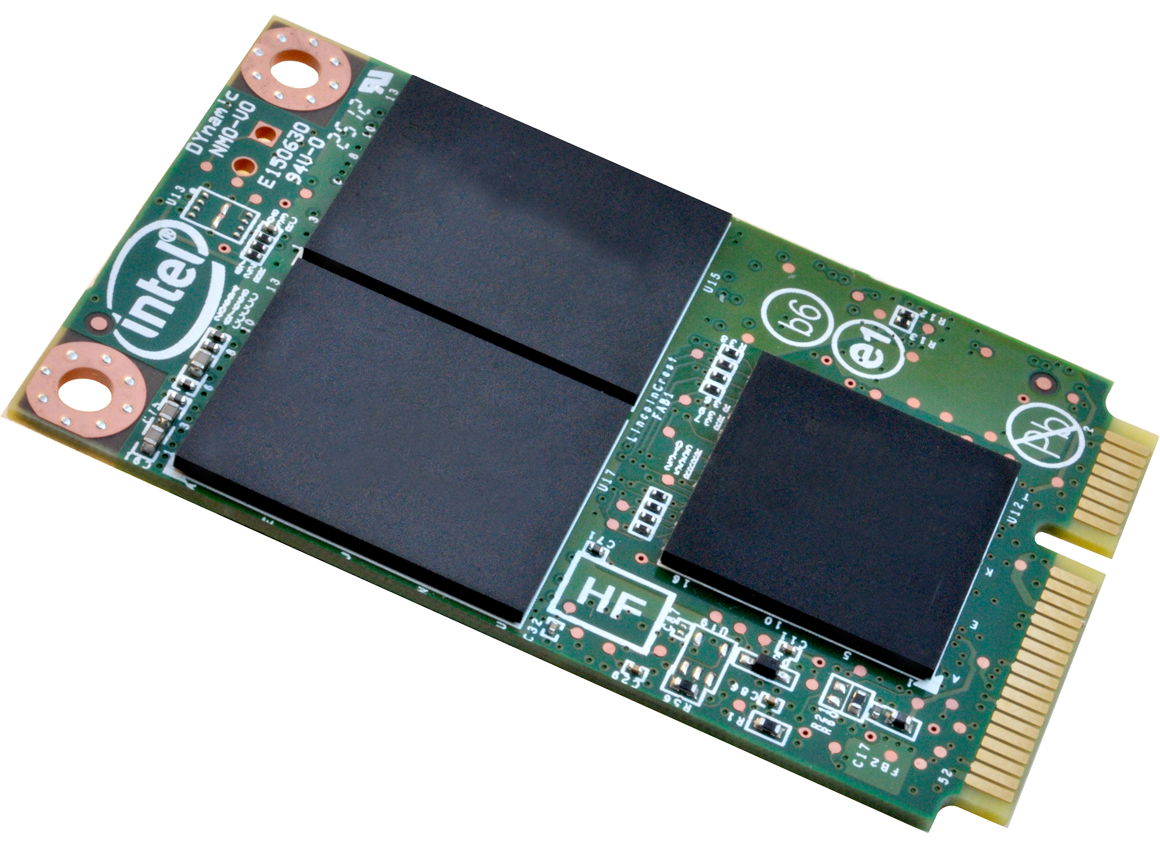
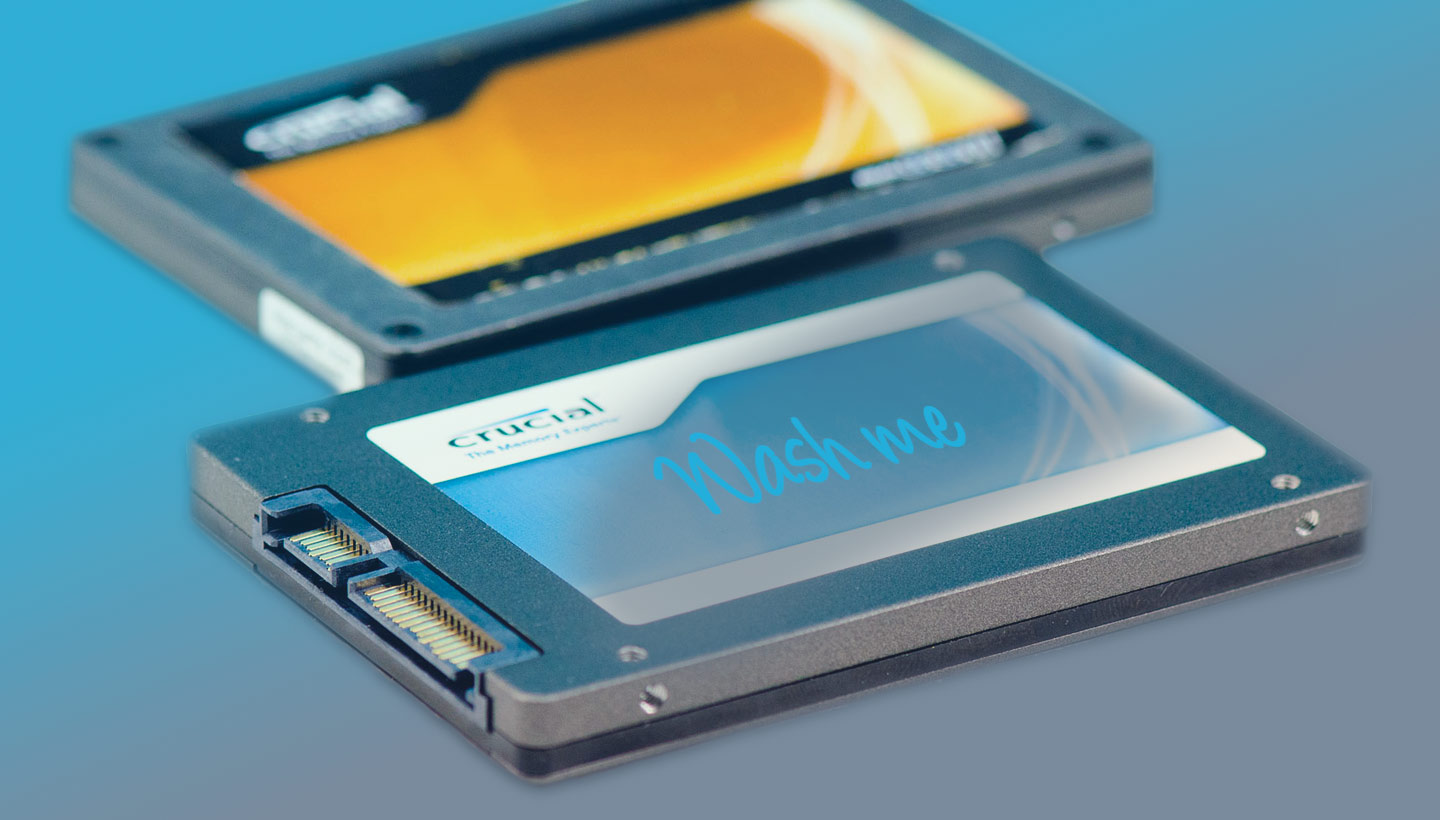
An SSD stores data on NAND flash memory chips. Unlike a hard drive, it has no spinning platter or magnetic surface. It also uses a controller that moves data between memory cells through a process called wear leveling.
Wear leveling helps extend drive life. However, it creates a challenge when learning how to destroy an SSD. A normal file deletion may remove the file’s name while leaving older data in other flash cells.
SSDs may also use:
• Overprovisioned space that users cannot normally access
• Spare memory cells used to replace worn cells
• A flash translation layer that maps logical data to physical cells
• Garbage collection that moves and cleans data in the background
• TRIM commands that mark blocks for future cleanup
Because of this design, deleting files or formatting the drive may not fully remove sensitive information. The correct method depends on whether the SSD still works, whether it is encrypted, and how sensitive the data is.
Choose the right level of destruction
Before deciding how to destroy an SSD, identify the value and sensitivity of the data. Destroying a drive is permanent, so first confirm that you have copied anything you still need.
A personal drive with ordinary photos may need a different process from a drive that stores medical records, financial data, or company credentials.
Use this simple guide:
• Low-risk data: Use a manufacturer-approved secure erase tool.
• Sensitive personal data: Use secure erase plus full-drive encryption when possible.
• Business or regulated data: Follow your organization’s media sanitization policy.
• A failed SSD with sensitive data: Use a certified data destruction provider.
• Extremely sensitive data: Use verified physical destruction and obtain a certificate of destruction.
The National Institute of Standards and Technology recommends choosing a sanitization method based on the sensitivity of the information and the future use of the storage device. That approach is more reliable than using the same method for every SSD.

Back up data before you destroy the SSD
The first step in how to destroy an SSD is checking whether the drive contains anything you need. Secure erasure cannot usually be reversed.
Make a backup before starting. Store it on a trusted external drive or an encrypted cloud service. Then open several files from the backup to make sure they work.
Check these areas before erasing:
• Documents and photos
• Password manager vaults
• Browser profiles and saved bookmarks
• Cryptocurrency wallets
• Email archives
• Software license keys
• Work files and customer records
• Recovery codes and two-factor authentication backups
If the SSD is inside a computer, also check whether the operating system, recovery partition, or software activation data is needed. A common mistake is wiping the only copy of a file while assuming it exists somewhere else.
A practical lesson from IT work is simple: never begin data destruction until the backup has been tested. A backup that cannot open is not a backup; it is only another copy of the problem.
Securely erase a working SSD
If the SSD still works, secure erasure is usually the best first option. The goal is to use a command designed for the drive’s own controller instead of repeatedly overwriting the disk with ordinary software.
Look for one of these options:
• Secure Erase in the SSD manufacturer’s utility
• Sanitize in the SSD manufacturer’s utility
• NVMe Format with secure erase settings
• A BIOS or UEFI storage sanitization tool
• A trusted enterprise storage management tool
The exact steps vary by brand and interface. SATA SSDs often use ATA Secure Erase. NVMe SSDs commonly support Format or Sanitize commands.
A safe process looks like this:
- Confirm the exact SSD model and interface.
- Back up all needed data.
- Connect the computer to reliable power.
- Read the manufacturer’s instructions.
- Run the correct Secure Erase or Sanitize command.
- Wait until the tool reports success.
- Shut down the system and verify that no usable data remains.
Do not interrupt the process unless the manufacturer says it is safe. Losing power during a firmware-level operation can leave the drive in an unusable state.
Avoid random “SSD eraser” programs that promise guaranteed results without explaining which command they use. A trustworthy tool should identify the drive, show the sanitization method, and provide a clear completion status.
Use encryption as an extra layer
Full-disk encryption can make data unreadable even if some flash cells are not cleared perfectly. It is not always a replacement for secure erasure, but it is a strong extra safeguard.
Common encryption options include:
• BitLocker on supported Windows systems
• FileVault on macOS
• Linux full-disk encryption with LUKS
• Hardware-based self-encrypting drive features
The key point is key destruction. If the SSD was encrypted from the start and the encryption key is securely removed, the remaining data becomes practically useless without that key.
However, encryption has limits. If the drive was not encrypted before old files were written, enabling encryption later may not protect every earlier copy. For highly sensitive information, use encryption together with an approved sanitization method or physical destruction.
When researching how to destroy an SSD, remember that “encrypted” does not automatically mean “destroyed.” It means the data is protected by a key. Secure destruction must address both the data and the key.
What to do with a failed SSD
A failed SSD creates the hardest data destruction problem. If the drive is not detected, software tools may not be able to send a secure erase command.
Do not repeatedly connect a failing drive if it contains valuable data. Repeated power cycles can worsen a hardware fault and may make professional recovery more difficult.
For a failed SSD, consider these options:
• Contact the manufacturer if the drive is under warranty.
• Ask a professional data destruction company for a chain-of-custody process.
• Request physical destruction if recovery is not needed.
• Ask for a certificate showing the drive was destroyed.
• Recycle the remains through an approved electronics recycler.
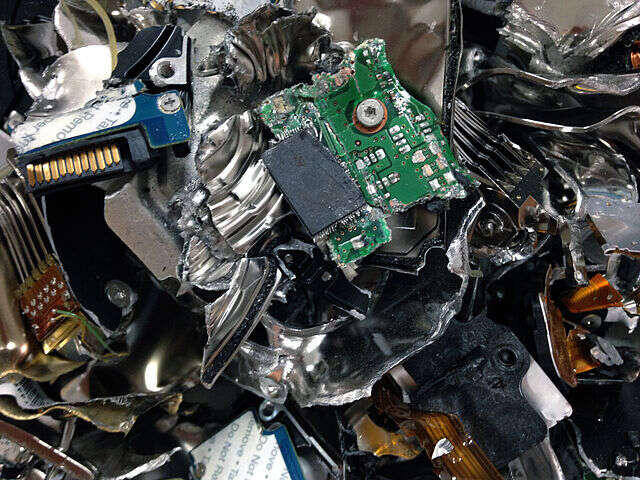
Some companies use industrial shredders that reduce storage devices to small pieces. Others use controlled disassembly and destruction of the NAND memory chips. The provider should explain its process and confirm that the memory components, not just the outer case, were destroyed.
Breaking only the connector or removing the casing is not enough. The NAND chips are the important parts because they hold the stored data.
Physical destruction methods and safety
Physical destruction is appropriate when the SSD cannot be securely erased or when the information is extremely sensitive. The safest choice for most people is a certified destruction service.
Professional providers may use:
• Industrial shredding
• Crushing
• Disintegration
• Controlled drilling or punching
• Destruction of the NAND flash packages
• Verified recycling after destruction
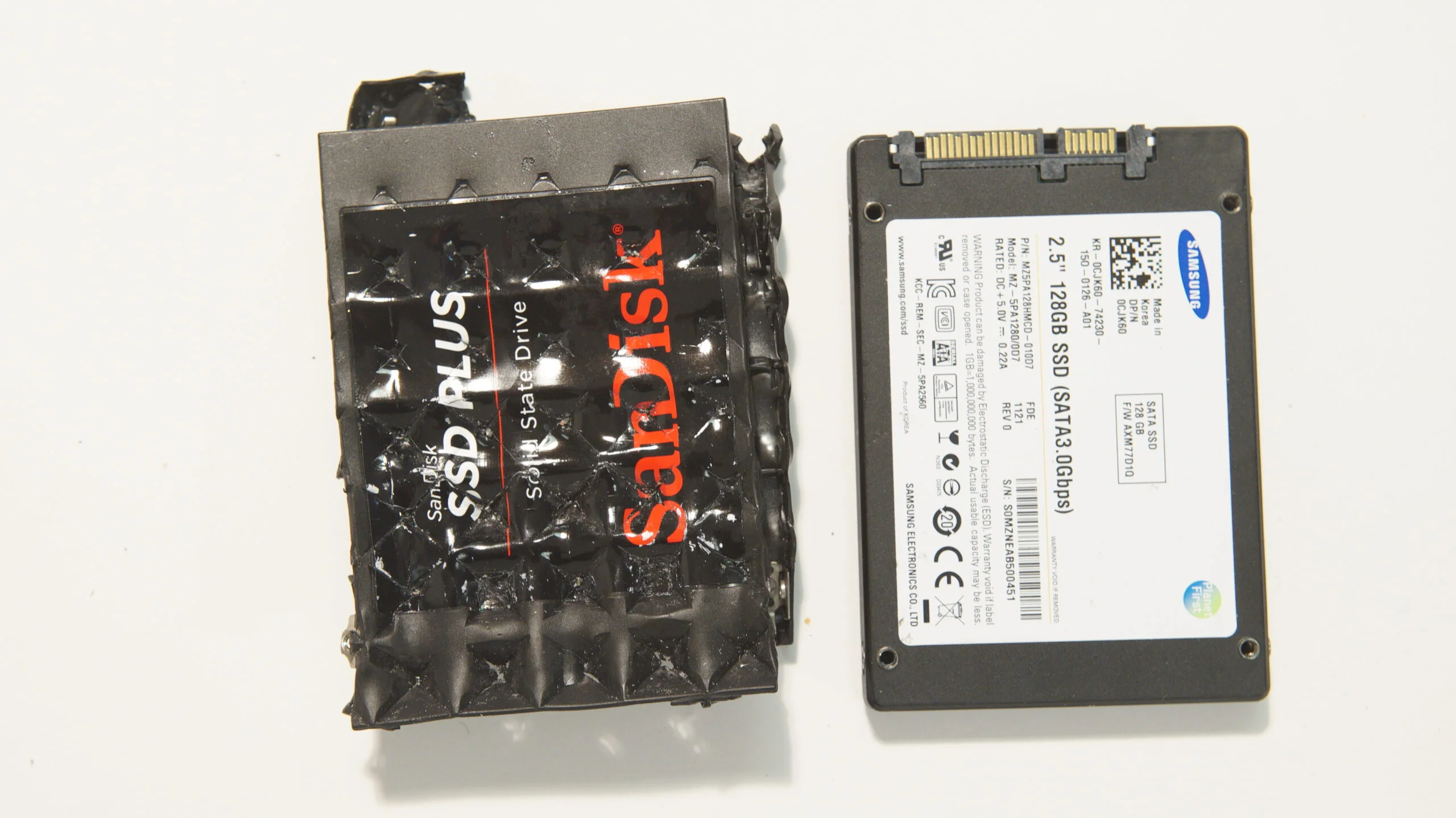
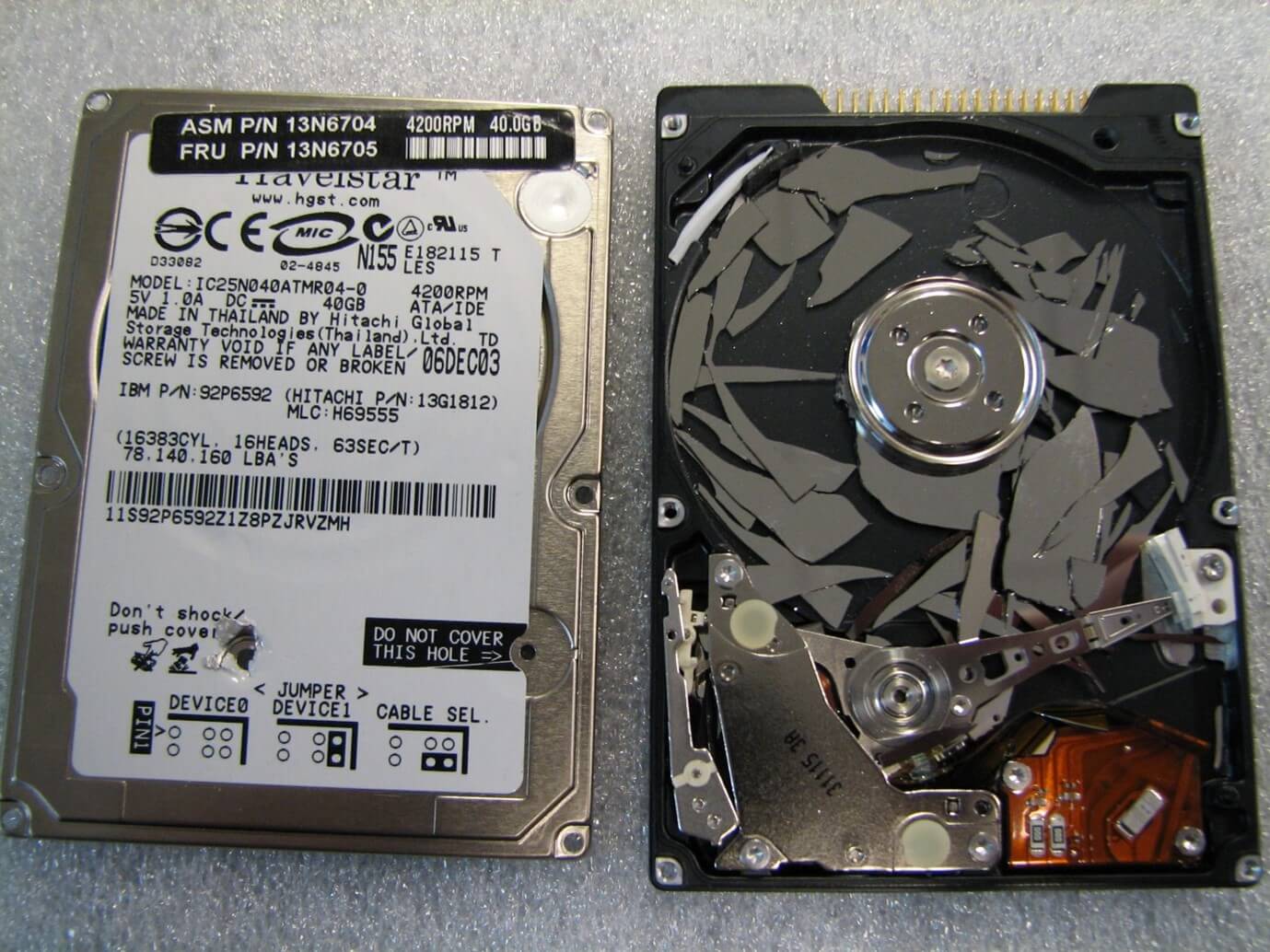
Avoid unsafe household methods. Do not burn an SSD, place it in a microwave, use chemicals, or throw it into a fire. These actions can cause toxic fumes, burns, fires, electrical hazards, and environmental contamination.
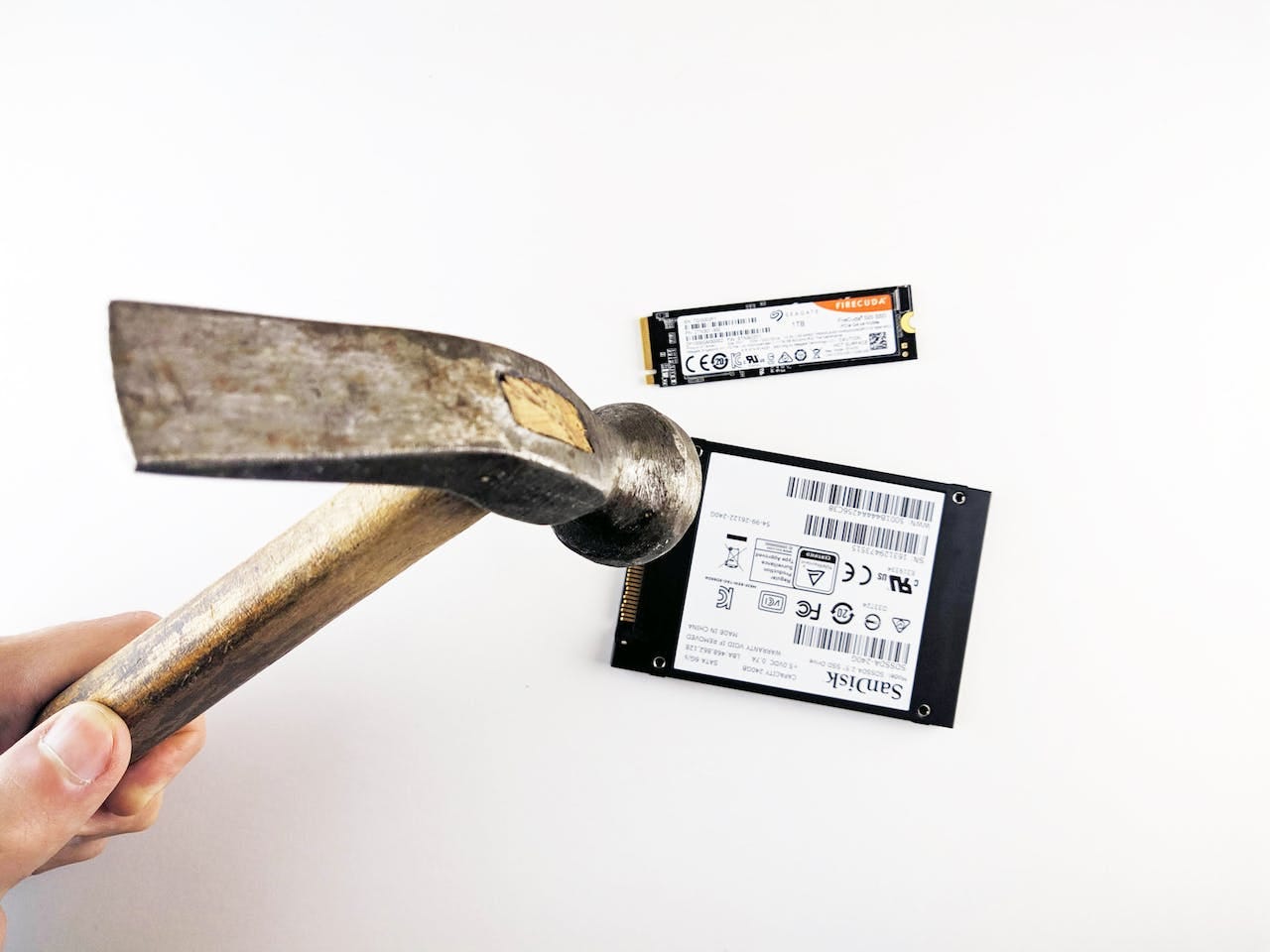
Using a household drill or hammer can also create sharp fragments and airborne material. It may damage the outside of the SSD while leaving the memory chips readable. If physical destruction is necessary, a professional service is safer and more reliable.
If you must handle a damaged drive before recycling it, wear protective gloves, avoid opening swollen or burned devices, and keep the drive away from moisture and heat. Lithium batteries are not normally built into standard internal SSDs, but portable external SSDs may contain battery components or other electronics that require special handling.
How to verify that an SSD was destroyed
A secure process should include proof. This matters for businesses, schools, clinics, government offices, and anyone handling regulated data.
For software erasure, keep:
• The drive model and serial number
• The date and time of sanitization
• The tool used
• The sanitization command used
• The completion or verification report
• The name of the person who performed the task
For physical destruction, request:
• A certificate of destruction
• The drive serial number
• The destruction date
• The destruction method
• The company’s contact details
• Recycling or disposal records
A photo of a broken SSD is not always enough. A picture may show a damaged case while leaving the NAND chips intact. Verification should focus on the parts that store the data.
For high-risk data, use two-person approval and a written chain of custody. These controls reduce mistakes and make it easier to show that the destruction process was complete.

Common mistakes to avoid
Many failed attempts at how to destroy an SSD come from treating it like an old hard drive. The most common mistakes are simple but important.
Avoid these errors:
• Relying on ordinary file deletion
• Using a quick format as the only step
• Running many random overwrite passes
• Destroying only the USB or SATA connector
• Assuming a dead SSD contains no recoverable data
• Forgetting hidden partitions and overprovisioned space
• Removing encryption without securely handling the key
• Sending a sensitive drive to an unknown recycler
• Skipping the backup check
• Failing to record the drive’s serial number
Repeated overwriting is also not always the best answer for SSDs. Wear leveling may prevent software from addressing every physical flash cell. A controller-level Sanitize or Secure Erase command is generally more suitable when the drive supports it.

How to destroy an SSD responsibly
Data destruction should protect more than privacy. It should also protect people and the environment.
Electronics contain materials that should not go into household trash. Use an electronics recycling program that accepts SSDs and follows local rules. Businesses should choose vendors that document responsible recycling after sanitization or destruction.
A responsible workflow is:
- Identify the SSD and its owner.
- Confirm that the data is no longer needed.
- Back up required files.
- Select software sanitization or physical destruction.
- Record the method and serial number.
- Verify completion.
- Recycle the remaining electronics properly.
This process creates an audit trail and reduces the chance of accidental data exposure. It also prevents useful materials from ending up in a landfill.
Frequently Asked Questions About How to Destroy an SSD
Is formatting an SSD enough to destroy the data?
No. A quick format usually removes file-system information but may leave data in flash memory. Use the manufacturer’s Secure Erase, Sanitize, or approved NVMe format process instead.
Does deleting files destroy an SSD’s data?
No. Deleting files normally marks their space as available for reuse. Some deleted information may remain in flash cells until the SSD controller cleans or replaces those blocks.
Is drilling an SSD enough to destroy it?
Not always. Drilling through the case or connector may leave the NAND memory chips intact. For sensitive data, use verified destruction that targets the storage chips or hire a certified destruction provider.
Can a dead SSD still contain recoverable data?
Yes. A failed controller does not necessarily erase the NAND flash memory. If the data is sensitive, treat a dead SSD as if it still contains the full contents.
Is physical destruction better than secure erasure?
It depends on the situation. Secure erasure is suitable for many working drives, while physical destruction is better for failed drives or highly sensitive data that must never be reused.
Should I burn or microwave an SSD?
No. Burning or microwaving an SSD can cause fire, toxic fumes, and serious injury. It is also an unreliable way to destroy every NAND memory chip.
What should I do with an SSD after secure erasure?
Recycle it through an approved electronics recycling program or reuse it if the sanitization process was properly verified. Keep a record of the erasure if the drive held business or regulated information.
Conclusion
How to destroy an SSD depends on the drive’s condition and the sensitivity of its data. For a working SSD, use a manufacturer-approved Secure Erase or Sanitize command. For a failed or highly sensitive drive, certified physical destruction offers stronger assurance.
Back up important files first, record the drive’s serial number, verify the result, and avoid unsafe methods such as burning, microwaving, or using chemicals. Choose a trusted recycler or destruction provider that protects both your data and the environment.
Use this process as a checklist before retiring any SSD, and explore your manufacturer’s sanitization guide for the exact commands supported by your drive.

Everett Ashford is a tech reviewer at mytechgrid.com specializing in SSDs, cameras, TVs, earbuds, headphones, and other consumer electronics. He provides honest, data-driven reviews based on hands-on testing and real-world performance analysis. Everett simplifies complex tech details to help readers make smart, confident buying decisions.