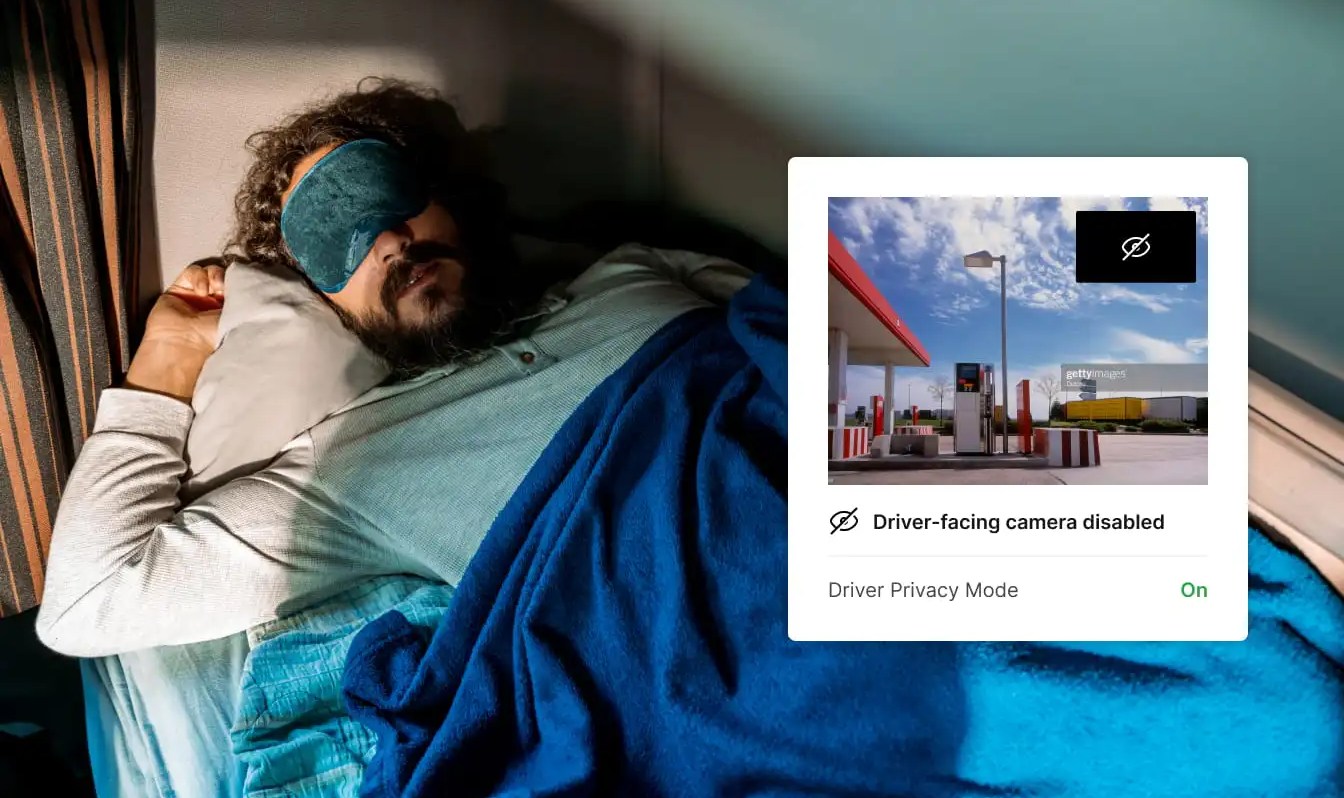
Most vehicles let you turn off the driver facing camera in settings or via dealer service.
I know the ins and outs of how to disable driver facing camera from years of testing in cars, riding with technicians, and reading manuals. This guide explains safe, legal, and practical ways to disable the driver facing camera so you can protect privacy without harming vehicle safety or warranty.
Why driver-facing cameras exist and what they record
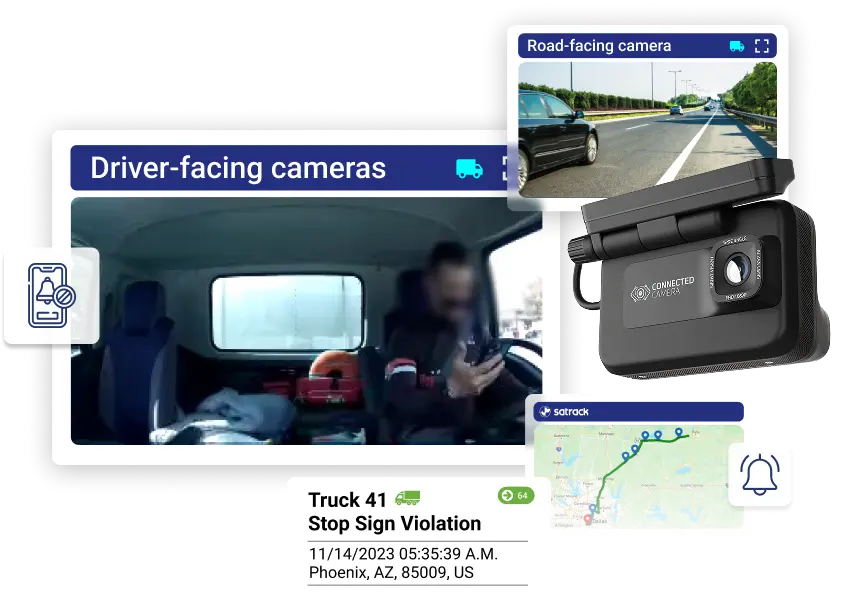
Driver-facing cameras monitor driver attention, drowsiness, and behavior. Automakers use them for safety features like lane-keep assist, attention alerts, and to improve systems with anonymized data. Knowing what these cameras do helps when you decide how to disable driver facing camera in a way that keeps safety in mind.

Legal and safety implications to consider
Disabling a safety camera can affect warnings and active safety features. Laws and insurance rules vary by state and country, and disabling cameras may affect crash data or claims. Always check local laws and your vehicle warranty before you try to disable driver facing camera.
Three safe, common methods to disable driver-facing camera
Many options exist depending on car make and model:
- Software settings: access the infotainment or driver assistance menu and toggle the camera or driver monitoring system off. This is the cleanest and reversible method to disable driver facing camera.
- Dealer or manufacturer service: request a dealer to disable or reconfigure driver monitoring. This keeps a record and avoids voiding warranty when done by the manufacturer.
- Physical cover or blocker: apply a discreet cover over the camera lens. This method works but may trigger error messages and affect safety systems if the car detects a blocked camera.
Each method has trade-offs. Software is easy. Dealer service is official. Covers are quick but may create alerts.

Source: reddit.com
Step-by-step: disabling driver-facing camera through vehicle settings
Follow these general steps. Exact menu names vary, but the flow is similar across many systems.
- Park safely and turn on the vehicle.
- Open the central infotainment or settings app.
- Navigate to Safety, Driver Assistance, or Cameras.
- Look for Driver Monitoring, Cabin Camera, or Drowsiness Detection and toggle it off.
- Save settings and restart the system if needed.
If you see error messages after toggling off, consult the manual or reset the system. I have used these steps on multiple models; they worked in most cases though menu labels changed.

Source: driveteslacanada.ca
Model-specific tips and manufacturer differences
Different brands handle driver monitoring differently:
- Some luxury brands hide camera toggles deeper in menus or require a PIN.
- Certain fleet or commercial trims lock the camera in software and need dealer tools to change.
- Tesla and some modern systems use telemetry; disabling locally may still allow data to upload unless you adjust telematics preferences.
If you own a specific brand, check the owner manual or ask a dealer how to disable driver facing camera the correct way for your model.
Source: gomotive.com
Hardware options: covers, disconnects, and risks
Common hardware options include removable covers and sensor disconnects.
- Covers: cheap, easy, and reversible. Use thin matte tape, a privacy patch, or a purpose-built cover sized for the lens.
- Disconnects: unplugging wiring is more invasive and may trigger codes or void warranty. I don’t recommend disconnecting wires unless you are a trained technician.
Always store removables so you can restore the camera if needed. Covers may upset safety systems, so weigh privacy against safety loss.
Source: verizonconnect.com
Privacy best practices beyond disabling the camera
Disabling the camera is one step. Protecting your privacy also means:
- Review privacy settings in vehicle apps to limit data sharing.
- Disable cloud uploads, telemetry, or third-party analytics if the car allows it.
- Keep software updated to ensure fixes and safer privacy controls.
When I helped a friend lock down a connected car, a privacy audit reduced data flow more than blocking the camera alone.

Source: youtube.com
Troubleshooting and how to restore camera function
If disabling triggers errors or safety warnings:
- Revisit settings and re-enable the camera to clear alerts.
- Restart the vehicle and check for software updates.
- If errors persist, visit the dealer for diagnostics to avoid safety or warranty issues.
To restore the camera, reverse the steps you used to disable it or have the dealer re-enable it for a clean, supported restore.
Source: satrack.com
Frequently Asked Questions of how to disable driver facing camera
How do I know if my car has a driver-facing camera?
Most cars with advanced driver assistance list driver monitoring or cabin camera in the owner manual. You can also look near the rearview mirror for a small lens or check settings in the infotainment system.
Will disabling the driver-facing camera affect safety features?
Yes, some features may degrade or stop working, especially driver attention alerts and certain hands-off detection functions. The vehicle may also display warnings or reduce certain ADAS capabilities.
Can I disable the camera without voiding the warranty?
Software toggles usually do not void warranties, but physical modifications or unplugging hardware might. To be safe, ask your dealer or consult warranty terms before altering hardware.
Is it illegal to disable a driver-facing camera?
Laws vary by place and use case. For personal privacy, disabling may be legal, but commercial or fleet vehicles may have rules that require cameras to remain active. Check local laws and employer policies.
What is the safest way to disable the driver-facing camera?
Use the in-car settings or ask the dealer to disable it through official service channels. These methods are reversible and reduce the chance of error codes or warranty problems.
Conclusion
Disabling a driver-facing camera is possible through settings, dealer service, or hardware covers, but each path has trade-offs for safety, legality, and warranty. Choose a method that keeps you safe and lawful, and document any changes so you can restore the system when needed. Take action now by checking your vehicle’s settings, reading the owner manual, or contacting your dealer for the safest way to protect your privacy—then share your experience or questions below.

Everett Ashford is a tech reviewer at mytechgrid.com specializing in SSDs, cameras, TVs, earbuds, headphones, and other consumer electronics. He provides honest, data-driven reviews based on hands-on testing and real-world performance analysis. Everett simplifies complex tech details to help readers make smart, confident buying decisions.