Power off the headphones or use their built-in reset/pairing buttons to disconnect without a phone.
I’ve spent years testing and troubleshooting earbuds and over-ear models, so I know exactly how frustrating it is when your phone is out of reach and you need to disconnect Bluetooth. This guide explains how to disconnect bluetooth headphones without phone step by step, with clear methods for popular makes, troubleshooting tips, and simple precautions you can use right away.

Why you might need to disconnect bluetooth headphones without phone
There are many real situations where you need to disconnect bluetooth headphones without phone. Your phone battery can die, you may be using a public PC or plane entertainment system, or you might want to hand the headphones to someone else without sharing your phone.
Knowing how to disconnect bluetooth headphones without phone saves time and protects your privacy. It also prevents your headphones from auto-connecting to unknown devices or draining battery while idle.

Methods to disconnect bluetooth headphones without phone
You can use several phone-free approaches to disconnect bluetooth headphones without phone. Use the one that fits your model and situation.
Power off the headphones
Most headphones disconnect when you power them off.
- Press and hold the power button for 2–5 seconds until the LED goes off or you hear a shutdown tone.
- Verify they are off by checking for no LED or sound cues.
This works for true-wireless buds and over-ear models.
Use the case (true wireless earbuds)
Many true wireless earbuds disconnect when placed in the case.
- Put both earbuds in the charging case.
- Close the lid for 5–10 seconds to force a disconnect or reset connection.
AirPods and many cheaper TWS models use this simple method.
Use the pairing or multifunction button to force disconnect or reset
Most headphones include a pairing or multifunction button that can break the current link.
- Press and hold the pairing button for 5–10 seconds.
- Follow voice prompts or LED flashes that indicate disconnection or reset.
This method is useful if you want to clear the paired phone without the phone present.
Remove the battery or let them drain
For some older or DIY models, removing the battery or letting headphones die disconnects them.
- Turn off headphones and remove battery if accessible.
- If not, allow battery to drain fully; upon recharge they will often forget the previous connection.
This is a last resort and slower than other methods.
Use another paired device (PC, tablet, TV)
If the headphones are connected to a device other than your phone, use that device to disconnect.
- Open Bluetooth settings on the other device.
- Select the headphones and choose disconnect or remove.
This is handy at home when a laptop or TV is nearby.
Trigger a factory reset on the headphones
A factory reset removes paired devices and returns settings to default.
- Follow the maker’s reset steps—usually hold two or more buttons for a set time.
- Wait for LEDs or voice prompt confirming reset.
Resetting is powerful but will require re-pairing later.

Step-by-step for popular brands and common models
Here are quick, tested steps for common models so you can disconnect bluetooth headphones without phone fast.
AirPods (Pro and regular)
- Put both AirPods in the case.
- Close the lid and wait 10 seconds.
- If needed, open the lid and press the setup button on the case for 5 seconds to reset.
Sony over-ear models (WH-1000XM series)
- Press and hold the power button until you hear power-off.
- To reset, hold power + NC button (or check manual) for 7–10 seconds until indicator blinks.
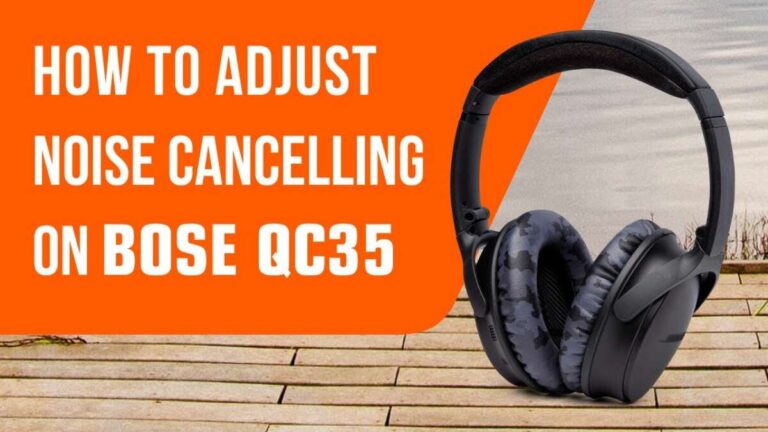
Bose QuietComfort / Noise Cancelling
- Slide or hold the power button to power off.
- For a factory reset, press and hold power + Bluetooth buttons together for 10 seconds.
Samsung Galaxy Buds and other TWS
- Place buds in the case and close it.
- If still connected, pressing and holding the touch area on each bud for several seconds can reset or disconnect.
These brand steps help you disconnect bluetooth headphones without phone in most travel or shared-device scenarios.

Troubleshooting: if your headphones won’t disconnect
If the headphones stay connected, try these quick fixes.
- Power cycle the headphones by turning them off and back on.
- Remove one earbud from use; some systems disconnect when both are docked.
- Move the headphones far from known devices to break the Bluetooth link.
- Perform a factory reset if the device is stuck connecting to the same phone.
- Update headphone firmware later when you have phone access if odd behavior persists.
If they reconnect immediately, the paired device may auto-reconnect. Disable Bluetooth on nearby devices if you can’t access your phone or other sources.

Preventive tips so you rarely need to disconnect without a phone
Little habits stop many problems before they start.
- Keep the charging case handy and close it after use.
- Learn the basic button combos for your model so you can act fast.
- Turn off auto-reconnect features on devices you own.
- Label your devices and keep a spare device (tablet or laptop) to manage Bluetooth.
- Update firmware to reduce bugs that cause stuck connections.
These small steps cut the number of times you need to figure out how to disconnect bluetooth headphones without phone.
Personal experience and lessons learned
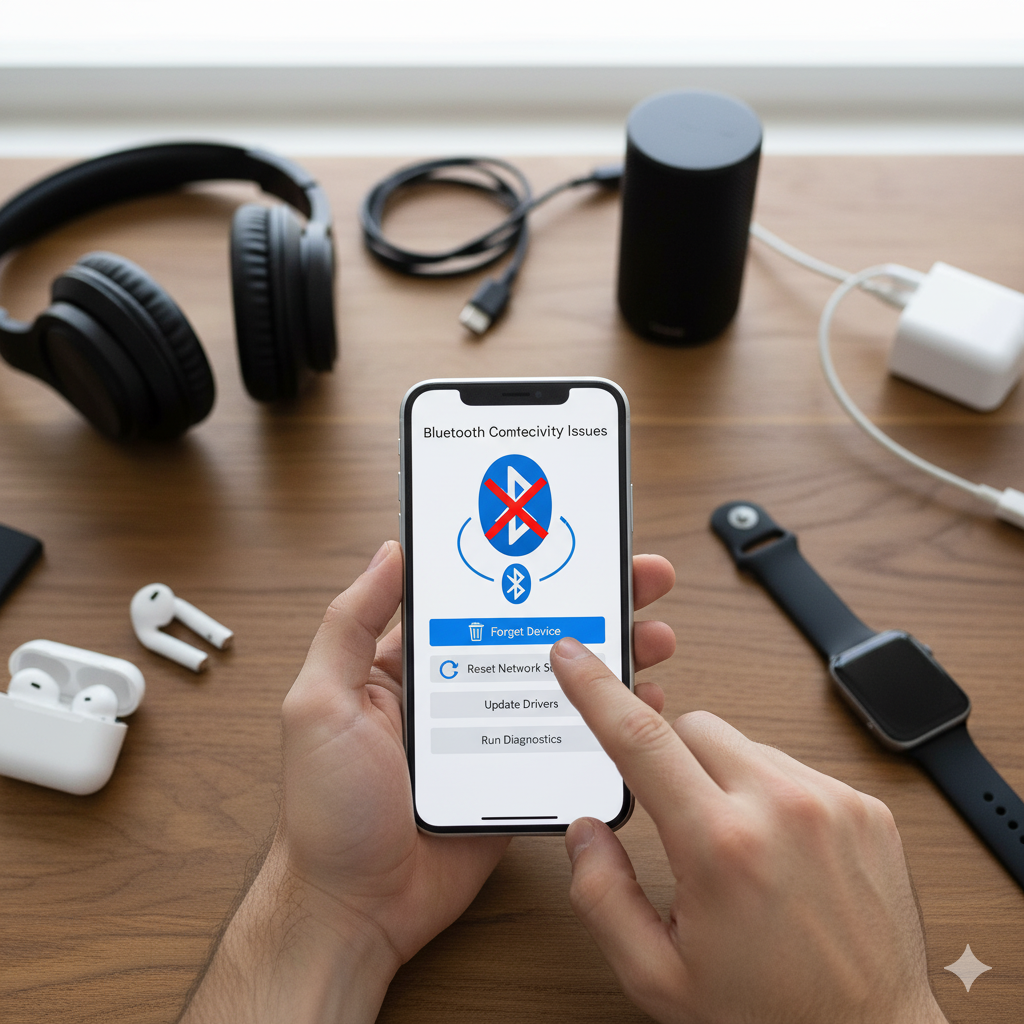
Once, at an airport lounge, my phone died mid-call and my headphones kept routing sound to the seat next to me. I quickly put the buds back in the case and pressed the pairing button on the case. The audio cut out immediately.
Lesson learned: know your model’s power and reset behaviors before you travel. I also learned to carry a small Bluetooth adapter for laptops. That adapter helped me manage connections when no phone was available. These simple habits saved time and embarrassment on many trips.

Frequently Asked Questions of how to disconnect bluetooth headphones without phone
How can I disconnect headphones if my phone is dead?
Power off the headphones or place true wireless earbuds into their charging case to force a disconnect. If those actions fail, perform a factory reset using the headset buttons.
Will a factory reset always disconnect my headphones?
Yes, a factory reset removes stored pairings and will disconnect any device. You will need to re-pair devices after the reset.
Can I disconnect headphones using a laptop without the phone?
Yes, open Bluetooth settings on the laptop, find the headphones, and choose disconnect or remove. This works when the laptop was previously paired or can discover the device.
Do headphones reconnect automatically after powering back on?
Many headphones try to auto-reconnect to the last paired device when powered on. To prevent this, power on near a different device or reset the headphones.
Is it safe to let the battery drain to disconnect them?
Letting the battery drain will disconnect them, but it’s slow and can shorten battery life if done frequently. Use power-off, case, or reset methods first.
Conclusion
You don’t need a phone to disconnect bluetooth headphones without phone. Powering off the headset, using the charging case, pressing pairing/reset buttons, or using another paired device are simple, reliable ways to break the connection. Practice the method that fits your model and carry small habits like keeping the case handy to avoid awkward moments.
Take action now: learn the power and reset combinations for your headphones, put them in the case after use, and try a quick reset once so you know it. If this guide helped, leave a comment with your model and the method that worked for you, or subscribe for more practical audio tips.

Everett Ashford is a tech reviewer at mytechgrid.com specializing in SSDs, cameras, TVs, earbuds, headphones, and other consumer electronics. He provides honest, data-driven reviews based on hands-on testing and real-world performance analysis. Everett simplifies complex tech details to help readers make smart, confident buying decisions.