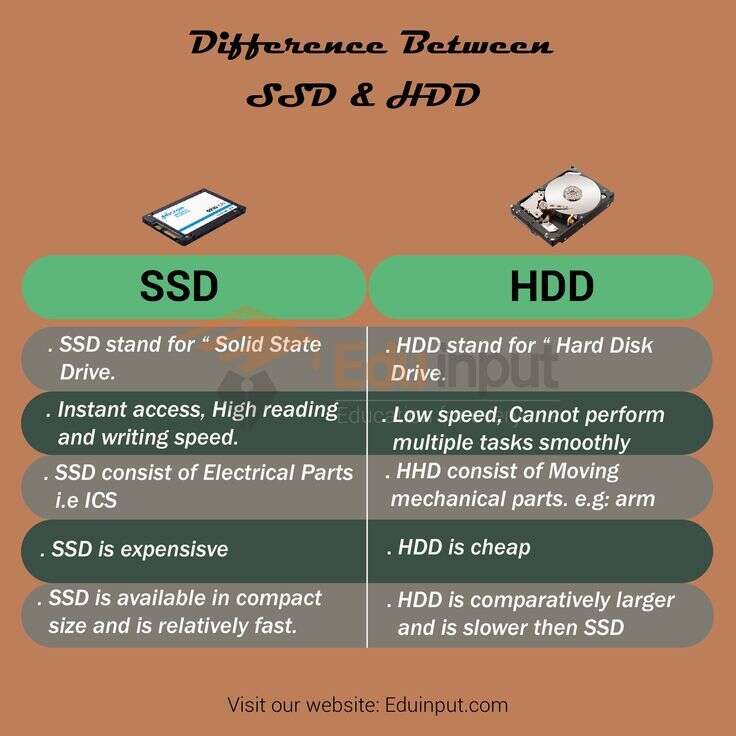
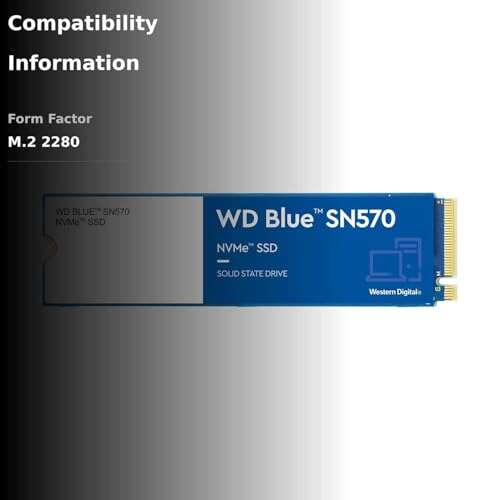
To format an SSD in Windows 11 using CMD, use DiskPart to select the correct drive, clean it, create a partition, and format it.
Learning how to format SSD Windows 11 CMD can help when Disk Management fails, a drive has file-system errors, or you need a clean disk for a fresh setup. This guide explains the safest DiskPart commands, shows what each one does, and highlights the mistakes that can permanently erase the wrong drive.
Before You Format an SSD in Windows 11 CMD
Formatting an SSD removes data from a partition. Using DiskPart with the clean command can remove the partition table from an entire drive. Before you begin, treat the process like clearing a whole filing cabinet: once the papers are gone, recovery may be difficult or impossible.
Back up anything important to another drive or a trusted cloud service. Also, disconnect external storage devices that you do not need. This simple step reduces the chance of selecting the wrong disk.
You will need:
• A Windows 11 computer
• Administrator access
• The SSD you want to format
• A backup of important files
• The correct file system for your needs
Windows 11 commonly uses NTFS for internal drives. exFAT is often better for removable storage shared with macOS or other devices. FAT32 has wider compatibility, but it cannot store a single file larger than 4 GB.
How to Identify the Correct SSD in CMD
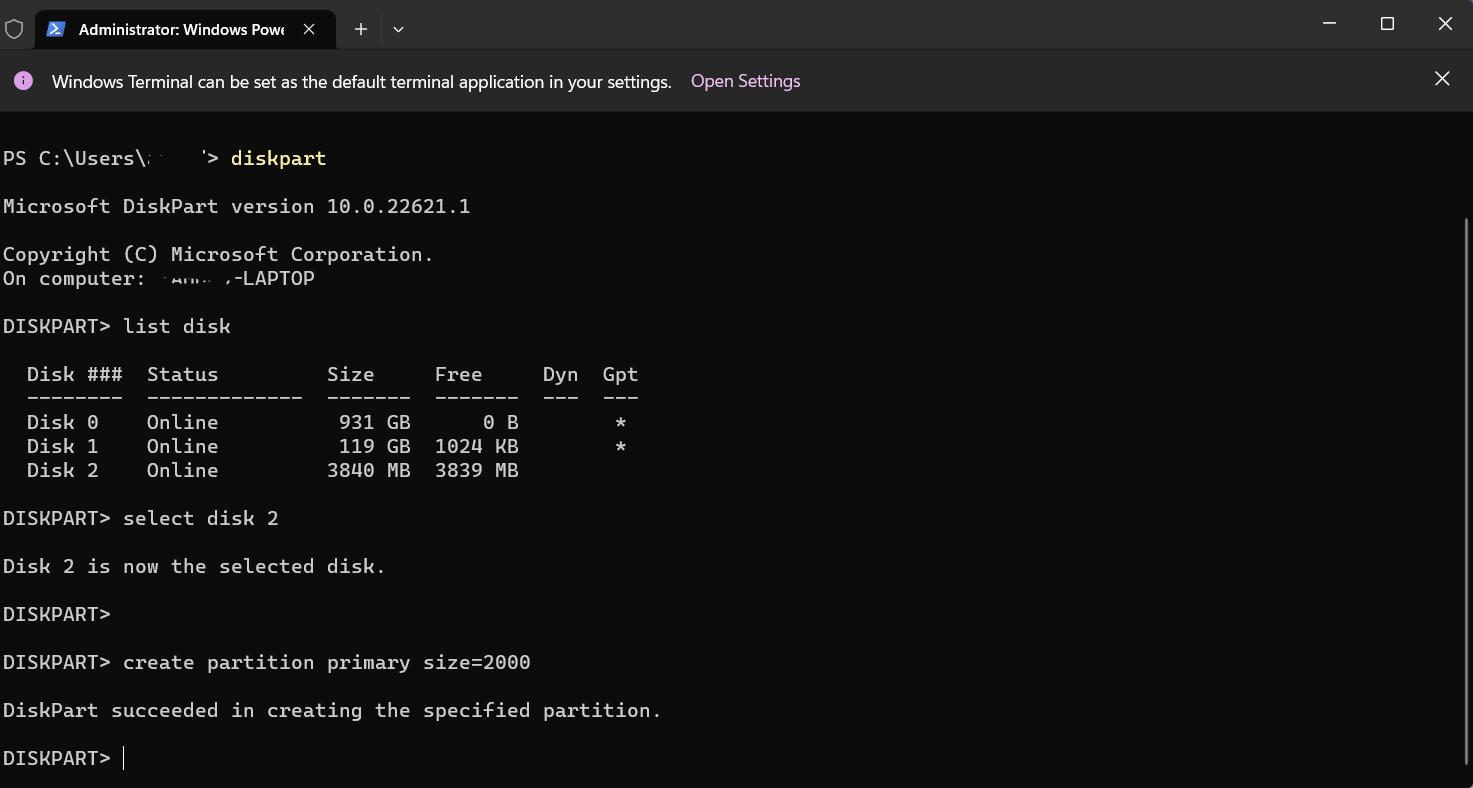
The most important step in learning how to format SSD Windows 11 CMD is identifying the correct disk. DiskPart lists disks by number, not by familiar names such as “Samsung SSD” or “My Drive.”
Open Windows Terminal as an administrator:
- Press
Windows + X. - Select
Terminal (Admin)orWindows PowerShell (Admin). - Choose
Yesif User Account Control asks for permission. - Type the following command and press Enter:
diskpart
Next, list the connected disks:
list disk
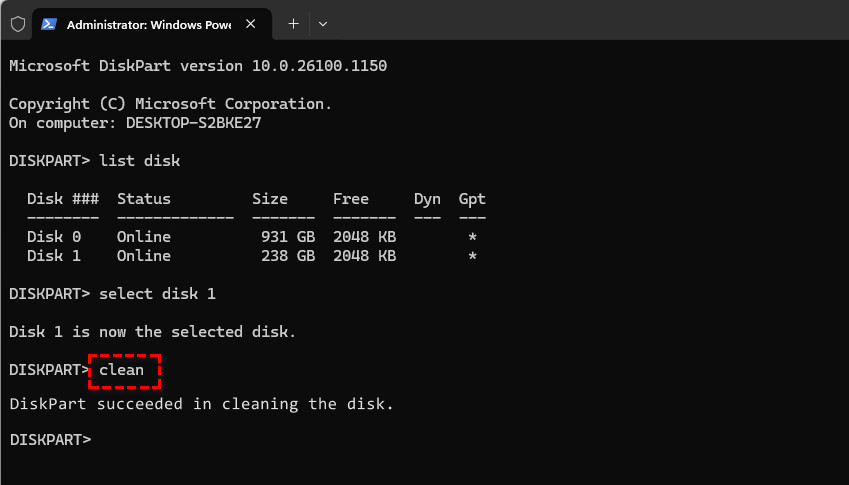
You may see output similar to this:
Disk ###  Status         Size     Free     Dyn  Gpt
--------  -------------  -------  -------  ---  ---
Disk 0    Online          476 GB      0 B
Disk 1    Online          931 GB      0 B
Compare the displayed sizes with the physical SSD. You can also inspect more details with:
select disk 1
detail disk
Do not continue until the disk number, size, and status match the SSD you want to erase. Selecting the wrong disk is the most serious risk in this process.
Format SSD Windows 11 CMD Using DiskPart
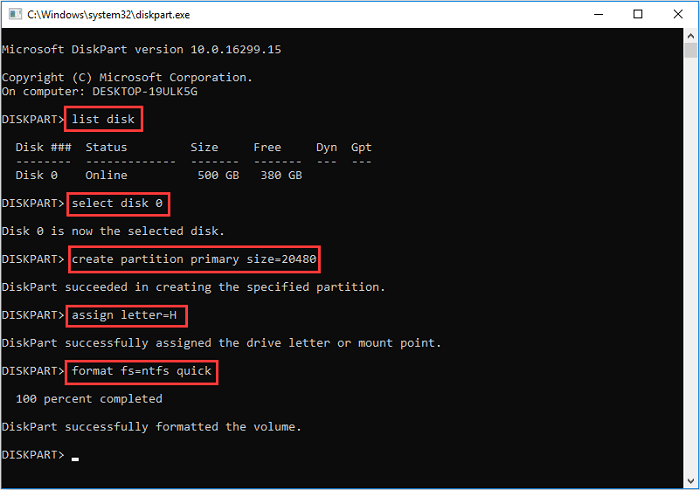
This method completely removes the existing partition structure, creates a new partition, and formats it with NTFS. Use it for a secondary SSD or a drive that does not contain your active Windows installation.
After confirming the correct disk number, run:
select disk 1
Replace 1 with the correct disk number on your computer. Then confirm your choice again:
detail disk
If the information is correct, erase the partition table:
clean
The clean command usually completes quickly. It removes partition information but does not write over every sector of the SSD.
Now create a primary partition:
create partition primary
Select the new partition:
select partition 1
Format it as NTFS:
format fs=ntfs label="Data" quick
Assign the next available drive letter:
assign
Finally, leave DiskPart:
exit
The full command sequence looks like this:
diskpart
list disk
select disk 1
detail disk
clean
create partition primary
select partition 1
format fs=ntfs label="Data" quick
assign
exit
This is the standard answer to how to format SSD Windows 11 CMD when you want one clean NTFS volume on the entire disk.

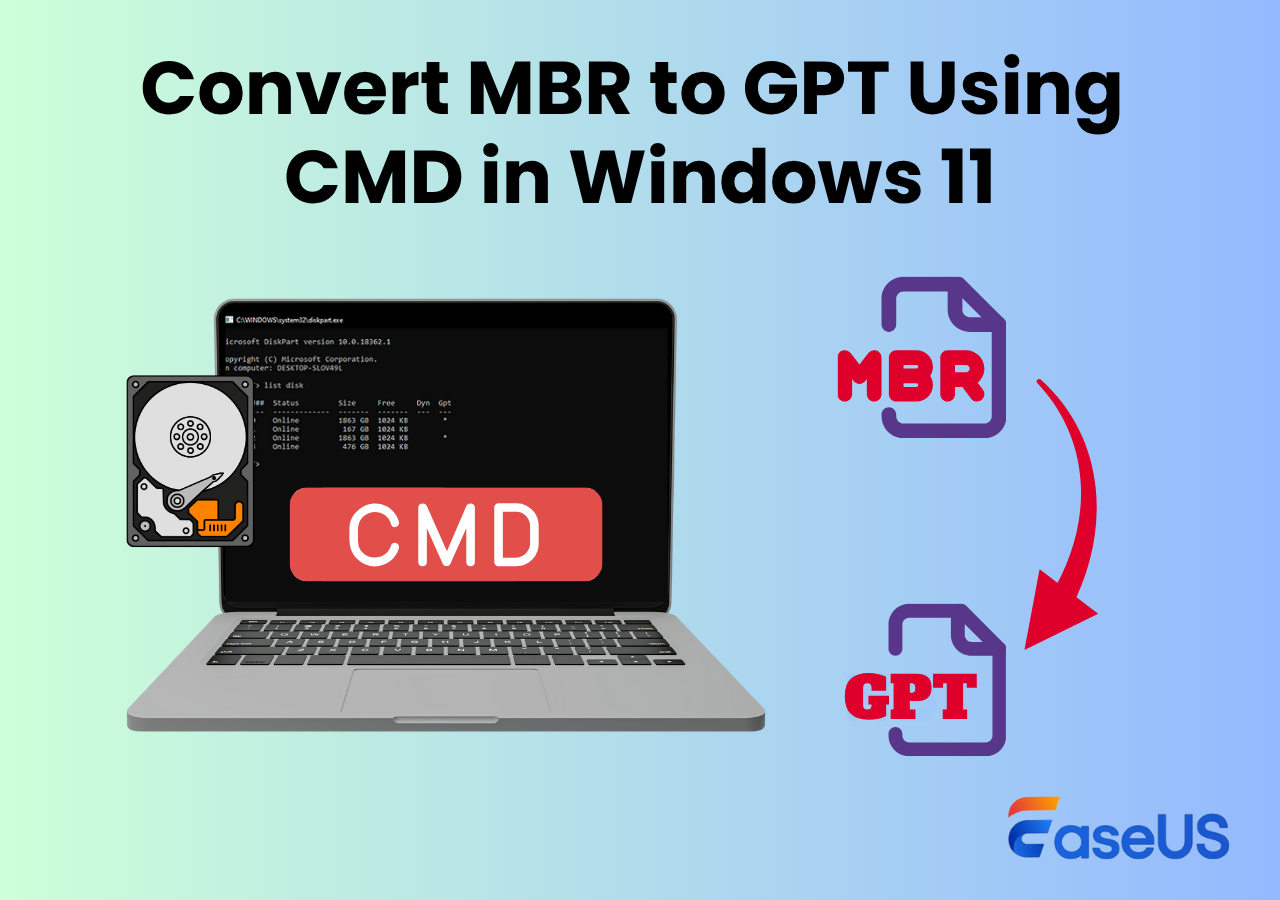
How to Format an SSD as GPT for Windows 11
Windows 11 works best with modern UEFI systems and GPT partitioning. GPT supports large drives and more partitions than the older MBR format. If the SSD will hold Windows 11, GPT is normally the correct choice.
To convert a completely erased SSD to GPT, use this sequence:
diskpart
list disk
select disk 1
detail disk
clean
convert gpt
create partition primary
format fs=ntfs label="Windows" quick
assign letter=W
exit
The convert gpt command only works after the disk has no active partitions. The clean command in the example removes the existing partition structure first.
For a Windows installation drive, the Windows 11 installer may create the required EFI, Microsoft Reserved, recovery, and primary partitions automatically. In most cases, you should not manually create a basic data partition if Windows Setup will manage the disk.
Use GPT when:
• The computer boots in UEFI mode
• The SSD will contain Windows 11
• The drive is larger than 2 TB
• You want a modern partition layout
Use MBR only when you have a specific compatibility need, such as an older computer that boots in Legacy BIOS mode.
Format Only One SSD Partition in CMD
You do not always need to erase the entire SSD. If the disk contains several partitions and you only want to format one volume, use the volume commands instead of clean.
Start DiskPart:
diskpart
List the volumes:
list volume
Review the volume number, drive letter, file system, and size. Then select the correct volume:
select volume 3
Format that volume:
format fs=ntfs label="Projects" quick
You can assign a drive letter if needed:
assign letter=P
Then exit:
exit
This approach is safer when other partitions on the SSD contain files you want to keep. However, formatting the selected volume still deletes every file stored on that volume. Always verify the volume number and size before pressing Enter.
Quick Format vs. Full Format on an SSD
The quick option creates a new file system structure without checking every sector. It usually finishes in seconds or minutes. For a healthy SSD, quick format is normally enough.
A full format omits the quick option:
format fs=ntfs label="Data"
A full format takes longer because Windows checks the volume more thoroughly. Modern SSDs have their own controllers and error-management systems, so repeatedly writing across the entire drive is not usually helpful.
Choose quick format when:
• The SSD is known to be healthy
• You are preparing a reused drive
• You need the drive ready quickly
• You already checked the drive for problems
Consider a full format or diagnostic test when:
• Windows reports file-system errors
• The drive behaves strangely
• You suspect bad sectors
• You are troubleshooting repeated read or write failures
Do not use clean all as a routine formatting method:
clean all
This command writes zeros across the disk and can take a long time. It also creates heavy write activity. Use it only when you understand why you need it, such as a specific sanitization requirement. For secure disposal, follow recognized data-erasure guidance rather than assuming clean all is always the best solution.
Format SSD Windows 11 CMD Without Erasing the Wrong Drive
DiskPart does not provide a convenient undo button. A careful check before clean or format is your best protection.
Use these safety habits:
• Compare the disk size in list disk with the SSD label.
• Run detail disk after selecting a disk.
• Check the volume label and drive letter before formatting a volume.
• Disconnect other external drives when possible.
• Never guess the disk number.
• Stop if the displayed size does not match your target SSD.
• Keep a verified backup before starting.
A common mistake is assuming Disk 0 is always the secondary SSD. It is often the main Windows drive, but numbering depends on the computer and connected hardware. Disk numbers can change after you unplug or reconnect devices.
Another mistake is typing clean before checking the selection. In my practical testing of DiskPart workflows, the safest habit was to pause after every select disk command and run detail disk. That short pause prevents a fast command sequence from becoming a costly error.
Common DiskPart Errors and Fixes
DiskPart may show an error when the SSD is write-protected, offline, in use, or affected by a damaged partition table. The message usually points to the next step.
“The media is write protected”
First, check whether the SSD enclosure or adapter has a physical lock. You can also inspect the disk attributes:
diskpart
list disk
select disk 1
attributes disk
To clear a software read-only flag, use:
attributes disk clear readonly
Then try the format command again. If the flag returns, the SSD, adapter, or controller may be failing.
“DiskPart has encountered an error”
Check whether the disk is online:
select disk 1
online disk
You can also review the disk details:
detail disk
If the SSD disconnects during formatting, try another USB port, cable, enclosure, or motherboard slot. Repeated disconnections often indicate a hardware or connection problem rather than a CMD problem.
“There is no volume selected”
Select the volume before formatting:
list volume
select volume 3
format fs=ntfs quick
DiskPart requires the correct object to be selected. A disk, partition, and volume are different objects, so commands for one may not work on another.
“The volume is too big”
This can happen when using FAT32 on a large partition. Use NTFS or exFAT instead:
format fs=ntfs quick
NTFS is the usual choice for an internal Windows 11 SSD.

Check the SSD After Formatting
After you format SSD Windows 11 CMD, confirm that Windows can use the new volume. Open File Explorer and look for the assigned drive letter and label.
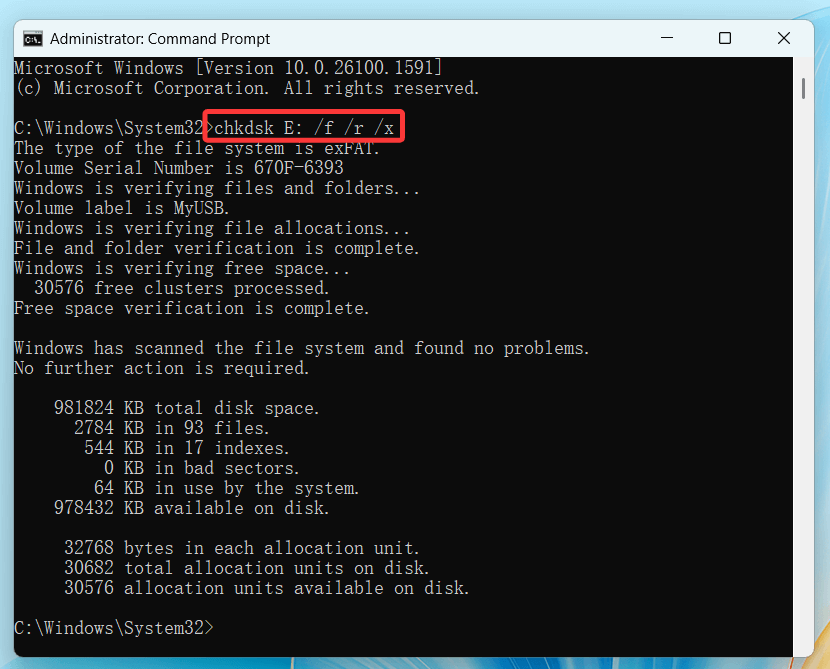
You can also check the file system in CMD:
fsutil fsinfo volumeinfo D:
Replace D: with the actual drive letter. This command displays information about the volume, including its file system.
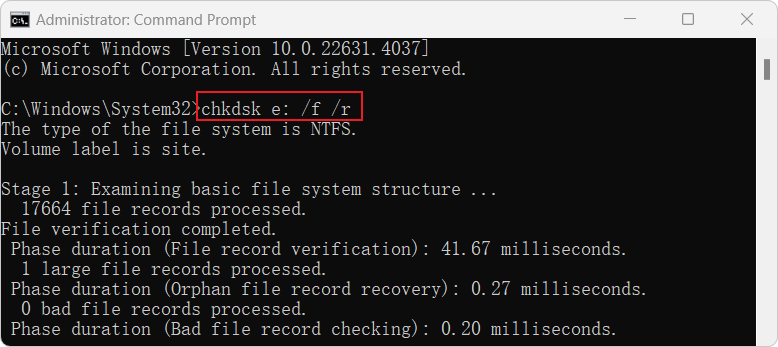
To check the volume for logical file-system errors, run:
chkdsk D:
To scan and repair errors, use:
chkdsk D: /scan
For a new SSD, you can also use the manufacturer’s diagnostic software to check health data such as temperature, remaining life, and reported errors. Windows tools are useful, but they may not show every vendor-specific detail.
If the SSD is missing from File Explorer, open Disk Management by pressing Windows + X and selecting Disk Management. The volume may exist without a drive letter. In that case, assign a letter with DiskPart or Disk Management.
When CMD Is Better Than Disk Management
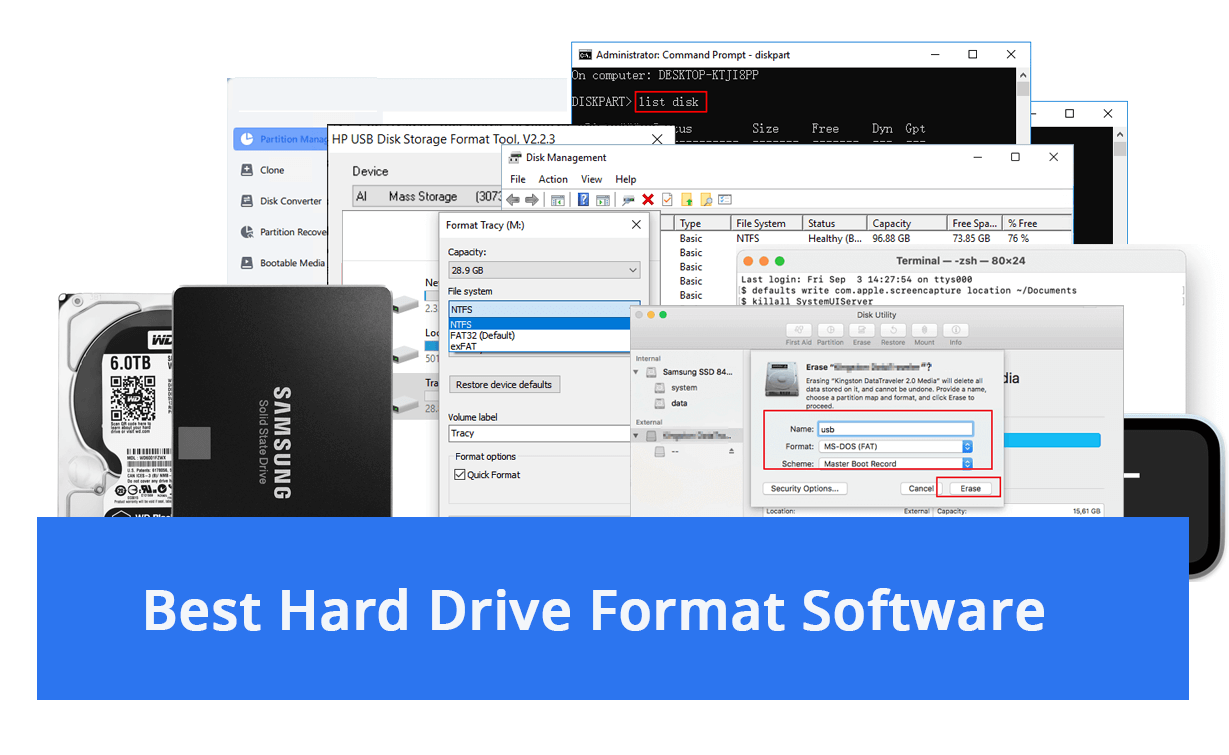
Disk Management is easier for many users because it provides visual labels and confirmation prompts. CMD is useful when Disk Management cannot initialize a disk, when you are working from Windows Setup, or when you need repeatable commands.
Use CMD when:
• Disk Management freezes or fails
• You are preparing a drive during Windows installation
• You need to convert a disk to GPT
• You are working on a system without a normal desktop
• You want a repeatable technical workflow
Use Disk Management when:
• You want a visual view of partitions
• You are unsure which volume to select
• You prefer confirmation prompts
• You only need to format a simple data partition
Neither method can repair a physically failing SSD. Formatting changes the file system, but it cannot fix damaged NAND memory, a failing controller, or an unreliable cable.
A Safe Example for a Secondary SSD
Suppose your computer has a 1 TB internal SSD used only for storage. DiskPart shows it as Disk 1, while Disk 0 contains Windows. You can prepare Disk 1 with this command sequence:
diskpart
list disk
select disk 1
detail disk
clean
convert gpt
create partition primary
select partition 1
format fs=ntfs label="Storage" quick
assign letter=S
exit
Afterward, open File Explorer and check for the S: drive named “Storage.” Copy a small test file to it, open the file, and then delete it. This confirms that Windows can write to and read from the newly formatted volume.
Do not use this example without checking your own disk numbers. The same command can erase a different drive on another computer. The commands are only safe when the selected disk is verified.
Frequently Asked Questions About How to Format SSD Windows 11 CMD
Can I format the Windows boot SSD from CMD?
Yes, but not while Windows is actively running from that SSD. Boot from Windows installation media or the Windows Recovery Environment, then use DiskPart after confirming the correct disk.
Does formatting an SSD damage it?
Normal formatting does not immediately damage an SSD. However, repeated full-disk writes, including frequent use of clean all, add unnecessary write activity, so use quick format for routine preparation.
Should I use NTFS or exFAT on a Windows 11 SSD?
Use NTFS for an internal Windows drive or a drive used mainly with Windows. Choose exFAT when you need to move files between Windows, macOS, cameras, game consoles, or other devices.
What does clean do in DiskPart?
The clean command removes partition and volume information from the selected disk. It does not select the disk for you, so always run list disk and detail disk before using it.
Can I recover files after formatting an SSD?
Recovery is uncertain, especially after SSD data is deleted and the TRIM command runs. Stop using the drive immediately and contact a professional recovery service if the lost files are important.
Why does my formatted SSD not appear in File Explorer?
The disk may not have a drive letter, or the partition may not have been created correctly. Check Disk Management or use list volume in DiskPart, then assign an available letter.
Is GPT required for every Windows 11 SSD?
GPT is the preferred layout for Windows 11 systems using UEFI firmware. A data SSD may work with MBR, but GPT is usually the better modern choice, especially for large drives.
Conclusion
Formatting an SSD in Windows 11 CMD is straightforward when you use DiskPart carefully. The core process is to identify the correct disk, verify it with detail disk, clean it only when necessary, create a partition, format it with the right file system, and assign a drive letter.
For most internal Windows drives, GPT and NTFS are the practical choices. Use quick format for normal preparation, avoid clean all unless you have a clear reason, and always keep a backup before making destructive changes.
Follow the commands slowly, verify every disk number, and use the safer volume-format method when you want to protect other partitions. If this guide helped, explore more Windows storage tutorials or share your experience with formatting an SSD in the comments.

Everett Ashford is a tech reviewer at mytechgrid.com specializing in SSDs, cameras, TVs, earbuds, headphones, and other consumer electronics. He provides honest, data-driven reviews based on hands-on testing and real-world performance analysis. Everett simplifies complex tech details to help readers make smart, confident buying decisions.