You cannot flip between front and back in the iPhone Camera app while recording video.
I’ve spent years testing iPhone video workflows and teaching creators how to get studio-level results with simple tools. This guide explains exactly how to flip camera while recording iPhone videos, what works, what doesn’t, and smart workarounds. You’ll learn step-by-step methods, reliable apps, and pro tips so you can capture smooth, flip-ready footage without guesswork.
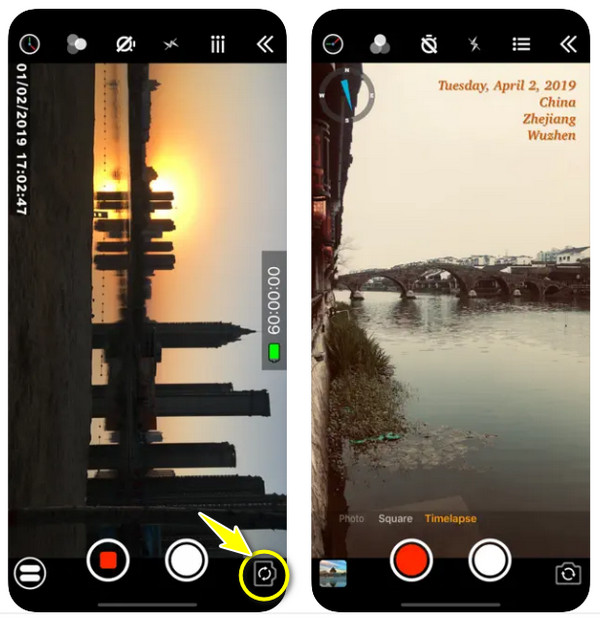
Can you flip camera while recording iPhone?
Short answer: the native iPhone Camera app does not let you switch from back to front (or front to back) mid-record in most iOS versions. Apple’s Camera app is simple and stable, but it blocks live camera swapping during a single take. That design avoids conflicts with image processing and stabilization that happen per-camera. If you need to flip camera while recording iPhone video, you must use specific apps or workarounds that support multi-camera capture.

Why Apple blocks camera flipping mid-record
Apple separates front and back camera pipelines. Each camera has different sensors, lenses, and exposure systems. Switching cameras mid-record would force the system to reconfigure those settings on the fly. That can break exposure, focus, and audio sync. Apple instead offers APIs that third-party apps can use to handle multi-camera capture in a controlled way. Knowing this helps you pick the right tool for how to flip camera while recording iPhone.
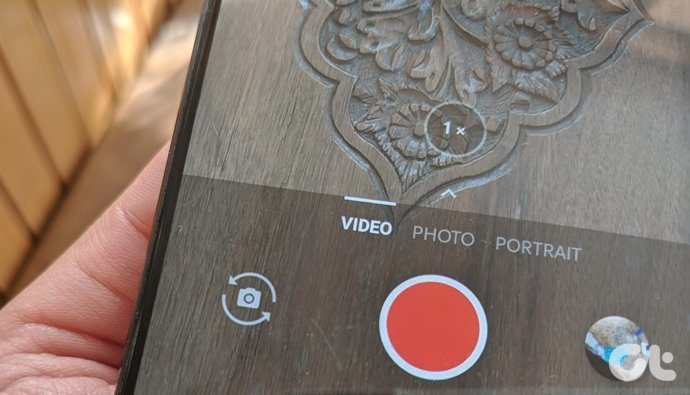
Step-by-step methods to flip camera while recording iPhone
Here are practical ways to flip camera while recording iPhone. I list options from simplest to most professional. Each method shows when it works and what to expect.
Method 1 — Use a third-party multi-camera app
Many apps use iOS multi-cam APIs to let you switch cameras during recording.
Steps:
- Install a trusted app that supports multi-camera capture.
- Open the app and grant camera and mic access.
- Choose the cameras you want (front, back, or both).
- Start recording and tap the on-screen switch if the app allows flipping.
Notes:
- Filmic Pro and similar pro apps often support real-time switching on newer iPhones.
- Some apps record both perspectives simultaneously and let you switch in post.
This method is the most reliable way to flip camera while recording iPhone on a single take.
Method 2 — Use social apps that allow flips (live mode)
Some social apps let you switch while recording a story or live video.
Steps:
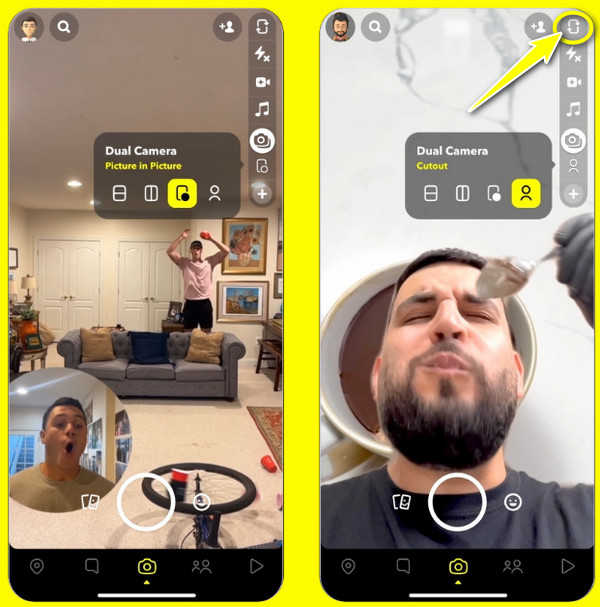
- Open the app (for example, Snapchat or Instagram Live).
- Start recording or go live.
- Use the app’s flip button to change cameras mid-record.
Notes:
- These apps may reduce quality and add compression.
- They are great for casual content and live interactions.
This is a quick way to flip camera while recording iPhone when perfect quality is not critical.

Method 3 — Record separate clips and stitch
If you can’t flip camera while recording iPhone, record two clips and join them in editing.
Steps:
- Record the first part with one camera.
- Stop recording.
- Switch cameras and record the second part.
- Use iMovie or another editor to trim and join clips.
Notes:
- Good editing hides the cut with a jump cut, match cut, or transition.
- This gives the best control over exposure and framing.
I use this approach for many short-form videos. It’s predictable and low-risk.

Method 4 — Use external hardware or multi-device rigs
For high-end workflows, record each camera on separate devices and sync later.
Steps:
- Mount two iPhones or a phone plus a camera.
- Record simultaneously.
- Sync by clapping or using a timecode app.
- Edit to switch angles smoothly.
Notes:
- This doubles footage options and avoids mid-take switching limitations.
- It’s best for interviews, tutorials, and multi-angle scenes.
This approach gives the most creative control but needs more gear and time.
Recommended apps and when to use them
Use these types of apps based on your needs.
- Professional capture apps
- Use when quality and manual controls matter.
- They can support live switching and multi-cam recording.
- Social and streaming apps
- Use for quick flips during live streams or stories.
- Expect lower bitrate and more compression.
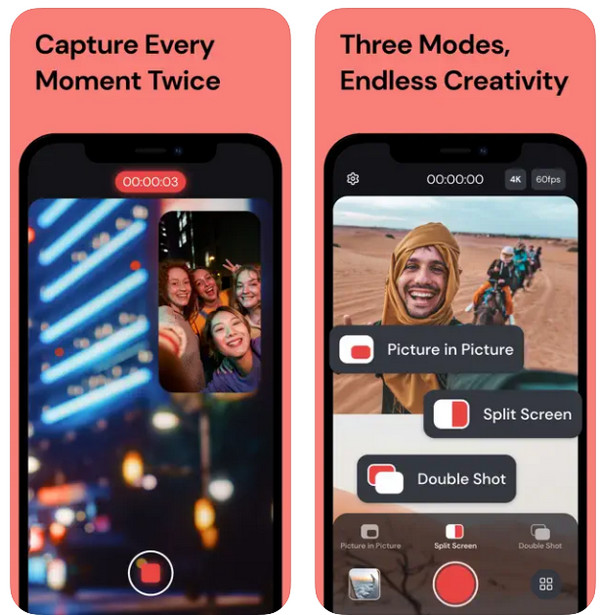
- Multi-cam recorders
- Use when you want simultaneous captures and flexibility in editing.
If your goal is specifically to flip camera while recording iPhone without stopping, choose a pro or multi-cam app that lists that feature.

Troubleshooting common problems
I’ve run into these issues while testing how to flip camera while recording iPhone. Here’s how to fix them.
- App won’t let you switch
- Check app permissions for camera and microphone.
- Update the app and iOS to the latest version.
- Video drops or lags after switching
- Close background apps and free up RAM.
- Lower capture resolution or frame rate.
- Audio loses sync after flipping
- Use the same audio track for the whole take if possible.
- If not, record a separate audio track and sync in post.
These quick fixes solve most mid-record switching problems.
Tips for smooth flips and better results
A few practical rules I follow when flipping between cameras.
- Plan the flip point
- Know the exact second you will switch.
- Keep motion and lighting consistent across cameras.
- Match exposure and color
- Use manual exposure and white balance when available.
- Test both cameras before recording.
- Stabilize your shots
- Use a gimbal or tripod to reduce jumpiness.
- Smooth motion makes the flip feel intentional.
- Mind your audio
- Use a single microphone or record a separate track.
- Check levels before you start.
These habits cut down editing time and raise production value.
My personal experience and lessons learned
I first tried to flip camera while recording iPhone during a live tutorial. The native Camera app blocked me, and my content looked choppy. I switched to a pro app that supported multi-cam switching. The result was clean and saved me hours in editing. From that day I always test flipping features before a shoot. The biggest lesson: plan your flip, test devices, and don’t assume every app behaves the same.
When not to try flipping mid-record
There are times to avoid flipping during a take.
- Complex lighting changes
- Flipping can reveal exposure jumps that are hard to fix.
- High-audio fidelity needs
- Multi-cam switching can complicate audio tracks.
- Older iPhones
- Older models often lack multi-cam APIs and struggle with performance.
In those cases, record separate clips and edit them together.
Frequently Asked Questions of how to flip camera while recording iphone
Can the built-in iPhone Camera app flip camera while recording?
No. The native Camera app generally does not allow swapping between front and back during a single video take. Use a third-party app or record separate clips and edit them together.
Which apps let you flip camera while recording on iPhone?
Some professional capture apps and a few streaming/social apps support mid-record flipping or multi-cam capture. Check app feature lists and test them on your device before relying on them for important shoots.
Will flipping cameras mid-record lower video quality?
It can. Some apps reduce resolution or re-encode video when switching. Test settings and use higher-quality apps if you need a clean result.
Does flipping cameras affect audio sync?
Yes, switching cameras can cause audio drift or sync issues, especially if separate streams are created. Use a single mic or sync audio in post to avoid problems.
What is the best workaround if my app won’t flip?
Record two clips—one front and one back—and stitch them together in an editor. This method is simple, reliable, and works on any iPhone.
Conclusion
Flipping the camera while recording on iPhone is not always possible in the native Camera app, but you have solid options. Use trusted multi-cam apps for live flips, social apps for quick stories, or record separate clips when you want full control. Test your setup, stabilize the shot, and check audio before you start. Try one of the workflows above on your next shoot and see how much time it saves. If this helped, comment with your device and app so others can learn from your setup.

Jamie Lee is a seasoned tech analyst and writer at MyTechGrid.com, known for making the rapidly evolving world of technology accessible to all. Jamie’s work focuses on emerging technologies, product deep-dives, and industry trends—translating complex concepts into engaging, easy-to-understand content. When not researching the latest breakthroughs, Jamie enjoys exploring new tools, testing gadgets, and helping readers navigate the digital world with confidence.