To install a WD_BLACK SSD in a PS5, fit a compatible M.2 drive, secure it, and format it through the console.
Learning how to install a WD_BLACK SSD PS5 users can trust is simple when you follow the right order. This guide covers drive selection, safety steps, installation, formatting, testing, and common mistakes so you can expand storage without risking your console or game data.
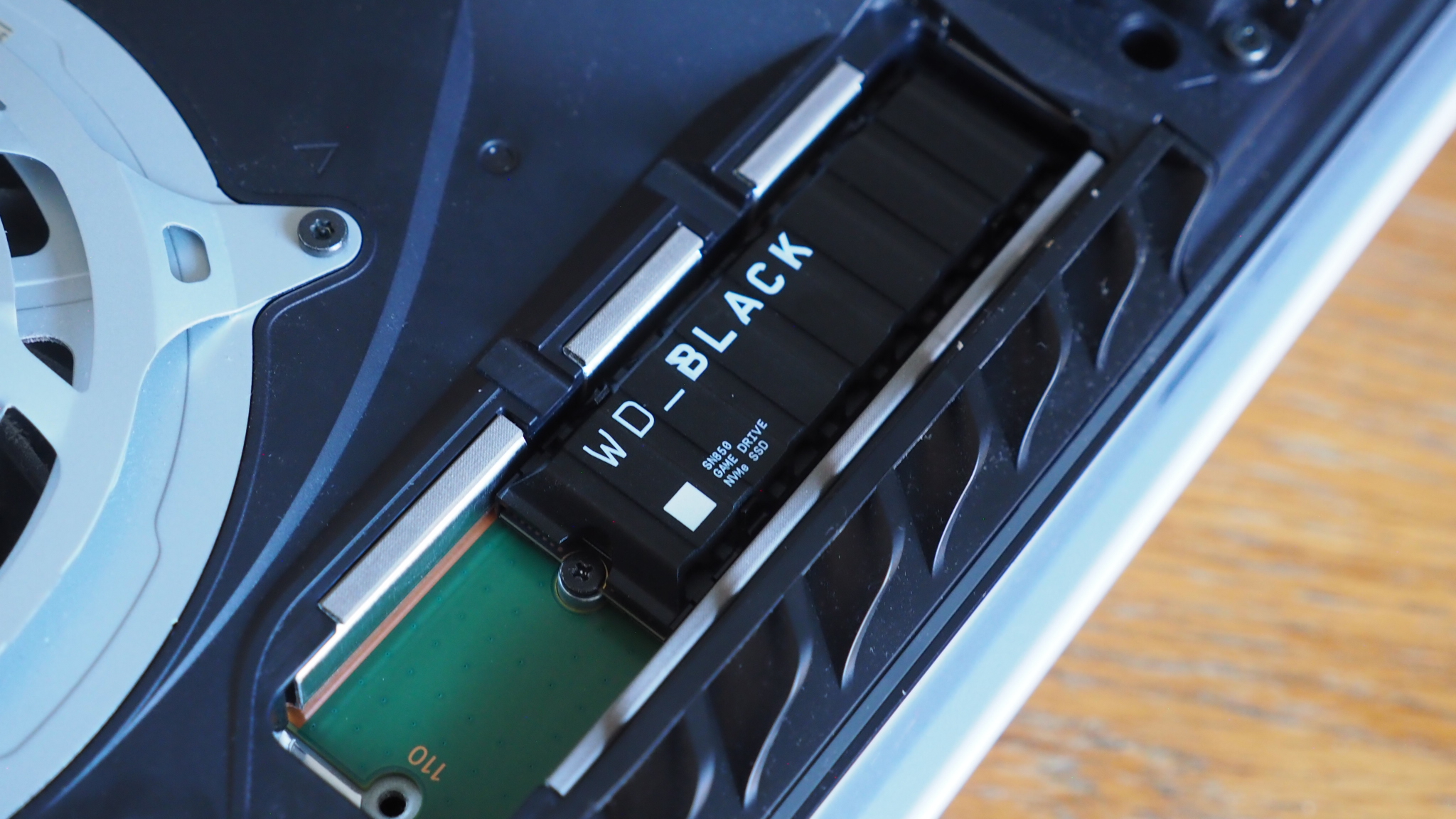
What you need before installing a WD_BLACK SSD in a PS5
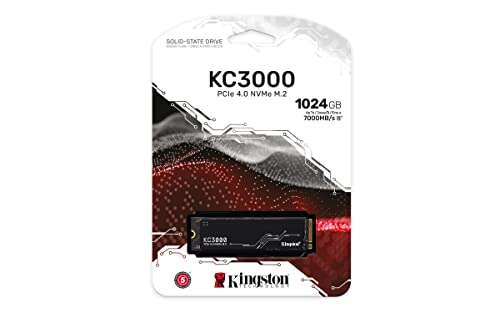
Before learning how to install a WD_BLACK SSD PS5 owners should check that the drive meets Sony’s requirements. The PS5 uses an internal M.2 NVMe slot. It does not support SATA M.2 drives or older PCIe Gen3 models.
WD_BLACK drives commonly used with the PS5 include the SN850X and the officially licensed SN850P for PS5. Choose a model with a built-in heatsink, or add a heatsink that fits inside the console.
Your SSD should meet these requirements:
• PCIe Gen4 x4 interface
• NVMe protocol
• Storage capacity from 250GB to 8TB
• Recommended sequential read speed of at least 5,500MB/s
• M.2 2230, 2242, 2260, 2280, or 22110 form factor
• Maximum width of 22mm
• A heatsink that fits within the PS5’s height limits
The WD_BLACK SN850X with heatsink is a popular choice because it offers strong read speed and broad PS5 compatibility. The SN850P is also designed for the console and includes a PS5-style heatsink.
You will also need:
• A Phillips #1 screwdriver
• A clean, flat work surface
• A soft cloth or towel
• The latest PS5 system software
• A backup of important saved data
Do not confuse advertised speed with guaranteed game performance. A faster SSD may shorten loading times in some situations, but it will not turn every game into a new console generation.

How to check WD_BLACK SSD PS5 compatibility
The easiest way to confirm compatibility is to check the SSD’s technical page and compare it with Sony’s M.2 requirements. Do this before opening the PS5. It can save you from buying a drive that physically fits but lacks the correct interface or cooling.
The heatsink is especially important. M.2 SSDs can become warm during long game downloads and file transfers. A proper heatsink helps the drive manage heat inside the tight PS5 expansion bay.
Check these points on the product box or manufacturer page:
• The drive is PCIe Gen4 x4
• The drive is NVMe, not SATA
• The width is no more than 22mm
• The total height with the heatsink is within Sony’s limit
• The drive length matches one of the supported M.2 sizes
• The listed read speed is at least 5,500MB/s
If you already own a WD_BLACK SSD, inspect the model number. The WD_BLACK SN850X and SN850P are common choices, but not every WD_BLACK product is designed for PS5 use.
For the safest approach, buy the heatsink version made for PS5. A tall desktop heatsink may touch the cover or fail to fit under the metal shield.

How to install a WD_BLACK SSD PS5 expansion drive
The physical installation takes only a few minutes. Move slowly, and never force the cover, SSD, or screw. The console is sturdy, but small clips and the M.2 connector can be damaged by excess pressure.
1. Update the PS5 system software
Turn on the PS5 and open:
Settings > System > System Software > System Software Update and Settings
Install any available update. The PS5 may require current system software before it can detect and format the new drive.
After the update finishes, shut down the console completely. Do not use Rest Mode for this installation.
2. Disconnect the console
Remove the power cable and every other cable from the PS5. Let the console sit for a few minutes so it can cool.
Place it on a soft cloth with the PlayStation logo facing down and the front of the console toward you. Keep drinks, loose screws, and static-prone materials away from the work area.
3. Remove the PS5 outer cover
The cover removal method differs slightly between the original PS5 and newer slim models.
For the original PS5, hold the upper-left corner of the cover and lift it slightly. Slide the panel toward the lower part of the console until it releases.
For the PS5 Slim, remove the correct side panel according to the console’s orientation. You may need to lift the edge gently until the clips release.
Do not bend the panel sharply. If it does not move, check that you are lifting and sliding it in the correct direction.
4. Open the M.2 expansion bay
Locate the small rectangular metal cover. Remove its single screw and lift the cover away.
Inside the bay, you will see a screw and a spacer. The spacer controls the position of the SSD. Move it to the hole that matches your SSD length.
Most WD_BLACK PS5 drives use the 2280 position. Confirm the printed size on the drive before moving the spacer.
5. Insert the WD_BLACK SSD
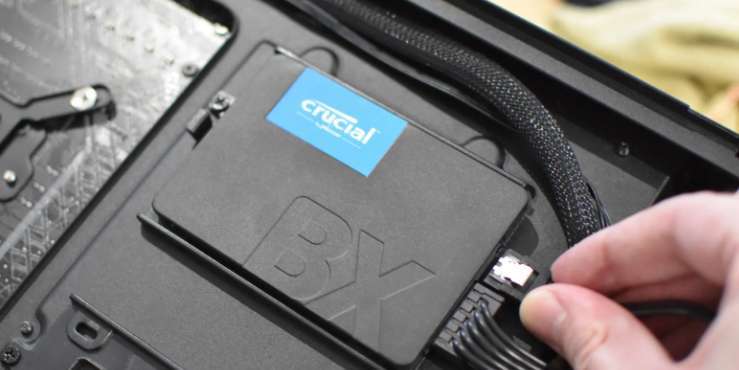
Hold the WD_BLACK SSD by its edges. Avoid touching the gold connector contacts or the small chips on the circuit board.
Insert the SSD into the M.2 socket at a slight upward angle. The notch on the connector must align with the key inside the socket.
Push it in firmly, but gently. Once fully inserted, press the raised end of the SSD down onto the spacer.
6. Secure the drive
Use the original PS5 screw to secure the SSD to the spacer. Tighten it until the drive is held in place.
Do not overtighten the screw. It should be snug, not forced. The screw is there to stop movement, not to clamp the SSD with heavy pressure.
Replace the metal expansion-bay cover and tighten its screw. Then reinstall the outer PS5 panel by aligning its clips and sliding it into position.
7. Reconnect and format the SSD
Reconnect the power and HDMI cables. Turn on the PS5.
The console should display a message asking you to format the M.2 SSD. Follow the instructions on screen. Formatting erases the drive, so make sure it contains no files you need.
When formatting is complete, the PS5 will show the drive’s read speed. Sony recommends a compatible SSD with a read speed of 5,500MB/s or faster.
This completes the main process for how to install a WD_BLACK SSD PS5 owners can perform at home.

How to move PS5 games to the WD_BLACK SSD
After formatting, the new drive becomes an expanded storage location. You can install and move compatible PS5 and PS4 games to it.