Buy the right laptop by matching its processor, memory, storage, screen, and battery life to your daily needs and budget.
Learning how to buy a laptop computer can save you from paying for features you will never use or choosing a cheap model that feels slow within a year. The best laptop is not always the most expensive one. It is the machine that fits your work, travel habits, software needs, comfort, and long-term plans. This guide explains the key choices in simple terms so you can shop with confidence.
:max_bytes(150000):strip_icc()/GettyImages-182065916-5c201ddcc9e77c0001381799.jpg)
Start With How You Will Use the Laptop
The first step in learning how to buy a laptop computer is to define your main tasks. A student who writes papers and watches videos needs a different laptop from a video editor, gamer, or software developer.
Think about what you do on a normal week. Your answer should guide every later choice.
Basic everyday use
For web browsing, email, online banking, video calls, streaming, and office work, you do not need a high-end laptop. A modern entry-level processor, 8GB of RAM, and a 256GB solid-state drive may be enough.
A better choice for long-term comfort is:
• Intel Core i3 or Core 5 processor
• AMD Ryzen 3 or Ryzen 5 processor
• 8GB of RAM at minimum
• 256GB or 512GB SSD storage
• A Full HD display
School and college work
Students often need a laptop for research, documents, presentations, video meetings, and learning platforms. Portability matters because you may carry the computer across campus every day.
Look for:
• 8GB or 16GB of RAM
• At least 256GB of SSD storage
• A battery rated for a full school day
• A comfortable keyboard
• A webcam with clear image quality
• A weight under about four pounds if you travel often
Professional work
Business users may need stronger multitasking performance. Many work laptops run a browser with dozens of tabs, spreadsheets, messaging apps, video calls, and cloud tools at the same time.
For this use, consider:
• 16GB of RAM
• 512GB SSD storage
• A Core 5, Core 7, Ryzen 5, Ryzen 7, or Apple M-series chip
• A bright screen with good viewing angles
• A strong warranty and reliable support
• Useful ports for monitors, projectors, and accessories
Creative work
Photo editing, music production, graphic design, and video editing place greater demands on the processor, memory, display, and graphics hardware.
A creative laptop should usually have:
• 16GB of RAM, or more for demanding video work
• At least 512GB of storage
• A color-accurate display
• A modern six-core or eight-core processor
• A dedicated graphics card for 3D work or high-resolution video
• Space for external drives and backup storage
A laptop with a beautiful screen but weak performance can become frustrating. A fast laptop with poor color accuracy can also damage creative work. You need a balance.
Gaming
Gaming laptops need a dedicated graphics processing unit, or GPU. The GPU handles much of the visual work in games.
Pay attention to:
• NVIDIA GeForce RTX or AMD Radeon graphics
• 16GB of RAM
• A 512GB SSD or larger
• A display with a refresh rate of 120Hz or higher
• Strong cooling
• A suitable power adapter
Gaming laptops often weigh more and have shorter battery life during heavy use. That is normal. High performance needs power, much like a sports car uses more fuel.
Set a Realistic Laptop Budget
Your budget should include more than the laptop itself. You may also need a case, mouse, USB hub, external storage, software, or an extended warranty.
Laptop prices vary widely, but these broad ranges can help:
• Under $400: Basic browsing, school portals, streaming, and simple documents. Expect compromises in speed, screen quality, or storage.
• $400 to $700: A strong range for students, home users, and office work. Many good laptops offer 8GB or 16GB of RAM and SSD storage.
• $700 to $1,200: Better build quality, faster processors, improved displays, longer battery life, and more premium features.
• $1,200 to $2,000: Suitable for professionals, creators, developers, and serious multitaskers.
• Over $2,000: High-end workstations, gaming systems, premium business laptops, and specialized creative machines.
A low price is not always a good deal. For example, a laptop with 4GB of RAM and 64GB of storage may look attractive, but it can feel limited very quickly. A slightly more expensive model with 8GB or 16GB of RAM and a 512GB SSD may offer much better value.
When deciding how to buy a laptop computer, compare the full specification, warranty, return policy, and expected lifespan. Do not compare prices by brand name alone.
Choose the Right Operating System
The operating system controls how you use the laptop and which apps you can install. The three main choices are Windows, macOS, and ChromeOS.
Windows
Windows laptops offer the widest range of prices, designs, and hardware. They are a practical choice for work, gaming, school, engineering software, and business programs.
Choose Windows if you need:
• Broad software compatibility
• A large selection of laptop sizes and prices
• Gaming support
• Specialized business or technical programs
• Many connection ports
Windows laptops range from simple budget computers to powerful mobile workstations. Quality can vary, so inspect the exact model rather than trusting the brand alone.
macOS
Mac laptops are popular for creative work, software development, education, and general use. Apple’s current chips offer strong performance and usually provide excellent battery life.
Choose a Mac if:
• You already use an iPhone or other Apple devices
• You prefer a simple interface
• Your required apps support macOS
• Battery life and quiet operation matter to you
Check software compatibility before buying. Some specialized business, engineering, gaming, and government apps may work only on Windows or may need extra software.
ChromeOS
Chromebooks use ChromeOS and rely heavily on web apps and cloud storage. They are often affordable, simple, secure, and easy to manage.
A Chromebook can work well for:
• Web browsing
• Google Docs and Microsoft 365 web apps
• Online classes
• Email and video calls
• Streaming media
Chromebooks may not support full desktop versions of professional editing, engineering, or gaming software. Also check whether you need offline access before choosing one.
The best operating system is the one that supports your daily apps. Do not choose based only on appearance or brand loyalty.
Understand Laptop Processors
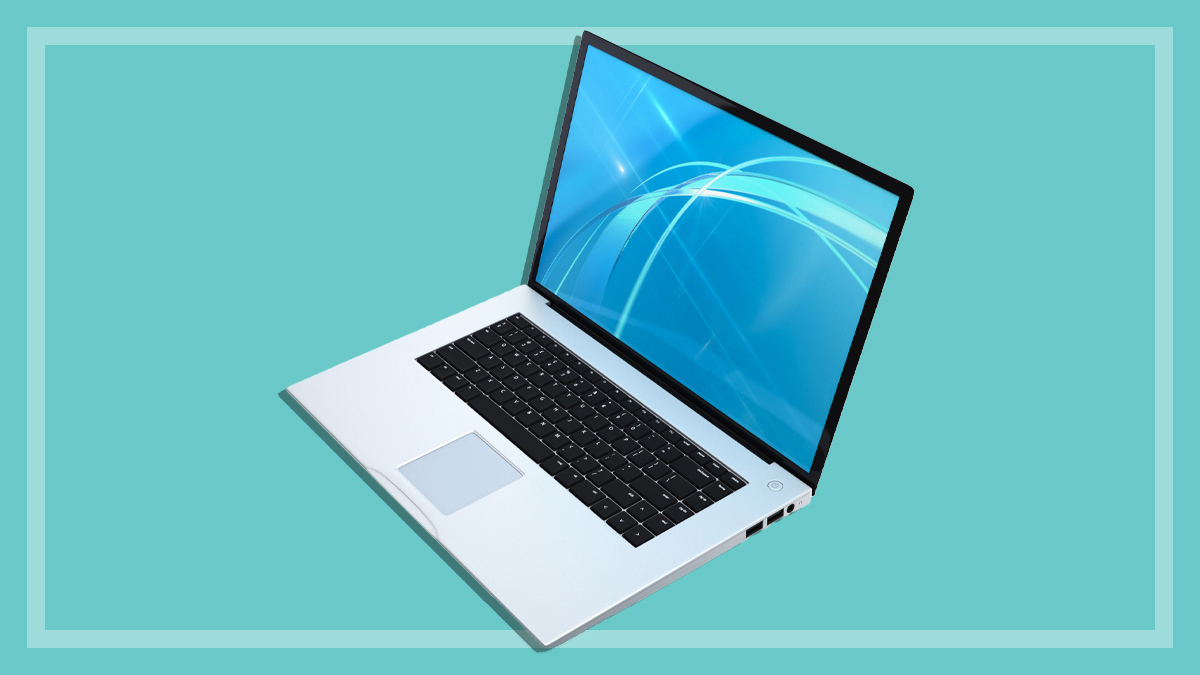
The processor, also called the CPU, is the main chip that handles instructions. It affects speed, multitasking, battery use, and the laptop’s useful life.
Current processor names can be confusing. A newer midrange chip may outperform an older high-end chip. Look at the generation, core count, performance tests, and power design rather than the name alone.
For most buyers:
• Core i3, Core 3, Ryzen 3, and similar chips suit basic work.
• Core i5, Core 5, Ryzen 5, and Apple M-series base chips suit most users.
• Core i7, Core 7, Ryzen 7, and Apple Pro chips suit heavier multitasking.
• Core i9, Ryzen 9, Apple Max, and workstation chips target demanding workloads.
More cores help when you run several demanding programs at once. Single-core performance matters for many everyday tasks. Efficiency also matters because a fast chip that drains the battery quickly may not be practical for travel.
One common buying mistake is focusing on processor labels while ignoring RAM, cooling, and storage. A good CPU cannot make a laptop pleasant to use if the system has too little memory or a slow drive.
Choose Enough RAM and Storage
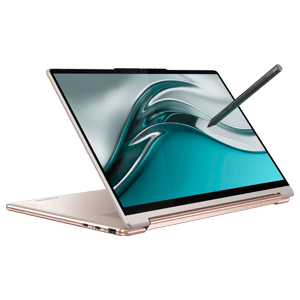
RAM is short-term working memory. It helps your laptop keep apps and browser tabs open. Storage holds your files, apps, photos, and operating system.
How much RAM do you need?
• 8GB: Suitable for basic browsing, school work, and office tasks.
• 16GB: A better choice for most people and a strong balance for multitasking.
• 32GB: Useful for video editing, large projects, virtual machines, software development, and advanced creative work.
• 64GB or more: Usually needed only for professional production or specialized workloads.
If the RAM is soldered to the motherboard, you may not be able to upgrade it later. Check the manufacturer’s specifications before buying.
How much storage do you need?
• 128GB: Very limited. Suitable only for light cloud-based use.
• 256GB: Acceptable for basic work and school use.
• 512GB: A comfortable starting point for many buyers.
• 1TB: Useful for games, videos, photos, and large software collections.
Choose an SSD rather than an older mechanical hard drive whenever possible. SSDs start apps faster, make less noise, use less power, and handle movement better.
A laptop’s advertised storage is not fully available to you. The operating system and recovery files use some space. If you store many photos or videos, plan for an external SSD or cloud backup.
Pick a Comfortable Screen
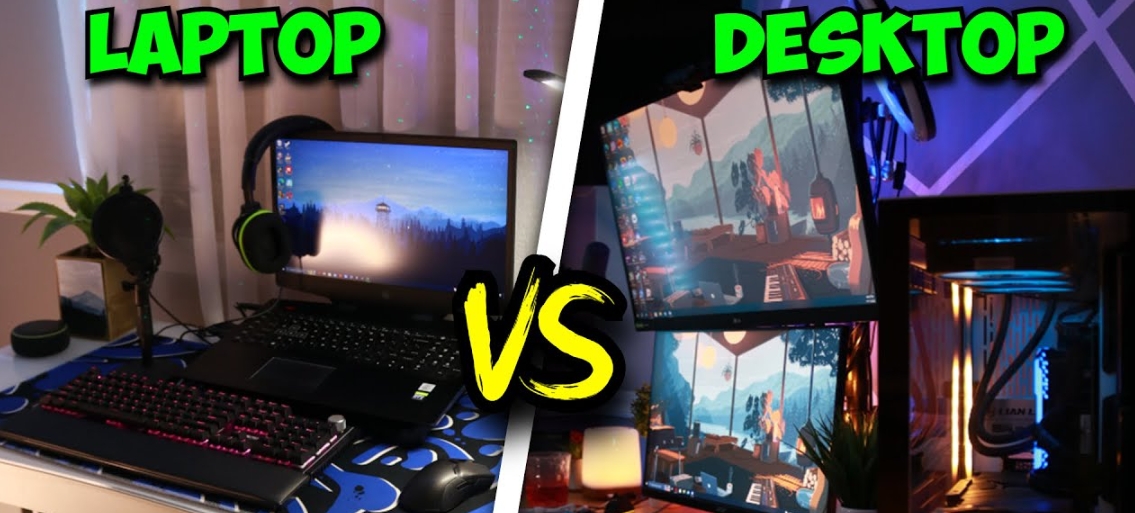
You may look at the laptop screen for hours, so display quality affects comfort as much as performance.
Screen size
• 11 to 13 inches: Light and portable, but less comfortable for detailed work.
• 14 inches: A strong balance between portability and workspace.
• 15 to 16 inches: Better for spreadsheets, editing, and entertainment.
• 17 inches or more: Good for a desktop replacement, but harder to carry.
A 14-inch laptop often works well for people who travel. A 16-inch model may be better if the laptop stays mostly at home or in an office.
Resolution
Full HD, or 1920 by 1080 pixels, is a practical minimum for most laptops. Higher resolutions look sharper, but they can increase cost and reduce battery life.
Refresh rate
A 60Hz display is fine for office work and streaming. A 120Hz or higher display makes movement look smoother and is useful for gaming. It may also make scrolling feel more pleasant.
Brightness and color
A brighter screen is easier to use near a window or outdoors. For photo and video work, look for good color coverage and factory calibration.
Glossy screens can make colors look vivid but may produce reflections. Matte screens reduce glare and are often easier to use under office lights.

Check Battery Life, Weight, and Build Quality
A laptop can have excellent specifications and still be a poor purchase if it is uncomfortable to carry or has weak battery life.
Battery claims are based on controlled tests. Real use varies with screen brightness, Wi-Fi strength, video calls, games, and background apps. Treat the advertised number as a guide, not a promise.
Look for reviews that test everyday browsing, video playback, and productivity. A laptop advertised for 15 hours may deliver less during demanding work.
Build quality also matters. Check for:
• A firm hinge
• Little flex around the keyboard
• A comfortable palm rest
• A sturdy lid
• A trackpad that responds accurately
• Easy-to-press keys
• Good ventilation
I have seen buyers choose a laptop based on processor speed, then return it because the keyboard felt cramped or the fan was too loud. Specifications tell only part of the story. The way a laptop feels in daily use matters just as much.
:max_bytes(150000):strip_icc()/blank-tablet-computer-getty-images-2218206863-337fcdc8a93d4b2fb86436fb13b64390.jpg)
Review Ports, Wireless Features, and Accessories
Modern thin laptops often reduce the number of physical ports. That can make the design cleaner, but it may force you to carry adapters.
Check whether the laptop includes the ports you need:
• USB-A for older devices
• USB-C for charging and accessories
• Thunderbolt or USB4 for fast data and displays
• HDMI for a monitor or television
• An SD or microSD card slot
• A headphone jack
Also check wireless support. Wi-Fi 6 or newer can improve speed and reliability on compatible networks. Bluetooth is useful for headphones, mice, keyboards, and other accessories.
If you use two monitors, an external drive, or a wired network, confirm that the laptop supports your setup before buying. A small port detail can create a large daily inconvenience.
Decide Between a Traditional Laptop and a 2-in-1
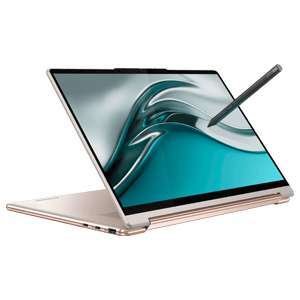
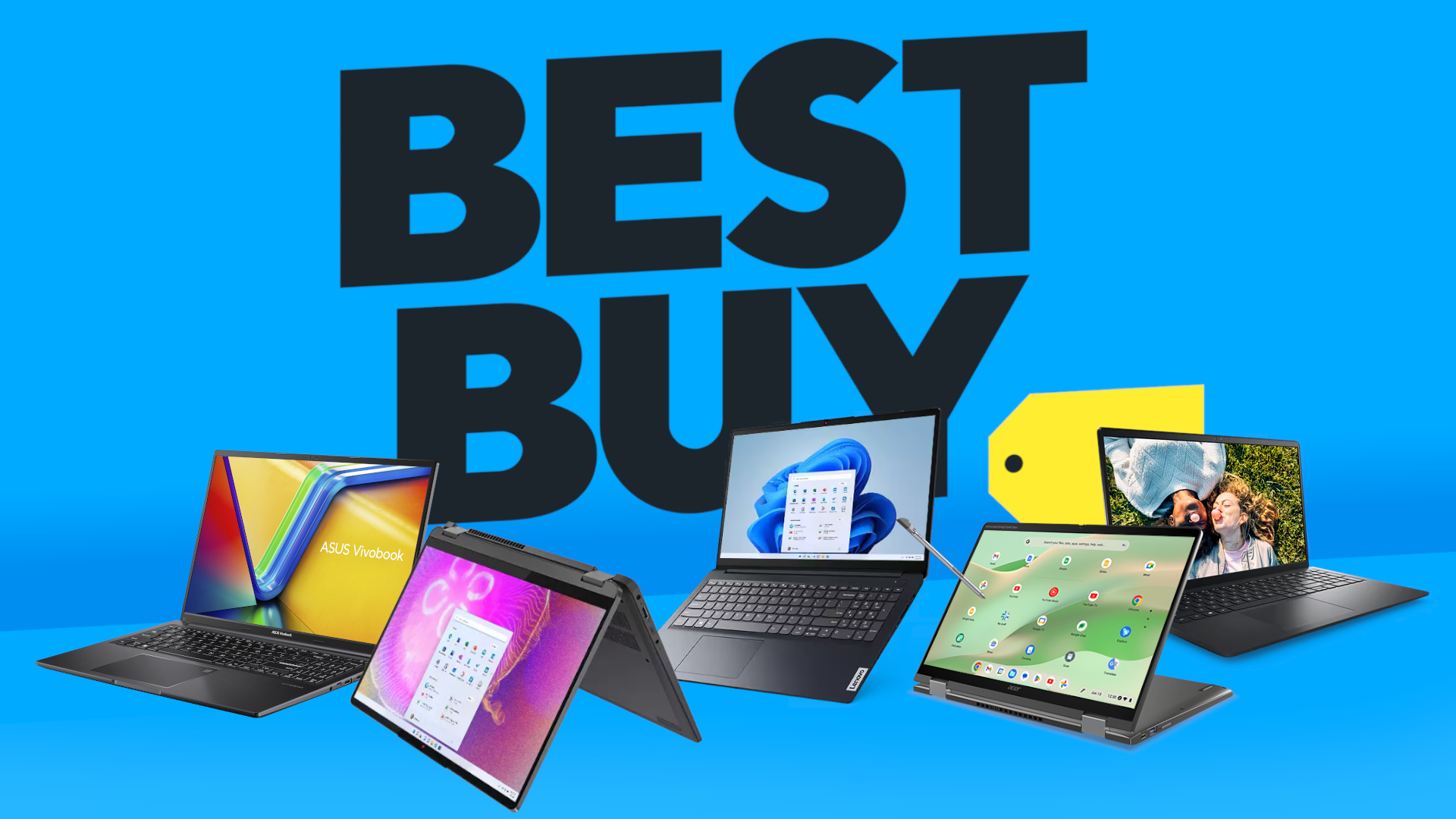
A traditional laptop has a fixed keyboard and screen. A 2-in-1 laptop can fold, rotate, or detach for tablet-style use.
A 2-in-1 may be useful if you:
• Take handwritten notes
• Draw with a compatible pen
• Present information often
• Want a tablet and laptop in one device
• Travel with limited space
A standard laptop is often better if you want maximum performance for the price. Hinges, touchscreens, and pen support can increase cost and add parts that may wear over time.
Do not pay extra for a touchscreen unless you know how you will use it. Many people enjoy the feature for the first week and then return to the keyboard and trackpad.
Compare Brands, Models, and Reviews
Brand reputation can help, but it should not replace model-by-model research. A company may sell excellent premium laptops and weak budget models at the same time.
When comparing laptops, read reviews that discuss:
• Real battery life
• Fan noise
• Heat during heavy use
• Screen quality
• Keyboard comfort
• Repair and upgrade options
• Webcam quality
• Customer support
• Common hardware problems
Look for long-term reviews as well as first impressions. A laptop may feel fast on day one but have poor durability, limited software support, or a weak hinge.
Check the exact model number. Retailers sometimes use similar names for laptops with different processors, screens, RAM, and storage. Two products may look identical but perform very differently.
Industry testing standards can help, but no battery test perfectly matches your routine. Independent reviews are useful because they reveal real-world limits, not just marketing claims.
Check Warranty, Repairs, and Security
A laptop is a major purchase, so after-sales support matters. Review the standard warranty, repair process, accidental damage options, and return window.
Business users may value on-site service or longer support. Students and families may prefer a simple replacement policy. Read the fine print before paying for an extended warranty.
Security features are also important. Look for:
• A fingerprint reader or infrared face login
• A physical webcam shutter
• A modern security chip
• Automatic security updates
• Full-disk encryption support
Use strong passwords and enable automatic updates. Back up important files even if the laptop has strong security. Security protects access, while backups protect your data from hardware failure, theft, and accidental deletion.
Repairability varies by model. Some laptops allow battery, SSD, or memory replacement. Others have parts that are difficult or impossible to upgrade. A repairable laptop may cost more at first but save money over time.
Test the Laptop Before the Return Period Ends
Knowing how to buy a laptop computer does not end at checkout. Test the machine during the return period.
Run through this checklist:
-
Connect to your home Wi-Fi and Bluetooth devices.
-
Test every port you expect to use.
-
Open the apps you need for work or school.
-
Check the webcam, speakers, microphone, and headphone jack.
-
Type for at least 20 minutes to assess the keyboard.
-
Use the trackpad with several gestures.
-
Watch for screen glare, dead pixels, or uneven brightness.
-
Test battery life during normal work.
-
Listen for fan noise and check for excessive heat.
-
Confirm that the storage and memory match the product listing.
Keep the packaging and receipt until you are sure the laptop works for you. This simple habit has saved many buyers from being stuck with a model that looked perfect online but felt wrong in person.
Avoid These Common Laptop Buying Mistakes
Many poor purchases come from choosing a feature without considering the whole system.
Avoid these mistakes:
• Buying the cheapest laptop without checking RAM and storage
• Paying for a gaming GPU when you only browse and write
• Choosing a very large laptop when you commute every day
• Trusting advertised battery life without reading real tests
• Ignoring keyboard comfort and screen brightness
• Assuming every USB-C port supports charging or video output
• Buying a Chromebook for software that requires Windows or macOS
• Choosing a high-resolution display that reduces battery life without adding value
• Forgetting the cost of a charger, dock, case, or backup drive
• Assuming a familiar brand guarantees quality
The biggest lesson is simple: buy for your actual habits, not an imaginary version of yourself. If you rarely edit videos, you probably do not need a professional workstation. If you travel daily, portability may matter more than peak speed.
A Simple Laptop Buying Checklist
Use this checklist before placing an order:
• Define your main tasks.
• Set a total budget.
• Choose Windows, macOS, or ChromeOS.
• Select the processor class.
• Choose at least 8GB of RAM, with 16GB preferred for many users.
• Choose an SSD with enough space for your files.
• Pick a screen size and resolution that fit your routine.
• Check battery tests and laptop weight.
• Review the keyboard, trackpad, webcam, and speakers.
• Confirm the ports and wireless standards.
• Read independent reviews.
• Check the warranty and return policy.
• Compare the exact model number.
• Test the laptop during the return period.
This process makes how to buy a laptop computer much less stressful. You do not need to understand every technical term. You only need to connect each feature to a real need.
Frequently Asked Questions About How to Buy a Laptop Computer
What is the most important thing to check when buying a laptop?
Start with your main use, then check the processor, RAM, storage, display, and battery life. A balanced laptop usually performs better in daily use than one with a powerful processor and weak memory or storage.
Is 8GB of RAM enough for a laptop?
8GB is enough for basic browsing, school work, email, and office apps. Choose 16GB if you multitask heavily, keep many browser tabs open, edit media, program, or want more room for future software.
Is a 256GB SSD enough for a laptop?
A 256GB SSD can work for documents, web apps, and cloud storage. A 512GB SSD is more comfortable if you keep photos, videos, games, or large programs on the laptop.
Should I buy a Windows laptop or a Mac?
Choose Windows for broad software support, gaming, specialized programs, and more hardware choices. Choose a Mac if you prefer macOS, use Apple devices, and have confirmed that your needed apps work on it.
How long should a good laptop last?
A good laptop can often remain useful for four to seven years, depending on its hardware, care, software demands, and repair options. Buying enough RAM, choosing SSD storage, and keeping the system updated can extend its useful life.
Is a Chromebook good for students?
A Chromebook can be excellent for students who mainly use web apps, online learning tools, documents, email, and video calls. Check software requirements first because some advanced Windows and macOS programs do not run natively on ChromeOS.
Conclusion
The best way to buy a laptop computer is to begin with your real needs, set a sensible budget, and compare balanced specifications. Focus on processor performance, RAM, SSD storage, screen comfort, battery life, ports, build quality, and support rather than chasing one impressive feature.
Take time to check the exact model, read trustworthy reviews, and test the laptop before the return window closes. Use this guide as your checklist, compare a few suitable options, and make your purchase with confidence.

Everett Ashford is a tech reviewer at mytechgrid.com specializing in SSDs, cameras, TVs, earbuds, headphones, and other consumer electronics. He provides honest, data-driven reviews based on hands-on testing and real-world performance analysis. Everett simplifies complex tech details to help readers make smart, confident buying decisions.