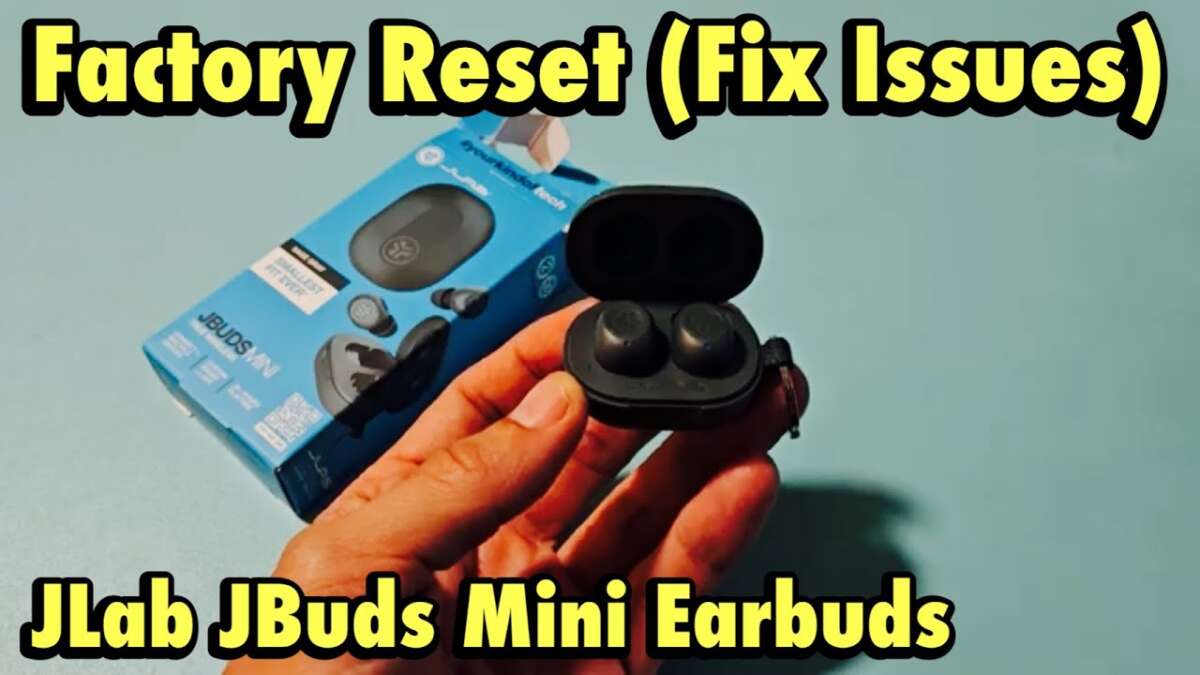
Press and hold each earbud for about 10–15 seconds until lights flash to factory reset JLab earbuds.
I’ve spent years troubleshooting earbuds and helping friends fix pairing issues. This guide explains exactly how to factory reset JLab earbuds, why you should do it, step-by-step methods for common JLab models, and what to expect after a reset. Read on for clear, tested instructions and practical tips so you can fix connection problems fast and confidently.

Why factory reset JLab earbuds can fix problems
A factory reset clears settings and returns earbuds to original state. This often removes stubborn Bluetooth pairing errors, audio glitches, and software bugs. If your JLab earbuds won’t pair, drop one side, or act erratic, a reset is usually the fastest fix.
Common benefits of a reset:
- Removes corrupted pairing data that blocks new connections.
- Fixes firmware or setting conflicts that cause audio dropouts.
- Restores default behavior and lets you start fresh.
When a reset won’t help:
- Hardware faults like a dead battery or water damage need repair.
- If the case or a bud won’t charge, reset alone won’t restore power.

Before you reset: quick checks and prep
Resetting removes paired devices and customized settings. Save time by trying simple checks first.
Quick pre-reset checklist:
- Charge both earbuds and the case to at least 50 percent.
- Turn off Bluetooth on your phone and remove JLab entries from paired devices list.
- Update the JLab app or firmware if an update is available and the earbuds will pair.
- Note any custom EQ or touch controls you want to set again after reset.
Backing up notes:
- There is no cloud backup for JLab earbuds. Write down EQ settings or touch mapping you want to restore later.
How to factory reset JLab earbuds — universal method
Most JLab models share a similar reset idea: erase pairing and reboot earbuds. Use this general method if you don’t know your exact model.
Universal reset steps:
- Place both earbuds in the charging case and leave the lid open.
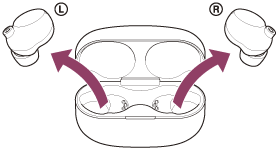
- Remove both earbuds from the case and power them on.
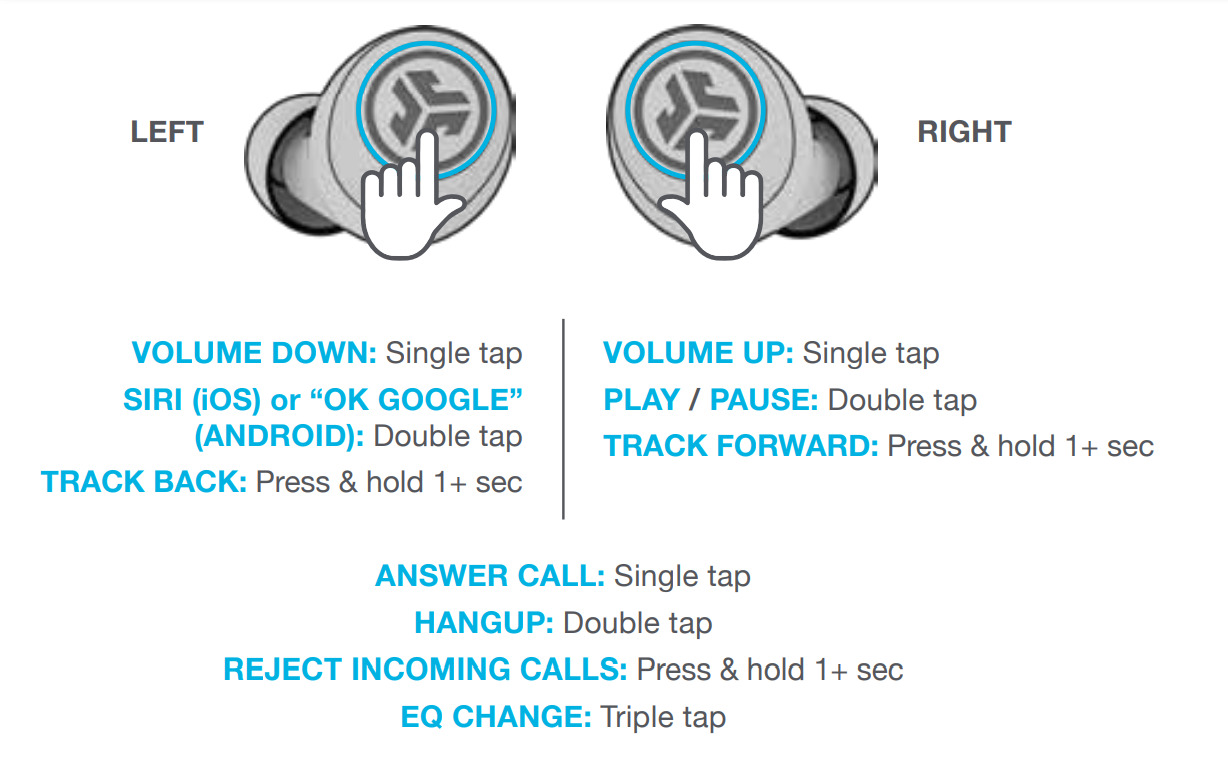
- Press and hold the touch area or multifunction button on both earbuds together for 10–15 seconds.
- Watch for LED flashes or hear a tone that signals a reset. LEDs often flash red and white or alternate colors.
- Put earbuds back into the case, close the lid for a few seconds, then reopen and re-pair to your device.
What to expect:
- Your device will no longer show the earbuds in its paired list until you re-pair.
- If you still see connection issues, delete the device entry on your phone and restart Bluetooth before pairing.

Model-specific reset instructions
Different JLab models have small differences. Below are tested, model-specific steps for the most common JLab earbuds.
JLab JBuds Air and JBuds Air True Wireless:
- Put both earbuds in the charging case.
- Remove them and power on both.
- Tap and hold both earbuds’ touch areas for 10 seconds until white LED flashes rapidly.
- Re-pair to your phone.
JLab Epic Air Sport and Epic Air:
- Remove earbuds from the case and keep them on.
- Press and hold the multifunction button on both earbuds for 12–15 seconds.
- LEDs will flash or you’ll hear “Reset” tone. Return to the case and re-pair.
JLab GO Air and GO Air Pop:
- Power off each earbud manually.
- Press and hold the touch sensor for about 10 seconds until light flashes.
- Place earbuds back and pair anew.
JLab JBuds Air ANC:
- Make sure firmware isn’t updating.
- Remove both from the case, then press and hold each for 15 seconds until you hear a reset chime.
- Reconnect through your device’s Bluetooth settings.
If your model isn’t listed:
- Use the universal method above or check your user manual. Many JLab models follow similar hold-and-wait patterns.

After the reset: re-pairing and testing
Once reset, pair like new earbuds. Follow these steps for a clean re-pair.
Re-pair steps:
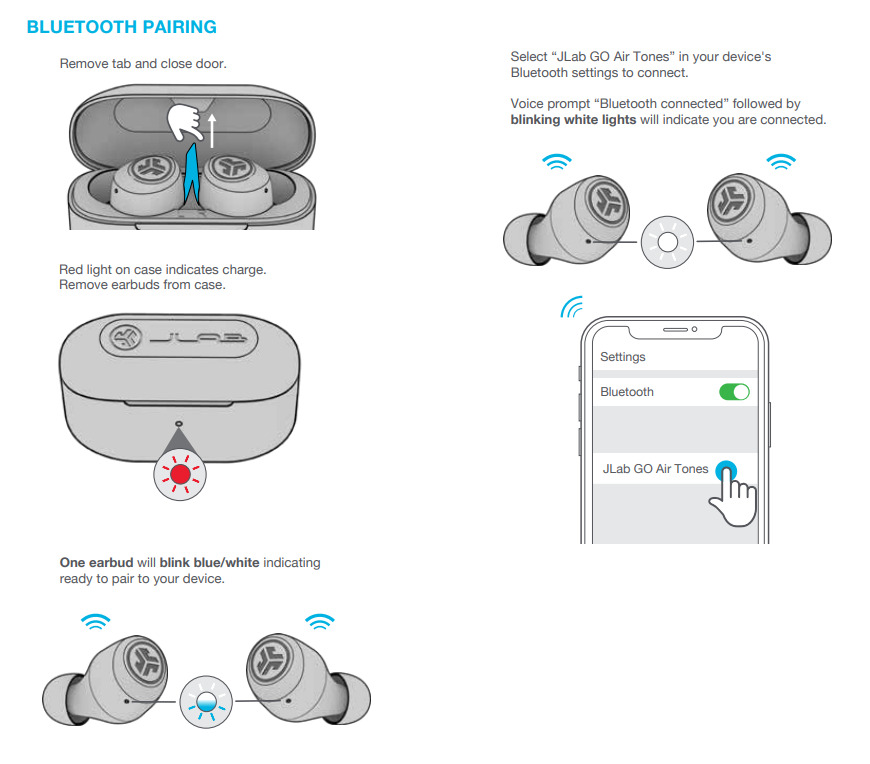
- Turn Bluetooth on for your phone or device.
- Remove earbuds from the case to enter pairing mode.
- Select the JLab earbuds name when it appears in Bluetooth settings.
- Test audio, microphone, and right/left balance by playing music and making a test call.
Quick tests:
- Play a 30-second audio clip to check left/right balance.
- Make a short call to confirm mic and connectivity.
- Walk away a short distance to confirm stable range.

Troubleshooting common reset problems
Sometimes reset doesn’t solve the issue. Try these next steps.
If earbuds don’t reset:
- Fully charge case and earbuds and try the reset again.
- Remove the device entry on your phone and turn Bluetooth off and on.
- Try performing the reset with the case lid open and closed — some models require a specific lid position.
If one earbud won’t connect:
- Clean charging pins with a dry cotton swab.
- Confirm both earbuds charge fully in the case.
- Re-pair only one earbud by inserting and removing the other during pairing, following model-specific guidance.
If audio drops persist:
- Move away from Wi-Fi routers or crowded Bluetooth areas.
- Test earbuds with another device to isolate phone vs earbud issues.
PAA-style questions
Q: Will resetting delete firmware updates?
A: No. A factory reset clears pairing and settings but does not remove firmware updates.
Q: How long does a factory reset take?
A: A reset itself takes about 10–20 seconds, plus a few minutes to re-pair and test.
Q: Can I reset earbuds without the case?
A: Some JLab models allow a reset without the case by holding buttons on the buds, but many require the case for full effect.

Tips from my experience
I’ve reset many JLab earbuds while troubleshooting friends’ devices. Small habits speed up success.
Practical tips I use:
- Fully charge before reset to avoid power-related failures.
- Delete the device from your phone’s Bluetooth list first — it avoids ghost connections.
- If a reset fails twice, try resetting with a different phone to rule out phone-side Bluetooth problems.
- Keep a microfiber cloth and alcohol wipes handy to clean charging contacts — dirt often causes “one bud dead” problems.
Lessons learned:
- Patience pays off — hold buttons longer than you think.
- Firmware updates sometimes change reset behavior. Check the app for notes.

Safety, limitations, and when to contact support
Resetting won’t fix physical damage or battery failures. Know when to escalate.
When to seek support:
- One or both earbuds won’t charge even after cleaning contacts.
- The case or bud shows visible damage or swelling.
- You’ve tried resets, re-pairs, and firmware updates without improvement.
Limitations:
- Custom settings are lost and must be reconfigured manually.
- If the device is still under warranty, note that resets won’t void coverage but repairs may be required.
Frequently Asked Questions of how to factory reset jlab earbuds
How long does it take to factory reset JLab earbuds?
A proper factory reset normally takes 10–20 seconds. Allow another few minutes to re-pair and test the earbuds with your device.
Will factory resetting JLab earbuds delete my firmware updates?
No. A factory reset clears pairing and user settings but does not remove firmware updates already installed on the earbuds.
My earbuds still won’t pair after reset. What should I do?
Delete the earbuds from your phone’s Bluetooth list, turn Bluetooth off and on, then try pairing again. If that fails, try pairing with a different device to isolate the issue.
Can I reset JLab earbuds if the case is dead?
Sometimes you can reset using the earbuds’ touch or button controls, but many models need a charged case for full reset. Charge the case first if possible.
Will resetting improve battery life?
Resetting can fix software issues that affect battery reporting, but it won’t restore lost battery capacity from wear or damage. If battery life stays poor, check warranty or battery health options.
Conclusion
Resetting JLab earbuds is a fast, effective way to fix pairing and audio problems. Use the universal method for most models, follow model-specific steps when available, and test thoroughly after you reset. If a reset doesn’t help, clean contacts, update firmware, or contact support for hardware issues. Try these steps today, leave a comment with your model and problem, and subscribe for more tested tips and troubleshooting guides.

Everett Ashford is a tech reviewer at mytechgrid.com specializing in SSDs, cameras, TVs, earbuds, headphones, and other consumer electronics. He provides honest, data-driven reviews based on hands-on testing and real-world performance analysis. Everett simplifies complex tech details to help readers make smart, confident buying decisions.