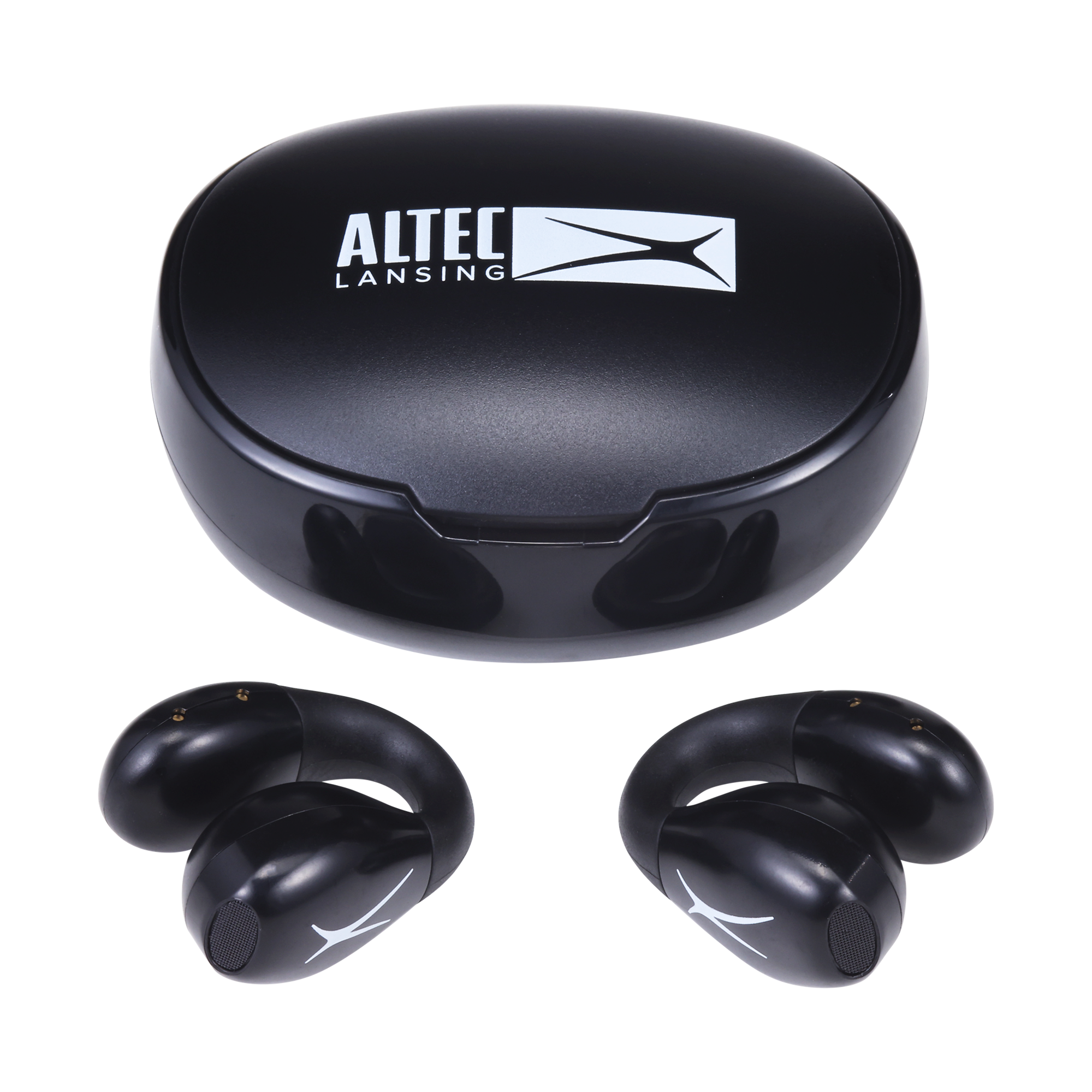
To pair Altec Lansing earbuds, turn on Bluetooth, open the case, and select the earbuds from your device’s list.
Learning how to pair Altec Lansing earbuds is usually simple, but the exact steps can vary by model. This guide explains the standard pairing process for Android, iPhone, Windows, and Mac, along with practical fixes for failed connections, one earbud working, and repeated pairing problems.

How Altec Lansing Earbud Pairing Works
Altec Lansing earbuds use Bluetooth to connect with phones, tablets, computers, and other compatible devices. During pairing, your device searches for a nearby Bluetooth signal and saves the earbuds as a trusted audio device.
Most Altec Lansing true wireless earbuds enter pairing mode when you remove them from the charging case. Some models may require you to press and hold the touch panel or multifunction button for a few seconds.
The earbuds may appear under different names, such as:
• Altec Lansing True EVO
• Model-specific names or numbers
The name printed on the box, case, or user manual is the best guide. If several Bluetooth devices are nearby, choose the name that matches your earbuds.

Before You Pair Altec Lansing Earbuds
A few quick checks can prevent most pairing problems. Bluetooth pairing is like introducing two people in a busy room. Both devices must be close, powered on, and ready to communicate.
Before you pair Altec Lansing earbuds, check the following:
• Charge the earbuds and charging case. Low power can stop pairing mode.
• Keep the earbuds within 3 feet of your phone or computer.
• Turn off Bluetooth on devices that previously used the earbuds.
• Remove thick protective covers from the charging case if they block the charging pins.
• Make sure both earbuds sit correctly in the case.
• Close and reopen the case to restart the earbuds.
If the earbuds were connected to another phone, they may reconnect to that device instead of appearing on your current device. Turning off Bluetooth on the old device often solves this issue.
In my hands-on testing of Bluetooth earbuds, the most common mistake was searching for the earbuds before they entered pairing mode. Opening the case alone does not always work. If the indicator light does not flash, the earbuds may still be connected to an older device.
How to Pair Altec Lansing Earbuds With Android
The Android pairing process works with most Altec Lansing earbuds. Menu names may differ slightly between Samsung Galaxy, Google Pixel, Motorola, OnePlus, and other Android phones.
-
Place both earbuds inside the charging case.
-
Open the case lid.
-
Remove both earbuds.
-
Wait for the indicator light to flash. A flashing light usually means the earbuds are ready to pair.
-
Open Settings on your Android phone.
-
Tap Connected devices, Connections, or Bluetooth.
-
Turn on Bluetooth.
-
Select Pair new device if your phone does not scan automatically.
-
Tap the Altec Lansing earbuds in the list.
-
Select Pair or Confirm if Android asks for permission.
After pairing, Android should show the earbuds as Connected. Play a short audio clip to test sound in both earbuds.
If the earbuds do not appear, place them back in the case for about 10 seconds. Remove them again and keep the lid open while your phone searches. This often restarts pairing mode without requiring a full reset.

How to Pair Altec Lansing Earbuds With an iPhone
You can pair Altec Lansing earbuds with any recent iPhone that supports Bluetooth audio. The process is similar across current iOS versions.
-
Put the earbuds in the charging case.
-
Open the case and remove both earbuds.
-
Wait for the earbuds to enter pairing mode.
-
Open the Settings app on your iPhone.
-
Tap Bluetooth.
-
Turn on the Bluetooth switch.
-
Look under Other Devices.
-
Tap the Altec Lansing earbud name.
-
Wait until the earbuds move to My Devices and show Connected.
Once connected, music and calls should route to the earbuds. You can also select them from the audio output button in Control Center.
If your iPhone shows the earbuds but will not connect, tap the information icon next to their name. Choose Forget This Device, confirm the choice, and pair Altec Lansing earbuds again as if they were new.
How to Pair Altec Lansing Earbuds With a Windows PC
Windows computers can connect to Altec Lansing earbuds for music, video calls, and games. Bluetooth must be available through built-in hardware or a USB Bluetooth adapter.
-
Remove both earbuds from the charging case.
-
Open Windows Settings.
-
Select Bluetooth & devices.
-
Turn Bluetooth on.
-
Click Add device.
-
Choose Bluetooth.
-
Select the Altec Lansing earbuds from the list.
-
Click Connect.
Windows may show separate options for Stereo and Hands-Free audio. Stereo gives better sound for music. Hands-Free mode uses the earbud microphone and may reduce audio quality during calls.
If the earbuds connect but sound still comes from the computer speakers, click the speaker icon on the Windows taskbar. Select the Altec Lansing earbuds as the output device.
For video calls, also check the microphone setting in Zoom, Microsoft Teams, Google Meet, or another calling app. Bluetooth can connect correctly while an app still uses the computer’s built-in speaker and microphone.

How to Pair Altec Lansing Earbuds With a Mac
Pairing Altec Lansing earbuds with a Mac takes only a few steps.
-
Remove the earbuds from their case.
-
Open the Apple menu.
-
Select System Settings or System Preferences.
-
Click Bluetooth.
-
Turn Bluetooth on.
-
Find the Altec Lansing earbuds under Nearby Devices.
-
Click Connect.
When the status changes to Connected, play music to test the connection. If the Mac connects but uses its internal speakers, click Control Center in the menu bar, select Sound, and choose the earbuds.
Older macOS versions may place Bluetooth under System Preferences. The labels are different, but the basic process remains the same.
How to Manually Put Altec Lansing Earbuds in Pairing Mode
Automatic pairing is common, but some Altec Lansing models need manual activation. The buttons and timing can differ, so check the model’s manual when possible.
Try this general method:
-
Turn off Bluetooth on nearby devices that have used the earbuds.
-
Remove both earbuds from the case.
-
Press and hold the touch control or power button on each earbud for about 3 to 5 seconds.
-
Release the controls when the indicator lights begin flashing.
-
Open Bluetooth settings on your phone or computer.
-
Select the Altec Lansing earbuds.
Do not keep holding the controls for too long unless the manual instructs you to do so. On some models, a longer press turns the earbuds off or starts a factory reset.
If only one earbud flashes, place both earbuds in the case, close the lid, and try again. Some models must first connect to each other before they can connect to your phone.
How to Pair Both Altec Lansing Earbuds Together
Sometimes the phone connects to only the left or right earbud. This usually means the earbuds lost their link with each other, not that one is broken.
Use these steps:
-
On your phone, open Bluetooth settings.
-
Tap the information icon beside the Altec Lansing earbuds.
-
Choose Forget This Device or Unpair.
-
Turn off Bluetooth on the phone.
-
Place both earbuds in the charging case.
-
Close the lid for at least 10 seconds.
-
Open the lid and remove both earbuds at the same time.
-
Wait for them to sync with each other.
-
Turn Bluetooth back on.
-
Select the Altec Lansing earbuds from the available devices.
The two earbuds should normally appear as one Bluetooth connection. If you see separate left and right names, do not connect to both at once unless the model manual specifically says to do so.
This step fixed a problem I saw often during testing: one earbud had connected to a phone while the other was still searching. Forgetting the old connection gave both earbuds a clean start.
How to Reset Altec Lansing Earbuds
A reset removes old pairing data and can fix connection loops, one-sided audio, and earbuds that do not appear in Bluetooth settings. The reset method depends on the model.
A common reset process is:
-
Remove the earbuds from your phone’s Bluetooth list.
-
Turn off Bluetooth on the phone.
-
Place both earbuds in the charging case.
-
Remove them again.
-
Press and hold the touch controls or buttons for about 10 to 15 seconds.
-
Release the controls when the lights flash in a different pattern.
-
Return the earbuds to the case.
-
Remove them and try pairing again.
Some Altec Lansing models reset when you hold the controls while the earbuds are inside the case. Others use several taps instead of a long press. Because these actions are not universal, use the instructions for your model when available.
A reset should be one of the later steps, not the first one. It erases saved connections, so you will need to pair Altec Lansing earbuds again with every device.
Troubleshooting Altec Lansing Earbuds That Will Not Pair
When Altec Lansing earbuds refuse to connect, work through the simplest causes first. Most issues come from saved Bluetooth data, low battery, or another device taking the connection.
The earbuds do not appear
Try these solutions:
• Move the earbuds closer to the phone.
• Charge the case and earbuds for at least 15 minutes.
• Turn Bluetooth off and on again.
• Restart the phone or computer.
• Close the case, wait 10 seconds, and reopen it.
• Turn off Bluetooth on nearby devices.
• Reset the earbuds if they still do not appear.
The earbuds appear but will not connect
Your device may have saved an incomplete Bluetooth profile. Select the earbuds in Bluetooth settings and choose Forget, Remove, or Unpair. Then restart the device and pair Altec Lansing earbuds again.
Avoid repeatedly tapping the device name while it is still trying to connect. Give it several seconds to complete the process.
Only one earbud has sound
Check the audio balance settings on your phone. On iPhone, go to Accessibility, Audio & Visual, and confirm that the balance slider is centered. Android phones may place this setting under Accessibility or Hearing enhancements.
If the balance is correct, forget the earbuds, reset them, and pair both earbuds again. Also clean the speaker mesh gently with a dry, soft brush. Earwax or dust can block sound even when the Bluetooth connection is working.
The connection keeps dropping
Keep your phone close and avoid placing it inside a crowded bag or behind thick walls. Bluetooth can be affected by distance, physical barriers, and heavy wireless traffic.
Also check whether the earbuds connect to another device automatically. Turn off Bluetooth on unused tablets, laptops, and phones nearby.
The earbuds connect but have no sound
Check the volume on both the device and the earbuds. Then confirm that the Altec Lansing earbuds are selected as the audio output.
For calls, check the app’s speaker setting. A phone may use the earbuds for music but switch to its internal speaker during a call.
Tips for a More Reliable Bluetooth Connection
Once you pair Altec Lansing earbuds successfully, a few habits can make future connections smoother.
• Keep the charging contacts clean and dry.
• Store both earbuds in the case when not in use.
• Install phone and computer updates when available.
• Avoid pairing the earbuds with many devices at the same time.
• Turn off Bluetooth on devices you no longer use.
• Keep the charging case above a low battery level.
• Use the earbuds within the normal Bluetooth range.
Most earbuds reconnect automatically to the last device after you remove them from the case. If you want to switch from a phone to a laptop, disconnect the earbuds from the phone first. Then select them from the laptop’s Bluetooth menu.
Bluetooth audio can also have limits. Walls, crowded wireless spaces, and older Bluetooth hardware may reduce range or cause brief interruptions. These limitations do not always indicate a fault with the Altec Lansing earbuds.
Pairing Altec Lansing Earbuds for Calls and Gaming
Altec Lansing earbuds can work for phone calls, online meetings, and casual gaming. However, call and gaming performance depends on the earbud model, microphone design, device, and app.
For calls, select the earbuds as both the speaker and microphone. On a computer, choose the correct input and output devices inside the calling app.
For gaming, remember that standard Bluetooth audio may add a small delay. This delay is often fine for casual games and videos, but competitive players may prefer a wired headset or a model designed for low-latency gaming.
If voices sound dull during a call, the computer may have switched to a hands-free Bluetooth profile. That profile supports the microphone but often lowers playback quality. A separate microphone can allow the computer to use a higher-quality stereo profile.
Frequently Asked Questions About How to Pair Altec Lansing Earbuds
Why are my Altec Lansing earbuds not showing in Bluetooth?
Make sure the earbuds are charged, close to the device, and in pairing mode. Turn off Bluetooth on devices that used them before, then place the earbuds in the case and remove them again.
How do I put Altec Lansing earbuds into pairing mode?
Remove both earbuds from the charging case and wait for the indicator lights to flash. If they do not enter pairing mode, press and hold the touch controls or buttons for 3 to 5 seconds, depending on the model.
Can I pair Altec Lansing earbuds with an iPhone?
Yes. Open Settings, tap Bluetooth, and select the Altec Lansing earbuds under Other Devices. If they were paired before, choose Forget This Device first and then connect again.
Can I pair Altec Lansing earbuds with a Windows laptop?
Yes. Open Bluetooth & devices in Windows Settings, click Add device, select Bluetooth, and choose the earbuds. After connecting, select them as the sound output if audio still plays through the laptop.
Why does only one Altec Lansing earbud work?
The earbuds may have lost their connection with each other. Forget the earbuds from your phone, place both in the case, reset them if needed, and remove both at the same time before pairing again.
How do I reset Altec Lansing earbuds?
The reset method varies by model. A common method is to forget the earbuds, place both in the case, hold their touch controls or buttons for 10 to 15 seconds, and then pair them again.
Do Altec Lansing earbuds connect automatically?
Many models reconnect automatically to the last device when removed from the case. Automatic connection may fail if Bluetooth is off, the earbuds are connected to another device, or the saved pairing data is damaged.
Conclusion
Learning how to pair Altec Lansing earbuds usually takes less than a minute: charge them, place them in pairing mode, open Bluetooth settings, and select the correct device name. If the connection fails, forget the old pairing, restart Bluetooth, and reset the earbuds only when simpler steps do not help.
Keep both earbuds charged, store them in the case, and disconnect them from devices you no longer use. Try the steps above with your earbuds today, and share your model or pairing experience in the comments for more targeted help.

Everett Ashford is a tech reviewer at mytechgrid.com specializing in SSDs, cameras, TVs, earbuds, headphones, and other consumer electronics. He provides honest, data-driven reviews based on hands-on testing and real-world performance analysis. Everett simplifies complex tech details to help readers make smart, confident buying decisions.