Create a bootable installer, start from the SSD, and follow the OS setup to finish.
Learning how to install OS on new SSD is one of the best ways to improve boot speed, app loading, and overall system performance. This guide explains each step clearly, from backing up files and creating installation media to setting up partitions, drivers, updates, and security settings. Whether you use Windows, Linux, or another operating system, you can complete the process with the right preparation.
What You Need Before Installing an OS on a New SSD
Before you learn how to install OS on new SSD, gather the tools and information you need. A clean installation removes data from the selected drive, so preparation matters more than speed.
You will usually need:
- A new SSD installed in your computer
- A second computer if your current system cannot boot
- A USB flash drive with at least 8 GB of space
- The operating system installation file
- A USB creation tool
- Your product key, if the OS requires one
- A backup of important files
- Your Wi-Fi password
- Basic motherboard or laptop information
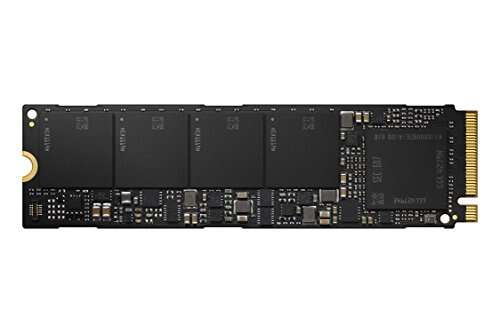
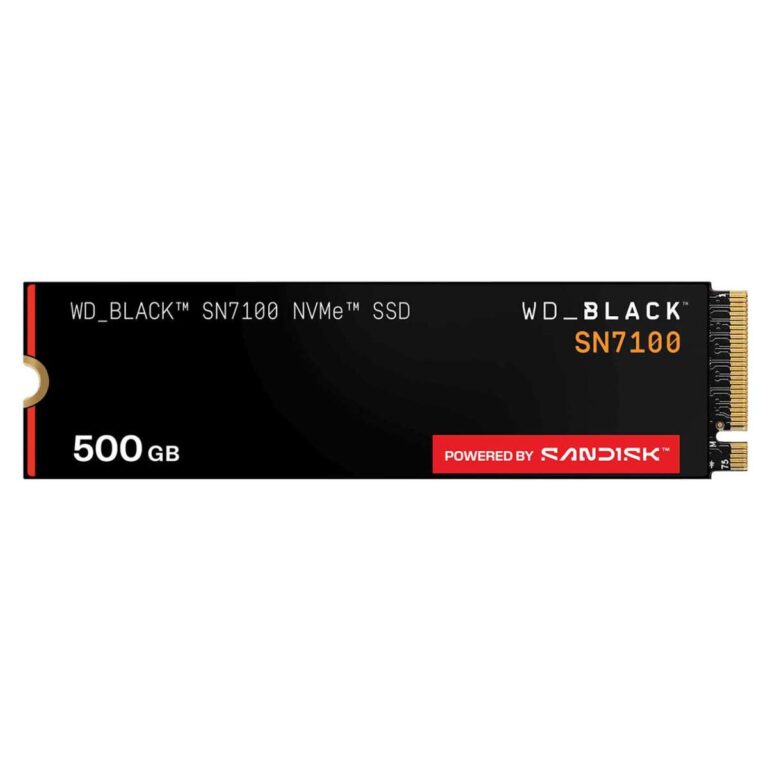
Check whether your computer supports a 2.5-inch SATA SSD or an M.2 NVMe SSD. A SATA drive uses a data cable and a power cable. An M.2 drive fits directly into a slot on the motherboard.
Also check the firmware mode. Most modern systems use UEFI, while older computers may use Legacy BIOS. Windows 11, for example, commonly requires UEFI, Secure Boot, and TPM 2.0. Linux distributions often support a wider range of hardware, but UEFI is still the better choice on newer systems.
If the SSD is already inside the computer, confirm that the BIOS or UEFI can detect it. If it does not appear, turn the computer off and check the connection, mounting screw, and motherboard slot.
Back Up Your Files and Prepare the New SSD
A clean OS installation can erase the entire target drive. Back up documents, photos, browser bookmarks, game saves, work files, and password records before you continue.
Use at least two backup locations for files that cannot be replaced. For example, save them to an external drive and a trusted cloud service. Open several backed-up files to confirm that the copies work.
When I help with SSD upgrades, the most common mistake is not the installation itself. It is choosing the wrong drive during setup. If your old drive remains connected, label it clearly or disconnect it for the first installation. This simple step can prevent accidental data loss.
You should also record these details:
- Your Windows or Linux edition
- Your Microsoft, Apple, or Linux account
- Your Windows product key, if needed
- Your computer model
- Your motherboard model
- Your network adapter details
- Any special storage or chipset drivers
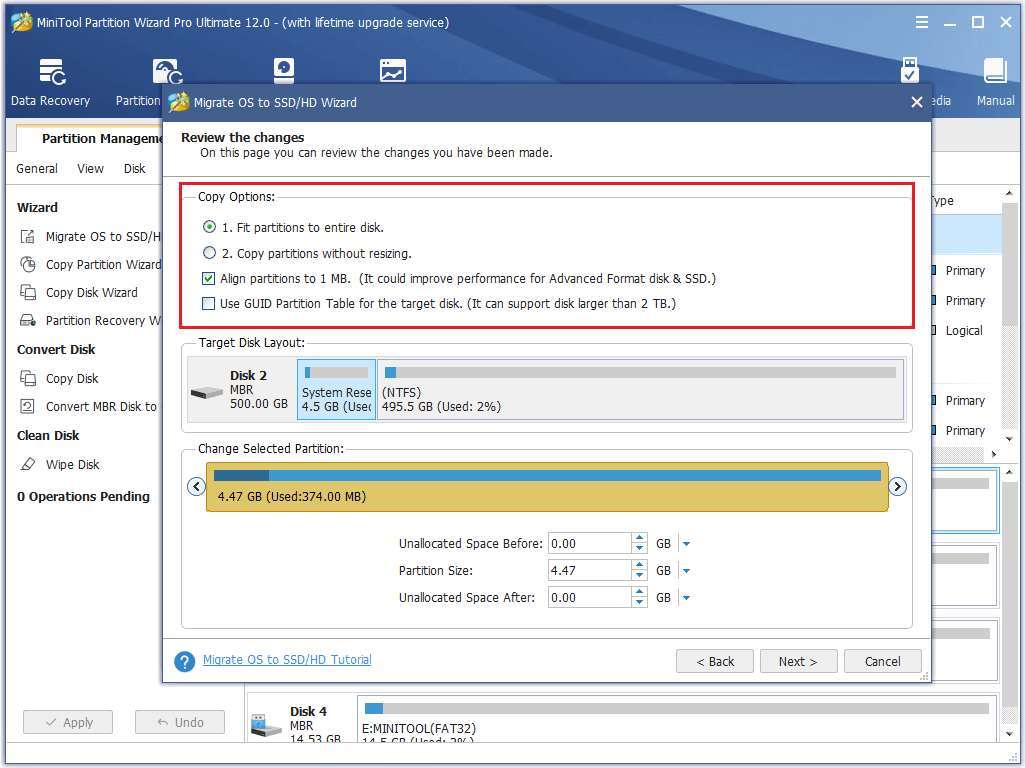
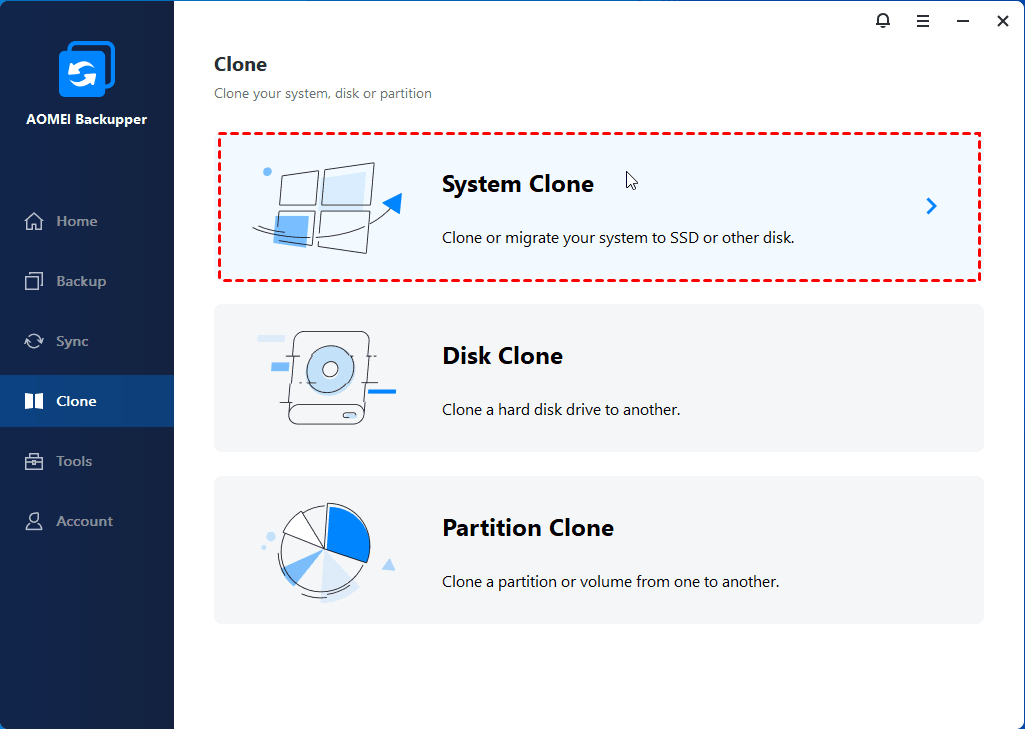
If you are replacing an old drive, decide between cloning and a clean install. Cloning copies the old system to the SSD. A clean install creates a fresh system with fewer old drivers, unused programs, and hidden problems.
A clean installation is usually the better choice when the old operating system is slow, unstable, infected, or cluttered. Cloning can save time, but it may also copy old errors and unnecessary files.

Create a Bootable OS Installation USB
The next step in how to install OS on new SSD is creating a bootable USB drive. This USB contains the setup files that start before the operating system on your computer.
For Windows, download the official installation media tool or ISO file from Microsoft. For Linux, download an ISO from the distribution’s official website. Popular choices include Ubuntu, Linux Mint, Fedora, and Debian.
Use a trusted USB creation tool. The process normally looks like this:
- Insert the USB flash drive.
- Open the media creation tool.
- Select the downloaded ISO or operating system edition.
- Choose the correct USB drive.
- Confirm that the tool can erase the USB.
- Wait for the process to finish.
- Safely eject the USB drive.
The USB drive will be erased during this process. Do not use a flash drive that contains files you need.
For a modern UEFI computer, select GPT as the partition style when the tool asks. Use MBR only when you know the computer requires Legacy BIOS mode. Most new computers work best with UEFI and GPT.
After creating the installer, restart the computer and test whether it can boot from the USB. This confirms that the installer works before you erase or change the SSD.
Set the Computer to Boot From the USB
To install an OS on a new SSD, the computer must start from the installation USB instead of the empty SSD.
Turn off the computer. Insert the bootable USB, then turn it on and open the boot menu. Common boot keys include:
- F12
- F11
- F9
- Esc
- Delete
- F2
The correct key depends on the manufacturer. Look for a message such as “Boot Menu,” “Setup,” or “BIOS” during startup.
Choose the USB entry that begins with “UEFI” when two similar choices appear. For example, select “UEFI: USB Drive” instead of only “USB Drive.” This helps the installer create the correct boot structure for modern systems.
If the USB does not appear, try another port. A rear motherboard port often works better than a front port on a desktop. You can also recreate the USB, change the boot mode, or disable Fast Boot temporarily.
Do not change settings at random. Write down the original value before changing Secure Boot, storage mode, or boot mode. This makes troubleshooting easier if the computer stops booting.

How to Install OS on New SSD
Now you can begin the main installation. The exact screens differ between Windows, Linux, and other systems, but the overall process is similar.
Start the computer from the USB installer and follow these steps:
- Choose your language, time zone, and keyboard layout.
- Select Install.
- Enter a product key if requested.
- Choose the correct operating system edition.
- Accept the license terms.
- Select Custom, Advanced, or Clean Installation.
- Choose the new SSD.
- Create or select the required partitions.
- Start the installation.
- Allow the computer to restart when prompted.
The most important screen is the disk selection screen. Identify the SSD by its capacity and model number. Do not select a drive only because it appears first in the list.
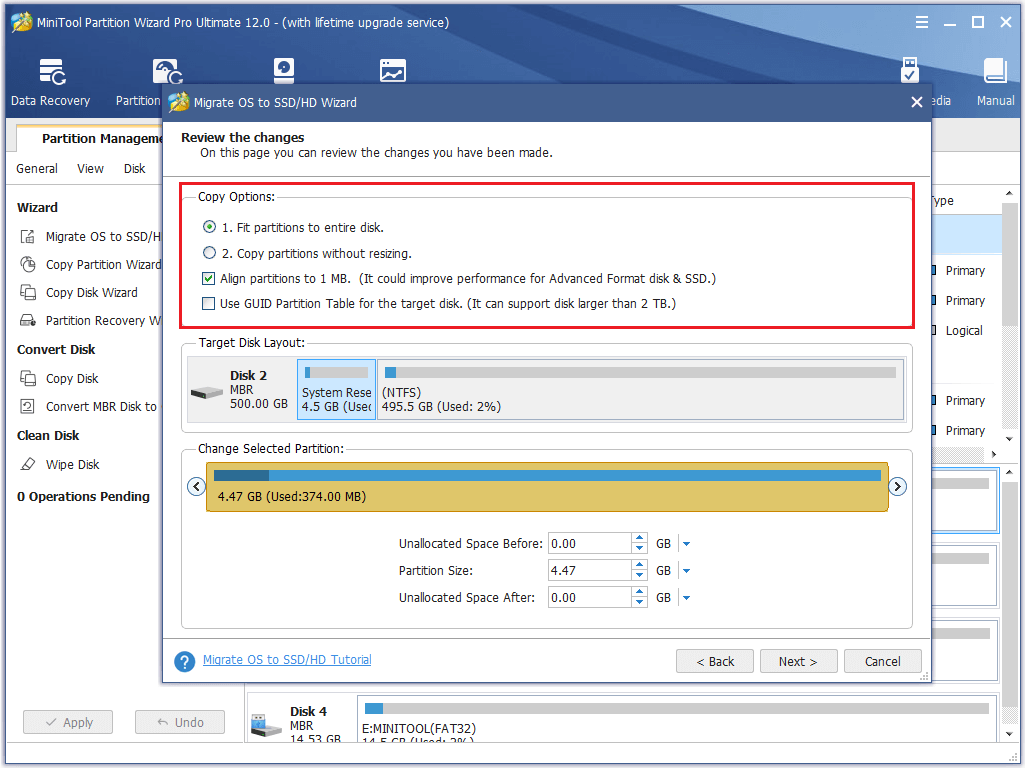
If the SSD is empty, the installer may show unallocated space. Select it and allow the installer to create the required partitions. Modern Windows installations may create several small partitions for system recovery, boot files, and reserved data.
For a clean Windows installation, you can select old partitions on the target SSD and choose Delete. Continue only after confirming that the drive is the correct one. The result should be one block of unallocated space before you click Next.
Linux gives you more control. You can allow automatic partitioning or create partitions manually. A typical UEFI Linux setup uses an EFI System Partition, a root partition, and optional swap space. Beginners should use automatic partitioning unless they have a clear reason to customize it.
The computer may restart several times. Remove the USB when the setup asks you to do so, or change the boot order so the SSD starts first.
Set Up Windows After the Installation
After Windows starts from the new SSD, complete the first-run setup. Connect to the internet if possible, sign in, and choose your privacy settings carefully.
Then open Settings and run Windows Update. Install all available updates, restart the computer, and check again. Some updates appear only after earlier updates finish.
Install drivers in this order:
- Chipset and motherboard drivers
- Graphics drivers
- Wi-Fi or Ethernet drivers
- Audio drivers
- Touchpad, keyboard, or special laptop drivers
- Printer and accessory drivers
Windows Update often installs suitable drivers automatically. However, the computer manufacturer or hardware manufacturer may provide newer drivers for graphics, storage, and power management.
Open Device Manager and look for warning icons. A yellow symbol means a device may lack a driver or have a configuration problem. Do not download random driver packages from unknown websites. Use the computer maker, motherboard maker, or hardware maker’s official support page.
Activate Windows through Settings. Activation usually happens automatically when the computer has a digital license linked to its hardware or Microsoft account. If activation fails, confirm that you installed the same edition that your license supports.
Set Up Linux After the Installation
Linux users should complete a few extra checks after the first boot. Open the software updater and install available security and system updates.
Next, install recommended hardware drivers. Ubuntu and some other distributions provide a graphical tool for proprietary graphics and Wi-Fi drivers. Use that tool when available.
Useful first steps include:
- Connect to Wi-Fi or Ethernet
- Run system updates
- Check the correct time zone
- Confirm sound output
- Test the display resolution
- Install a preferred web browser
- Restore personal files
- Enable a firewall
- Create a recovery plan
Linux often works well with open-source drivers, but some graphics cards and wireless adapters may need proprietary options. If a device does not work, check the distribution’s official documentation and hardware support pages.
Avoid copying commands from random forums without understanding them. A command that changes partitions or boot files can cause serious problems. Reliable documentation is safer than a quick but unclear fix.
Install Drivers, Updates, and Essential Apps
The operating system is only the foundation. Your new SSD will perform well, but the computer still needs correct drivers and updates.
Install the latest stable graphics driver if you play games, edit video, use 3D software, or connect several monitors. For office work and web browsing, the built-in driver may be enough until you confirm everything works.
Check these areas after installation:
- Display brightness and resolution
- Wi-Fi and Bluetooth
- Speakers and microphone
- USB ports
- Webcam
- Sleep and wake behavior
- Battery charging
- External monitors
- Printer access
- Game controllers
Install only the programs you need at first. A clean system is easier to test and troubleshoot. Add apps in small groups so you know which program caused a problem if something changes.
Set up a backup system now, not after a failure. A backup protects your files, but it does not always protect the operating system. Consider using file history, system images, snapshots, or a cloud backup service based on your needs.

Optimize and Check the New SSD
You do not need to run constant “SSD optimizer” software. Modern operating systems usually manage SSD maintenance automatically.
Check that TRIM is active. TRIM helps the operating system tell the SSD which blocks are no longer in use. This supports long-term performance. Windows normally manages TRIM automatically, and Linux distributions commonly support it through scheduled services.
Leave free space on the drive. An SSD that is nearly full may have less room for background maintenance and temporary files. Keeping at least 10 to 20 percent free is a practical target, though the ideal amount depends on the drive and your workload.
Use the manufacturer’s storage tool only when needed. It may show firmware updates, health information, temperature, and remaining life estimates. Firmware updates can improve compatibility, but back up important files first and follow the manufacturer’s instructions.
Check the SSD health after the first few days. Watch for:
- Unexpected freezes
- File errors
- Slow startup
- Blue screens
- Random restarts
- High temperatures
- The SSD disappearing from BIOS
One failed boot does not always mean the SSD is defective. Loose cables, incorrect boot order, missing storage drivers, and damaged installation media can cause similar symptoms.
Common Problems When Installing an OS on a New SSD
Even when you follow how to install OS on new SSD instructions carefully, a few problems can appear.
The SSD does not appear in the installer
Turn off the computer and check the physical installation. For an M.2 drive, confirm that it is fully inserted and secured with the correct screw. For a SATA drive, check both the data and power cables.
Some laptops hide storage devices behind a storage controller mode. In that case, the installer may need a manufacturer storage driver. Read the computer maker’s support guide before changing controller settings.
The computer keeps booting from the USB
Remove the USB after installation or place the SSD first in the boot order. In UEFI, choose the entry named Windows Boot Manager or the Linux boot entry, not just the physical SSD name.
Windows shows an activation error
Confirm that the edition matches your license. A Home license does not normally activate a Pro installation. Connect to the internet and sign in to the account associated with the digital license.
The computer shows a blue screen
Install chipset and storage drivers from the official manufacturer. Check memory, BIOS settings, and SSD firmware. If the error began immediately after changing storage mode, restore the original setting or reinstall using the correct mode.
The new SSD feels slow
Check whether the system is running from the new SSD. Open the task manager or system information tool and confirm the boot drive. Also check whether the drive is nearly full, overheating, or operating in a slower interface mode.

Clean Installation vs. Cloning the Old Drive
A clean installation gives you a fresh operating system. It removes old drivers, unwanted apps, and many software problems. It also takes more time because you must reinstall programs and restore files.
Cloning copies the old drive to the SSD. It keeps your apps, settings, files, and desktop layout. However, cloning can fail when the target SSD is smaller than the used space on the old drive, and it may carry old problems to the new system.
Choose a clean install when:
- The old system has serious errors
- You suspect malware
- You want to remove years of clutter
- You are changing from Legacy BIOS to UEFI
- You are moving between different computer platforms
- You want the most reliable fresh start
Choose cloning when:
- You need to preserve a complex setup
- You have limited time
- The old system works well
- The target SSD has enough capacity
- You have a verified backup
In my experience, clean installs are easier to maintain over time. Cloning is convenient, but it should never replace a real backup. Test the cloned or newly installed system before erasing the old drive.
Security Steps After Installing the OS
A new installation is not fully ready until you secure it. Turn on the built-in firewall and keep automatic security updates enabled.
Use a strong password or passkey. Enable multi-factor authentication for your Microsoft, Google, Apple, cloud storage, and email accounts. These accounts may provide access to your files and recovery tools.
Also consider these steps:
- Enable device encryption or BitLocker when appropriate
- Save recovery keys in a safe location
- Use a standard user account for daily work
- Install reputable security software only
- Avoid pirated apps and unknown installers
- Lock the screen when you leave
- Create a recovery USB
- Keep a separate backup of personal files
Encryption protects data if someone removes the SSD and connects it to another computer. Store the recovery key safely. If you lose the key and the drive becomes locked, recovering the data may not be possible.
How to Install OS on New SSD Without Losing Data
You can avoid data loss by treating the old drive as a backup during the installation. Do not format or remove it until the new system boots, your files are restored, and your important applications work.
A safe process is:
- Back up personal files to an external location.
- Create the bootable installation USB.
- Install the OS on the new SSD.
- Boot from the new SSD.
- Install updates and drivers.
- Restore files from the backup.
- Test programs and hardware.
- Keep the old drive untouched for several days.
- Erase the old drive only after verification.
If your old drive contains an existing operating system, disconnecting it during the first installation can reduce confusion. Reconnect it later and use it only for storage or additional backup space.
Never trust a backup that you have not tested. Open files, check folders, and confirm that the backup contains recent data. A backup is like a spare key: it helps only when it is available and works.
How Long Does It Take to Install an OS on a New SSD?
The installation itself often takes 20 to 60 minutes. Updates, driver installation, file restoration, and app setup can take several more hours.
The time depends on the operating system, USB speed, internet connection, computer hardware, and number of applications. A clean, modern computer may be ready in an afternoon.
Can You Install an OS on an SSD Without Another Computer?
Yes, if you already have a bootable installation USB. Without one, you usually need another working computer to download the OS files and create the installer.
Some computers include recovery tools that can download and install the operating system directly. This option depends on the computer manufacturer and its recovery system.
Do You Need to Format a New SSD Before Installing an OS?
Usually, no. The operating system installer can create the required partitions and format them during setup.
If the SSD contains old partitions, delete or format them only after confirming that it is the correct drive and that you have a complete backup.
Should You Install the OS on an NVMe SSD?
Yes, when your computer supports NVMe. NVMe SSDs can offer faster data transfer and lower delay than SATA SSDs, although the real benefit depends on your tasks.
Both SATA and NVMe SSDs work well for an operating system. Compatibility, capacity, temperature, and reliability matter more than benchmark results for basic everyday use.
Can You Install Windows and Linux on the Same SSD?
Yes. This is called dual booting. You must create separate partitions and install the operating systems in a compatible UEFI setup.
Dual booting is useful, but it adds complexity. Back up your data, disable features that can interfere with shared partitions, and install each system carefully.
What Should You Do With the Old SSD After Installation?
Keep the old SSD until the new system works and your files are safely restored. You can then format it and use it for storage, backups, or a second operating system.
Do not sell or recycle the old drive without securely erasing it. A normal format may not remove all recoverable data.
Conclusion
Learning how to install OS on new SSD becomes much easier when you prepare first. Back up your files, create a trusted bootable USB, confirm the correct drive, use UEFI and GPT on modern systems, and install updates and drivers after the first boot.
Take your time on the disk selection screen. That one careful pause can protect years of personal files. Once the new SSD is running, set up backups, security tools, and recovery options so your faster system stays reliable.
Follow these steps, verify each stage, and enjoy a cleaner, faster computer. Explore your operating system’s official support resources for advanced setup options, and share your installation experience or questions in the comments.

Everett Ashford is a tech reviewer at mytechgrid.com specializing in SSDs, cameras, TVs, earbuds, headphones, and other consumer electronics. He provides honest, data-driven reviews based on hands-on testing and real-world performance analysis. Everett simplifies complex tech details to help readers make smart, confident buying decisions.