To pair earbuds to a TV, open Bluetooth settings, select your earbuds, and confirm the connection on screen.
Learning how to pair earbuds to a TV is usually simple, but menus, Bluetooth support, and audio settings can vary by brand. This guide explains the process for smart TVs, streaming devices, older TVs, and common connection problems. You will also learn how to reduce audio delay and what to do when your TV has no Bluetooth.
Check Whether Your TV Supports Bluetooth
Before learning how to pair earbuds to a TV, check whether the television has built-in Bluetooth. Most newer smart TVs support Bluetooth audio, but some models only support Bluetooth remotes, keyboards, or game controllers.
Look for terms such as:
• Bluetooth audio
• Wireless speaker support
• Sound output
• Bluetooth speaker list
• Audio device
• Headphone connection
You can usually find this information in the TV manual or the manufacturer’s support page. On the TV, open Settings and search under Sound, Audio, Connections, or Accessories.
A TV may show a Bluetooth menu but still refuse to connect to earbuds. This can happen when Bluetooth works only with a remote or when the TV supports input devices but not wireless audio.
What you need before pairing
Prepare both devices before you begin:
• Charge the earbuds and their case. Low power can stop pairing.
• Place the earbuds within 3 feet of the TV during setup.
• Disconnect the earbuds from your phone, tablet, or computer.
• Put both earbuds into pairing mode.
• Keep other nearby Bluetooth devices turned off for a moment.
Pairing works like introducing two people in a crowded room. The TV must be able to “see” the earbuds, and the earbuds must be ready to be discovered.

How to Pair Earbuds to a TV With Bluetooth
The exact menu names may differ, but the main steps are almost the same on most smart TVs.
Step 1: Put the earbuds in pairing mode
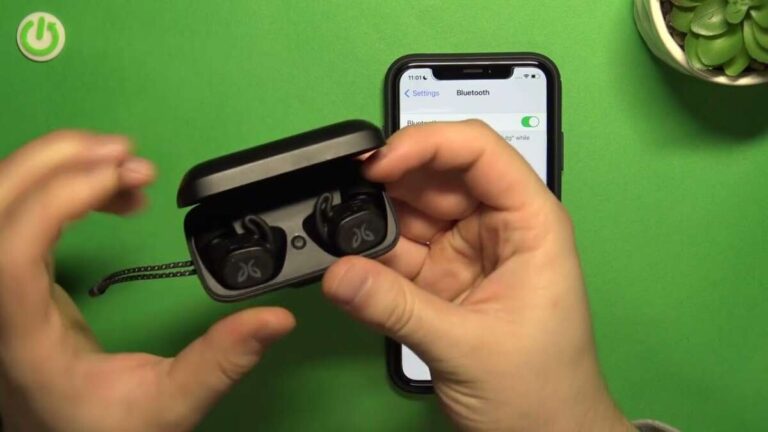
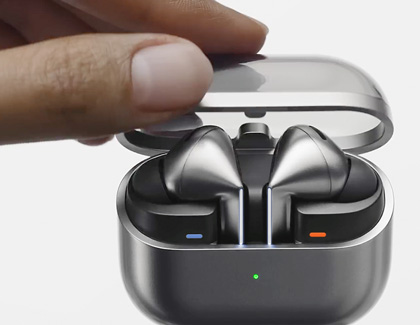
Place both earbuds in the charging case, then open the lid. Press and hold the pairing button on the case until the status light flashes.
Some earbuds have no case button. For those models, remove the earbuds and touch or hold both touch controls for several seconds. Check the earbud manual if the light does not flash.
A flashing blue, white, or red-and-blue light often means the earbuds are ready to pair. A steady light usually means they are connected to another device or fully charged.
Step 2: Open the TV sound menu
Use the TV remote to open the settings menu. Look for one of these paths:
- Settings
- Sound or Audio
- Sound Output or Audio Output
- Bluetooth Speaker, Bluetooth Device, or Wireless Speaker List
- Select your earbuds
The menu may have a different name on each brand. The goal is to find the list of available Bluetooth audio devices.
Step 3: Select your earbuds
Wait for the earbuds to appear on the screen. They may show up under their brand name, model name, or a short code.
Select the correct name and choose Pair, Connect, or OK. The TV may take a few seconds to complete the connection.
If the TV asks for a PIN, try 0000 or 1234. Most modern earbuds do not need a code, but older Bluetooth devices sometimes do.
Step 4: Test the sound
Play a TV show or a short video. Confirm that sound comes through the earbuds instead of the TV speakers.
If the speakers remain active, return to Sound Output and select Bluetooth audio. Some TVs let you use both the speakers and earbuds. Others switch off the TV speakers automatically.
Knowing how to pair earbuds to a TV is only half the job. Selecting the right audio output is often the step people miss.

How to Pair Earbuds to a Samsung TV
Samsung TV menus can vary by year, but these steps work on many recent models:
-
Open Settings.
-
Select Sound.
-
Choose Sound Output.
-
Select Bluetooth Speaker List.
-
Put the earbuds in pairing mode.
-
Choose the earbuds from the list.
-
Select Pair and Connect.
Older Samsung models may use this path:
Settings > Sound > Speaker Settings > Bluetooth Audio Devices
If the earbuds do not appear, select Refresh. Make sure they are not connected to a phone nearby. Some Samsung TVs also limit the number of Bluetooth devices that can remain saved.
Samsung TVs may support Bluetooth audio but still have a small delay with certain earbuds. If lips and speech do not match, look for a Digital Output Audio Delay option under Expert Settings.

How to Pair Earbuds to an LG TV
On many LG smart TVs, the connection path looks like this:
-
Press the Settings button on the remote.
-
Select All Settings.
-
Choose Sound.
-
Select Sound Out.
-
Choose Use Wireless Speaker.
-
Select Bluetooth Devices.
-
Put the earbuds into pairing mode.
-
Select the earbuds and confirm.
Some LG models display Bluetooth devices under Select Device or Bluetooth Surround. The wording depends on the webOS version.
If you see several devices, choose the name that matches your earbuds. Avoid selecting a soundbar, phone, or game controller by mistake.
LG TVs may remember old devices. If the earbuds connect and then disconnect, remove unused devices from the Bluetooth list and try again.
How to Pair Earbuds to a Sony TV
Many Sony Google TV and Android TV models use a similar process:
-
Open Settings.
-
Select Display & Sound or Remotes & Accessories.
-
Choose Sound.
-
Select Audio Output.
-
Open Bluetooth settings or Bluetooth device settings.
-
Put the earbuds into pairing mode.
-
Select the earbuds from the available devices.
On some Sony TVs, you first need to set Bluetooth to On under Remotes & Accessories. The earbuds should then appear in the available device list.
Sony TVs may use different menus based on the operating system and model year. If the steps do not match, search the TV settings for “Bluetooth” or “audio output.”

How to Pair Earbuds to a Roku TV or Streaming Device
Roku TV models do not all support direct Bluetooth earbud pairing. Some Roku devices use the Roku mobile app for private listening instead.
Using the Roku mobile app
-
Install the official Roku app on your phone.
-
Connect the phone to the same Wi-Fi network as the Roku TV.
-
Open the app and select the Roku device.
-
Tap the headphones or private listening icon.
-
Connect your earbuds to the phone.
-
Start the TV content.
This sends the TV audio to the phone and then to the earbuds. It can work well, but the phone battery may drain faster.
Certain Roku streaming products also support direct Bluetooth through features such as private listening. Check the model’s current specifications before buying new earbuds for this purpose.
How to Pair Earbuds to a Fire TV
Amazon Fire TV devices often support Bluetooth headphones and earbuds.
-
Open Settings from the Fire TV home screen.
-
Select Controllers & Bluetooth Devices.
-
Choose Other Bluetooth Devices.
-
Select Add Bluetooth Devices.
-
Put the earbuds into pairing mode.
-
Select the earbuds when they appear.
-
Confirm the connection.
Fire TV may remember the earbuds for later use. If they fail to reconnect, open the same menu, select the earbuds, and choose Connect.
Some apps may handle sound in different ways. If you hear no audio, check the TV’s volume, the earbud volume, and the Fire TV audio settings.

How to Pair Earbuds to a TV Without Bluetooth
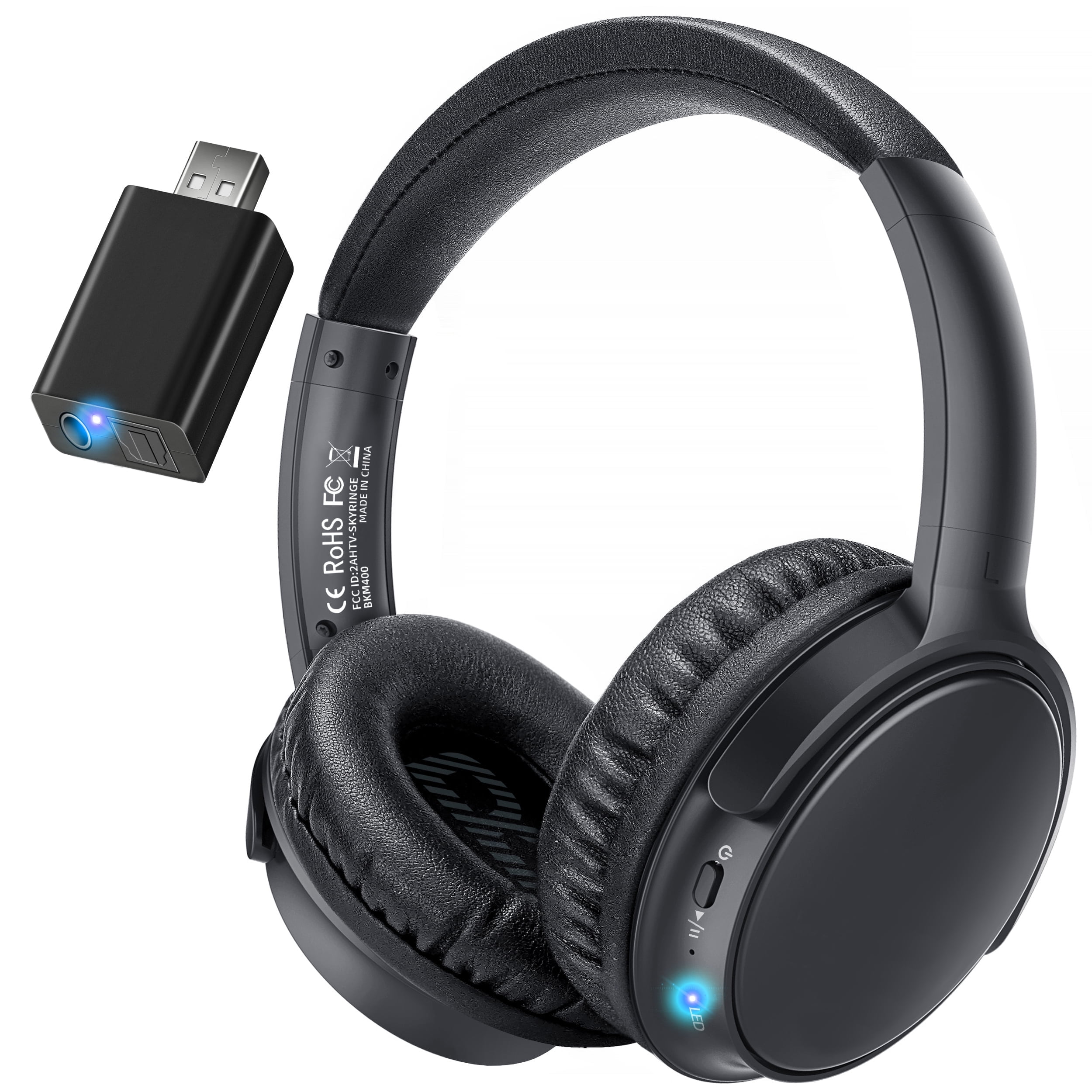
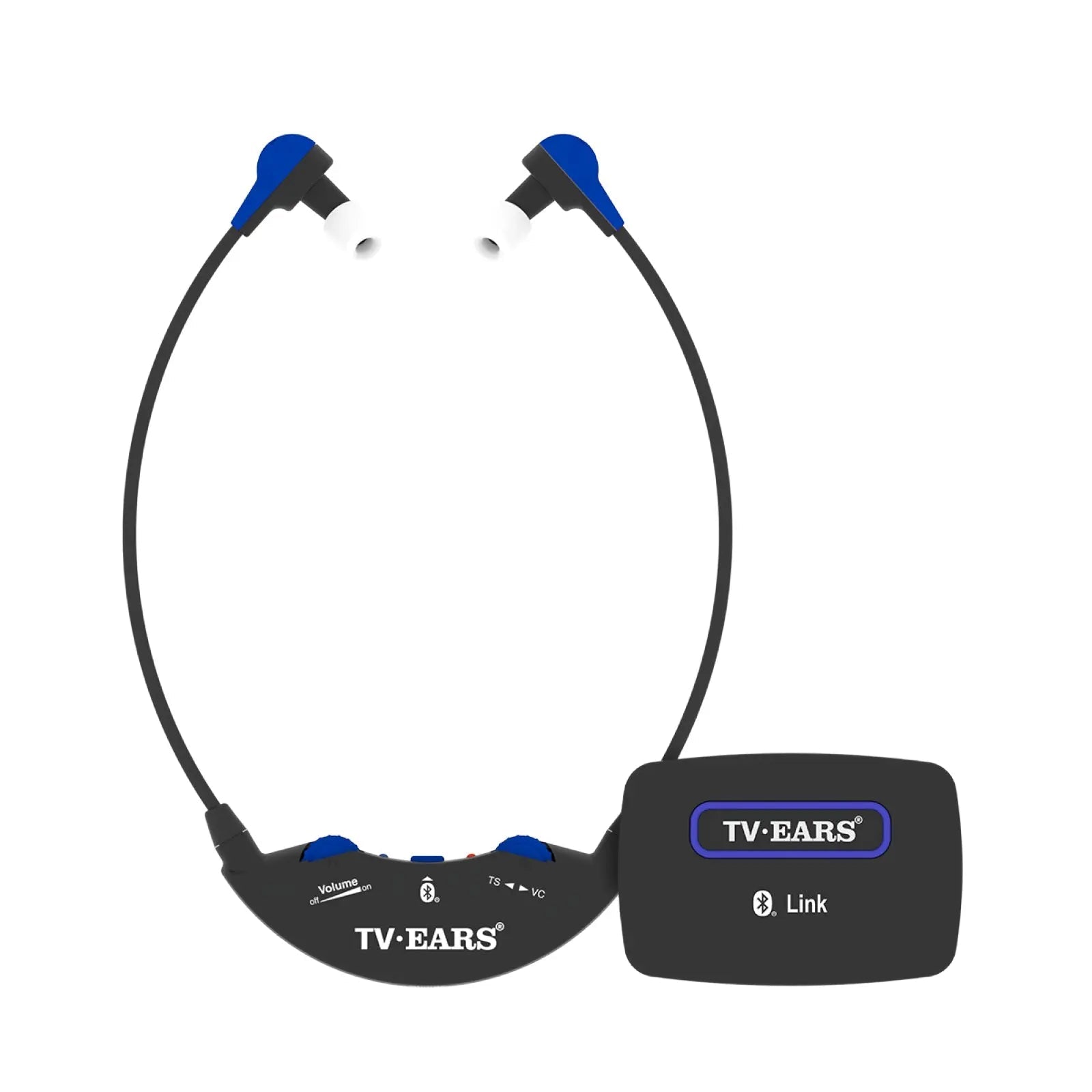
Older TVs often lack Bluetooth audio. You can still use wireless earbuds by adding a Bluetooth transmitter.
A Bluetooth transmitter connects to the TV’s audio output and sends sound to the earbuds. It acts like a bridge between an older TV and modern wireless headphones.
Common transmitter connections
• 3.5 mm headphone jack: Simple and common on older TVs.
• Optical audio: Often provides clean digital sound.
• RCA red-and-white ports: Useful on older televisions.
• HDMI ARC or eARC: Supported by some advanced transmitters.
To use one, connect the transmitter to the correct TV output, switch it to pairing mode, and then put the earbuds into pairing mode. Select the earbuds when the transmitter finds them.
Check whether the transmitter supports the same connection type as the TV. An optical port looks like a small square opening and may glow red. A 3.5 mm jack looks like a standard headphone port.
Important transmitter features
Look for these features when shopping:
• Low-latency support for better lip-sync performance
• Support for two headphones if two people will listen
• A built-in battery or USB power
• Optical and 3.5 mm input options
• Automatic reconnection
• Volume controls
A transmitter is often the best answer when a TV has no Bluetooth. However, some TVs mute their internal speakers when a headphone jack is used. Optical output may require you to change the TV’s digital audio format to PCM.

How to Pair Two Sets of Earbuds to One TV
Many TVs support only one Bluetooth audio connection at a time. This limitation is common because the TV’s Bluetooth hardware and software may not support multiple audio streams.
If your TV supports two Bluetooth devices, pair the first set, then choose Add Device and connect the second set. The menu may show a Dual Audio, Dual Bluetooth, or Multiple Audio Devices option.
If the TV supports only one set, use a Bluetooth transmitter designed for two headphones. Both listeners must usually place their earbuds into pairing mode at the same time.
Two sets of earbuds can also create more audio delay. For the best result, choose earbuds and a transmitter that support low-latency codecs.
Fix Common Bluetooth Pairing Problems
Even when you follow the correct steps for how to pair earbuds to a TV, the connection may fail. Most problems come from pairing mode, distance, saved connections, or unsupported Bluetooth profiles.
The earbuds do not appear
Try these steps:
• Put the earbuds back in the case.
• Close the case for 10 seconds.
• Open it and activate pairing mode again.
• Turn Bluetooth off on nearby phones and tablets.
• Restart the TV.
• Move the earbuds closer to the television.
• Refresh the Bluetooth device list.
Some earbuds leave pairing mode after a short time. Start the TV search first, then activate pairing mode on the earbuds.
The TV says “Could not connect”
Remove the earbuds from the TV’s saved device list. Then restart both devices and pair them again.
If the earbuds are already connected to your phone, the TV may not be able to take control. Turn off Bluetooth on the phone or select Forget This Device before trying again.
The earbuds connect but produce no sound
Open the TV’s Sound Output menu and select the earbuds manually. Also check the earbud volume, TV volume, and the audio output selected by the streaming device.
If you use an external soundbar, the TV may continue sending sound to the soundbar. Change the output to Bluetooth audio.
The sound keeps cutting out
Keep the earbuds close to the TV and remove obstacles when possible. Wi-Fi routers, game consoles, USB 3.0 devices, and crowded wireless areas can sometimes affect Bluetooth performance.
Charge the earbuds fully and update the TV software if an update is available. If only one earbud cuts out, clean its charging contacts and confirm that it charges properly.
The audio does not match the video
This issue is called lip-sync delay. It happens when the TV processes the picture and the earbuds process the sound at different speeds.
Try the following:
• Look for Audio Delay or Lip Sync in the TV settings.
• Set digital audio output to PCM.
• Use earbuds with a low-latency mode.
• Use a transmitter with low-latency support.
• Restart the TV and earbuds.
Bluetooth audio may never be perfectly synchronized on some TV and earbud combinations. This is a limitation of the hardware, not always a setup error.
How to Improve TV Audio With Earbuds
Once you understand how to pair earbuds to a TV, a few settings can make the experience much better.
Keep the TV volume at a comfortable level and adjust the earbuds carefully. Very high volume can harm hearing over time. Health agencies commonly advise keeping listening levels moderate and taking breaks during long viewing sessions.
Use the TV’s dialogue enhancement mode if speech sounds unclear. This setting can make voices easier to hear without raising every sound effect.
For movies, choose a balanced sound mode. For news or talk shows, a voice or clear speech mode may work better. If the earbuds have an equalizer app, reduce heavy bass when voices sound muddy.
Battery life also matters. Wireless earbuds may last only a few hours per charge, especially when noise cancellation is active. Keep the charging case nearby during long movies or sports events.
One practical lesson is to test the setup with a familiar show before using it for a big game or movie night. A short test can reveal delay, low volume, or poor range before it becomes frustrating.
Bluetooth Earbuds, RF Headphones, or Wired Headphones?
Bluetooth earbuds are small, easy to carry, and convenient for private listening. They work well for late-night TV, shared homes, and people who want to avoid disturbing others.
They also have limits:
• They need charging.
• Some models create audio delay.
• Most TVs support only one Bluetooth audio device.
• The connection range may be shorter than expected.
• Sound quality depends on the TV, earbuds, and Bluetooth codec.
RF wireless headphones use a dedicated transmitter and often provide a longer range. They can be a strong choice for older TVs or people who need stable audio throughout a room.
Wired headphones offer the lowest risk of delay. They are less convenient, but they do not need a battery or wireless pairing.
The best choice depends on your room, TV, hearing needs, and viewing habits. For casual use, Bluetooth earbuds are convenient. For daily TV listening, a dedicated transmitter or RF headset may be more reliable.
Safety and Privacy Tips for Wireless TV Listening
Bluetooth pairing is normally secure, but use care in shared spaces. Pair your earbuds at home and avoid accepting unknown connection requests.
If you sell or give away the TV, remove saved Bluetooth devices first. You should also forget the TV from your earbuds if you no longer use the connection.
Keep software updated on the TV and earbuds. Updates can improve connection stability, fix bugs, and add support for newer features.
Do not sleep with earbuds at high volume. If you use earbuds for long viewing sessions, take breaks and keep the volume low enough to hear important sounds around you.
Frequently Asked Questions About How to Pair Earbuds to a TV
Can all earbuds connect to a smart TV?
No. The TV must support Bluetooth audio, and the earbuds must use a compatible Bluetooth audio profile. If the TV lacks Bluetooth, you can add a compatible Bluetooth transmitter.
Why will my earbuds connect to my phone but not my TV?
The earbuds may still be connected to the phone, or the TV may not support Bluetooth audio. Turn off Bluetooth on the phone, activate pairing mode again, and check the TV’s audio output settings.
Can I use AirPods with a smart TV?
Yes, AirPods can connect to many TVs that support Bluetooth audio. Put the AirPods in their case, open the lid, hold the case button until the light flashes white, and select them from the TV’s Bluetooth menu.
How do I pair earbuds to a TV with no Bluetooth?
Connect a Bluetooth transmitter to the TV’s 3.5 mm, optical, RCA, or compatible HDMI audio output. Put the transmitter and earbuds into pairing mode, then wait for them to connect.
Why is there a delay when I use earbuds with my TV?
The TV and earbuds may process video and audio at different speeds. Use a low-latency mode, choose PCM audio output, or adjust the TV’s audio delay setting to improve synchronization.
Can two people use earbuds with one TV?
Sometimes. A few TVs support two Bluetooth audio devices, but many support only one. A dual-link Bluetooth transmitter can let two people listen at the same time.
Do I need to pair my earbuds every time I watch TV?
Usually not. After the first successful connection, the TV and earbuds may reconnect automatically. If another device connects first, you may need to select the earbuds manually.
Conclusion
How to pair earbuds to a TV depends mainly on the TV’s Bluetooth support, the earbud pairing mode, and the correct sound output setting. Put the earbuds into pairing mode, open the TV’s Bluetooth audio menu, select the earbuds, and test the sound.
If the TV has no Bluetooth, use a transmitter connected through a 3.5 mm, optical, RCA, or compatible HDMI port. For delay problems, try PCM audio, a low-latency mode, or a better transmitter.
Start with a short test today, then adjust the sound and volume for comfortable viewing. If this guide helped, explore your TV manufacturer’s audio support resources or share your setup and solution in the comments.

Everett Ashford is a tech reviewer at mytechgrid.com specializing in SSDs, cameras, TVs, earbuds, headphones, and other consumer electronics. He provides honest, data-driven reviews based on hands-on testing and real-world performance analysis. Everett simplifies complex tech details to help readers make smart, confident buying decisions.