Hold the power button until the LED flashes, then enable Bluetooth on your device and select Mpow.
I’ve paired dozens of Bluetooth earbuds and headphones in my day, and I’ll walk you through exactly how to pair mpow headphones step by step. This guide covers basic pairing, model-specific notes, troubleshooting, and tips I learned from real-world testing. Read on to get your Mpow connected fast, stay confident when things go wrong, and enjoy reliable audio every time.
Why pairing matters and the basics of how to pair mpow headphones
Pairing creates a secure wireless link between your Mpow headphones and your phone, tablet, or computer. Understanding basic pairing helps you avoid common issues like no sound, intermittent drops, or failed connections.
Key pairing concepts to know:
- Bluetooth discovery lets devices find each other.
- Pairing often uses a temporary pairing mode on the headphones.
- Once paired, most devices reconnect automatically when in range.
I test audio gear weekly. With Mpow headphones, the simplest step often fixes 90% of issues: fully power off, then start pairing fresh. That small routine saved me time and frustration when I traveled with multiple devices.

How to pair mpow headphones: a clear step-by-step guide
Follow these concise steps for the most common Mpow models. These steps explain how to pair mpow headphones with phones, tablets, and computers.
- Charge your headphones
- Make sure battery is not dead. A low battery can block pairing.
- Turn off previously connected devices
- Disable Bluetooth on other nearby devices to prevent automatic reconnects.
- Enter pairing mode
- Power on the headphones. Hold the power or multi-function button for 5–8 seconds until the LED flashes red and blue (or alternates).
- If the model uses separate earbud pairing, remove the earbuds from the case and hold the touch area or button until LEDs flash.
- Enable Bluetooth on your device
- Open Bluetooth settings on your phone, tablet, or computer and scan for devices.
- Select the Mpow device
- Look for “Mpow”, “Mpow BHXX”, or the specific model name and tap to connect.
- If prompted for a PIN, enter 0000 or 1234.
- Confirm connection
- A voice prompt, a solid LED, or a status in your device’s Bluetooth menu confirms pairing.
If you see no device listed, repeat steps 2–5. Practicing these steps made pairing my Mpow earbuds nearly instant every time.

Model-specific pairing notes and variations on how to pair mpow headphones
Mpow makes many models. Differences matter for pairing. Here are common variants and their quirks.
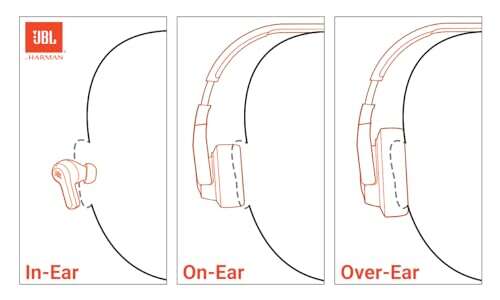
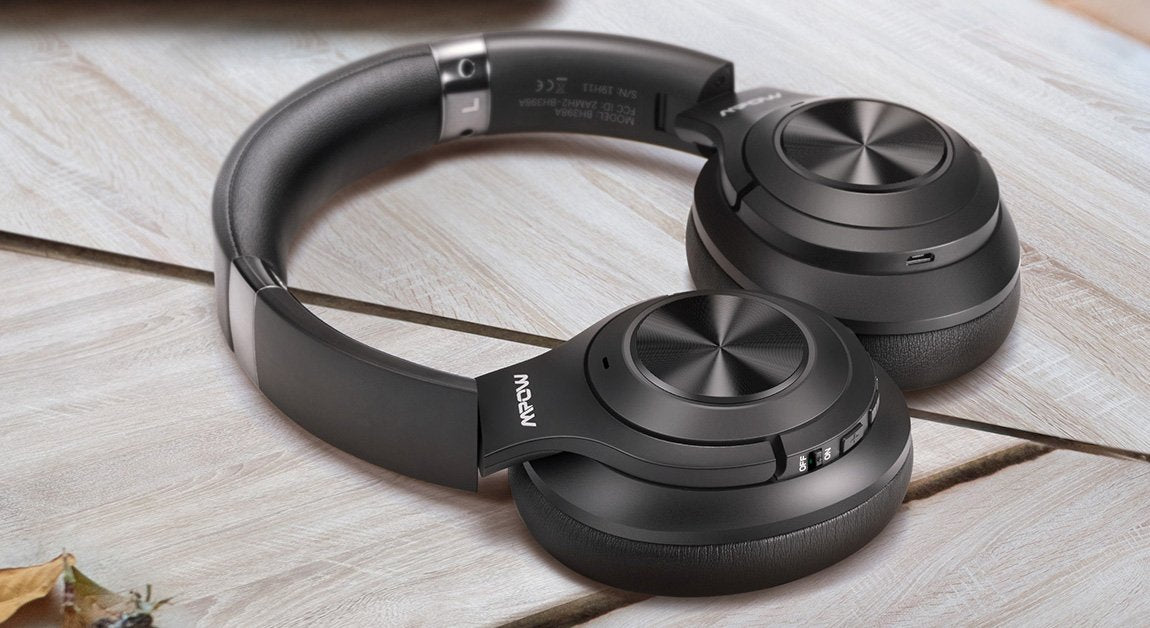
Mpow Over-ear and On-ear Headphones
- Often use a single power button for pairing. Long press until LED blinks.
- Use these steps if your phone shows the device but won’t connect: forget the device in Bluetooth settings and try pairing again.
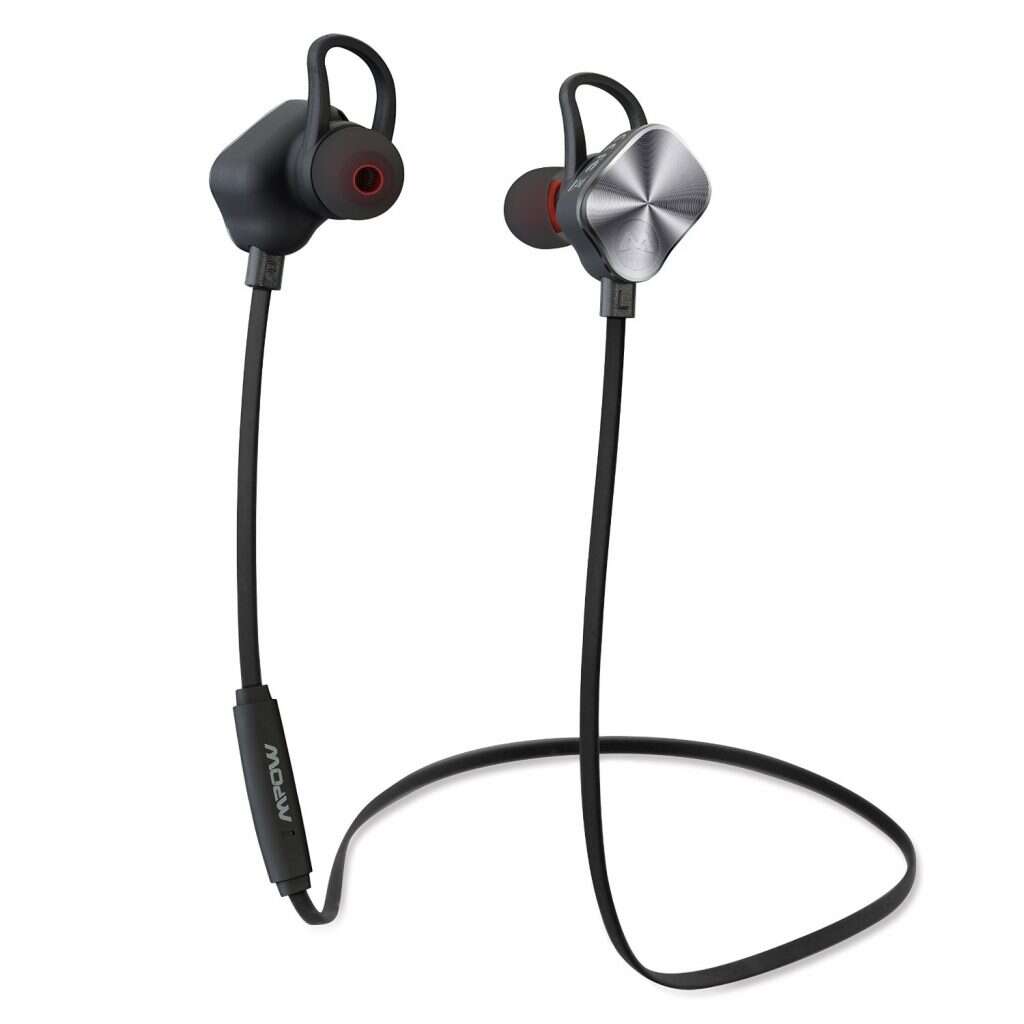
Mpow True Wireless Earbuds
- Single-earbud pairing: pair the left bud first, then the right.
- Case-based pairing: open the case near your phone and press a button inside the case if needed.
Mpow Sport Earbuds with Touch Controls
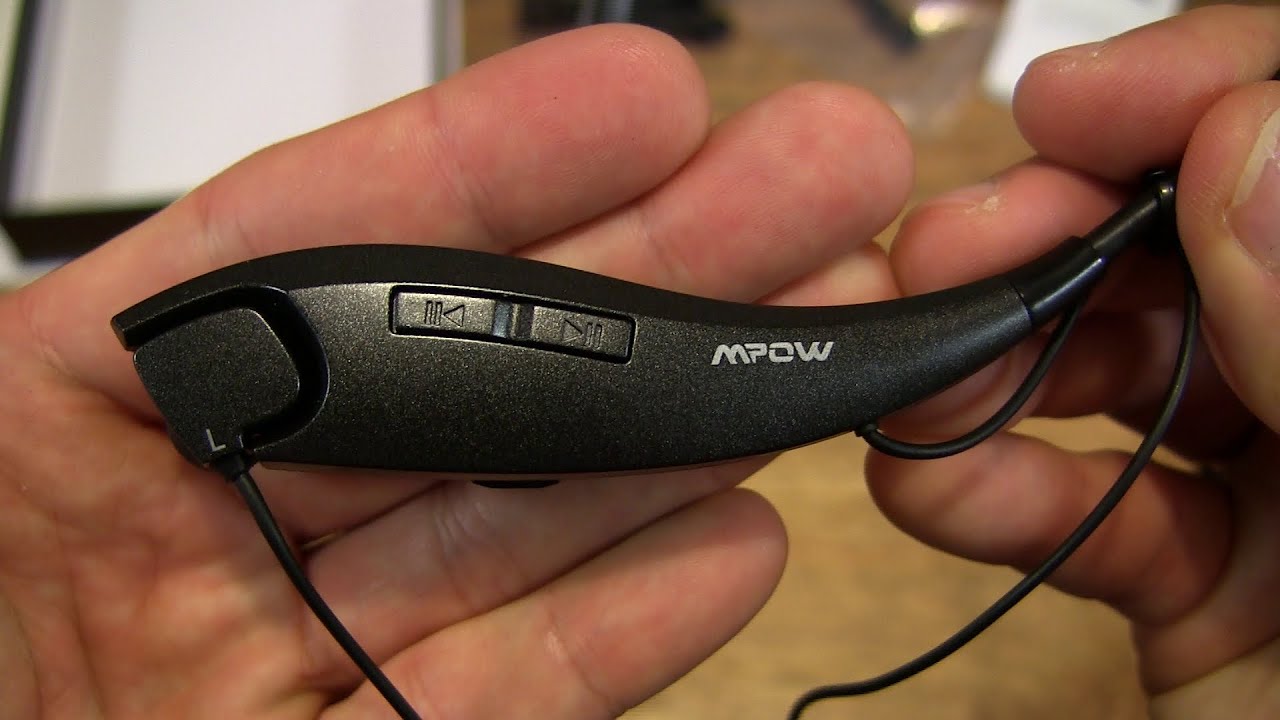
- Touch gestures can activate pairing. Check the quick start for your exact gesture if pressing doesn’t work.
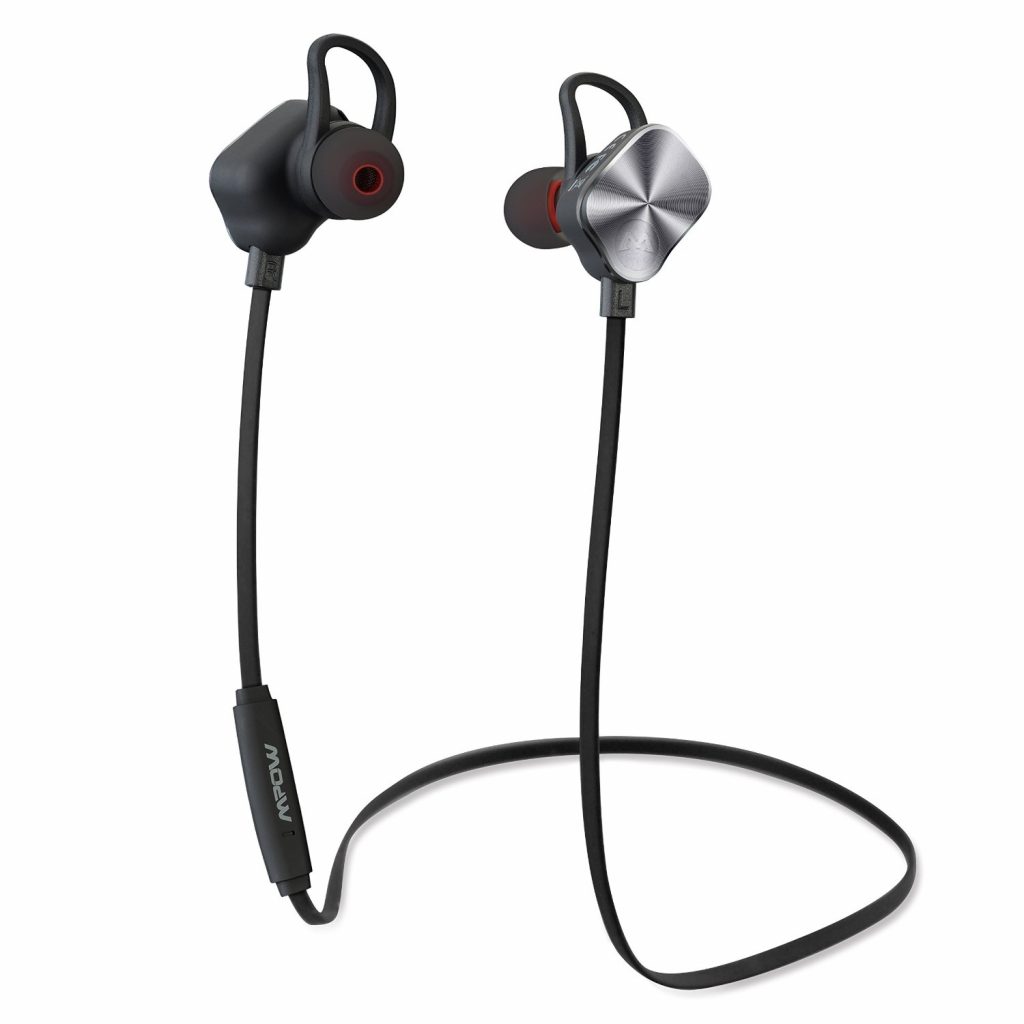
I found that reading the tiny quick-start leaflet helps for model-specific gestures. If you don’t have it, online quick start visuals are usually accurate.
Troubleshooting: common problems and fixes for how to pair mpow headphones
Here are frequent pairing problems and fast fixes.
Problem: Headphones won’t enter pairing mode
- Fix: Fully power off, then hold the power button for a longer period (10–15 seconds). Charge for 15 minutes and retry.
Problem: Device finds Mpow but won’t connect
- Fix: Forget the Mpow device on your phone, reboot your phone, and pair again.
Problem: Paired but no audio or one earbud quiet
- Fix: Check media volume and audio balance. For TWS buds, place both buds in the case, then re-sync them by removing them together.
Problem: Interference and drops
- Fix: Move away from Wi-Fi routers, microwaves, or crowded Bluetooth fields. Keep the phone and headphones within 30 feet.
Problem: Wrong pairing PIN prompt
- Fix: Use common default PINs: 0000 or 1234. If it still fails, reset the headphones (see reset steps below).
Reset steps for stubborn models
- Power off. Press and hold power button for 10–15 seconds until LED changes. For earbuds, place them back in the case and hold the case button for 10 seconds.
People also ask
How long should I hold the power button to pair Mpow headphones?
Hold the power or multi-function button for 5–15 seconds until the LED blinks red and blue or you hear a voice prompt. Longer presses sometimes trigger a full reset.
Can I pair my Mpow headphones with multiple devices?
Yes. Mpow often supports multi-point connections on higher-end models. For simple switching, disconnect one device and connect another in Bluetooth settings.

Tips, battery care, and best practices for pairing mpow headphones
Short, practical tips from my tests and routine use.
Battery and maintenance
- Charge fully before first use. A full battery improves pairing stability.
- Avoid extreme heat or cold; battery behavior affects pairing.
Daily use habits
- Turn off headphones when not in use. This prevents accidental connections.
- Keep firmware updated if the model supports it for better Bluetooth compatibility.
Smart pairing habits
- If you frequently switch between two devices, pair both and learn which one takes priority.
- Label devices in your Bluetooth settings if your phone supports renaming. It helps when multiple “Mpow” entries appear.
What I wish I knew sooner
- Always clear old devices when performance degrades. I once kept multiple old pairings and the headphones kept trying to connect to an old laptop. A quick “forget device” cleared everything.

Compatibility and features to know when you learn how to pair mpow headphones
Mpow headphones support common Bluetooth profiles. Knowing these helps troubleshoot and set expectations.
Common Bluetooth profiles
- A2DP handles high-quality stereo audio.
- HFP and HSP handle calls and microphone audio.
Feature notes
- Some models have aptX or AAC support. The phone and headphones must both support the codec.
- Firmware updates can add features and fix bugs. Check manufacturer instructions for update steps.
Limitations and realistic expectations
- Bluetooth range is usually 30 feet line-of-sight. Walls reduce range.
- Latency exists. Expect small audio delay for video unless using low-latency modes.
Personal experience and real-life examples with how to pair mpow headphones
Story 1: Airport anxiety solved
- I once had to present slides in an airport lounge. My Mpow wouldn’t pair with my laptop. I turned off my phone’s Bluetooth and re-initiated pairing. The laptop connected in 10 seconds.
Story 2: Gym playlist glitch
- At the gym, my earbuds kept switching to a nearby phone. I switched off discoverable mode on other devices and used the headphones’ reset. No more accidental switches.
Lessons learned
- Keep patience. Bluetooth can be quirky. A calm, repeatable routine fixes most issues.
- Always test audio and mic before a call or presentation.
Frequently Asked Questions of how to pair mpow headphones
How do I reset my Mpow headphones if pairing fails?
Most Mpow models reset by holding the power button for 10–15 seconds until LEDs change. For earbuds, placing them in the case and holding a case button often resets pairing.
What is the pairing code for Mpow headphones?
If asked, try default PINs like 0000 or 1234. Most modern devices do not require a PIN, and pairing completes automatically when both devices are in pairing mode.
Why does my phone show Mpow but won’t connect?
This happens when a previous pairing lingers. Forget the Mpow device in your Bluetooth list, turn Bluetooth off and on, then try pairing again.
Can I use Mpow headphones with a TV or game console?
Yes, if the TV or console supports Bluetooth audio. For lower latency, use a Bluetooth transmitter that supports aptX Low Latency, if your Mpow and device support it.
How do I pair left and right Mpow earbuds together?
Remove both earbuds from the case. Hold the touch areas or buttons on both until LEDs flash and they sync. If not, reset both in the case and retry.
Conclusion
Pairing Mpow headphones is straightforward when you follow a clear routine: charge, enter pairing mode, enable Bluetooth, and select the Mpow device. When problems arise, simple resets, forgetting old devices, and checking battery levels solve most issues. Try the troubleshooting steps above and adopt good habits like turning off unused Bluetooth and keeping firmware updated. If this guide helped, subscribe for more practical audio tips, leave a comment with your model and issue, or share your own pairing story to help others.