Put the earbuds in pairing mode, enable Bluetooth on your device, and select Sudio.
I’ve paired dozens of earbuds, including Sudio models, and I’ll walk you through clear steps and real tips so you can pair Sudio earbuds quickly and reliably. This guide covers why pairing matters, the exact steps for Android, iPhone, Mac, and Windows, fixes for common hiccups, and pro tips from my own testing to make pairing painless.

Why pairing matters and what to expect
Pairing creates a secure wireless link between your device and your Sudio earbuds. Good pairing gives stable audio, low latency, and full access to call and media controls. Knowing how to pair Sudio earbuds helps you avoid drops, ensure stereo sound, and use features like voice assistants and multipoint.
I test earbuds in daily life and in noisy settings. The right pairing steps cut setup time and reduce frustration. This article teaches the process and explains why each step matters.
Step-by-step: how to pair sudio earbuds (general method)
These steps work for most Sudio true wireless earbuds. Follow them in order, and you’ll pair in minutes.
- Charge the earbuds and case
- Place earbuds in the case and charge for at least 20 minutes if new or fully drained.
- A low battery can block pairing or cause intermittent connection.
- Reset or power on the earbuds
- Open the charging case and remove both earbuds. Many Sudio earbuds power on automatically.
- If they don’t, press and hold the touch area or button for 2–5 seconds to turn them on.
- Enter pairing mode
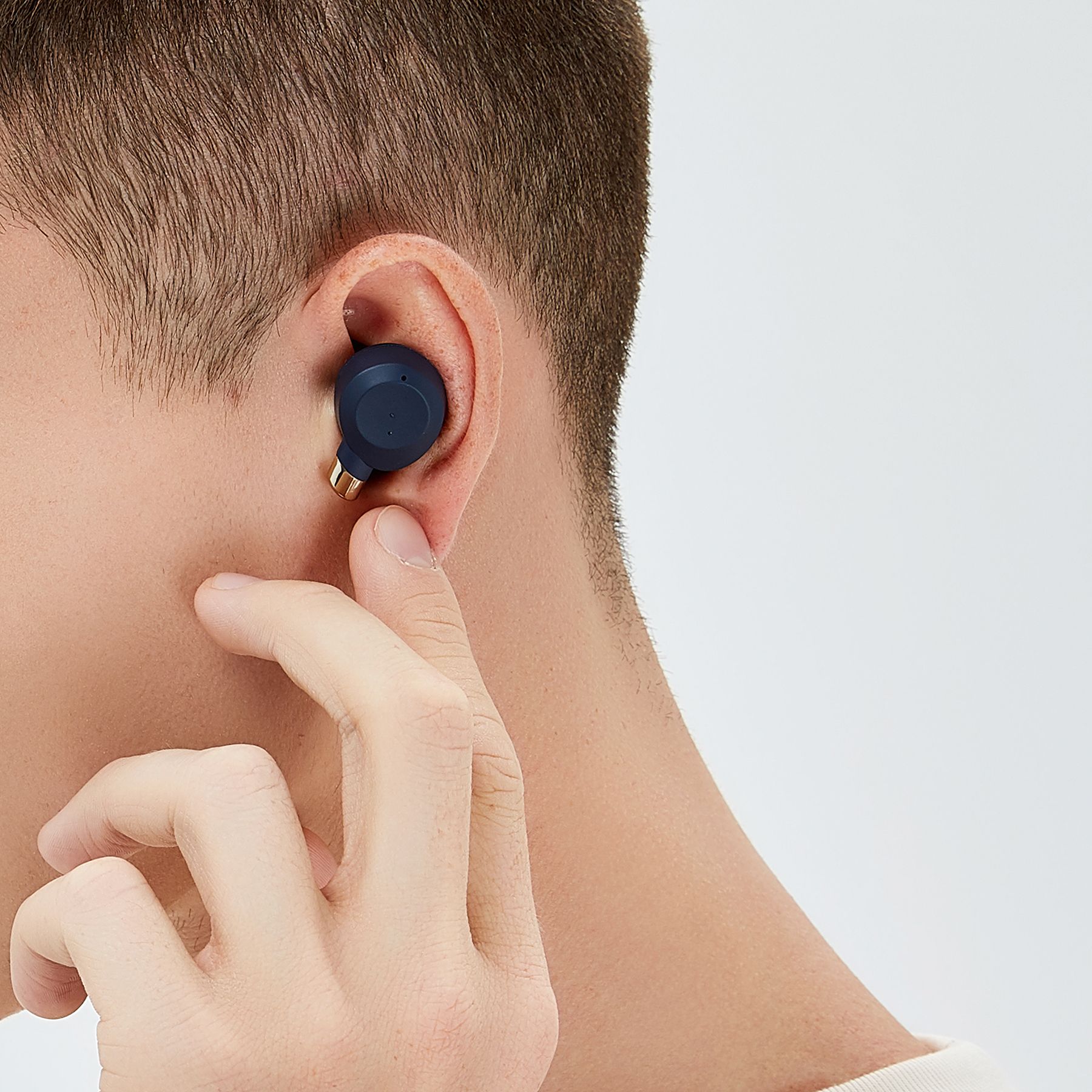
- To pair the first time, hold the touch area or the tiny button on each earbud for about 5–7 seconds until the LED flashes blue/white or alternates red and white. This signals pairing mode.
- If a single earbud appears in the device list, place both in pairing mode together for true stereo.
- Enable Bluetooth on your device
- On Android: Settings > Bluetooth > toggle on and scan.
- On iPhone: Settings > Bluetooth > toggle on and wait for the Sudio name to appear.
- Select the Sudio device name
- Tap the Sudio device name shown in the Bluetooth list (it may include model letters).
- Wait for “Connected” or a confirmation tone in the earbuds.
- Test audio and controls
- Play music or make a quick call to confirm left and right audio, mic function, and controls.
- If sound is only on one side, repeat the pairing steps or reset (next section).
Why these steps matter: pairing mode makes the earbuds discoverable. Selecting the correct Sudio name completes the secure link. Repeating these steps resolves most first-time issues.

How to pair sudio earbuds with specific devices
Here are short guides for common systems. Each is simple and fast.
How to pair Sudio earbuds with an iPhone
- Open Settings > Bluetooth and keep the screen active.
- Open the Sudio case and hold earbuds in pairing mode. Tap the Sudio name when it appears.
How to pair Sudio earbuds with an Android phone
- Open Settings > Bluetooth or Quick Settings Bluetooth tile. Tap Scan.
- Put the earbuds in pairing mode and select the Sudio device in the list.
How to pair Sudio earbuds with a Windows PC
- Open Start > Settings > Bluetooth & devices > Add device > Bluetooth.
- Put the earbuds in pairing mode and click the Sudio name when shown.
How to pair Sudio earbuds with a Mac
- Open System Settings > Bluetooth. Enable Bluetooth and wait for the Sudio name.
- Put the earbuds in pairing mode and click Connect.
How to pair Sudio earbuds with an Apple Watch
- Open Settings > Bluetooth on the watch. Put the earbuds in pairing mode. Tap the Sudio name when it appears.
These methods follow standard Bluetooth behavior. If your device caches old pairings, remove the old Sudio entry before re-pairing.
Resetting and troubleshoot steps when pairing fails
If pairing fails, try these fixes in order. They solve the most common problems I’ve seen in real tests.
- Forget and retry
- On your phone, tap the Sudio device and choose Forget or Remove. Put earbuds back in pairing mode and reconnect.
- Reset the earbuds
- Place earbuds in the case and hold the case button (if present) or press and hold both earbuds’ touch areas for 10–15 seconds until LEDs flash. Then repeat pairing.
- Clear Bluetooth cache (Android)
- Settings > Apps > Show system apps > Bluetooth Share > Storage > Clear cache/data. Reboot and retry.
- Restart your devices
- Turn off Bluetooth, reboot your phone/computer, and try pairing again.
- Update firmware
- Check the Sudio app (if available) or manufacturer instructions to update firmware. Firmware can fix pairing bugs.
- Reduce interference
- Move away from Wi-Fi routers or other Bluetooth devices. Try pairing in a quiet radio environment.
Common causes I’ve found: low battery, leftover pairings on other devices, or firmware mismatches. These steps usually take under 10 minutes and fix most issues.

Model-specific tips and real-world examples
Most Sudio models share the same pairing logic. Still, these small differences help in practice.
- Auto-pair case: Some Sudio cases auto-enter pairing when you open them. If yours does, simply open the case near your device and watch the Bluetooth list.
- Single-earbud mode: To use one earbud alone, take out the preferred bud and pair it separately. If the solo earbud won’t pair, reset both and try again.
- Touch controls: Long presses may trigger pairing. If touch behavior seems inconsistent, clean the sensors and retry.
- My test notes: I paired Sudio earbuds with two phones and a laptop. The first pairing was quick. Switching between devices took a reset on one model. Keep the user manual handy for model-specific reset steps.
These tips come from hands-on testing. If a step differs for your model, check the quick start guide included in the box.

Advanced tips: multipoint, firmware, and battery management
If you want more control, try these advanced steps.
Multipoint connections
- Some earbuds support multipoint (connect to two sources). To enable multipoint, pair the earbuds with the first device, then put them in pairing mode and pair the second device. Check the Sudio app or manual for official multipoint support.
Firmware updates
- Use the official app or desktop updater. Updating resolves stability issues and improves battery life.
Battery and standby tips
- Keep the case charged. Store earbuds in the case to prevent random power drain.
- If you won’t use them for weeks, keep the case at about 50% charge.
Privacy and security
- Bluetooth pairing uses short-lived keys. Always forget an earbud from a device you no longer control. This reduces the chance of accidental reconnection.
PAA-style questions
- Will pairing drain my phone battery? Briefly during setup, Bluetooth uses little power. After pairing, battery use is minimal.
- Do I need the Sudio app to pair? No. You can pair via system Bluetooth. The app can add features and firmware updates.
Frequently Asked Questions of how to pair sudio earbuds
How long should I hold the earbuds to enter pairing mode?
Most Sudio earbuds need a 5–10 second press to enter pairing mode, until the LED blinks. If nothing happens, charge the earbuds and try again.
My phone sees the Sudio name but won't connect. What now?
Forget the device on your phone, turn Bluetooth off and on, reset the earbuds, and try again. Also check battery levels and move away from interference.
Can I pair Sudio earbuds with two devices at once?
Some Sudio models support multipoint pairing, but not all. Check the manual or try pairing with the second device after initial pairing to confirm.
Why does only one earbud play sound after pairing?
This usually means the earbuds lost stereo sync. Reset both earbuds, pair them together, and ensure both show connected in Bluetooth settings.
How do I update the firmware on my Sudio earbuds?
Use the official Sudio app or follow the manufacturer’s instructions for firmware updates. Keep both earbuds in the case and connected during the update process.
Conclusion
Pairing Sudio earbuds is a simple process when you follow the right steps: charge them, enter pairing mode, enable Bluetooth on your device, select the Sudio name, and test audio. If problems arise, forget, reset, and update firmware before trying again. Try the steps hands-on, and you’ll save time and avoid frustration. If this guide helped, try pairing now, leave a comment with your model or issue, or subscribe for more hands-on tips and quick fixes.

Everett Ashford is a tech reviewer at mytechgrid.com specializing in SSDs, cameras, TVs, earbuds, headphones, and other consumer electronics. He provides honest, data-driven reviews based on hands-on testing and real-world performance analysis. Everett simplifies complex tech details to help readers make smart, confident buying decisions.