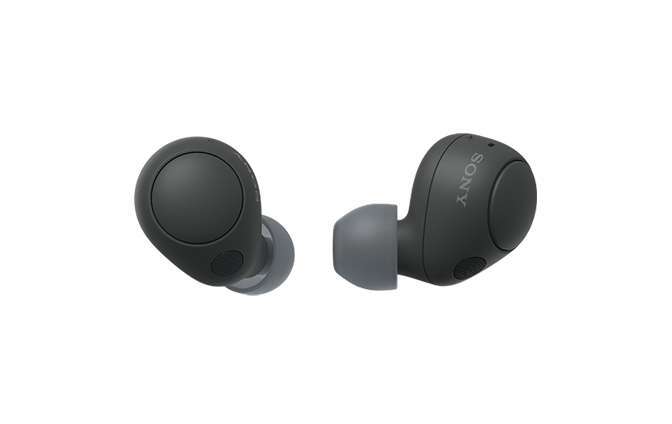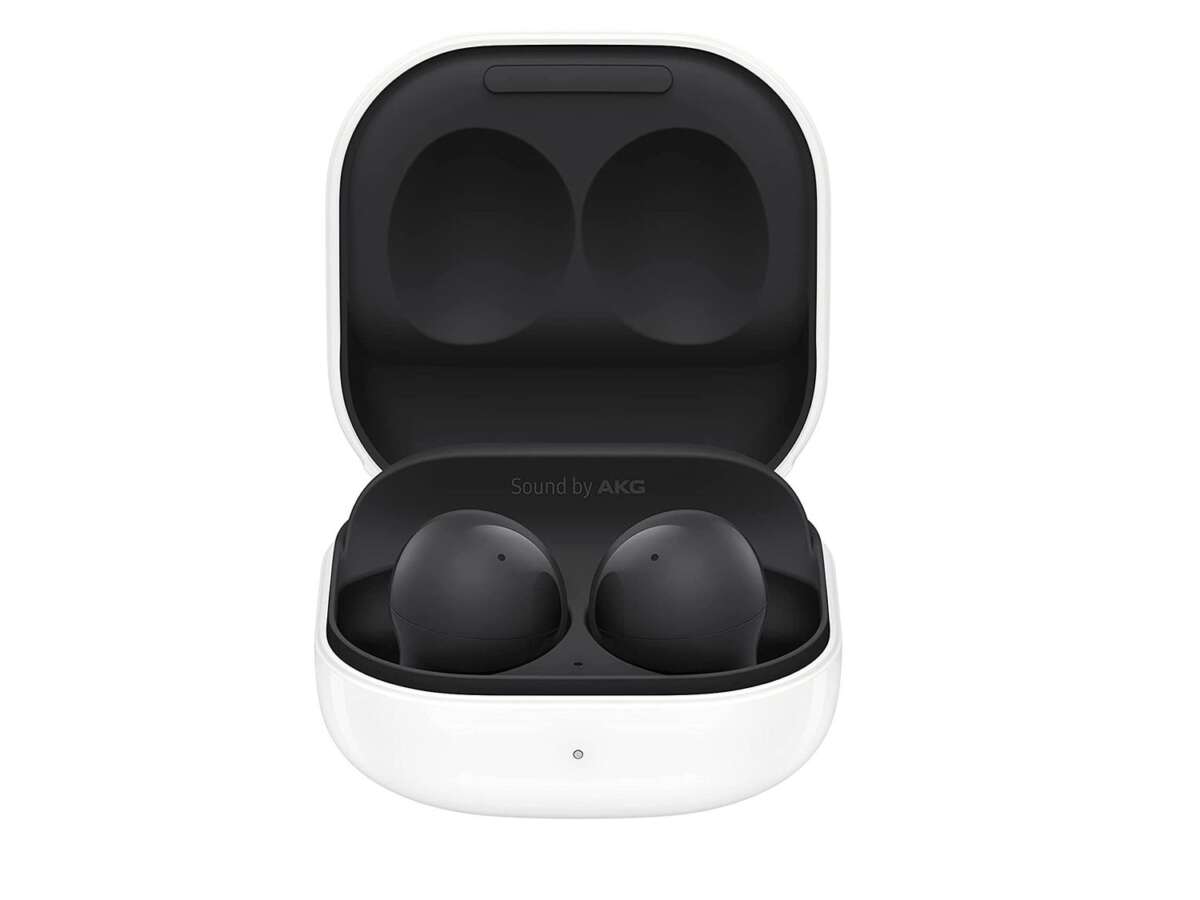
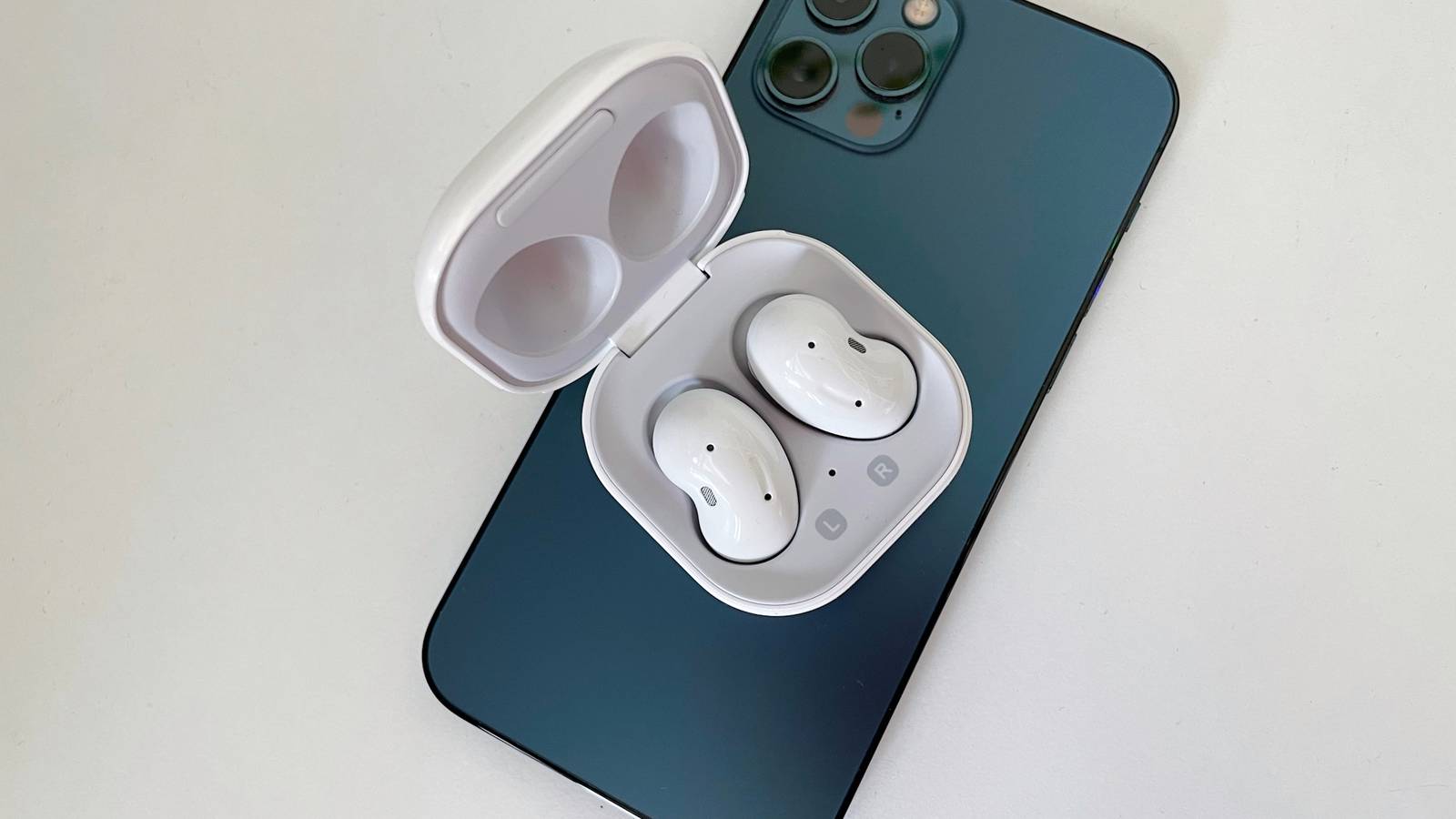
Open the Galaxy Buds case, touch and hold both earbuds, then select them from your device’s Bluetooth menu.
Learning how to put Galaxy earbuds in pairing mode is simple once you know which method fits your model. Galaxy Buds, Buds+, Buds2, Buds2 Pro, Buds Live, and Buds Pro use similar steps, but the earbuds may behave differently when they are new, already connected, or inside the charging case. This guide explains each method, common mistakes, and reliable fixes based on Samsung’s setup guidance and hands-on troubleshooting.
What Pairing Mode Does
Pairing mode allows your Galaxy earbuds to share their wireless connection details with a phone, tablet, computer, TV, or another Bluetooth device. Think of it as introducing the earbuds to a new device.
When pairing mode is active, your earbuds become visible in the Bluetooth list. You can then choose a name such as “Galaxy Buds2 Pro” or “Galaxy Buds Live” to complete the connection.
Learning how to put Galaxy earbuds in pairing mode matters most when:
• You are connecting the earbuds to a new device.
• You changed from a Galaxy phone to an iPhone or computer.
• Your earbuds connect to the wrong nearby device.
• Your old Bluetooth connection was removed.
• The earbuds do not appear in the Bluetooth menu.
Pairing mode is different from simply opening the case. Opening the case may reconnect the earbuds to a device they already know. Pairing mode makes them available for a new connection.
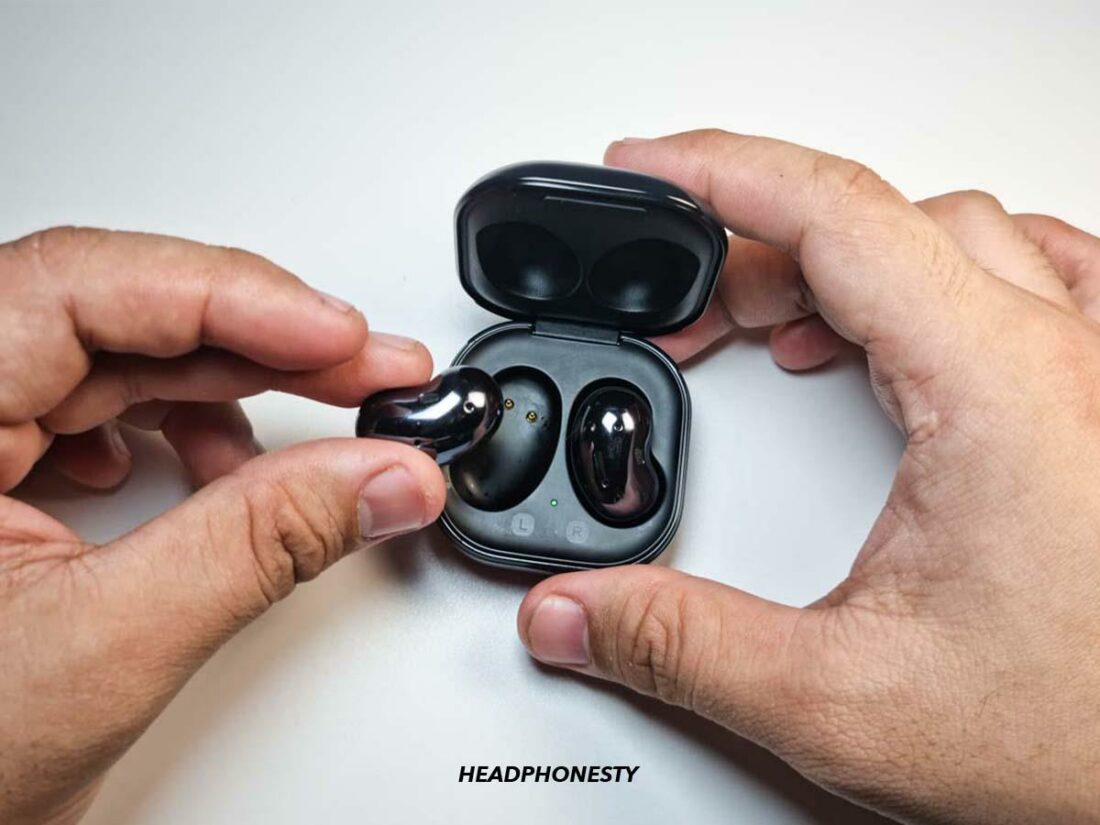
How to Put Galaxy Earbuds in Pairing Mode
The best method depends on whether your earbuds are new, connected to another device, or already paired with your phone.
Method 1: Use the charging case
This is the easiest method for most Galaxy Buds models.
- Place both earbuds inside the charging case.
- Close the lid for about five to ten seconds.
- Open the case again.
- Keep the earbuds inside the open case.
- Open the Bluetooth settings on your phone, tablet, or computer.
- Select your Galaxy Buds from the list of available devices.
- Follow the on-screen instructions to finish pairing.
For many newer Galaxy Buds models, opening the case puts the earbuds into a ready state. If they have never connected to a device, they may enter pairing mode automatically.
Keep the case close to the device during setup. Bluetooth works best when the earbuds are within a few feet of the phone or computer.
Method 2: Touch and hold both earbuds
Use this method when the earbuds are already connected to another device or do not appear in the Bluetooth list.
- Remove both earbuds from the case.
- Place them in your ears.
- Touch and hold the touch areas on both earbuds at the same time.
- Continue holding for several seconds.
- Listen for a sound or voice prompt that indicates pairing mode.
- Open Bluetooth settings on the new device.
- Tap your Galaxy Buds when they appear.
On some models, you may hear a pairing sound. On others, the earbuds may simply appear in the available devices list. Keep holding both touch areas until the earbuds become discoverable.
This is the key step when learning how to put Galaxy earbuds in pairing mode after they have already connected to a different phone.
Method 3: Use the Galaxy Wearable app
If you use an Android phone, the Galaxy Wearable app can guide the connection.
- Install or open the Galaxy Wearable app.
- Turn on Bluetooth.
- Open the charging case near your phone.
- Tap Start or Add new device.
- Choose your Galaxy Buds model.
- Follow the setup prompts.
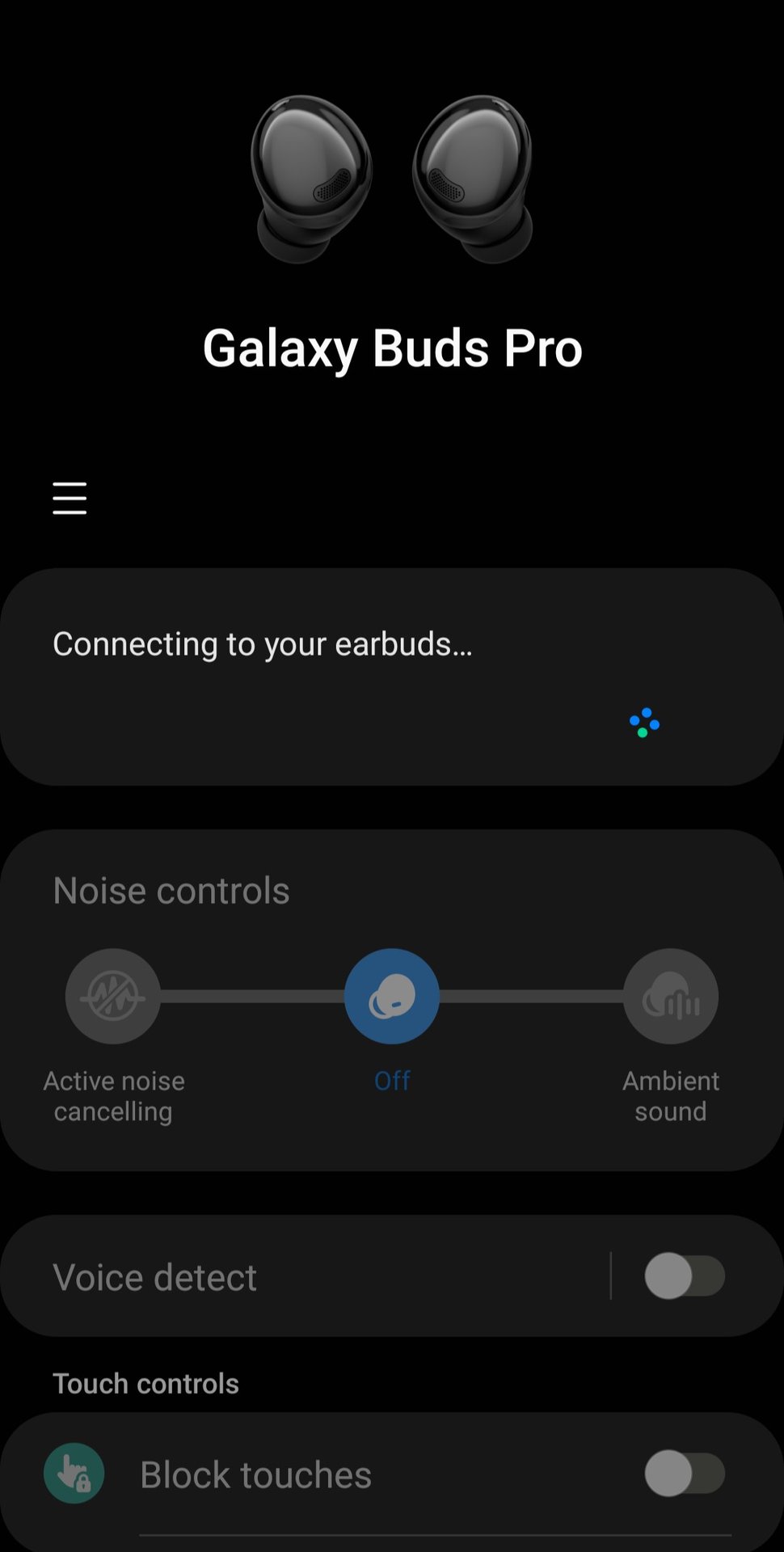
The app can also install firmware updates, check battery levels, adjust touch controls, and manage noise control settings. It is not required for basic Bluetooth pairing, but it can make setup easier on supported Android devices.
Method 4: Pair with an iPhone
Galaxy Buds can connect to an iPhone through Bluetooth. Some older models may also support a Galaxy Buds app on iOS, but app features vary by model.
- Put both earbuds in the charging case.
- Close the lid briefly.
- Open the lid.
- If the earbuds do not appear, remove them and touch and hold both earbuds.
- On the iPhone, open Settings.
- Tap Bluetooth.
- Turn Bluetooth on.
- Select the Galaxy Buds from the Other Devices list.
Some advanced features may be limited on iPhone. Basic audio, calls, and Bluetooth controls should work, but features such as detailed customization or seamless Galaxy device switching may require a Samsung phone.

How to Put Galaxy Earbuds in Pairing Mode Without the Case
You can often enter pairing mode without the charging case if the earbuds have enough battery.
- Remove both earbuds from the case.
- Put them in your ears.
- Touch and hold both earbuds at the same time.
- Wait for the pairing sound or voice prompt.
- Search for the earbuds in your device’s Bluetooth settings.
This method may not work if the earbuds are fully powered off. It can also fail when one earbud has no battery or when the earbuds are not properly synchronized.
If the earbuds do not respond, place them in the case and charge them for at least several minutes. Then try the case method again.
In my experience, the case method is more reliable after a long period of storage. The touch-and-hold method works best when both earbuds are active and have already been used recently.
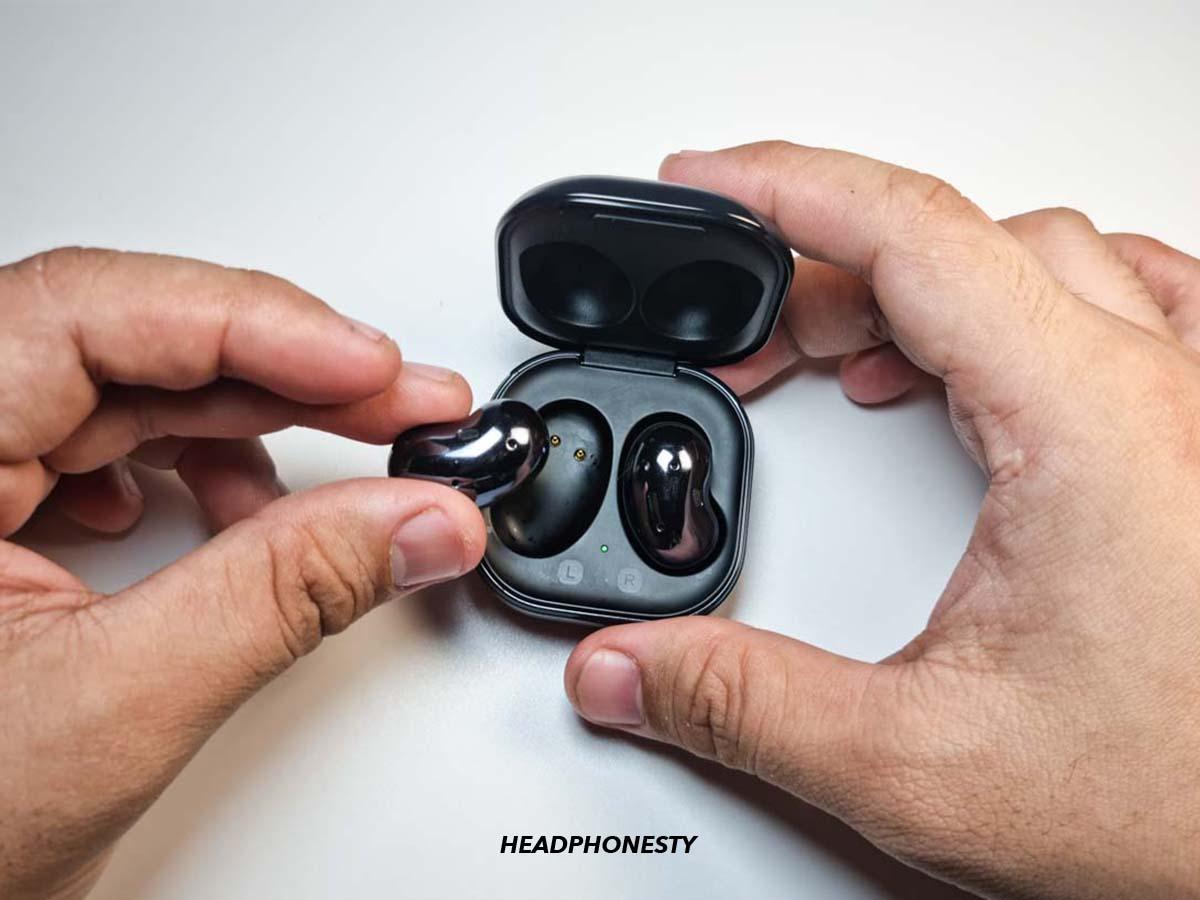
How to Pair Galaxy Buds With a New Device
Galaxy Buds usually try to reconnect to the last device they used. This can make pairing with a new phone feel confusing, especially when your old phone is nearby.
Follow these steps:
- Turn off Bluetooth on the old phone, or move it away.
- Put both earbuds in the charging case.
- Close the lid for several seconds.
- Open the lid.
- Put the earbuds in your ears if needed.
- Touch and hold both earbuds until pairing mode starts.
- Open Bluetooth settings on the new device.
- Tap the name of your Galaxy Buds.
You do not always need to unpair the earbuds from the old device. Turning off Bluetooth on that device is often enough to stop automatic reconnection.
If the old phone keeps taking control, temporarily disable Bluetooth on nearby tablets, laptops, watches, and TVs. Bluetooth pairing can feel like trying to get someone’s attention in a busy room; removing competing devices makes the process much easier.
:max_bytes(150000):strip_icc()/SamsungGalaxyBuds2incasecharging-f80055cb7e1f46d2ab17676af899e3db.jpg)
How to Pair Galaxy Buds With a Samsung Galaxy Phone
Samsung Galaxy phones often provide the smoothest setup experience.
- Turn on Bluetooth on the Galaxy phone.
- Open the Galaxy Buds case near the phone.
- Wait for the connection pop-up.
- Tap Connect.
- Follow the instructions on the screen.
If the pop-up does not appear, open Settings, tap Connections, and then tap Bluetooth. Put the earbuds in pairing mode and select their name from the list.
You can also open the Galaxy Wearable app and add the earbuds from there. Keep the phone’s software and the Galaxy Wearable app updated for the best compatibility.
A Galaxy phone may support extra features such as Auto Switch, 360 Audio, ambient sound controls, and detailed touch settings. These features depend on the earbud model and phone software.
How to Pair Galaxy Buds With a Windows PC
Galaxy Buds can work with a Windows computer as standard Bluetooth headphones.
- Put the Galaxy earbuds in pairing mode.
- On Windows, open Settings.
- Select Bluetooth & devices.
- Turn Bluetooth on.
- Click Add device.
- Choose Bluetooth.
- Select your Galaxy Buds.
After pairing, open the Windows sound settings and choose the earbuds as the output and input device. If you can hear music but the microphone does not work, check that the Galaxy Buds are selected as the input device.
Windows may display two audio options for the earbuds. One may provide better music quality, while another may be used for calls. This is normal with many Bluetooth headsets.

How to Pair Galaxy Buds With a Mac
The steps on a Mac are also straightforward.
- Put the earbuds into pairing mode.
- Click the Apple menu.
- Open System Settings.
- Select Bluetooth.
- Find your Galaxy Buds under Nearby Devices.
- Click Connect.
On older versions of macOS, open System Preferences and select Bluetooth instead. If the earbuds do not appear, turn Bluetooth off and on again, then repeat the pairing steps.
Galaxy Buds should play audio on a Mac, but some Samsung-specific controls may not be available. You can still use the Mac’s sound settings to choose the earbuds for audio output.
How to Pair Galaxy Buds With a Smart TV
Many newer smart TVs support Bluetooth headphones. The menu names can differ by brand.
- Put the Galaxy earbuds into pairing mode.
- Open the TV’s Settings menu.
- Find Sound or Audio settings.
- Open Bluetooth Speaker List or Bluetooth Devices.
- Select your Galaxy Buds.
- Confirm the connection.
Keep the earbuds close to the TV during setup. If the TV cannot find them, disconnect them from your phone first.
Some TVs support only one Bluetooth audio connection at a time. Sound may also have a small delay when watching video. This delay is a limitation of Bluetooth audio and does not always mean the earbuds are faulty.

What to Do When Galaxy Buds Do Not Appear
If your Galaxy Buds are missing from the Bluetooth list, work through these checks in order.
• Charge the earbuds and case. Low battery can prevent pairing mode from starting.
• Turn Bluetooth off and on. This refreshes the device search.
• Move away from other paired devices. Your earbuds may be reconnecting automatically.
• Restart the phone, computer, or TV. A simple restart often clears a temporary Bluetooth error.
• Place both earbuds in the case. Check that each earbud is seated correctly and charging.
• Clean the charging contacts. Use a dry, soft cloth. Do not use water or sharp tools.
• Remove the old Bluetooth entry. Select the earbuds in Bluetooth settings and choose Forget, Unpair, or Remove.
• Try pairing with another device. This helps show whether the issue is with the earbuds or the original device.