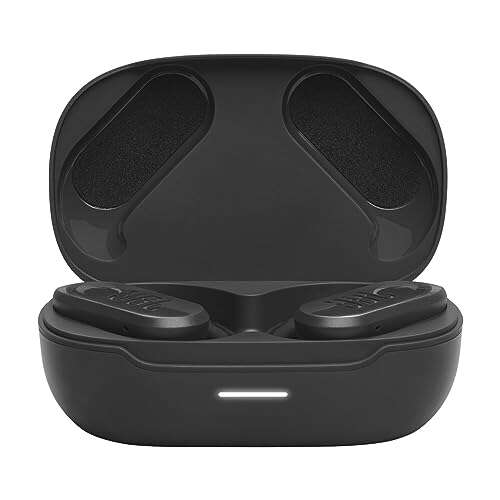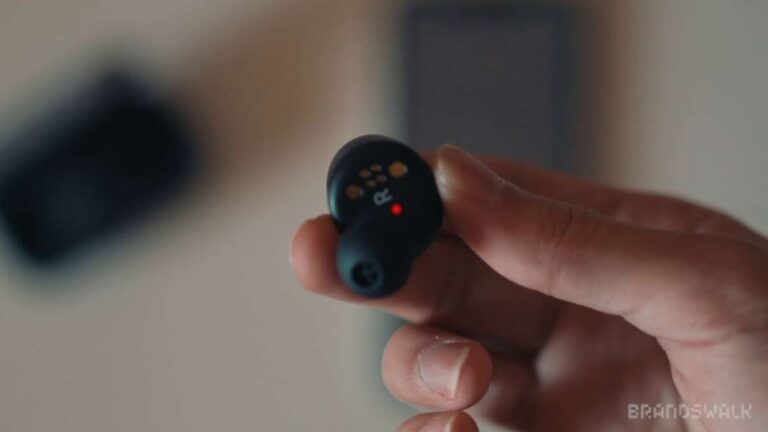
Open the charging case, remove both JVC earbuds, then press and hold their touch controls until the LEDs flash.
Learning how to put JVC earbuds in pairing mode is usually quick, but the exact button action can vary by model. JVC Gumy, HA-A, and other true wireless earbuds may use touch sensors, physical buttons, or automatic pairing. This guide explains each method, how to connect to Android, iPhone, Windows, and Mac, and what to do when your earbuds do not appear in Bluetooth settings.
How to put JVC earbuds in pairing mode
Most JVC true wireless earbuds enter pairing mode after you remove both earbuds from the charging case. Their LED lights usually flash blue, white, or red and blue to show that they are ready to connect.
Follow these steps:
- Charge the earbuds and charging case for at least a few minutes.
- Turn on Bluetooth on your phone, tablet, or computer.
- Open the charging case.
- Remove both JVC earbuds.
- Wait for the earbuds to turn on and connect to each other.
- Press and hold the touch panel or button on one or both earbuds.
- Continue holding for about 3 to 5 seconds.
- Release the controls when the LED starts flashing.
- Open your device’s Bluetooth menu.
- Select the JVC model name from the list.
The name may appear as “JVC HA-A5T,” “JVC HA-A25T,” “JVC Gumy Mini,” or a similar model name. Your exact name depends on the product series.
If the earbuds have never connected to a device, they may enter pairing mode automatically. In that case, you only need to remove them from the case and look for them in your Bluetooth menu.

Pair JVC earbuds with an Android phone
Android phones use a Bluetooth settings menu to find and connect to JVC earbuds. The menu names may differ slightly between Samsung Galaxy, Google Pixel, Motorola, and other phones.
Here is how to put JVC earbuds in pairing mode and connect them to Android:
- Open the charging case and remove both earbuds.
- Hold the touch panels or buttons until the LEDs flash.
- Open Settings on your Android phone.
- Tap Connected devices or Connections.
- Select Pair new device or Bluetooth.
- Wait for your JVC earbuds to appear.
- Tap the JVC earbuds’ name.
- Select Pair if Android asks for confirmation.
Keep the phone within about 3 feet of the earbuds during the first connection. Bluetooth works over a wider range after pairing, but a short distance helps prevent setup errors.
If Android shows two separate JVC entries, wait a few seconds before choosing one. True wireless earbuds normally use one main Bluetooth connection, not two separate audio connections.
Connect JVC earbuds to an iPhone or iPad
The process is similar on an iPhone or iPad. First, make sure the earbuds are in pairing mode before opening the Bluetooth screen.
Follow these steps:
- Place both earbuds in the charging case.
- Open the lid and remove the earbuds.
- Press and hold the earbud controls until the LEDs flash.
- Open Settings on your iPhone or iPad.
- Tap Bluetooth.
- Turn Bluetooth on if it is off.
- Look under Other Devices.
- Tap the name of your JVC earbuds.
- Wait until the status changes to Connected.
If your JVC earbuds were paired with another device, turn Bluetooth off on that device for a moment. This prevents the earbuds from reconnecting to the old phone before your iPhone can find them.
To confirm the connection, play a short video or song. If sound comes from the phone speaker, check the audio output menu and select your JVC earbuds.

Pair JVC earbuds with a Windows PC
JVC earbuds can connect to most Windows 10 and Windows 11 computers that support Bluetooth. Some desktop computers need a separate Bluetooth adapter.
Here is how to put JVC earbuds in pairing mode for a Windows computer:
- Remove both earbuds from the charging case.
- Hold the earbud buttons or touch controls until the LEDs flash.
- On your PC, open Settings.
- Select Bluetooth & devices.
- Turn Bluetooth on.
- Click Add device.
- Choose Bluetooth.
- Select your JVC earbuds.
- Click Done.
After pairing, open the sound menu in the Windows taskbar. Choose the JVC earbuds as the output device if your computer continues using its built-in speakers.
A Windows PC may show separate options for Stereo and Hands-Free. Stereo usually provides better music quality, while Hands-Free is used for calls and microphone access.
Connect JVC earbuds to a Mac
Mac computers can pair with JVC earbuds through System Settings or System Preferences. The steps depend on your macOS version.
- Put the JVC earbuds in pairing mode.
- Open the Apple menu.
- Select System Settings.
- Click Bluetooth.
- Find your JVC earbuds under Nearby Devices.
- Click Connect.
On older Macs, open System Preferences, choose Bluetooth, and select Connect beside the JVC earbuds.
If the earbuds connect but you hear no sound, click the Control Center icon in the menu bar. Select Sound, then choose the JVC earbuds as the output device.
How to put JVC earbuds in pairing mode manually
Sometimes the earbuds do not enter pairing mode when you remove them from the case. A manual method can help.
Try this general process:
- Turn off Bluetooth on nearby phones, tablets, and computers.
- Remove both earbuds from the case.
- Press and hold both touch controls for about 3 to 5 seconds.
- Watch for a flashing LED.
- Open Bluetooth settings on your device.
- Select the JVC earbuds.
Some JVC models use one earbud as the main unit. If holding both earbuds does not work, place them back in the case, remove them again, and hold the control on the left or right earbud alone.
The correct timing varies. Holding the control too briefly may turn the earbuds off, while holding it too long may start a reset. Check the user guide for your model if the general method fails.
What the JVC earbud lights mean
The LED pattern helps you understand what the earbuds are doing. JVC uses different light colors and patterns across product lines, so treat these meanings as general guidance rather than a universal code.
Common LED signals include:
• Flashing blue or white: The earbuds may be ready to pair.
• Alternating red and blue: The earbuds may be searching for a Bluetooth device.
• Solid red: The earbuds may be charging or have a low battery.
• No light: The earbuds may be off, out of power, or not making contact with the case.
• Slow flashing light: The earbuds may be connected or waiting for a connection.
Pairing mode is like an open door. The earbuds are visible to nearby devices and are waiting for one device to enter. Once they connect, the light often changes or stops flashing.
JVC earbuds not showing in Bluetooth
If your JVC earbuds do not appear in the Bluetooth list, the problem is often simple. They may already be connected to another device, or they may not have entered pairing mode correctly.
Try these fixes:
• Turn Bluetooth off on devices that have used the earbuds before.
• Put both earbuds back into the charging case, close the lid, and wait 10 seconds.
• Charge the case and earbuds.
• Restart Bluetooth on your phone or computer.
• Move away from other active Bluetooth devices.
• Remove old JVC entries from the Bluetooth menu.
• Restart the phone, tablet, or computer.
• Repeat the pairing process with both earbuds removed.
Also check whether the earbuds are making contact with the charging pins. Dirt, pocket lint, or moisture can stop an earbud from charging and prevent it from turning on.
How to reset JVC earbuds before pairing
A reset can solve connection problems, one-sided audio, or a failed pairing history. It removes stored Bluetooth information, so you must pair the earbuds again afterward.
The reset method depends on the JVC model. A common approach is:
- Forget or remove the JVC earbuds from your phone’s Bluetooth list.
- Turn off Bluetooth on nearby devices.
- Place both earbuds in the charging case.
- Remove the earbuds.
- Press and hold the controls for 10 to 15 seconds, or follow the model-specific reset instructions.
- Return the earbuds to the case.
- Remove them again and wait for pairing mode.
Some models reset through the case, while others require several taps or a long press on each earbud. Do not assume that every JVC model uses the same reset command.
After a reset, the earbuds should behave as if they are being connected for the first time. This often clears an old connection that is blocking new pairing.
Common mistakes to avoid
Even when you know how to put JVC earbuds in pairing mode, small mistakes can interrupt the process.
Avoid these common problems:
• Removing only one earbud when the model needs both earbuds to start pairing.