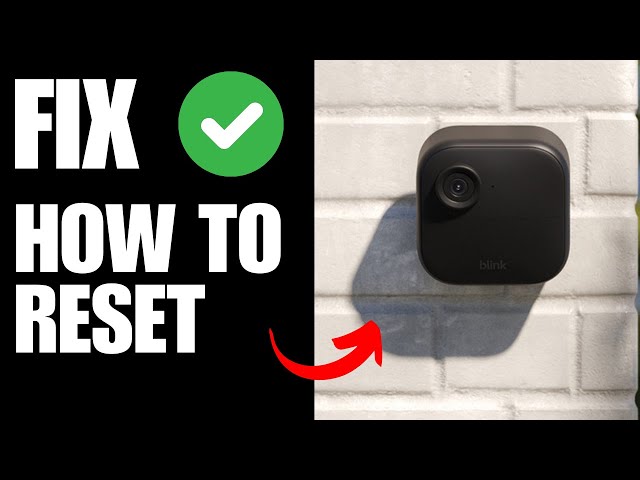
Hold the reset button for about 10 seconds to restore your Blink camera to factory settings.
I’ve worked with home security gear for years and have helped dozens of people fix Blink camera issues. This guide explains clearly how to reset a Blink camera, why you might need to reset it, step-by-step methods for different Blink models, and what to do after a reset. Read on to get the exact steps, troubleshooting tips, and real-world advice to make the process quick and painless.

Why and when to reset your Blink camera
Resetting can fix many issues. A reset clears settings, wipes connection errors, and removes stored network info. You may need to reset when your camera won’t connect, acts erratically, or you are transferring devices to a new owner.
Resetting is not always the first fix. Try simple steps like power cycling or checking Wi-Fi first. If those fail, learn how to reset a Blink camera properly to avoid data loss and reconfiguration headaches.

Restart vs factory reset: key differences
A restart reboots the device without erasing settings. That often fixes temporary glitches. A factory reset erases all settings and returns the camera to original state.
Use a restart when the camera freezes or loses connection. Use a factory reset when you change accounts, forget Wi-Fi, or plan to sell the camera. Knowing which one you need prevents unnecessary setup.

How to reset a Blink camera: step-by-step for common Blink models
Below are clear, model-specific steps. Follow the steps for your device exactly. Keep batteries in if the camera uses them unless a battery removal is part of the instructions.
Blink Sync Module reset (for systems with a Sync Module)
- Unplug the Sync Module from power and wait 10 seconds.
- Plug it back in.
- Wait for the blue LED to blink.
- Press and hold the small reset button on the Sync Module for 10 seconds.
- Release and wait for the LED to go solid blue, then amber, then off. The Sync Module will restart and go into setup mode.
If you need to fully remove the module from your Blink account, open the Blink app and delete the sync module from system settings after the reset. This is the most reliable method when learning how to reset a Blink camera tied to a Sync Module.
Blink Indoor and Blink Outdoor (battery models)
- Remove the battery door.
- Remove and reinsert the batteries to power cycle the unit.
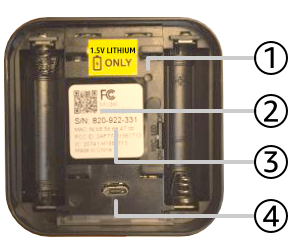
- Press and hold the small reset button near the battery compartment for about 10 seconds.
- Release the button and wait for the camera LED to flash amber or blue.
- Re-add the camera in the Blink app via Add Device.
On battery models, a short press often only restarts. A 10-second hold triggers a factory reset. This is the standard way to reset a Blink camera when the app setup or Wi‑Fi fails.
Blink Mini and wired models
- Unplug the power adapter.
- Wait 10 seconds.
- Press and hold the reset button on the camera for 10 seconds while plugging it back in.
- Keep holding until the LED flashes, then release.
- Use the Blink app to reconfigure the camera.
Wired models often show a solid LED when ready for setup. Knowing how to reset a Blink camera for wired units helps when updates or firmware fails.
Blink XT, XT2 and older models
- Remove the faceplate or open the battery compartment.
- Press and hold the reset button for 10 seconds.
- Release and watch the LED flash.
- Re-pair in the Blink app once the LED shows setup mode.
For older models, button location can vary. Consult the device label if you can’t find the reset pinhole. Practicing how to reset a Blink camera with older gear saves time.

Reconnecting and troubleshooting after a reset
After a factory reset, the camera must be re-added to your Blink account. Steps to follow:
- Open the Blink app and sign in.
- Tap Add Device or Add System.
- Scan the QR code on the camera or enter the serial number.
- Follow on-screen prompts to connect to Wi‑Fi.
If the camera fails to connect:
- Check Wi‑Fi band. Blink supports 2.4 GHz networks.
- Move the camera closer to the router for setup.
- Power cycle the Sync Module or router.
- Replace weak batteries if battery-powered.
If you see firmware errors, let the camera remain on and connected for up to 30 minutes so updates can finish. Knowing how to reset a Blink camera is only half the job; ensuring a solid reconnection completes the fix.
Tips, precautions, and best practices
Follow these tips to avoid common mistakes when you reset a Blink camera:
- Back up relevant settings mentally. The Blink app stores clips in cloud or locally via Sync Module with USB. Deleting cameras will remove access to local clips on that system.
- Remove the camera from your Blink account before gifting or selling it. This prevents account access issues.
- Use fresh batteries for battery models when re-adding to avoid setup failures.
- Keep the app updated. Old app versions may not support new firmware or reset flows.
- Label devices physically or in-app to avoid confusion after resets.
Remember that knowing how to reset a Blink camera reduces downtime and helps maintain security.

My experience: mistakes I made and lessons learned
I once reset a Blink camera without removing it from the account first. That meant I could not re-add it until I deleted the device from the original system. I learned to always check account settings before a factory reset.
Another time, I tried to reconnect on a 5 GHz network and the camera wouldn’t see it. Switching to 2.4 GHz fixed it instantly. These are simple lessons that make understanding how to reset a Blink camera far less stressful.

Common quick questions
What is the difference between a reboot and how to reset a Blink camera?
A reboot simply restarts the camera and keeps settings. A reset clears settings and returns the camera to factory defaults.
How long should I hold the reset button when learning how to reset a Blink camera?
Hold the reset button for about 10 seconds for a factory reset. Short presses usually trigger a restart only.
Can I reset a Blink camera without the app?
You can perform a factory reset using the device button, but you will need the Blink app to re-add and configure the camera afterward.
Will resetting delete my cloud clips?
Resetting the camera removes it from the system but does not always delete cloud clips stored with your Blink account. Removing a system or account may affect clip access.
Is it safe to reset my Blink camera often?
Frequent resets are safe but not ideal. Repeated resets can be time consuming and may disrupt scheduled configurations.
Frequently Asked Questions of how to reset a blink camera (make it h2 tag)
How long do I need to hold the reset button to reset a Blink camera?
Hold the reset button for about 10 seconds for a full factory reset. Shorter presses usually just reboot the device.
Will resetting my Blink camera remove it from my account?
A factory reset removes device settings but you should also remove the camera from the Blink app to fully dissociate it from your account. Removing it in the app prevents future account access by others.
My camera won’t reconnect after I reset it. What should I do?
Check that you are on a 2.4 GHz Wi‑Fi network, power cycle the router, and bring the camera closer to the router during setup. Replace batteries or use wired power if needed.
Does resetting delete recorded clips on the sync module USB?
Resetting a camera does not automatically delete clips on a Sync Module USB drive, but removing the module or system might affect access. Back up important clips before major changes.
Can a reset fix motion or alert issues?
Yes, a reset can clear software glitches that affect motion detection or alerts. If issues persist, update firmware and review motion settings in the app.
Conclusion
Resetting a Blink camera is often the fastest fix for stubborn connection or performance problems. Use a restart for quick fixes and a factory reset when you need to clear settings or transfer ownership. Follow model-specific steps, check Wi‑Fi compatibility, and re-add the camera in the Blink app to restore service.
Take action now: pick the correct reset method for your model, back up any needed clips, and follow the step-by-step instructions. If this guide helped, leave a comment or share your reset experience so others can learn from it.

Everett Ashford is a tech reviewer at mytechgrid.com specializing in SSDs, cameras, TVs, earbuds, headphones, and other consumer electronics. He provides honest, data-driven reviews based on hands-on testing and real-world performance analysis. Everett simplifies complex tech details to help readers make smart, confident buying decisions.