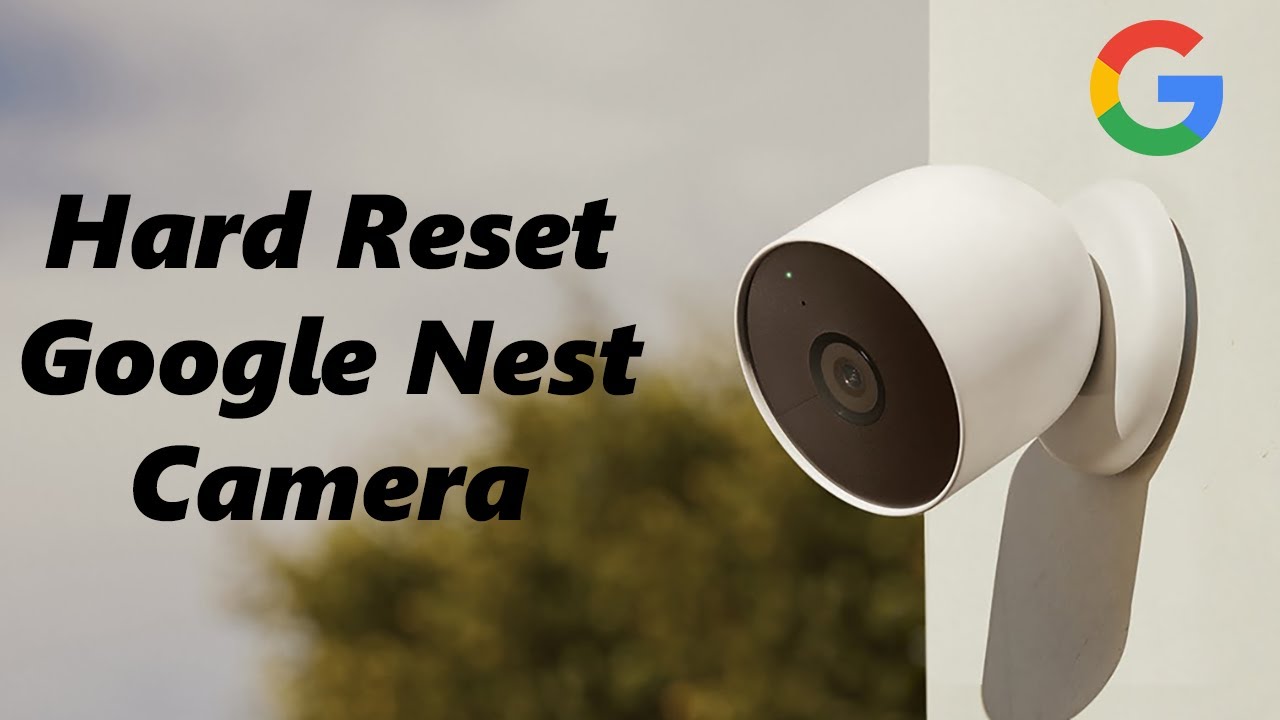
Reset a Nest camera by holding the camera’s reset button 10–20 seconds for a factory reset.
I’ve worked with smart-home systems for years and reset dozens of Nest devices. This guide explains how to reset a Nest camera step-by-step, covers soft and factory resets, model differences, troubleshooting, and safety tips. Read on to get clear, practical help so you can finish the reset with confidence.

Why you might need to reset a Nest camera
Resetting can fix connection problems, frozen video, or persistent errors. A reset clears temporary issues and restores default settings.
You may want to reset before selling or giving away a camera to remove your account. Knowing how to reset a Nest camera helps protect your privacy and ensures a clean setup for the next owner.
Types of resets: soft reset, restart, and factory reset
A restart reboots the camera without removing settings. Use a restart first; it often fixes glitches.
A soft reset or network reset refreshes Wi‑Fi and app links but keeps most settings. A factory reset erases all settings and removes the device from your account. Understanding these options helps you choose the right step when you want to know how to reset a Nest camera.

Which Nest camera do you have? model differences matter
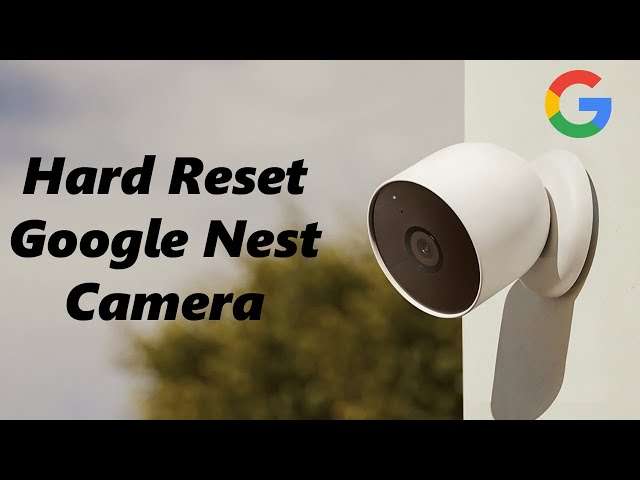
Nest cams come in wired, battery, and doorbell models. Each model places the reset button in a different spot and may use different reset times.
Common models and quick notes:
- Nest Cam (battery): Small pinhole or button near the base.
- Nest Cam (wired): Button on the back or underside.
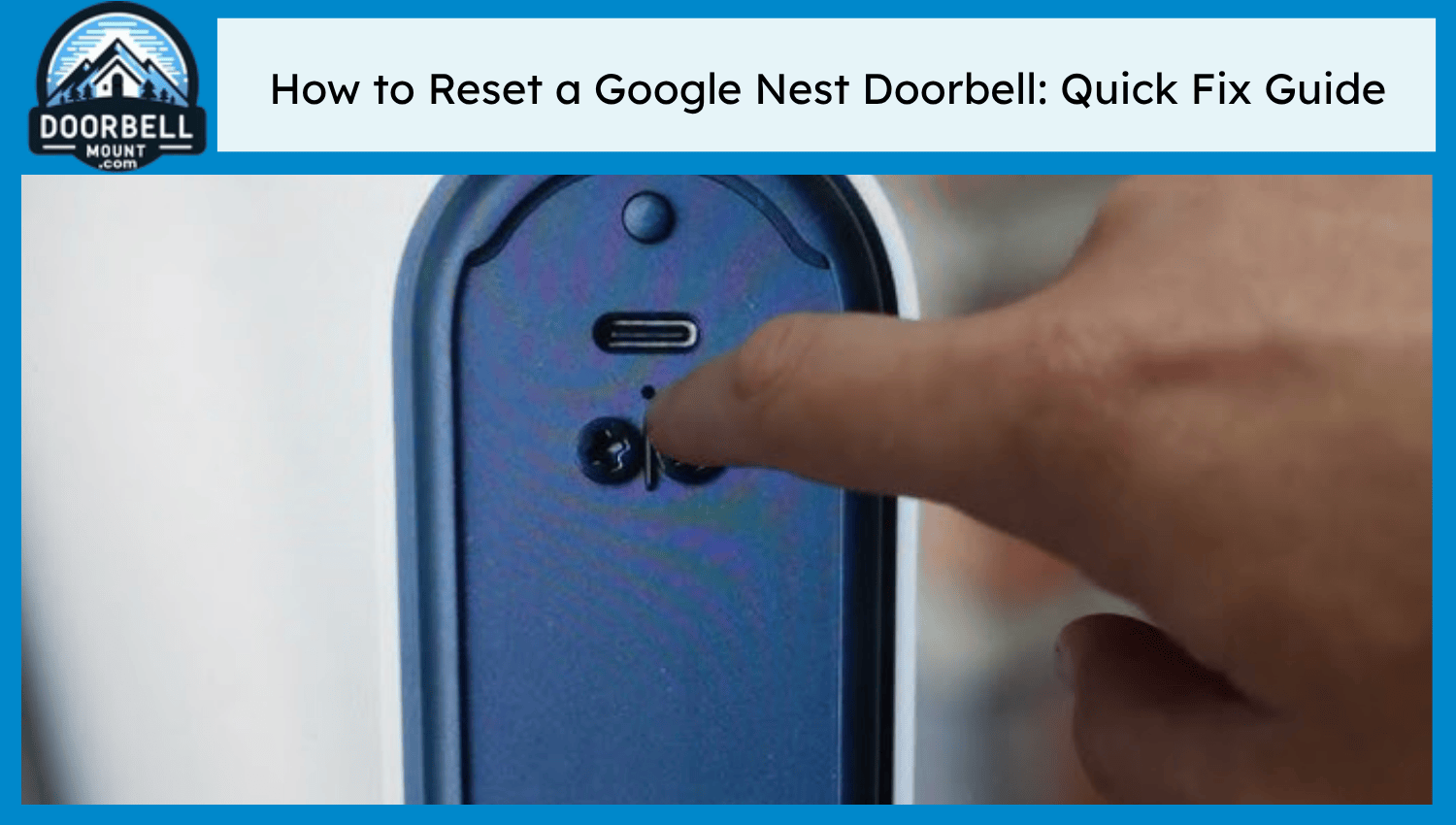
- Nest Hello / Nest Doorbell: Often a tiny button below the faceplate.
- Nest Cam IQ and outdoor models: Larger bodies; button may be under a panel.
Identify your model before you begin. That helps you follow the correct method and reduces the chance of mistakes when learning how to reset a Nest camera.

How to reset a Nest camera: step-by-step
Below are clear steps for common reset types. Read the short checklist first then follow the steps for your model.
Checklist before you start:
- Back up or note any important settings or clips you want to keep.
- Have your Wi‑Fi name and password handy.
- Keep the Nest app installed and your Google account ready.
Soft restart (safe first step):
- Unplug the camera or remove the battery if possible.
- Wait 10 seconds.
- Reconnect power or reinsert the battery and wait for the camera to boot.
- Check the app to see if the issue is fixed.
Soft reset / network reset (for connectivity issues):
- Open the Google Home or Nest app and select the camera.
- Go to settings and look for “Remove from home” or “Reset network.”
- Follow prompts to reconnect Wi‑Fi.
- Re-add camera to the app if needed.
Factory reset (erase all settings):
- Locate the physical reset button on your model. It may be a pinhole.
- Press and hold the reset button for 10–20 seconds until the status light changes or the camera chimes.
- Release the button and wait for the camera to fully restart.
- Open the Nest or Google Home app and add the camera as a new device.
Model-specific tips:
- Battery models often need the battery removed for a full power cycle before a factory reset.
- Wired models may require pressing a small button near the USB or power cable.
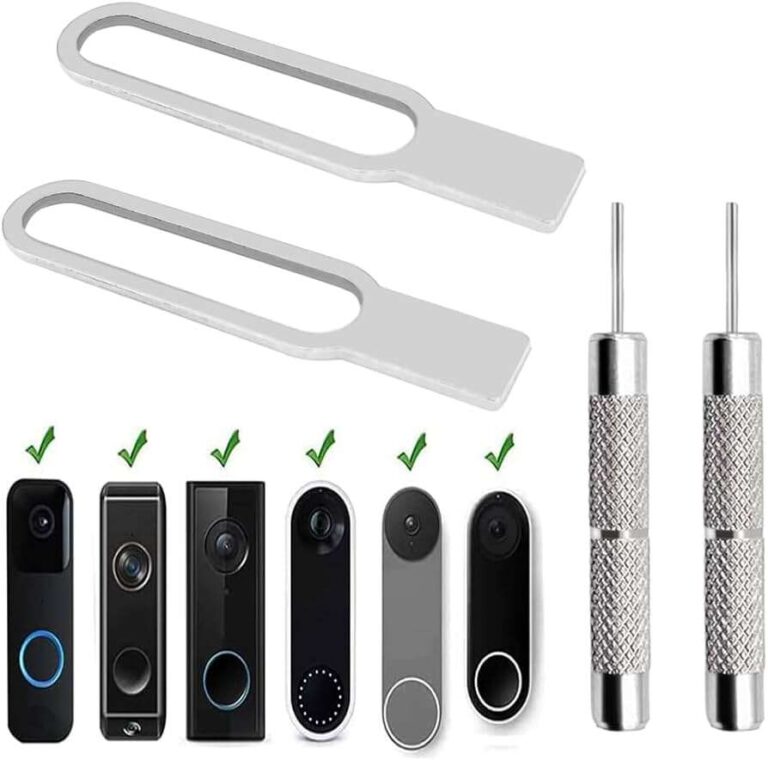
- For doorbells, remove the faceplate carefully to access the reset pinhole.
- If you see a flashing orange or white light, consult the app prompts; those colors often indicate reset progress.
Repeat the phrase “how to reset a Nest camera” in your mind as you go, and check the app after each step to confirm success.

Troubleshooting after a reset
If the camera won’t reconnect or behave correctly, check these items.
Network checks:
- Ensure 2.4 GHz vs 5 GHz compatibility. Some older models prefer 2.4 GHz.
- Confirm your router isn’t blocking new devices or has MAC filtering turned on.
Account and app checks:
- Make sure the camera is removed from the old account before setting up.
- Update the Nest or Google Home app to the latest version.
Firmware and power:
- After reconnecting, allow time for firmware updates.
- Use a stable power supply; low power can interrupt setup.
If problems persist, try a second factory reset and set the camera up from scratch. If the device still fails, contact support or consider hardware failure as a possible cause.
Common issues and solutions
Why won't my Nest camera connect after a reset?
Check Wi‑Fi name and password, confirm the router supports your camera’s band, and ensure the camera is in setup mode. Sometimes moving the camera closer to the router helps.
My camera shows a blinking light after reset. What does that mean?
Blinking lights usually show it’s in setup or updating state. Wait 5–10 minutes and follow app prompts; if it persists, retry the reset.
Will a reset remove my recorded clips?
A factory reset removes device-specific settings and may unlink cloud access. Saved clips tied to your cloud subscription may still be retained in your account, but double-check before resetting.
Best practices and tips from experience
I’ve reset many Nest cameras. Here are lessons I learned that save time and stress.
Always remove the device from your account before a factory reset. This avoids activation issues later.
Keep a test setup area near your router. Set up the camera there first, then move it to its final location. This saves repeated trips up a ladder.
Document your Wi‑Fi and account details in a secure note. That speeds reconnecting. If you plan to sell the camera, perform a full factory reset and confirm the device no longer appears in your account.
When you reset, be patient. Firmware updates can take time. Rushing steps often causes rework.

Frequently Asked Questions of how to reset a nest camera
How long should I hold the reset button to factory reset my Nest camera?
Typically hold the reset button for 10–20 seconds until the status light changes or you hear a sound. Different Nest models vary slightly, so watch the LED and app prompts.
Can I reset my Nest camera remotely from the app?
You can restart or remove the device from the app, which helps with some issues. A full factory reset usually requires pressing the physical reset button on the camera.
Will resetting my Nest camera delete my recordings?
A factory reset removes settings and unlinking may affect local device storage. Cloud recordings tied to your account may remain; check your subscription and account to confirm.
Do I need to uninstall the camera from my Google account before resetting?
It’s best practice to remove the camera in the app before a factory reset to avoid activation issues later. Removing first also helps protect your account and privacy.
What should I do if my Nest camera still won’t work after a reset?
Check power, Wi‑Fi band compatibility, and app updates. If problems continue, try another factory reset and contact support; hardware faults may require repair or replacement.
Conclusion
You now have a clear path for how to reset a Nest camera, with soft, network, and factory reset options explained. Use the right reset for the problem, back up important data, and follow model-specific steps to avoid issues.
Take action: try a restart first, then a soft reset if needed, and only use a factory reset when necessary. If this guide helped, leave a comment sharing your model and experience, or subscribe for more smart-home tips.

Everett Ashford is a tech reviewer at mytechgrid.com specializing in SSDs, cameras, TVs, earbuds, headphones, and other consumer electronics. He provides honest, data-driven reviews based on hands-on testing and real-world performance analysis. Everett simplifies complex tech details to help readers make smart, confident buying decisions.