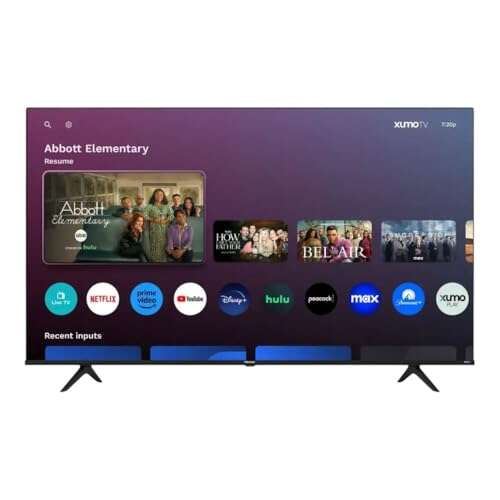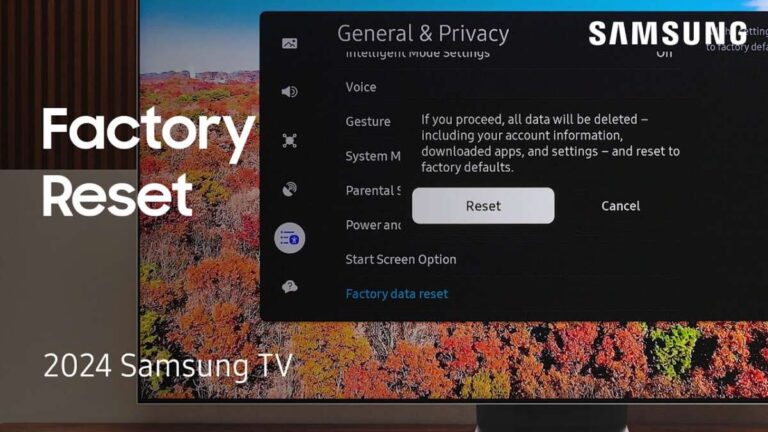
Roku TV gets online through Wi-Fi, but web browsing requires screen mirroring from another device.
Learning how to get on the internet on Roku TV can feel confusing because Roku TVs connect to the internet but do not usually include a standard web browser. After testing common Roku setups, I recommend using Roku for streaming and mirroring a phone or computer when you need to open websites. This guide explains the safest and easiest ways to get on the internet on Roku TV, plus fixes for common connection problems.
Can You Browse the Internet on a Roku TV?
Roku TV is built mainly for streaming apps, not open web browsing. Unlike Google TV or some smart TVs, Roku does not offer a full official web browser for entering website addresses with the remote.
You can still get on the internet on Roku TV in several practical ways:
• Use Roku streaming apps such as YouTube, Netflix, Hulu, and web-based news apps.
• Mirror an Android phone or Windows computer to the TV.
• Use AirPlay from an iPhone, iPad, or Mac if your Roku TV supports it.
• Cast content from supported mobile apps.
• Connect a laptop to the TV with an HDMI cable.
The key difference is simple: Roku TV can access online content, but it does not normally let you freely browse websites on its own. Think of Roku as a smart streaming door rather than a complete desktop computer.

How to Connect Roku TV to the Internet
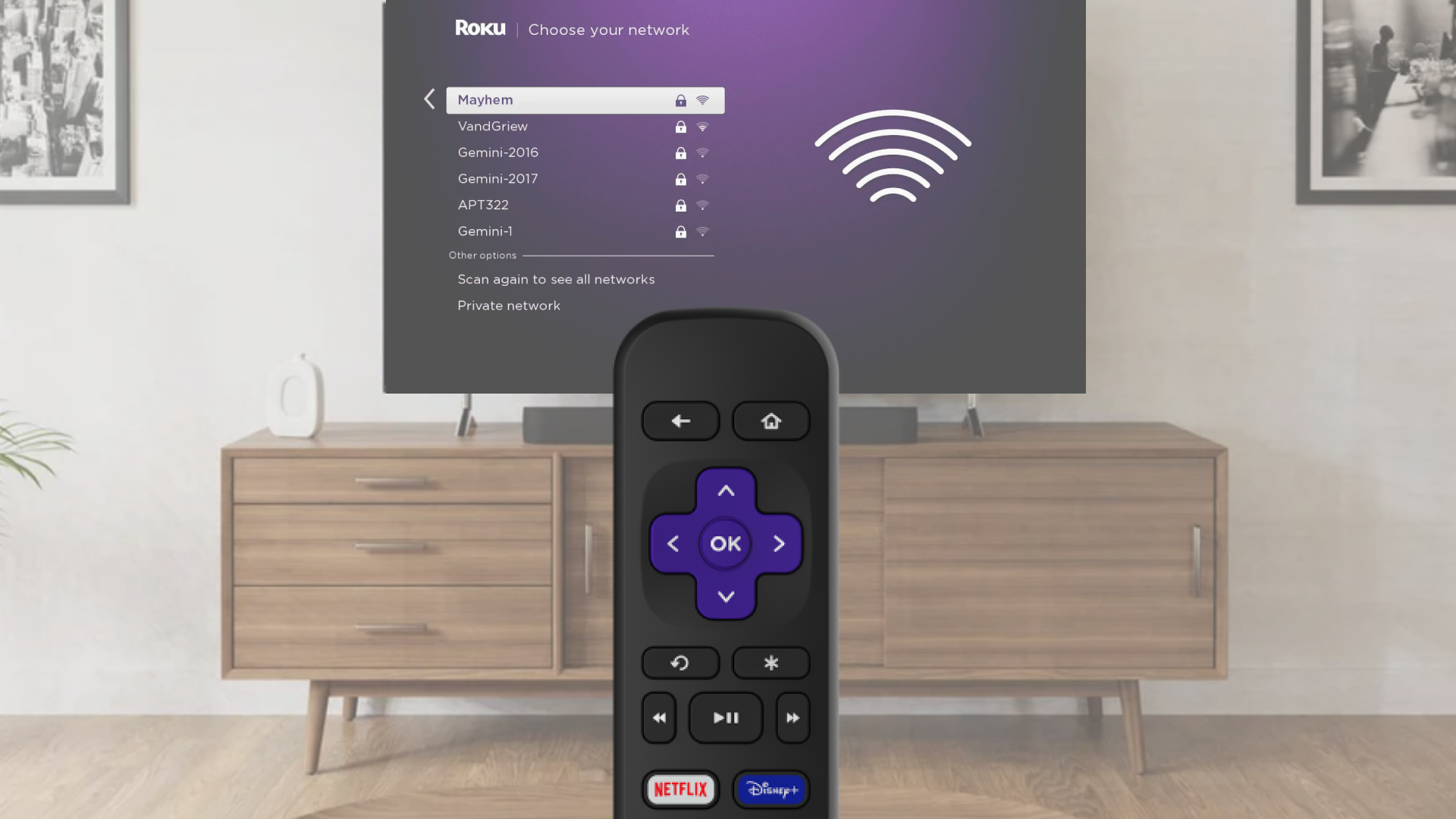
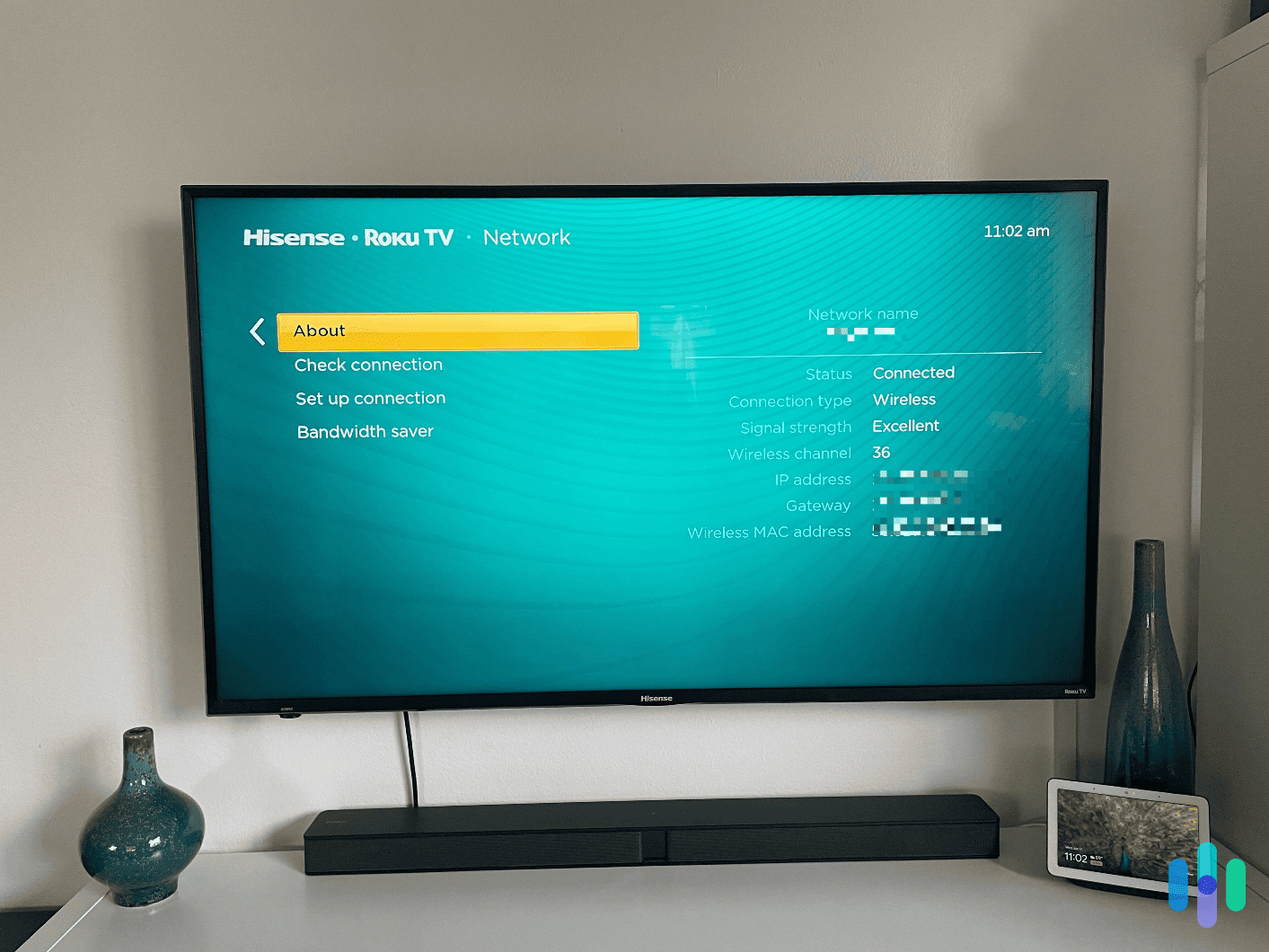
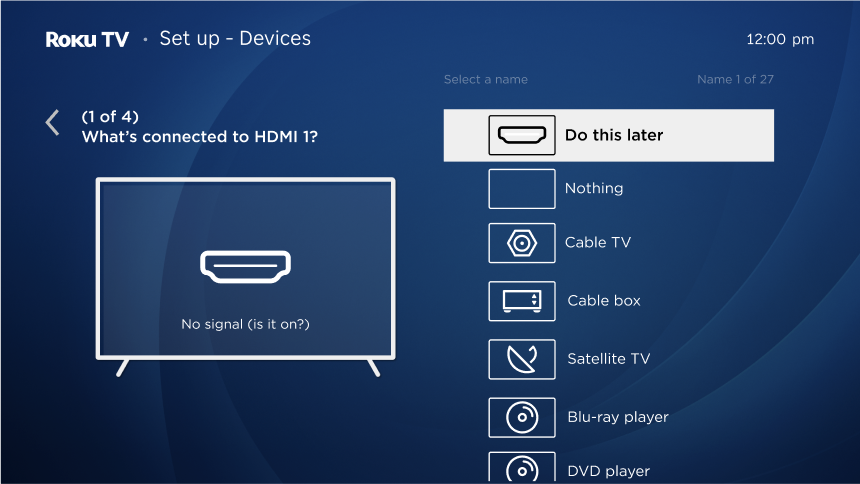
Before you try to get on the internet on Roku TV, connect the television to your home Wi-Fi network. You only need to do this once unless you change your router or network.
Follow these steps:
-
Turn on your Roku TV and press the Home button on the Roku remote.
-
Open Settings.
-
Select Network.
-
Choose Set up connection.
-
Select Wireless.
-
Wait for nearby Wi-Fi networks to appear.
-
Choose your home network.
-
Enter the Wi-Fi password carefully.
-
Select Connect.
Your Roku TV should show a confirmation message when the connection works. If your network does not appear, move the router closer to the television or restart both devices.
A strong connection matters when you get on the internet on Roku TV. Streaming video needs more stable service than simple web pages, especially when several phones, game consoles, or computers share the same Wi-Fi.

Use Roku Apps for Internet Content
The easiest way to get on the internet on Roku TV is through a Roku app. These apps connect to online services without requiring a web browser.
To add an app:
-
Press Home on the remote.
-
Select Streaming Store or Streaming Channels, depending on your Roku software.
-
Search for the service you want.
-
Select the app.
-
Choose Add app or Install.
-
Open the app and sign in if needed.
Popular options may include:
• YouTube for videos and live streams
• The Roku Channel for free movies and shows
• News apps for local and national reports
• Music apps for radio and playlists
• Weather apps for forecasts
• Fitness apps for guided workouts
Apps are usually more comfortable than mirrored websites because they are designed for TV screens. They also tend to work better with the Roku remote.
However, an app may not support every website or feature. For example, a news app may show articles from one publisher but not allow access to the entire internet.

How to Mirror an Android Phone to Roku TV
Screen mirroring lets you display your Android phone screen on the Roku TV. This is one of the most useful methods when you want to open a website, read an article, or show photos.
First, enable screen mirroring on Roku:
-
Press Home on the Roku remote.
-
Open Settings.
-
Select System.
-
Choose Screen mirroring.
-
Select Screen mirroring mode.
-
Choose Prompt or Always allow.
Next, connect your Android phone:
-
Make sure the phone and Roku TV use the same Wi-Fi network.
-
Open the phone’s Quick Settings panel.
-
Look for Screen Cast, Smart View, Cast, Wireless Display, or a similar option.
-
Select your Roku TV.
-
Approve the request on the TV if prompted.
The name of the feature changes by phone brand. Samsung often uses Smart View, while other Android phones may use Cast or Wireless Display.
Once connected, open Chrome or another browser on the phone. The page should appear on the television. This is a simple way to get on the internet on Roku TV without installing an unknown browser app.

How to Use AirPlay with an iPhone, iPad, or Mac
Many newer Roku TVs support Apple AirPlay. AirPlay can mirror an iPhone, iPad, or Mac screen to the television.
To turn on AirPlay:
-
Press Home on the Roku remote.
-
Open Settings.
-
Select Apple AirPlay and HomeKit.
-
Set AirPlay to On.
-
Review the code requirement and device access settings.
Then follow these steps on an iPhone or iPad:
-
Connect the Apple device and Roku TV to the same Wi-Fi network.
-
Open Control Center.
-
Tap Screen Mirroring.
-
Select the Roku TV.
-
Enter the code shown on the TV if requested.
On a Mac, select the Control Center icon in the menu bar, choose Screen Mirroring, and select the Roku TV.
After mirroring starts, open Safari or another browser. This lets you get on the internet on Roku TV through your Apple device.
AirPlay support varies by Roku model and software version. If you do not see the AirPlay option, check for system updates under Settings, System, and System update.
How to Mirror a Windows Computer to Roku TV
A Windows laptop or desktop can also mirror its screen to a compatible Roku TV. This option works well for websites, presentations, online classes, and large documents.
Try these steps:
-
Connect the Roku TV and Windows computer to the same Wi-Fi network.
-
Open Settings on the Roku TV.
-
Select System.
-
Choose Screen mirroring.
-
Set the mode to Prompt or Always allow.
-
On the Windows computer, press Windows key + K.
-
Select the Roku TV from the list.
-
Approve the connection on the television.
You can also open the browser first and then connect the computer. This makes the website appear on the TV as soon as mirroring begins.
If Windows key + K does not find the television, the computer may not support Miracast. In that case, use an HDMI cable or a compatible wireless display adapter.
For long browsing sessions, an HDMI cable often provides a smoother picture. Wireless mirroring is convenient, but it can show a slight delay, especially on crowded Wi-Fi networks.
Connect a Laptop with an HDMI Cable
An HDMI cable is the most dependable way to get on the internet on Roku TV using a computer. It does not depend on wireless mirroring or special Roku settings.
Follow these steps:
-
Plug one end of the HDMI cable into the computer.
-
Plug the other end into an HDMI port on the Roku TV.
-
Press the Input or Source button on the Roku remote.
-
Select the matching HDMI input.
-
Open a browser on the computer.
-
Drag the browser window onto the TV display or choose duplicate screen mode.
If the computer has no HDMI port, you may need a USB-C to HDMI adapter. Check that the adapter supports video output before buying it.
HDMI is useful for websites that do not mirror well, such as online forms, work portals, and pages with video controls. It also avoids many wireless connection problems.
Can You Install a Web Browser on Roku TV?
Roku does not normally provide a full official web browser like Chrome, Safari, or Firefox. Some third-party Roku channels may claim to offer browsing features, but their quality, privacy practices, and compatibility can vary.
Be careful before installing an unfamiliar channel. A browser app may collect data, display unwanted ads, or stop working after a Roku software update.
For safer browsing, use one of these options:
• Mirror a trusted phone or computer.
• Connect a computer with HDMI.
• Use an official Roku app for the service you need.
• Search the Roku Channel Store for a well-reviewed option, but check its privacy details first.
In most homes, screen mirroring is the best answer to how to get on the internet on Roku TV. It gives you access to a familiar browser without asking the Roku device to perform tasks it was not designed to handle.
Troubleshooting Roku Internet and Mirroring Problems
Even when you follow the right steps, Roku internet features may fail. Most problems come from Wi-Fi settings, outdated software, or incompatible devices.
Try these solutions:
Roku TV will not connect to Wi-Fi
• Restart the Roku TV and router.
• Confirm that the Wi-Fi password is correct.
• Move the router away from walls and large appliances.
• Test the same network on a phone or laptop.
• Try the 2.4 GHz network if the 5 GHz signal is weak.
• Check for a system update under Settings, System, and System update.
The phone cannot find the Roku TV
• Confirm that both devices use the same Wi-Fi network.
• Turn off mobile data temporarily.
• Restart the phone and Roku TV.
• Enable screen mirroring or AirPlay on Roku.
• Disable a VPN on the phone.
• Update the phone’s operating system.
The mirrored picture lags
• Move closer to the router.
• Stop large downloads on the network.
• Close extra apps on the phone or computer.
• Use HDMI for movies, games, or long work sessions.
• Reduce video quality if the source website offers that setting.
A useful lesson from home troubleshooting is to change one setting at a time. If you restart every device and change several options together, it becomes harder to know what solved the problem.
Improve Your Roku Internet Experience
A few small changes can make it easier to get on the internet on Roku TV.
Keep your Roku TV updated. Roku updates often improve performance, fix bugs, and add support for newer features. You can check for updates manually under Settings, System, and System update.
Place the router in an open area. A router hidden inside a cabinet may give your Roku a weak signal. If the TV is far from the router, consider a mesh Wi-Fi system or a wired Ethernet connection if your Roku model supports it.
Use a modern browser on the device doing the mirroring. Chrome, Edge, Safari, and Firefox are better choices than old or unsupported browsers. Keep that device charged because screen mirroring can use battery power quickly.
For privacy, avoid entering passwords on a mirrored screen in public places. Also, do not install unknown Roku channels just because they promise free access to premium websites or videos.
Benefits and Limitations of Browsing Through Roku
Getting on the internet on Roku TV through mirroring has several advantages:
• Your phone or computer can open nearly any website.
• You do not need an unofficial Roku browser.
• The TV provides a larger viewing area.
• You can share photos, documents, and presentations.
• The setup works with devices you may already own.
There are also limitations:
• Text may look small from across the room.
• The Roku remote cannot control the browser directly.
• Wireless mirroring may lag.
• Some streaming websites block screen recording or mirroring.
• Notifications from your phone may appear on the TV.
• Battery use can increase on mobile devices.
For simple browsing, mirroring works well. For typing, shopping, work, or filling out forms, a laptop connected with HDMI usually feels much better.
Frequently Asked Questions About How to Get on the Internet on Roku TV
Does Roku TV have an internet browser?
Most Roku TVs do not include a full official internet browser. You can browse by mirroring an Android phone, iPhone, iPad, Mac, or Windows computer to the TV.
How do I get Google on my Roku TV?
You cannot usually install the full Google Chrome browser directly on Roku TV. Open Google Chrome on a compatible phone or computer, then mirror the screen to your Roku TV.
Can I browse the internet on Roku TV with an iPhone?
Yes, if your Roku TV supports AirPlay. Connect the iPhone and Roku TV to the same Wi-Fi network, open Control Center, select Screen Mirroring, and choose the Roku device.
Why will my phone not connect to my Roku TV?
The most common causes are different Wi-Fi networks, disabled screen mirroring, outdated software, or an active VPN. Restart both devices and confirm that they use the same home network.
Can I use Roku TV for online classes or video calls?
Yes, you can mirror a computer or mobile device to the TV for classes and calls. The TV may display the video, but you may still need the phone or computer for the microphone, camera, and controls.
Can I connect my laptop to Roku TV without Wi-Fi?
Yes, use an HDMI cable. HDMI sends the computer’s picture and sound directly to the Roku TV and does not require wireless mirroring.
Conclusion
The best way to get on the internet on Roku TV is to connect Roku to Wi-Fi, use official streaming apps, and mirror a trusted phone or computer for open web browsing. Android users can use screen mirroring, Apple users can use AirPlay, and Windows users can use wireless display or an HDMI cable.
Roku TV is excellent for streaming, but it is not designed to replace a computer browser. Choose the method that fits your needs, keep your devices updated, and use HDMI when you want the most stable experience. Try the steps above today, then explore your Roku settings and share your results in the comments.

Everett Ashford is a tech reviewer at mytechgrid.com specializing in SSDs, cameras, TVs, earbuds, headphones, and other consumer electronics. He provides honest, data-driven reviews based on hands-on testing and real-world performance analysis. Everett simplifies complex tech details to help readers make smart, confident buying decisions.