Give access in the Blink app by inviting a household member or guest and assigning camera permissions.
I’ve spent years setting up home security systems and helping friends and clients share access safely. This guide shows exactly how to share Blink camera access step by step, why each option matters, and how to avoid common mistakes. You’ll learn practical steps, real-world tips from my experience, and security best practices so you can share access without exposing your home to risk. Read on to get clear, tested instructions for how to share Blink camera access and keep control.
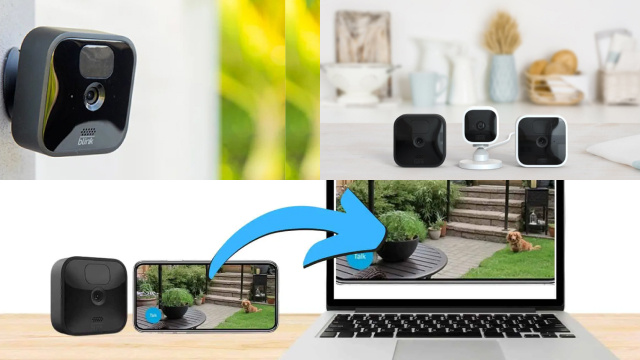
Overview: what it means to share Blink camera access
Sharing Blink camera access means giving someone the ability to view live feeds, get alerts, or manage cameras in your Blink account. You can grant temporary or ongoing access. The main goal is to balance convenience with safety.
Why share access:
- Let family or roommates check cameras.
- Give a house sitter or pet sitter temporary viewing rights.
- Allow a neighbor or caregiver to monitor alerts.
Common sharing methods:
- Add a household member within the Blink app.
- Share account credentials (not recommended).
- Use limited guest access where supported.
PAA-style quick questions:
- Can I share access without giving full control? Yes. Use Blink’s household or guest features to limit permissions.
- Is sharing the same as sharing login info? No. Sharing login info gives full control and is risky.

Requirements and permissions before you share
Before you share Blink camera access, confirm these basics. Doing this first reduces errors and improves security.
What you need:
- An active Blink account with admin access.
- Blink app updated to the latest version.
- The email or phone number of the person you want to invite.
- Stable Wi‑Fi for cameras and for the person accepting access.
Permissions to consider:
- Full admin can change settings and cameras.
- Viewer or limited roles can only see live video and alerts.
- Temporary access should include an expiration plan.
Tip from experience: always update the app before inviting someone. Old app versions often fail to accept invites.
Step-by-step: how to share Blink camera access using the Blink app
Follow these steps to share Blink camera access safely. I’ve simplified the process from my installations for clarity.
- Open the Blink app on your phone.
- Tap the Settings or Account icon.
- Choose "Manage Account" or "Household" depending on your app version.
- Select "Invite User" or "Add Member."
- Enter the email address for the person you want to invite.
- Choose the permission level: admin, viewer, or custom role.
- Send the invite and confirm when the recipient accepts.
Extra steps for temporary sharing:
- Set a calendar reminder to revoke access when no longer needed.
- Ask the invitee to enable two-factor authentication (2FA) on their device.
Common variations:
- If your Blink app uses "Household" and you don’t see roles, the invited person receives standard access to devices.
- For cameras in a Sync Module system, ensure the module is online before inviting users.
From my experience: test the invite with a trusted friend first. That helps you learn any app quirks without risking security.

How to manage shared users and revoke access
Managing access keeps your home secure. These quick steps help you add, change, or remove users fast.
To view current users:
- Open Blink app > Settings > Household or Users.
- Review each user’s email and permissions.
To change permissions:
- Tap the user’s name.
- Adjust role to viewer or admin as needed.
- Save changes and confirm.
To revoke access:
- Tap the user and select "Remove" or "Revoke Access."
- Confirm removal and monitor camera logs for any unusual activity.
Best practice: remove access immediately when someone no longer needs it. I once left guest access active too long and had to revoke it quickly. Set reminders to review users monthly.

Troubleshooting common issues when you share Blink camera access
If sharing fails, try these fixes. These steps reflect common problems I’ve seen in the field.
Invite not received:
- Check that the email was typed correctly.
- Ask the recipient to check spam or promotions folders.
- Resend the invite after verifying the address.
Invite error or acceptance failure:
- Make sure both you and the invitee have the latest Blink app.
- Ask the invitee to sign out and sign back in, then tap the invitation link.
- Reboot your phone and the Blink Sync Module if needed.
Permission not applied:
- Log out and back into the app to refresh settings.
- Remove and re-add the user with the correct role.
If problems persist, contact Blink support and provide app version, device type, and screenshots. In my experience, app updates resolve most invite issues.

Security best practices for sharing Blink camera access
Security must guide how to share Blink camera access. These rules protect your privacy and reduce risk.
Do these always:
- Use the Blink app’s built-in invite feature. Avoid sharing login credentials.
- Require unique emails for each user.
- Encourage two-factor authentication for invited users.
- Revoke access promptly when access is no longer needed.
Avoid these mistakes:
- Sharing passwords via text or email.
- Giving admin rights when viewer access is enough.
- Forgetting to audit users regularly.
Pro tip: use a password manager and 2FA. I require it myself before granting access to any camera.

Personal experience, lessons, and practical tips
I’ve set up cameras for seniors, renters, and families. Here are lessons I learned that will save you time.
Real-world tips:
- Give temporary access to babysitters or cleaners for a set number of days. Add calendar reminders to review access.
- Use viewer-only roles for neighbors and friends. They get alerts without controls.
- Test the invite with your phone first. I test invites to catch errors faster.
Mistakes to avoid:
- Don’t share your main account email with multiple people. It becomes hard to manage.
- Don’t assume deleted apps remove access. Check users in the Blink app.
A simple routine that works for me:
- Review users monthly.
- Update app monthly.
- Revoke access after one week for short-term help.

Frequently Asked Questions of how to share blink camera access
How do I invite someone to view my Blink cameras?
Open the Blink app, go to Settings > Household or Users, then choose "Invite User." Enter their email, pick permissions, and send the invite. The person accepts via their email and the Blink app.
Can I share Blink camera access without sharing my password?
Yes. Use the Blink app’s invite or household feature to grant access. This avoids sharing your main login details.
How do I limit what a shared user can do?
Choose viewer or limited roles when sending an invite. Adjust permissions later in Settings if you need to change access.
What if the invitee never gets the invite email?
Ask them to check spam and promotions folders. Verify the email address and resend the invite. Updating both phones and the Blink app can help.
How do I remove someone’s access to my Blink cameras?
Open the Blink app, find the user under Household or Users, then select Remove or Revoke Access. Confirm the removal and check logs for any activity.
Is it safe to give admin access to someone else?
Only give admin access to people you fully trust. Admins can change settings and remove other users, so limit this role when possible.
Can I share access temporarily for guests or workers?
Yes. Send the invite and plan to revoke access after the job ends. Use calendar reminders to manage revocation.
Conclusion
Sharing Blink camera access can be quick and safe when you use the app’s invitation features and follow basic rules. Give only the permissions needed, test invites, and remove access when it’s no longer necessary. These steps keep your home secure and let trusted people help monitor or care for your space.
Take action now: review your current Blink users, update the app, and try a test invite with a trusted friend. If you found this guide useful, subscribe or leave a comment with your experience sharing Blink camera access.

Everett Ashford is a tech reviewer at mytechgrid.com specializing in SSDs, cameras, TVs, earbuds, headphones, and other consumer electronics. He provides honest, data-driven reviews based on hands-on testing and real-world performance analysis. Everett simplifies complex tech details to help readers make smart, confident buying decisions.