For most people buying a laptop in the United States, an SSD is one of the best upgrades for daily use. An SSD, or solid-state drive, can make a laptop start faster, open apps sooner, feel more responsive, and run more quietly than a laptop with a traditional hard disk drive (HDD).
The main trade-off is price. SSD laptops often cost more per gigabyte than HDD models. Still, for school, work, travel, streaming, photo editing, and general home use, the speed and reliability benefits usually make an SSD worth considering.
What Is an SSD in a Laptop?
An SSD is a storage device that saves files on flash memory chips. It has no spinning platters or moving read/write heads.


A traditional HDD stores data on spinning magnetic disks. When the computer needs a file, the drive moves a small mechanical arm to the correct location. An SSD can access stored data electronically, so it does not need to wait for moving parts.
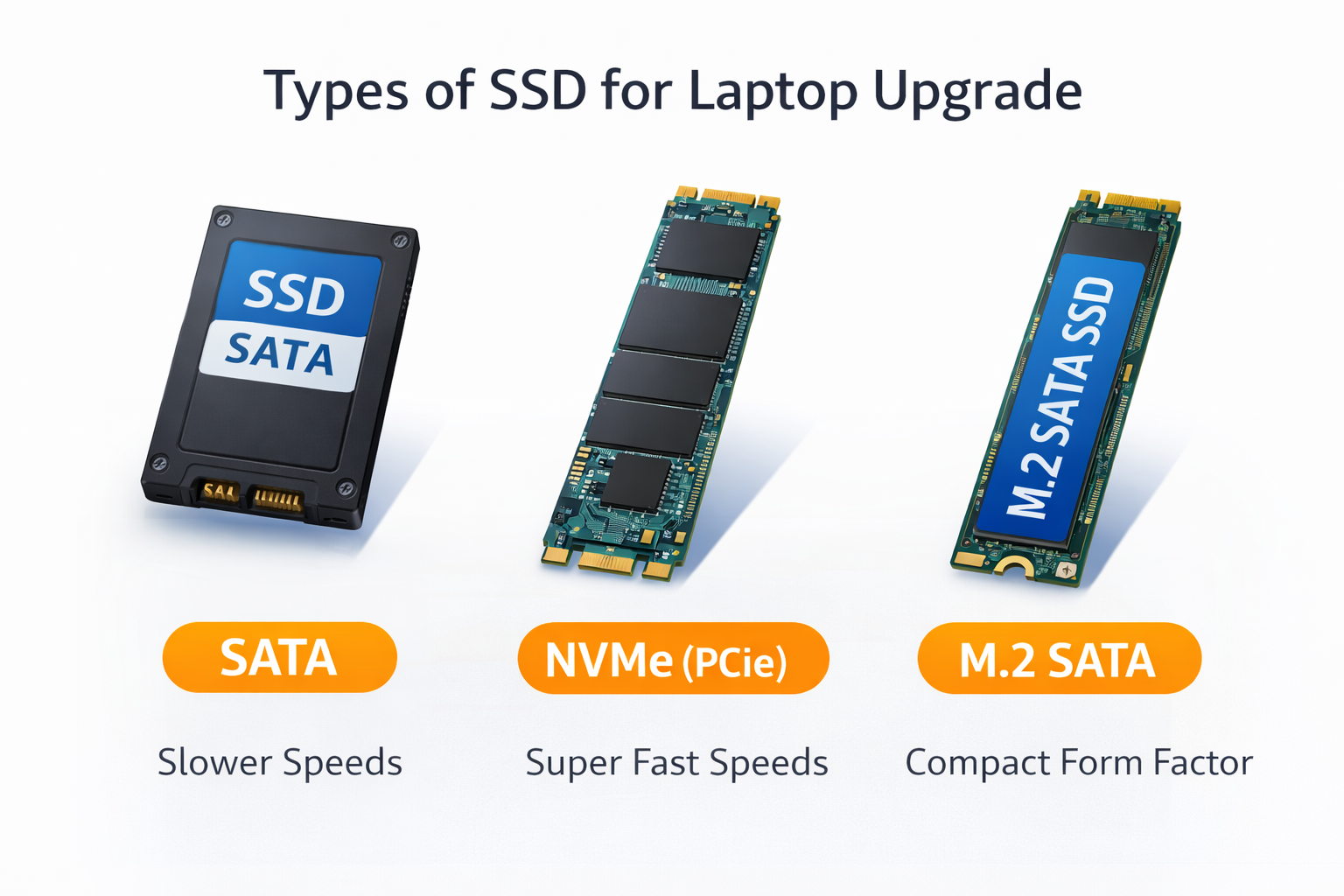
Laptops may use several types of SSDs:
- 2.5-inch SATA SSDs: Common in older laptops and limited by the SATA interface.
- M.2 SATA SSDs: Small internal drives that use the SATA connection.
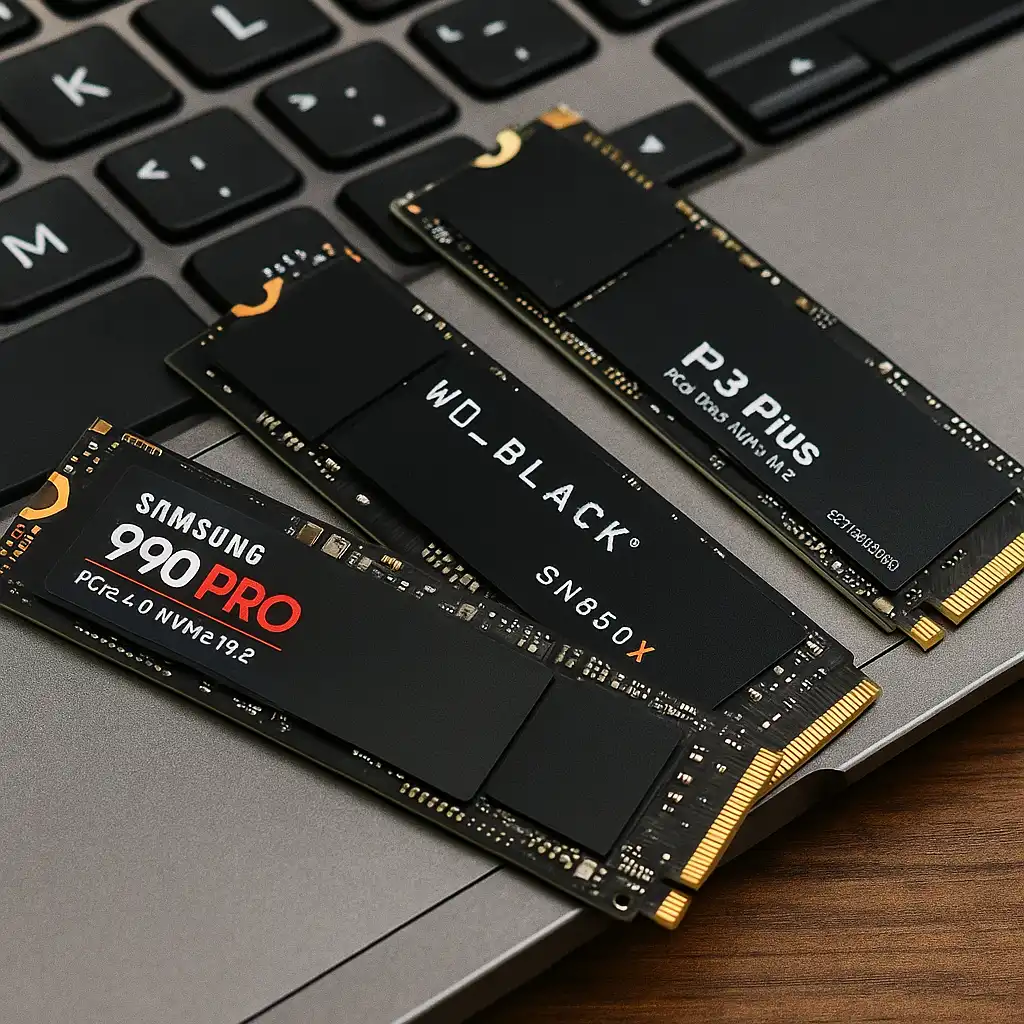
- M.2 NVMe SSDs: Modern drives that use the PCI Express interface and usually offer much higher transfer speeds.
- PCIe 4.0 and PCIe 5.0 SSDs: Newer NVMe types that can support higher speeds when the laptop also supports them.
The word “SSD” describes the storage technology. It does not always describe the same speed. A budget SATA SSD and a modern NVMe SSD can offer different performance, even though both are solid-state drives.
The NVM Express organization maintains the NVMe standard. Laptop makers also list the storage type and interface in their technical specifications.

The Main Advantages of a Laptop With an SSD
1. Faster startup and wake times
An SSD can reduce the time a laptop needs to start Windows, macOS, or another operating system. It can also help the computer wake from sleep and load the sign-in screen more quickly.


The exact result depends on the laptop’s processor, memory, operating system, startup apps, and firmware. A fast SSD cannot fix every cause of slow startup. Even so, replacing an old HDD with an SSD often produces one of the clearest improvements a laptop user can feel.
This matters when you:
- Start your laptop several times each day
- Move between classes or work sites
- Open the lid for quick notes
- Restart after software updates
- Share a laptop with other users
2. Faster app and file loading
An SSD can open many apps and files faster than an HDD. Large programs, game levels, photo catalogs, video projects, and office files may load with less waiting.
The biggest gain often appears when the laptop performs many small read operations. These tasks include loading system files, opening programs, searching folders, and starting background services.
Large sequential file transfers can also be fast, especially with an NVMe SSD. However, the result depends on the drive, the laptop’s interface, the file size, and whether the system is reading or writing data.
3. Better overall system responsiveness
an SSD helps the laptop respond more quickly during common tasks. Windows Explorer or Finder may open sooner. Searches may return results with less delay. Switching between programs can feel smoother.
This does not mean an SSD replaces RAM or a stronger processor. Each part has a different role:
- SSD: Stores files and loads them into the system
- RAM: Holds active data while programs are running
- Processor: Performs calculations and runs instructions
- Graphics processor: Handles visual tasks and many creative or game workloads
If a laptop has too little RAM, it may still slow down when many apps are open. In that case, the operating system may use storage as temporary memory. An SSD can make that process less painful than an HDD, but adding enough RAM is the better fix when an upgrade is possible.
4. Better multitasking when the system uses virtual memory
When available RAM runs low, an operating system may move some data between RAM and storage. This process is often called virtual memory, paging, or swap.
An SSD usually handles this work faster than an HDD. As a result, the laptop may recover more quickly when you switch between several large programs.
The improvement has limits. Heavy paging can still make a laptop feel slow and can add extra writes to the SSD. The best approach is to use an SSD together with enough RAM for your workload.
5. Less noise
An SSD operates silently because it has no motor, spinning disk, or moving actuator arm.
An HDD can make soft clicking, spinning, or seeking sounds. These sounds may be normal, but they can become distracting in a quiet library, office, bedroom, or meeting room.
A laptop may still produce fan noise when the processor gets busy. An SSD does not make the entire computer silent. It simply removes storage-related noise.
6. Lower risk from movement and vibration
An SSD has no moving parts. This makes it less sensitive to ordinary movement and vibration than an HDD while the laptop is operating.


That can help people who carry a laptop in a backpack, use it on a train, work in different rooms, or travel around the United States.
An SSD is not indestructible. The laptop can still suffer damage from drops, liquid, heat, electrical faults, or a damaged circuit board. A protective case and regular backups remain important.
7. Lower power use in many laptop designs
SSDs often use less power than laptop HDDs because they do not need to spin a disk or move a mechanical arm. Lower storage power use may help battery life, but the total effect varies by laptop.
The processor, display brightness, wireless radios, cooling system, battery size, and software settings usually have a larger effect on runtime. Do not treat an SSD as a guaranteed battery-life upgrade.
The U.S. Department of Energy’s computer energy guidance emphasizes that total computer power use depends on the complete system, not one part alone.
8. Smaller and lighter storage designs
Many SSDs use a compact M.2 circuit board. This can help laptop makers build thinner and lighter systems or use the saved space for a larger battery and improved cooling.
The SSD itself is not always the reason a laptop weighs less. The chassis, screen, battery, cooling system, and other parts also determine the final size and weight.
Still, the small size of M.2 SSDs gives manufacturers more design choices than a 2.5-inch HDD.

SSD vs. HDD: Which Is Better for a Laptop?
An SSD is usually better for an everyday laptop because it improves speed, silence, portability, and resistance to movement. An HDD may still make sense when you need a large amount of storage at the lowest possible cost.
| Feature | SSD | HDD |
|---|---|---|
| Speed | Usually much faster for startup and app loading | Usually slower |
| Moving parts | None | Spinning disks and moving heads |
| Noise | Silent | May produce motor or seek noise |
| Movement resistance | Generally better while operating | More vulnerable to shock while active |
| Cost per gigabyte | Usually higher | Usually lower |
| Size | Often very compact | Usually larger |
| Power use | Often lower, depending on model | Often higher |
| Best use | Operating system, apps, active files | Large archives and low-cost storage |
A practical setup can combine both technologies. For example, a laptop may use an SSD for Windows and apps while an external HDD stores large video files, backups, or archived photos.
Many modern laptops do not include space for a second internal drive. Check the manufacturer’s service manual before planning an upgrade.
Does an SSD Make a Laptop Faster in Every Way?
No. An SSD improves storage-related tasks, but it does not directly make every component faster.
An SSD can help with:


- Starting the operating system
- Opening applications
- Loading files
- Searching stored data
- Handling temporary storage activity
- Loading some game assets
- Moving large files
An SSD does not directly increase:
- Processor clock speed
- Graphics performance
- Available RAM
- Screen refresh rate
- Internet speed
- Wi-Fi signal strength
- Video-rendering power by itself
For example, upgrading from an HDD to an SSD may make a web browser open faster. It will not make a weak Wi-Fi connection download faster. It may reduce waiting while a video editor opens a project, but the processor and graphics hardware still control much of the export time.
Think of the SSD as a faster supply room. It helps the computer fetch materials quickly, but it does not give the workers more skill or add more workers.

How Much SSD Storage Does a Laptop Need?
The right capacity depends on what you store. The following estimates are practical starting points, not fixed rules.
| SSD capacity | Suitable for |
|---|---|
| 128GB | Basic browsing and light documents, if cloud storage is used |
| 256GB | Schoolwork, office tasks, browsing, and moderate app use |
| 512GB | A balanced choice for many students and office users |
| 1TB | Games, photos, creative apps, and larger local files |
| 2TB or more | Large video libraries, professional projects, and many games |
The operating system and built-in recovery files use part of the advertised capacity. A drive labeled 512GB will not show the full 512GB as free space.
Try to leave free space available. A nearly full SSD may have less room for temporary files, updates, and efficient background work. The exact effect depends on the drive and operating system, but keeping a reasonable amount of free space is a useful maintenance habit.
Cloud storage and external drives can extend capacity. They do not replace a local backup. A file that exists only in one place remains at risk.

Are SSD Laptops More Reliable?
An SSD avoids mechanical wear from spinning platters and moving heads. That is a major advantage over an HDD, especially in a portable computer.
However, SSDs can still fail. Their flash memory has a finite write life, and the controller or other electronics may stop working. Failure can happen without much warning.
For this reason, an SSD should not be treated as a backup device. Use the 3-2-1 backup approach when the files matter:
- Keep three copies of important data.
- Store them on two different types of media.
- Keep one copy in a different location, such as a trusted cloud service or another physical site.
The Cybersecurity and Infrastructure Security Agency recommends maintaining backups as part of good data protection. Backups should also be tested. A backup that cannot be restored is not useful.
SSD endurance terms to understand
Manufacturers may list an SSD’s endurance using:
- TBW: Terabytes written over the rated life
- DWPD: Drive writes per day during a stated warranty period
- Warranty period: The time or usage limit covered by the manufacturer
These figures are useful for comparison, but they are not a promise that a drive will fail at a specific number. Normal home, school, and office use is usually far lighter than constant data-center workloads.


What Are the Disadvantages of an SSD Laptop?
SSDs offer strong benefits, but they also have limits.
Higher cost for large capacities
A laptop with a 1TB SSD may cost more than a laptop with a smaller SSD or an HDD of similar capacity. High-capacity SSDs can raise the purchase price further.
If you store many large files, compare the total cost of the laptop, external storage, and cloud storage—not just the internal drive.
Limited upgrade options
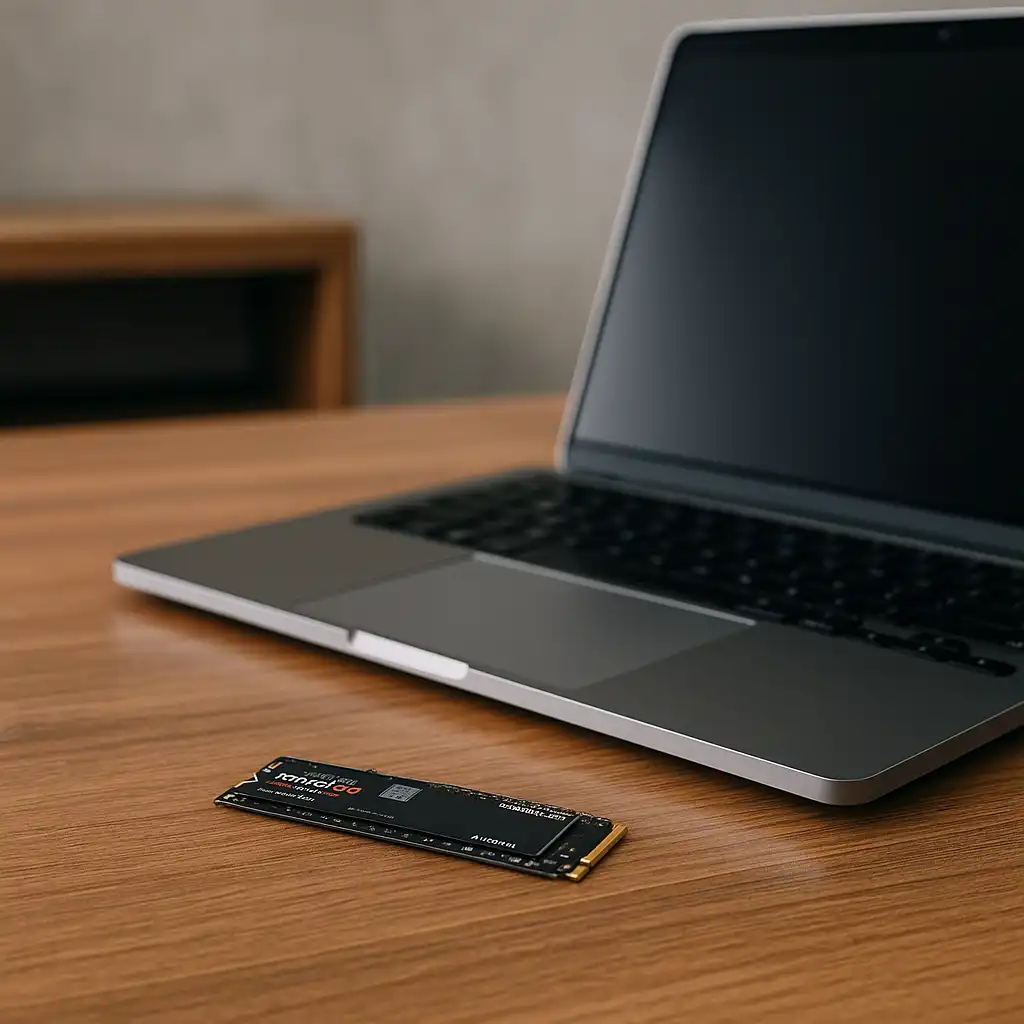
Some laptops have replaceable M.2 SSDs. Others use soldered storage that cannot be upgraded by the owner.
Before buying, check:
- Whether the SSD is replaceable
- The supported M.2 size
- SATA or NVMe compatibility
- The maximum supported capacity
- Whether opening the case affects the warranty
- Whether the manufacturer provides a service manual
Do not assume that every M.2 drive fits every M.2 slot. The physical size and communication standard both matter.
Heat under heavy workloads
Fast NVMe SSDs can produce heat during long file transfers, game installs, or video work. Thin laptops may reduce performance temporarily to control heat.
This behavior is called thermal throttling. It does not mean the SSD is defective. It means the system is limiting speed to stay within safe temperature limits.
Data recovery can be difficult
Recovering deleted or lost files from an SSD may be more complex than recovering data from some HDDs. Features such as TRIM can tell the drive which blocks are no longer needed.
That is another reason to use backups and to stop using a laptop quickly if important files disappear. Continued use can overwrite data that might otherwise be recoverable. For valuable or sensitive files, contact a qualified data recovery service instead of repeatedly running repair tools.
Should You Upgrade an Existing Laptop to an SSD?
Upgrading an older laptop from an HDD to an SSD can be one of the most noticeable improvements available. It is often worthwhile when the laptop still has a useful processor, enough RAM, and a healthy battery.
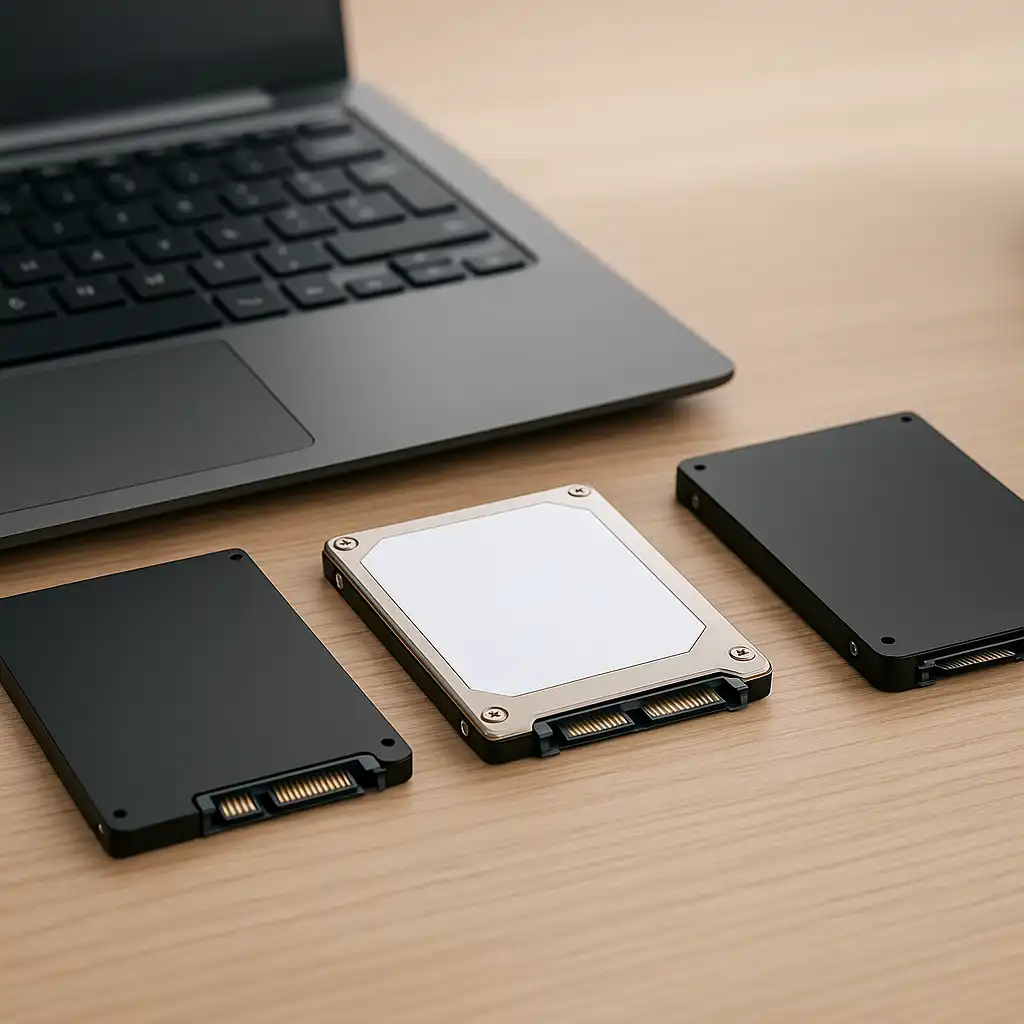
Before upgrading, check the laptop’s manual or manufacturer support page. Confirm the drive type, physical size, interface, operating system requirements, and screw or mounting needs.
A safe upgrade plan is:
- Back up important files.
- Check whether the old drive is replaceable.
- Confirm the correct SSD type and size.
- Create recovery media or prepare a clean operating system install.
- Clone the old drive only when the destination drive is compatible and large enough.
- Install the SSD using the manufacturer’s instructions.
- Test startup, files, programs, and system updates.
- Keep the old drive untouched until the new installation works.
If the laptop has encrypted storage, a damaged operating system, or important business data, professional help may be safer than an improvised upgrade.

Who Benefits Most From an SSD Laptop?
An SSD laptop is especially useful for:
- Students who open documents and apps throughout the day
- Office workers who need quick startup and file access
- Travelers who carry a laptop often
- Photographers managing large image catalogs
- Video editors working with active project files
- Gamers who want shorter game load times
- Home users who want a quieter computer
- Anyone replacing an older laptop with an HDD
An SSD may matter less to someone who uses a computer only for occasional web browsing and stores nearly everything online. Even then, an SSD can improve startup and general responsiveness.
For heavy creative work, look at the full system. A fast SSD paired with too little RAM, a weak processor, or an entry-level graphics chip may not meet the workload.
Common SSD Buying Mistakes
Choosing capacity without checking the workload
A low-cost 256GB laptop may seem attractive until the operating system, apps, photos, and games fill the drive. Consider the files you expect to keep locally for the next few years.
Assuming every NVMe SSD has the same speed
NVMe describes the protocol, not one fixed performance level. Check the laptop’s PCIe generation, the SSD’s specifications, and whether cooling may limit sustained speed.
Ignoring upgrade and repair details
Some thin laptops have soldered storage or limited repair options. Read the manufacturer’s service information before purchase.
Treating an SSD as a backup
An SSD is primary storage, not a backup plan. Keep another copy of important files.
Paying for extreme speed you cannot use
A high-end SSD may not produce a noticeable benefit in basic browsing or word processing. Put the budget toward enough capacity, RAM, a better display, or a stronger processor when those parts better match your needs.

Frequently Asked Questions
Is an SSD better than an HDD for a laptop?
Usually, yes. An SSD is faster, quieter, more compact, and less affected by movement. An HDD can still be useful for cheap, high-capacity storage.
Does an SSD improve battery life?
It can reduce storage-related power use, but the total battery improvement varies. The display, processor, battery size, software, and wireless connections often matter more.
Is 256GB enough for a laptop?
It can be enough for browsing, schoolwork, and office tasks if you use cloud or external storage. A 512GB SSD gives many users more practical room for apps and local files.
Is NVMe better than SATA SSD?
NVMe SSDs usually offer higher potential performance than SATA SSDs. The benefit is greatest during large transfers and demanding workloads. For basic tasks, both can feel much faster than an HDD.
Can an SSD fail suddenly?
Yes. SSDs can fail because of problems with flash memory, the controller, firmware, power, or other electronics. Keep current backups instead of relying on the drive’s expected lifespan.
Key Takeaways
- An SSD can make a laptop start faster and feel more responsive.
- It loads apps and files faster than a traditional HDD in many common tasks.
- SSDs are silent, compact, and generally better suited to portable computers.
- An SSD does not replace RAM, a faster processor, or a stronger graphics chip.
- Capacity, interface, upgradeability, and backup needs matter as much as speed.
- For many US laptop buyers, a 512GB SSD is a practical starting point.
- Keep backups because any storage device can fail.
Conclusion
The biggest advantages of a laptop with an SSD are faster startup, quicker app loading, smoother file access, quiet operation, and better resistance to movement. These improvements are easy to notice in daily use, especially when replacing an older HDD.
Choose the SSD capacity based on your files and software, not just the lowest purchase price. Check whether the laptop uses SATA or NVMe, whether the drive can be replaced, and whether the system has enough RAM for your work. For most students, office users, travelers, and home users in the United States, an SSD laptop is the more responsive and practical choice.

Everett Ashford is a tech reviewer at mytechgrid.com specializing in SSDs, cameras, TVs, earbuds, headphones, and other consumer electronics. He provides honest, data-driven reviews based on hands-on testing and real-world performance analysis. Everett simplifies complex tech details to help readers make smart, confident buying decisions.