On a Windows 11 PC in the United States, the safest way to format an M.2 SSD is through Disk Management. First, back up any files on the drive. Then initialize the disk as GPT, create a new volume, choose a file system such as NTFS, and assign a drive letter.
Formatting erases the selected volume. Double-check the disk size and model before you confirm any action.

Before You Format an M.2 SSD
An M.2 SSD is a small storage device. The M.2 name describes its shape and connector. An M.2 drive can use either the NVMe or SATA interface. Windows 11 can format both types if the drive is detected by the computer.


You may need to format an M.2 SSD when you:
- Install a new drive for games or files.
- Reuse a drive from another computer.
- Remove an old file system.
- Prepare a drive for a clean Windows installation.
- Fix a drive that shows as unallocated.
What you need
Before you begin, check these items:
- A Windows 11 PC with the SSD installed.
- An administrator account.
- A backup of important files.
- The correct drive size and model.
- A clear reason for formatting the drive.
If the SSD is not detected in Windows, formatting will not solve the problem. Check the BIOS or UEFI firmware, the M.2 slot, and the drive connection first.
Choose the right file system
For most internal Windows 11 drives, choose NTFS.
| File system | Best use | Main limit |
|---|---|---|
| NTFS | Internal Windows drives, apps, games, and file storage | Less useful for some non-Windows devices |
| exFAT | Drives shared between Windows and macOS | Lacks some NTFS features |
| FAT32 | Older devices and some firmware tools | Individual files cannot exceed 4 GB |
For a normal internal M.2 SSD, NTFS is usually the correct choice. Use exFAT only when you need broad device compatibility.


How to Format an M.2 SSD With Disk Management
Disk Management is the simplest built-in Windows 11 tool for formatting a secondary M.2 SSD. These steps apply when the drive is not the active Windows system drive.
1. Open Disk Management
Use either method:
- Right-click the Start button and select Disk Management.
- Press Windows key + X, then select Disk Management.
- Press Windows key + R, type
diskmgmt.msc, and press Enter.
The lower section of the window shows each disk. It also shows partitions, drive letters, and unallocated space.
2. Identify the correct M.2 SSD
Match the drive by:
- Storage capacity.
- Disk number.
- Existing partition names.
- Manufacturer or model information, when shown.
Do not rely only on the disk number. Disk 0 is not always the M.2 drive. selecting the wrong disk can erase your Windows installation or personal files.
3. Initialize the disk if Windows asks
A new drive may appear as Unknown and Not Initialized.
Right-click the label on the left side, such as Disk 1, and choose Initialize Disk.
Select:
- GPT for most modern Windows 11 computers.
- MBR only for older systems that need legacy BIOS support.
Windows 11 normally uses UEFI firmware and GPT. GPT also supports modern boot setups and large storage devices.
Click OK after selecting GPT.
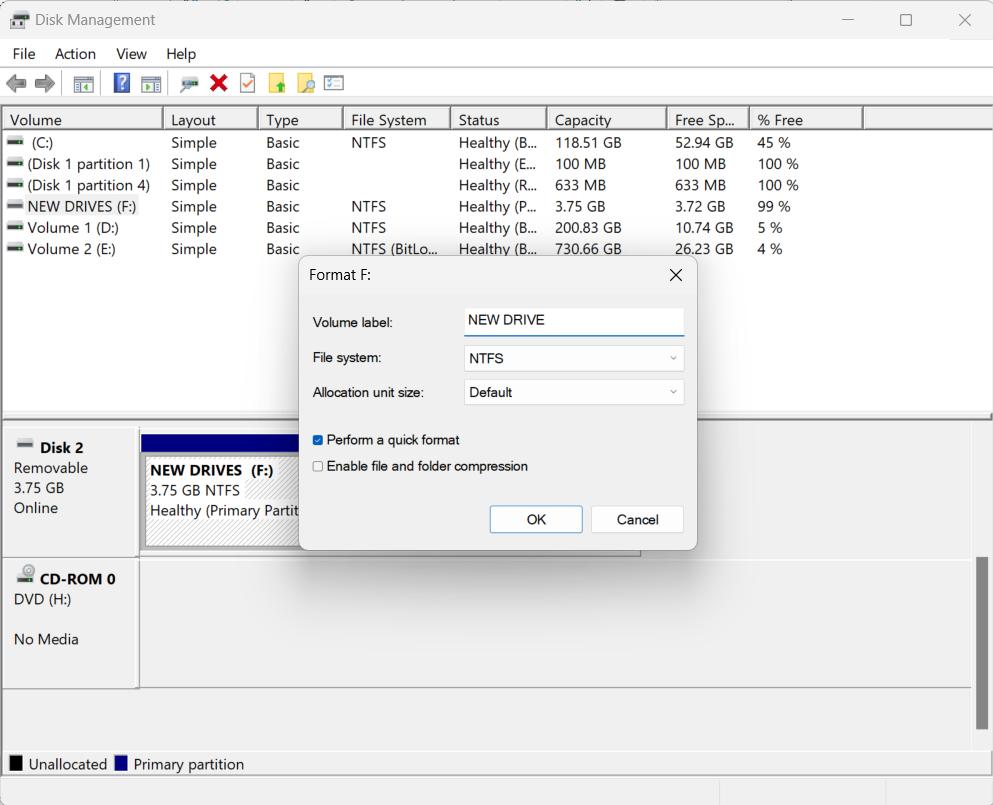
4. Create a new volume
If the drive shows a black bar labeled Unallocated:
- Right-click the unallocated space.
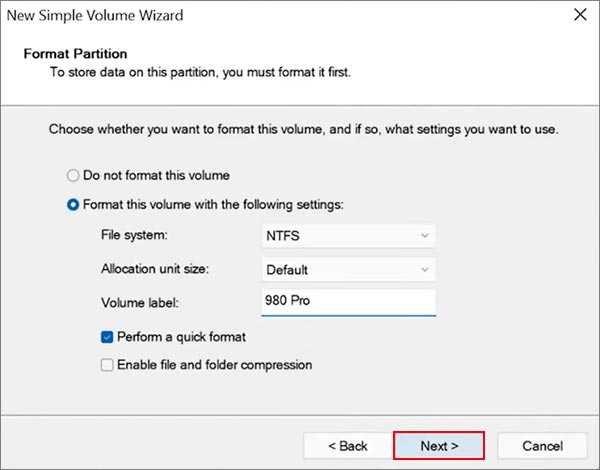
- Select New Simple Volume.
- Select Next.
- Use the full volume size unless you want more than one partition.
- Assign an unused drive letter.
- Choose Format this volume.
- Select NTFS.
- Leave the allocation size at Default.
- Enter a helpful volume label, such as
GamesorStorage. - Select Perform a quick format.
- Review the settings and select Finish.
Windows will create the partition and format it. The drive should then appear in File Explorer.
5. Confirm that formatting worked
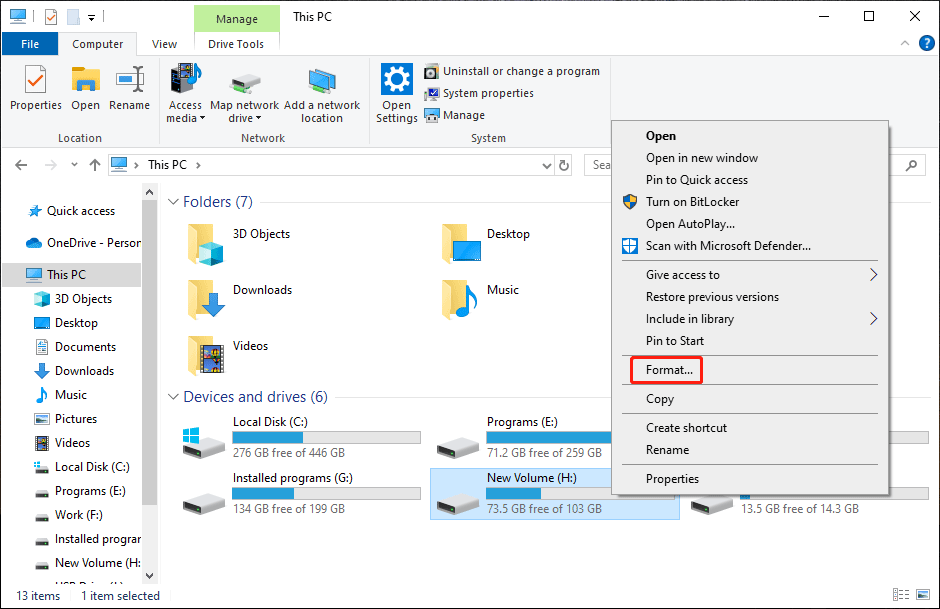
Open File Explorer and select This PC. Look for the new drive letter and volume label.
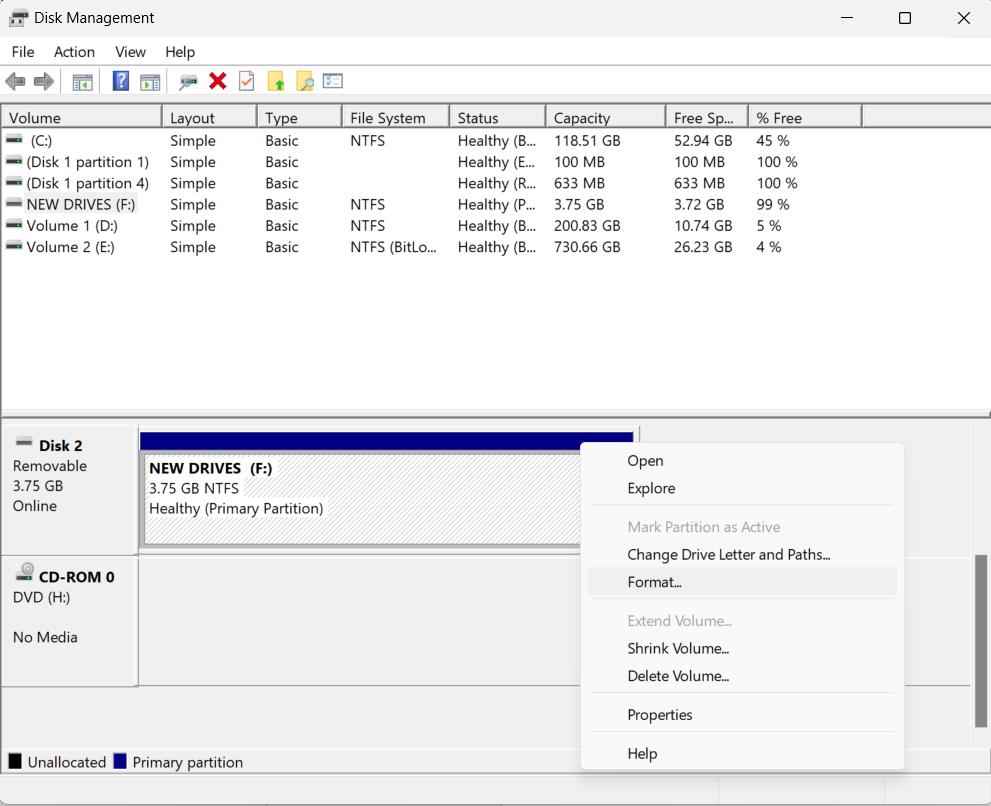
You can also check Disk Management. The volume should show:
- A blue partition bar.
- A drive letter.
- The NTFS file system.
- A status such as Healthy (Basic Data Partition).
Try creating a small test folder. If Windows lets you create, rename, and delete the folder, the drive is ready for use.


How to Format an M.2 SSD in Windows 11 Settings
Windows 11 may also let you manage a drive through the Settings app. This method is useful on newer Windows 11 builds, but the wording can vary by version.
- Open Settings.
- Select System.
- Select Storage.
- Open Advanced storage settings.
- Select Disks & volumes.
- Find the M.2 SSD by its size and model.
- Select the drive or partition.
- Choose Properties.
- Select Format or Delete, depending on the current layout.
- Choose the file system and volume label.
- Confirm the action.
If you do not see the expected format option, use Disk Management. It offers a more consistent view of disk partitions and unallocated space.
Do not delete a partition unless you understand what it contains. A recovery partition or boot partition may belong to Windows.

How to Format an M.2 SSD Using DiskPart
DiskPart is a command-line tool. It is useful when Disk Management cannot format the drive, but it has a serious risk: the wrong disk number can erase the wrong drive.
Use this method only after backing up your files.
Step-by-step DiskPart method
- Open Terminal (Admin) or Windows PowerShell (Admin).
- Select Yes if User Account Control asks for permission.
- Type the following command and press Enter:
diskpart
- List the connected drives:
list disk
- Identify the M.2 SSD by its capacity.
- Select the correct disk:
select disk 1
Replace 1 with the actual disk number.
- Verify the selection:
detail disk
Check the model and size. If they do not match your M.2 SSD, stop.
- Remove the existing partition information:
clean
The clean command removes the disk's partition information. It can make existing data inaccessible.
- Create a GPT partition table:
convert gpt
- Create a primary partition:
create partition primary
- Format the partition as NTFS:
format fs=ntfs quick label="Storage"
- Assign a drive letter:
assign
- Exit DiskPart:
exit
The drive should now appear in File Explorer.
When not to use DiskPart
Do not use the clean command if:
- You are unsure which disk is selected.
- The drive contains files you still need.
- You are trying to repair a drive without a backup.
- You are working with the active Windows boot disk.
DiskPart does exactly what you tell it to do. It does not provide a helpful recovery step after you erase the wrong disk.

How to Format an M.2 SSD That Contains Windows
You cannot format the active Windows partition from inside the same Windows installation. Windows is using that partition to run the computer.


If the M.2 SSD is the Windows boot drive, use one of these methods:
Method 1: Format it during Windows 11 setup
Use a Windows 11 installation USB:
- Back up your files.
- Create or use a Windows 11 installation USB.
- Start the computer from the USB drive.
- Begin Windows Setup.
- Choose Custom: Install Windows only.
- Select the correct M.2 SSD.
- Delete or format the intended partitions.
- Install Windows into the unallocated space.
Deleting partitions during setup removes their data. Confirm the disk capacity before continuing.
Method 2: Use another computer
Remove the M.2 SSD and connect it to another compatible computer. An M.2 USB enclosure or adapter may work, but it must support the drive type:
- An NVMe enclosure is needed for NVMe drives.
- A SATA M.2 enclosure is needed for SATA M.2 drives.
These two M.2 types may look similar but are not always electrically compatible.
Method 3: Use Windows Recovery
You can open Windows Recovery from Settings > System > Recovery and use advanced startup tools. Recovery options vary by Windows version and may not provide a simple format workflow for every disk.
For a full reinstall, Windows installation media is usually clearer.
What to Do if Windows Does Not See the M.2 SSD
If the M.2 SSD does not appear in Disk Management, formatting is not yet the main problem. Check the hardware and firmware first.
Check BIOS or UEFI
Restart the computer and open its BIOS or UEFI setup. The key may be Delete, F2, F10, or another key listed on the startup screen.
Look for a storage, NVMe, or system information page. If the drive does not appear there, Windows cannot format it.
Check the M.2 slot
Some computers have more than one M.2 slot. A slot may support:
- NVMe only.
- SATA only.
- Both NVMe and SATA.
- Different PCIe generations.
- A specific drive length.
Read the computer or motherboard manual. Do not force the drive into a slot.
Check for a missing drive letter
If the SSD appears in Disk Management but not File Explorer, it may not have a drive letter.
Right-click the volume, choose Change Drive Letter and Paths, and assign an unused letter.


Check whether the disk is offline
An offline disk may appear in Disk Management but remain unavailable.
Right-click the disk label and choose Online, if that option is shown. If Windows reports an error, record the message before making changes.
Check for an unallocated drive
A black bar labeled Unallocated means the disk has space that is not assigned to a usable volume.
Right-click the unallocated area and select New Simple Volume. Follow the wizard to create and format it.
Check for read-only status
DiskPart can show whether a disk is read-only:
diskpart
list disk
select disk 1
attributes disk
If the disk is read-only, you can try:
attributes disk clear readonly
Use the correct disk number. This command does not repair failing hardware or remove every type of write protection.

Common M.2 SSD Formatting Mistakes
Most formatting problems come from choosing the wrong disk or using the wrong setup for the intended task.
Formatting the wrong disk
Always compare the disk size and model. Do not assume that Disk 0 is the new SSD.
Choosing MBR without a reason
GPT is the normal choice for a Windows 11 computer using UEFI. MBR may create boot or capacity limits on newer systems.
Using the wrong enclosure
An NVMe M.2 SSD and a SATA M.2 SSD can require different enclosures. Confirm the interface before buying an adapter.
Formatting a boot partition
Do not format EFI, Recovery, or Windows partitions unless you are intentionally reinstalling Windows and have a backup.
Using FAT32 for a normal Windows drive
FAT32 has a 4 GB maximum file size. That can cause problems with large game files, video files, and disk images.
Expecting a quick format to securely erase data
A quick format mainly rebuilds the file system structure. It does not guarantee that old data cannot be recovered.
If you are selling or disposing of an SSD, use a method designed for secure data removal. Follow the SSD maker's instructions for its secure erase or sanitize feature. Be aware that SSD wear leveling makes simple overwrite assumptions unreliable.

Quick Decision Table
Use this table to choose the safest method.
| Situation | Recommended method |
|---|---|
| New secondary M.2 SSD | Disk Management |
| Drive shows as unallocated | New Simple Volume |
| Drive has old partitions | Back up, then delete or format the intended volume |
| M.2 SSD is the Windows boot drive | Windows installation USB or another computer |
| Disk Management fails | Check hardware, then use DiskPart carefully |
| Drive must work with Windows and macOS | exFAT, if its size and use allow it |
| Internal Windows storage | NTFS |
| Drive is missing from BIOS or UEFI | Check installation, slot support, and hardware |
The key decision is whether the drive is a secondary storage drive or the active Windows drive. Disk Management is suitable for the first case. A bootable installer is usually better for the second.
Key Takeaways
- Back up important files before formatting.
- Identify the M.2 SSD by size and model, not only by disk number.
- Choose GPT for most Windows 11 systems.
- Choose NTFS for normal internal Windows storage.
- Use Disk Management for a secondary drive.
- Use Windows installation media when formatting the active Windows drive.
- Do not use DiskPart unless you can confirm the selected disk.
- If Windows cannot detect the SSD, check BIOS, UEFI, slot support, and drive compatibility first.
Frequently Asked Questions
Does formatting an M.2 SSD erase everything?
Yes. Formatting can remove the files on the selected volume. Deleting partitions or using DiskPart's clean command can remove access to the entire disk.
Should I use NTFS or exFAT for an M.2 SSD?
Use NTFS for a drive used mainly with Windows 11. Choose exFAT when you need to move the drive between Windows and macOS or other supported devices.
Should I choose GPT or MBR?
Choose GPT for most Windows 11 PCs. GPT works with modern UEFI firmware and is the standard choice for current Windows installations.
Can I format the M.2 SSD that Windows is running from?
Not from the active Windows desktop. Use Windows installation media, Windows Recovery, or another computer. Formatting the active system volume would stop Windows from running.
Why does my formatted SSD not appear in File Explorer?
It may not have a drive letter, or the volume may not have been created. Open Disk Management, locate the SSD, and check its status. Assign a drive letter or create a new simple volume if appropriate.
Does formatting fix a slow or failing M.2 SSD?
Not usually. Formatting can fix some partition or file-system problems, but it cannot repair failing flash memory, controller faults, overheating, or a poor hardware connection. Check the drive's health and back up data before troubleshooting further.
Conclusion
To format a secondary M.2 SSD in Windows 11, open Disk Management, identify the correct drive, initialize it as GPT if needed, create a new simple volume, and format it as NTFS. For a drive that contains Windows, use installation media or another computer instead.
If the SSD does not appear, stop before formatting. Check BIOS or UEFI detection, M.2 slot support, the drive interface, and the physical installation.

Everett Ashford is a tech reviewer at mytechgrid.com specializing in SSDs, cameras, TVs, earbuds, headphones, and other consumer electronics. He provides honest, data-driven reviews based on hands-on testing and real-world performance analysis. Everett simplifies complex tech details to help readers make smart, confident buying decisions.