For photographers in the United States, “What camera are you using?” is a common question on Instagram, Facebook, photography groups, and local photo walks. The person asking may want to know your camera body, lens, phone, or shooting settings.
The best answer includes the camera model, lens, and, when useful, the settings. For example:
“I used a Canon EOS R6 Mark II with an RF 50mm F1.8 lens at 1/500 second, f/2, and ISO 100.”
If you do not know the camera, you can often find it in the photo’s metadata, the camera menu, or the app used to edit the image.


What Does “What Camera Are You Using?” Mean?
The question usually asks for the device that captured the image. It may refer to a digital camera, film camera, smartphone, action camera, webcam, or drone.
The question can also include related equipment:
- Camera body: The main device that records the image.
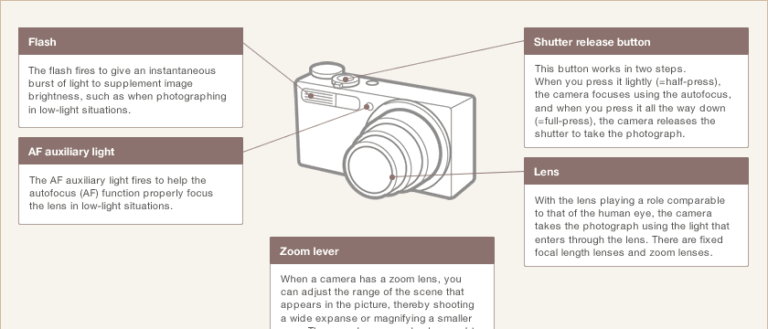
- Lens: The glass attached to a camera body.
- Phone camera: The specific phone model and camera lens used.
- Settings: Shutter speed, aperture, ISO, white balance, and focal length.
- Accessories: A flash, tripod, filter, gimbal, or underwater housing.
- Editing software: An app such as Lightroom, Photoshop, Snapseed, or Apple Photos.
A short answer is fine for casual conversation:
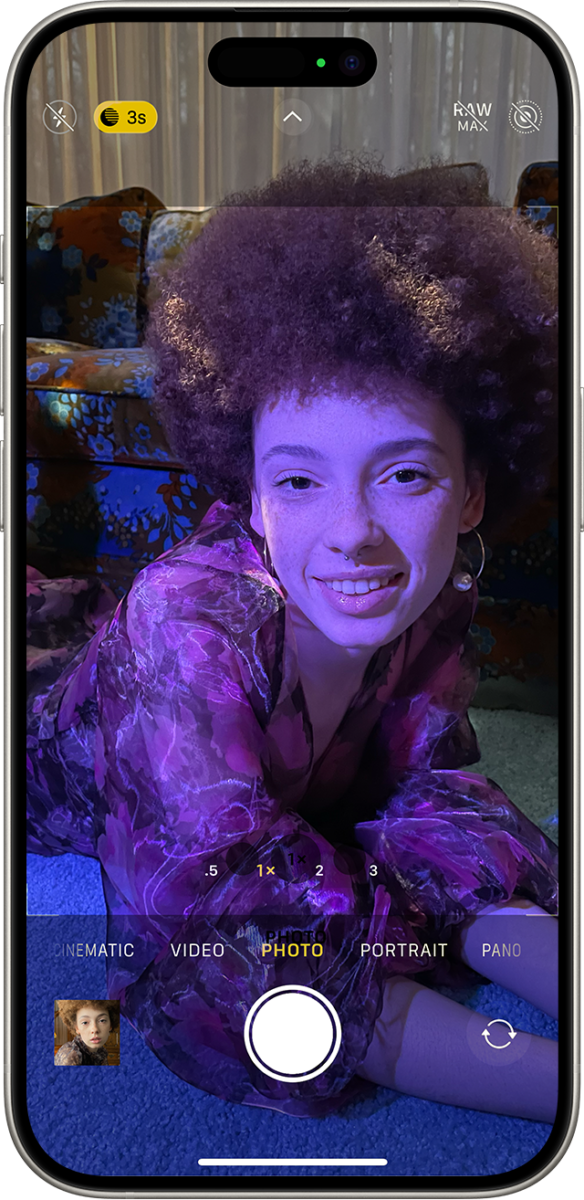
“I used an iPhone 15 Pro.”
A more useful answer gives enough detail for another person to understand the result:


“I used a Sony a6700 with the 18–50mm lens at 35mm. I shot at 1/250 second, f/2.8, and ISO 400.”
The camera alone does not explain every part of a photo. Light, lens choice, distance, focus, exposure, editing, and the photographer’s technique also affect the final image.

How to Find Which Camera Took a Photo
The fastest method is to check the image’s EXIF metadata. EXIF is a set of technical details that may be stored inside a digital image file.
EXIF data can include:
- Camera manufacturer
- Camera model
- Lens model
- Focal length
- Shutter speed
- Aperture
- ISO
- Date and time
- Flash status
- GPS location, if enabled
EXIF data is helpful, but it is not guaranteed to be present. Social media sites, messaging apps, screenshots, and editing tools often remove some or all metadata.
On a Windows PC
Use File Explorer to check basic image information:
- Save the original photo to your computer.
- Right-click the file.
- Select Properties.
- Open the Details tab.
- Look for fields such as Camera make, Camera model, Lens, and F-stop.
The exact fields vary by file type and operating system version. A JPEG from a camera may contain more information than a screenshot or exported image.
On a Mac
You can check a photo in Finder or Apple Photos:
- Locate the original image.
- Right-click the file and choose Get Info.
- Review the file details.
For a deeper view, open the photo in Apple Photos and select its information panel. Depending on the file and macOS version, the panel may show the camera model, lens, image size, and capture settings.
On an iPhone or iPad
Apple Photos may show camera details for images saved on the device:
- Open the photo in the Photos app.
- Swipe up on the image or tap the information button.
- Review the camera, lens, date, dimensions, and exposure details that are available.
If the image came from a social platform or screenshot, the camera field may be missing.
On Android
Google Photos and other Android gallery apps may show image details:
- Open the photo.
- Swipe up or tap the three-dot menu.
- Choose Info, Details, or a similar option.
- Look for the camera model and capture settings.
The menu name depends on the phone maker and Android app. Samsung Gallery, Google Photos, and other gallery tools may display different levels of information.
In Lightroom or Photoshop
Adobe Lightroom often displays metadata in its information or metadata panels. Photoshop users can check the file through:


File → File Info
The available data depends on whether the original metadata stayed in the file. An exported image may contain less information than the camera’s original file.
The most reliable file is usually the original JPEG, RAW file, or DNG file. A downloaded image from a social network may not preserve the original EXIF record.

How to Check the Camera Model Before Taking a Photo
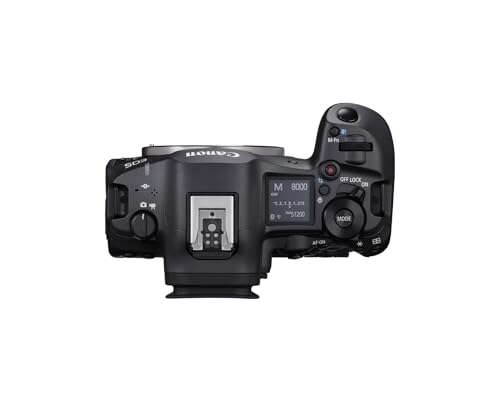
If you have the camera in hand, the model is usually printed on the front, top, or side of the body. Some cameras display it in the setup menu or on the startup screen.
Check these places:
- Front of the camera body
- Top plate near the shutter button
- Bottom label
- Battery compartment
- Camera menu
- Original box or receipt
- Manufacturer’s camera app
For a smartphone, open the phone’s system settings:
- On an iPhone, look under Settings → General → About.
- On Android, look under Settings → About phone.
The phone model is not always the same as the camera name shown in an app. For instance, a phone may have several rear cameras, such as an ultra-wide, main, and telephoto camera.
If you need to identify the exact lens used on a phone, check the photo metadata. It may show a focal length or lens label, although some phones use software terms rather than a clear lens name.
How to Answer “What Camera Are You Using?” Clearly
A strong answer depends on what the other person wants to learn. Use the shortest answer that solves the question.
For a casual question
Give the camera or phone model:
“I’m using a Nikon Z6 II.”
For a gear question
Add the lens:
“It’s a Nikon Z6 II with the NIKKOR Z 24–70mm f/4 lens.”


For a learning question
Add the key settings and lighting:
“I used a Fujifilm X-T5 with a 35mm lens at f/2, 1/250 second, and ISO 800. The room had window light from the left.”
For a smartphone photo
Name the phone and the camera used:
“I used the main camera on a Google Pixel 8 Pro. I shot in the regular Photo mode and made a small crop.”
If you are not sure
Be honest:
“I’m not sure of the exact settings, but the camera was a Sony a7 IV with a 50mm lens.”
You do not need to list every accessory. Include details that explain the photo or help the other person repeat the result.

Camera Body, Lens, and Settings: Which Detail Matters Most?
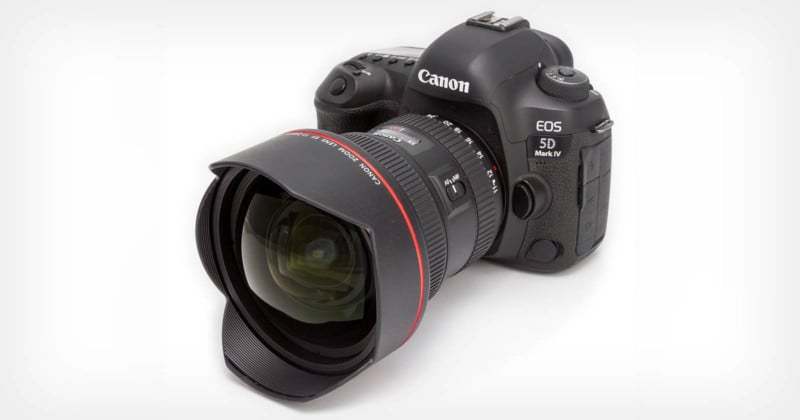
The lens and shooting conditions can matter as much as the camera body. A camera body records the image, but the lens controls the view, magnification, and much of the background appearance.
| Detail | What it tells the reader | Why it may matter |
|---|---|---|
| Camera body | The sensor and camera system | Affects controls, image files, autofocus, and low-light behavior |
| Lens | The field of view and aperture | Strongly affects framing and background blur |
| Focal length | How wide or close the view appears | Helps another photographer copy the composition |
| Aperture | Lens opening, such as f/2.8 | Affects light and depth of field |
| Shutter speed | How long the sensor records light | Affects motion blur and subject sharpness |
| ISO | Sensor sensitivity setting | Affects exposure and image noise |
| Light source | Sun, window, flash, or lamp | Often changes the look more than the camera model |
| Editing | Changes made after capture | Affects color, contrast, crop, and sharpness |
For a portrait, the lens, distance from the subject, and light may explain the look better than the camera body.
For a sports photo, shutter speed and autofocus settings may be more useful.
For a landscape photo, focal length, tripod use, light, and focus distance may matter most.
There is no single “best” answer for every image. Share the detail that helps the reader understand or recreate the result.

Why Camera Metadata May Be Missing or Wrong
Missing metadata does not always mean the image came from an unknown camera. Several common processes can remove it.


Social media compression
Many social platforms resize images and remove metadata. The downloaded file may show only the platform’s export information.
Screenshots
A screenshot is a new image file. It usually does not retain the original camera model or exposure settings.
Messaging apps
Some messaging services compress photos to save data. They may remove EXIF data during upload.
Editing and export
Image editors can preserve, change, or remove metadata during export. The result depends on the app and the selected export settings.
File conversion
Converting a RAW file to JPEG, PNG, or another format may remove some camera information. PNG files often do not contain the same camera metadata as a JPEG.
Manual changes
A person can edit metadata. The listed camera may be incomplete, altered, or copied from another file.
Because of these limits, metadata is evidence about the file, not absolute proof of how the photo was made. If the information matters, ask the photographer directly.
How to Protect Your Privacy When Sharing Camera Metadata
Camera metadata can reveal more than the camera model. A photo may also contain the date, time, location, and device serial information.
GPS data deserves special care. A photo taken at home can reveal an exact location if location tagging is enabled.
Before sharing an original file publicly:
- Make a copy of the original.
- Remove GPS data if you do not want to share your location.
- Review the export or privacy settings in your photo app.
- Upload a resized copy when the original file is not needed.
- Avoid sharing unedited originals with private location or identifying data.
Removing metadata does not make an image anonymous. The image itself may show a home address, license plate, school, workplace, or other personal detail.
If you need to preserve metadata for work, insurance, legal records, or a photography archive, keep the original file in a secure location. Create a separate public copy with only the information you want others to see.

Does the Camera Model Determine Photo Quality?
No. The camera model is only one part of image quality.
A newer or more expensive camera may offer useful features, such as better autofocus, stronger low-light performance, faster shooting, or higher resolution. Those features can help in certain conditions.
They do not guarantee a better photograph.
Composition, timing, focus, light, exposure, lens choice, and editing often have a larger effect on the final image. A skilled photographer can make a strong image with a basic camera or phone.
The most useful question is often not only:
“What camera are you using?”
It is also:
“What lens, light, and settings did you use?”
That broader question gives a more complete picture of how the image was made.

Common Mistakes When Identifying a Camera
Avoid these errors when checking or describing camera information.
Confusing the brand with the model
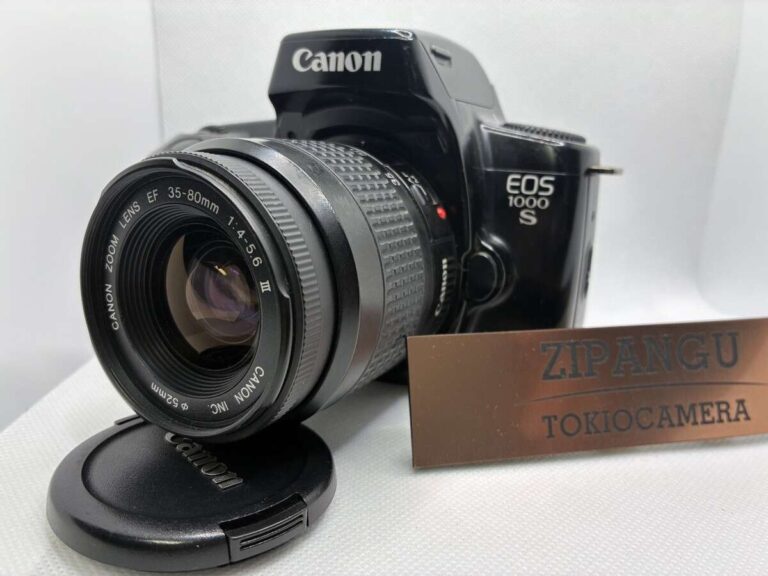
“Canon” is a brand, not a complete camera name. A useful answer includes the model, such as Canon EOS R8 or Canon EOS 90D.
Naming the phone but not the camera
A smartphone may have several cameras. Say whether you used the main, wide, ultra-wide, or telephoto camera when that detail is available.
Treating the lens as the camera
A 50mm lens is not a camera model. State both parts:
“I used a Sony a7 III with a 50mm lens.”
Guessing from image quality
You usually cannot identify an exact camera from image quality alone. Different cameras can produce similar results after editing and resizing.
Assuming metadata is always accurate
Metadata can be removed, changed, or copied. Use it as a helpful record, not as unquestionable proof.
Sharing private location data
Check GPS information before posting original files. Public photos do not need to reveal where they were taken.

Frequently Asked Questions
What is the best short answer to “What camera are you using?”
Name the camera body or phone model. If the question concerns the look of the image, add the lens and main settings.
“I used a Fujifilm X-S20 with a 23mm lens at f/2.”
Can I identify a camera from a photo alone?
Sometimes you can identify a camera from visible branding, a watermark, or metadata. You usually cannot prove the exact camera from image appearance alone, especially after editing or compression.
How can I find the camera model from a photo online?
Download the original file if you have permission, then check its metadata in your computer’s file properties or a trusted photo app. Images from social media may no longer contain camera information.
Does EXIF metadata show which lens was used?
It often can. The result depends on the camera, lens, file type, and editing process. Some files show the lens model, while others show only focal length or no lens data.
Should I share my camera settings?
Share them when they help explain the image or teach another photographer. For a casual conversation, the camera and lens are usually enough.
Final Answer: What Should You Say?
When someone asks, “What camera are you using?” answer with the camera model first. Add the lens and settings when they help explain the photo.
A clear format is:
“I used [camera or phone] with [lens or camera mode]. I shot at [key settings] in [lighting condition].”
If you do not know the answer, check the original file’s EXIF metadata or the camera and phone settings. If the metadata is missing, do not guess. Give the details you know and explain what is uncertain.
The next step is simple: find the original image, check its information panel, and save a private note with the camera, lens, and settings used.

Everett Ashford is a tech reviewer at mytechgrid.com specializing in SSDs, cameras, TVs, earbuds, headphones, and other consumer electronics. He provides honest, data-driven reviews based on hands-on testing and real-world performance analysis. Everett simplifies complex tech details to help readers make smart, confident buying decisions.