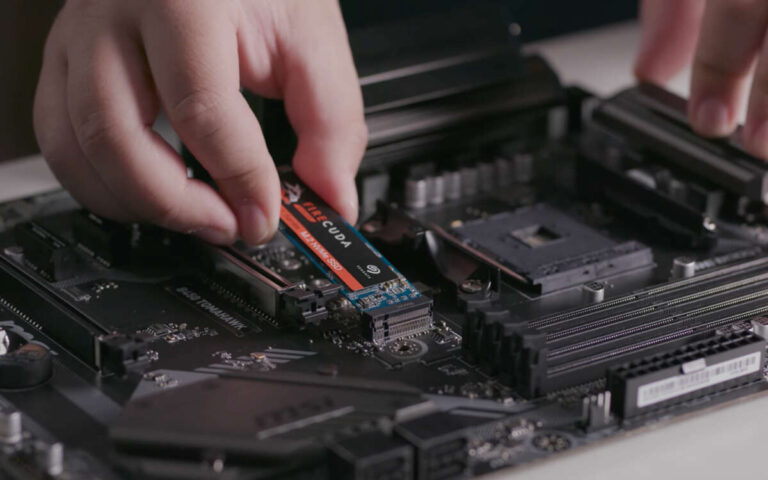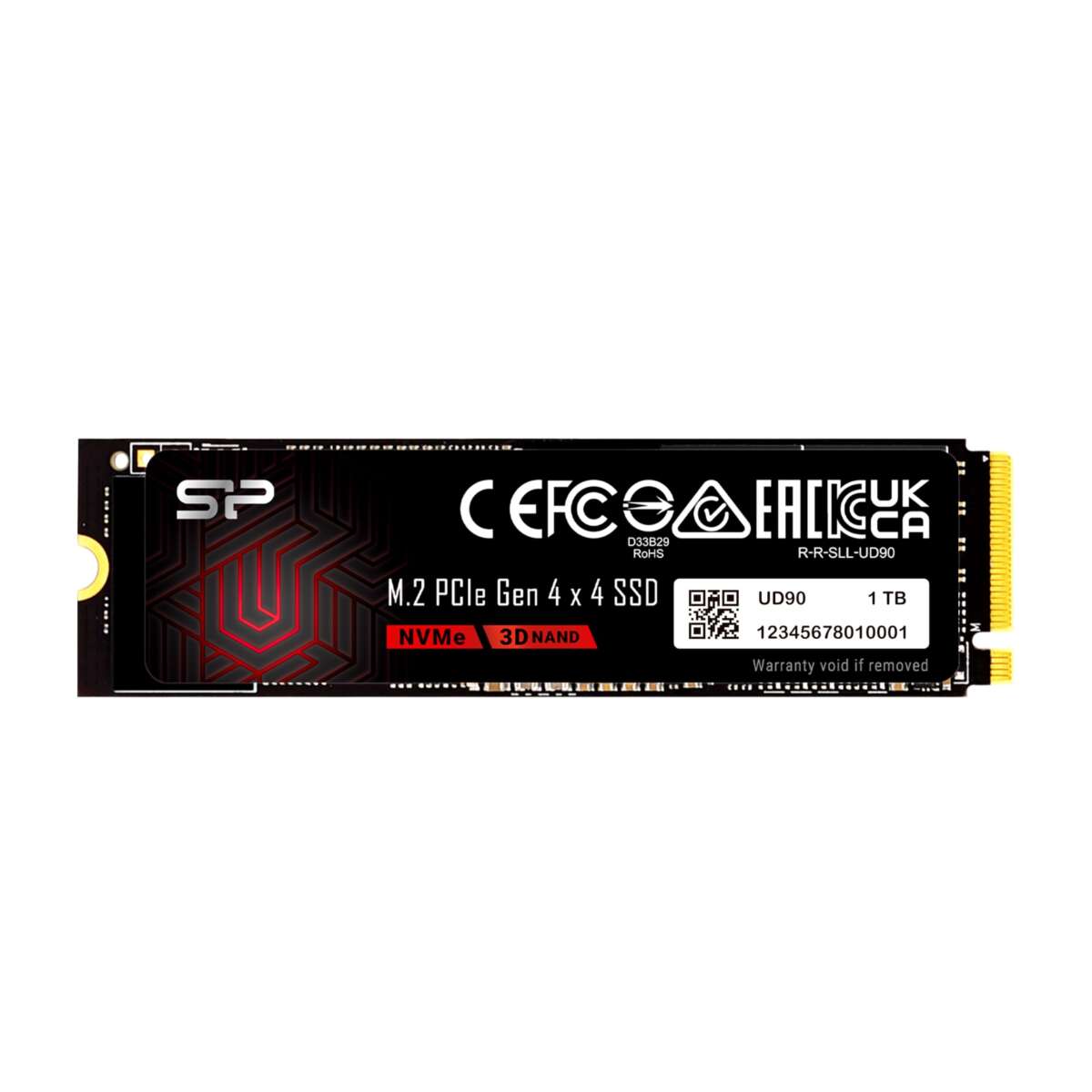
A 1.0 TB SSD is a solid-state drive with about 1,000 GB of fast storage for files, apps, and games.
If you are asking what is 1.0 TB SSD, the simple answer is only the beginning. The label describes both the drive’s storage size and its technology, but factors such as interface, speed, endurance, usable capacity, and form factor also matter. This guide explains how a 1.0 TB SSD works, what it can store, how it compares with other drives, and whether it is the right choice for your computer.
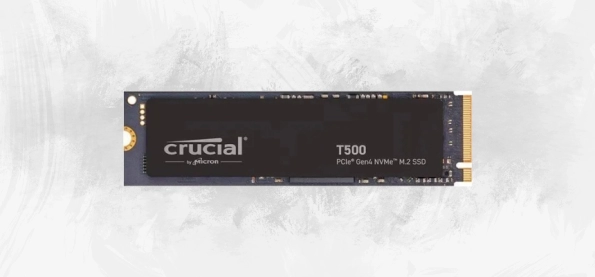
What Is a 1.0 TB SSD?
A 1.0 TB SSD is a solid-state drive designed to hold approximately 1,000 gigabytes of data. It uses NAND flash memory instead of spinning magnetic platters, so it can read and write information without moving parts.
The “1.0 TB” part tells you the storage capacity. The “SSD” part tells you the storage technology. Together, they describe a drive that offers a large amount of space with much faster access than a traditional hard disk drive.
In simple terms, a 1.0 TB SSD works like a large digital closet. It can store your operating system, software, photos, videos, documents, and games in one place.
A 1.0 TB SSD is often sold in two capacity standards:
• 1 TB usually means 1,000,000,000,000 bytes.
• Some operating systems show this capacity as roughly 931 GB because they calculate storage using binary units.
• A small amount of space is also reserved for formatting, system files, firmware, and drive maintenance.
This means a new 1.0 TB SSD may show about 931 GB of usable space in Windows or another operating system. That does not mean the manufacturer removed storage. It is mainly a difference between decimal and binary measurement.
How Does a 1.0 TB SSD Work?
An SSD stores data in NAND flash memory cells. These cells hold electrical charges that represent digital information. A controller manages the cells, finds requested data, corrects errors, and controls communication with your computer.
Unlike an HDD, a 1.0 TB SSD has no spinning disk or mechanical read head. This design gives it several practical benefits:
• Faster file access
• Quicker application loading
• Better resistance to bumps and movement
• Lower noise
• Lower power use in many systems
• Faster system startup
The controller also spreads write operations across the memory cells. This process is called wear leveling. It helps prevent one part of the drive from wearing out much sooner than the rest.
SSDs also use a feature called garbage collection. When you delete a file, the drive may later prepare that space for reuse. The TRIM command helps the operating system tell the SSD which blocks no longer contain useful data.
These systems make a 1.0 TB SSD efficient, but they do not make it indestructible. Flash memory has a limited number of write cycles, although modern SSDs can last for many years under normal use.

How Much Can a 1.0 TB SSD Store?
The amount of data a 1.0 TB SSD stores depends on file size and type. It can hold a large personal library, but the exact number varies widely.
For example, a 1.0 TB SSD may store approximately:
• 200,000 to 250,000 smartphone photos
• 15 to 20 large video games
• 200 high-definition movies
• Hundreds of thousands of documents
• Several hours of 4K video footage
• A complete operating system and many programs
Modern games can be very large. Some exceed 100 GB after updates and downloadable content. If you install many games, the drive may fill faster than expected.
A practical setup is to keep at least 10% to 20% of the drive free. Free space gives the SSD room for temporary files, background maintenance, updates, and efficient performance.
For example, instead of filling a 1.0 TB SSD to its final gigabyte, try to keep 100 GB or more available. This is especially helpful for users who edit video, move large files, or install frequent software updates.
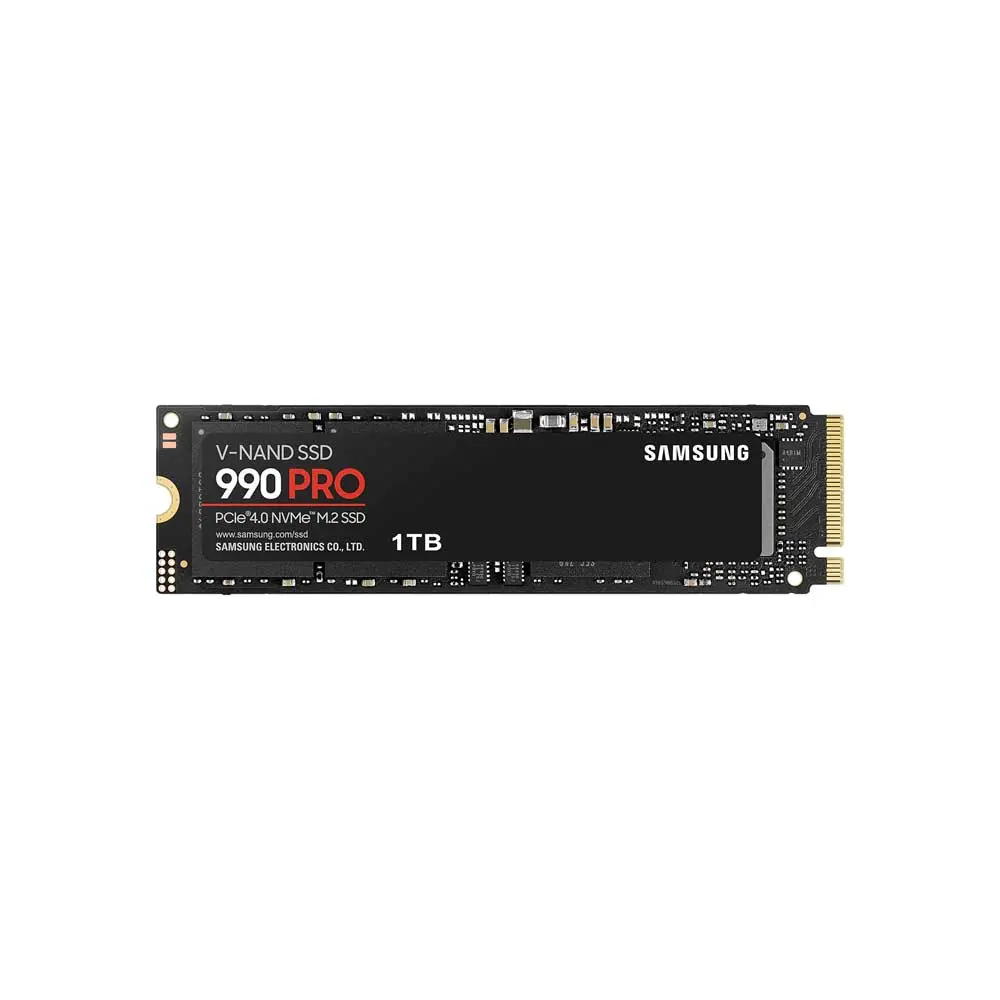
Types of 1.0 TB SSDs
Not every 1.0 TB SSD has the same shape or speed. The main differences involve the form factor and connection interface.
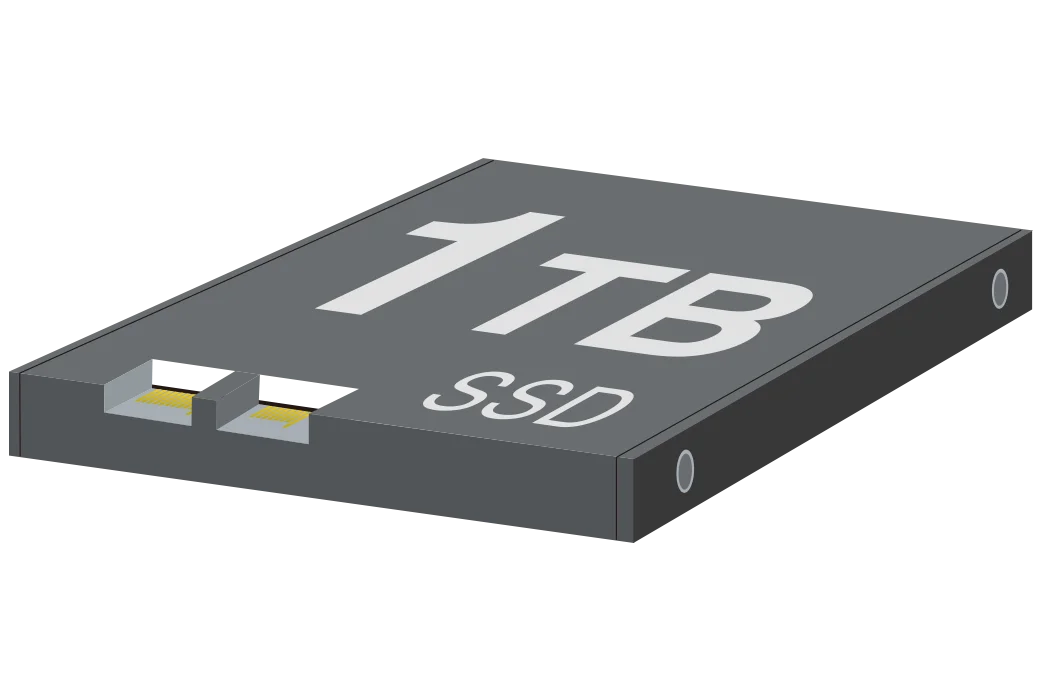
2.5-inch SATA SSD
A 2.5-inch SATA SSD is common in older laptops and desktop computers. It usually connects through a SATA data cable and a separate power cable.
SATA SSDs often reach around 500 to 560 MB/s in sequential read speed. That is much faster than a hard drive, although slower than most NVMe models.
This type is a good choice when:
• Your computer has a 2.5-inch drive bay
• Your system does not support NVMe
• You want an affordable upgrade from an HDD
• You are replacing an older laptop drive
M.2 SATA SSD
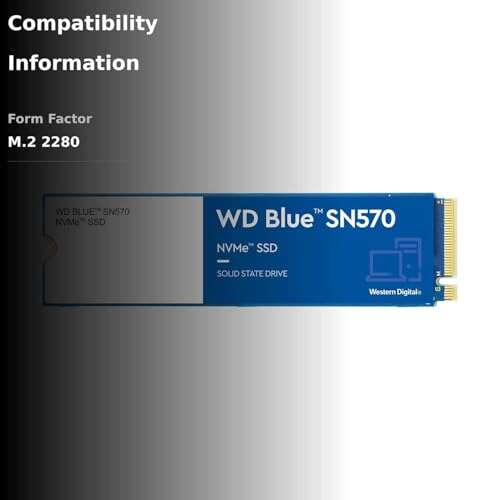
An M.2 SATA SSD has a small, slim stick-like design. It uses the SATA protocol even though it looks similar to an NVMe drive.
This distinction matters. An M.2 slot may support SATA, NVMe, or both. Always check your computer’s manual before buying an M.2 1.0 TB SSD.
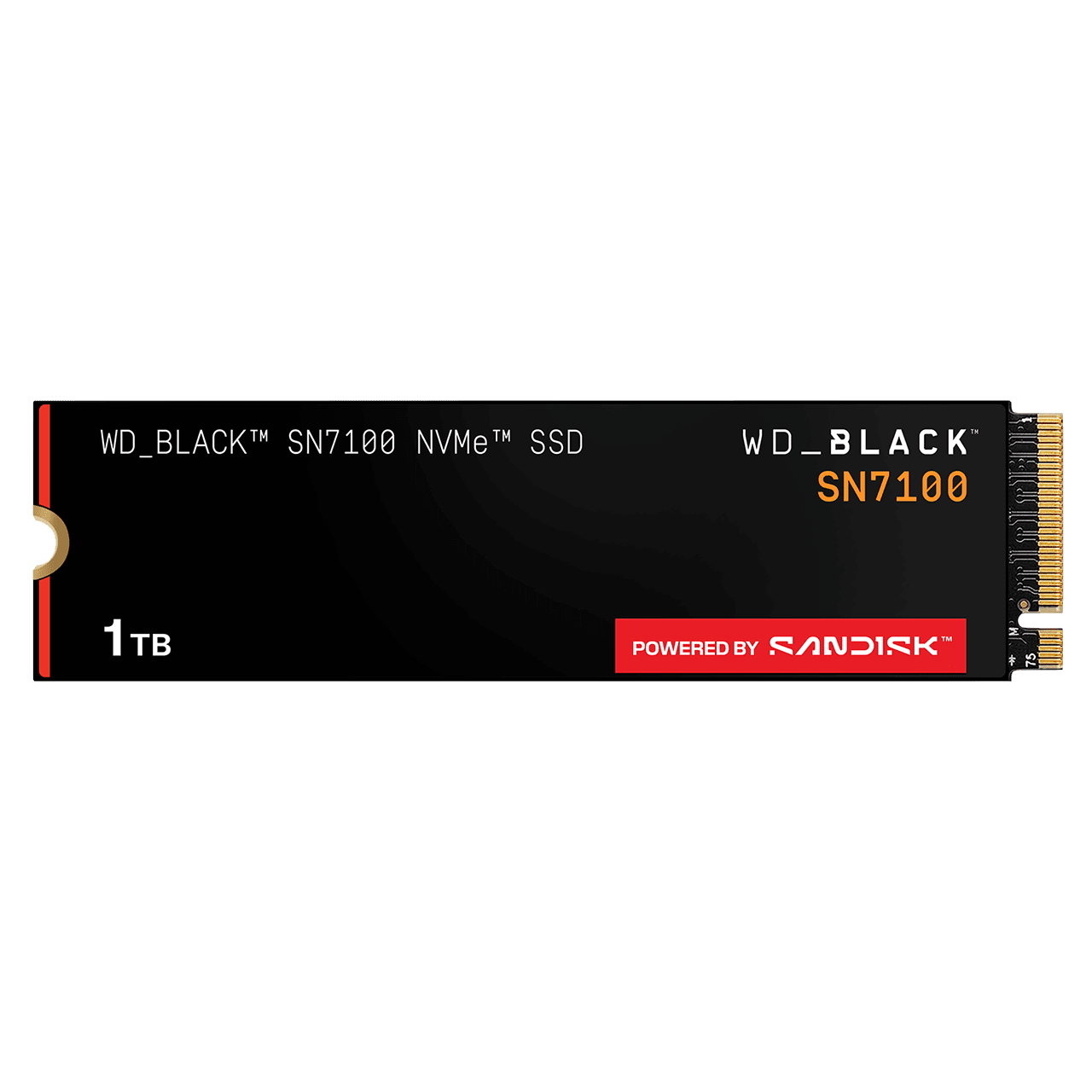
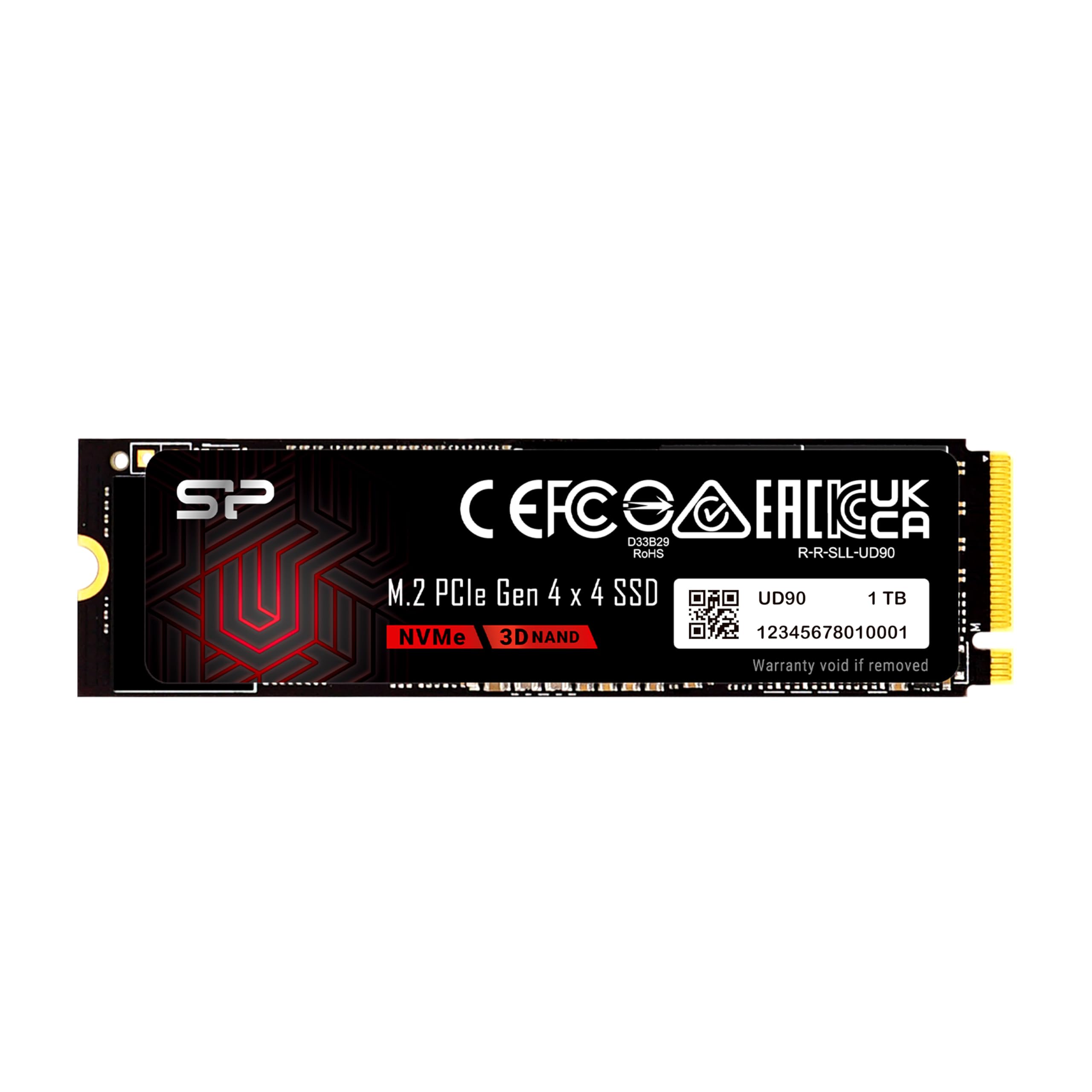
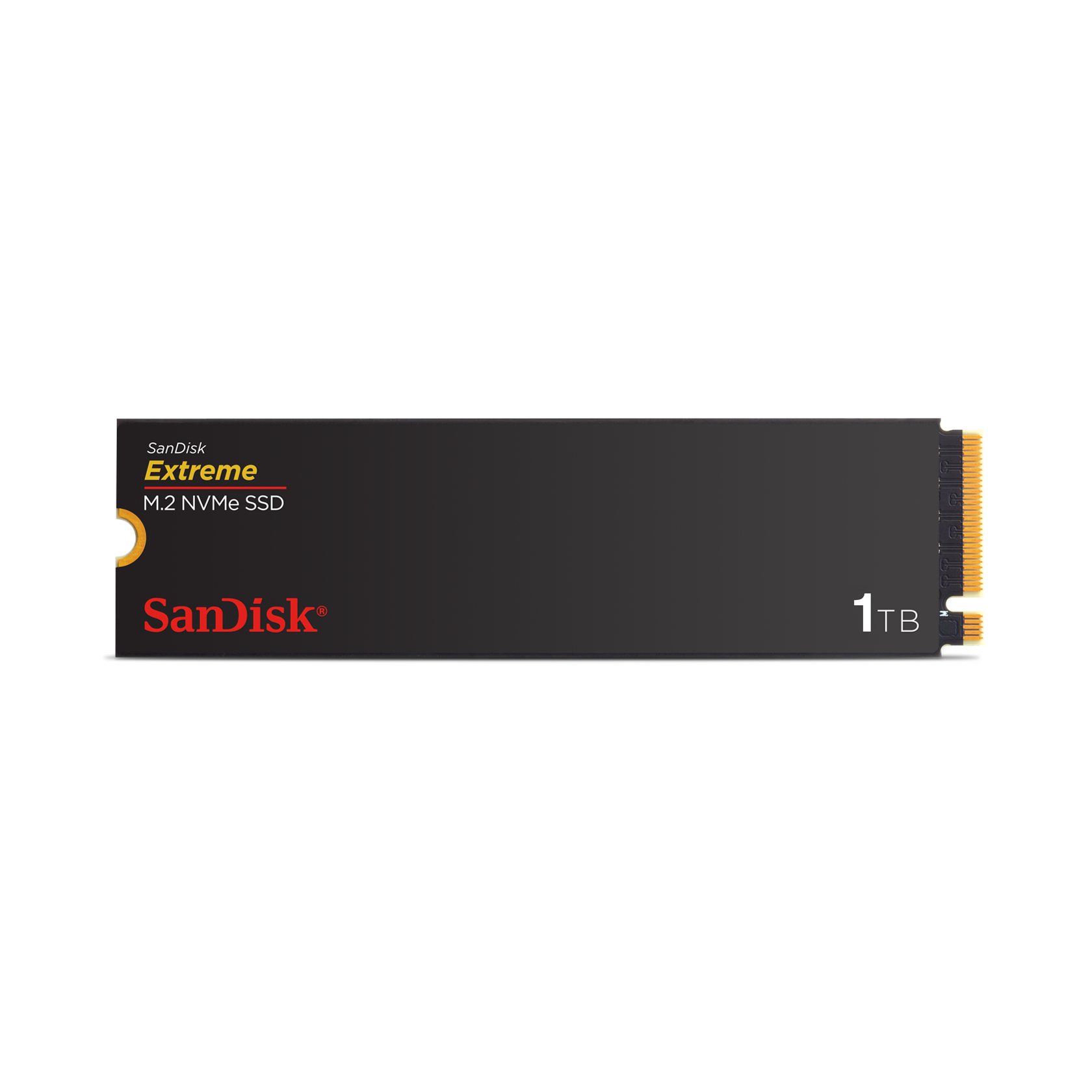
M.2 NVMe SSD
An M.2 NVMe SSD connects through PCI Express lanes. It usually offers much higher speeds and lower latency than SATA storage.
Depending on the PCIe generation and model, an NVMe 1.0 TB SSD may provide sequential speeds from about 1,500 MB/s to more than 7,000 MB/s. Real-world performance depends on the computer, workload, cooling, and drive design.
NVMe is useful for:
• Large file transfers
• Video editing
• Game installation
• Software development
• Professional workloads
• New desktop and laptop systems
External 1.0 TB SSD
An external 1.0 TB SSD connects through USB or another external interface. It is useful for backups, travel, portable game libraries, and moving files between computers.
The speed depends on the USB standard and the enclosure. A fast SSD in an older USB enclosure may perform much slower than expected.
1.0 TB SSD Speed: What Should You Expect?
Storage speed is usually listed as sequential read and write performance. Sequential speed describes large, continuous transfers, such as copying a video file.
Random performance describes small, scattered requests. It matters more when starting an operating system, opening programs, or loading many small files.
A typical comparison looks like this:
• HDD: often around 80 to 160 MB/s for sequential transfers
• SATA SSD: usually around 450 to 560 MB/s
• PCIe 3.0 NVMe SSD: commonly around 2,000 to 3,500 MB/s
• PCIe 4.0 NVMe SSD: often around 5,000 to 7,400 MB/s
• PCIe 5.0 NVMe SSD: can exceed 10,000 MB/s in supported systems
These numbers are useful, but they do not tell the whole story. A drive with high advertised speed may slow down during a long transfer when its temporary write cache becomes full.
In everyday use, moving from an HDD to any good SSD creates the most noticeable improvement. Moving from a SATA SSD to a fast NVMe SSD can help with demanding work, but the difference may be modest during normal web browsing or office tasks.
Benefits of a 1.0 TB SSD
A 1.0 TB SSD offers a strong balance of capacity, speed, and convenience. It is large enough for many users without becoming excessively expensive or difficult to manage.
Faster startup and loading
An SSD can reduce operating system startup time and make applications open more quickly. Games may also load levels and saved files faster.
Better durability
Because an SSD has no moving parts, it is less sensitive to movement than an HDD. This is useful in laptops, portable drives, and computers that are moved often.
Quiet operation
A 1.0 TB SSD makes no spinning or clicking sound. This creates a quieter workspace, especially when replacing a noisy hard drive.
Lower power consumption
Many SSDs use less power than mechanical hard drives. This can support better battery life, although the total effect depends on the laptop and workload.
Good everyday capacity
A 1.0 TB SSD gives most people room for documents, media, software, and a useful game collection. It is often a practical middle ground between a smaller 500 GB drive and a more expensive 2 TB model.
Limitations of a 1.0 TB SSD
A 1.0 TB SSD is not perfect for every user. Understanding its limits can prevent an expensive mistake.
Higher cost than an HDD
SSDs usually cost more per gigabyte than hard drives. A large HDD may offer more capacity for less money, although it will be slower.
Limited write endurance
Flash memory wears down after many write operations. Manufacturers often list endurance using TBW, or terabytes written.
For example, a drive with a 600 TBW rating is designed to handle about 600 TB of total written data under specified conditions. This is not a guaranteed failure point. Many drives continue working beyond the rating, while actual life depends on temperature, workload, and manufacturing quality.
Performance can drop when nearly full
A nearly full SSD may have less room for background maintenance and temporary operations. Keeping free space available can help maintain stable performance.
Data recovery can be difficult
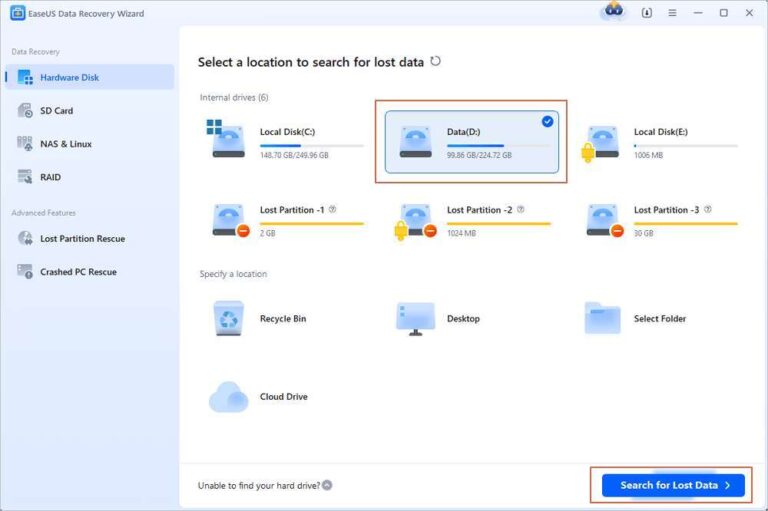
Recovering deleted files from an SSD may be harder than recovering files from an HDD. TRIM and garbage collection can remove deleted data from flash cells.
This is why a 1.0 TB SSD should not be your only copy of important photos, business records, or personal documents.

1.0 TB SSD vs. HDD
The best choice depends on your budget and priorities.
| Feature | 1.0 TB SSD | 1.0 TB HDD |
|---|---|---|
| Speed | Fast | Slower |
| Moving parts | None | Spinning platters and moving heads |
| Noise | Silent | Audible |
| Shock resistance | Generally better | More sensitive to impact |
| Cost per gigabyte | Higher | Lower |
| Power use | Often lower | Often higher |
| Best use | Operating systems, apps, games | Archives and large backups |
For most computers, installing the operating system on a 1.0 TB SSD is a worthwhile upgrade. You can then use an HDD for backups or files that do not need fast access.
In practical computer upgrades, the jump from an HDD to a 1.0 TB SSD often feels more important than moving from one modern SSD to another. The computer may feel faster even when the processor and memory remain unchanged.
SATA vs. NVMe 1.0 TB SSD
SATA and NVMe are not the same technology.
SATA is an older connection standard that limits SSD speed to roughly 550 MB/s. NVMe is designed for flash storage and uses PCI Express, allowing much faster communication.
Choose a SATA 1.0 TB SSD when:
• Your computer only supports SATA
• You are upgrading an older laptop
• Your budget is limited
• You mainly browse, study, or use office software
Choose an NVMe 1.0 TB SSD when:
• Your motherboard supports the required M.2 NVMe drive
• You transfer large files often
• You edit photos or videos
• You play modern games
• You want a faster system for future upgrades
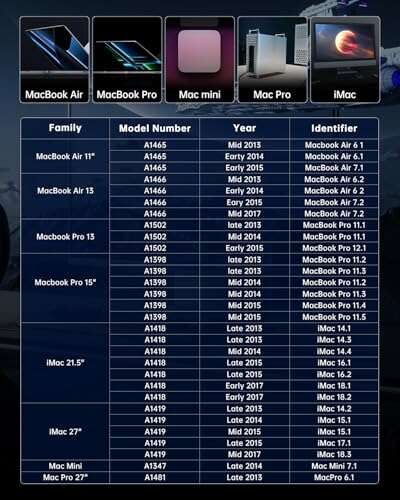
Compatibility comes first. An NVMe drive will not work in every M.2 slot, and a physically compatible slot may still support only SATA. Check the motherboard manual, laptop specifications, or manufacturer support page before purchasing.
How to Choose the Best 1.0 TB SSD
Look beyond the storage capacity. These specifications can affect speed, reliability, and value.
Check compatibility
Confirm the drive type, connector, form factor, and supported PCIe generation. For a laptop, check physical thickness and whether a mounting screw is included.
Compare NAND type
Common NAND types include TLC and QLC. TLC stores three bits per cell and often offers a strong balance of speed and endurance. QLC stores four bits per cell and can lower cost, but sustained write speed and endurance may be lower on some models.
QLC is often fine for general storage. TLC may be a better fit for heavy writing, video work, or long-term intensive use.
Review endurance
Look for the TBW rating and warranty period. Endurance is only one factor, but it helps you compare drives in the same class.
Consider DRAM and cache design
Some SSDs include dedicated DRAM. Others use host memory or rely on an efficient controller design. DRAM is not an automatic guarantee of quality, but it can support consistent performance in certain workloads.
Read independent tests
Advertised speed is measured under specific conditions. Independent reviews can reveal sustained write performance, heat behavior, power use, and real-world application results.
How to Install a 1.0 TB SSD
Installing a 1.0 TB SSD is usually straightforward, but careful preparation matters.
-
Back up important files before opening the computer.
-
Confirm the new drive is compatible with the system.
-
Shut down the computer and disconnect power.
-
Ground yourself to reduce static electricity risk.
-
Install the SSD in the correct bay or M.2 slot.
-
Reconnect cables if you are using a 2.5-inch SATA drive.
-
Start the computer and open the system firmware if needed.
-
Initialize and format the drive through the operating system.
-
Clone the old drive or perform a clean operating system installation.
-
Update firmware only when necessary and follow the manufacturer’s instructions.
If you are replacing the boot drive, cloning software can copy the existing operating system. A clean installation may provide a fresher system, but it requires reinstalling programs and restoring files.
One common mistake is installing an M.2 drive without checking the screw or standoff position. Another is buying an NVMe drive for an M.2 slot that supports only SATA. A few minutes of compatibility research can prevent both problems.
How to Maintain a 1.0 TB SSD
Good maintenance is simple. You do not need to defragment an SSD like a traditional hard drive.
Follow these habits:
• Keep important files backed up in at least two locations.
• Leave roughly 10% to 20% of the drive free.
• Install operating system and firmware updates from trusted sources.
• Keep the drive within its recommended temperature range.
• Enable TRIM if your operating system supports it.
• Avoid repeatedly filling and deleting the entire drive.
• Use a surge protector or reliable power source for desktop systems.
Do not use aggressive disk-cleaning tools without understanding what they remove. Some programs can create unnecessary write activity or delete files you still need.
A simple backup plan is the 3-2-1 method: keep three copies of important data, on two different types of storage, with one copy stored away from the main device.
Is a 1.0 TB SSD Enough for You?
A 1.0 TB SSD is usually enough for students, office users, casual gamers, and many home computer owners. It provides space for an operating system, essential applications, personal files, and a moderate media collection.
You may need more than 1.0 TB if you:
• Store large video projects
• Keep a large raw photo library
• Install many modern games
• Run virtual machines
• Work with scientific or engineering datasets
• Need several operating systems
A good solution is to combine a 1.0 TB SSD with external storage. Keep active projects and applications on the SSD, then move older files to a larger HDD, NAS, or cloud backup.
For many buyers, a 1.0 TB SSD is the point where capacity feels comfortable without paying for storage they may not use. It is not the largest option, but it is a sensible starting point for a fast modern computer.
Frequently Asked Questions About What Is 1.0 TB SSD
Is a 1.0 TB SSD actually 1,000 GB?
Yes. Manufacturers use the decimal definition, where 1 TB equals 1,000 GB. Your operating system may show about 931 GB because it uses a different calculation and reserves some space for formatting and system functions.
Is a 1.0 TB SSD good for gaming?
Yes, a 1.0 TB SSD is good for gaming and can hold several large titles. The best interface depends on your system, but both SATA and NVMe SSDs can greatly reduce loading times compared with an HDD.
Is a 1.0 TB SSD enough for Windows?
Yes. Windows itself uses far less than 1 TB, leaving room for applications, documents, photos, and games. Keeping free space available is still important for updates and stable performance.
Is NVMe better than SATA for a 1.0 TB SSD?
NVMe is usually faster because it uses PCI Express, while SATA has a lower speed limit. However, SATA may be the better choice if your computer does not support NVMe or if your everyday tasks do not require high transfer speeds.
How long does a 1.0 TB SSD last?
A 1.0 TB SSD can last many years under normal consumer use. Its lifespan depends on write volume, temperature, NAND type, controller quality, and the manufacturer’s endurance rating.
Can a 1.0 TB SSD fail suddenly?
Yes, any storage device can fail without much warning. Keep reliable backups because an SSD may become unreadable due to controller failure, electrical damage, firmware problems, or worn flash memory.
Conclusion
A 1.0 TB SSD is a solid-state storage drive with approximately 1,000 GB of capacity. It offers fast access, quiet operation, strong everyday performance, and enough space for most operating systems, applications, personal files, and games.
The best model depends on more than capacity. Check whether you need SATA or NVMe, confirm device compatibility, compare endurance and warranty details, and keep free space available. Most importantly, protect important files with a separate backup.
If you are replacing a hard drive, a 1.0 TB SSD can make your computer feel noticeably faster. Compare compatible models, choose one that fits your workload, and share your questions or experience with 1.0 TB SSD storage in the comments.

Everett Ashford is a tech reviewer at mytechgrid.com specializing in SSDs, cameras, TVs, earbuds, headphones, and other consumer electronics. He provides honest, data-driven reviews based on hands-on testing and real-world performance analysis. Everett simplifies complex tech details to help readers make smart, confident buying decisions.