To connect Xfinity WiFi to a Roku TV, open Network settings, choose your Xfinity network, and enter its password.
Learning how to connect Xfinity WiFi to Roku TV is usually simple, but the process can fail when the WiFi password, network band, or Roku software causes trouble. This guide explains the setup from start to finish, including the best fixes for weak signals, hidden networks, Xfinity hotspots, and connection errors.
What You Need Before Connecting Roku TV to Xfinity WiFi
Before you connect Xfinity WiFi to Roku TV, check that your internet service and equipment are ready. A few minutes of preparation can prevent most setup problems.
You will need:
• A Roku TV or Roku device connected to your television
• An active Xfinity internet plan
• An Xfinity wireless gateway or compatible third-party router
• Your Xfinity WiFi network name, also called the SSID
• Your current Xfinity WiFi password
• A working Roku remote
Your Roku TV should be close enough to the Xfinity gateway to receive a strong signal. Thick walls, large appliances, and long distances can weaken WiFi. If your phone works well in the same room, the Roku TV will usually have a better chance of connecting.
Check the network name and password carefully. A password is case-sensitive, so “HomeWiFi123” is different from “homewifi123.” If you recently changed your Xfinity password, remove the old network from the Roku TV before trying again.

How to Connect Xfinity WiFi to Roku TV
The standard setup takes only a few steps. Roku TV uses its built-in wireless menu, so you do not need an Ethernet cable unless you prefer a wired connection.
-
Turn on your Roku TV and press the Home button on the remote.
-
Scroll down and select Settings.
-
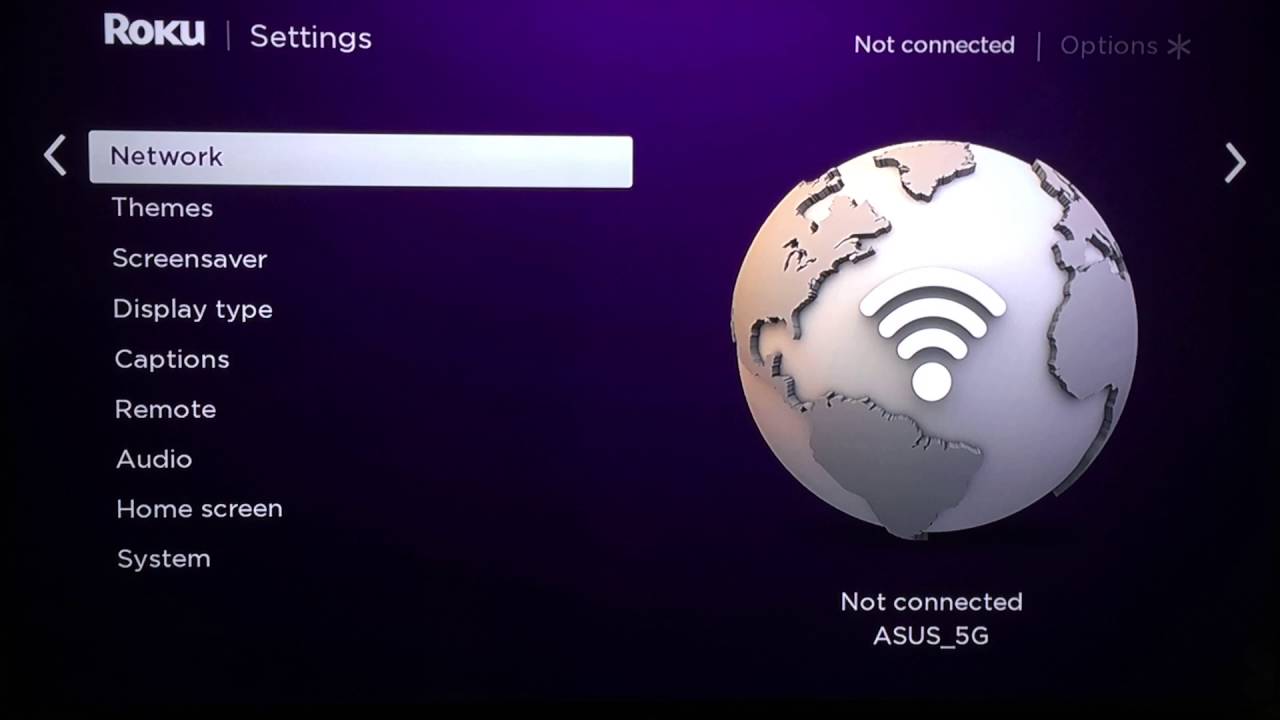
Choose Network.
-
Select Set up connection.
-
Choose Wireless.
-
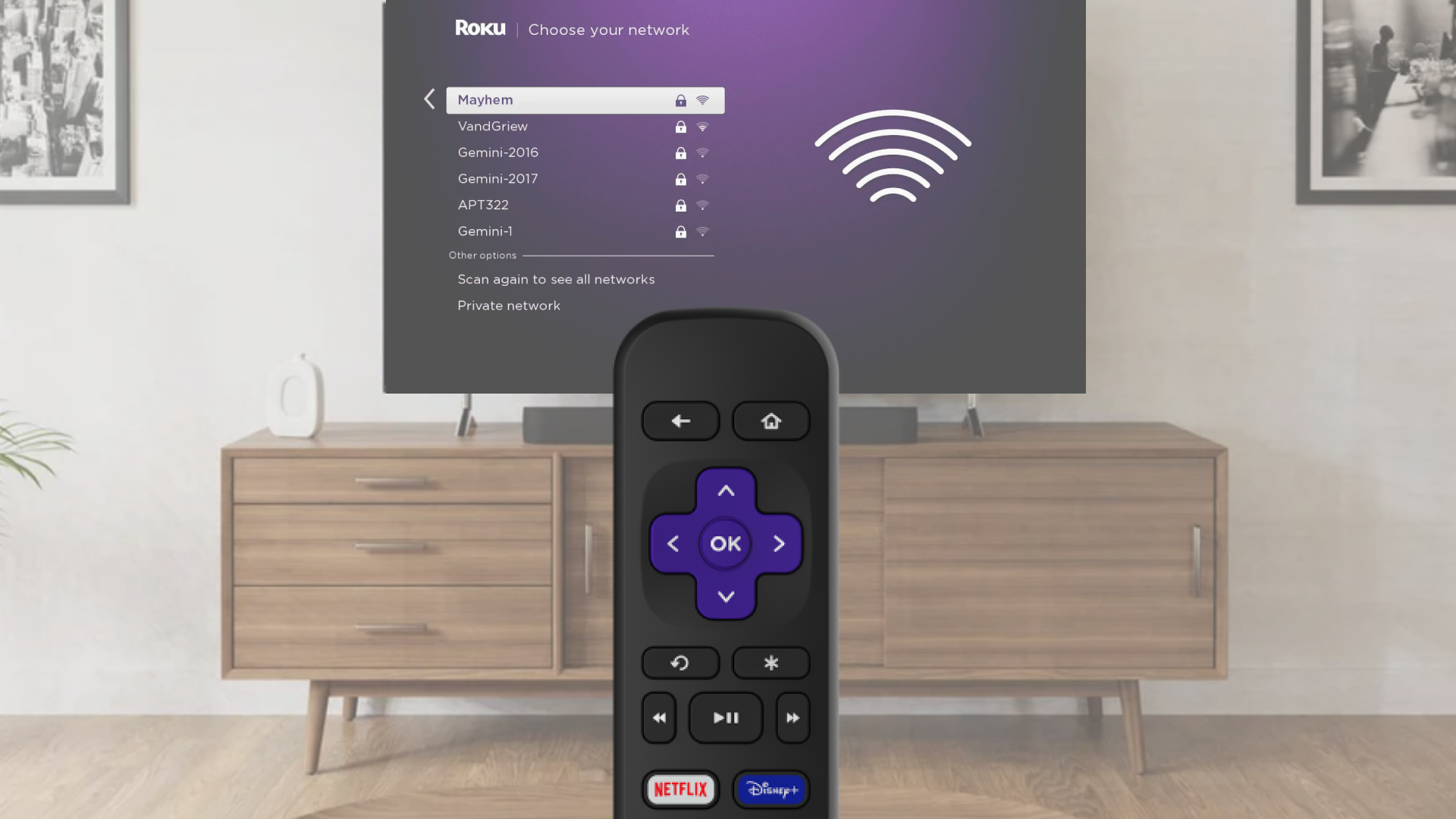
Wait while the Roku TV searches for nearby WiFi networks.
-
Select your Xfinity WiFi network from the list.
-
Enter your Xfinity WiFi password using the on-screen keyboard.
-
Select Connect.
Roku may take a moment to check the connection. If the password is correct, the TV should connect to the network and display a confirmation message. Some Roku models also test internet access after joining the WiFi network.
After the connection works, open a streaming app such as Netflix or YouTube. Start a video for a minute or two. This confirms that the Roku TV has internet access, not just a connection to the router.
If your Xfinity network does not appear, select Scan again or move the Roku TV closer to the gateway. You can also restart both devices and repeat the steps.

How to Find Your Xfinity WiFi Name and Password
You cannot connect Xfinity WiFi to Roku TV without the correct wireless details. Xfinity customers can usually find this information in several places.
Look for a label on the Xfinity gateway. Many gateways list the default WiFi name and password on a sticker. The label may call the network name the SSID or WiFi name.
You can also check the Xfinity app. Open the app, sign in to your account, and look for the WiFi or Internet section. The app may let you view or change the network name and password.
Another option is to check a device that is already connected:
• On an iPhone, open WiFi settings and tap the connected network to view its saved password if your iOS version supports it.
• On Android, open WiFi settings and use the network sharing or QR code feature when available.
• On Windows, open the saved WiFi network properties and display the security key.
• On macOS, use the saved password option in the Passwords or Keychain settings.
Do not confuse your Xfinity account password with your WiFi password. They may be different. The Roku TV needs the wireless password used to join your home network.
If you changed the password and forgot it, update the WiFi details in the Xfinity app or reset the gateway only as a last resort. A gateway reset can erase custom settings.

How to Connect Roku TV to a Hidden Xfinity Network
Some people hide their WiFi network name for privacy. A hidden SSID does not make a network fully secure, but it can prevent the name from appearing in the Roku network list.
To connect Xfinity WiFi to Roku TV when the network is hidden, follow these steps:
-
Press Home on the Roku remote.
-
Open Settings.
-
Select Network.
-
Choose Set up connection.
-
Select Wireless.
-
Look for an option such as Private network, Hidden network, or Scan again.
-
Enter the exact Xfinity WiFi network name.
-
Enter the WiFi password.
-
Choose Connect.
The wording can differ by Roku model and Roku OS version. If your TV does not offer a hidden network option, temporarily enable SSID broadcasting in the Xfinity app or gateway settings. Connect the Roku TV, then decide whether you still want to hide the network.
A visible network with a strong password is usually safer and easier to manage than a hidden network. Modern WiFi security depends more on WPA2 or WPA3 encryption and a unique password than on hiding the network name.
What to Do If Xfinity WiFi Does Not Appear on Roku
If you cannot connect Xfinity WiFi to Roku TV because the network is missing, start with the simple checks.
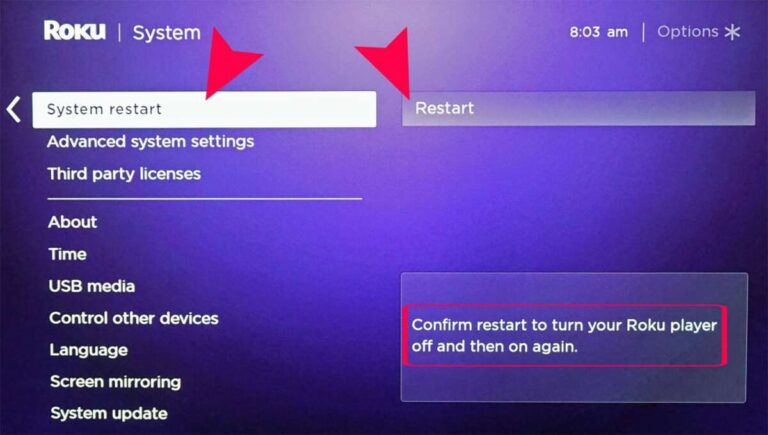
• Restart the Roku TV by opening Settings, choosing System, selecting Power, and choosing System restart when available.
• Unplug the Xfinity gateway for about 60 seconds, then plug it back in.
• Place the Roku TV closer to the gateway.
• Select Network and choose Set up connection again.
• Check whether your phone can see the Xfinity network in the same room.
• Confirm that the gateway WiFi signal is enabled.
Some older Roku devices have limited support for newer wireless standards or certain 5 GHz channels. If the Xfinity gateway combines the 2.4 GHz and 5 GHz bands under one name, the router usually chooses a band automatically. If the Roku TV struggles, create separate network names for the two bands if your gateway allows it, then try the 2.4 GHz network.
The 2.4 GHz band usually travels farther and passes through walls better. The 5 GHz band can provide faster speeds at short range, but it loses strength more quickly. For a Roku TV far from the gateway, 2.4 GHz may offer a steadier connection.

How to Fix the Roku TV WiFi Password Error
A password error is one of the most common reasons people cannot connect Xfinity WiFi to Roku TV. Even one extra space or incorrect character can stop the connection.
First, retype the password slowly. Pay attention to:
• Uppercase and lowercase letters
• The numbers 0 and 1
• The letters O, I, and l
• Special symbols
• Spaces at the beginning or end
If the Roku TV saved an old password, remove the saved network. Go to Settings, select Network, choose Set up connection, and select Wireless. When the network appears, connect again and enter the current password.
You can also restart the gateway and Roku TV before trying again. This clears many temporary network errors. If other devices also reject the password, the issue may be with the Xfinity gateway rather than the Roku TV.
Avoid changing the WiFi password repeatedly while troubleshooting. Each change disconnects phones, computers, smart speakers, and other devices. Confirm the correct password first, then use it consistently.

How to Improve Roku TV Streaming on Xfinity WiFi
Connecting Xfinity WiFi to Roku TV is only the first step. The TV also needs a stable connection for smooth streaming.
Place the Xfinity gateway in an open, central location. Avoid putting it inside a cabinet or behind the television. Keep it away from cordless phone bases, microwaves, Bluetooth hubs, and thick metal objects.
Reduce the distance between the gateway and Roku TV when possible. If that is not practical, consider an Xfinity-compatible WiFi extender or mesh system. Place the extender between the gateway and the TV, not in the room where the signal is already very weak.
Pause heavy downloads on other devices. Cloud backups, game updates, and multiple high-definition streams can use much of the available bandwidth. Streaming quality may drop when the network becomes crowded.
Update the Roku software by going to Settings, selecting System, and choosing System update. Also restart the TV occasionally. In real-world troubleshooting, a simple restart often fixes slow menus, app errors, and repeated buffering.
For the most reliable performance, use a wired Ethernet connection if your Roku TV has an Ethernet port and your gateway is nearby. Wired service avoids wireless interference, though it is less convenient for wall-mounted or distant televisions.
Can You Use an Xfinity WiFi Hotspot With Roku TV?
An Xfinity WiFi hotspot is different from your private home WiFi. Public hotspots may require a sign-in page, account approval, or terms-of-service screen. Roku TVs often cannot complete these web-based sign-in steps as easily as phones and laptops.
Because of this limitation, connect your Roku TV to your private Xfinity home network whenever possible. It is more stable, more secure, and easier to manage.
If you are traveling or temporarily without home internet, a phone hotspot may work as a short-term option. Turn on the phone’s hotspot, note its network name and password, and connect the Roku TV through Settings, Network, and Set up connection.
Hotspot streaming can use a large amount of mobile data. It may also slow down when the cellular signal is weak. Check your mobile plan before streaming movies or live television through a phone hotspot.
Public WiFi also carries more security and reliability concerns. Avoid entering sensitive account details on unknown networks, and do not expect every Xfinity hotspot to support Roku devices.
Roku TV Connected to Xfinity WiFi but Has No Internet
Sometimes the Roku TV shows that it is connected to WiFi, but streaming apps do not work. This means the TV has joined the local router but cannot reach the internet properly.
Try these steps:
-
Test the internet on your phone using the same Xfinity network.
-
Restart the Roku TV.
-
Restart the Xfinity gateway.
-
Check for an Xfinity service outage.
-
Remove and reconnect the Roku network.
-
Run the Roku network check under Settings and Network.
If every device has no internet, the issue likely involves the Xfinity service, gateway, or account. If only the Roku TV has trouble, the problem may involve saved network data, weak signal strength, outdated software, or a Roku hardware issue.
You can reset the Roku network connection by opening Settings, selecting System, choosing Advanced system settings, and selecting Network connection reset when that option is available. The exact menu path can vary. A network reset removes saved WiFi information, so you will need to connect Xfinity WiFi to Roku TV again afterward.
Do not perform a full factory reset first. A factory reset removes apps, preferences, and account information. Use it only after network resets, restarts, updates, and password checks have failed.
Common Mistakes to Avoid When Connecting Roku to Xfinity
Many connection problems come from small mistakes rather than major equipment failures.
One common mistake is entering the Xfinity account password instead of the WiFi password. Another is selecting a neighbor’s network with a similar name. Always verify the network name before entering a password.
Some users place the gateway behind the TV because it looks tidy. This can block airflow and weaken the signal. Keep the gateway upright, cool, and exposed when possible.
Do not unplug the gateway every few minutes. Give it several minutes to reconnect to the Xfinity network after a restart. Repeated quick restarts can make troubleshooting more confusing.
It is also easy to blame Roku when the Xfinity service is down. Check another device first. This simple test helps separate a TV problem from an internet problem.
In practical testing, the most useful order is password check, restart, distance check, software update, and network reset. Following that order saves time and avoids unnecessary factory resets.
Frequently Asked Questions About How to Connect Xfinity WiFi to Roku TV
Why will my Roku TV not connect to Xfinity WiFi?
The most common causes are an incorrect WiFi password, a weak signal, an outdated Roku system, or a temporary gateway error. Restart both devices, confirm the password, and try connecting again near the Xfinity gateway.
Can I connect Roku TV to Xfinity WiFi without a cable box?
Yes. A Roku TV can use your Xfinity internet connection without an Xfinity cable box. You can stream supported apps through the Roku interface, although some Xfinity services may require a compatible app or separate subscription.
What should I do if my Xfinity WiFi name is missing from Roku?
Restart the Roku TV and Xfinity gateway, then scan for wireless networks again. If the network is hidden, temporarily enable network name broadcasting or use the Roku option for joining a private network.
Can Roku TV connect to a 5 GHz Xfinity network?
Many modern Roku TVs can connect to 5 GHz WiFi, but compatibility depends on the model and wireless channel. If 5 GHz fails, try the 2.4 GHz network, which usually works better over longer distances.
Why does Roku say it is connected but streaming does not work?
The Roku TV may be connected to the gateway but not to the internet. Test another device, restart the gateway, check for an Xfinity outage, and run the network check in Roku settings.
Can I use an Xfinity WiFi hotspot for Roku TV?
You may be able to see an Xfinity hotspot, but public hotspots often require a browser-based sign-in that Roku cannot complete easily. A private home Xfinity network or phone hotspot is usually a better choice.
How can I improve Roku streaming over Xfinity WiFi?
Move the gateway to an open central location, reduce interference, use the 2.4 GHz band for longer range, and limit heavy downloads on other devices. A compatible extender, mesh system, or Ethernet cable can also improve stability.
Conclusion
To connect Xfinity WiFi to Roku TV, open the Roku network settings, select your private Xfinity network, and enter the correct WiFi password. If the connection fails, restart the gateway and TV, check the network band, improve the signal, and reset the saved network before considering a factory reset.
A strong home WiFi signal is the key to smooth Roku streaming. Follow the steps in order, test another device when problems appear, and use a wired connection or mesh system when distance makes wireless service unreliable. Explore your Roku and Xfinity settings today, and share this guide with anyone who needs help getting their TV online.

Everett Ashford is a tech reviewer at mytechgrid.com specializing in SSDs, cameras, TVs, earbuds, headphones, and other consumer electronics. He provides honest, data-driven reviews based on hands-on testing and real-world performance analysis. Everett simplifies complex tech details to help readers make smart, confident buying decisions.