Introduction
A Wi-Fi digital camera is a digital camera with built-in wireless networking. It can connect to a home Wi-Fi network, a phone, or a tablet to send photos, control the camera, back up files, or share images online.
In the United States, the term usually describes a compact camera, mirrorless camera, or DSLR with wireless features. It can also refer to a wireless security camera. These are different products, so the camera’s purpose matters.
A Wi-Fi digital camera still takes and stores photos like any other digital camera. Wi-Fi simply adds a wireless link between the camera and another device.


How does a Wi-Fi digital camera work?
A Wi-Fi digital camera uses a small wireless radio and software to communicate with other devices. The camera may connect to your home router, create its own wireless network, or pair directly with a smartphone.
The exact process depends on the model. Most cameras use a companion mobile app for setup and file transfer.
The main connection methods
A Wi-Fi camera may use one or more of these methods:
- Home Wi-Fi: The camera joins your wireless router. This can allow internet uploads, remote access, or cloud backup.
- Direct connection: The camera creates a temporary network. Your phone connects directly to the camera without a router.
- Bluetooth plus Wi-Fi: Bluetooth may handle pairing and basic communication, while Wi-Fi transfers larger photo or video files.
- NFC pairing: Some older cameras use near-field communication to start a wireless connection with a compatible phone.
Wi-Fi and Bluetooth are not the same. Bluetooth often uses less power and works well for pairing or remote control. Wi-Fi is faster and better for sending large photos and videos.
What happens when you send a photo?
The camera reads the image from its internal memory or SD card. Its software then sends a copy through the wireless connection to the phone, tablet, computer, or online service.
The original file normally remains on the camera unless you choose to delete it. Some apps let you select a smaller version for quick sharing. Others allow the full-resolution file to be downloaded.


The transfer speed depends on the camera, wireless standard, file size, distance, interference, and phone. A large RAW file may take much longer to move than a small JPEG image.
Does a Wi-Fi camera need the internet?
No. A Wi-Fi digital camera can often connect directly to a phone without internet access.
However, internet access is needed for tasks such as:
- Uploading photos to cloud storage
- Sending images to social media
- Installing firmware updates
- Using some remote-access services
- Viewing a camera away from home
A camera connected only to your phone may work in a park, on a beach, or during travel. A camera that depends on a cloud service may not offer the same features without internet access.
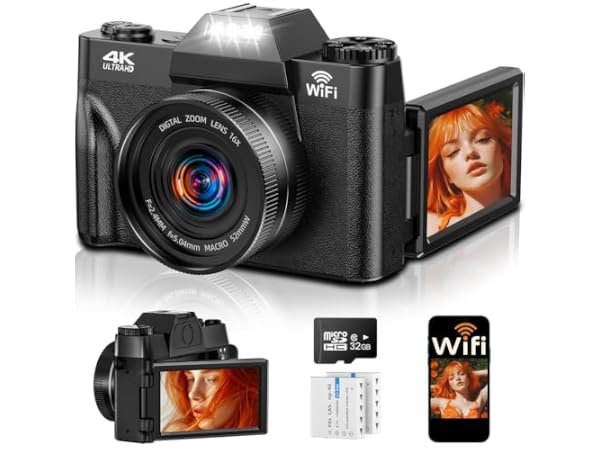
What can you do with a Wi-Fi digital camera?
The main benefit is that you can move, view, and control images without removing the memory card. This can make a camera more useful during travel, family events, and daily photography.
Transfer photos to a phone
You can select pictures in the camera app and copy them to your iPhone or Android phone. You can then edit, text, email, or post them.
Check the app settings before transferring files. Some apps use a smaller image by default. If you plan to print a photo or crop it heavily, choose the original or full-resolution option.
Control the camera remotely
Many Wi-Fi cameras offer remote shooting. The phone may show a live view from the camera and let you:
- Press the shutter
- Change some exposure settings
- Start or stop video
- Set a timer
- Review images
- Trigger a group photo
Remote controls vary. A basic compact camera may offer only shutter control. A mirrorless camera may provide more settings, but it may still limit focus, flash, or video functions.
Add location data
Some camera apps can use the phone’s location data to record where a photo was taken. The camera may not have its own GPS.
This feature can be useful for travel records. It can also expose your location when you share a photo. Review the privacy settings before posting images taken at home or at private locations.
Send photos to a computer
A camera may send files to a computer over the same home network. In practice, a USB cable or card reader is often faster for a large batch of photos.
Wireless transfer is most useful when convenience matters more than speed. A card reader may be the better choice for hundreds of RAW files or long video clips.
Back up or print images
Some cameras can upload files to a supported cloud service or send them to a compatible wireless printer. These options depend on the camera brand, app, account, and service.


Do not assume that every Wi-Fi camera supports every cloud platform. Manufacturers may change app support over time, and older cameras may lose access to services that are no longer maintained.

Wi-Fi digital camera vs. Wi-Fi security camera
A Wi-Fi digital camera and a Wi-Fi security camera use wireless networking, but they serve different purposes.
| Feature | Wi-Fi digital camera | Wi-Fi security camera |
|---|---|---|
| Main purpose | Take photos or videos | Monitor a room or outdoor area |
| Typical user | Photographer or traveler | Homeowner or business |
| Storage | SD card, phone, or computer | Cloud service, SD card, or network storage |
| Remote control | Shoot and adjust the camera | View live video, receive alerts, or use talkback |
| Battery use | Usually turned on when needed | Often designed for long-term operation |
| Image style | Photos, portraits, travel, and creative work | Continuous or motion-triggered video |
| Network role | Transfer files and control shooting | Stay connected for monitoring and alerts |
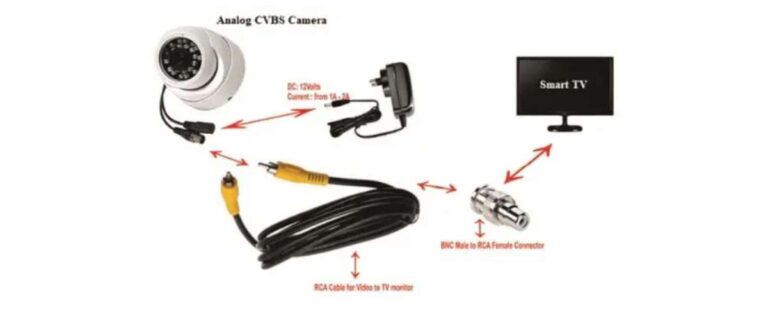
A security camera is also a digital camera, but people rarely use the term “Wi-Fi digital camera” to mean a security device unless the context involves home monitoring.
A camera with a lens, shutter, viewfinder, and photo modes is usually a consumer or professional photography camera. A device mounted on a wall that sends motion alerts is usually a Wi-Fi security camera.

What are the benefits of a Wi-Fi digital camera?
Wi-Fi adds convenience, but it does not automatically improve image quality. A camera’s lens, sensor, focus system, exposure controls, and lighting have a larger effect on the photo itself.
Faster sharing
You can send a photo to your phone soon after taking it. This is useful for travel, events, journalism, and family photos.
Easier remote shooting
A phone can act as a remote control. This helps with group photos, wildlife shots from a safe distance, and camera placement on a tripod.
Fewer accessories
You may not need a cable or card reader for a few quick transfers. That can make a smaller travel kit easier to manage.
Better location records
When supported by the app, phone location data can help organize travel photos. Make sure the camera and phone have permission to use location services.
Wireless updates and settings
Some cameras can receive firmware updates through an app or network. Updates may fix bugs, improve compatibility, or add features. Read the manufacturer’s instructions before updating, and keep the battery charged.

What are the limits of a Wi-Fi digital camera?
Wi-Fi is useful, but it has practical limits. The most common problems involve battery life, connection errors, slow transfers, and app compatibility.
Wi-Fi can drain the battery
Wireless communication uses power. Remote live view and video transfer can use even more.


Carry a charged spare battery or power bank when the camera supports USB charging. Turn Wi-Fi off when you do not need it.
Transfers may be slow
A full-size RAW image can be much larger than a JPEG. Video files are larger still. Wireless transfer may be convenient for a few images but frustrating for a large batch.
Use a USB cable or memory-card reader when speed matters.
The camera app may limit file types
Some apps transfer JPEG files but not RAW files. Others may show RAW files but save only a preview to the phone.
Check the camera manual and app documentation if you need full-resolution RAW, HEIF, or video files.
Compatibility can change
A camera may work with a current version of iOS or Android but lose support after a major operating-system update. Older cameras may also rely on discontinued apps or online services.
Before buying a used Wi-Fi camera, check:
- The current mobile app name
- Supported iPhone and Android versions
- Required account or subscription
- Supported wireless bands
- Firmware update availability
- Whether remote features still work
Connection range is limited
Walls, metal objects, other networks, and distance can weaken the signal. A direct camera-to-phone connection may work well nearby but fail at longer distances.
Wi-Fi is not a replacement for a long-range professional radio trigger.
Wi-Fi does not equal cellular service
A Wi-Fi camera usually cannot connect to the internet by itself while traveling. It may need a phone hotspot or a nearby router.
A camera with Wi-Fi is not automatically a camera with 4G or 5G mobile service.

How to connect a Wi-Fi digital camera to a phone
The menu names differ by brand, but the general setup is similar.
Before you begin
Have these items ready:
- The camera and a charged battery
- A compatible iPhone or Android phone
- The camera’s current companion app
- The camera manual or setup guide
- Your Wi-Fi password, if the camera uses a home network
- A memory card if the camera requires one for recording
Download the app from the Apple App Store or Google Play. Avoid unofficial app files from unknown websites.


Basic setup steps
- Turn on the camera. Open the wireless or network menu.
- Choose a connection method. Select direct phone connection, home network, or Bluetooth pairing if available.
- Open the official camera app. Follow its pairing instructions.
- Allow only needed permissions. The app may request access to photos, local network devices, Bluetooth, or location.
- Enter the camera’s network password if asked. The camera may display a temporary password on its screen.
- Update the camera or app when appropriate. Use a stable connection and adequate battery power.
- Test one small photo. Confirm that the phone receives the image and that the file is saved where you expect.
Signs that setup worked
The connection is working when:
- The app shows the camera model
- A live preview appears, if supported
- You can take a test photo remotely
- The test image appears in the app
- The phone saves the file at the selected size and format
If the connection fails
Try these checks in order:
- Confirm that Wi-Fi or Bluetooth is enabled on the phone.
- Close and reopen the camera app.
- Turn the camera and phone off and back on.
- Move the phone closer to the camera.
- Disconnect the phone from a different Wi-Fi network if direct connection is required.
- Remove the camera from the app and pair it again.
- Check for app, firmware, and operating-system compatibility.
- Reset only the camera’s network settings if the manual recommends it.
A network reset usually removes saved wireless details. It should not be your first step if a simple restart can solve the problem.
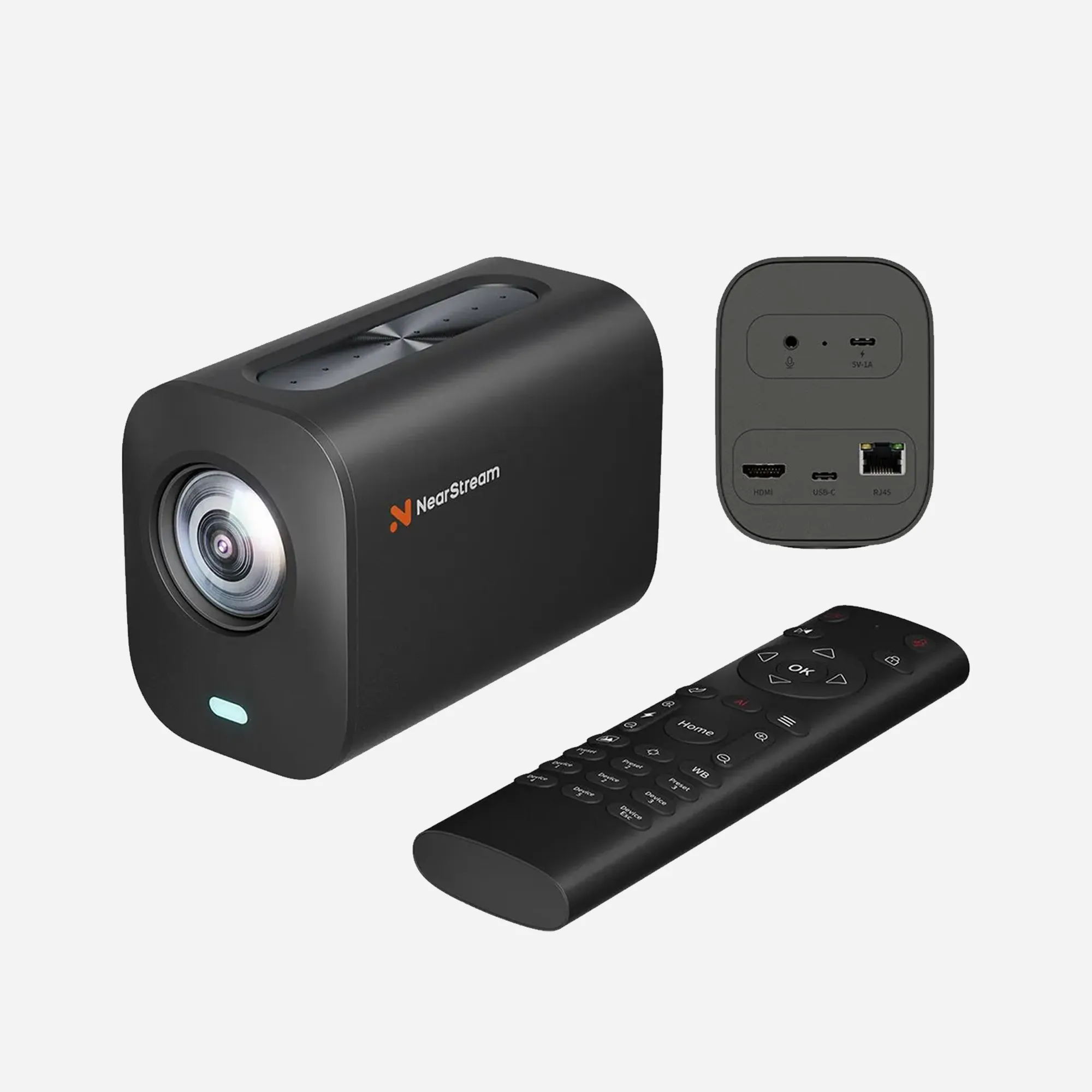
How to choose a Wi-Fi digital camera
Choose the camera based on the photos you need first. Treat Wi-Fi as a useful feature, not the main measure of camera quality.
Check these features
- Image quality: Look at sensor size, lens quality, autofocus, and low-light performance.
- File support: Confirm whether it records JPEG, RAW, HEIF, or the video format you need.
- Transfer options: Check whether the app supports original files or only reduced copies.
- Phone compatibility: Verify iOS and Android support before purchase.
- Battery life: Wireless transfer and live view can reduce shooting time.
- Storage: Confirm SD card type, internal storage, or cloud requirements.
- Remote shooting: Check which settings can be changed from the phone.
- Security updates: Consider whether the manufacturer still supports the model.
- Weather protection: If you shoot outdoors, check the exact camera and lens ratings.
- Subscription costs: Cloud features may require an ongoing plan, especially on security cameras.
A simple decision guide
| Your priority | Feature to favor |
|---|---|
| Quick social sharing | Easy phone transfer and a reliable app |
| Travel photography | Good battery life and direct phone connection |
| Professional editing | RAW support and fast card or USB transfer |
| Group photos | Remote live view and timer control |
| Home monitoring | A purpose-built Wi-Fi security camera |
| Large video files | USB, card-reader, or high-speed transfer options |
The best Wi-Fi digital camera for a traveler may not be the best choice for a studio photographer. Wireless sharing favors convenience. High-volume work favors card readers, cables, and fast storage.

Wi-Fi camera privacy and security
A connected camera can hold personal photos, location data, account details, and information about your home network. Treat it like any other connected device.
Use a strong, unique password for the camera account. Turn on multifactor authentication when the manufacturer offers it. Keep the camera app and firmware updated through official sources.
Avoid using an open public Wi-Fi network for camera setup or file transfers. If you use a phone hotspot, protect the hotspot with a password and turn it off when finished.
Review the camera’s permissions. An app may need local-network access to find the camera, but it may not need every optional permission. Disable remote access if you do not use it.
Be careful when sharing photos that contain location metadata. A picture taken inside your home may reveal where you live through its embedded data or visible background.
For home security cameras, use a separate guest or Internet of Things network when your router supports it. The U.S. Cybersecurity and Infrastructure Security Agency provides general guidance for securing home networks and connected devices through its Home Network Security resources. The Federal Trade Commission also offers consumer guidance on connected-device privacy and security.

Common mistakes to avoid
The most common mistake is assuming that all Wi-Fi cameras work the same way. Wireless menus, apps, file formats, and cloud features can differ even between models from the same brand.
Avoid these errors:
- Buying a camera without checking current app support
- Assuming Wi-Fi transfers full-resolution files
- Confusing Wi-Fi with cellular connectivity
- Leaving wireless features on all day
- Sharing photos without checking location data
- Resetting the camera before saving custom settings
- Using a public network for sensitive transfers
- Expecting Wi-Fi to replace a fast card reader
- Buying a security camera when you need a photography camera
- Buying a photography camera when you need continuous home monitoring
A camera can have strong wireless features and still produce poor results if the lens, lighting, or settings do not suit the subject.

Frequently asked questions
Is a Wi-Fi digital camera better than a regular digital camera?
Not automatically. Wi-Fi makes transfers and remote control easier, but it does not by itself improve image quality. Compare the sensor, lens, autofocus, controls, battery, and file support first.
Can I use a Wi-Fi digital camera without Wi-Fi at home?
Often, yes. Many models can connect directly to a phone. You may not need a home router, although internet access is required for cloud uploads and some online features.
Can a Wi-Fi camera connect to an iPhone or Android phone?
Usually, if the camera’s app supports that phone’s operating system. Check the exact camera model and current app requirements before buying, especially with older cameras.
Does a Wi-Fi digital camera need an SD card?
Many cameras use an SD card to store photos, but some models may have internal storage or different card requirements. Read the camera specifications before purchasing a card.
Can I transfer RAW photos over Wi-Fi?
Some cameras and apps support RAW transfer. Others transfer only JPEG files or create a smaller copy. Confirm this in the manual and app documentation for the exact model.
Is Wi-Fi safe for private photos?
It can be safe when you use official software, strong passwords, updated firmware, and secure networks. Review location data and account settings before sharing images.
Can I use a Wi-Fi digital camera for home security?
A photography camera may offer remote viewing, but it is not usually designed for continuous monitoring, motion alerts, night vision, or cloud recording. Use a purpose-built security camera for those needs.

Conclusion
A Wi-Fi digital camera is a digital camera with wireless tools for sending photos, controlling the camera, and sometimes backing up files. It can connect to a phone directly or use a home network.
Its main value is convenience. It can save time when you need to share a few photos, take a group picture, or add location data while traveling. For large files, high-volume work, or long video clips, a USB cable or memory-card reader may still be faster.
Before buying one, confirm the camera’s app support, file-transfer limits, battery life, storage needs, and privacy controls. If you need photographs, choose a photography camera with Wi-Fi. If you need continuous monitoring, choose a Wi-Fi security camera instead.

Everett Ashford is a tech reviewer at mytechgrid.com specializing in SSDs, cameras, TVs, earbuds, headphones, and other consumer electronics. He provides honest, data-driven reviews based on hands-on testing and real-world performance analysis. Everett simplifies complex tech details to help readers make smart, confident buying decisions.