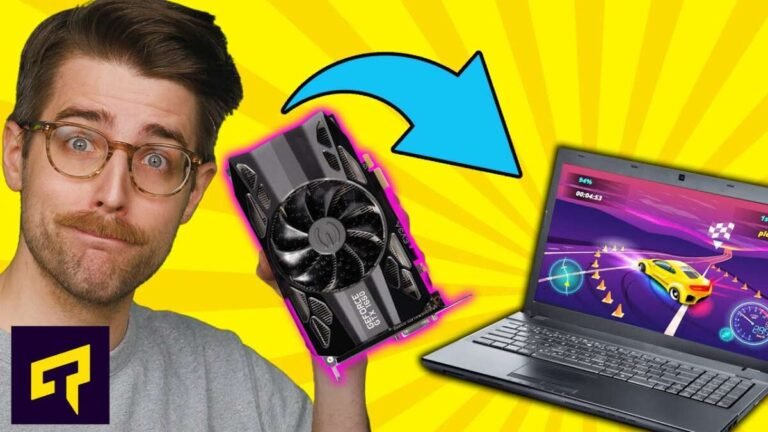
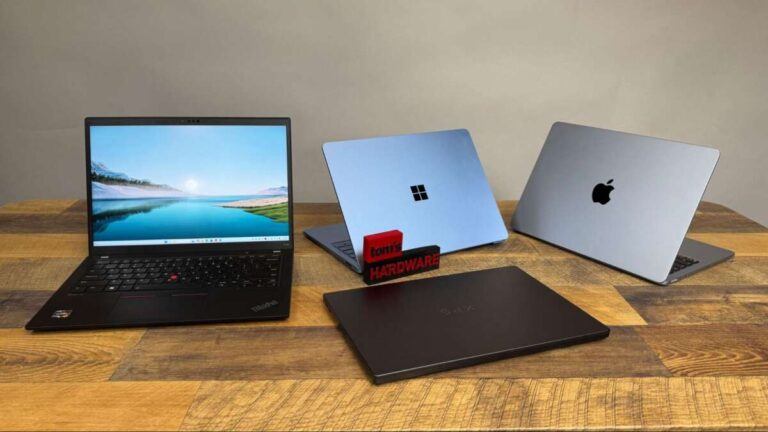
The best laptop for Blender in the United States is usually a Windows laptop with an NVIDIA GeForce RTX 4070 or better, 32GB of RAM, a modern Core Ultra 7/Core i7 or Ryzen 7 processor, and a 1TB SSD. This setup gives most 3D artists a strong balance of render speed, viewport performance, price, and upgrade life.
For heavy Cycles rendering, large scenes, simulations, or professional work, step up to an RTX 4080 or RTX 4090 laptop with 64GB of RAM. For travel and battery life, a MacBook Pro with Apple silicon can be a strong option, but NVIDIA laptops have a wider advantage in CUDA and OptiX workflows.
The right choice depends on what you do in Blender. Modeling, animation, sculpting, Eevee rendering, Cycles rendering, and fluid simulation place different demands on a laptop.

Quick answer: Which laptop should you buy for Blender?
Choose your laptop by matching its hardware to your Blender workload.
| Blender workload | Recommended laptop hardware | Suitable laptop class |
|---|---|---|
| Basic modeling and learning | 16GB RAM, RTX 4050 or better, 512GB SSD | Mid-range gaming laptop |
| Regular modeling and animation | 32GB RAM, RTX 4060 or RTX 4070, 1TB SSD | Strong mid-range laptop |
| Cycles rendering and large scenes | 32GB to 64GB RAM, RTX 4070 or RTX 4080, 1TB to 2TB SSD | High-end gaming or creator laptop |
| Professional 3D production | 64GB RAM, RTX 4080 or RTX 4090, 2TB SSD | Mobile workstation or high-end gaming laptop |
| Travel-focused Blender work | 24GB or 36GB unified memory, Apple M-series Pro or Max chip | MacBook Pro |
| Sculpting and dense meshes | 32GB to 64GB RAM, strong CPU, RTX 4070 or better | High-end creator laptop |
| Fluid, smoke, and physics work | 32GB to 64GB RAM, fast multi-core CPU, RTX 4070 or better | Well-cooled performance laptop |
The best overall target for most U.S. buyers is:
- Processor: Intel Core Ultra 7, Core i7, AMD Ryzen 7, or Ryzen 9
- Graphics: NVIDIA GeForce RTX 4070 Laptop GPU
- Memory: 32GB RAM
- Storage: 1TB NVMe SSD
- Screen: 15- or 16-inch display with good color coverage
- Cooling: A thick chassis with two fans and large heat pipes
- Operating system: Windows 11
Do not buy based on the processor name alone. A laptop RTX 4070 is not the same as a desktop RTX 4070, and two laptops with the same GPU can perform differently because of power limits and cooling.
What matters most in a Blender laptop?
The most important parts are the GPU, VRAM, RAM, CPU, cooling system, and storage. Their importance changes with the task.
GPU: the key part for rendering
The GPU matters most when you use Cycles, Blender’s physically based render engine. Cycles can use NVIDIA CUDA or OptiX on supported NVIDIA GPUs. OptiX can use hardware ray-tracing features on supported RTX cards.
For most buyers, NVIDIA is the simplest choice because it supports:
- CUDA rendering
- OptiX rendering
- GPU acceleration in Cycles
- Hardware ray tracing on RTX models
- Broad support in many 3D and AI tools
an RTX 4060 is a reasonable entry point. An RTX 4070 is a better long-term choice. An RTX 4080 or RTX 4090 is better for large scenes, high samples, and demanding production work.
AMD graphics can work well in some Blender tasks, and Apple silicon supports Blender through Metal. However, the best GPU depends on the render engine, Blender version, add-ons, and other software in your workflow.
VRAM: the limit that can stop a render
VRAM is the graphics memory on the GPU. Blender uses it for textures, geometry, shaders, render data, and other scene information.
More VRAM helps when:
- You use 4K or 8K textures.
- Your scene has many objects.
- You work with dense sculpt meshes.
- You render complex environments.
- You use particle systems, hair, or large simulations.
- You combine many assets in one scene.
A useful starting point is:
- 6GB VRAM: Basic projects and learning
- 8GB VRAM: Most student and moderate projects
- 12GB or more: Large scenes and serious Cycles work
- 16GB or more: Better for demanding production scenes
VRAM is not the same as system RAM. A laptop with 64GB of RAM can still fail to render a scene that exceeds the GPU’s available VRAM.
When a scene does not fit in VRAM, Blender may use system memory in some workflows. That can reduce performance sharply. Some scenes may fail because the available memory is still not enough.
RAM: important for scenes, simulations, and multitasking
System RAM holds Blender, your operating system, reference images, textures, simulations, and other open programs.
Use these targets:
- 16GB: Entry-level Blender work
- 32GB: Best starting point for serious users
- 64GB: Large scenes, sculpting, simulations, and professional work
- 96GB or more: Specialized workflows with very large assets
If a laptop has soldered memory, choose the amount you need at purchase. A 16GB laptop that cannot be upgraded may become limiting sooner than expected.
CPU: important for modeling and simulation
The CPU affects many Blender tasks, including:
- Modeling operations
- Modifiers
- Rigging
- Animation playback
- Scene setup
- Some simulations
- CPU-based Cycles rendering
- Export and encoding tasks
Look for a modern processor with strong single-core and multi-core performance. Intel Core Ultra, recent Intel Core i7 and i9 chips, AMD Ryzen 7 and Ryzen 9 chips, and Apple Pro or Max chips can all work well.
A high core count does not guarantee faster work. Laptop processors may reduce speed when the chassis cannot remove heat. Sustained performance matters more than a short benchmark burst.
Cooling: the hidden performance feature
Blender can keep a laptop under load for minutes or hours. A thin laptop may run quickly at first and then slow down as it heats up.
Good cooling usually means:
- Two or more fans
- Large heat pipes or vapor-chamber cooling
- Open air intakes
- A chassis with room for airflow
- A performance mode in the laptop software
- A power adapter large enough for the CPU and GPU
A thicker gaming laptop may outperform a thinner creator laptop with the same processor and GPU. That trade-off affects weight, fan noise, and battery life.
Storage: choose an SSD, not a hard drive
A fast NVMe SSD improves:
- Boot time
- Blender launch time
- Asset loading
- Texture access
- Project saves
- Cache operations
Choose 1TB if Blender is a main tool. Blender projects, texture libraries, HDRIs, plug-ins, and video files consume space quickly.
A second SSD slot is useful. It lets you add storage later without replacing the original drive. Check the manufacturer’s service manual because some laptops have limited upgrade access.

Best laptop specifications for different Blender users
There is no single best laptop for every Blender artist. The best specification depends on scene size, render engine, budget, and portability.
Best value specification
For students, hobbyists, and general 3D work:
- RTX 4060
- 16GB or 32GB RAM
- Core i7, Core Ultra 7, or Ryzen 7
- 1TB NVMe SSD
- 15- or 16-inch display
This class can handle modeling, animation, Eevee, moderate Cycles scenes, and most learning projects.
If the laptop has only 16GB of RAM, confirm that it can be upgraded. A 32GB configuration is safer for long-term use.
Best overall specification
For most people who want a laptop that will remain useful for several years:
- RTX 4070
- 32GB RAM
- Core Ultra 7, Core i7, or Ryzen 7/Ryzen 9
- 1TB SSD
- Strong cooling
- A color-accurate display
This is the most balanced target. It avoids the limits of many entry-level models without the price, heat, and weight of top-tier hardware.
Best for heavy Cycles rendering
For frequent GPU rendering:
- RTX 4080 or RTX 4090
- 12GB to 16GB VRAM, depending on model
- 64GB RAM
- Core i9, Core Ultra 9, or Ryzen 9
- 1TB to 2TB SSD
- High-wattage cooling system
The RTX 4080 and RTX 4090 laptop GPUs can differ greatly between laptop models. Compare the GPU’s listed power range, not only the model number.
A powerful laptop is still slower and less expandable than a desktop workstation. If you render every day, a desktop may offer better performance per dollar.
Best portable laptop for Blender
A MacBook Pro with a Pro or Max Apple silicon chip can suit people who value:
- Low fan noise
- Long battery life
- A high-quality display
- Strong build quality
- Travel-friendly size
Apple silicon uses unified memory. The CPU and GPU share that memory, so memory capacity matters. Consider 24GB or more for serious Blender use and 36GB or more for larger projects.
The main limitation is software support. Some Blender add-ons, render tools, and related applications may favor Windows and NVIDIA. Check your required plug-ins before choosing a Mac.
Best laptop for sculpting
Sculpting needs a strong CPU, enough RAM, and a responsive display. The GPU still matters, but extremely high frame rates are less important than scene capacity and smooth interaction.
A good sculpting setup includes:
- 32GB RAM or more
- RTX 4070-class graphics or better
- A high-performance Core Ultra 7, Core i7, or Ryzen 7 processor
- A high-resolution screen
- A drawing tablet or pen display
A laptop screen alone is not a replacement for a proper pen display if you sculpt for many hours.
Laptop recommendations by product type
Specific configurations change often in the U.S. market. Treat these as product families to investigate, not as permanent rankings.
High-end gaming laptops
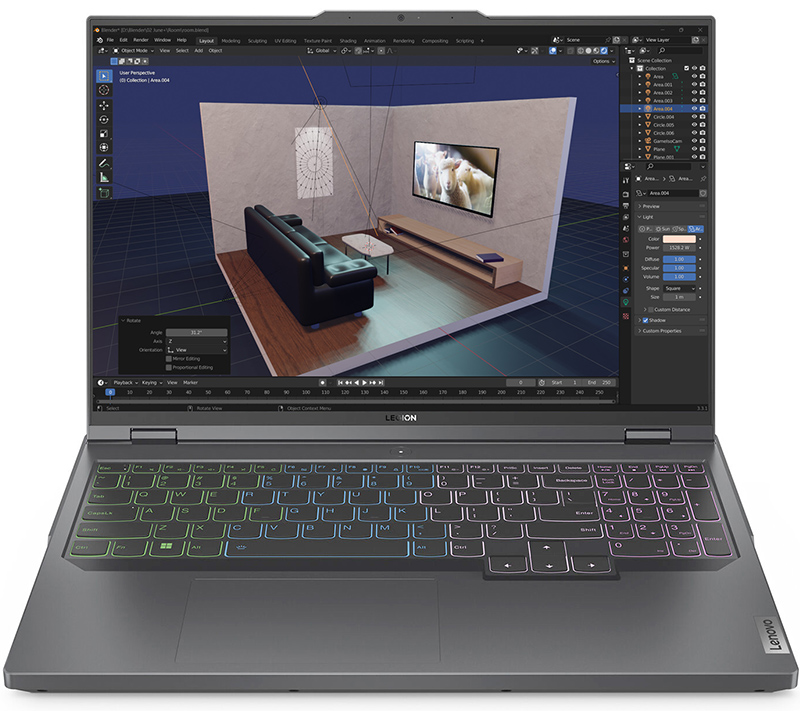
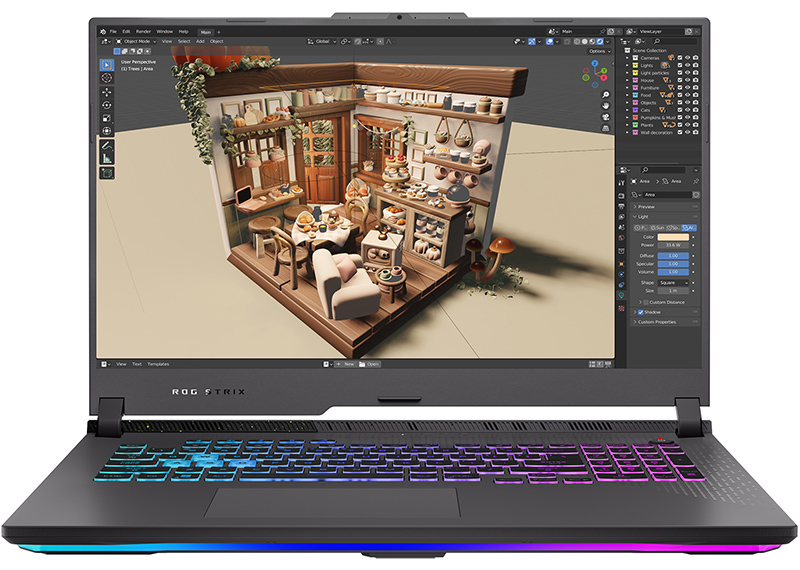
Examples include the Lenovo Legion Pro, ASUS ROG Strix, Alienware m-series, and similar models with RTX 4070, RTX 4080, or RTX 4090 graphics.
They often provide:
- High GPU power limits
- Strong cooling
- Upgradeable RAM
- Upgradeable SSD storage
- High-refresh displays
- Good sustained performance
Their drawbacks include weight, fan noise, large chargers, and short battery life during demanding work.
Creator laptops
Examples include the ASUS ProArt, Lenovo Yoga Pro, Dell Pro Max or Precision families, and other creator-focused laptops with discrete NVIDIA graphics.
They may offer:
- Better displays
- More restrained designs
- Strong color coverage
- Useful port selection
- Better portability than large gaming systems
Check cooling carefully. Some thin creator laptops use the same GPU name at a lower power level.
Mobile workstations
Mobile workstations can be useful for professional studios, engineering, and business environments. Models from Dell, HP, and Lenovo may offer:
- Professional GPU drivers
- ISV certifications for selected applications
- Business warranties
- Easier fleet management
- Durable chassis options
A mobile workstation is not automatically faster in Blender than a gaming laptop. Buy one for its support, reliability, certification, or business features—not simply for the word “workstation.”
MacBook Pro
The MacBook Pro is a good fit for users who want portability, battery life, a strong display, and a quiet system.
Before buying, confirm:
- Your Blender version supports the required Apple graphics features.
- Your add-ons run on macOS.
- Your render workflow works with Metal.
- Your project files can move between macOS and Windows if needed.
- The memory capacity is high enough for your scenes.
A MacBook Pro is less suitable when your workflow depends on NVIDIA CUDA or OptiX.
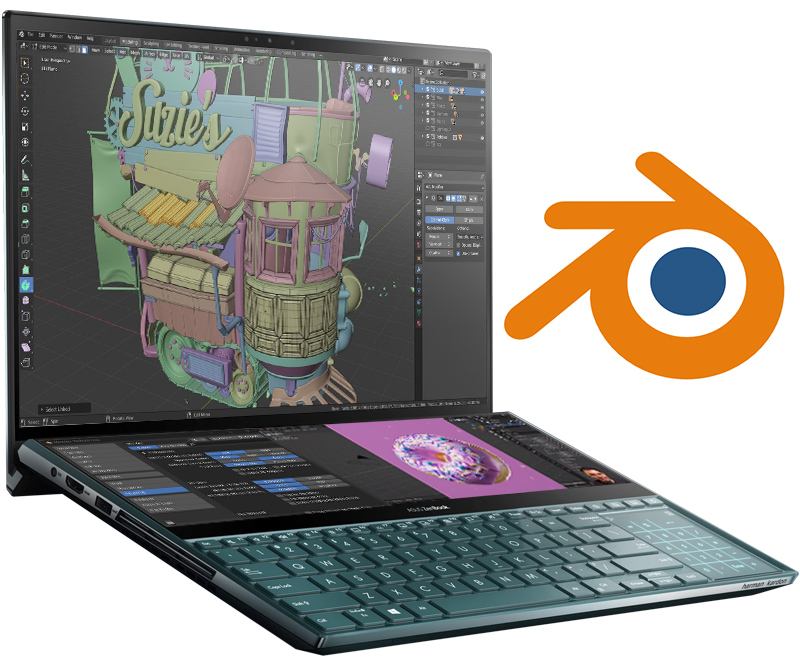
Windows laptop vs. MacBook for Blender
A Windows laptop is usually the safer choice for Blender users who want maximum compatibility with NVIDIA rendering tools. A MacBook can be the better choice for users who prioritize mobility and already use macOS.
| Factor | Windows with NVIDIA RTX | MacBook with Apple silicon |
|---|---|---|
| Cycles GPU options | CUDA and OptiX | Metal |
| Add-on compatibility | Broad, but check each tool | Strong, but some tools are Windows-first |
| Battery life under light use | Varies by model | Often strong |
| Sustained heavy rendering | Strong in thick models | Depends on chip and cooling |
| GPU memory model | Dedicated VRAM | Shared unified memory |
| Upgradeable RAM | Available on some models | Not user-upgradeable |
| Gaming and CUDA software | Strong | Limited compared with Windows |
| Portability | Varies widely | Generally strong |
The best platform is the one that supports your full pipeline. Blender is only one part of many workflows. Texture tools, render managers, video software, CAD tools, plug-ins, and studio systems can change the answer.
How to compare two laptops with the same GPU
Do not assume two RTX 4070 laptops perform the same. Compare these details:
- GPU power limit: A higher wattage can allow higher sustained performance.
- Cooling design: More cooling capacity helps during long renders.
- VRAM: The GPU model usually determines this, but confirm the exact specification.
- RAM layout: Two replaceable modules may be more flexible than soldered memory.
- Screen quality: A bright, color-accurate screen helps texture and material work.
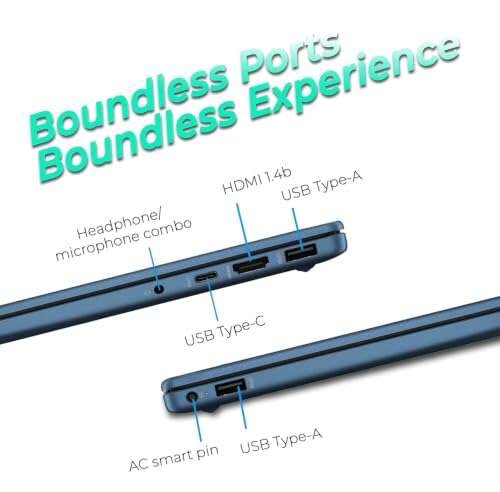
- Ports: Check for USB-C, HDMI, an SD card reader, and external display support.
- Charger size: A large power adapter may reduce portability.
- Warranty: Professional work may justify stronger coverage.
- Noise: Fans can become loud during Cycles renders.
- Service access: Confirm whether RAM and SSD upgrades are possible.
The product page should list the exact GPU power range. If it does not, check the manufacturer’s technical specifications or service documentation.
Is 16GB RAM enough for Blender?
Sixteen gigabytes is enough to learn Blender and create small projects. It is not the best target for a new laptop if you plan to work with large scenes, sculpting, simulations, or several programs at once.
Choose 32GB if you can. It gives Blender room for textures, geometry, caches, and background applications.
Choose 64GB when you work with:
- High-polygon sculpting
- Large architectural scenes
- Many 4K textures
- Fluid or smoke simulations
- Heavy compositing
- Blender plus Photoshop, After Effects, or video software
RAM problems often appear as system slowdowns, disk swapping, delayed viewport response, or failed simulations. More RAM cannot solve a scene that exceeds GPU VRAM, but it can prevent system memory from becoming the next bottleneck.
Is a gaming laptop good for Blender?
Yes. A gaming laptop can be one of the best laptop types for Blender because it often includes a powerful discrete GPU and strong cooling.
Look beyond gaming features. A 240Hz display does not automatically improve Blender work. For many artists, RAM, VRAM, color accuracy, storage, and cooling matter more than an extremely high refresh rate.
A gaming laptop is a strong choice when you accept:
- More weight
- More fan noise
- A larger charger
- Shorter battery life during heavy work
- A less understated design
It is a poor fit if you need a silent, lightweight laptop for long travel days.
What display is best for Blender?
A 15- or 16-inch display is a practical size for Blender. A larger screen gives more room for the viewport, timeline, outliner, and shader editor.
Look for:
- At least 1920 × 1200 resolution
- A 16:10 aspect ratio when possible
- Good sRGB coverage for general work
- Higher-gamut coverage for wider color workflows
- Consistent brightness
- A matte or low-glare finish if you work near windows
A 4K display can make fine details and text look sharp, but it uses more power and may require interface scaling. A high-refresh display can make viewport movement feel smoother, but it does not replace a strong GPU.
For color-critical work, calibrate the screen and verify your color-management settings in Blender.
How much storage does Blender need?
A 1TB SSD is the sensible minimum for a dedicated Blender laptop. A 512GB drive can work, but it fills quickly after installing Blender, creative software, assets, games, and operating-system updates.
Plan space for:
- Blender installations
- Project files
- Texture libraries
- HDR images
- Simulation caches
- Rendered images and video
- Plug-ins and add-ons
- Backups
Keep active projects on the internal SSD when possible. Use an external SSD or network storage for archives and backups.
Do not treat an external drive as your only copy. A failed drive can destroy both the project and its textures. Keep at least one separate backup.
Can a laptop run Blender on battery power?
Yes, but performance usually changes when the laptop is unplugged. Many performance laptops reduce CPU and GPU power on battery to protect battery life and limit heat.
For serious rendering:
- Connect the original power adapter.
- Set the laptop to its performance mode if needed.
- Place it on a hard, flat surface.
- Keep air vents clear.
- Watch temperatures and fan noise.
- Save work before starting a long render.
A laptop cooling pad may improve airflow for some designs, but it cannot replace a sound cooling system. Do not block vents with a blanket, sofa, or lap during heavy work.
What should students look for in a Blender laptop?
Students should usually prioritize value and upgradeability over top-end performance.
A sensible student configuration is:
- RTX 4060 or RTX 4070
- 32GB RAM, or 16GB that can be upgraded
- 1TB SSD
- Core i7, Core Ultra 7, or Ryzen 7
- A reliable warranty
- A display suitable for school and creative work
Avoid spending heavily on a flagship GPU if your projects are small. Put part of the budget toward RAM, storage, a backup drive, and a good mouse or drawing tablet.
If your course uses other software, check its requirements too. Some programs may require Windows, specific graphics drivers, or professional GPU certifications.

Common mistakes when buying a Blender laptop
Buying for the CPU name alone
A premium CPU cannot compensate for weak graphics, low VRAM, or poor cooling when your work is GPU-rendered.
Ignoring laptop GPU power limits
The same GPU name can perform differently across thin and thick laptops. Check the listed wattage and independent testing for the exact model.
Choosing 16GB because it is cheaper
Sixteen gigabytes can work, but 32GB provides more room for serious work. Check whether the memory can be replaced.
Confusing RAM with VRAM
System RAM and GPU VRAM solve different problems. You need enough of both.
Choosing a thin laptop for long renders
Thin systems can be excellent for travel. They may not sustain maximum performance during long Cycles renders.
Assuming “workstation” means faster
Certification and support have value, but a gaming laptop may deliver more Blender performance at the same price.
Forgetting the charger
A powerful laptop may need a large charger. Include its size and weight in your portability decision.
Buying without checking add-ons
Test or verify your essential add-ons, render engines, drivers, and file pipeline before switching operating systems.
Skipping backups
Use an external SSD, network storage, or cloud backup. Blender files may also depend on external textures and linked assets.
A simple buying method
Use this process before purchasing:
- List your Blender tasks. Separate modeling, animation, Eevee, Cycles, sculpting, and simulation.
- Estimate scene size. Consider polygon count, texture resolution, and the number of assets.
- Choose the GPU first. Target RTX 4060 for entry work, RTX 4070 for most serious users, and RTX 4080 or higher for heavy rendering.
- Choose RAM next. Buy 32GB for general serious work and 64GB for large projects.
- Check cooling and GPU wattage. Read the exact model specifications.
- Select storage. Start with a 1TB SSD when Blender is a primary tool.
- Check the display and ports. Make sure they suit your desk, monitor, tablet, and storage setup.
- Verify software support. Check Blender, add-ons, drivers, and related applications.
- Compare warranty and upgrade access.
- Review current U.S. pricing. Prices and configurations change, so compare the exact SKU before ordering.
A laptop meets the right target when it can open your typical files, move through the viewport without persistent stutter, run your required render engine, and maintain performance during a sustained workload.

Key takeaways
- Best overall target: RTX 4070, 32GB RAM, 1TB SSD, and a modern Core Ultra 7 or Ryzen 7 processor.
- Best budget target: RTX 4060, 16GB upgradeable RAM, and a 1TB SSD.
- Best for heavy Cycles work: RTX 4080 or RTX 4090, 64GB RAM, and strong cooling.
- Best portable option: MacBook Pro with an Apple Pro or Max chip and enough unified memory.
- Most overlooked feature: Sustained cooling and the laptop GPU’s power limit.
- Most common mistake: Confusing system RAM with GPU VRAM.
Frequently asked questions
Is an RTX 4060 laptop good enough for Blender?
Yes. An RTX 4060 laptop is suitable for learning, modeling, animation, Eevee, and moderate Cycles scenes. Its limits become clearer with large textures, dense geometry, and complex GPU renders. Choose an RTX 4070 if the price difference is reasonable and you plan to use Blender for several years.
Is a MacBook good for Blender?
A MacBook can be good for Blender, especially for modeling, animation, portable work, and users who value battery life. Apple silicon supports Blender through Metal. Windows with NVIDIA remains the safer option for CUDA, OptiX, and software that depends on NVIDIA-specific features.
Do I need a laptop with 64GB of RAM?
Not always. Thirty-two gigabytes is enough for many Blender users. Choose 64GB for large scenes, advanced sculpting, simulations, high-resolution textures, or heavy multitasking.
Should I buy a laptop or a desktop for Blender?
Buy a laptop if you need mobility, school use, client visits, or work in different locations. Buy a desktop if maximum render speed, upgradeability, lower cost per unit of performance, and easier repairs matter more than portability.
Can Blender run on integrated graphics?
Blender can run on some systems with integrated graphics, but performance and scene capacity will be limited. Integrated graphics are more suitable for basic modeling and learning than demanding Cycles rendering or large scenes.
Final recommendation
For most people in the United States, the best laptop for Blender is a well-cooled Windows laptop with an RTX 4070, 32GB of RAM, a 1TB NVMe SSD, and a modern Core Ultra 7, Core i7, or Ryzen 7 processor.
Choose an RTX 4060 model to save money for smaller projects. Move to an RTX 4080 or RTX 4090 with 64GB of RAM for serious Cycles rendering and large scenes. Choose a MacBook Pro when portability, battery life, and macOS fit your workflow better than CUDA and OptiX support.
Before buying, check the exact GPU power limit, cooling design, upgrade options, screen, warranty, and add-on compatibility. Those details can matter as much as the headline processor or graphics model.
Sources for specifications and compatibility
- Blender Manual: Hardware Requirements
- Blender Manual: Cycles Rendering Devices
- NVIDIA: CUDA and OptiX
- Apple: Metal for Developers
- The exact laptop manufacturer’s technical specification and service manual for the model being considered.

Everett Ashford is a tech reviewer at mytechgrid.com specializing in SSDs, cameras, TVs, earbuds, headphones, and other consumer electronics. He provides honest, data-driven reviews based on hands-on testing and real-world performance analysis. Everett simplifies complex tech details to help readers make smart, confident buying decisions.