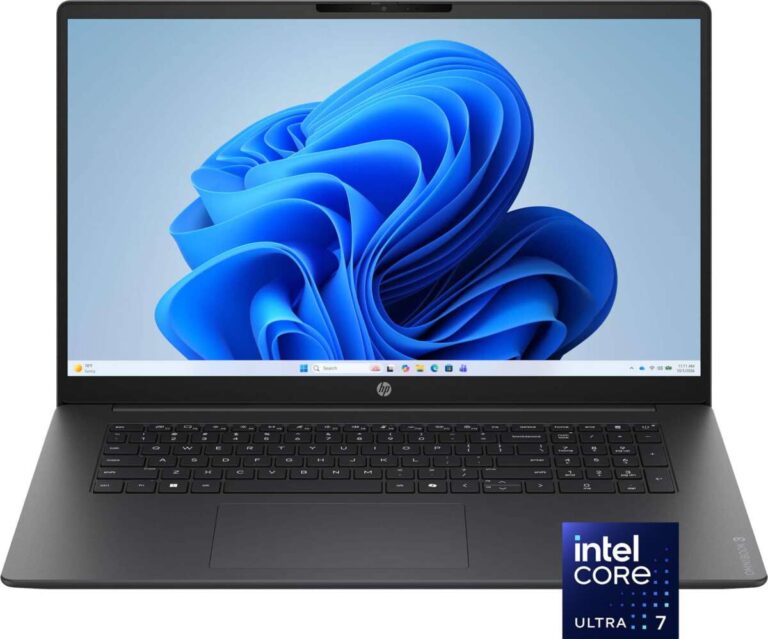
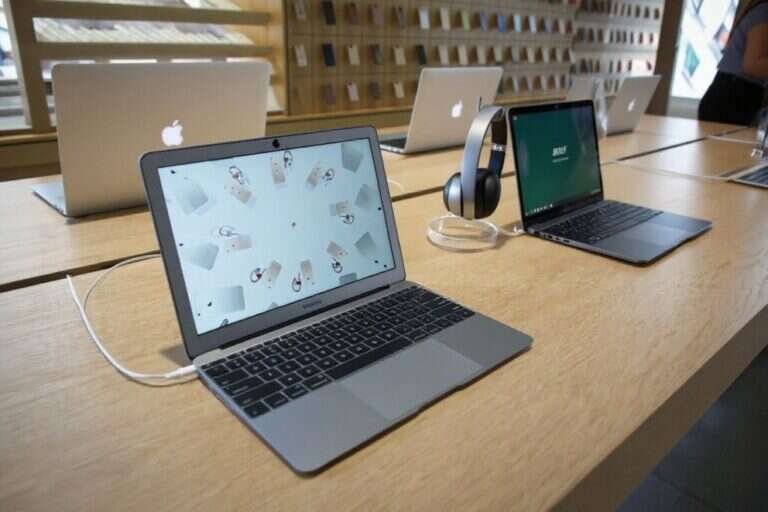
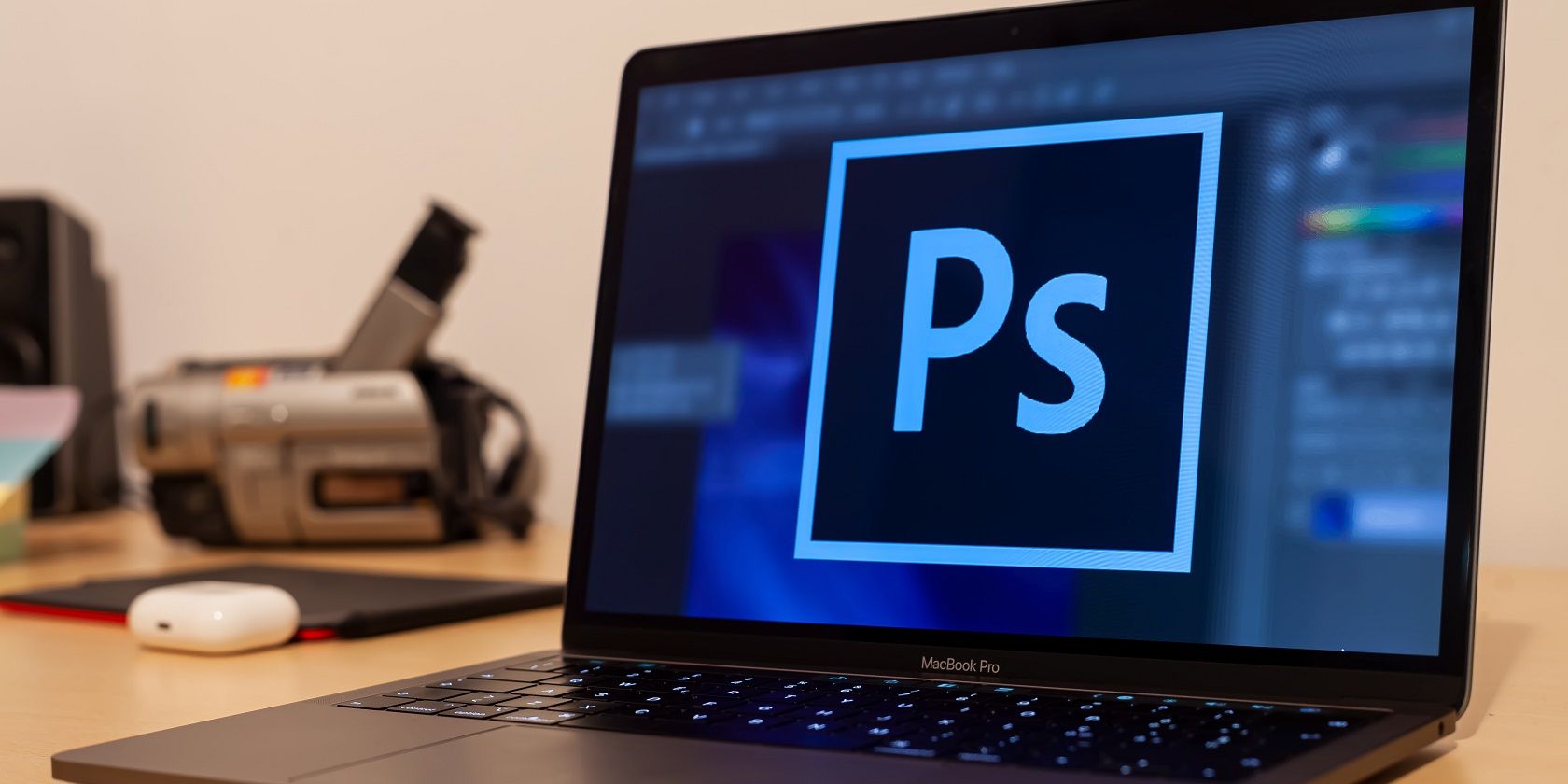
For most people in the United States, the best laptop for Photoshop is a 14-inch MacBook Pro with an Apple Pro chip, 24GB or more of unified memory, and at least 1TB of storage. It offers strong Photoshop speed, a sharp color-rich display, long battery life, and quiet operation.
The best choice changes if you need Windows, a larger screen, gaming power, a lower price, or professional video and 3D tools. A good Photoshop laptop does not need the most powerful processor available. It needs the right mix of memory, display quality, storage, graphics power, and cooling.
This guide explains what to buy, what specifications matter, and which type of laptop fits different Photoshop users in the US.
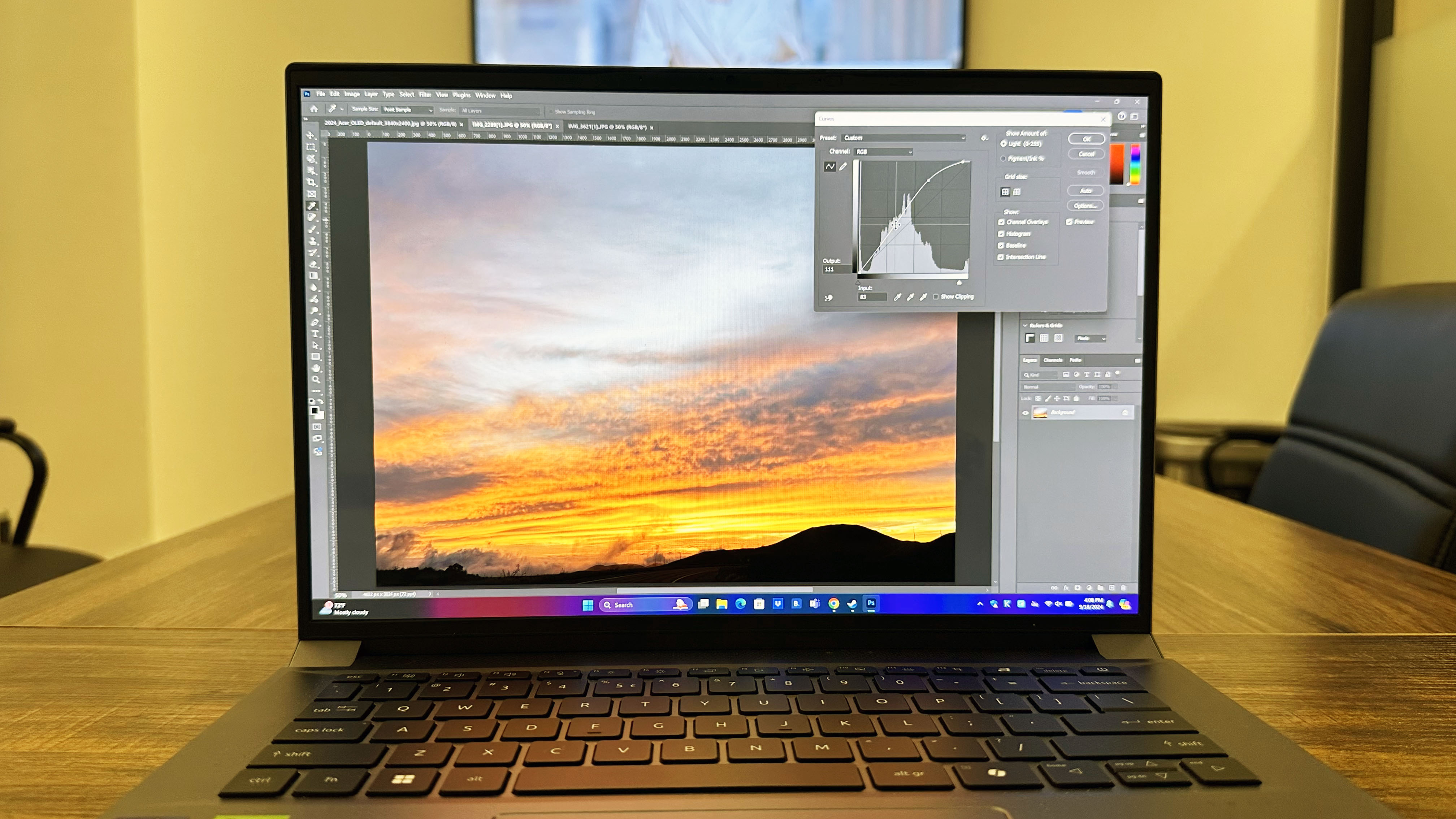
Quick answer: Which laptop is best for Photoshop?
The MacBook Pro 14-inch with a Pro-series Apple chip, 24GB of memory, and 1TB SSD storage is the strongest all-around pick for Photoshop users.
Choose it if you want:
- Fast editing for large photos and layered files
- A high-quality built-in display
- Long battery life
- Quiet performance
- A portable design
- Reliable support for Adobe Photoshop on macOS
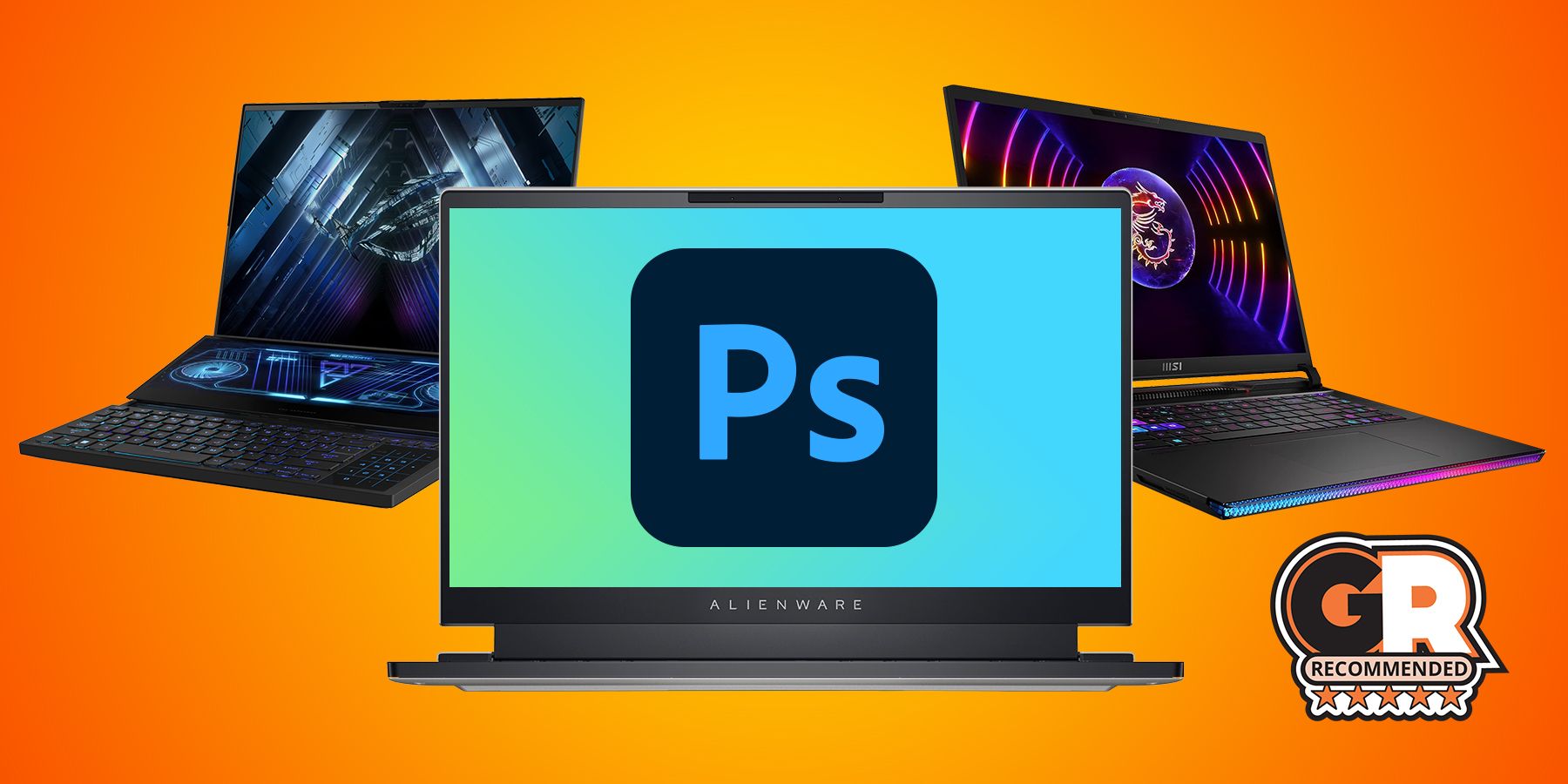
For Windows, consider a creator-focused laptop such as the ASUS ProArt P16, Lenovo Yoga Pro 9i, or Dell XPS 16, configured with at least 16GB of RAM, preferably 32GB, and a modern dedicated GPU.
For simple photo edits, a MacBook Air with 16GB or 24GB of memory can cost less and still perform well. For heavy professional work, choose a workstation-class laptop with 32GB or 64GB of memory, a dedicated graphics card, and a color-accurate display.
What Photoshop needs from a laptop
Photoshop uses several parts of a laptop at the same time. The processor handles many editing tasks. Memory keeps documents and applications active. The graphics processor helps with zooming, canvas movement, filters, and some advanced effects.
Adobe lists 8GB of RAM as the minimum for Photoshop, but that is a starting point, not a comfortable target. A laptop with only 8GB can struggle when you open large files, many layers, Lightroom, a web browser, or other Adobe apps together.
A better target is:
- 16GB RAM: Good for casual and regular photo editing
- 24GB or 32GB RAM: Better for large files, many layers, and multitasking
- 64GB RAM: Useful for very large documents, batch work, video, and 3D applications
Photoshop also needs free storage for the application, documents, and its scratch disk. A scratch disk is temporary storage that Photoshop uses when it cannot keep all working data in memory.
Aim for:
- 512GB SSD: Usable minimum for a new laptop
- 1TB SSD: Best balance for most photographers
- 2TB SSD or more: Better for large photo libraries and video work
An SSD is much faster than an old hard disk drive. It helps Photoshop open, save, and move files more quickly.

The best overall laptop for Photoshop
14-inch MacBook Pro with an Apple Pro chip
A 14-inch MacBook Pro with a current Apple Pro-series chip is the best fit for many US-based Photoshop users. A practical configuration includes:
- Apple Pro-series processor
- 24GB or more of unified memory
- 1TB SSD
- 14-inch high-resolution display
- hardware acceleration supported by the current Photoshop version
The MacBook Pro combines strong single-core and multi-core performance with a bright, sharp display. Its screen can show wide color in supported workflows, which helps photographers judge images more accurately.
The 14-inch size also works well for travel. It gives more power than most thin laptops without becoming as heavy as a large workstation.
This is not the cheapest option. It also may not suit people who depend on Windows-only software, upgradeable memory, or certain plug-ins. Apple laptops also use integrated graphics built into the chip rather than a separate NVIDIA or AMD graphics card.
Even so, Photoshop does not require a large dedicated GPU for most two-dimensional photo work. For ordinary photo editing, memory and screen quality often matter more than extreme graphics power.
Best MacBook for Photoshop on a lower budget
MacBook Air with 16GB or 24GB of memory
A current MacBook Air is a good choice for students, casual photographers, and home users. Select at least 16GB of memory. Choose 24GB if you work with large RAW files, many layers, or several apps at once.
The MacBook Air is thin, light, and quiet. It has no fan, so it stays silent during normal work. It can handle common Photoshop tasks such as:
- Cropping and resizing
- RAW photo adjustments
- Layer masks
- Retouching
- Basic composites
- Web graphics
- Social media designs
Its main limit is sustained heavy work. Long exports or repeated high-load tasks can reduce performance because the laptop has less cooling than a MacBook Pro.
The base storage option may also fill quickly. Large photo catalogs can consume hundreds of gigabytes. If you choose a smaller internal drive, plan to use a fast external SSD.
Best Windows laptop for Photoshop
ASUS ProArt P16
The ASUS ProArt P16 is designed for creative work. Depending on its configuration, it can include:
- A high-resolution OLED display
- A modern AMD or Intel processor
- NVIDIA GeForce RTX graphics
- 32GB or more of RAM
- Fast SSD storage
This type of laptop suits photographers who also use video editing, 3D programs, animation tools, or AI features. The dedicated NVIDIA GPU can help with supported applications beyond standard Photoshop work.
The trade-off is size, cost, fan noise, and battery life. A powerful Windows creator laptop may perform better when plugged in, but it may not last as long away from an outlet as a MacBook Air or MacBook Pro.
Check the exact display specification before buying. Some OLED screens offer deep blacks and rich color, but a vivid screen is not automatically a calibrated screen. For print work, you may still need a monitor calibration device.
Lenovo Yoga Pro 9i
The Lenovo Yoga Pro 9i is another strong Windows option for photo editing. It is available in configurations aimed at creative users, with a high-resolution screen, modern processors, and optional dedicated graphics.
It can be a good middle ground for users who want:
- Windows compatibility
- A larger display
- Strong Photoshop performance
- A premium build
- More graphics power than a thin office laptop
As with any Windows model, compare the exact configuration. The same model name may be sold with different processors, memory amounts, screens, and graphics cards.
Dell XPS 16
The Dell XPS 16 is aimed at users who want a large premium Windows laptop. Its larger screen can make panels, toolbars, and image windows easier to manage.
It is most suitable for photographers who value screen size and also use demanding applications. It may be excessive for simple edits. Its cost, weight, and power use can be higher than those of a thin 14-inch laptop.
Best budget laptop for Photoshop
A good budget Photoshop laptop should have:
- A recent Intel Core Ultra 5, AMD Ryzen 5, or Apple processor
- 16GB of RAM
- A 512GB SSD
- A full HD or better display
- A modern operating system that meets Adobe’s current requirements
Avoid buying a new laptop with only 8GB of RAM if you plan to use Photoshop often. The program may run, but the laptop will have less room for your browser, cloud storage, Lightroom, and other tools.
A budget laptop with integrated graphics can work for standard photo editing. You do not need an expensive gaming GPU for cropping, retouching, masks, and most adjustment layers.
The display is the main area where cheaper laptops often cut costs. A low-quality panel may have poor viewing angles, weak contrast, or limited color coverage. If the built-in display is weak, budget for an external monitor.

Which laptop specifications matter most?
1. Memory: choose 16GB at minimum
Memory, also called RAM, is one of the most important specifications for Photoshop.
When you edit a large file with many layers, Photoshop may keep a large amount of data active. If the laptop runs out of available memory, it may use the storage drive as temporary memory. This is slower and can make the system feel unresponsive.
Use these guidelines:
| Photoshop use | Recommended memory |
|---|---|
| Basic edits and web graphics | 16GB |
| Regular RAW photo editing | 16GB to 24GB |
| Large layered files | 32GB |
| Photoshop plus Lightroom and video apps | 32GB |
| Very large files, batch work, or 3D | 64GB |
On Apple silicon laptops, memory is shared by the processor and graphics system. This is called unified memory. It is efficient, but you usually cannot upgrade it later. Buy the amount you need at checkout.
2. Processor: modern and efficient is better than excessive
Photoshop benefits from strong single-core performance for many everyday actions. A modern Apple, Intel, or AMD processor is usually enough for photo editing.
You do not need the highest processor tier unless you also use video editing, 3D software, animation, or large batch exports.
Look for:
- A current Apple M-series chip
- Intel Core Ultra processors
- AMD Ryzen 7000-series or newer mobile processors
- At least six modern performance-oriented CPU cores for demanding work
Processor names can be confusing. A newer mid-range chip may beat an older high-end chip. Compare the release generation and the full model number, not only the words “Core i7” or “Ryzen 7.”
3. Graphics: integrated graphics are often enough
Photoshop uses the GPU for supported features such as smooth zooming, canvas rotation, certain blur effects, neural filters, and some display tasks.
A modern integrated GPU is enough for most two-dimensional editing. A dedicated NVIDIA GeForce RTX or AMD Radeon GPU becomes more useful when you also use:
- Premiere Pro
- DaVinci Resolve
- Blender
- After Effects
- 3D tools
- Large AI workloads
- High-resolution external displays
A dedicated GPU can raise cost, weight, heat, and power use. Do not pay for one unless your work can use it.
4. Display: color and resolution affect your results
A good Photoshop screen should have:
- At least 1920 × 1080 resolution
- Strong brightness
- Wide viewing angles
- Good contrast
- Wide color coverage
- A matte or low-reflection surface if you work near windows
For photo work, look for a display that covers most or all of the sRGB color space. If you print photos or work for clients, a display with wide-gamut coverage such as Display P3 can be useful.
A wide-gamut screen can show more colors, but the colors still need proper management. A bright, vivid screen can make an image look better than it really is.
For color-critical work:
- Turn off automatic display modes that change color or brightness.
- Use a consistent room light.
- Calibrate the screen with a supported colorimeter.
- Use the correct color profile in Photoshop.
- Check a proof or test print before producing a large print run.
5. Storage: 1TB is the practical target
Photoshop itself does not need a huge drive, but photo files do. RAW images, previews, catalogs, exports, and backups add up quickly.
A 1TB SSD is a practical target for many photographers. Choose 2TB if you store active photo libraries on the laptop.
Keep free space available. Photoshop may need temporary space for scratch files. A nearly full SSD can reduce system performance and prevent large files from opening or saving correctly.
An external SSD is useful for:
- Photo libraries
- Project archives
- Scratch files
- Backups
- Moving work between computers
Do not treat one external drive as a complete backup. Important photos should exist in at least two separate locations, with one copy stored away from the laptop.
6. Cooling and power
Thin laptops can be very fast for short tasks but slower during long exports. A laptop with active cooling may maintain high performance for longer.
A larger power adapter can also signal higher performance needs. This does not mean every large laptop is better. It means you should match the design to your work:
- Travel and light edits: fanless or thin laptop
- Daily professional editing: actively cooled laptop
- Long exports and video: larger creator workstation

Mac or Windows: which is better for Photoshop?
Both platforms support Photoshop well. The better choice depends on your other software, devices, and work habits.
Choose a Mac if you want:
- Long battery life
- Quiet operation
- Strong performance per watt
- A high-quality built-in display
- A simple selection of hardware configurations
- Good integration with an iPhone or iPad
Check compatibility if you rely on older plug-ins, custom fonts, business software, or Windows-only tools. Adobe provides support for current macOS versions, but older systems and plug-ins may not work well on newer hardware.
Choose Windows if you want:
- More hardware choices
- More ports and upgrade options
- NVIDIA graphics
- Gaming and creative work on one machine
- A wide range of prices
- Compatibility with Windows-only software
Windows laptops vary more widely. Two laptops with similar names may have very different screens and performance. Read the full configuration before buying.
How to choose the right Photoshop laptop
Use this simple process.
Step 1: Identify your largest typical file
A laptop for 12-megapixel JPEG files does not need the same hardware as a laptop for 100-layer posters or large panoramas.
Think about:
- Camera resolution
- Number of layers
- Smart objects
- Filter use
- RAW editing
- Batch exports
- Number of apps open at once
Step 2: Set the memory target
Choose 16GB for basic work. Choose 32GB if Photoshop is part of your daily job or you often use Lightroom, browsers, and video tools together.
Step 3: Check the screen
Do not buy based on processor speed alone. Read the display details and look for measured or documented color coverage.
Step 4: Choose storage based on your photo library
If you keep files on external storage, 512GB may work. If the laptop holds your active library, choose 1TB or more.
Step 5: Check ports and accessories
Photographers may need:
- USB-C
- USB-A
- SD or microSD card access
- HDMI
- Headphone output
- An external monitor connection
Some thin laptops have very few ports. A USB-C hub may solve the issue, but it adds another item to carry.
Step 6: Confirm Adobe compatibility
Before purchase, check Adobe’s current Photoshop requirements for:
- Operating system version
- Processor support
- GPU support
- RAM
- Storage
- Display resolution
- Required internet access for activation and updates
Official requirements can change with new Photoshop releases.
Common buying mistakes
Buying 8GB of memory to save money
The laptop may run Photoshop, but multitasking will be limited. Memory that cannot be upgraded is especially risky.
Choosing a gaming laptop only for its GPU
A gaming laptop may have strong graphics power but a poor screen for color work. It may also be loud and heavy.
Assuming OLED means color accurate
OLED can provide excellent contrast and rich color. It does not guarantee accurate factory calibration or suitable print color.
Buying the smallest SSD
A 256GB drive can fill quickly after adding Photoshop, Lightroom, a photo library, updates, and temporary files.
Ignoring the charger
A high-performance laptop may lose speed on a small charger or battery power. Check how the laptop performs in the mode you will use.
Confusing screen size with workspace
A larger display gives more room for panels and image windows. A high-resolution 14-inch display may show more detail than a larger low-resolution screen.
Forgetting backups
A laptop can be lost, damaged, or infected. Use a local backup and a second copy stored elsewhere. Cloud backup can add another layer, but it should match your storage needs and internet connection.
Recommended configurations by user type
| User | Recommended configuration | Suitable laptop type |
|---|---|---|
| Student or casual editor | 16GB RAM, 512GB SSD, modern CPU | MacBook Air or mid-range Windows laptop |
| Enthusiast photographer | 16GB to 24GB RAM, 1TB SSD | MacBook Air, MacBook Pro, or creator laptop |
| Professional photographer | 32GB RAM, 1TB SSD, strong display | MacBook Pro or premium Windows creator laptop |
| Photoshop and Lightroom user | 32GB RAM, 1TB to 2TB SSD | MacBook Pro or actively cooled Windows laptop |
| Photoshop and video editor | 32GB or 64GB RAM, dedicated GPU, 1TB SSD | Windows creator workstation or high-end MacBook Pro |
| Large-format and complex compositing | 32GB to 64GB RAM, fast SSD, high-resolution screen | High-end MacBook Pro or workstation-class Windows laptop |
These are planning targets, not strict rules. A well-configured laptop with less graphics power may be better for Photoshop than a gaming machine with a poor display.
Do you need a laptop or desktop for Photoshop?
A desktop usually offers more performance for the money. It can also support a larger monitor, more storage, better cooling, and future upgrades.
A laptop is better when you:
- Work in more than one location
- Meet clients
- Travel
- Need a built-in screen
- Want one portable computer
If you mostly work at home, a desktop with a color-accurate monitor may provide better value. A laptop with an external monitor can also offer a useful compromise.
Can an iPad replace a laptop for Photoshop?
Photoshop for iPad is useful for touch work, drawing, masks, and basic photo edits. It is not identical to Photoshop on macOS or Windows.
A laptop is usually better for:
- Complex layer projects
- Large file management
- Plug-ins
- Batch work
- Full desktop features
- Multiple applications
- External storage workflows
An iPad can complement a laptop, but it should not automatically replace one for professional desktop Photoshop work.
Frequently asked questions
Is 16GB RAM enough for Photoshop?
Yes, 16GB is enough for many users. It works well for normal photo edits, moderate RAW files, and common layered projects. Choose 32GB if you work with very large files or use Photoshop beside Lightroom, video software, and many browser tabs.
Is a MacBook Air good for Photoshop?
Yes. A MacBook Air with 16GB or more of memory can handle common Photoshop tasks well. A MacBook Pro is better for long heavy workloads because it has stronger sustained cooling and more high-end configuration options.
Do I need a dedicated graphics card for Photoshop?
Usually not. Modern integrated graphics can handle many Photoshop tasks. A dedicated GPU is more useful for advanced effects, very high-resolution displays, video editing, 3D work, and other demanding applications.
Is a gaming laptop good for Photoshop?
It can be. Gaming laptops often have fast processors and dedicated graphics. Check the display, memory, storage, battery life, fan noise, and color coverage before buying. Gaming performance alone does not prove that a laptop is good for photo editing.
What screen size is best for Photoshop?
A 14-inch laptop is a good balance of workspace and portability. A 16-inch model gives more room for panels and image windows. If you work mainly at a desk, an external monitor may give you more usable space than a larger laptop.
Can Photoshop run on a Chromebook?
The full desktop version of Photoshop is not designed for traditional ChromeOS laptops in the same way as the Windows and macOS versions. Some web and mobile options may exist, but check Adobe’s current support details before buying a Chromebook for Photoshop.
Final recommendation
For most US buyers, choose a 14-inch MacBook Pro with a current Apple Pro chip, 24GB or more of memory, and a 1TB SSD. It is the best overall balance for serious Photoshop work.
Choose a MacBook Air with 16GB or 24GB of memory when portability and price matter more than long sustained performance.
Choose a Windows creator laptop with 32GB of RAM, a high-quality display, and a dedicated GPU when you need Windows-only software, video editing, 3D tools, or gaming power.
Before you buy, check the exact display, memory, storage, ports, operating system support, and Adobe requirements. The best Photoshop laptop is not the one with the biggest specification list. It is the one that fits your file sizes, screen needs, software, and daily workflow.
Sources and verification links
- Adobe Photoshop system requirements
- Adobe Photoshop features and GPU requirements
- Apple MacBook Pro
- Apple MacBook Air
- Microsoft Windows 11 specifications and requirements
- ASUS ProArt laptops
- Lenovo Yoga laptops
- Dell XPS laptops

Everett Ashford is a tech reviewer at mytechgrid.com specializing in SSDs, cameras, TVs, earbuds, headphones, and other consumer electronics. He provides honest, data-driven reviews based on hands-on testing and real-world performance analysis. Everett simplifies complex tech details to help readers make smart, confident buying decisions.