For most gamers in the United States, the best laptop for VR gaming is a 16-inch gaming laptop with an NVIDIA GeForce RTX 4080 Laptop GPU, 32GB of RAM, a modern Intel Core i7/Core Ultra 7 or AMD Ryzen 7 processor, strong cooling, and a USB-C port that supports DisplayPort.
A laptop with an RTX 4070 can also deliver a good VR experience and costs less. An RTX 4060 is the practical entry point, but it gives you less room for demanding games, high headset resolution, and future titles.
There is no single best laptop for every VR player. The right choice depends on your headset, the games you play, whether you use a wired or wireless connection, and how much weight you are willing to carry.
Quick answer: Which laptop is best for VR gaming?
The best overall type is a high-power 16-inch gaming laptop with:
- NVIDIA GeForce RTX 4080 Laptop GPU
- At least 32GB of system memory
- A recent Intel Core i7, Core Ultra 7, AMD Ryzen 7, or better
- A 1TB NVMe solid-state drive
- Good cooling and a high-wattage GPU design
- USB-C with DisplayPort support
- HDMI 2.1 or another video output supported by your headset
- Wi-Fi 6E or Wi-Fi 7 for wireless PC VR
- A full-size power adapter
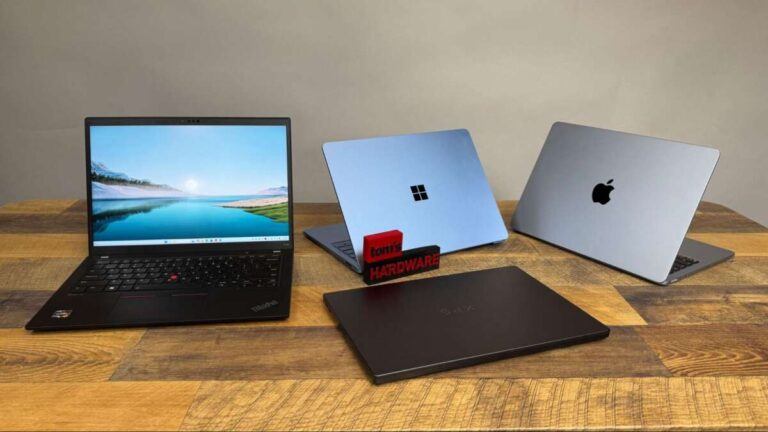
Examples of laptop families that may fit this class include the Lenovo Legion Pro 7i, ASUS ROG Strix Scar 16, Acer Predator Helios 16, and Razer Blade 16, when configured with a suitable RTX 4080 or better GPU.
These model lines change each year. Check the exact configuration before buying. A laptop name alone does not tell you its GPU power, port support, memory, or cooling quality.
For a lower-cost choice, look for an RTX 4070 laptop with 32GB of RAM. For a premium setup, an RTX 4090 or RTX 5080 laptop may offer more performance, but the price, heat, and weight rise sharply.
What makes a laptop good for VR?
A VR laptop must do more than run a game on its built-in screen. It must render two images at high speed, send those images to a headset, and keep frame timing stable while tracking head movement.
That makes the graphics card the most important part. The processor, cooling system, memory, ports, and wireless network also matter.
Graphics card
The GPU has the greatest effect on VR performance.
A useful buying guide is:
| Laptop GPU | VR suitability | Best use |
|---|---|---|
| RTX 4060 Laptop GPU | Good entry level | Older VR games and moderate settings |
| RTX 4070 Laptop GPU | Strong mainstream choice | Most PC VR games |
| RTX 4080 Laptop GPU | Best balance for demanding VR | High headset resolution and newer games |
| RTX 4090 Laptop GPU | Very fast, but costly | Maximum laptop performance |
| RTX 50-series Laptop GPU | Depends on the exact model | Newer systems with updated features |
Laptop GPUs are not the same as desktop GPUs with similar names. Their power limits vary by model. An RTX 4070 running at a higher wattage can outperform a lower-power version in another laptop.
Look for the laptop GPU’s maximum graphics power, often listed in watts. A high-power GPU usually performs better, but it may also create more heat and fan noise.
Processor
VR games still need a capable CPU for game logic, physics, background tasks, and tracking data.
A recent Core i7, Core Ultra 7, Ryzen 7, or better is a sensible target. A high-end Core i9 or Ryzen 9 can help in simulation games, flight simulators, strategy games, and titles with large virtual worlds.
Do not sacrifice the GPU just to get a more expensive processor. For most VR games, the better balance is a strong RTX GPU with a modern eight-core-class processor.
Memory
Choose 32GB of RAM if your budget allows it.
Many VR games can run with 16GB, but 32GB helps when you use:
- A game launcher
- Voice chat
- A web browser
- Streaming software
- Mods
- Virtual desktop software
- Background Windows services
Some gaming laptops allow memory upgrades. Others use soldered memory. Check this before buying, especially if you plan to keep the laptop for several years.
Storage
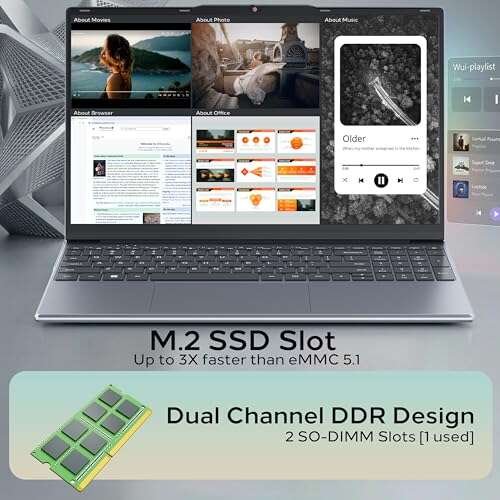
A 1TB NVMe SSD is a sensible minimum for a VR gaming laptop.
Modern games can use a large amount of space. VR libraries also include large texture packs, mods, and simulator content. A 512GB drive can fill quickly after Windows, updates, and a few large games.
A second SSD slot is useful. It lets you add storage later without replacing the original drive.

Best VR gaming laptop by budget
The best choice changes with your budget. The table below gives a practical target rather than a promise about any single model.
| Budget level | Recommended target | What it can handle | Main compromise |
|---|---|---|---|
| Entry level | RTX 4060, 16GB RAM | Many VR games at sensible settings | Less headroom for high resolution |
| Midrange | RTX 4070, 32GB RAM | Most PC VR games | May need some setting changes |
| High end | RTX 4080, 32GB RAM | Demanding games and higher resolutions | Higher cost and weight |
| Premium | RTX 4090 or RTX 5080, 32GB or more | Heavy simulators and long-term use | Very expensive and hot |
Best value: RTX 4070 laptop
An RTX 4070 laptop is often the best value for a US buyer who wants strong PC VR without paying for the largest GPU.
It can suit games such as Beat Saber, Half-Life: Alyx, No Man’s Sky, Microsoft Flight Simulator, and many racing or action titles. The exact result depends on the laptop’s power limit, cooling, headset, and game settings.
Choose a 32GB model when possible. Some lower-cost RTX 4070 laptops ship with 16GB, which may be enough at first but leaves less room for mods and multitasking.
Best overall performance: RTX 4080 laptop
An RTX 4080 laptop is the better target if you use a high-resolution headset or play demanding simulation games.
It provides more graphics headroom for supersampling. Supersampling renders the game at a higher internal resolution before sending it to the headset. This can improve image detail, but it also raises GPU demand.
A 4080 laptop is also a better fit for users who want to keep the system for several years. It still cannot match the cooling and upgrade options of a desktop PC, but it gives a laptop more breathing room.
Best premium option: RTX 4090 or RTX 5080 laptop
A top-tier laptop can make sense for a buyer who needs a portable system for work, travel, and VR.
It is less attractive if the laptop will stay on a desk. A desktop PC usually offers better performance per dollar, easier upgrades, and quieter cooling.
Do not buy a premium GPU only because the name sounds faster. Compare the exact GPU power, CPU, cooling system, display, and price. A well-cooled RTX 4080 laptop can be a smarter purchase than a thin, expensive laptop with a higher model number but a lower power limit.
Which laptop brands and models should you consider?
Brand matters less than the exact configuration, but some product families commonly offer the parts needed for PC VR.
Lenovo Legion Pro 7i
A Legion Pro 7i configuration with an RTX 4080 or higher can be a strong all-around choice.
It typically targets high performance, includes a large cooling system, and offers useful connectivity. Its main drawbacks are weight, fan noise under load, and a large power adapter.
Verify the specific generation and port layout. Lenovo can change the display, GPU, memory, and connector selection between configurations.
ASUS ROG Strix Scar 16
The ROG Strix Scar 16 line is designed for demanding gaming. An RTX 4080 or higher configuration can suit VR, especially when paired with 32GB of memory.
Its larger chassis can help with cooling. The trade-off is portability. It is better for moving between rooms or locations than for frequent airline travel.
Acer Predator Helios 16
The Predator Helios 16 can be a useful value option when sold with an RTX 4070 or RTX 4080.
Check the included memory and storage carefully. Retail configurations can differ widely. Also confirm that the USB-C port supports the video mode needed by your headset.
Razer Blade 16
The Razer Blade 16 offers a more compact and premium design than many large gaming laptops. Higher-end configurations can provide strong VR performance.
The key limitation is price. You may pay more for the chassis and design, while a thicker laptop may deliver similar gaming performance for less money.
Alienware m16
The Alienware m16 family can offer powerful components and a large cooling system. It may suit buyers who want a desktop-like gaming laptop.
As with every option here, check the GPU power, port functions, weight, and charger size. These details affect VR use more than the product name.
Check headset compatibility before you buy
The best laptop for VR gaming must match your headset.
Meta Quest 2, Quest 3, and Quest 3S
Meta Quest headsets can play PC VR games through:
- A compatible USB cable with Quest Link
- Air Link over a suitable Wi-Fi network
- A third-party wireless PC VR application
For a wired connection, the laptop needs a suitable USB port. The cable must support data transfer, not only charging.
For wireless play, connect the laptop to the router with Ethernet when possible. This reduces one wireless hop. Place the headset on a fast 5 GHz or 6 GHz network, with the laptop and router in a sensible location.
A laptop’s Wi-Fi connection can work, but wireless PC VR is sensitive to congestion, distance, walls, and router quality.
Valve Index
The Valve Index normally needs a DisplayPort connection and USB connection. A laptop must provide a compatible display output.
USB-C is not automatically DisplayPort. The port must support DisplayPort Alt Mode, and the laptop’s internal wiring must route that signal to the dedicated GPU.
Some laptops use HDMI instead of DisplayPort. That may not work with a Valve Index without the correct adapter, and not every adapter supports the required signal.
HTC Vive and Vive Pro
HTC Vive systems vary by model. Some use HDMI, DisplayPort, or a link box with specific requirements.
Check the headset’s official connection guide and the laptop’s manual. Do not assume that a small video adapter will solve every compatibility issue.
Windows Mixed Reality headsets
Windows Mixed Reality support depends on the headset model and current Windows support. Microsoft has changed the platform over time, so verify support before buying a laptop specifically for this purpose.
PlayStation VR2 on PC
PlayStation VR2 can work with a PC through Sony’s PC adapter and the required software. It needs a compatible DisplayPort connection and enough USB connectivity.
Check the current official requirements for the adapter. A laptop with only HDMI may not be a good fit.
Ports matter more than many buyers expect
A powerful laptop can still be a poor VR choice if its ports do not match the headset.
Before buying, check these items in the manufacturer’s technical specifications:
- USB-C with DisplayPort output
- The version and speed of USB-A and USB-C ports
- HDMI version
- Whether video output connects to the dedicated GPU
- Number of available USB ports
- Charging and power delivery behavior
- Headset-specific adapter requirements
A USB-C port may support charging, data, video, or only some of these functions. Product photos often do not provide enough information.
The safest method is to read the laptop’s manual or detailed specification page. Search for terms such as DisplayPort 1.4, DisplayPort Alt Mode, USB 3.2, and dedicated GPU display output.
Wired versus wireless PC VR
Wired VR is usually easier to troubleshoot. Wireless VR is more convenient but depends on your network.
Wired VR
A cable can provide a stable link with low network dependence. It also avoids wireless congestion.
Its disadvantages are clear: the cable can catch on furniture, limit movement, and require a port on the laptop. USB cables can also vary in quality and length.
Use a cable made for high-speed data if your headset requires USB Link. A charge-only cable will not work for PC VR data.
Wireless VR
Wireless PC VR removes the cable from the play space. It can feel more natural, especially in room-scale games.
For better results:
- Connect the laptop to the router by Ethernet if practical.
- Use a modern 5 GHz or 6 GHz Wi-Fi network.
- Keep the router near the play area.
- Reduce other heavy network traffic.
- Test the connection before changing many game settings.
Wireless VR problems may look like GPU problems. Stutter, image compression, and delayed movement can come from network congestion rather than a weak laptop.
How much laptop performance do VR games need?
VR performance depends on more than average frames per second. The system must deliver frames on time.
A missed frame can cause a visible hitch. In a headset, this may feel worse than a small frame-rate drop on a normal monitor.
The main variables are:
- Headset resolution
- Refresh rate
- Game engine
- Graphics settings
- Render scale
- Motion smoothing or reprojection
- GPU power limit
- CPU load
- Temperature
- Connection type
A headset set to 120 Hz asks for more consistent frame delivery than one set to 72 or 90 Hz. A high-resolution headset also requires more rendering work.
When a game struggles, lower settings in this order:
- Render scale or supersampling
- Shadows
- Reflections
- Volumetric effects
- Texture quality, if video memory is full
- Crowd or simulation settings
Keep textures higher when the GPU has enough video memory. Lowering render scale often improves performance more quickly, but it can make the image look less sharp.
Why frame timing matters
Suppose a headset runs at 90 Hz. The system has about 11.1 milliseconds to produce each frame. This is a simplified target, not a guarantee of real-world performance.
A laptop that averages 90 frames per second may still feel poor if frame times jump during busy scenes. Stable delivery matters more than a high number in a simple room.
Use the headset software and in-game performance tools to find the cause. Watch GPU usage, CPU usage, temperatures, and frame timing rather than relying only on an average frame-rate counter.
Cooling, battery life, and portability
A VR laptop should be used while plugged into AC power.
High-performance laptops reduce power use on battery. This can lower GPU speed and make demanding VR games unstable. Battery life is also short under heavy gaming loads.
Cooling affects sustained performance. A thin laptop may look easier to carry, but a thicker design often has more room for fans, heat pipes, and a higher GPU power limit.
Expect:
- Fan noise during VR
- Warm surfaces
- A large power adapter
- Reduced performance on battery
- More dust over time
- Possible performance limits in a hot room
Keep the laptop on a hard, flat surface. Do not block the air intakes. Clean dust from vents with the laptop powered off and follow the manufacturer’s instructions.
For VR, a 16-inch laptop is often a better balance than a 14-inch model. It gives the cooling system more room while remaining easier to move than a 17-inch system.
Common buying mistakes
The most common mistake is buying by GPU name alone.
An RTX 4070 in one laptop may not perform like an RTX 4070 in another. Check the power limit, cooling design, CPU, memory, and display connection.
Other mistakes include:
- Buying 16GB of RAM when the system cannot be upgraded
- Choosing a 512GB SSD for a large game library
- Assuming every USB-C port supports video
- Assuming HDMI will work with every headset
- Ignoring the laptop’s charger size
- Expecting desktop-level performance from a thin laptop
- Using Wi-Fi VR with a distant or overloaded router
- Buying a charge-only USB cable
- Running VR on battery power
- Ignoring the headset’s own PC requirements
Also check return terms. Compatibility problems can appear only after you install the headset software and test a real game.
A simple buying checklist
Use this checklist before ordering a laptop for VR gaming:
- RTX 4070 or better for a strong mainstream system
- RTX 4080 or better for demanding games and higher resolution
- 32GB RAM preferred
- 1TB SSD preferred
- Recent Core i7/Core Ultra 7 or Ryzen 7 processor
- USB-C DisplayPort support if your headset needs it
- Correct HDMI or DisplayPort connection
- High GPU power limit
- Strong cooling
- Wi-Fi 6E or better for wireless VR
- Upgradeable storage if possible
- AC power available near the play area
- Headset software confirmed to support the laptop
The exact headset should decide the port requirements. The games should decide how much GPU power you need.

Frequently asked questions
Can an RTX 4060 laptop run VR?
Yes. An RTX 4060 laptop can run many PC VR games. It is best for buyers who accept moderate settings and do not plan to use very high render resolution.
The result depends on the laptop’s GPU power, cooling, headset, and game. A high-power RTX 4060 may perform better than a low-power version.
Is an RTX 4070 laptop enough for Quest 3?
In many cases, yes. An RTX 4070 laptop is a sensible target for Quest 3 PC VR.
Demanding games may still need lower render scale or graphics settings. Wireless performance also depends on the router and network, not only the laptop.
Do I need 32GB of RAM for VR?
You do not always need 32GB, but it is the better choice for a new laptop.
Sixteen gigabytes can run some VR games. Thirty-two gigabytes gives more room for mods, simulators, browsers, streaming, and future software.
Can a MacBook run PC VR games?
Most MacBook models are not designed for the Windows PC VR ecosystem. Compatibility depends on the headset, operating system, graphics support, and software.
A Windows gaming laptop is the safer choice for SteamVR, Quest Link, and most PC VR libraries.
Is a laptop or desktop better for VR?
A desktop is usually better for performance, upgrades, cooling, and cost.
A laptop is better when you need one computer for travel, school, work, and gaming. Choose a laptop when portability has real value, not because it will outperform a desktop at the same price.
Can I use a laptop with a VR headset that needs DisplayPort?
Yes, if the laptop provides a compatible DisplayPort connection.
USB-C may work when it supports DisplayPort Alt Mode and routes video from the right GPU. Confirm this in the technical manual before you buy an adapter.
Final recommendation
For most US buyers, choose a well-cooled 16-inch Windows gaming laptop with an RTX 4070 and 32GB of RAM if you want a sensible balance of price and performance.
Choose an RTX 4080 laptop if you play demanding simulators, use a high-resolution headset, want more long-term headroom, or prefer fewer graphics compromises.
Before purchasing, verify the exact GPU power, memory configuration, cooling system, USB-C video support, and headset connection. Those details matter more than the brand name printed on the lid.

Everett Ashford is a tech reviewer at mytechgrid.com specializing in SSDs, cameras, TVs, earbuds, headphones, and other consumer electronics. He provides honest, data-driven reviews based on hands-on testing and real-world performance analysis. Everett simplifies complex tech details to help readers make smart, confident buying decisions.