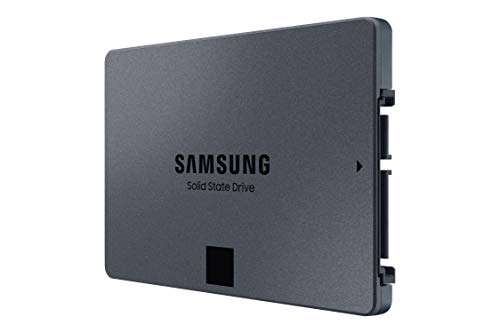
Most people should choose 500GB–1TB; gamers and creators often need 1–2TB or more.
I’ve guided dozens of readers and built rigs for clients, so I know how confusing choices around how much ssd memory do i need can be. This guide breaks the topic into clear steps, real-world examples, and simple checklists. Read on to learn practical advice, avoid common mistakes, and pick the right SSD size for your needs.
Understanding SSD capacity and why it matters
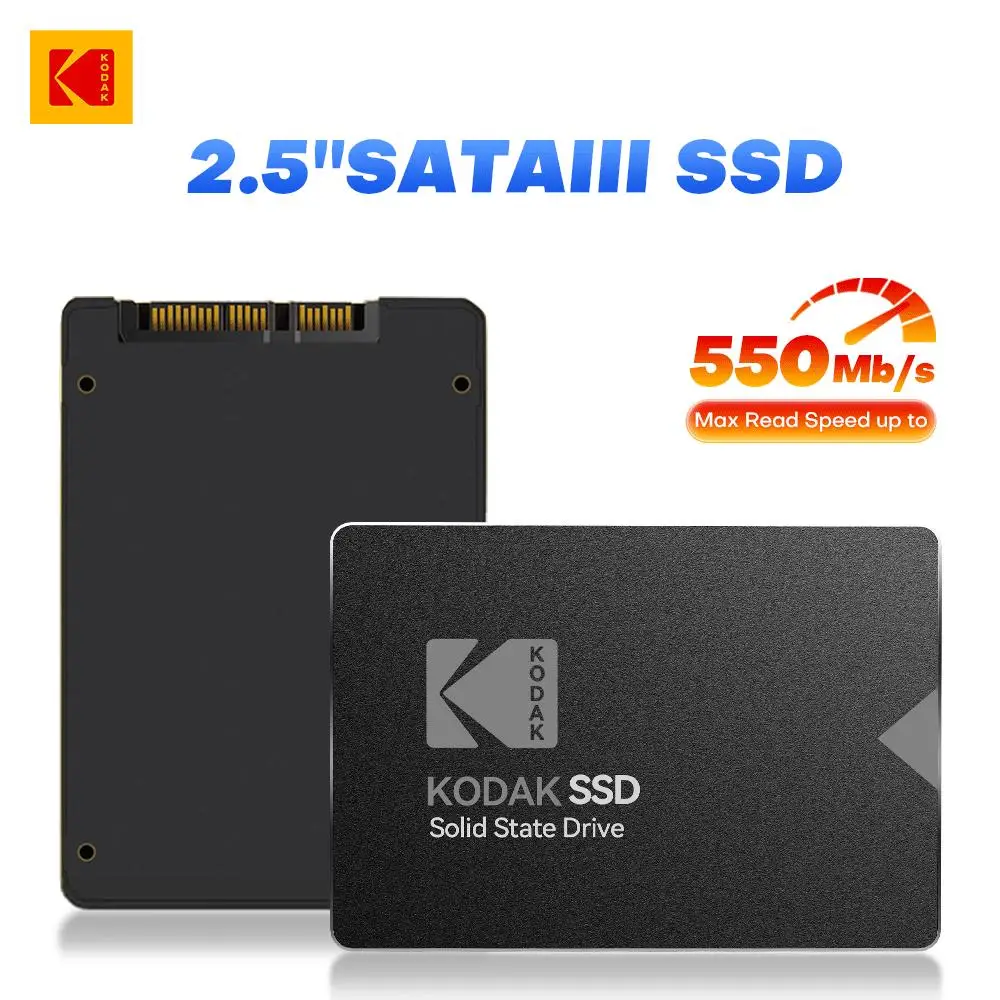
SSD capacity is the amount of storage space on the drive. It sets how many apps, files, games, and photos you can keep without adding external drives. Picking the right size matters for speed, cost, and long-term convenience.
Choosing too little SSD space forces constant housekeeping. Choosing too much wastes money you could spend on RAM or a faster CPU. I’ll walk you through common use cases so you can decide how much ssd memory do i need for your setup.
How SSD capacity is measured and real-world limits
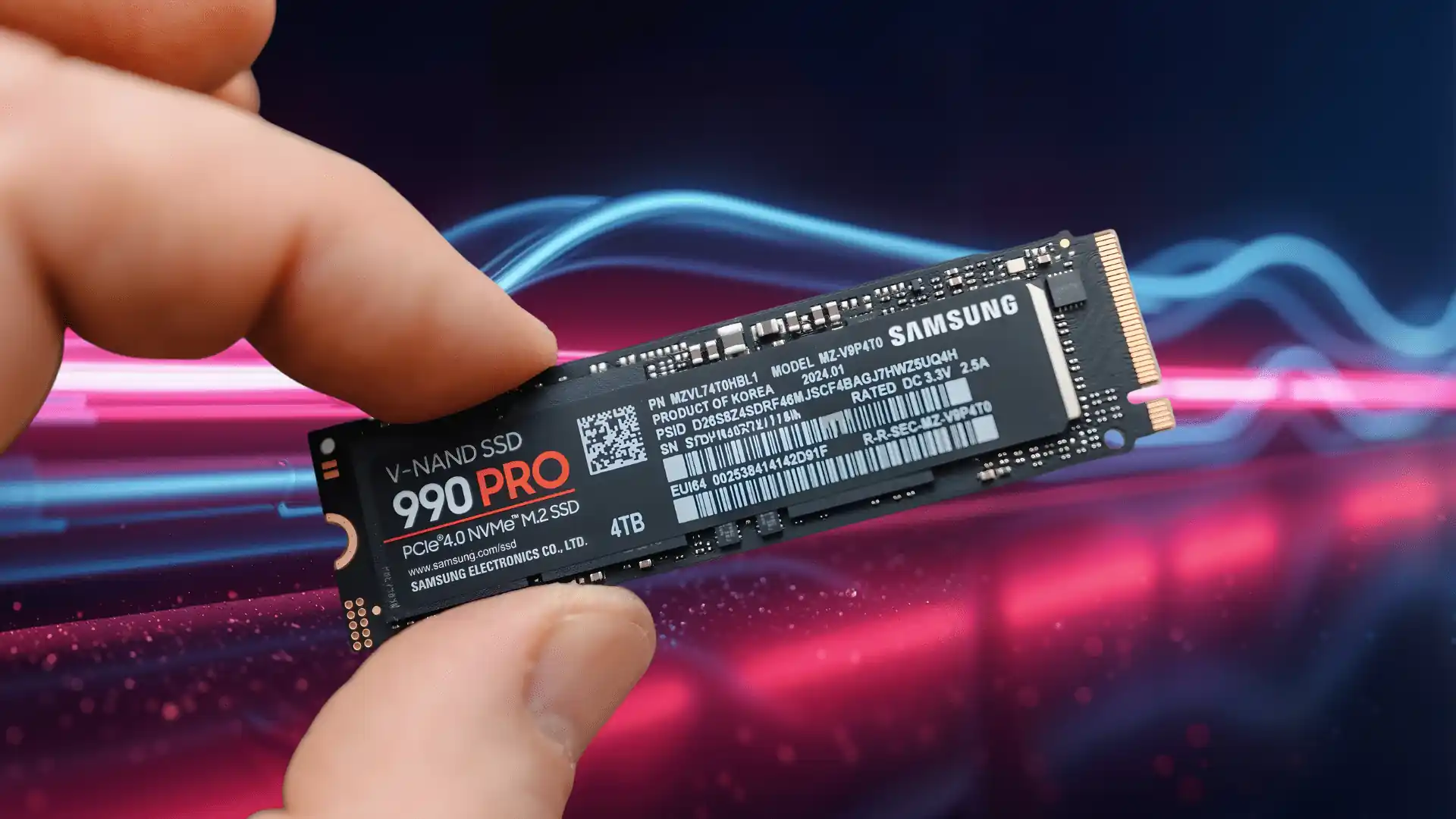
Manufacturers list SSDs in gigabytes (GB) and terabytes (TB). One TB equals 1,000 GB in marketing. Your computer may see slightly less space due to formatting and reserved system areas. That difference is normal and does not mean the drive is defective.
SSDs also reserve some blocks for wear leveling and performance. That means usable space is lower than the raw number. When asking how much ssd memory do i need, factor in usable space, not just the sticker number.
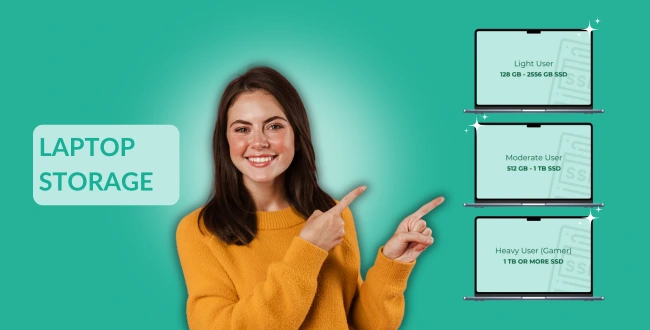
Recommended SSD sizes by use case
Below are common profiles and practical size recommendations. These help answer how much ssd memory do i need based on what you do.
-
Basic web use and office work
- 250GB to 500GB is usually fine.
- Store OS, apps, documents, and a few media files.
- Choose 500GB if you keep lots of photos or small media libraries.
-
Students and light creators
- 500GB to 1TB recommended.
- You’ll have room for projects, photo editing files, and casual games.
- Backup large media to cloud or external drives.
-
Gamers
- 1TB is a practical starting point.
- Modern AAA games can be 50–150GB each, so a 1TB drive holds several.
- Consider 2TB if you keep many titles installed at once.
-
Photo and video creators
- 1TB to 4TB or more depending on resolution and workflow.
- RAW photos and 4K video use lots of space fast.
- Many pros use NVMe drives for scratch space and a larger SATA or external drive for archives.
-
Power users, developers, and professionals
- 1TB to 2TB recommended.
- Virtual machines, large datasets, and multiple dev environments need room.
- Add an external archive or second internal drive for long-term storage.
-
Servers and workstation-grade needs
- Sizes vary; often 2TB+ or arrays for redundancy.
- Prioritize endurance ratings and backup strategies as well as size.
When you ask how much ssd memory do i need, match size to the files you use and your tolerance for managing storage. I once built a video editor’s workstation with a 2TB NVMe for active projects and a 10TB HDD for archival storage. That split kept fast editing and cost under control.
Practical checklist to decide how much SSD memory do i need
Follow these steps to pick a size you’ll be happy with.
- Audit current storage
- Check how much space you use now. Look at system folders, downloads, and media.
- Multiply current usage by 1.5 to allow growth.
- Define your main tasks
- List apps and file types. Big files need more space.
- Prioritize speed for active work, capacity for archives.
- Plan for future growth
- Add headroom for OS updates, app growth, and new games.
- If unsure, choose a slightly larger size than you currently need.
- Balance budget vs speed
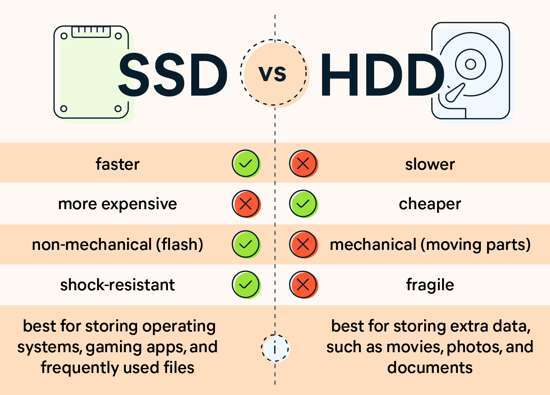
- NVMe drives cost more per GB than SATA. Decide if speed is worth the cost.
- Create a backup and archive plan
- Use external drives or cloud for files you don’t need every day.
These steps will help you answer how much ssd memory do i need with confidence. My tip: aim for at least 20–30% free space to keep SSD performance steady.
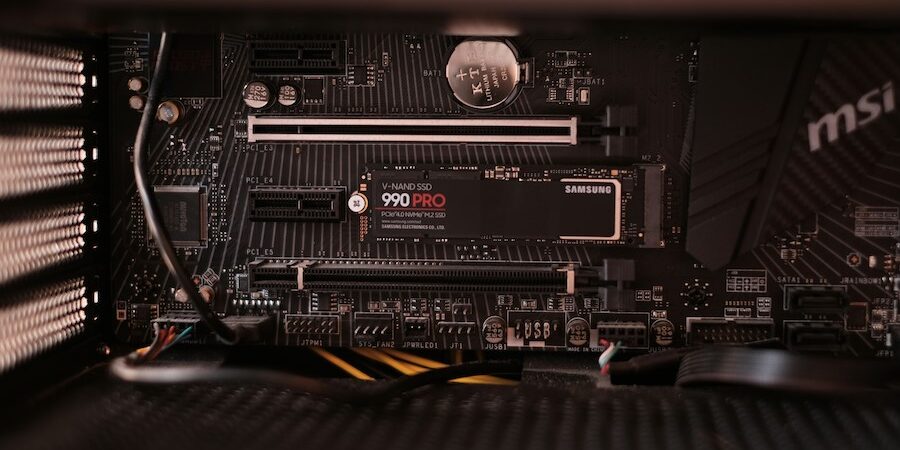
Tips to save space and extend SSD life
Space management and drive care can mean a smaller SSD works fine. Here are practical tips I use.
- Move large, infrequently used files to external drives or cloud.
- Use selective sync for cloud folders to keep only required files locally.
- Uninstall apps you don’t use and clean up temporary files regularly.
- Keep 20–30% of the SSD free to maintain performance.
- Avoid filling consumer SSDs to the max; it can shorten lifespan and slow writes.
I learned these the hard way after a small 256GB laptop drive filled up during a trip. Moving video files to a portable SSD saved the day and taught me to plan for temporary spikes in storage needs.
PAA-style questions you may have
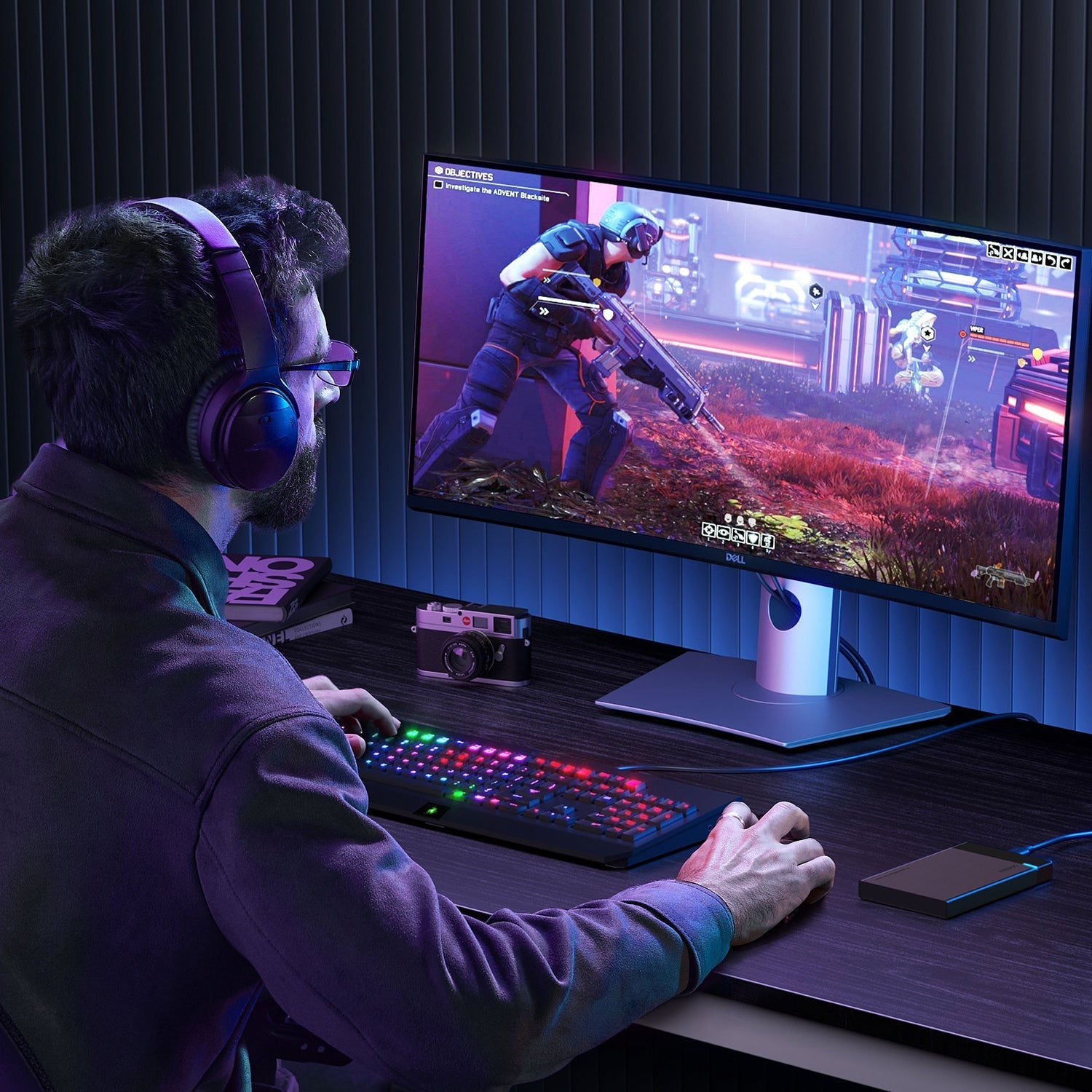
How much SSD for gaming on a budget?
- A 500GB SSD will run most games, but 1TB is a safer choice to avoid constant installs and deletes.
Will a smaller SSD affect performance?
- Performance drops mainly when the drive is nearly full. Keep free space for consistent speed.
Is NVMe worth it for general use?
- NVMe gives noticeable boot and app load speed. For simple browsing, SATA often feels fine.
How do I check current SSD usage?
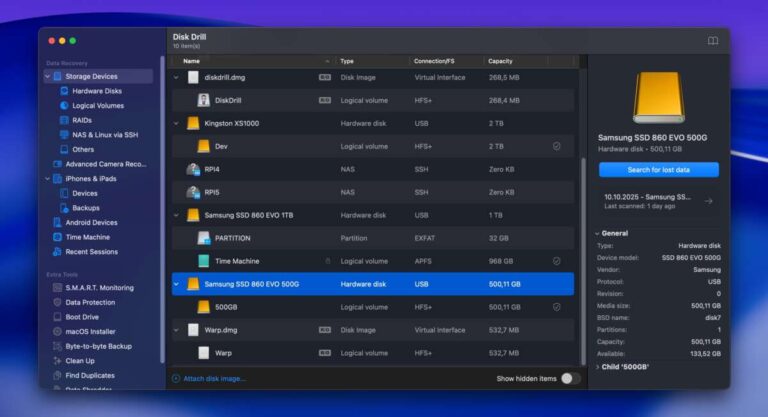
- Use your OS storage settings or disk tools to see used and free space. That shows real needs.
Should I buy the largest SSD I can afford?
- Buy the largest within budget if you want convenience. Balance price against other upgrades like RAM.
Personal mistakes, lessons, and best buys
I once recommended a client a 256GB SSD for a photo editor to save money. It filled quickly and caused constant juggling. We upgraded to 1TB and the workflow improved instantly. Lesson learned: under-provisioning costs time.
Best buy rules I follow:
- If you use large files, prioritize capacity first.
- If you want snappy performance, pick an NVMe drive and still size it for your files.
- Consider a two-drive approach: fast smaller SSD for OS and apps, larger drive for storage.
These practical rules reflect hands-on experience and can help answer how much ssd memory do i need in real life.
Making the final decision
Match your main tasks to a size band. Add 30–50% headroom. Think about backups and future growth. If budget allows, choosing a slightly larger drive saves hassle later.
When you weigh cost, speed, and capacity, you’ll find the best fit. Remember to factor in usable space, not just the marketing GB number. And keep a simple backup plan to protect important files.
Frequently Asked Questions of how much ssd memory do i need
How much SSD do I need for general office work?
For office work, 250GB to 500GB is usually enough for OS, apps, and documents. Choose 500GB if you store many photos or PDFs.
How much SSD for gaming?
A 1TB SSD is a good baseline for modern gaming to hold multiple large titles. If you own 20+ games or large AAA titles, consider 2TB.
How much SSD for photo editing and hobby video?
Aim for 1TB to 2TB for photo and hobby video work to keep projects local and fast. Use an external archive for old projects.
Is 256GB SSD still usable in 2026?
Yes, 256GB works for light users who primarily use cloud storage and web apps. It becomes tight if you keep many local files or big apps.
Can I mix SSD sizes in one PC?
Yes, combining an NVMe boot drive with a larger SATA or external drive is common. This gives speed where you need it and capacity for storage.
How often should I upgrade my SSD size?
Upgrade when you run below 25% free space or when your work needs change significantly. Many users upgrade every 3–5 years.
Conclusion
Choose SSD size by matching storage needs to your daily tasks. Aim for at least 500GB if you want comfort, 1TB for gaming or light creation, and 2TB+ for heavy media work. Keep free space for performance and use backups to protect important files. Take one small action today: check your current drive usage and pick an SSD size that gives you 30–50% headroom. If this guide helped, subscribe for more hardware tips or leave a comment with your setup and I’ll help you choose the right SSD.

Everett Ashford is a tech reviewer at mytechgrid.com specializing in SSDs, cameras, TVs, earbuds, headphones, and other consumer electronics. He provides honest, data-driven reviews based on hands-on testing and real-world performance analysis. Everett simplifies complex tech details to help readers make smart, confident buying decisions.