Connect the SSD to the correct motherboard port, secure it, then confirm it in BIOS and your operating system.
Learning how to connect a SSD to a motherboard is simple once you identify the drive type. A 2.5-inch SATA SSD uses a data cable and a power cable, while an M.2 SSD fits directly into a small slot on the motherboard. This guide explains both methods, shows common mistakes, and helps you verify that the new drive works correctly.
Identify your SSD type before installation
The first step in learning how to connect a SSD to a motherboard is checking the drive’s shape and interface. SSDs do not all use the same connection. Using the wrong slot or cable can prevent the drive from appearing.
Most desktop SSDs use one of these formats:
• 2.5-inch SATA SSD: A slim rectangular drive that uses a SATA data cable and a SATA power connector.
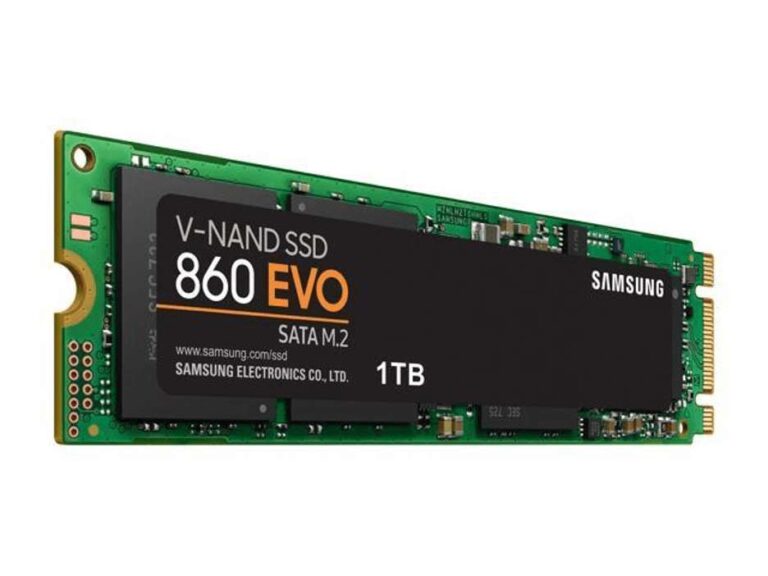
• M.2 SATA SSD: A small circuit board that fits into an M.2 slot but uses the older SATA protocol.
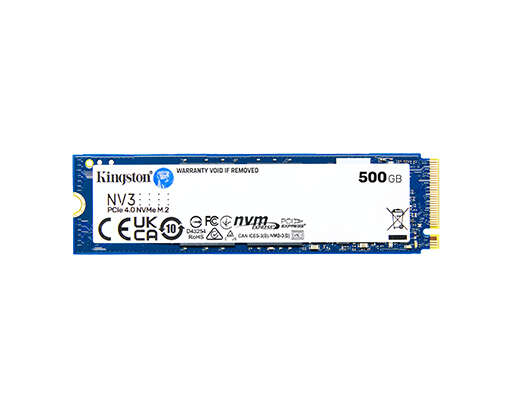
• M.2 NVMe SSD: A small circuit board that fits into an M.2 slot and uses PCIe for much faster data transfer.
• PCIe SSD expansion card: A full-size card that fits into a PCIe slot, much like a graphics card.
Check the label on the SSD or its product manual. The words “SATA,” “NVMe,” “PCIe,” and “M.2” provide useful clues. The term M.2 describes the physical shape, not always the data protocol.
A SATA M.2 drive may not work in an M.2 slot designed only for NVMe drives. Some motherboard slots support both types, but others support just one. Your motherboard manual is the most reliable source for this detail.
What you need
Gather these items before opening the computer:
• The SSD
• A compatible SATA data cable, if needed
• An available SATA power connector from the power supply, if needed
• A small Phillips screwdriver
• Your motherboard manual
• A clean, well-lit work area
• An anti-static wrist strap, if available
Do not force any connector. Computer parts are designed to fit with light pressure. If a plug does not line up, stop and check its direction.
Prepare the computer safely
Before you learn how to connect a SSD to a motherboard, shut down the computer fully. Do not install a drive while the system is running.
Follow these steps:
-
Shut down Windows, Linux, or macOS.
-
Turn off the power supply switch.
-
Unplug the computer from the wall.
-
Press the power button for five seconds.
-
Move the computer to a stable table.
-
Remove the side panel.
-
Touch the metal computer case to discharge static electricity.
If you use an anti-static wrist strap, attach it to an unpainted metal part of the case. Avoid working on carpet when possible. Static damage is uncommon, but basic care costs little.
Back up important files before changing hardware. Installing a second SSD normally does not erase your existing files. However, mistakes can happen during drive cloning, partitioning, or operating system installation.
A useful habit is to take a photo of the inside of the computer before disconnecting anything. This simple step makes it easier to restore cable placement later.
One common mistake is confusing the power supply with the motherboard. SATA power cables come from the power supply. SATA data cables connect the drive to the motherboard. They perform different jobs and cannot replace each other.
How to connect a 2.5-inch SATA SSD to a motherboard
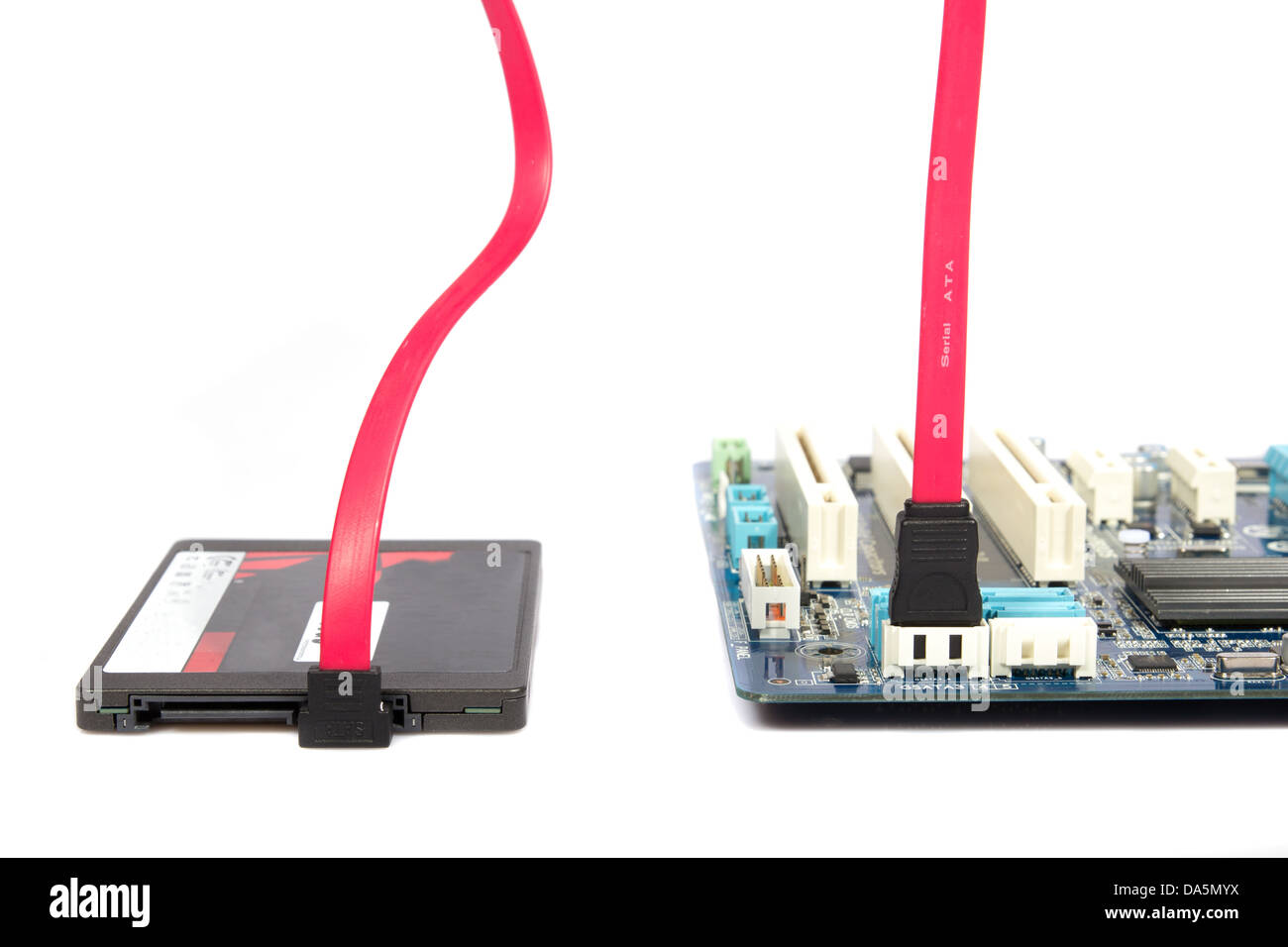
A 2.5-inch SATA SSD is one of the easiest drives to install. It needs two separate connections:
• A SATA data cable between the SSD and the motherboard
• A SATA power cable between the SSD and the power supply
The drive also needs physical support. Many computer cases include 2.5-inch mounting points. Some cases use a drive tray, while others use small screws behind the motherboard tray.
Step-by-step SATA SSD installation
-
Find an open 2.5-inch drive mount in the computer case.
-
Place the SSD in the mount with its connectors facing the cable opening.
-
Secure the drive with the correct screws.
-
Plug one end of the SATA data cable into the SSD.
-
Plug the other end into an open SATA port on the motherboard.
-
Connect a SATA power plug from the power supply to the SSD.
-
Check that both plugs are fully inserted.
The SATA data connector is thin and L-shaped. The SATA power connector is wider and also uses an L-shaped key. The angled shape prevents incorrect insertion.
Motherboard SATA ports are often placed along the right edge of the board. They may be labeled SATA0, SATA1, SATA2, or SATA3. Use the lowest available port number when practical. This is not required for most systems, but it makes troubleshooting easier.
Some motherboards disable certain SATA ports when specific M.2 slots are in use. This shared-lane design is listed in the motherboard manual. If a new SATA SSD does not appear, try another SATA port and check the manual.
SATA power and data cables are different
A SATA data cable is narrow and usually has seven pins. It connects to the motherboard. A SATA power connector is wider and has 15 pins. It comes from the power supply.
Never try to use a modular power cable from another power supply brand. Modular cables can look similar but use different pin layouts. A mismatched cable can damage the SSD and other components.
When people ask how to connect a SSD to a motherboard, this cable difference is often the key point. The motherboard sends data through the SATA data cable. The power supply delivers electricity through the SATA power cable.

How to connect an M.2 SSD to a motherboard
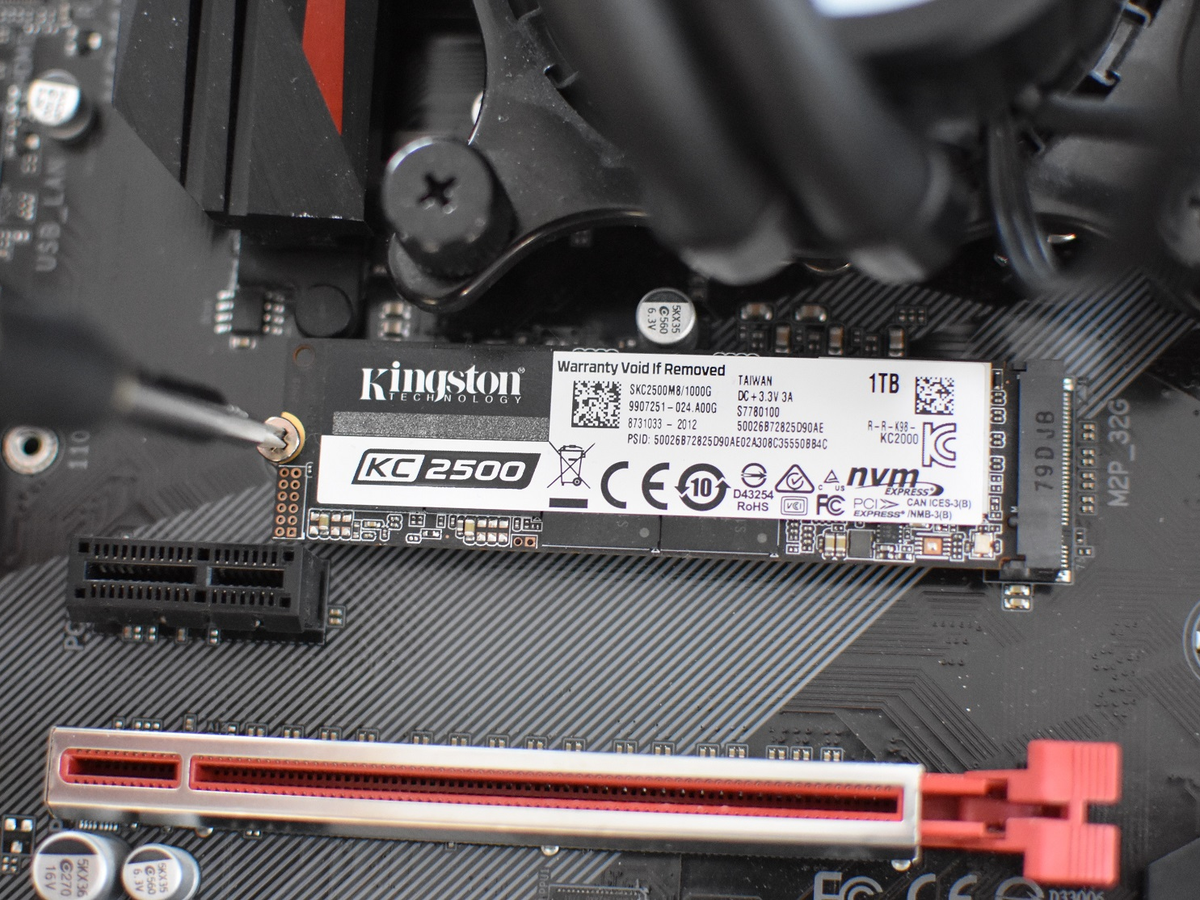
An M.2 SSD installs directly into a compatible slot. It does not need a SATA data cable or a separate power cable.
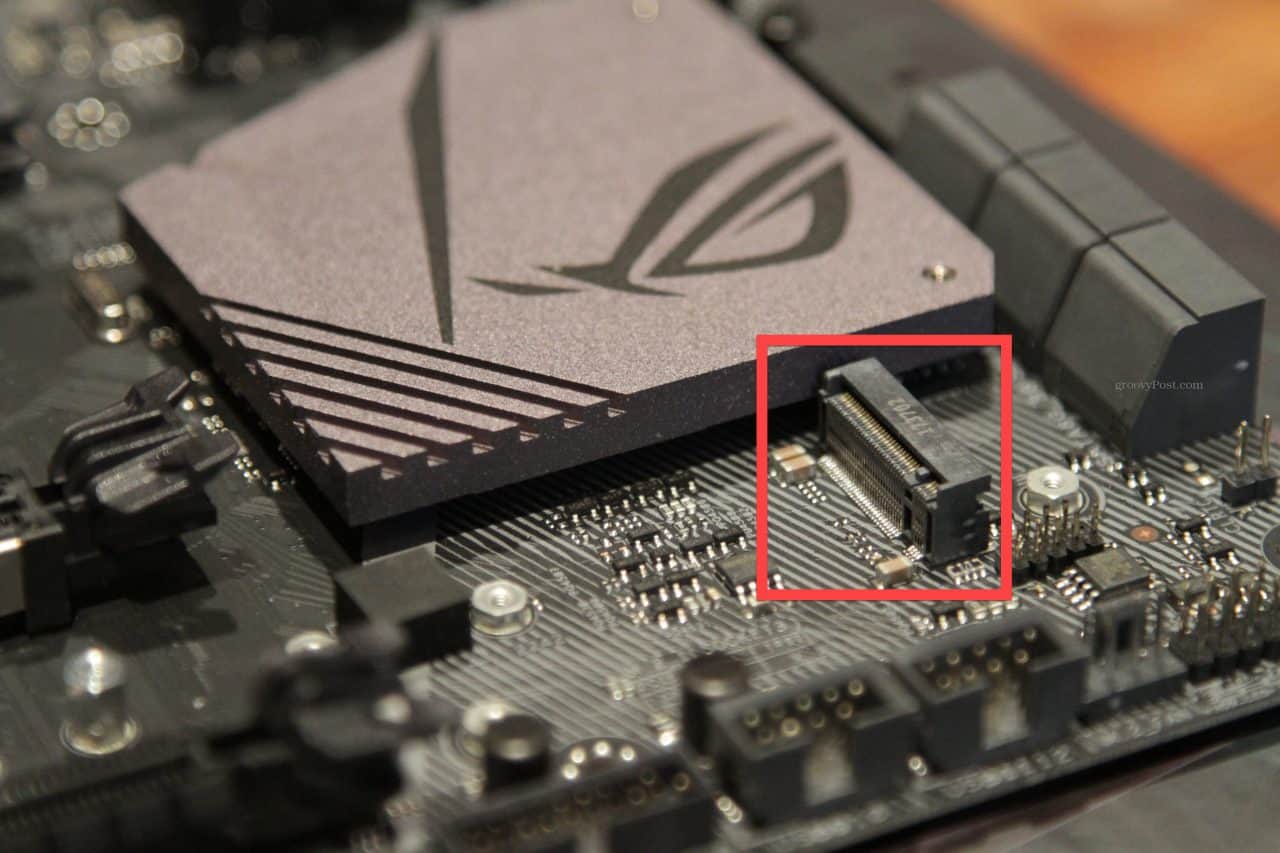
Before learning how to connect a SSD to a motherboard with an M.2 slot, confirm the drive and slot support the same protocol. An NVMe SSD needs an M.2 slot with PCIe support. An M.2 SATA SSD needs a slot that supports SATA.
Step-by-step M.2 SSD installation
-
Find the M.2 slot on the motherboard.
-
Check the printed label near the slot.
-
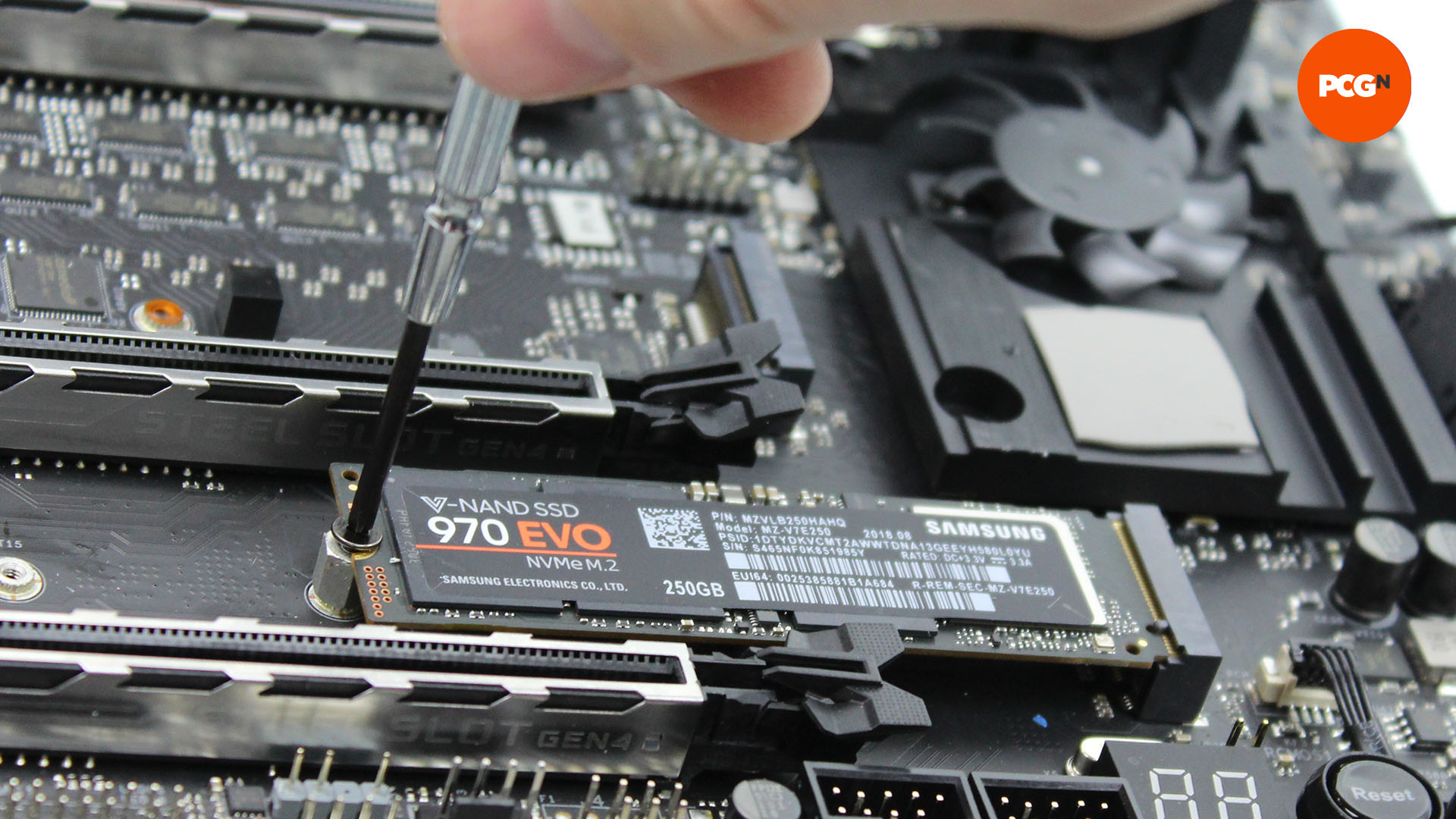
Remove the small M.2 retaining screw or heatsink.
-
Hold the SSD by its edges.
-
Match the notch on the SSD with the key inside the slot.
-
Insert the SSD at about a 20- to 30-degree angle.
-
Press the free end down toward the motherboard.
-
Secure the SSD with the retaining screw.
-
Reinstall the M.2 heatsink if your motherboard includes one.
The SSD should slide into the slot with modest pressure. Do not push it straight down. Insert it at an angle first, then lower it flat.
The retaining screw should hold the drive in place without crushing it. Tighten it until the SSD is secure. Do not overtighten the screw.
Some motherboards include a tool-free latch instead of a screw. The installation process is similar, but follow the board’s manual.
M.2 heatsink tips
High-speed NVMe drives can become warm during large file transfers. A motherboard heatsink can help reduce heat. Remove any plastic film from the thermal pad before replacing the heatsink.
Do not remove the label from the SSD unless the manufacturer says it is safe. Some labels act as part of the heat-spreading design. Removing one may affect the warranty.
The top M.2 slot is often connected directly to the processor and may provide the best performance. Other M.2 slots may connect through the chipset. Both can work well, but the manual explains the exact layout.
How to connect a SSD to a motherboard with a PCIe adapter
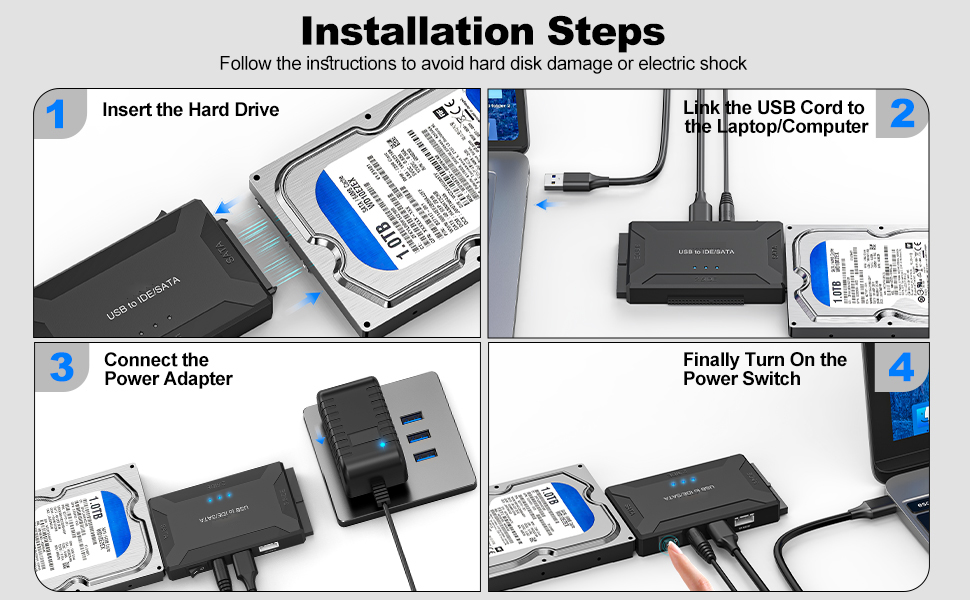
Some desktop computers do not have a compatible M.2 slot. You can still install an NVMe SSD with a PCIe adapter card.
This method uses three parts:
• An NVMe SSD
• An M.2-to-PCIe adapter
• An open PCIe slot
Install the SSD onto the adapter first. Secure it with the supplied screw. Then turn off the computer, remove the case’s expansion slot cover, and insert the adapter into a compatible PCIe slot.
A PCIe x4, x8, or x16 slot can usually provide enough lanes for an NVMe adapter. However, the motherboard and adapter must support NVMe booting if you plan to install the operating system on the drive.
A PCIe adapter does not automatically make every old computer boot from an NVMe SSD. Older firmware may detect the drive only as storage. Check the motherboard manufacturer’s support information before using it as a boot drive.
This method is useful for adding storage to an older desktop. It may also improve airflow because the drive sits away from crowded SATA cable areas.
Check motherboard compatibility first
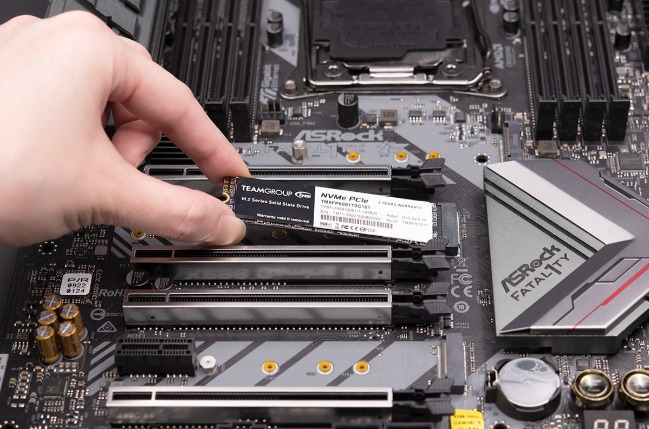
Compatibility is the most important part of learning how to connect a SSD to a motherboard. A physical fit does not always mean electrical compatibility.
Review these details:
• M.2 slot type: Confirm SATA, NVMe, or both.
• M.2 key: Most NVMe drives use an M-key. Some SATA M.2 drives use a B-key or B+M key.
• Drive length: Common lengths include 2230, 2242, 2260, and 2280.
• PCIe generation: PCIe 3.0, 4.0, and 5.0 drives can often work across generations, but speed may be limited.
• SATA port sharing: Some M.2 slots disable one or more SATA ports.
• Firmware support: Older boards may need a BIOS update for NVMe boot support.
A PCIe 4.0 SSD can work in a PCIe 3.0 slot in many systems. It will normally run at the slower PCIe 3.0 speed. The same principle applies when a newer SSD works in an older compatible slot.
Read the motherboard manual instead of relying only on product photos. The manual shows which slots share lanes and which slot supports the operating system as a boot device.

Turn on the SSD in BIOS or UEFI
After learning how to connect a SSD to a motherboard, the next step is checking whether the firmware detects it.
Start the computer and press the setup key during startup. Common keys include Delete, F2, F10, or Esc. The correct key usually appears briefly on the screen.
Look for a menu named Storage, NVMe Configuration, SATA Information, or Boot. The exact name differs by motherboard brand.
If the SSD appears, the physical installation is likely correct. If it does not appear, shut down the computer and inspect the connections.
Try these checks:
• Reseat the M.2 SSD.
• Confirm the SATA power cable is connected.
• Try another SATA data cable.
• Try another SATA motherboard port.
• Check whether an M.2 slot disables a SATA port.
• Update the motherboard firmware if needed.
• Confirm the drive type matches the slot.
Do not change advanced BIOS settings without a reason. AHCI is common for SATA storage, while NVMe drives use PCIe protocols automatically. Changing storage mode after installing Windows can sometimes cause a boot error.
Initialize and format the SSD in Windows
A new SSD may appear in BIOS but not in File Explorer. This often means Windows has not initialized or partitioned it yet.
To prepare a new SSD in Windows:
-
Right-click the Start button.
-
Select Disk Management.
-
Find the new drive by checking its capacity.
-
Right-click the disk label.
-
Choose Initialize Disk.
-
Select GPT for most modern computers.
-
Right-click the unallocated space.
-
Choose New Simple Volume.
-
Assign a drive letter.
-
Format the volume as NTFS.
Be very careful when selecting the drive. Formatting the wrong disk can erase personal files. Compare the capacity and existing partitions before making changes.
GPT is the normal choice for computers using UEFI firmware. MBR may be needed for some older systems, but it has limits with large drives and modern boot setups.
If you plan to use the SSD as a boot drive, do not simply create a storage volume and expect Windows to start from it. You must install Windows on the SSD or clone the old system drive.
Install Windows on the new SSD
A fresh Windows installation can give the best result when moving from an old hard drive to an SSD. It removes old drivers, unwanted software, and years of clutter.
Before starting, back up your files. Create a Windows installation USB with Microsoft’s official media tool. Then connect the SSD and start the computer from the USB drive.
During setup, select the new SSD as the installation target. Check the drive capacity carefully. Delete old partitions only on the target SSD if you are certain it contains no needed data.
Windows normally creates the required EFI, recovery, and system partitions automatically. After installation, install motherboard drivers, network drivers, graphics drivers, and important updates.
A clean installation is not always necessary. Cloning works well when you want to keep your apps and settings. However, cloning needs careful drive selection and enough free space on the new SSD.
Clone an existing drive to the SSD
Cloning copies the operating system, applications, settings, and files from one drive to another. It can save time, but it requires more care than a clean installation.
Before cloning:
• Back up important files.
• Check that the new SSD has enough usable space.
• Delete unnecessary files from the old drive.
• Install the SSD and confirm that the system detects it.
• Use reliable cloning software.
• Read every source and destination label carefully.
The source is the old drive. The destination is the new SSD. Reversing them can erase the original system.
After cloning, shut down the computer. If possible, disconnect the old drive for the first boot. This helps the motherboard choose the new SSD and prevents confusion between duplicate boot records.
If Windows starts from the SSD, reconnect the old drive and format it only after checking that all important files are available on the new drive.
Fix common SSD installation problems
Even when you know how to connect a SSD to a motherboard, a few problems can appear. Most are easy to solve when checked in the right order.
The SSD does not appear in BIOS
Check the physical connection first. An M.2 drive may not be fully inserted, or a SATA drive may lack power.
Then check the motherboard manual. The M.2 slot may support only NVMe or only SATA. A SATA port may also be disabled because another M.2 slot is active.
The SSD appears in BIOS but not Windows
Open Disk Management. The drive may need initialization, a partition, or a drive letter.
If the disk shows as offline, right-click it and select Online. Do not format it if it already contains important files.
The computer does not boot after installation
Enter BIOS and check the boot order. Select Windows Boot Manager on the new SSD.
If you cloned the drive, disconnect the old drive temporarily. If the issue continues, the clone may not include the correct EFI boot partition.
The M.2 SSD runs slower than expected
Check the PCIe generation and lane configuration. A PCIe 4.0 SSD in a PCIe 3.0 slot cannot reach PCIe 4.0 speeds.
Also check temperatures. Thermal throttling can reduce speed during long transfers. A motherboard heatsink or better airflow may help.
The computer shuts down after installation
Turn off the system and inspect for loose cables or a misplaced screw. A screw under the motherboard can cause a short circuit.
Also verify that the power supply cable belongs to the correct power supply. Never mix modular cables between brands or models.
Improve SSD performance and lifespan
Modern SSDs work well without special tuning. Still, a few habits help maintain stable performance.
• Keep at least 10% to 20% free space when possible.
• Install the latest motherboard chipset drivers.
• Update SSD firmware only through the manufacturer’s trusted software.
• Keep the computer cool and dust-free.
• Enable TRIM, which modern operating systems usually manage automatically.
• Avoid repeatedly filling and deleting the entire drive.
• Keep backups of important files.
SSD speed also depends on the workload. A drive may reach its advertised speed in a benchmark but perform differently during long file copies. Sustained writes can slow when the cache fills. This behavior is normal for many consumer SSDs.
Do not defragment an SSD like an old hard drive. Modern operating systems use SSD-aware optimization, including TRIM. Let the operating system manage this process unless you have a specific reason to change it.
Personal lessons that prevent installation mistakes
One lesson technicians learn quickly is to slow down before pressing a connector. Most hardware problems come from using the wrong cable, choosing the wrong drive in a setup menu, or skipping the motherboard manual.
Another useful habit is to label old drives before cloning. Write “old drive” and “new SSD” on removable notes or use the capacity labels shown in the cloning software. This small step can prevent a very expensive mistake.
I also recommend testing the SSD before closing the case. Start the computer, check BIOS, open the operating system, and copy a test file. Once the drive passes those checks, shut down and replace the side panel.
Treat installation like connecting a new water pipe. The drive needs the right path, the right power, and a secure seal. Force does not improve the connection. Correct alignment does.
Frequently asked questions about how to connect a SSD to a motherboard
Can I connect a SATA SSD to an M.2 slot?
Only if the M.2 slot supports SATA devices. Many M.2 slots support NVMe only, so check the motherboard manual before buying or installing the drive.
Does an M.2 SSD need a power cable?
No. An M.2 SSD receives power through the M.2 slot. It does not need a separate SATA power or SATA data cable.
Can I use an NVMe SSD in any M.2 slot?
No. The slot must support NVMe and PCIe communication. Some M.2 slots support both NVMe and SATA, while others support only one type.
Why is my new SSD not showing in File Explorer?
The SSD may be visible in BIOS but not initialized in Windows. Open Disk Management, identify the correct drive, and create a partition and format it if the drive is new.
Can I install Windows on a new SSD?
Yes. You can perform a clean Windows installation or clone your existing system drive. Make a backup first, and confirm the correct target drive before deleting or formatting partitions.
Can I use both an old hard drive and a new SSD?
Yes. You can use the SSD for Windows and applications, then use the hard drive for extra files. Set the SSD or its Windows Boot Manager entry as the primary boot option.
Do I need to update BIOS for an NVMe SSD?
Not always. Many newer motherboards support NVMe drives automatically. Older motherboards may need a BIOS update for NVMe detection or boot support, so check the board manufacturer’s documentation.
Conclusion
Connecting an SSD to a motherboard comes down to three tasks: identify the drive type, use the correct connection, and verify the drive in BIOS and the operating system. A 2.5-inch SATA SSD needs data and power cables. An M.2 SSD fits into a compatible motherboard slot without extra cables.
Take your time, confirm compatibility, and never force a connector. After installation, initialize the drive or install Windows, then test it before closing the case. If this guide helped, explore your motherboard manual for its storage layout and share your installation experience in the comments.

Everett Ashford is a tech reviewer at mytechgrid.com specializing in SSDs, cameras, TVs, earbuds, headphones, and other consumer electronics. He provides honest, data-driven reviews based on hands-on testing and real-world performance analysis. Everett simplifies complex tech details to help readers make smart, confident buying decisions.