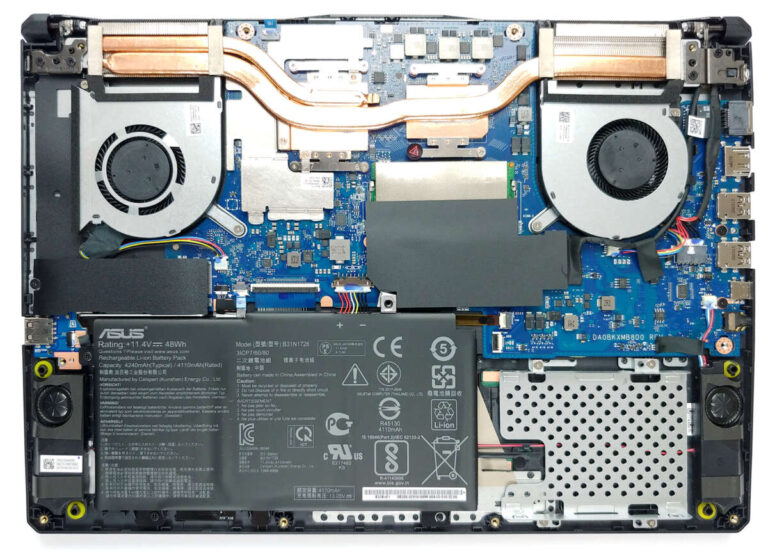
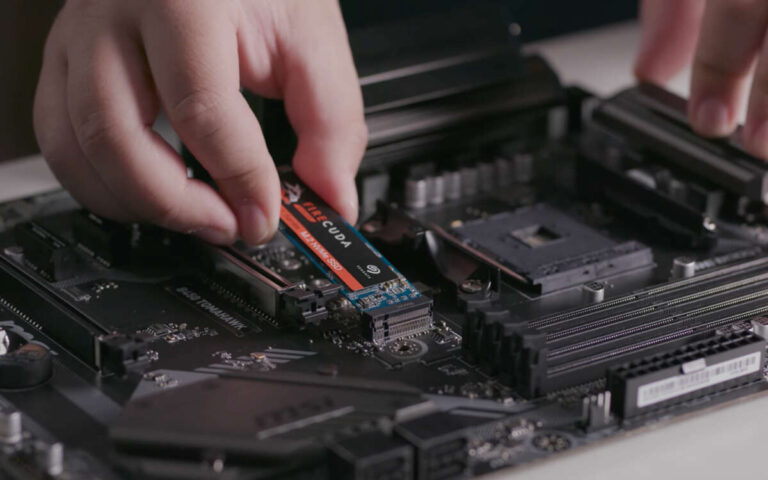
Solid-state drives store data on flash memory; hard disk drives use spinning disks and magnetic heads.
As someone who has built, upgraded, and troubleshooted dozens of PCs and laptops, I’ll explain clearly what is ssd and hdd, how they differ, and which one fits your needs. You’ll get plain definitions, real-world examples, simple buying advice, and practical tips for migration and care. Read on to make a confident choice about storage for work, gaming, or backups.
What is SSD and HDD: clear definitions
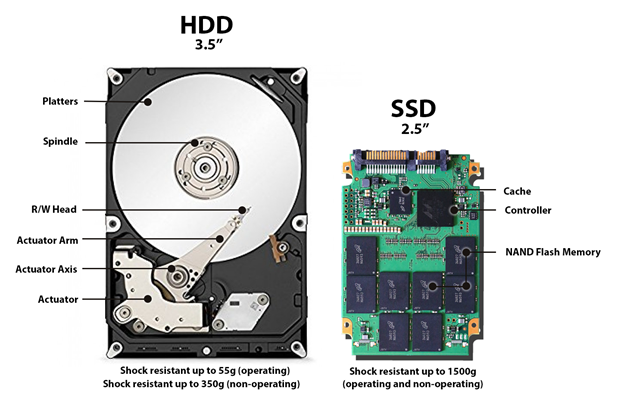
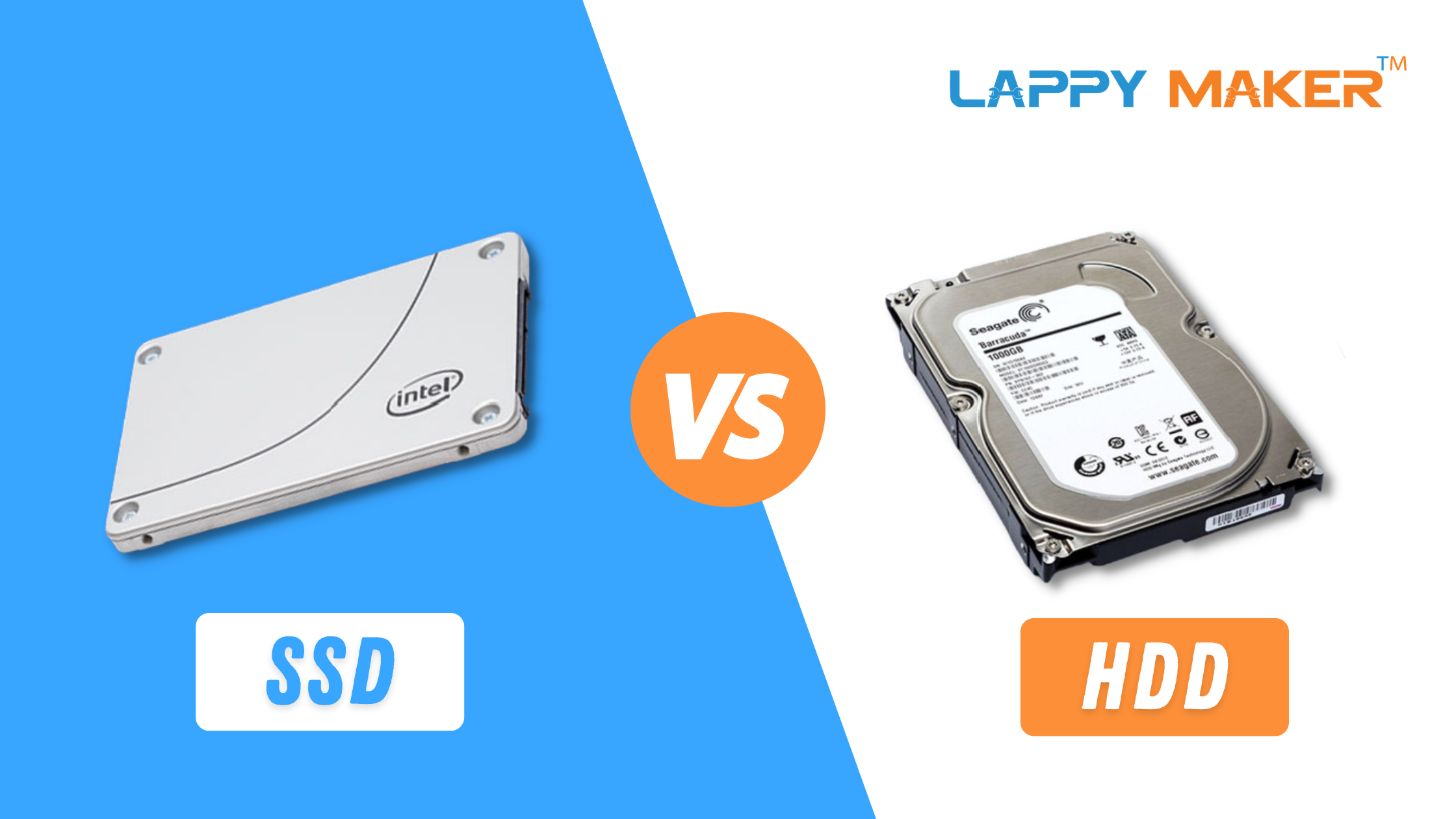
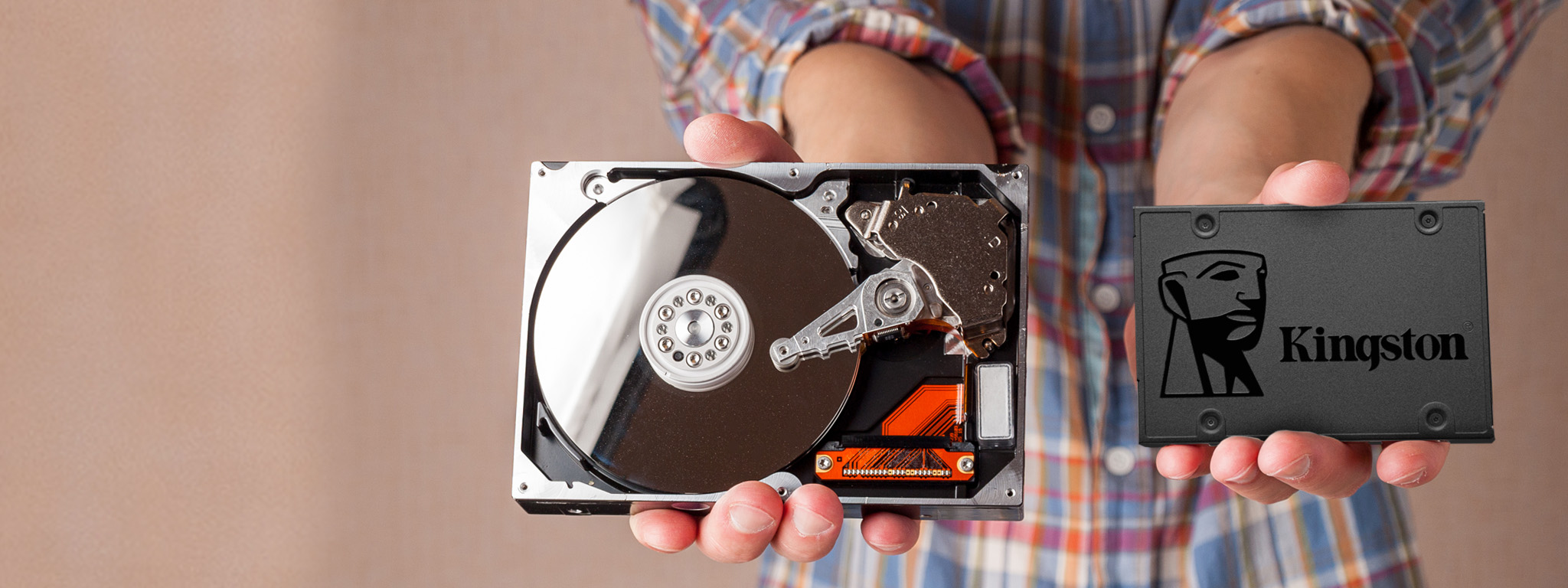
What is ssd and hdd in simple terms? An SSD (solid-state drive) is storage that uses flash memory chips to save data. An HDD (hard disk drive) stores data on spinning metal platters and reads it with a moving magnetic head.
Both hold your files, apps, and operating system. The main difference is how they store and fetch data. That difference affects speed, noise, heat, durability, and price.
How SSDs work vs how HDDs work
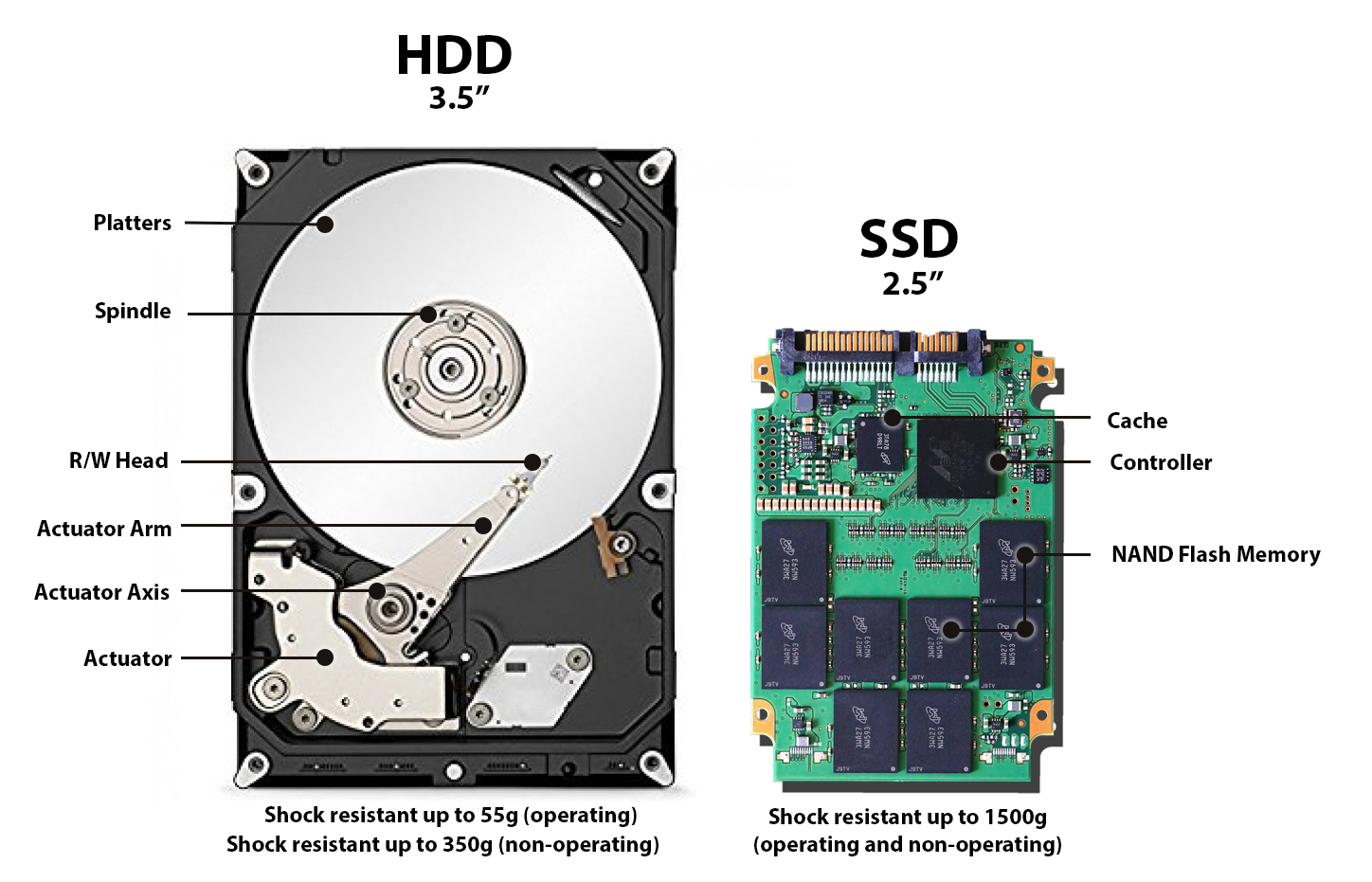
SSDs use NAND flash memory. Data sits in memory cells. Electronics manage reads and writes. No moving parts means fast access and low noise.
HDDs use rotating platters coated with a magnetic surface. A read/write head moves over the platter to access data. The motor spins the disk. That mechanical action makes HDDs slower and prone to wear.
Key technical points:
- SSD: semiconductor-based, fast random reads, instant access.
- HDD: mechanical, sequential reads are efficient, random reads are slow.
- SSD: benefits from TRIM and wear-leveling to extend life.
- HDD: benefits from defragmentation for some older systems, though modern OSes manage this.

Main differences: speed, durability, and cost
What is ssd and hdd when you compare them side by side? Here’s a compact view.
- Speed: SSDs boot and load apps much faster. HDDs lag, especially on random tasks.
- Durability: SSDs handle drops and shock better. HDDs can fail from physical impact.
- Noise and heat: SSDs are silent and run cool. HDDs make whirring and clicking sounds and create more heat.
- Power use: SSDs use less power, helping laptop battery life. HDDs draw more, especially at spin-up.
- Cost per gigabyte: HDDs are cheaper for large drives. SSDs cost more but prices keep falling.
- Lifespan: SSDs have write limits but last many years in typical use. HDDs wear mechanically and can suffer head crashes.
Real-world performance: what to expect
If you want to understand what is ssd and hdd for daily life, consider these examples.
- Boot times: An SSD often boots Windows in 10–20 seconds. An HDD can take a minute or more.
- App load: Programs and games load faster on SSDs. Large installs still need storage space but run smoother.
- File transfer: Large sequential file copies can be similar on fast HDDs and SATA SSDs. Random small file access is where SSDs shine.
- Gaming: Game load times and texture streaming improve on SSDs. FPS is mostly CPU/GPU bound, but level loading is quicker on SSDs.
From my experience building office PCs, swapping an HDD for a modest SSD immediately cut user complaints about slowness.
Capacity, pricing, and reliability
When deciding what is ssd and hdd for storage needs, balance space and budget.
- Capacity options: HDDs often come in 1 TB–20 TB ranges for consumer drives. SSDs commonly range from 128 GB to 4 TB for consumer models, with larger enterprise models available.
- Price trends: HDDs cost less per gigabyte. SSD prices have dropped; NVMe models cost more than SATA SSDs but are faster.
- Reliability and failure modes: SSDs show gradual wear based on write cycles. HDDs can fail suddenly due to mechanical faults. Both can fail due to firmware bugs or power issues.
- Backups: Regardless of drive choice, backups are essential. Use at least one on-site and one off-site copy for critical data.

Use cases: pick the right drive for the job
Choosing between what is ssd and hdd depends on how you use your device.
- Everyday laptop: Prefer SSD for speed and battery life.
- Desktop for productivity: SSD for OS and apps; HDD for bulk storage if budget is tight.
- Gaming PC: SSD for OS and games you play often; HDD for mass storage of older titles.
- Media archive or NAS: HDD for large, cost-efficient storage.
- External drives: HDDs for cheap backup storage; SSDs for fast portable transfer.
A common setup I use in client builds:
- 500 GB NVMe SSD for the OS and active projects
- 4 TB HDD for cold storage and backups

How to choose: practical buying tips
When you ask what is ssd and hdd and want to buy one, use these steps.
- Define budget and capacity needs first.
- For speed: choose NVMe SSD (PCIe) if your motherboard supports it. Otherwise choose SATA SSD.
- For storage: choose HDD if you need many terabytes on a budget.
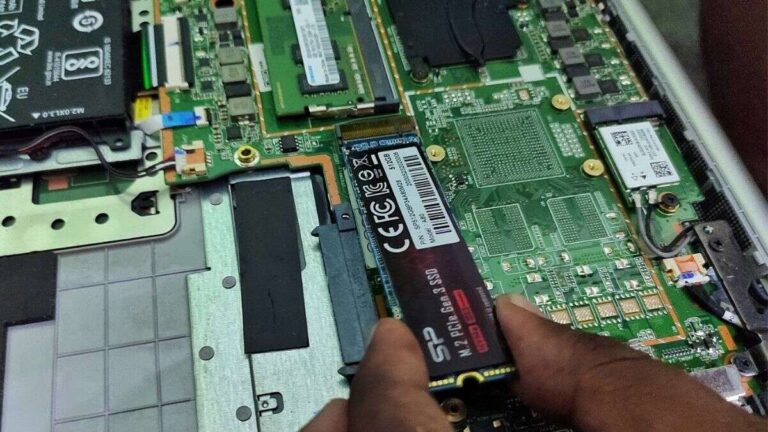
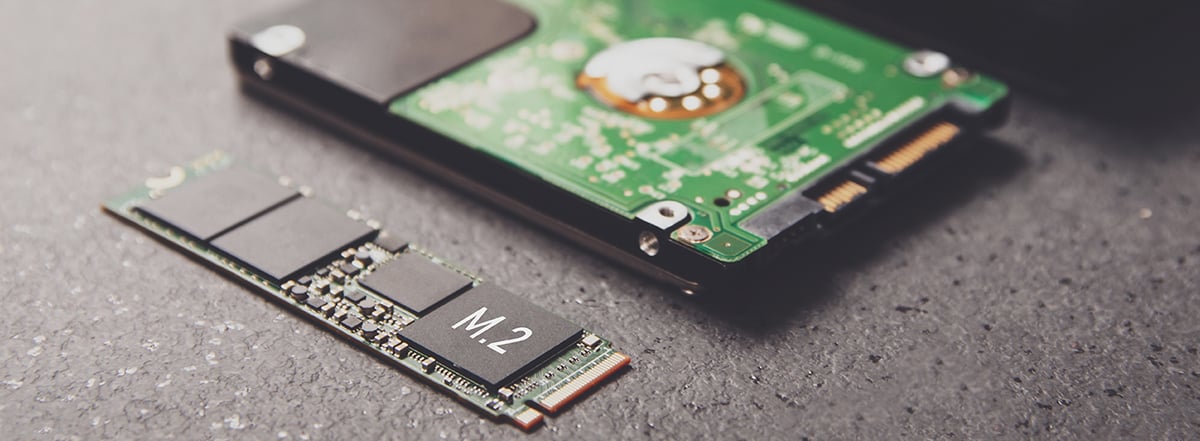
- Check form factor: 2.5-inch for many laptops, M.2 for modern SSDs, 3.5-inch for desktop HDDs.
- Warranty and brand: pick drives with multi-year warranties and good reviews.
- Read performance charts for random IOPS and sustained throughput for real-world insight.
Migration and maintenance tips
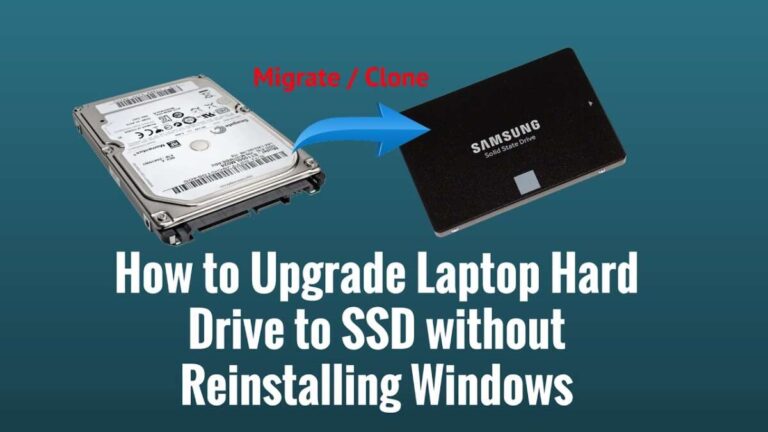
If you decide to move from HDD to SSD, here’s how to make it smooth.
- Clone system: Use cloning tools to copy OS to the new SSD. Check alignment for performance.
- Enable TRIM: Makes SSDs maintain speed over time. Modern OSes do this automatically.
- Avoid full disk writes: Keep some free space on SSDs to preserve performance.
- Backup before changing drives: Always keep a current backup.
- Monitor health: Use SMART tools for HDDs and SSD health utilities to spot issues early.
From my hands-on work, the biggest mistake is skipping backups before migration. I once lost a client’s time-stamped files because a clone failed; a simple backup would have saved hours.
Limitations and realistic expectations
Be clear about what is ssd and hdd will and will not do.
- SSDs are fast but not magic; CPU and RAM still affect overall speed.
- HDDs are cheap but slower and riskier in laptops where physical shock happens.
- SSD longevity is finite based on writes; heavy write workloads like video rendering can shorten lifespan.
- Data recovery can be harder and costlier on SSDs than on HDDs.
Be honest about limitations. Choose drives that match tasks, not hopes.
Personal experience and practical lessons
I have upgraded many machines from HDDs to SSDs. Results are consistent:
- Users feel the machine is “new” after an SSD upgrade.
- Dual-drive setups (SSD + HDD) hit a sweet spot for price and speed.
- I learned to always confirm clone integrity before wiping the old disk.
Mistakes I’ve made and lessons:
- Don’t assume the smallest SSD will hold future needs. Buy a bit larger than current use.
- Always set up a backup plan before any drive replacement.
- Keep firmware updated, but wait a bit after release to avoid initial bugs.
What is ssd and hdd: quick buying checklist
- Need speed for OS/apps: buy an SSD.
- Need lots of cheap space: buy an HDD.
- Want both: SSD for boot, HDD for archive.
- Need portability and shock resistance: SSD.
- On a tight budget but need terabytes: HDD.
Frequently Asked Questions of what is ssd and hdd
What is the main advantage of an SSD over an HDD?
The main advantage is speed. SSDs boot systems and load apps much faster due to no moving parts and instant data access.
Will switching to an SSD make my computer faster?
Yes. Upgrading from an HDD to an SSD typically reduces boot time and speeds up application loading and system responsiveness.
Can I use an SSD and HDD together?
Yes. A common setup places the operating system on an SSD and large files on an HDD to balance speed and storage cost.
How long do SSDs and HDDs last?
SSDs have write limits but often last many years in normal use. HDDs can last several years but risk sudden mechanical failure.
Are SSDs more expensive than HDDs per gigabyte?
Yes. SSDs cost more per gigabyte, but prices have dropped, making SSDs affordable for most users.
Conclusion
Understanding what is ssd and hdd helps you pick the right storage for your needs. SSDs give speed, silence, and durability. HDDs give cost-effective bulk storage. Match drive type to how you use your machine, back up your data, and follow simple maintenance steps.
Take action today: check your current drive, identify your storage needs, and consider upgrading to an SSD for a noticeable speed boost. Leave a comment about your setup or questions, and subscribe if you want more guides on upgrading and optimizing your PC.

Everett Ashford is a tech reviewer at mytechgrid.com specializing in SSDs, cameras, TVs, earbuds, headphones, and other consumer electronics. He provides honest, data-driven reviews based on hands-on testing and real-world performance analysis. Everett simplifies complex tech details to help readers make smart, confident buying decisions.