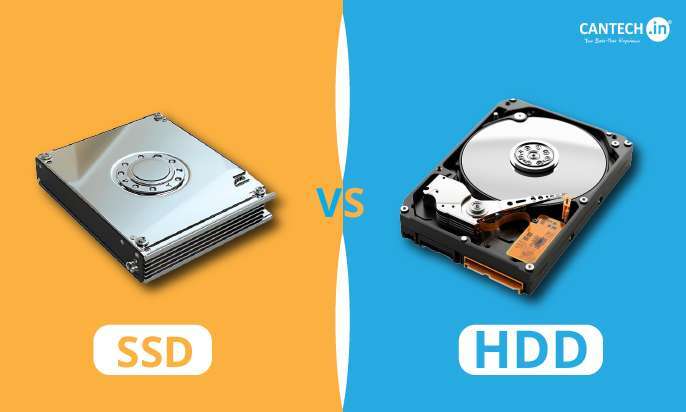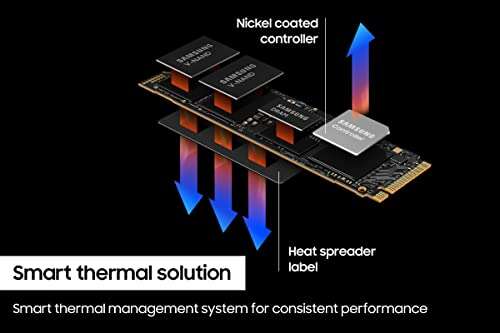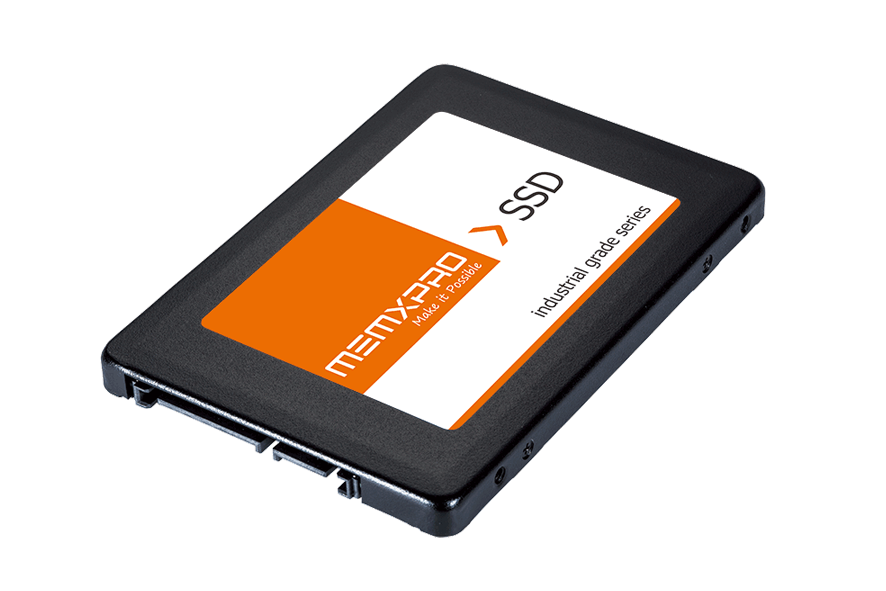
A 2.5-inch SSD is a compact solid-state drive made for laptops, desktops, and other devices with a 2.5-inch drive bay.
If you are asking what is a 2.5 ssd, the simple answer is only part of the story. A 2.5-inch SSD uses flash memory instead of spinning disks, so it can make an older computer feel faster, quieter, and more responsive. This guide explains its size, interface, speed, compatibility, benefits, limits, and installation process so you can choose the right drive with confidence.
What Is a 2.5 SSD?
A 2.5 SSD is a solid-state drive built in the 2.5-inch form factor. The term “2.5-inch” describes the drive’s physical size, not its storage capacity or speed.
Unlike a traditional hard disk drive, a 2.5 SSD has no spinning platters or moving read heads. It stores data on NAND flash memory chips. This design lets the drive access files quickly and withstand normal movement better than a mechanical hard drive.
Most 2.5-inch SSDs use the SATA interface. SATA, which means Serial ATA, is the connection standard used by many laptops, desktops, game consoles, and older workstations.
A typical 2.5 SSD has these features:
• A slim rectangular case, often 7 millimeters thick
• SATA data and power connectors
• NAND flash memory for storing files
• A controller that manages data movement
• Firmware that handles performance, error correction, and wear control
The size label can be confusing. A 2.5-inch SSD does not measure exactly 2.5 inches across in every direction. The name comes from the historical 2.5-inch hard drive class used in laptops.

How Does a 2.5-Inch SSD Work?
To understand what is a 2.5 ssd, it helps to compare it with a hard drive. A hard drive reads data by moving a magnetic head over a spinning platter. A 2.5 SSD reads data electronically from memory cells.
When you open an app, the computer sends a request to the drive. The SSD controller finds the needed data in its flash memory and sends it back through the SATA connection. There is no need to wait for a platter to spin into position.
This gives an SSD much lower access time. In everyday use, that can mean:
• Faster computer startup
• Shorter app loading times
• Quicker file searches
• More responsive multitasking
• Faster game loading
A 2.5 SSD also uses a process called wear leveling. Flash memory cells can only handle a limited number of write cycles. Wear leveling spreads writes across the drive to help extend its useful life.
Many drives also support TRIM. TRIM tells the SSD which data blocks are no longer needed. The drive can then prepare those blocks for future writes. Your operating system must support TRIM, and the feature must be enabled for the best long-term performance.
2.5 SSD SATA Versus M.2 SSD
One of the most important points about what is a 2.5 ssd is that the form factor and interface are different ideas. A 2.5-inch SSD is usually a SATA drive, while an M.2 SSD is a small circuit board that may use SATA or PCIe NVMe.
A 2.5-inch SATA SSD usually offers sequential speeds near the practical limit of the SATA III interface, which is about 6 gigabits per second. Real-world sequential speeds often reach roughly 500 to 560 megabytes per second, depending on the model and system.
An M.2 NVMe SSD can be much faster because it uses PCIe lanes instead of SATA. Newer NVMe drives may reach several thousand megabytes per second. However, faster benchmark results do not always create a large difference in basic tasks such as web browsing or word processing.
| Feature | 2.5-inch SATA SSD | M.2 NVMe SSD |
|---|---|---|
| Shape | Small enclosed drive | Thin circuit board |
| Common interface | SATA | PCIe NVMe |
| Typical connection | SATA data and power cables | M.2 slot |
| Installation | Easy in many desktops | Requires a compatible M.2 slot |
| Typical speed | About 500 to 560 MB/s | Often above 1,500 MB/s |
| Best use | Older computers and simple upgrades | New systems and demanding workloads |
An M.2 SATA drive and an M.2 NVMe drive are not always interchangeable. Always check your computer manual before buying.

Benefits of a 2.5 SSD
A 2.5 SSD remains a popular upgrade because it offers a strong balance of price, compatibility, and performance. It can transform an older computer without requiring a new motherboard.
Faster everyday performance
The largest improvement usually appears during startup and app loading. A computer that takes several minutes to start with a hard drive may become usable in under a minute with a 2.5 SSD.
The difference is also clear when opening large programs, switching between apps, or searching through folders. The SSD does not make the processor stronger, but it removes a major storage bottleneck.
Better resistance to movement
A 2.5 SSD has no moving parts. That makes it less sensitive to bumps and vibration than a hard drive. This benefit matters in laptops, portable workstations, and external storage cases.
An SSD is not indestructible. Its circuit board, connectors, and memory can still fail. You should keep backups of important files.
Lower noise and heat
Because it has no motor or spinning platter, a 2.5 SSD operates silently. It also usually produces less heat than a mechanical hard drive.
Lower heat can help improve comfort in a laptop and reduce the workload on cooling fans. The exact result depends on the computer and the drive model.
Simple compatibility
Many older laptops and desktops have a 2.5-inch drive bay and SATA connectors. This makes a 2.5 SSD one of the easiest ways to upgrade a system that still uses a hard drive.
In my experience with storage upgrades, compatibility checks prevent more problems than performance research. A slightly slower drive that fits correctly is better than a fast drive that your computer cannot recognize.

Limitations of a 2.5 SSD
A 2.5-inch SSD is useful, but it is not the right choice for every system. Understanding its limits helps you avoid paying for features your computer cannot use.
SATA limits the maximum speed
A 2.5 SATA SSD is limited by the SATA interface. Even if the flash memory is very fast, the connection cannot deliver the speeds available from modern PCIe NVMe drives.
For normal office work, this limit is often unimportant. For 4K video editing, large data transfers, or professional workloads, NVMe may save time.
Flash memory has a finite write life
Every flash memory cell can accept a limited amount of data over time. Manufacturers rate SSD endurance using terabytes written, or TBW.
A drive with a higher TBW rating is designed to handle more written data. Still, most home users do not reach the rated limit during the normal life of a computer.
Performance can drop when nearly full
An SSD needs free space for garbage collection, wear leveling, and temporary operations. When a drive is almost full, write performance may decline.
As a practical habit, try to keep about 10% to 20% of the drive free. The exact amount depends on the model and workload.
Not all models have the same design
Some budget SSDs use a small amount of fast cache and slower flash memory. After a long file transfer fills that cache, write speeds may fall.
This does not make the drive useless. It simply means that advertised peak speeds may not represent long, continuous transfers.

2.5 SSD Compatibility Checklist
Before buying a 2.5 SSD, check the computer rather than relying only on its age or appearance. A few minutes of research can prevent a return or difficult installation.
Use this checklist:
• Confirm that the computer has a 2.5-inch drive bay
• Check whether the drive bay accepts a 7-millimeter drive
• Confirm that a SATA data port is available
• Confirm that a SATA power connector is available in a desktop
• Check whether the laptop needs a mounting bracket or spacer
• Review the maximum supported storage capacity
• Check whether the operating system supports the drive
• Verify that the drive will fit under the laptop’s cover
Most 2.5 SATA SSDs use the same 7-millimeter height. Some older laptop bays were designed for thicker 9.5-millimeter hard drives. A 7-millimeter SSD usually works in those bays, but it may need a spacer to stay secure.
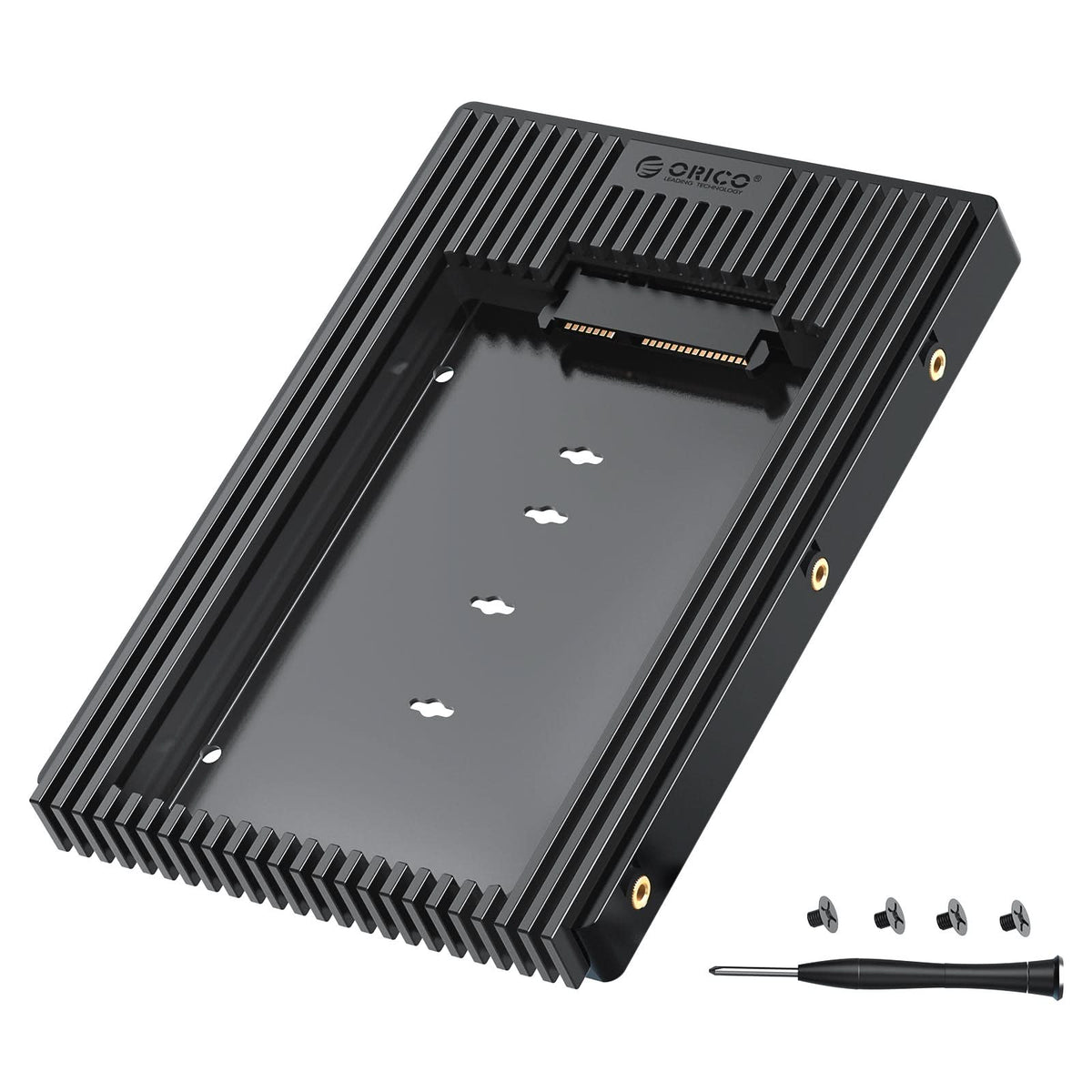
A desktop computer may need a 2.5-inch mounting adapter because many desktop cases have 3.5-inch bays. The SSD will still work without an adapter if it can be safely secured, but loose hardware can damage connectors.

How to Install a 2.5 SSD
Installing a 2.5 SSD is often straightforward, but the exact steps vary by laptop and desktop. Back up your data before opening the computer or cloning a drive.
Installing it in a desktop
-
Shut down the computer and unplug the power cable.
-
Open the case and locate an available SATA data port.
-
Find an available SATA power connector from the power supply.
-
Secure the SSD in a 2.5-inch bay or mounting adapter.
-
Connect the SATA data cable to the motherboard.
-
Connect the SATA power cable to the SSD.
-
Close the case and start the computer.
-
Enter the system firmware if the drive does not appear.
Installing it in a laptop
-
Back up important files.
-
Shut down the laptop and disconnect the charger.
-
Remove the bottom cover according to the service manual.
-
Disconnect the battery if the manufacturer allows it.
-
Remove the existing drive and its mounting bracket.
-
Attach the bracket to the new 2.5 SSD.
-
Install the SSD and reconnect the cable.
-
Replace the cover and start the laptop.
You can install a fresh operating system or clone the old drive. Cloning keeps your files, apps, and settings, but it can also copy old problems. A clean installation often gives the best software result, while cloning is more convenient.
A common mistake is forgetting the drive cable. Some laptops use a special connector or cable that does not come with the replacement SSD. Check this before you begin.

How Fast Is a 2.5 SSD?
Most modern 2.5 SATA SSDs are far faster than hard drives during random access. Their sequential read and write speeds usually approach the practical limit of SATA III.
However, speed depends on more than the drive’s product box. The computer’s SATA controller, cable, operating system, free space, file size, and background tasks all affect results.
For example:
• Small file access affects system responsiveness
• Large sequential transfers affect video and backup work
• Random writes affect app installation and multitasking
• Queue depth affects professional workloads more than basic home use
A benchmark may show a high peak speed, but everyday use can feel different. In hands-on upgrades, the move from a hard drive to a 2.5 SSD feels much larger than the move from one good SATA SSD to another.
Do not choose a drive based only on the highest advertised number. Reliability, warranty length, endurance, controller quality, and consistent performance matter too.

Choosing the Best 2.5 SSD
When deciding what is a 2.5 ssd and which model to buy, start with your actual workload. A student, office worker, gamer, and video editor may need different features.
Consider these points:
Storage capacity
Common capacities include 250GB, 500GB, 1TB, and 2TB. A 500GB drive works for basic systems and office files. A 1TB model gives more room for games, photos, and creative projects.
Manufacturers use decimal capacity measurements. Your operating system may show a lower usable number because it calculates capacity differently and reserves space for formatting and system functions.
Endurance rating
Look for the TBW rating if you write large amounts of data. Higher endurance can be useful for servers, editing systems, and workstations.
For light home use, a reputable model with a solid warranty is usually more important than the highest TBW number.
Warranty
Many SSDs include a three-year or five-year limited warranty. Read the terms carefully because coverage may depend on the TBW limit or other conditions.
NAND type
SSD makers use different types of NAND flash, including TLC and QLC. TLC often offers a good balance of speed, endurance, and price. QLC can provide more capacity at a lower cost, but sustained write performance and endurance may be lower.
Brand support
Choose a manufacturer with clear specifications, firmware tools, and customer support. Firmware updates can fix bugs and improve compatibility.
How to Maintain a 2.5 SSD
A 2.5 SSD needs less maintenance than a hard drive, but a few habits can protect your data and performance.
• Keep the operating system updated
• Leave free space on the drive
• Enable TRIM when supported
• Avoid repeated full-drive benchmarks
• Use a surge protector with desktop computers
• Monitor drive health with a trusted utility
• Keep at least one separate backup
Do not use traditional disk defragmentation on an SSD as a routine task. Modern operating systems manage SSD maintenance with commands such as TRIM and optimization routines.
Backups remain essential. An SSD can fail suddenly because of controller faults, power problems, firmware issues, or electronic damage. A good backup follows the simple rule of keeping more than one copy in more than one place.
Common Mistakes to Avoid
People often ask what is a 2.5 ssd after buying the wrong drive for their computer. These mistakes are common but easy to avoid.
Confusing SATA with NVMe
A 2.5-inch SATA SSD will not plug into an M.2 NVMe slot. The shape, connector, and communication method are different.
Ignoring the laptop cable
Some laptops use a proprietary SATA cable or connector. If the original cable is missing or damaged, you may need a replacement before the SSD can work.
Forgetting to clone or back up data
Installing a new drive does not automatically move your files. Clone the old drive or perform a clean installation after backing up important data.
Filling the drive completely
A full SSD may become slower and harder to manage. Leave free space for normal maintenance and temporary files.
Trusting peak speed alone
Peak sequential speed does not tell the whole story. Check sustained writes, random performance, endurance, warranty, and user reports from reliable testing.
Frequently Asked Questions About What Is a 2.5 SSD
Is a 2.5 SSD the same as a SATA SSD?
Usually, yes. Most 2.5-inch SSDs use the SATA interface, especially SATA III. However, “2.5-inch” describes the physical form factor, while “SATA” describes the connection standard.
Can I use a 2.5 SSD in a desktop computer?
Yes, most desktop computers can use a 2.5 SATA SSD if they have an available SATA data port and SATA power connector. You may need a 2.5-inch mounting bracket for a secure installation.
Can a 2.5 SSD make an old laptop faster?
Yes, replacing a mechanical hard drive with a 2.5 SSD can greatly improve startup times, app loading, and general responsiveness. It will not upgrade the laptop’s processor or increase its memory.
Is a 2.5 SSD better than an M.2 SSD?
Neither is always better. A 2.5 SATA SSD is often easier to install in older computers, while an M.2 NVMe SSD can provide much higher speeds in compatible systems.
How long does a 2.5 SSD last?
The lifespan depends on write volume, temperature, model quality, and usage. Many drives last for several years under normal use, but you should rely on backups rather than assuming any storage device will last forever.
Do 2.5 SSDs need a power cable?
Yes, a typical 2.5 SATA SSD needs both a SATA data connection and a SATA power connection. In a laptop, a combined drive cable may provide both connections through one dedicated connector.
Can I install Windows on a 2.5 SSD?
Yes, you can install Windows or another operating system on a 2.5 SATA SSD. The computer must support the drive, and the firmware may need to be set to the correct boot mode.
Conclusion
A 2.5 SSD is a compact SATA solid-state drive that replaces slower mechanical storage with fast, reliable flash memory. It offers quicker startup, faster app loading, silent operation, lower heat, and broad compatibility with older laptops and desktops.
The key lesson in what is a 2.5 ssd is that size and interface both matter. Check the drive bay, SATA connections, thickness, capacity, endurance, warranty, and installation method before buying.
If your computer still uses a hard drive, upgrading to a reputable 2.5 SSD can be one of the most noticeable improvements you can make. Check your system manual, back up your files, and choose a drive that matches your real workload.

Everett Ashford is a tech reviewer at mytechgrid.com specializing in SSDs, cameras, TVs, earbuds, headphones, and other consumer electronics. He provides honest, data-driven reviews based on hands-on testing and real-world performance analysis. Everett simplifies complex tech details to help readers make smart, confident buying decisions.