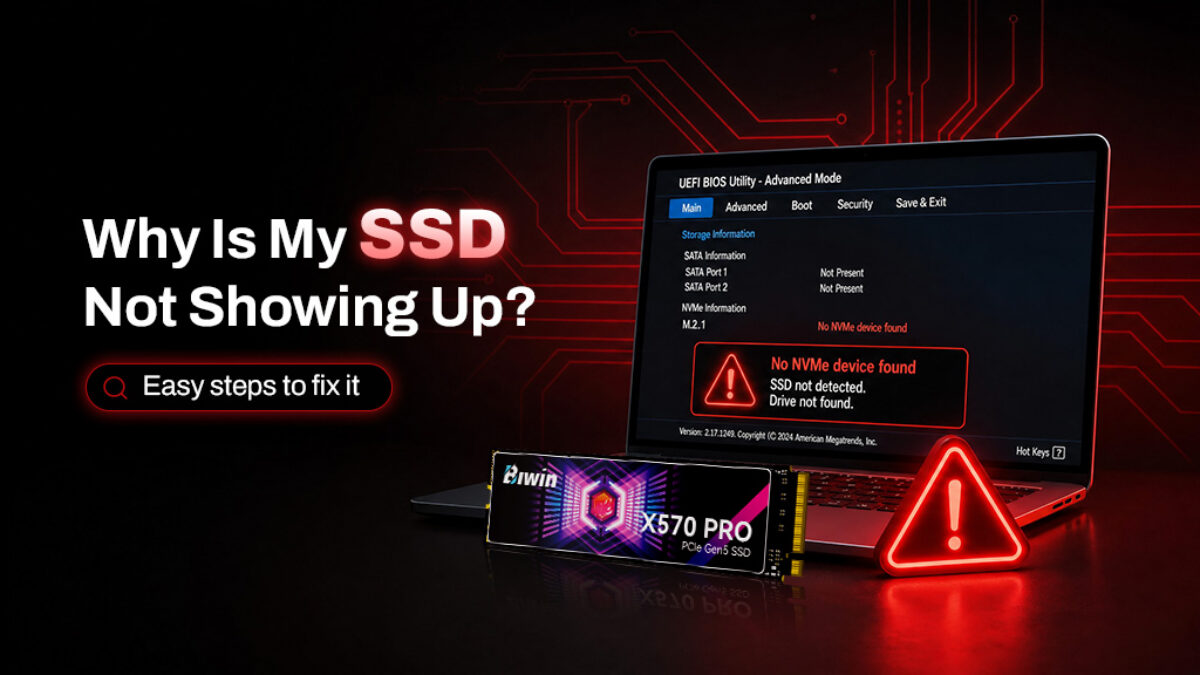
Most SSDs don't show up due to loose connections, uninitialized partitions, or BIOS/driver issues.
I’ve spent years building and repairing PCs and troubleshooting storage for clients and friends. If you’re asking “why is my SSD not showing up,” this guide walks you through clear, tested steps to diagnose and fix the problem. Read on for a practical, step-by-step approach that covers hardware checks, software fixes, advanced causes, and real-world tips I learned the hard way.
Why your SSD might not show up
An SSD that does not appear can mean different things. It could be invisible to the operating system. It could still show in BIOS or Device Manager. It could be dead. I’ll help you tell the difference.
Common reasons your SSD is not showing up:
- Loose power or data cable causing no detection.
- SSD not initialized or lacking a drive letter.
- Outdated or missing NVMe/SATA drivers.
- Disabled or misconfigured BIOS/UEFI settings.
- Incompatible or damaged hardware.
Quick clarifying Q&A
- Q: Is a dead SSD always unrecoverable?
A: Not always. Sometimes a bad cable or firmware fix will restore access. - Q: Can an SSD show in BIOS but not in Windows?
A: Yes. That usually points to partition, formatting, or driver issues. - Q: Will initializing an SSD erase data?
A: Initializing can risk data if done wrongly. Back up before major changes.
Why is my SSD not showing up appears in search a lot. That tells me many people hit the same mix of hardware and software traps. Below I break the problem into clear checks you can run. I’ll explain what to expect at each step and what fixes are safe.
Hardware checks and fixes
Start here. Physical faults cause many “why is my SSD not showing up” cases.
Steps to inspect hardware:
- Check cables and connections.
Unplug and reseat the SATA or power cable. For M.2, remove and reseat the drive. - Try a different port or cable.
Use another SATA port or a new cable. Use a different M.2 slot or adapter if available. - Test the SSD on another PC or external enclosure.
This tells you if the drive or the system is at fault. - Inspect power delivery.
Some adapters need a separate power feed. Ensure the PSU provides stable power. - Check physical damage and overheating.
Look for bent pins, scorch marks, or a swollen casing.
M.2 and NVMe specifics:
- Ensure the M.2 screw is properly tightened. Loose seating can prevent detection.
- Confirm your motherboard supports NVMe vs SATA M.2 types. Use the manual.
- Some boards disable certain M.2 slots when other PCIe lanes are used.
If after hardware checks you still wonder why is my SSD not showing up, move on to BIOS and software tests next.

BIOS/UEFI and detection steps
BIOS often reveals whether hardware is alive. This section helps verify detection and settings.
Things to check in BIOS/UEFI:
- Does the BIOS list the SSD?
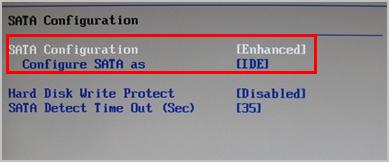
If yes, the hardware is recognized. If no, recheck cables and try another system. - Check SATA mode (AHCI vs RAID).
Switch to AHCI for single-drive setups. Note: changing mode can affect an existing OS install. - Look for NVMe or M.2 configuration options.
Some boards require enabling NVMe support or disabling legacy slots. - Update BIOS if detection seems buggy.
BIOS updates can add compatibility for newer SSDs.
If BIOS shows the SSD but your OS does not, the issue is likely software, partitioning, or driver related. If BIOS does not show it, focus back on hardware or consult the SSD vendor.
Software issues and fixes
When hardware is fine, the operating system may be the reason your SSD won’t appear. These steps cover Windows, macOS, and Linux.
Windows
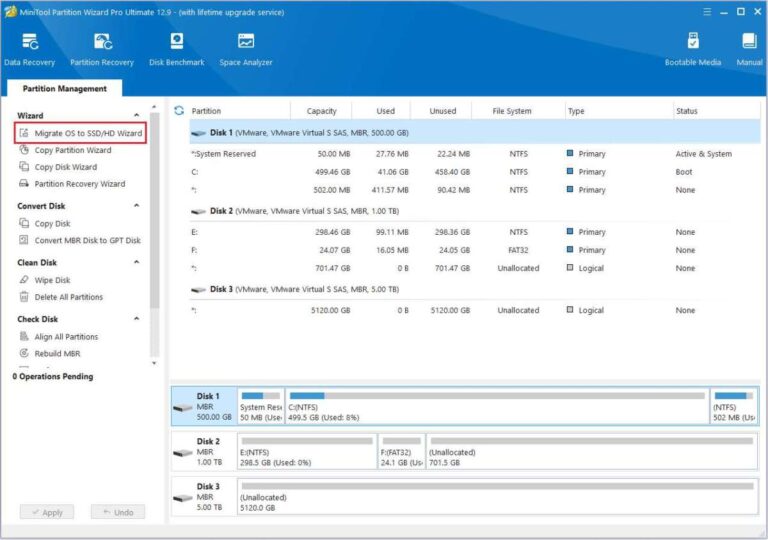
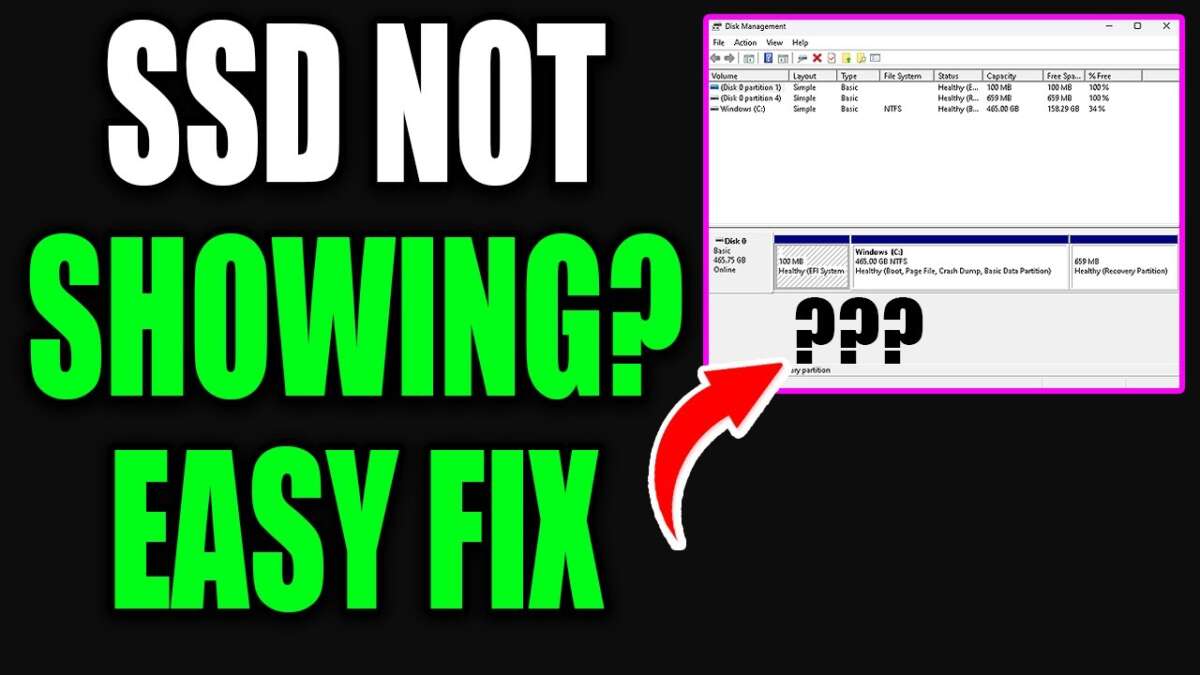
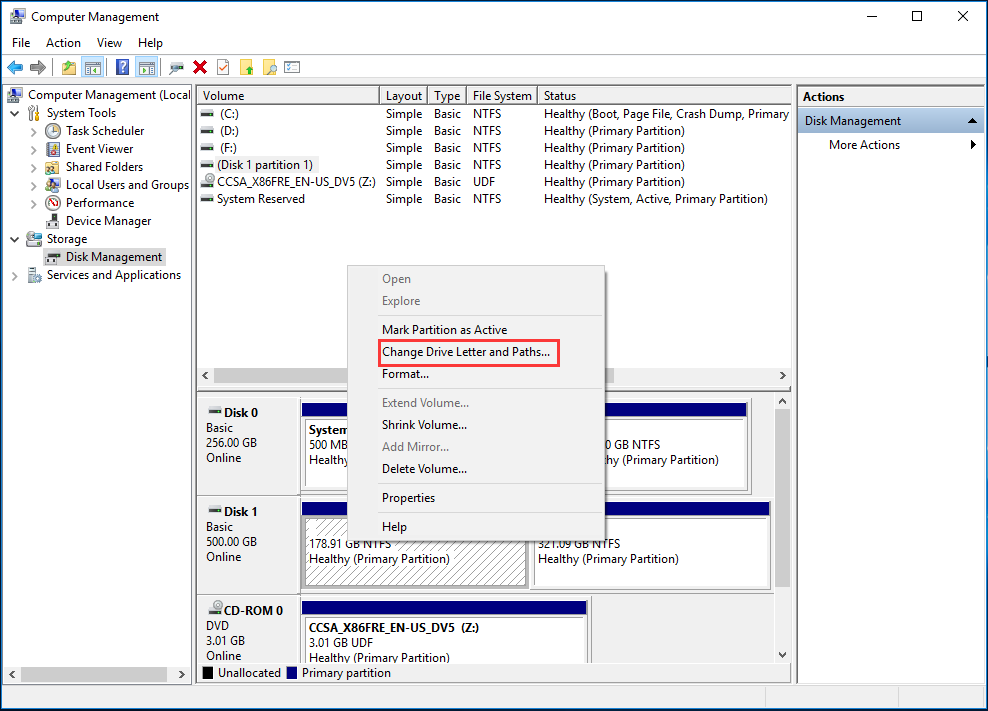
- Open Disk Management.
Look for disks labeled “Unallocated” or “Not Initialized.” Initializing or creating a new volume will make the SSD visible. - Assign a drive letter.
If the SSD has partitions but no letter, Windows will not show it in File Explorer. - Update drivers.
Check Device Manager for storage controllers and NVMe drivers. Update or reinstall drivers. - Use diskpart carefully.
diskpart can reveal hidden partitions and let you clean a disk. Cleaning erases data.
macOS
- Open Disk Utility.
See if the SSD appears. Try First Aid to repair the drive. - Use Terminal with diskutil list.
This shows raw device entries.
Linux
- Use lsblk or fdisk -l.
These commands list detected block devices. - Check dmesg for kernel messages.
dmesg may show errors related to the device or driver.
Driver and OS notes:
- Old OS versions may lack NVMe drivers. Update your OS.
- Third-party encryption or security tools can hide drives until unlocked.
If you still ask why is my SSD not showing up after these steps, data recovery or firmware fixes may be needed.
Common advanced causes
Some causes are subtle. They can make an SSD visible in one place but hidden in another. These explain deeper reasons for why is my SSD not showing up.
Partition table and format
- GPT vs MBR mismatch can stop older systems from booting or showing disks correctly.
- Unrecognized filesystems appear as raw or unallocated.
RAID and controller issues
- Drives in RAID arrays may not show as individual disks without RAID drivers.
- Switching controller modes can hide disks until drivers are reinstalled.
Encryption and secure boot
- Encrypted drives might be locked and invisible to the OS until unlocked.
- Secure Boot rarely hides drives, but certain firmware combos can block unusual boot devices.
Firmware bugs and compatibility
- SSD firmware bugs can make a drive fail to enumerate. Firmware updates may fix this.
- Some NVMe drives need vendor drivers for full detection on older platforms.
Power and lane limitations
- Some cases share power across connectors. Low power can cause intermittent detection.
- CPU/PCIe lane allocation can disable an M.2 slot when other slots are in use.
These advanced causes often require targeted fixes. If you see SMART errors, odd messages in logs, or repeated disconnects, the SSD could be failing.
Preventive tips and best practices
Avoid the question “why is my SSD not showing up” by following these habits.
Daily and setup habits
- Use quality cables and a good power supply.
- Keep firmware and BIOS updated regularly.
- Handle M.2 drives carefully and avoid over-tightening screws.
Data safety
- Keep backups. SSDs can fail without much warning.
- Test drives in an external enclosure before major installs.
Maintenance
- Enable TRIM on supported OSes.
- Monitor SSD health with SMART tools.
- Avoid filling an SSD to full capacity; leave 10–20% free for performance.
When buying
- Check motherboard specs for SSD compatibility.
- Prefer known brands with good firmware support.
Good habits cut risk and save time if a drive ever stops showing up.
Troubleshooting checklist
Follow this ordered checklist to fix most “why is my SSD not showing up” problems.
- Power down and reseat the drive. Check cables and screw placement.
- Try a different SATA port, cable, or M.2 slot.
- Test the SSD in another PC or external enclosure.
- Enter BIOS and confirm the drive is detected. Change SATA mode if needed.
- In Windows, open Disk Management to initialize or assign a drive letter.
- Update storage drivers and motherboard firmware.
- Use manufacturer tools to check firmware and run diagnostics.
- If logs show errors, consider data recovery services before running destructive commands.
- Replace the cable or enclosure if the drive works elsewhere.
- If the drive is dead, check warranty and RMA options.
This order moves from the easiest fixes to more involved tasks. It helped me fix dozens of drives quickly.
Personal experience and lessons learned
I once had a client with a brand-new NVMe that the PC would not list. BIOS saw it but Windows ignored it. I tried drivers, disk management, and reboots. The fix was a BIOS update and switching a PCIe slot that shared lanes with the GPU. The drive became stable after that.
Lessons I learned:
- Don’t assume a new SSD is bad. Test with another system first.
- Small details like a shared M.2 lane or a missing screw can block detection.
- Back up before trying disk-level commands. I once lost client data by cleaning the wrong disk.
If you follow the practical steps here, you will solve most cases of why is my SSD not showing up. Be methodical. Keep calm. Back up early.

Frequently Asked Questions of why is my ssd not showing up
Why does my SSD show in BIOS but not in Windows?
This usually means Windows lacks a drive letter, partition, or proper driver. Check Disk Management to initialize, assign a letter, or recover the partition.
Can a bad SATA cable make an SSD invisible?
Yes. A faulty SATA or power cable can prevent detection. Try a known-good cable and a different port to confirm.
Will initializing the SSD delete my data?
Initializing can overwrite partition tables and risk data loss. If data is important, consider data recovery tools or a professional before initializing.
How do I check SSD health?
Use SMART tools provided by the SSD maker or generic utilities. Look for reallocated sectors, read/write errors, and wear level indicators.
What if the SSD is detected intermittently?
Intermittent detection often points to power, cable, or firmware issues. Test in another system and update firmware. If problems persist, the SSD may be failing.
Conclusion
You now have a clear plan to diagnose why is my SSD not showing up. Start with simple hardware checks. Move to BIOS and software steps. Use firmware updates and diagnostic tools when needed. Back up before major changes and test on another system when in doubt.
Take action: run the checklist above, update drivers, and try a different cable or slot today. If you’re still stuck, leave a comment describing your symptoms or seek professional help. Your next SSD problem has a fix within reach—try these steps and let me know what worked for you.

Everett Ashford is a tech reviewer at mytechgrid.com specializing in SSDs, cameras, TVs, earbuds, headphones, and other consumer electronics. He provides honest, data-driven reviews based on hands-on testing and real-world performance analysis. Everett simplifies complex tech details to help readers make smart, confident buying decisions.