For most laptops in the United States, Windows Home and Windows Pro provide the same core Windows 11 experience. Both can run apps, browse the web, stream video, play games, connect to Wi-Fi, and use Microsoft 365.
The main difference is that Windows 11 Pro adds business, security, remote-access, and virtualization tools. Home is usually enough for students, families, casual users, and most gamers. Pro makes more sense for business users, IT workers, developers, and people who need features such as BitLocker management, Hyper-V, Windows Sandbox, or joining a work domain.
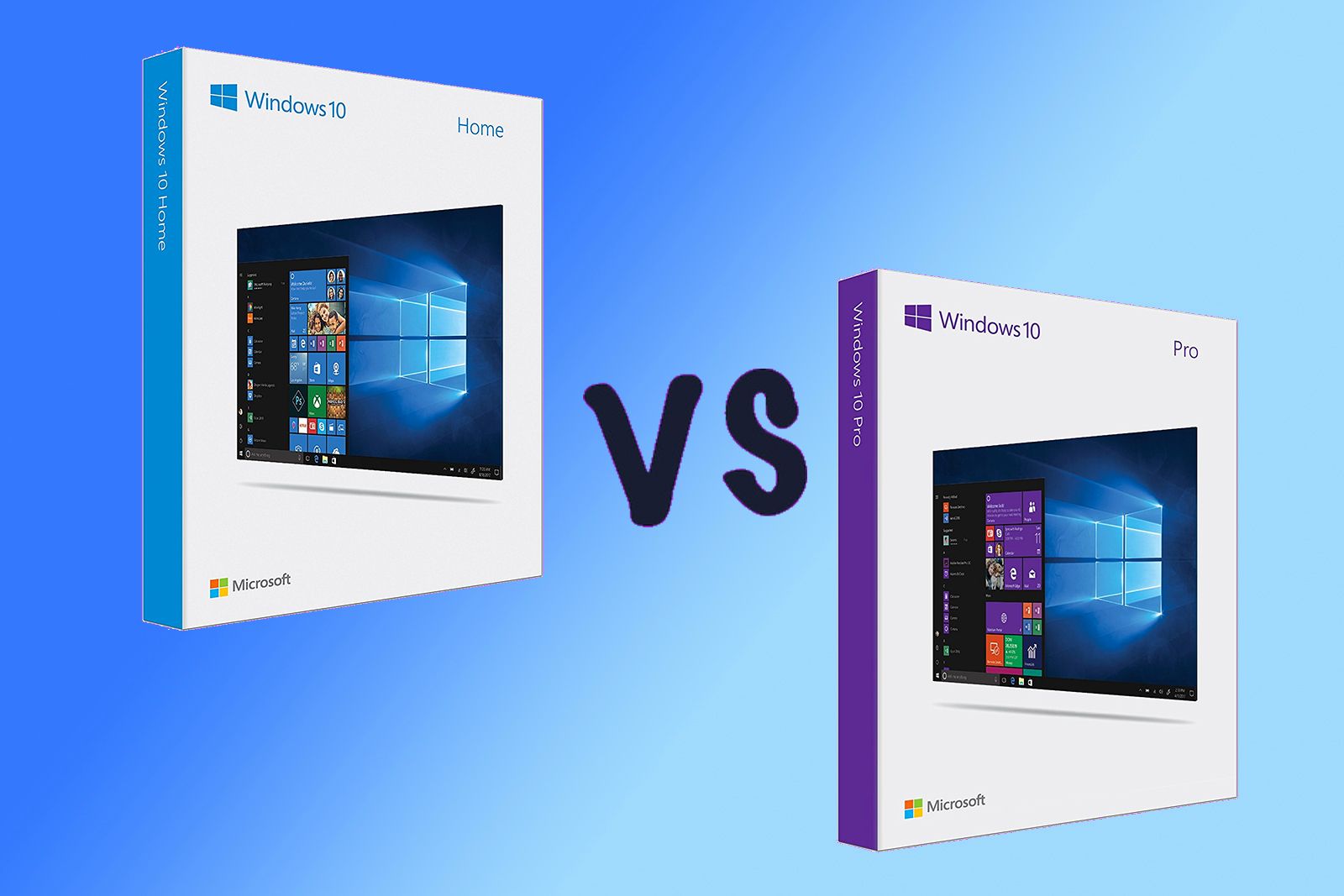
Windows Home vs. Windows Pro at a glance
The table below shows the practical differences between the two editions.
| Feature | Windows 11 Home | Windows 11 Pro |
|---|---|---|
| Everyday Windows apps | Yes | Yes |
| Microsoft Store and Microsoft 365 apps | Yes | Yes |
| Gaming and graphics support | Yes | Yes |
| Windows Hello | Yes | Yes |
| Device encryption | Supported on compatible devices | Supported, with more management options |
| BitLocker Drive Encryption management | Limited or unavailable as a full Pro feature | Yes |
| Remote Desktop as a host | No | Yes |
| Remote Desktop as a client | Yes | Yes |
| Hyper-V virtual machines | No | Yes |
| Windows Sandbox | No | Yes |
| Group Policy management | No | Yes |
| Joining a traditional business domain | No | Yes |
| Microsoft Entra ID join | Limited compared with Pro | Yes |
| Maximum installed memory | Up to 128 GB | Up to 2 TB |
| Typical buyer | Home and personal users | Business and advanced users |
Microsoft documents these edition differences in its Windows 11 Home and Pro comparison. Some features also depend on the laptop’s hardware, edition version, setup, and organization account.
The short answer is simple: Windows Pro is not a faster version of Windows. It is a version with more advanced controls and business features.
What Windows Home and Pro have in common
Windows Home and Pro share the main Windows 11 platform. You do not need Pro to perform normal laptop tasks.
Both editions can generally:
- Install desktop programs and apps.
- Browse with Microsoft Edge or another web browser.
- Use Microsoft 365, Adobe apps, Zoom, and other common software.
- Connect to printers, Bluetooth devices, monitors, and Wi-Fi networks.
- Play PC games.
- Use Windows Update and Windows Security.
- Sign in with a Microsoft account.
- Use Windows Hello when the laptop supports compatible hardware.
- Connect to another computer through Remote Desktop as a client.
- Use standard Windows accessibility tools.
This means a laptop with Home is not automatically less capable for school, home use, office work, or entertainment. The edition mainly changes administrative features, not the basic app library.
Does Windows Pro make a laptop faster?
No. Windows Pro does not normally provide a faster processor, better graphics, or more memory.
Laptop speed depends mainly on:
- The processor.
- The amount and type of RAM.
- The SSD.
- The graphics processor.
- Cooling and power settings.
- The software running in the background.
A fast laptop with Windows Home can outperform a slow laptop with Windows Pro. If two laptops have the same hardware, everyday performance should be broadly similar when both use the same Windows version and drivers.
A Pro license can still be useful. It may let you run a virtual machine or manage a work computer more effectively. Those features add capability, but they do not increase the laptop’s normal speed.
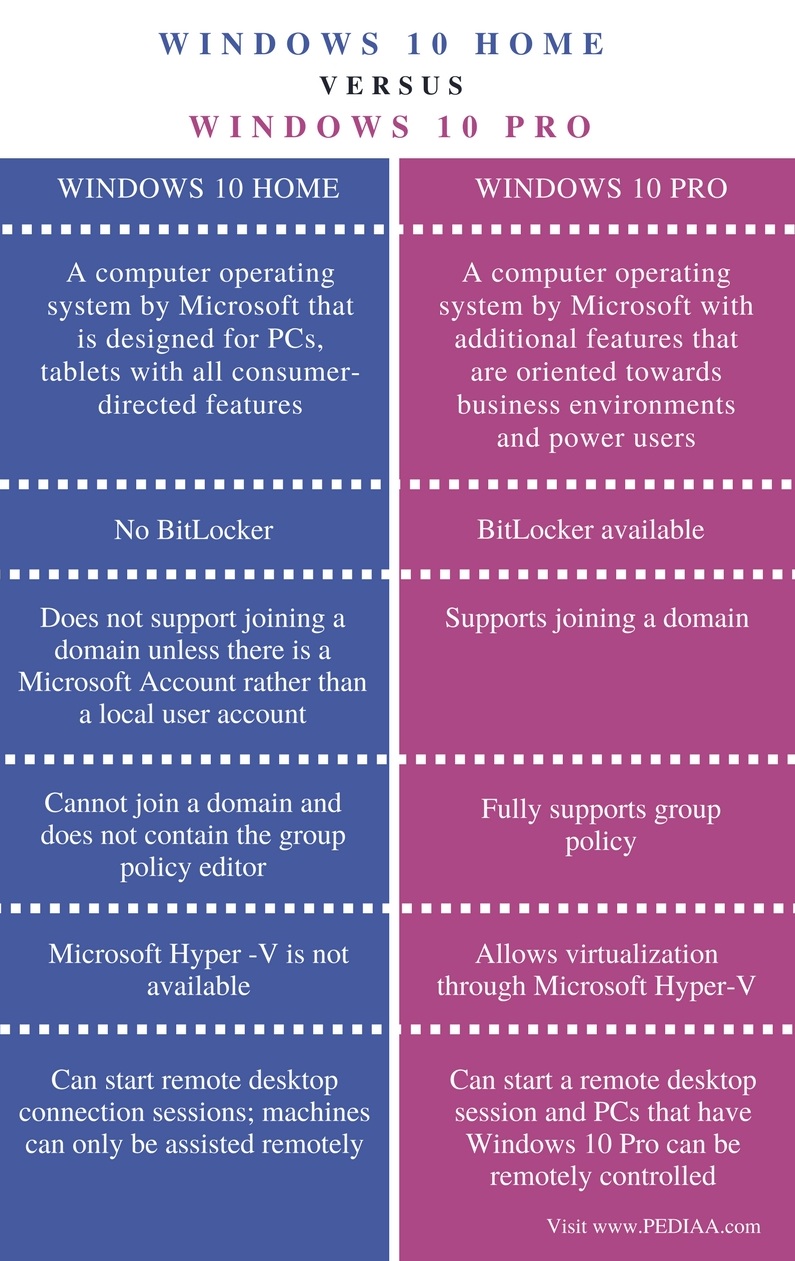
The main features Windows Pro adds
Windows Pro is designed for people who need stronger security controls, business connections, or advanced system tools. Four additions usually matter most.
1. BitLocker Drive Encryption
BitLocker encrypts data on a storage drive. Encryption changes readable files into protected data that is harder to access if someone removes the drive or gains access to the laptop without proper authorization.
This matters most for:
- Work laptops.
- Laptops that store customer information.
- People who travel with sensitive files.
- Users who could face a serious loss if the laptop is stolen.
Windows Home may support device encryption on compatible hardware. However, Pro provides the full BitLocker feature set and more management options. Microsoft explains the difference in its BitLocker and device encryption guidance.
Encryption has one critical limit: it does not replace backups. If you lose the recovery key, access to an encrypted drive may be difficult or impossible. Save the recovery key in a safe place before relying on BitLocker.
2. Hyper-V for virtual machines
Hyper-V lets Windows Pro run virtual machines. A virtual machine is a separate computer environment that runs inside your main Windows installation.
For example, a developer might use Hyper-V to run:
- A test copy of Windows.
- A Linux environment.
- A server setup for practice.
- An isolated development system.
Hyper-V needs suitable hardware and firmware support. It can also use a large amount of RAM and processor power. A laptop with 8 GB of RAM may technically support virtualization but provide a poor experience when the host system and virtual machine run at the same time.
Hyper-V is different from the Windows Subsystem for Linux. Some users can use Linux tools through other Windows features without buying Pro. Check the requirements for the specific tool you plan to use.
3. Windows Sandbox
Windows Sandbox creates a temporary, isolated Windows desktop. It can help test an unfamiliar program or open a questionable file without making the main Windows installation your only environment.
When you close Windows Sandbox, its temporary contents are deleted. That makes it useful for short tests, but it is not a permanent virtual machine.
Sandbox is intended as a protective tool, not a guarantee of safety. Do not treat it as permission to open clearly dangerous files. Keep Windows updated and use normal security practices.
Microsoft lists Windows Sandbox requirements and limitations.
4. Business management and network features
Windows Pro can join a traditional Windows domain. This is common in some offices, schools, and organizations that manage computers through a central network.
Pro also supports business identity and management features, including Microsoft Entra ID join when the organization’s plan and setup support it. These tools allow administrators to apply policies, manage accounts, control updates, and configure security settings across many computers.
Home is intended for personal use. It does not offer the same built-in management level.

Windows Pro features that matter to remote workers and IT users
Some differences become important only in specific work situations.
Remote Desktop: connecting to versus hosting a PC
Both editions can usually act as a Remote Desktop client. This means the laptop can connect to another computer that accepts Remote Desktop connections.
Windows Pro can also act as a Remote Desktop host. This means another computer can connect to the Pro laptop and control it remotely through Microsoft’s Remote Desktop system.
For example:
- A Home laptop can connect to a Pro office computer.
- A Pro laptop can accept a Remote Desktop connection from another computer.
- A Home laptop cannot normally serve as the host for Microsoft Remote Desktop.
This distinction causes many buying mistakes. If you only need to connect from your laptop to a work PC, Home may be enough. If you need to connect into the laptop itself, Pro may be required.
Remote Desktop should be configured carefully. Use strong passwords, required updates, and a secure network or approved business access method. Avoid exposing Remote Desktop directly to the public internet without proper security controls.
Group Policy
Group Policy gives administrators fine control over Windows settings. It can control items such as:
- Update behavior.
- Password rules.
- Access to system tools.
- Device settings.
- User permissions.
- Security policies.
A home user rarely needs Group Policy. An IT administrator may use it every day.
Many online guides suggest Group Policy edits for Windows Home. Some workarounds may exist, but they are not the same as having a supported Pro management system. Do not change system components simply to imitate an enterprise setup unless you understand the risks.
Memory and hardware limits
Windows 11 Home supports up to 128 GB of RAM, while Windows 11 Pro supports up to 2 TB, according to Microsoft’s Windows processor and memory limits documentation.
This difference rarely affects a normal laptop. Many laptops have 8 GB, 16 GB, or 32 GB of memory. Even a workstation with 64 GB remains below the Home limit.
Pro may be useful when a laptop is built for demanding virtual machines, large data work, engineering tools, or professional workloads. The laptop must also physically support the needed memory. Installing Pro will not add RAM or make unsupported hardware accept more memory.

Which Windows edition is better for students, families, and gamers?
For most students, families, and gamers, Windows Home is the better fit because it includes the features they are most likely to use.
Choose Home if you mainly want to:
- Write papers and use school websites.
- Watch movies and listen to music.
- Play PC games.
- Use video calls.
- Edit photos or basic video.
- Browse the web.
- Use common office and creative apps.
- Connect peripherals and external displays.
Windows Pro is not required for popular PC gaming features. Game performance comes from the hardware, game settings, drivers, and cooling system. Pro may be useful to a gamer who also develops software, tests operating systems, or runs virtual machines, but those are separate needs.
A student in a computer science or cybersecurity program may benefit from Pro if a class requires Hyper-V, Windows Sandbox, domain tools, or a specific administrative feature. Check the course requirements before paying extra.
Which Windows edition is better for business?
For a business-owned laptop, Pro is often the more practical edition, but the right choice depends on how the organization manages devices.
Pro is more suitable when the laptop must:
- Join a company domain.
- Connect to Microsoft Entra ID.
- Use centralized management.
- Apply Group Policy settings.
- Host Remote Desktop sessions.
- Use BitLocker management.
- Run Hyper-V or Windows Sandbox.
- Follow workplace security rules.
A small business with only a few standalone laptops may not need every Pro feature. A larger organization may require Pro because its IT system depends on domain join, device management, or security policies.
The key question is not “Is Pro more professional?” Ask instead: Which feature does the business need, and does its current management system require Pro?

Is Windows Home more secure than Windows Pro?
Neither edition is automatically safe simply because of its name. Security depends on updates, account settings, device hardware, passwords, encryption, backups, and user behavior.
Windows Pro offers more security controls, especially for organizations. These include BitLocker management, business identity integration, and administrative policy tools. Those features can improve security when someone configures and maintains them correctly.
Windows Home still includes important protections, such as Windows Security and supported security updates. A home user with Home can be safer than a business user with Pro who ignores updates and uses weak passwords.
For a laptop containing sensitive data, consider these steps:
- Turn on available device encryption or BitLocker.
- Save the recovery key securely.
- Use a strong sign-in method.
- Install Windows and app updates.
- Keep a separate backup of important files.
- Avoid using an administrator account for every task.
- Do not install software from untrusted sources.
Encryption protects stored data. It does not stop phishing, malware, account theft, or accidental deletion.
Can you upgrade Windows Home to Pro later?
Yes. A compatible Windows 11 Home installation can usually be upgraded to Windows 11 Pro without reinstalling Windows.
You can upgrade through:
- Settings > System > Activation
- The Microsoft Store
- A valid Windows Pro product key
- An organization’s licensing method
Before upgrading, check the exact Windows edition and activation status. Open Settings > System > Activation to view this information.
An upgrade normally changes the edition while keeping your files and installed apps. Even so, make a backup first. Activation problems, drive errors, or other system issues can occur during any major configuration change.
Also check the license source. A Pro license may be:
- A retail license.
- An OEM license tied to a laptop.
- A work or school license.
- A volume license managed by an organization.
These license types have different transfer and support rules. Microsoft provides Windows activation guidance.

Does Windows Pro cost more than Windows Home?
Usually, yes. Laptop manufacturers often charge more for a Pro edition, and upgrading from Home to Pro may require a separate purchase.
The price can change by:
- Microsoft’s current retail pricing.
- The laptop manufacturer.
- A business licensing agreement.
- A school or employer account.
- A promotional offer.
- Whether the license is new or an upgrade.
Do not judge only by the price difference. Compare that cost with the price of the feature you actually need. If you do not need domain join, full BitLocker management, Hyper-V, Sandbox, or Remote Desktop hosting, the extra cost may provide little value.
Be cautious with unusually cheap product keys from unknown sellers. A key may be invalid, improperly sourced, restricted to another license type, or difficult to support later.
Common mistakes when choosing Home or Pro
Mistake 1: Assuming Pro improves gaming
Pro does not automatically increase frames per second or reduce game loading times. Choose better hardware for those goals.
Mistake 2: Confusing Remote Desktop client and host features
Being able to connect to a remote PC is not the same as allowing another PC to connect to your laptop. Check which direction you need.
Mistake 3: Paying for Pro without checking work requirements
Some workplaces require Pro. Others provide their own management tools or access methods. Ask the IT department before buying.
Mistake 4: Treating encryption as a backup
BitLocker can protect data if a laptop is lost. It cannot restore a file that was deleted, corrupted, or encrypted by malware. Keep backups.
Mistake 5: Believing Pro supports unlimited hardware
Pro has higher memory limits, but the laptop still needs compatible memory slots, firmware, cooling, and a processor that can handle the workload.
Mistake 6: Buying a used laptop without checking its edition
A used laptop may show Windows Pro but use an organization’s license. After a reset or hardware change, activation may fail. Confirm that the seller can provide valid ownership and activation information.

A simple decision guide
Use this quick test:
- Choose Windows Home if the laptop is for personal use, school, streaming, office apps, or gaming.
- Choose Windows Pro if you need full BitLocker management, Remote Desktop hosting, Hyper-V, Windows Sandbox, Group Policy, domain join, or business device management.
- Buy Home and upgrade later if you are unsure and the laptop meets your hardware needs.
- Ask your employer or school first if the laptop will connect to an organization’s systems.
- Spend more on hardware instead if your main goal is faster performance.
The laptop’s processor, RAM, SSD, display, battery, and build quality usually matter more than the Windows edition for everyday use.
Key takeaways
- Windows Home and Pro run the same core Windows 11 apps and services.
- Windows Pro does not automatically make a laptop faster.
- Pro adds business, security, virtualization, and administration features.
- Home is enough for most home users, students, and gamers.
- Pro is useful for domain join, full BitLocker management, Hyper-V, Sandbox, Group Policy, and Remote Desktop hosting.
- Windows Home can often be upgraded to Pro later.
- Always check your employer’s or school’s requirements before choosing an edition.
Frequently asked questions
Is Windows Home good enough for a laptop?
Yes. Windows Home is good enough for most personal laptops used for web browsing, school, office work, entertainment, video calls, and gaming.
Can Windows Home run Microsoft Office?
Yes. Windows Home can run Microsoft 365 apps and other compatible desktop office programs. Pro is not required for Word, Excel, PowerPoint, or Outlook.
Can Windows Home run PC games?
Yes. Windows Home supports PC games, game launchers, controllers, graphics drivers, and common gaming accessories. Game performance depends mainly on the laptop hardware.
Can I use BitLocker on Windows Home?
Some Windows Home laptops support device encryption. Full BitLocker management is generally associated with Windows Pro and higher business editions. Check Settings > Privacy & security > Device encryption to see what your laptop supports.
Can Windows Home join a work domain?
Traditional Windows domain join is a Pro feature. A company may offer another access method, but you should confirm its requirements with the IT administrator.
Should I buy Windows Pro for a home laptop?
Buy Pro only if you need one of its specific features. If you cannot name a Pro feature you will use, Home is usually the more sensible choice.
Conclusion
The difference between a laptop with Windows Home and one with Windows Pro is mainly advanced control, security management, and business support. Home handles normal computing very well, while Pro adds tools for organizations, developers, IT administrators, and advanced users.
For most buyers in the United States, choose Windows Home and put the saved money toward more RAM, a better SSD, a stronger processor, or a higher-quality display. Choose Windows Pro when your work or technical setup specifically requires its extra features.

Everett Ashford is a tech reviewer at mytechgrid.com specializing in SSDs, cameras, TVs, earbuds, headphones, and other consumer electronics. He provides honest, data-driven reviews based on hands-on testing and real-world performance analysis. Everett simplifies complex tech details to help readers make smart, confident buying decisions.