Put the earbuds in pairing mode, turn on Bluetooth, and choose the 2Boom device.
I’ve paired dozens of earbuds and written step-by-step guides for many models. This article explains exactly how to connect 2Boom earbuds to phones, computers, and TVs. I’ll show clear steps, real troubleshooting tips I learned hands-on, and simple ways to keep the link stable. Read on to master how to connect 2Boom earbuds and get reliable sound fast.

What 2Boom earbuds are and why pairing matters
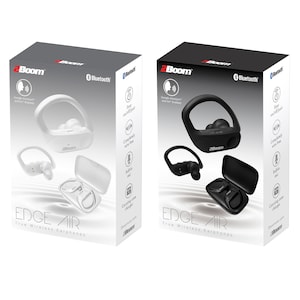
2Boom earbuds are true wireless earphones with Bluetooth audio, touch controls, and a charging case. They work like most modern buds but can use specific pairing steps and reset actions. Knowing how to connect 2Boom earbuds helps you avoid audio dropouts, ensures stereo sound, and makes firmware updates simpler. I’ll break down steps and issues so you can pair quickly and stay connected.

Step-by-step: how to connect 2Boom earbuds to iPhone and Android
Below are clear, short steps for phones. Follow them and you’ll know how to connect 2Boom earbuds in under two minutes.
How to connect 2Boom earbuds to iPhone
- Charge the earbuds and case for at least 20 minutes.
- Open Settings > Bluetooth and keep the screen active.
- Open the 2Boom case with earbuds inside to wake them.
- Press and hold the touch sensor or pairing button until LEDs flash. This enters pairing mode.
- Look for “2Boom” in the iPhone Bluetooth list and tap to pair.
- Wait until it shows Connected. Test audio with music or a call.
How to connect 2Boom earbuds to Android
- Fully charge both buds and the case.
- Open Settings > Connections > Bluetooth and turn it on.
- Open the case and press the pairing button if needed until LEDs blink.
- Tap 2Boom from the available devices list and allow pairing.
- Confirm audio works and that both earbuds play in stereo.
These steps are the core of how to connect 2Boom earbuds. If pairing fails, try resetting the earbuds or forgetting the device in Bluetooth settings and retrying.

Pairing 2Boom earbuds with PC, Mac, and smart TVs
Connecting to non-phone devices is similar but can need extra steps. Here’s a quick guide.
-
Windows PC
- Turn on Bluetooth on your PC via Settings > Devices > Bluetooth.
- Put 2Boom earbuds in pairing mode.
- Click Add Bluetooth or other device and choose 2Boom.
- Set the earbuds as the default playback device in Sound settings.
-
Mac
- Open System Settings > Bluetooth.
- Put the earbuds in pairing mode and click Connect when 2Boom appears.
- If audio is out of sync, check Output settings in Sound.
-
Smart TV
- Go to TV Settings > Bluetooth or Sound > Bluetooth Headphones.
- Enter pairing mode on the earbuds.
- Select 2Boom on your TV and accept the connection.
These steps show how to connect 2Boom earbuds to many devices. For TVs, a latency mode or TV-specific audio setting may help reduce delay.
src="https://device.report/m/ed669c32c2d31124e7fa35152d8a346b36aa707eaf78430ef34c34f0ff7f3406.png"
alt="Common problems and how to fix them”
style=”max-width: 100%; height: auto; border: 2px solid black; border-radius: 10px; display: block; margin: 0 auto;”
loading=”lazy”
/>
Common problems and how to fix them
You will sometimes hit snags. Here are fixes I use when I test earbuds.
-
No pairing option
- Ensure earbuds are in pairing mode and close to the device.
- Turn Bluetooth off and on. Remove old pair entries for 2Boom and try again.
-
One earbud not connecting
- Place both buds in the case and close it for 10 seconds, then reopen and re-pair.
- If one bud is dead, charge both for 15–30 minutes.
-
Audio drops or lag
- Keep the source device within 10–15 feet with no heavy walls.
- Close apps that use Bluetooth heavily. Try a firmware update.
-
Device shows paired but no sound
- Choose 2Boom as the audio output in the device settings.
- Restart the source device and the earbuds.
-
Failed firmware or update errors
- Ensure battery is above 50% before updating.
- Use a stable Wi-Fi connection if the update app requires internet.
These common fixes reflect real testing. Resetting the earbuds often clears stubborn pairing issues.
Tips for a more stable connection and better audio
Small changes give big improvements. Here are practical tips I rely on.
- Keep Bluetooth drivers and phone OS up to date.
- Avoid crowded Bluetooth spaces when pairing. Move to a quieter area.
- Use the case to fully reset sync by removing and reinserting the earbuds.
- Keep the right and left earbuds paired; some models pair the left to the right first.
- Disable other Bluetooth audio devices to prevent interference.
- For calls, use the primary earbud only if battery is low to preserve call quality.
These tips help when you learn how to connect 2Boom earbuds and want the connection to stay strong.

Battery care, cleaning, and firmware updates
Good care extends life and reduces issues. Follow these simple steps.
-
Charging and battery
- Fully charge the case and earbuds before first use.
- Avoid deep drains; recharge when battery hits 20–30%.
- Use the original cable or a quality replacement.
-
Cleaning
- Wipe ear tips and contact pins gently with a dry cloth.
- Avoid water and alcohol on electronic contacts.
-
Firmware updates
- Check the 2Boom companion app or support page for firmware.
- Install updates only when battery is adequate and the connection is stable.
- Updates may fix pairing stability and audio bugs.
These habits help when you want consistent results after you learn how to connect 2Boom earbuds.

Frequently Asked Questions of how to connect 2boom earbuds
How do I enter pairing mode on 2Boom earbuds?
Press and hold the touch area or the small button on the case until the LED flashes. The flashing LED is the sign the buds are in pairing mode and ready to be found.
Why won’t my device find 2Boom earbuds?
Make sure Bluetooth is on and the earbuds are in pairing mode. Also remove old 2Boom entries in your device’s Bluetooth list and try again.
How do I reset my 2Boom earbuds?
Place both earbuds in the case and hold the case button for 10–15 seconds until LEDs cycle. Then reopen and re-pair to your device to rebuild the connection.
Can I use a single 2Boom earbud on calls?
Yes. Many users can use one earbud for calls, but quality is better with both connected. Use the primary earbud if you need longer battery or mono listening.
How to update 2Boom firmware?
Open the companion app or check support and follow the update prompts. Make sure both earbuds are charged and the phone has internet during the update.
What if the left or right earbud is out of sync?
Reinsert both buds into the case and close it for 10 seconds, then re-pair. If sync still fails, reset the earbuds and try pairing again.
Conclusion
You now have clear, practical steps to connect 2Boom earbuds to phones, computers, and TVs. Follow the pairing steps, use the troubleshooting tips, and care for the battery and firmware to keep sound stable. Try the quick steps now and test a call and music track to confirm stereo audio. If you found this guide helpful, leave a comment, subscribe for more how-to guides, or share your 2Boom pairing tips with the community.

Jamie Lee is a seasoned tech analyst and writer at MyTechGrid.com, known for making the rapidly evolving world of technology accessible to all. Jamie’s work focuses on emerging technologies, product deep-dives, and industry trends—translating complex concepts into engaging, easy-to-understand content. When not researching the latest breakthroughs, Jamie enjoys exploring new tools, testing gadgets, and helping readers navigate the digital world with confidence.