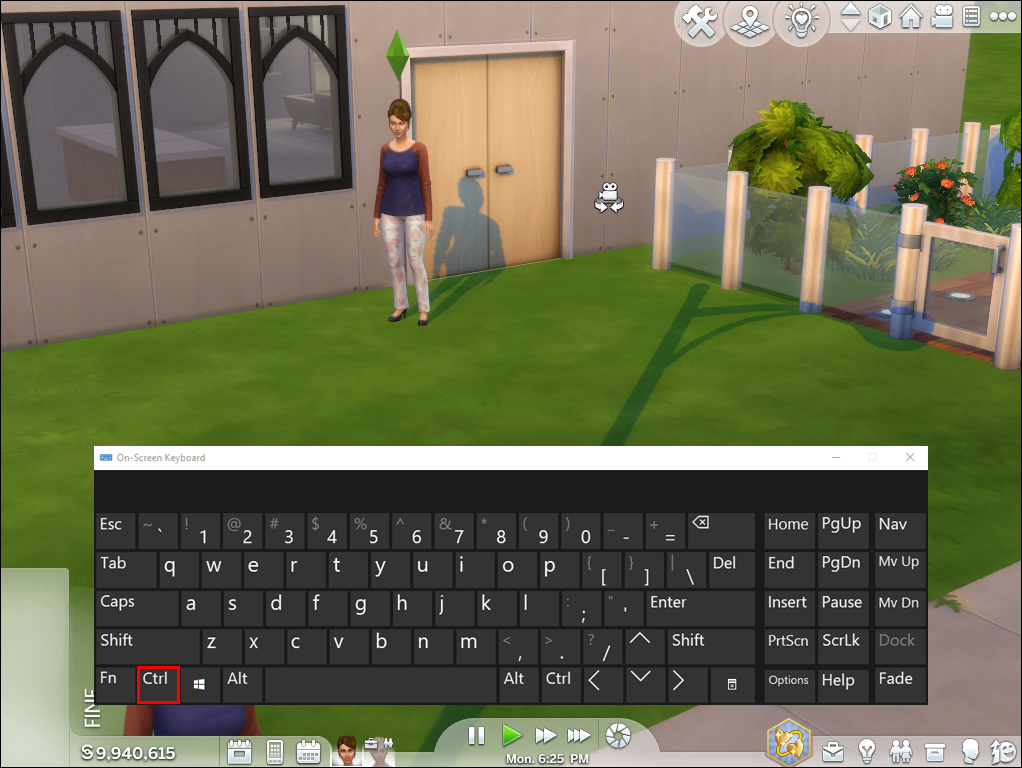
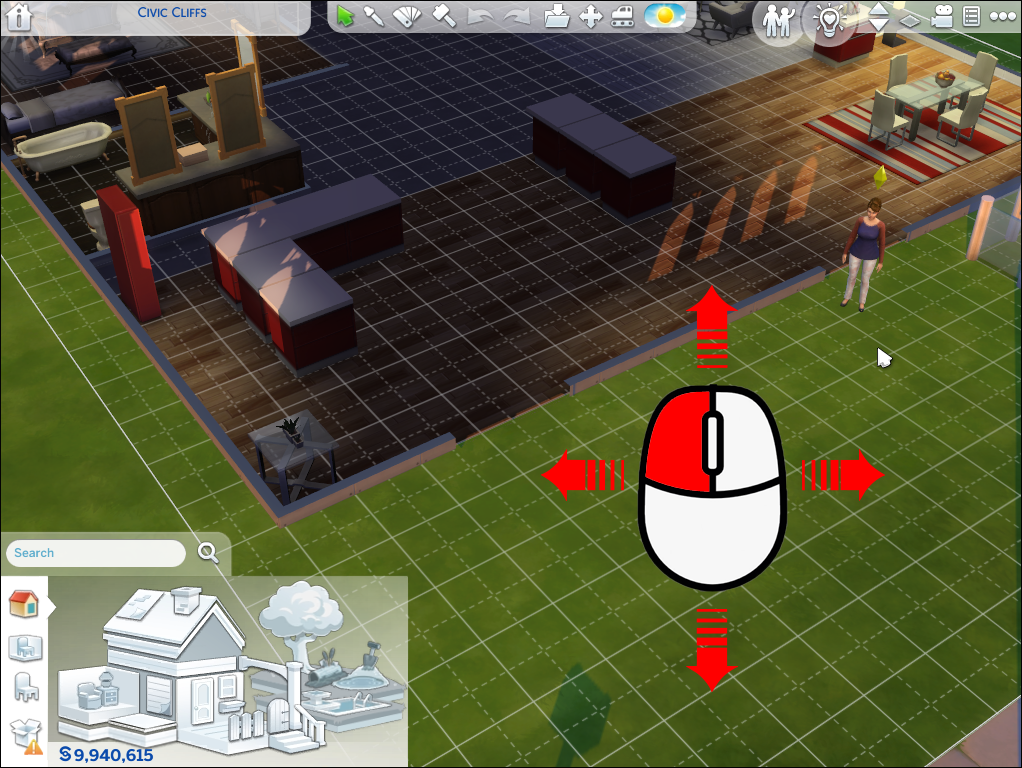
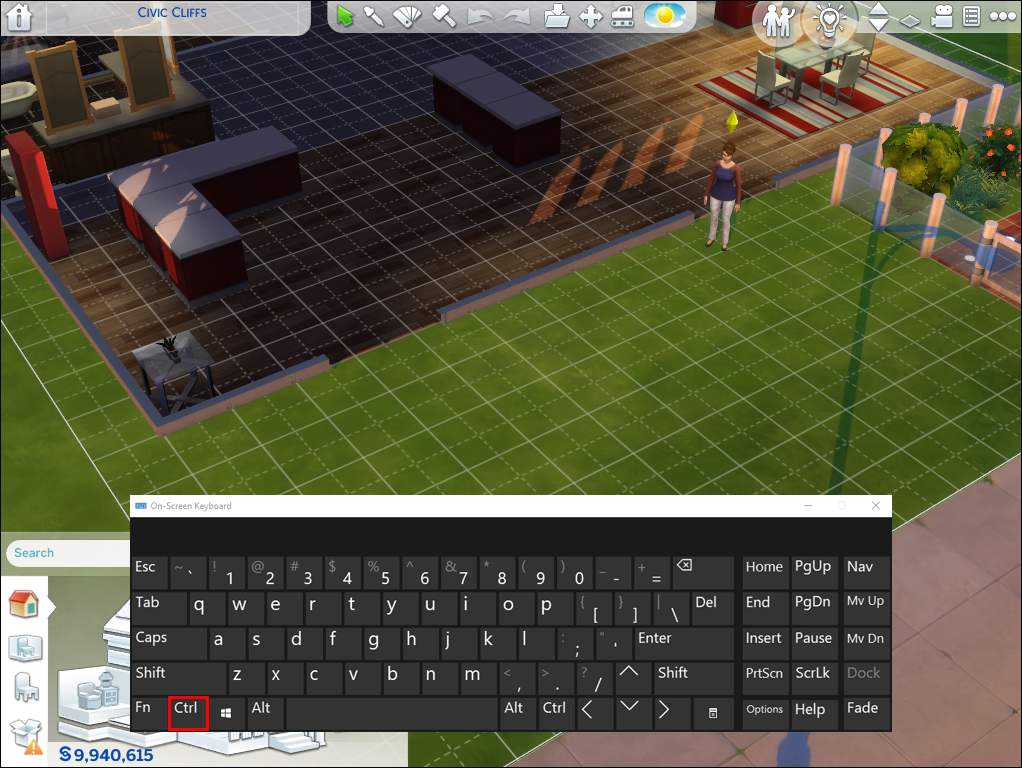
Hold Alt and drag with the right mouse button to rotate the camera in The Sims 4.
I’ve spent years building lots, taking screenshots, and guiding players on camera control in The Sims 4. This guide explains how to rotate camera Sims 4 players need, from basic keys to advanced freecam options. You’ll get clear steps, tips I learned from testing, and fixes for common issues, all in plain, usable language.
Why rotating the camera matters in The Sims 4
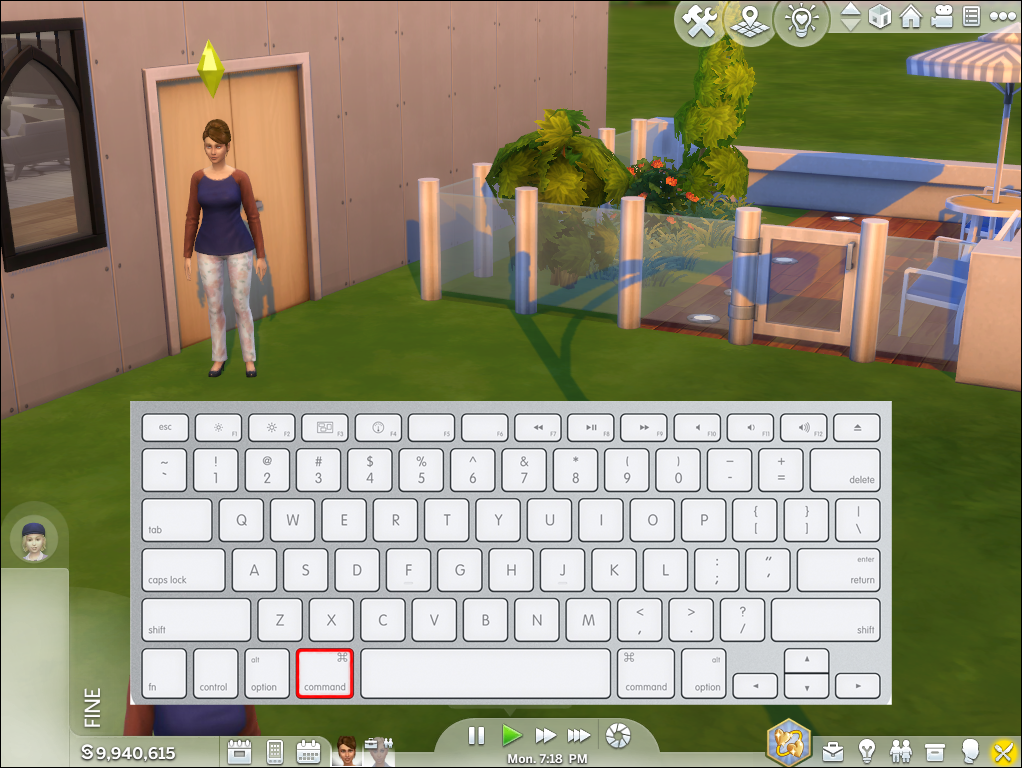
Rotating the camera changes your view. It helps with building, photographing Sims, and finding hidden angles. Good rotation makes layouts clearer and scenes prettier. Learning how to rotate camera Sims 4 improves play and creativity.
Basic camera controls on PC — how to rotate camera sims 4
Here are the default, simple controls most PC players will use.
- Use the right mouse button and move the mouse to rotate the camera.
- Hold Alt and use the left mouse button to fine-tune rotation around a focal point.
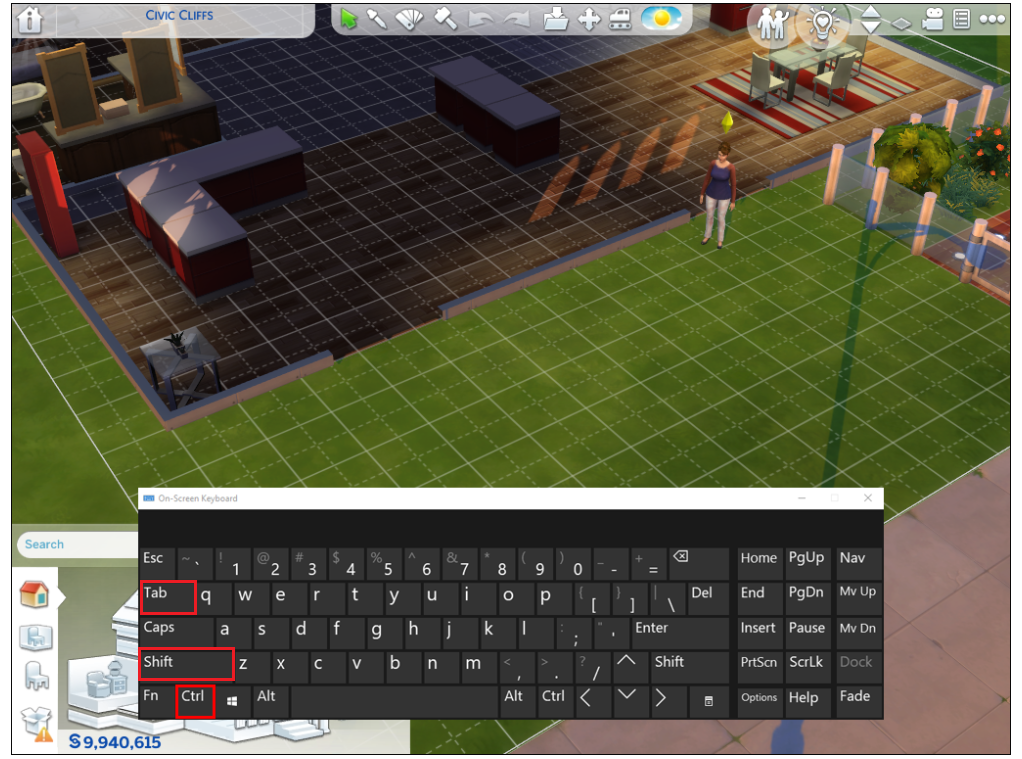
- Press Tab to enter free camera mode for full 3D movement and rotation.
- Use the Q and E keys to roll the camera left and right in freecam.
If your keys don’t work, check the in-game Camera Options menu. You can toggle Classic or SimCam styles there. Mastering these controls is the quickest way to rotate camera Sims 4 effectively.
How to rotate camera sims 4 on Mac and laptops
Mac and laptop inputs vary, but the ideas stay the same.
- On Mac, hold Option instead of Alt for similar behavior with the mouse.
- If you have a trackpad, use two-finger drag with right-click enabled in system settings.
- Laptops without a right mouse button work with an external mouse or by remapping keys.
When space is tight, use Tab freecam plus QE for roll. Practicing these moves on a simple lot speeds learning how to rotate camera Sims 4 on small devices.

Console controls: rotate camera Sims 4 on PS and Xbox
Console controllers use sticks and buttons for camera work.
- Use the right stick to pan and rotate the camera.
- Hold the left trigger and move the right stick for finer rotation or a different pivot.
- Switch camera modes in the pause menu if rotation feels locked or clumsy.
Console players can still achieve cinematic angles. Learning precise stick control makes rotating the camera Sims 4 feel smooth and natural.
Tips, tricks, and settings to master camera rotation
Small changes make a big difference when you rotate the camera Sims 4.
- Toggle Camera Options to enable or disable camera smoothing.
- Turn on Screen Edge Scrolling if you prefer mouse-edge panning instead of dragging.
- Use Grid Snap off in build mode for more flexible rotation around objects.
- Bind keys you like using the Controls menu so rotations match your play style.
For screenshots, lower game speed, frame the shot with Tab, then adjust roll with Q and E. These tricks help you get steady, precise views when rotating the camera Sims 4.

Advanced options: freecam, mods, and cheats
Want more control than stock options provide? Try these advanced methods.
- Freecam via Tab gives full pitch, yaw, and roll control for cinematic shots.
- Use camera cheats for instant adjustments and to unlock hidden camera features.
- Consider trusted mods for smoother freecam movement or custom keybindings.
Be mindful that some mods can conflict with game updates. Back up your saves before major changes and test how to rotate camera Sims 4 with any new tool in a sandbox lot.
Troubleshooting common rotation problems
If camera rotation acts odd, here are fixes that helped me.
- Problem: Camera is stuck or snaps back. Solution: Toggle Camera Options or reload the lot to reset the pivot.
- Problem: Keys don’t respond. Solution: Check for keybinding conflicts and ensure the game window is active.
- Problem: Freecam won’t exit. Solution: Press Tab again or save and reload the lot to reset camera mode.
If issues persist, repairing the game through the launcher or clearing custom content can restore defaults. These steps solve most problems when learning how to rotate camera Sims 4.

Personal experience: lessons learned rotating the camera
I once spent an hour trying to photograph a build. I kept using right-click drag and got shaky shots. Switching to Tab freecam and using Q/E for roll fixed everything. From that day, I map a screenshot workflow: Tab, frame, lock pitch, adjust roll, capture.
Lesson learned: practice on a test lot. Start simple and build muscle memory. Avoid changing controls mid-session unless you test them first. This routine made rotating the camera Sims 4 faster and more reliable for my builds.
Frequently Asked Questions of how to rotate camera sims 4
How do I rotate the camera in The Sims 4 on PC?
Hold the right mouse button and move the mouse to rotate the camera. For fine control, hold Alt and drag, or press Tab for freecam mode.
Can I rotate the camera while in build or buy mode?
Yes. Rotating during build or buy mode works the same as live mode. If rotation feels locked, check Camera Options or toggle build mode settings.
What keys let me roll the camera in freecam?
Press Q to roll left and E to roll right while in freecam. Combine these with mouse movement for smooth angles.
Why is my camera rotation snapping back?
Snapping can happen from camera smoothing or a locked pivot. Toggle camera smoothing off or reload the lot to reset the camera pivot.
Are there cheats or mods to improve camera rotation?
Yes. There are camera cheats and trusted mods that enhance freecam and keybindings. Test mods carefully and back up saves before installing them.
Conclusion
Mastering how to rotate camera Sims 4 makes building, photographing, and storytelling easier. Start with right-click drag, learn Alt and Tab for precision, and use Q/E for roll. Practice on a simple lot, test settings, and back up your game before using mods. Try one new tip today and watch your shots and builds improve — leave a comment with your favorite camera trick or subscribe for more Sims tips.

Everett Ashford is a tech reviewer at mytechgrid.com specializing in SSDs, cameras, TVs, earbuds, headphones, and other consumer electronics. He provides honest, data-driven reviews based on hands-on testing and real-world performance analysis. Everett simplifies complex tech details to help readers make smart, confident buying decisions.