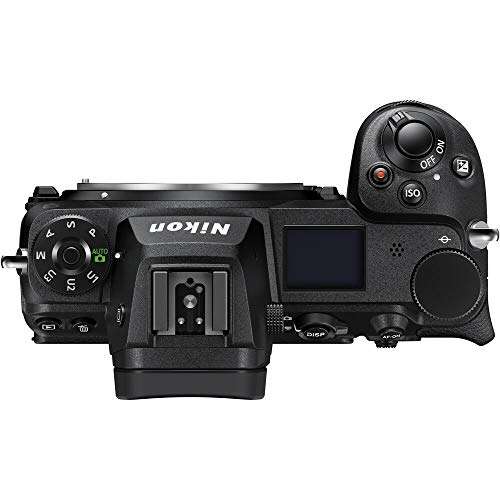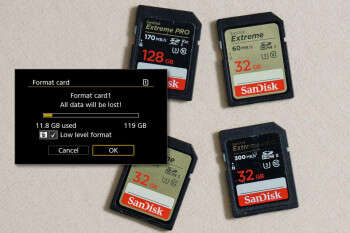
Format the SD card in your camera using the camera’s Format option for best performance.
I’ve been cleaning and formatting memory cards for cameras for years, from DSLRs to mirrorless and action cams. This guide explains exactly how to format SD card for camera, why it matters, which options to choose, and the real-world tips I’ve learned from fieldwork and studio shoots. Read on and you’ll know how to format SD card for camera safely and confidently.
Why you should format an SD card in-camera
Formatting an SD card prepares it for use by arranging files in a way the camera expects. When you format, the camera writes its file allocation tables and file system metadata. That reduces errors and speeds up write and read operations.
Formatting also clears hidden system files and removes fragmentation. If you use the card across devices, format it in the camera you plan to use most. That prevents file system mismatches and reduces corrupt files.
Manufacturers and memory card standards recommend formatting regularly. I learned this after a shoot where leftover files caused failed video recordings. Since then I always format cards in-camera before a session.
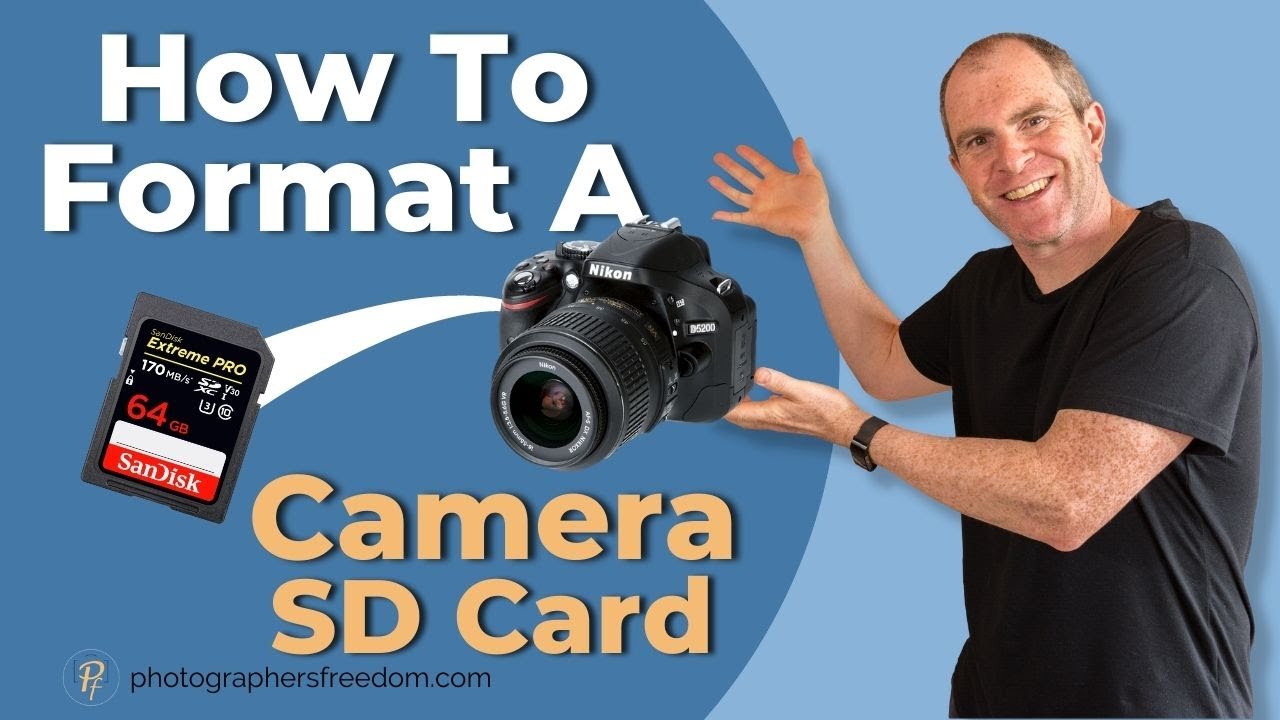
When to format versus deleting files
Formatting is not the same as deleting files. Deleting removes a file pointer but can leave fragments and hidden metadata. Formatting rebuilds the file structures the camera needs.
Delete files if you need to remove a few shots. Format when:
- You switch cameras or card brands.
- You see file errors or slow write speeds.
- You’re preparing for a long shoot or event.
If you want to recover accidentally deleted files, stop using the card and use recovery tools before formatting. Formatting overwrites allocation tables and makes recovery harder.
:max_bytes(150000):strip_icc()/GettyImages-136612668-5c640cc5c9e77c00010a4ff4.jpg)
Step-by-step: how to format sd card for camera
Follow these clear steps to format an SD card in-camera. These steps work for most modern DSLRs, mirrorless, and point-and-shoot cameras.
- Backup important images and videos to your computer or cloud. Formatting erases everything.
- Turn off the camera and insert the SD card. Make sure the card locks are not engaged on older SD cards.
- Power on the camera and open the menu. Navigate to the Setup or Tools section.
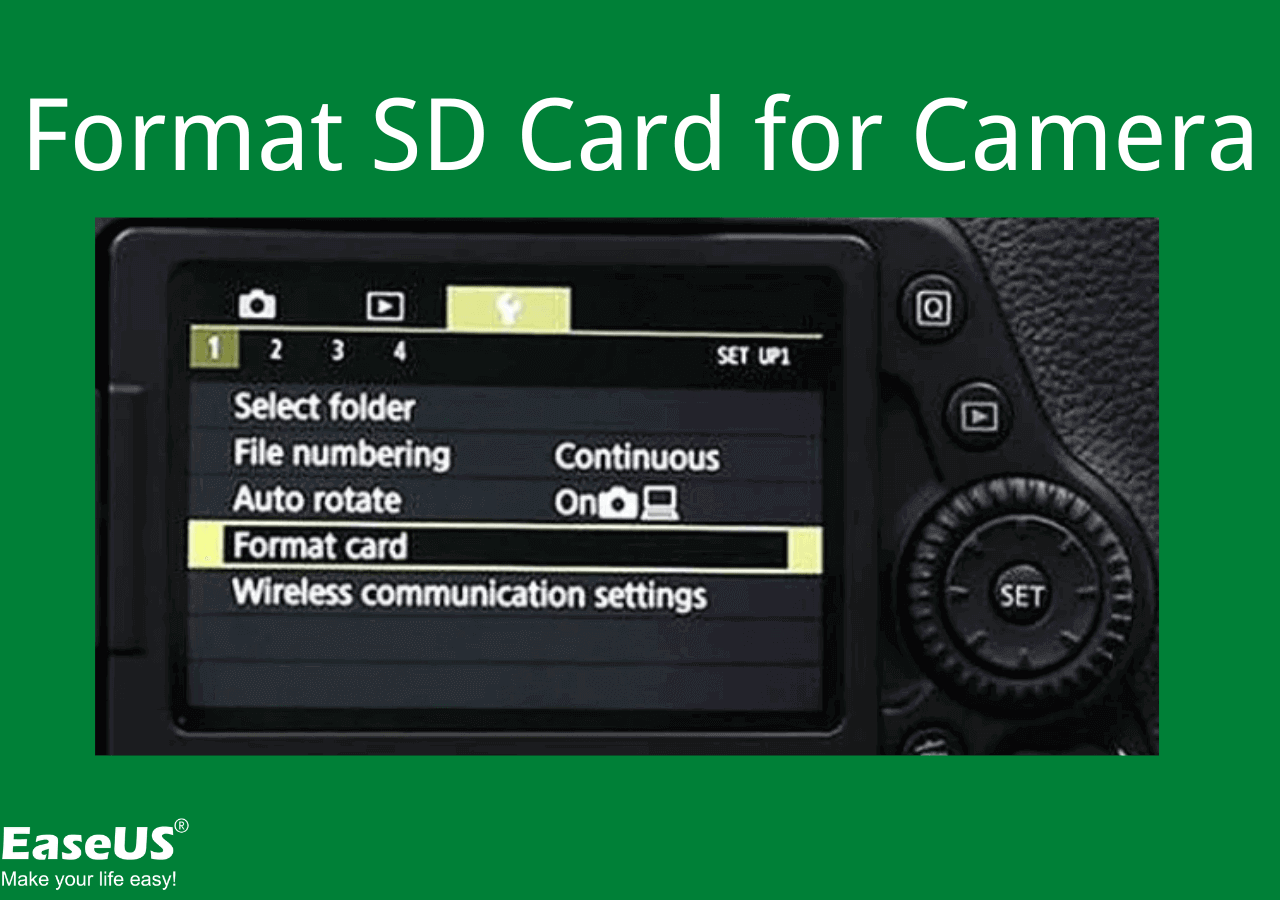
- Find the Format or Format Card option. Some cameras label it Format Memory Card or Erase/Format.
- Choose Full format if available for thorough cleanup. Quick format is faster but leaves more traces.
- Confirm the format when prompted. Wait until the camera signals completion before turning off.
I always format new cards in-camera right after I test them. Doing this reduced file corruption for me and kept buffer performance steady during long bursts.

PAA-style question: Will formatting remove hidden camera files?
Yes. Formatting removes hidden system files and remnants left by other devices. That helps the camera write new metadata cleanly.
PAA-style question: Is quick format enough before a shoot?
Quick format is fine for fast reuse, but full format is safer when errors appear or when the card is new to the camera.
Choosing the right file system and card type
Cameras use different file systems depending on card capacity and video needs. Knowing which to pick helps you avoid issues when you format SD card for camera.
- Use FAT32 for cards up to 32 GB. It’s widely supported but has a 4 GB file size limit.
- Use exFAT for cards larger than 32 GB. exFAT supports large files and high-resolution video.
- Check your camera’s manual. Some cameras require exFAT for 4K video or long continuous recording.
Card speed and type matter too. Use cards labeled UHS-I or UHS-II and look for V30, V60, or V90 for video. A correct card type reduces dropped frames and write errors. When I switched to a V60 card for long 4K recording, my camera stopped dropping segments mid-clip.
:max_bytes(150000):strip_icc()/004-how-to-format-an-sd-card-for-your-camera-a99281596fa34add845a0f0df2209441.jpg)
Common errors and troubleshooting after formatting
Sometimes formatting doesn’t fix every issue. Here are common problems and quick fixes.
- Camera won’t recognize the card: Re-seat the card, try a different slot (if available), or format in another compatible camera. If that fails, the card may be damaged.
- Card shows less capacity than expected: Check for proper formatting and ensure the card is not counterfeit. Genuine cards match labeled capacity after format.
- Read/write errors persist: Try a full format rather than quick format. If errors continue, replace the card to avoid data loss.
If you see error messages during shoots, stop recording and swap cards. Recover files using recovery software only if you didn’t format after the issue.
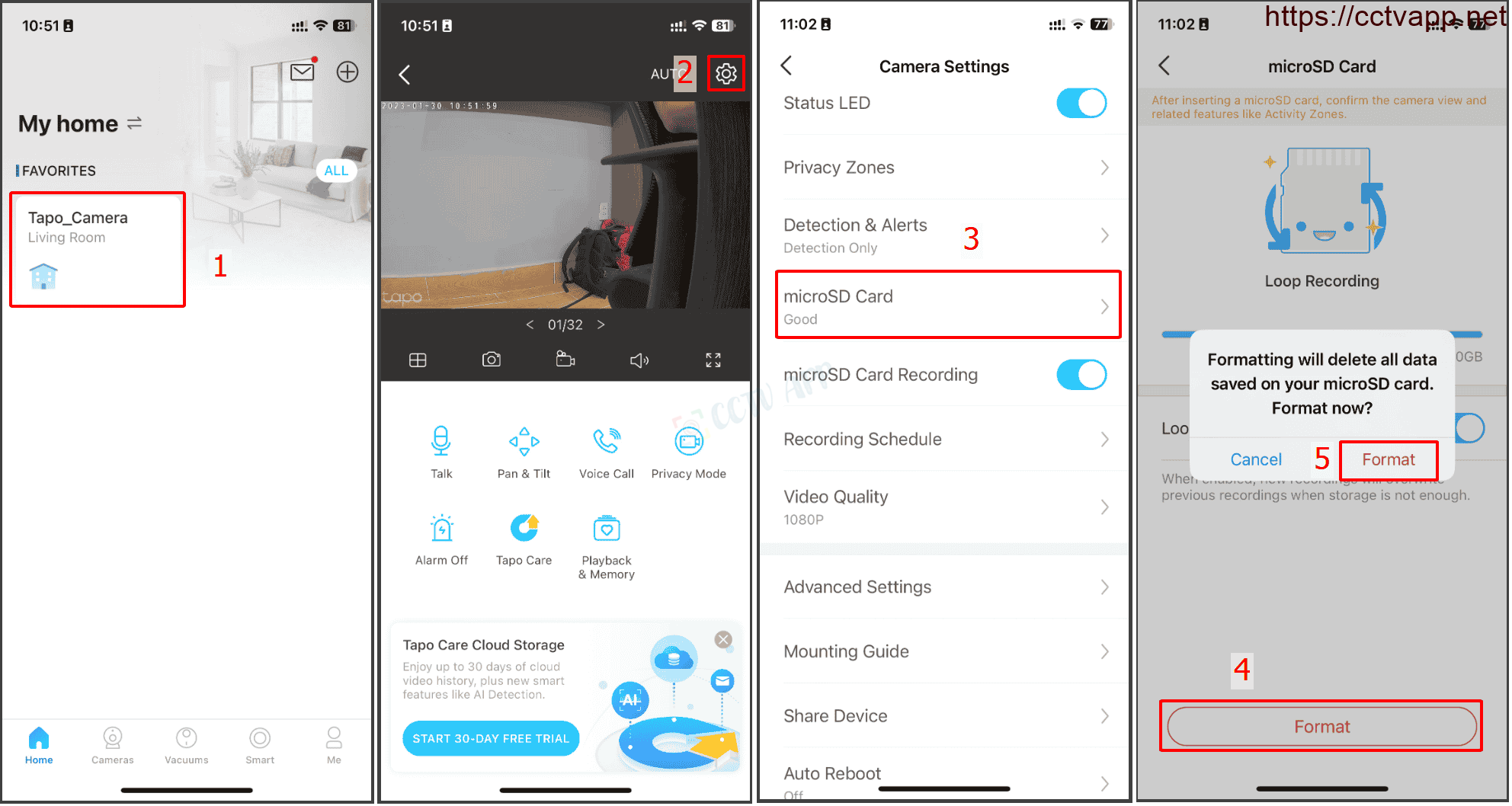
Recovering files and data safety
Formatting typically removes file pointers and metadata, making recovery difficult but sometimes possible. If you need to recover images after formatting, follow these steps.
- Stop using the card immediately. Continued use lowers recovery chances.
- Use trusted recovery software on a computer with an SD card reader.
- If critical images are at stake, consider professional recovery services.
Note that full formats are harder to recover than quick formats. I once recovered a few files after a quick format, but full formats had far lower success rates.

Best practices and tips from real shooting experience
Here are practical tips I use on shoots and recommend to others.
- Format new cards in the camera you will use most before the first shoot. It prevents compatibility issues.
- Label and rotate cards. Use a simple system like Card A, Card B, Card C to track backups.
- Keep a reliable card reader and make backups after every session. Never rely on a single copy.
- Avoid swapping cards in low-light or dusty locations without a cleaner. Dust can cause read errors.
- Replace cards after several years or if you see frequent errors. Cards wear out with write cycles.
One lesson I learned: don’t trust the card that failed once. Replace it. The small cost of a new card is worth protecting weeks of shoot footage.
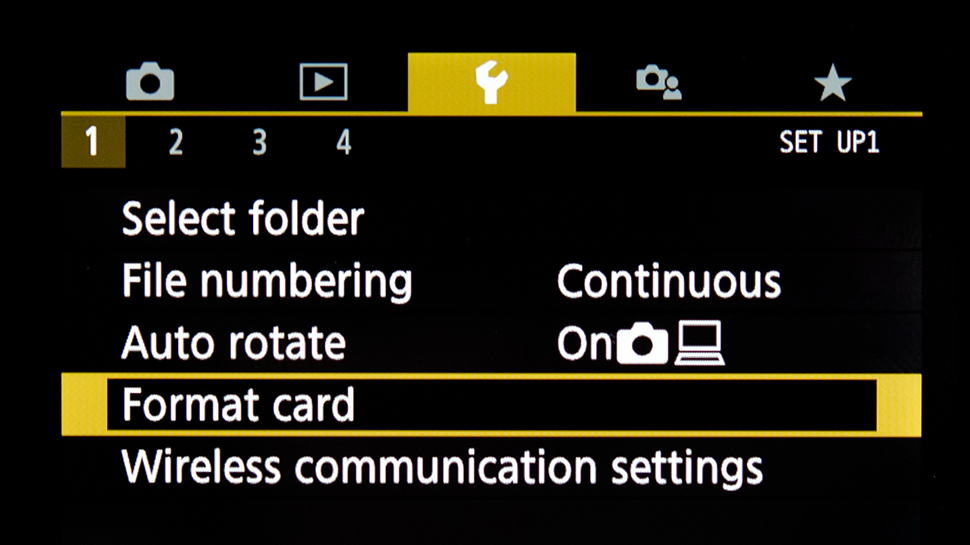
How to format SD card for camera: quick checklist
Use this checklist before a shoot to format safely and avoid problems.
- Back up existing files to multiple locations.
- Check the camera manual for file system requirements.
- Insert card and format in the camera using Full format if time allows.
- Run a quick test shot and review files on your computer.
- Repeat for each card and label them.
This checklist keeps things simple and reliable. I run it before every event shoot.

Frequently Asked Questions of how to format sd card for camera
What happens when you format an SD card in-camera?
Formatting clears the card’s file system and rebuilds the tables the camera uses. It erases all files and prepares the card for optimal camera use.
Can I format an SD card on my computer instead of the camera?
Yes, you can, but formatting on the camera is best. Camera formatting sets the exact file structure the camera expects.
How often should I format my SD card for camera use?
Format before major shoots, when switching devices, or if you see errors. Regular formatting keeps performance steady and reduces corruption risks.
Will formatting remove hidden partitions or malware?
Formatting removes most hidden files and partitions created by other devices, but deep malware may need a secure wipe or a reformat on a computer.
Is it safe to format the SD card multiple times?
Yes. Formatting is safe, but excessive full formats may slightly increase wear over many years. Normal use is fine.
Can I recover files after formatting my camera card?
Sometimes. Recovery chances are higher after a quick format and much lower after a full format. Stop using the card and use recovery software or professional services.
Conclusion
Formatting your SD card in-camera is a simple step that prevents errors, improves performance, and protects your files. Back up before you format, choose the right file system for your card size, and follow a checklist to avoid surprises. Take the habit of formatting new cards in the camera and replacing cards that show errors—your future self will thank you.
Try one of these tips on your next shoot: format your cards in-camera and label them immediately. If this helped, leave a comment or subscribe for more camera gear and workflow tips.

Everett Ashford is a tech reviewer at mytechgrid.com specializing in SSDs, cameras, TVs, earbuds, headphones, and other consumer electronics. He provides honest, data-driven reviews based on hands-on testing and real-world performance analysis. Everett simplifies complex tech details to help readers make smart, confident buying decisions.