Open an app that uses the camera and allow Camera access in System Settings or System Preferences.
I’ve helped dozens of users and IT teams get the camera working on MacBooks, so I’ll walk you through every step of how to access camera on macbook. This guide explains quick steps, permission settings, app-specific tips, troubleshooting, and privacy best practices so you can use your camera with confidence and speed.
Why you might need to access the camera on MacBook
Knowing how to access camera on macbook matters for video calls, recordings, photos, and security checks. New macOS releases changed names and menus, so permissions can be confusing. I’ll simplify those changes and show clear steps that work across macOS versions. You’ll learn both simple and advanced fixes so the camera works every time.
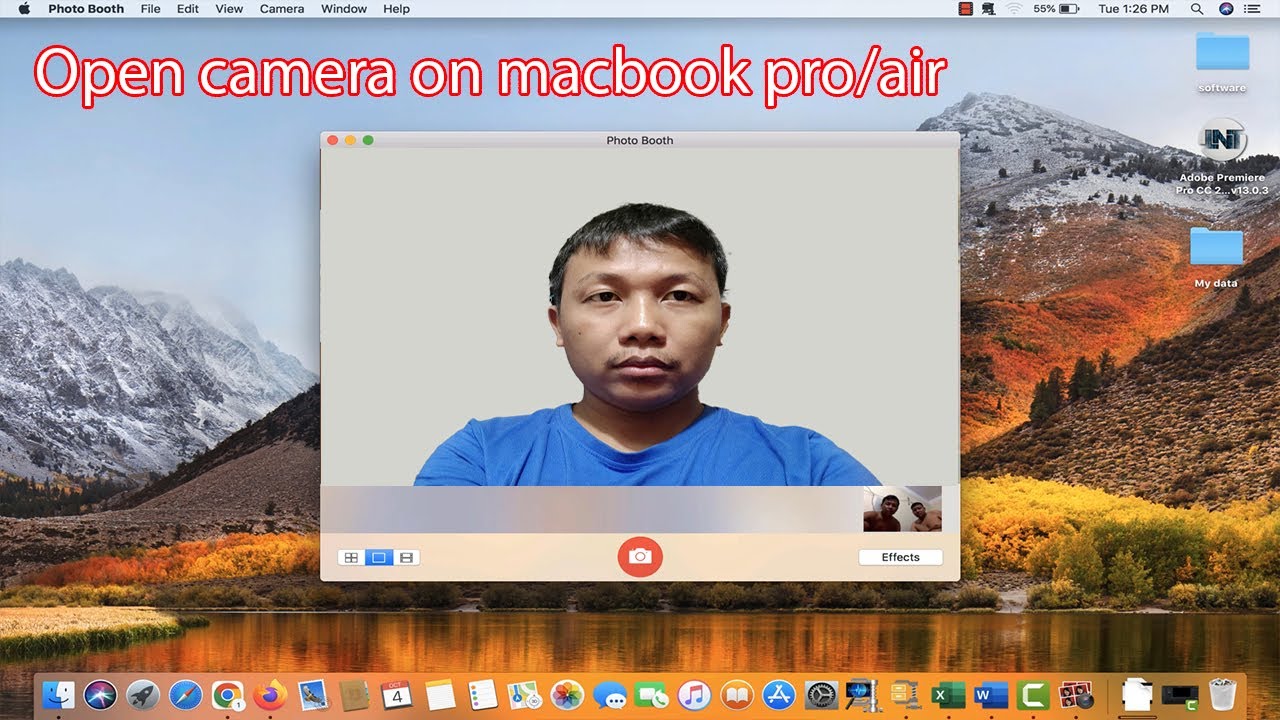
Quick steps to access the camera on MacBook
Use these quick steps when you need the camera right now.
- Open the app you want to use that needs the camera (FaceTime, Photo Booth, Zoom, Safari).
- If prompted, click Allow when the app asks for Camera access.
- If no prompt appears, open System Settings or System Preferences and set Camera access for the app.
These steps solve most access issues and get you shooting or on a call fast.

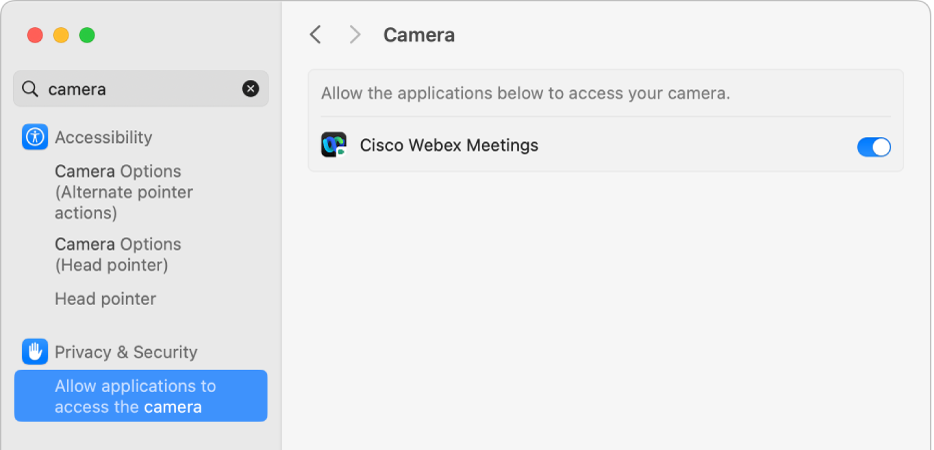
How to grant camera permission in System Settings (macOS Ventura and later)
macOS Ventura and later use System Settings with a new layout. Follow this path.
- Open System Settings from the Apple menu.
- Click Privacy & Security.
- Scroll to Camera and click it.
- Toggle Camera access on for the app you want to use.
If an app is not listed, open the app and try to use the camera so macOS detects it and adds the permission prompt.
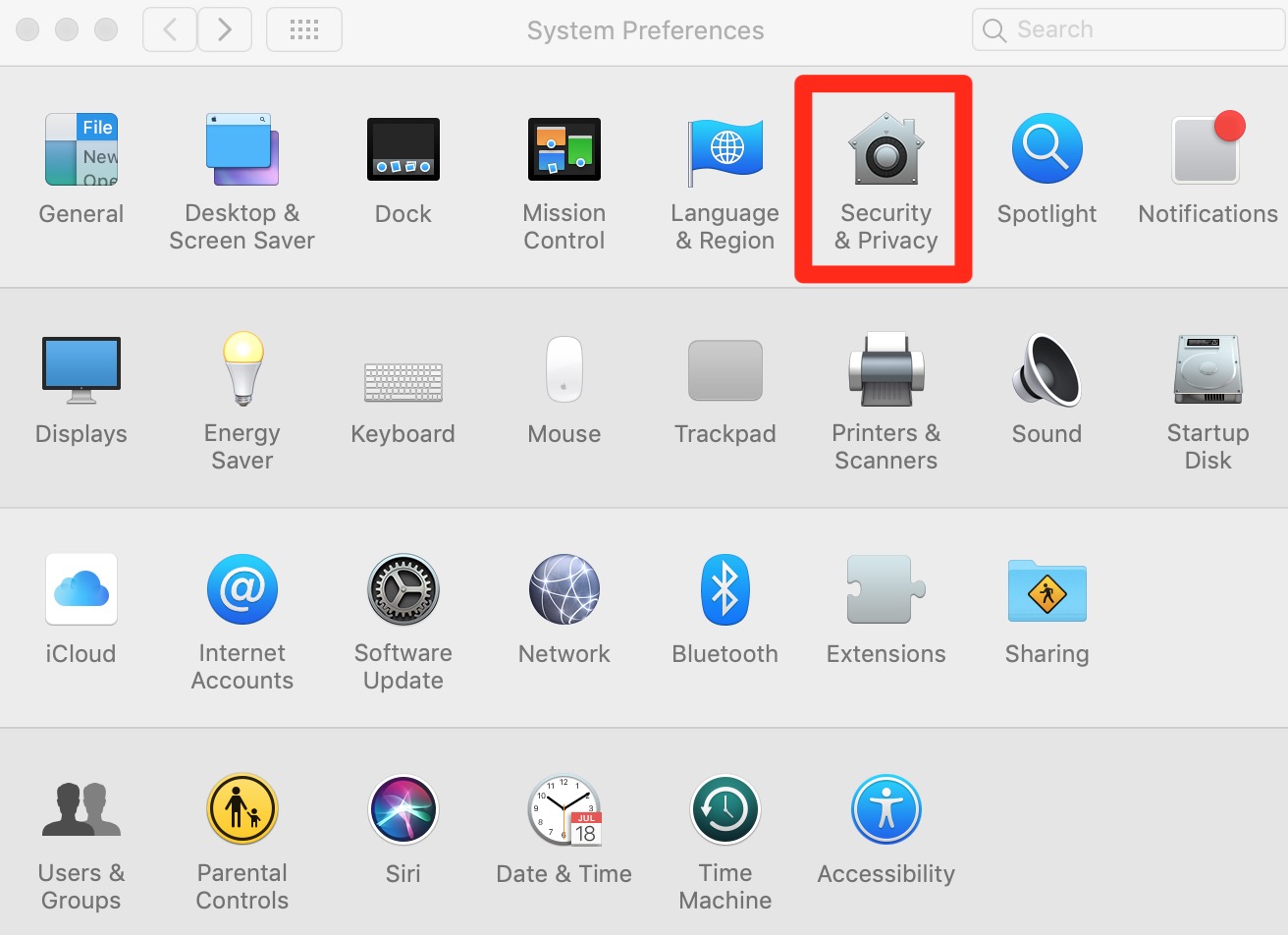
How to grant camera permission in System Preferences (macOS Monterey and earlier)
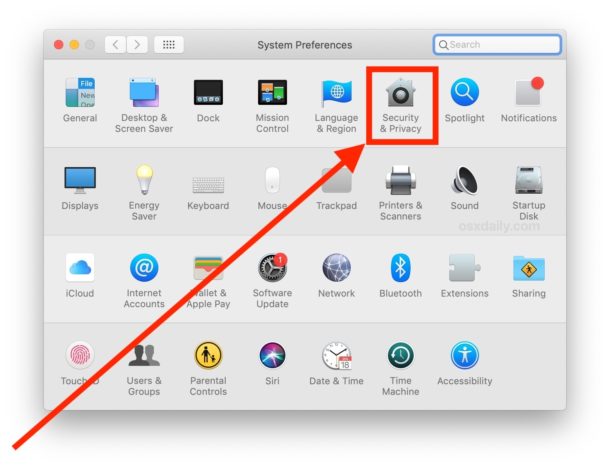
Older macOS versions use System Preferences. Steps are similar but in a slightly different place.
- Open System Preferences from the Apple menu.
- Choose Security & Privacy.
- Select the Privacy tab, then choose Camera from the left column.
- Check the box next to the app that needs camera access.
You may need to click the lock icon and enter your admin password to make changes.

Using built-in apps: FaceTime, Photo Booth, and QuickTime
Built-in apps usually work out of the box, but permissions or settings can block them.
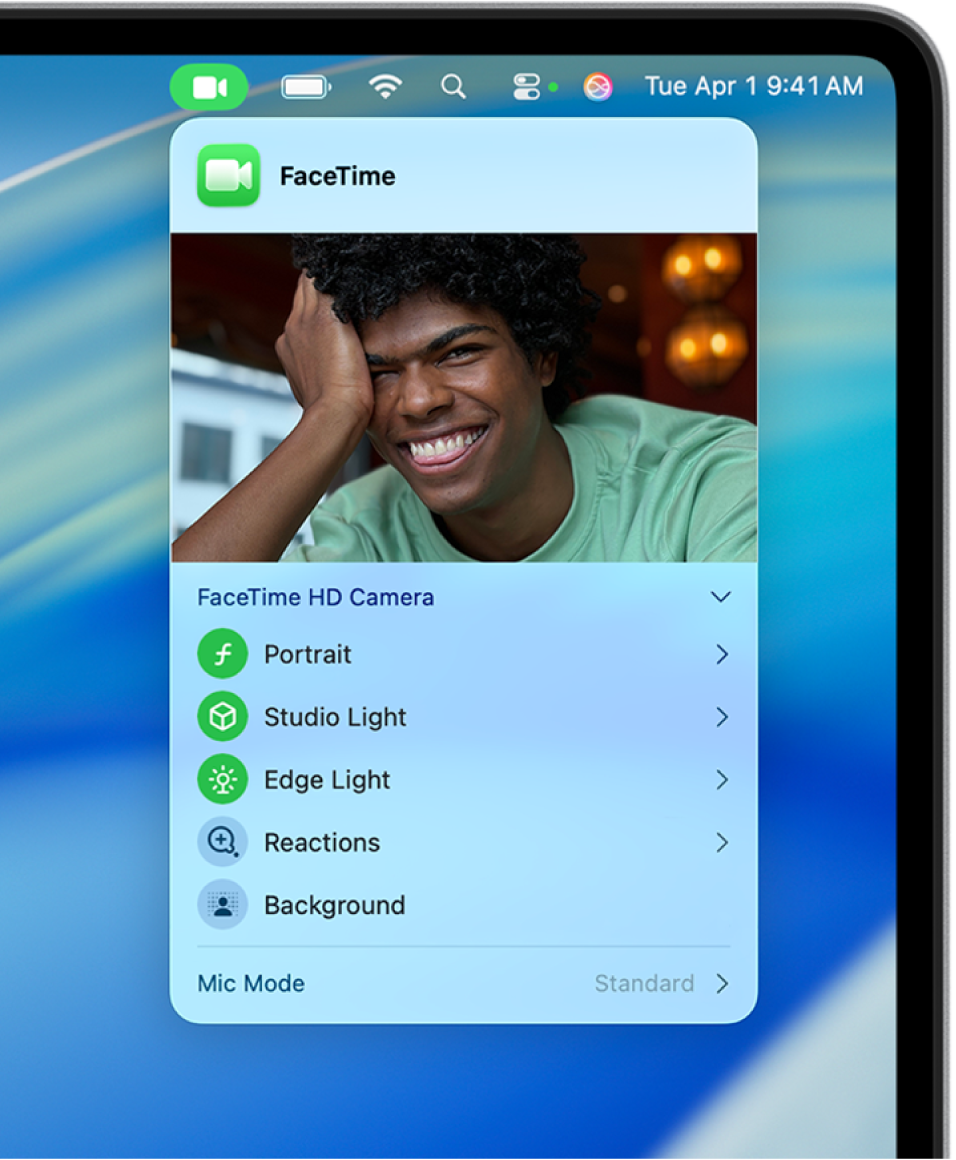
- FaceTime: Open the app and sign in; FaceTime will request Camera access if needed.
- Photo Booth: Launch Photo Booth and select Camera from the menu if it does not start automatically.
- QuickTime: To record video, choose File > New Movie Recording and select the camera from the dropdown.
If a built-in app shows a black preview, follow the troubleshooting tips below.
Using browser and third-party apps (Zoom, Teams, Chrome, Safari)
Browsers and apps also need permission and sometimes a site-level setting.
- Zoom/Teams: Open app settings and choose Video to pick your camera and test feed.
- Chrome/Firefox: Look for the camera icon in the address bar when a site requests access and allow it.
- Safari: Choose Safari > Settings for This Website and set Camera to Allow.
If a browser still won’t access the camera, quit and relaunch it, then retry the site request.
Switching between built-in and external cameras
Many apps let you pick which camera to use. This is useful when plugging in an external webcam.
- In app settings look for Camera, Video, or Devices and pick the desired camera.
- If the external camera doesn’t appear, unplug and replug it, try a different port, or check the camera’s drivers.
MacBooks with multiple cameras (ultra-wide and standard) let you choose the lens within supported apps.

Troubleshooting: camera not working or showing black screen
If the camera won’t show an image, try these fixes in order.
- Quit the app and reopen it.
- Check Camera permissions in System Settings/System Preferences.
- Restart your MacBook.
- Make sure no other app is using the camera; only one app can use it at a time.
- Update macOS and the app to the latest version.
If the camera still fails, a hardware reset (SMC/PRAM on Intel Macs) or contacting Apple Support may be needed.

Short PAA-style clarifications:
What if the camera shows a black screen? Check permissions first, quit any app that might be using the camera, and restart your MacBook.
Why is the green light on but video is blank? The green light means the camera is active; a blank screen usually means software conflict or privacy cover. Try force-quitting apps and checking permissions.
Can a browser access the camera without permission? No — macOS requires explicit permission per app or browser to access the camera for privacy reasons.
Security and privacy: what the camera indicator and permissions mean
macOS has layered privacy protections for cameras.
- The green indicator light shows the camera is on and in use.
- Camera permissions are app-specific and can be revoked any time in Settings.
- Covering your camera is a simple physical privacy step if you’re concerned.
Always review app requests and avoid granting access to apps you don’t trust.
Using external webcams and troubleshooting drivers
External webcams usually work plug-and-play but can need a few checks.
- Plug the webcam into a powered USB port or use a hub with power.
- Select the external camera inside the app’s video settings.
- If the camera is absent, test on another Mac or update drivers if provided by the manufacturer.
Where possible, use cameras from reputable brands and keep firmware up to date.
My experience: lessons learned and practical tips
I’ve set up cameras for remote meetings, taught clients to fix permissions, and recovered cameras after updates. Here are practical tips I use daily.
- Always test your camera before important calls using the app’s preview or Photo Booth.
- After macOS updates, recheck permissions because updates can reset or prompt new requests.
- Keep a small microfiber cloth handy for the lens and consider a removable privacy cover for physical control.
These small routines save time and avoid awkward tech hiccups.
Advanced fixes for persistent problems
If basic troubleshooting fails, try these advanced steps carefully.
- Boot in Safe Mode to test if third-party software blocks the camera.
- Reset SMC or NVRAM/PRAM on Intel Macs following Apple’s official procedure.
- Create a new user account to isolate profile-specific issues.
If you’re on Apple silicon Mac, many resets differ; consult official guides before attempting hardware-level resets.
Frequently Asked Questions of how to access camera on macbook
How do I allow camera access on macOS Ventura?
Open System Settings, go to Privacy & Security, select Camera, and turn on access for the app. If the app is not listed, open it and attempt to use the camera to trigger the permission prompt.
Why does my MacBook camera show a black screen?
A black screen usually means the camera is blocked by another app, permissions are denied, or a software glitch occurred. Quit apps, check Camera permissions, and restart your MacBook to resolve it.
How do I change which camera an app uses?
Open the app’s video or device settings and pick the camera from the Camera or Video Device menu. If the external camera is not listed, reconnect it or try a different USB port.
What does the green camera light indicate?
The green light means the camera hardware is active and an app is accessing it. If you didn’t expect it, check running apps and revoke Camera permission in Settings.
Can I use the camera in a browser without installing software?
Yes, modern browsers can access the camera via web permissions; you must allow the site to use the camera when prompted. Check the site’s camera settings in the browser if you have issues.
My camera works in some apps but not others. What now?
This often means the app lacks permission or has a misconfiguration. Check Camera settings in System Settings/System Preferences and inside the app’s own preferences.
Do I need special drivers for an external webcam?
Most USB webcams are plug-and-play on macOS, but some advanced models may offer drivers or apps for added features. Check the manufacturer if the camera is not detected.
Conclusion
You now have clear, practical steps for how to access camera on macbook, plus troubleshooting, privacy guidance, and expert tips from real-world setups. Try the quick steps first, then use permissions and app settings if problems persist. Take action: test your camera now, update permissions where needed, and add a routine check before important meetings — and if this guide helped, leave a comment or subscribe for more Mac tips.

Everett Ashford is a tech reviewer at mytechgrid.com specializing in SSDs, cameras, TVs, earbuds, headphones, and other consumer electronics. He provides honest, data-driven reviews based on hands-on testing and real-world performance analysis. Everett simplifies complex tech details to help readers make smart, confident buying decisions.