Clear unused apps, remove cached data, restart Fire TV, and reset the device only if storage remains critically low.
The “Critically Low on Storage” message can stop apps, updates, and streaming from working properly. This guide explains how to fix Amazon Fire TV critically low on storage with safe steps that protect your apps, settings, and personal data. You will also learn why the warning appears, what to delete first, and when a factory reset is truly needed.
Why Amazon Fire TV Says Storage Is Critically Low
Amazon Fire TV devices have limited internal storage. Entry-level Fire TV Stick models may have only a small amount of usable space after the operating system and built-in apps are installed. Over time, downloaded apps, app updates, cache files, screenshots, and temporary data can fill that space.
The warning may appear even when you do not have many apps. Some streaming apps store large cache files, while failed updates can leave behind temporary files. A device that has been used for years may also collect data that is not easy to see from the home screen.
Common causes include:
• Too many installed apps
• Large app cache files
• Unused games and sideloaded apps
• Failed downloads or updates
• Automatic app updates
• Downloaded content inside certain apps
• System files and temporary storage
• A software problem that incorrectly reports available space
If your Fire TV is slow, freezes on the home screen, or refuses to open apps, storage is often the first area to check. Learning how to fix Amazon Fire TV critically low on storage starts with identifying what uses the most space.

Check Available Storage on Fire TV
Before deleting anything, check your device’s storage. This shows whether apps, cache, or system files are taking up most of the space.
-
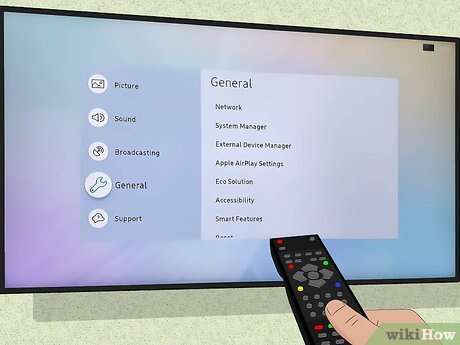
Turn on your Fire TV and open Settings.
-
Select My Fire TV.
-
Choose About.
-
Select Storage.
On some Fire TV models, the path may appear as Settings > My Fire TV > About > Storage. Other Fire OS versions may show storage details under Settings > Applications.
You may see total space, used space, and free space. Do not expect all advertised storage to be available. Fire TV reserves part of its capacity for the operating system, updates, and system processes.
As a general rule, try to keep at least 500 MB to 1 GB free when possible. A Fire TV device can still work with less, but very low free space may prevent updates and cause app errors.
If the storage screen does not load, the device keeps restarting, or the numbers look wrong, restart Fire TV before taking further steps. A temporary system error can sometimes make the storage warning appear worse than it is.

Restart Fire TV Before Deleting Data
A restart is the safest first step when learning how to fix Amazon Fire TV critically low on storage. It clears temporary memory and can stop background tasks that are stuck.
You can restart Fire TV in two ways:
-
Open Settings.
-
Select My Fire TV.
-
Choose Restart.
Or press and hold the Select and Play/Pause buttons on the remote for about five seconds. The screen should go black, and the Fire TV logo should appear during startup.
A restart does not remove apps, accounts, or settings. It simply reloads the operating system and closes active processes.
In many troubleshooting cases, I have found that people skip this step and move straight to deleting apps. Restarting first is useful because it may complete a pending cleanup or update. It also makes later storage changes easier to measure.

Clear App Cache on Fire TV
Clearing cache is one of the best ways to fix Amazon Fire TV critically low on storage without removing an app. Cache files are temporary files that help apps load faster. However, some apps allow their cache to grow much larger than expected.
To clear an app’s cache:
-
Open Settings.
-
Select Applications.
-
Choose Manage Installed Applications.
-
Select the app you want to clean.
-
Choose Clear cache.
Start with apps that you use often, such as streaming, web browser, media player, or game apps. You can also check the app size shown on the same screen.
Clearing cache usually keeps your login and app settings. However, the app may load more slowly the first time afterward. This is normal because it must rebuild temporary files.
Do not select Clear data unless you understand the result. Clearing data may sign you out, erase app preferences, remove downloaded content, or reset the app to its original state.
A useful approach is to clear the cache from several large apps, restart Fire TV, and check storage again. This is safer than clearing data from every app at once.

Delete Apps You No Longer Use
Removing unused apps is often the fastest way to free internal storage. Games are especially important to review because they can be much larger than basic streaming apps.
To uninstall an app:
-
Open Settings.
-
Select Applications.
-
Choose Manage Installed Applications.
-
Select the app.
-
Choose Uninstall.
-
Confirm the removal.
You can also highlight an app on the Fire TV home screen, press the Menu button on the remote, and select Uninstall if that option appears.
Remove apps that you have not opened in several months. You can reinstall most apps later from the Amazon Appstore, although you may need to sign in again.
Pay close attention to sideloaded apps. Sideloading means installing an app from outside the standard Amazon Appstore. These apps may leave files behind, use more storage, or behave poorly after Fire OS updates.
Do not uninstall system apps unless Fire TV clearly provides an uninstall option. Some built-in apps are required for core features, updates, voice control, or playback.

Clear App Data When Cache Is Not Enough
If clearing cache does not solve the problem, clearing app data may recover more space. This process resets the selected app and removes its local information.
Use this option only after trying cache cleanup and app removal. Before clearing data, make sure you know the app’s password and remember your preferred settings.
To clear app data:
-
Go to Settings.
-
Select Applications.
-
Choose Manage Installed Applications.
-
Select the problem app.
-
Choose Clear data.
-
Confirm the action.
Clearing data can remove offline downloads, saved preferences, and local files. Streaming services usually keep your subscription and cloud profile, but you may need to log in again.
This step is helpful when one app has an unusually large data size. It is less useful when the storage problem comes from many small apps or system files.

Remove Sideloaded Apps and Downloaded Files
Sideloaded apps can use storage in two places: the app itself and files downloaded by the app. A common example is a browser or file manager that stores installation packages after an app has been installed.
Review your file manager and delete files you no longer need. Look for:
• APK installation files
• Movie or music downloads
• Old screenshots
• Duplicate media files
• Temporary browser downloads
• Large files created by games or media tools
If you use the Downloader app, check whether old APK files remain in its download folder. Delete the installation file after the app is installed unless you plan to use it again.
Only remove files that you recognize. Deleting unknown system files can cause app errors. If you are unsure, leave the file alone and uninstall the related app instead.
This is a practical way to fix Amazon Fire TV critically low on storage when the standard storage screen does not explain the missing space.

Turn Off Automatic App Updates Temporarily
Automatic updates are useful, but they can create problems when a Fire TV has very little free space. An update may need temporary room to download and install a newer version.
You can manage automatic updates from:
-
Settings
-
Applications
-
Appstore
-
Automatic Updates
Turn automatic updates off only as a temporary measure. You should still update important apps and Fire OS when enough storage is available. Outdated apps may have security issues, playback errors, or compatibility problems.
A better long-term solution is to remove apps you do not use. Disabling updates without freeing space only delays the problem.
Also check for a stuck update. Restart Fire TV, connect it to a stable network, and leave it powered on for several minutes. Some updates complete after a clean reboot.

Update Fire OS After Freeing Space
Once you have recovered storage, check for system updates. Fire OS updates may improve stability, fix app problems, and correct storage-related bugs.
To check for an update:
-
Open Settings.
-
Select My Fire TV.
-
Choose About.
-
Select Check for Updates.
The exact wording may differ by Fire OS version. Install updates only when the device has a stable internet connection and enough free space.
Do not unplug Fire TV during an update. Interrupting system updates can create more serious problems, including failed startup or repeated rebooting.
If Fire TV reports that it is already up to date but continues showing the storage warning, continue with app cleanup. The issue may be caused by cache or app data rather than the operating system.
Use External Storage When Your Fire TV Supports It
Some Fire TV models support USB storage through a compatible OTG adapter or USB hub. External storage can help with compatible apps and media files, but it does not work the same way on every Fire TV device.
Before buying a USB drive, check your exact Fire TV model and Fire OS version. Confirm that the device supports external storage and learn which file system it requires. Amazon documentation and the device’s support pages are the safest places to verify compatibility.
When supported, Fire TV may offer options such as:
• Use USB storage for apps
• Use USB storage for media
• Format the drive as device storage
Formatting erases everything on the drive. Back up important files first.
External storage is not a complete solution for every “Critically Low on Storage” warning. Some system files must remain on internal storage, and certain apps cannot move to a USB drive. A slow or incompatible drive may also cause app loading problems.
For many users, deleting unused apps is simpler and more reliable than adding external storage.
Factory Reset Fire TV as a Last Resort
A factory reset can fix Amazon Fire TV critically low on storage when normal cleanup does not work. It removes installed apps, accounts, settings, downloaded files, and personal preferences.
To reset Fire TV:
-
Open Settings.
-
Select My Fire TV.
-
Choose Reset to Factory Defaults.
-
Read the warning.
-
Select Reset.
You can also press and hold the Back and Right buttons on the remote for about 10 seconds on supported models. The on-screen menu is usually the safer option because it clearly explains what will be removed.
Before resetting, write down your Wi-Fi password and make sure you know your Amazon account details. You will need to set up the device again, install apps, and sign in to services.
A factory reset is appropriate when:
• Storage remains full after app cleanup
• Fire TV repeatedly freezes or restarts
• The storage reading appears incorrect
• An app or system process seems stuck
• The device has years of unwanted data
Do not reset immediately if you have not tried clearing cache and uninstalling unused apps. A reset takes time and may not help if the hardware itself is failing.
What to Do If Storage Fills Up Again
If the warning returns soon after cleanup, look for the app or habit causing the problem. Check storage every few months instead of waiting until Fire TV stops working.
Use these maintenance habits:
• Uninstall apps you no longer use.
• Clear cache from large apps when needed.
• Delete old APK files after installing apps.
• Avoid storing large media files on internal storage.
• Keep Fire OS and important apps updated.
• Restart Fire TV occasionally.
• Use only trusted apps from reliable sources.
• Leave free space for system updates.
A simple storage check can prevent a major streaming problem. Think of free space as a small parking area. If every space is filled, even a tiny delivery, such as an update, has nowhere to go.
In one common troubleshooting case, the device owner had only a few streaming apps but several large games and old downloads. Removing two games and clearing the browser cache solved the warning without a reset. The lesson is clear: app count matters less than total size and stored data.
Mistakes to Avoid When Cleaning Fire TV Storage
Storage cleanup is usually safe, but a few mistakes can make the process harder.
Avoid these actions:
• Do not clear data from every app at once.
• Do not delete files you cannot identify.
• Do not unplug Fire TV during an update.
• Do not format a USB drive without backing it up.
• Do not install “cleaner” apps that make unsupported promises.
• Do not repeatedly factory reset the device without finding the cause.
Fire TV does not need a third-party cleaner to remove ordinary cache files. The built-in application controls are safer and easier to verify.
Also remember that clearing cache is not the same as clearing data. Cache is temporary. Data may include accounts, settings, and downloads. Choosing the wrong option can create unnecessary sign-in work.
How to Fix Amazon Fire TV Critically Low on Storage: Best Order
Use this order when you want the safest and quickest solution:
-
Check available storage.
-
Restart Fire TV.
-
Clear cache from large apps.
-
Uninstall unused apps and games.
-
Remove old downloads and APK files.
-
Clear data from unusually large apps.
-
Check for Fire OS updates.
-
Consider compatible external storage.
-
Perform a factory reset only as a final step.
This sequence reduces risk and helps you identify what solved the problem. After each major step, return to the storage screen and check the available space.
If storage improves after one app is cleaned, monitor that app. It may rebuild a large cache or save offline content again. If the storage number does not change at all, restart the device before assuming the cleanup failed.
Frequently Asked Questions
Why does my Fire TV say critically low on storage?
The warning usually means apps, cache, downloads, or system files have used most of the device’s internal space. Clearing cache and removing unused apps are the safest first steps.
Does clearing cache delete my Fire TV app data?
No. Clearing cache normally removes temporary files while keeping the app installed. Clearing data is different and may sign you out or remove local settings and downloads.
How do I free up space on Fire TV without deleting apps?
Clear cache, remove downloaded files, delete old APK packages, and restart the device. You can also move compatible content to supported external storage.
Will a factory reset fix critically low storage on Fire TV?
A factory reset can remove hidden app data, downloads, and software clutter. It also deletes accounts and settings, so use it only after safer cleanup methods fail.
Can I add more storage to an Amazon Fire TV Stick?
Some Fire TV models support external USB storage with a compatible adapter. Support varies by model and Fire OS version, so verify compatibility before purchasing or formatting a drive.
How much free storage should Fire TV have?
Keeping several hundred megabytes free is helpful, while 1 GB or more gives the device better room for updates and temporary files. The exact amount depends on the Fire TV model and installed apps.
Why does Fire TV storage fill up again after I clear it?
An app may be rebuilding its cache, saving offline content, or downloading updates. Check the largest apps and review storage again after using Fire TV normally for a day.
Conclusion
The most reliable way to fix Amazon Fire TV critically low on storage is to check storage, restart the device, clear large app caches, remove unused apps, and delete old downloads. Clear app data only when needed, and save a factory reset for problems that remain after careful cleanup.
Start with the safest step today: open Manage Installed Applications and review the largest apps first. If these steps helped, share the guide with another Fire TV user or explore more troubleshooting tips for faster, more reliable streaming.

Everett Ashford is a tech reviewer at mytechgrid.com specializing in SSDs, cameras, TVs, earbuds, headphones, and other consumer electronics. He provides honest, data-driven reviews based on hands-on testing and real-world performance analysis. Everett simplifies complex tech details to help readers make smart, confident buying decisions.