Turn on Bluetooth, put earbuds in pairing mode, then select "Brookstone" in your device list.
I’ve paired dozens of wireless earbuds and tested many Brookstone models, so this guide walks you step-by-step through how to pair Brookstone earbuds with phones, tablets, laptops, and more. Read on for clear instructions, common fixes, and practical tips so you can connect quickly and keep your audio working smoothly.

Getting ready: what to check before pairing
Before you start, do a quick checklist so pairing goes smoothly.
- Charge both earbuds and the case fully to avoid power-related pairing failures.
- Read your model’s quick guide to find the pairing button or LED pattern.
- Turn on the device you’ll pair with and open Bluetooth settings.
- Remove old or unused Bluetooth connections from your device to avoid conflicts.
- Make sure the earbuds are not connected to another device nearby.
Following these prep steps makes how to pair Brookstone earbuds far easier and faster for first-time setups and repeat connections.
Step-by-step pairing guide (general method)
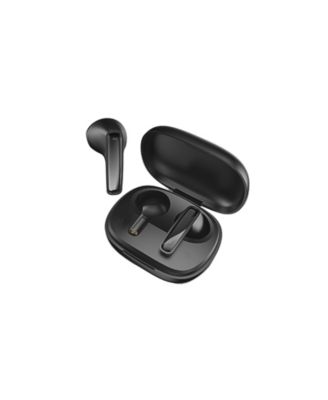
These steps work for most Brookstone true wireless and wireless models. If your model has a case, use that flow; if it’s a neckband or single-earbud design, skip case steps.
- Charge and power on
- Put the earbuds in the charging case for a few seconds, then remove them. For non-case models, press the power button until LEDs light.
- Enter pairing mode
- Most Brookstone earbuds enter pairing mode automatically the first time you remove them from the case. If not, hold the power or multifunction button for 3–7 seconds until the LED flashes red/blue or white.
- Open Bluetooth on your device
- On your phone or computer, open Settings > Bluetooth and make sure Bluetooth is enabled and your device is searching.
- Select the Brookstone entry
- Look for a name like “Brookstone,” “Brookstone TWS,” or the model name and tap to pair.
- Confirm connection
- After pairing, you’ll hear a voice prompt or see a steady LED. Test audio by playing music or making a call.
- Reconnect later
- Once paired, your device will usually auto-reconnect when Bluetooth is on and the earbuds are powered.
If the earbuds don’t appear, repeat the pairing-mode step or try resetting the earbuds before retrying.

Pairing with an iPhone or iPad
Pairing Brookstone earbuds with iOS is quick when using these clear steps.
- Open Settings and tap Bluetooth, then leave the screen open so your iPhone can scan.
- Put the earbuds into pairing mode by holding the power/multifunction button until the indicator flashes.
- Tap the Brookstone device name when it appears under Other Devices.
- If prompted for permission or pairing code, accept or enter 0000 or 1234 if needed.
- Once connected, check Control Center to confirm audio routing to the earbuds.
If you use iCloud and multiple Apple devices, the earbuds may appear across devices. Disable automatic device switching if you want manual control.
Pairing with an Android phone or tablet
Android devices vary slightly, but the process is the same in principle.
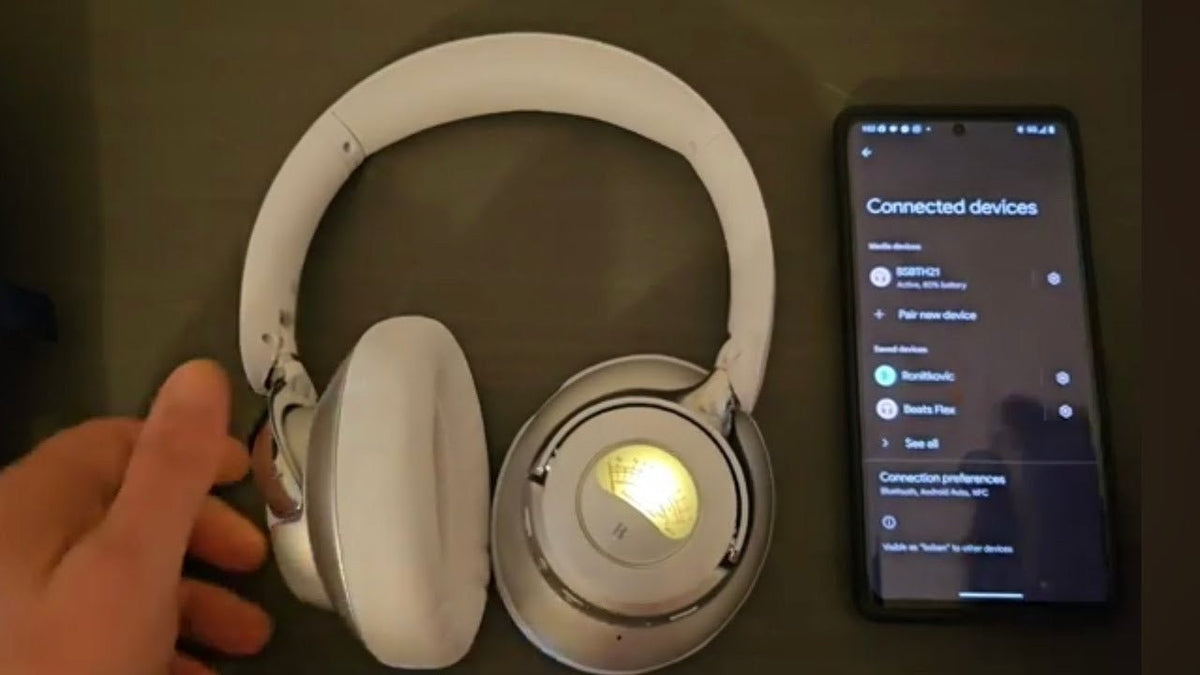
- Open Settings > Connected devices > Bluetooth and turn it on.
- Activate pairing mode on your Brookstone earbuds by holding the button until the LED blinks.
- Look for the Brookstone entry in Available devices and tap to pair.
- Grant any required permissions or accept prompts to complete pairing.
- Test audio and microphone in a call app to ensure full functionality.
For Samsung or Pixel phones, you might see extra prompts for permissions or battery status—accept them to get the best experience.

Troubleshooting common pairing issues
Here are fast fixes for frequent problems when learning how to pair Brookstone earbuds.
- Earbuds not discoverable
- Ensure they’re in pairing mode. Charge them, then press-and-hold the power button longer (5–10 seconds).
- One earbud connects, the other doesn’t
- Place both in the case, close it for 10 seconds, then remove them together. If still single, reset the pair.
- Device shows “Paired” but no sound
- Check the audio output in your app or OS. Reconnect or forget the device then pair again.
- Frequent disconnects or dropouts
- Move closer to the source, remove obstacles, and turn off other active Bluetooth devices.
- Pairing fails repeatedly
- Reset earbuds to factory defaults and remove the Brookstone entry from your device’s Bluetooth list before retrying.
Reset procedure (typical)
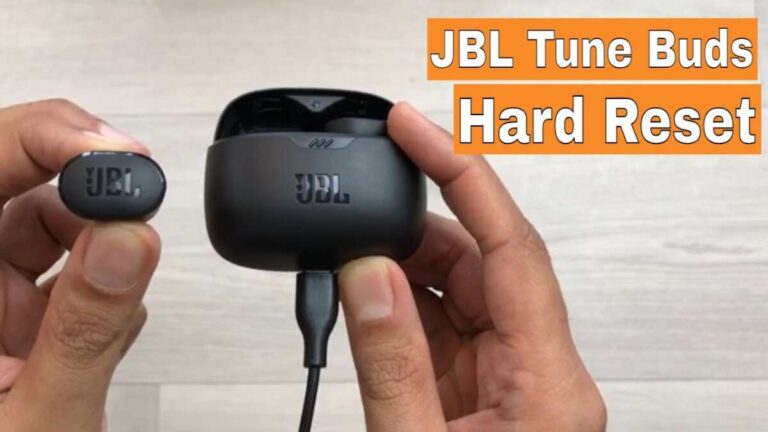
- Power off earbuds. Hold both earbuds’ buttons for 10–15 seconds until LEDs blink rapidly, then restart and re-pair.
If these steps fail, consult your model’s manual for model-specific reset sequences. I once fixed a stubborn pairing issue by fully resetting and updating phone Bluetooth drivers; that resolved the one-earbud problem instantly.
Tips and best practices
Small habits make how to pair Brookstone earbuds easier every time.
- Keep firmware updated when available through an app or instructions.
- Store earbuds in their case to preserve battery and maintain pairing memory.
- For mono listening, drain one earbud and power on the other, or follow the manual’s single-earbud instructions.
- When switching devices often, first disconnect on current device before pairing a new one.
- Label the earbuds in your Bluetooth list if your OS allows custom names for easier selection.
From personal experience: I always clear my phone’s Bluetooth list before pairing a new pair. It cuts down on weird connection conflicts and saves time.

Advanced topics: multi-device pairing and codecs
If you want more control or lower latency, consider these advanced points when you learn how to pair Brookstone earbuds.
- Multi-device pairing
- Some models support multipoint pairing with two devices. Pair to device A first, then enable pairing mode and connect to device B.
- Single-ear mode
- Many Brookstone earbuds allow using either bud alone. Check the manual for the exact method for your model.
- Audio codecs and latency
- Earbuds use codecs like SBC or AAC. Lower latency codecs help for gaming and video. Check specifications if you need low-lag audio.
- Firmware updates
- Occasionally check for firmware patches that can fix pairing bugs and improve stability.
Understanding these features helps you pick the right device and get the best experience when you pair and use your earbuds.
Frequently Asked Questions of how to pair brookstone earbuds
How do I reset my Brookstone earbuds if they won’t pair?
Most Brookstone earbuds reset by holding the power or multifunction button for 10–15 seconds until the LED flashes rapidly. After reset, remove the old Bluetooth entry on your device and try pairing again.
Can I use just one Brookstone earbud at a time?
Yes, many Brookstone models support single-ear use. Place the other earbud in the case or power it off, then use the remaining earbud alone following your model’s single-ear instructions.
Why does my device not find my Brookstone earbuds?
Common causes are low battery, earbuds already paired to another device, or not being in pairing mode. Charge the earbuds, enter pairing mode, and make sure Bluetooth on your device is actively scanning.
How do I pair Brookstone earbuds with a laptop or PC?
Open your laptop’s Bluetooth settings, enable pairing mode on the earbuds, then add a Bluetooth device and select the Brookstone entry. If prompted, choose audio or headset mode to enable microphone use.
What do I do if only one earbud connects after pairing?
Place both earbuds back in the case, close it for a few seconds, then remove them together to re-sync. If that fails, perform a reset on the earbuds and re-pair from scratch.
Conclusion
You now have straightforward, tested methods for how to pair Brookstone earbuds across phones, tablets, and computers, plus smart fixes for common hiccups. Try the steps in order: charge, enter pairing mode, select the Brookstone device, and reset only when needed. Start pairing now and enjoy clear audio quickly—if something still feels off, come back to this guide or leave a comment with your model and issue so others can help.

Everett Ashford is a tech reviewer at mytechgrid.com specializing in SSDs, cameras, TVs, earbuds, headphones, and other consumer electronics. He provides honest, data-driven reviews based on hands-on testing and real-world performance analysis. Everett simplifies complex tech details to help readers make smart, confident buying decisions.