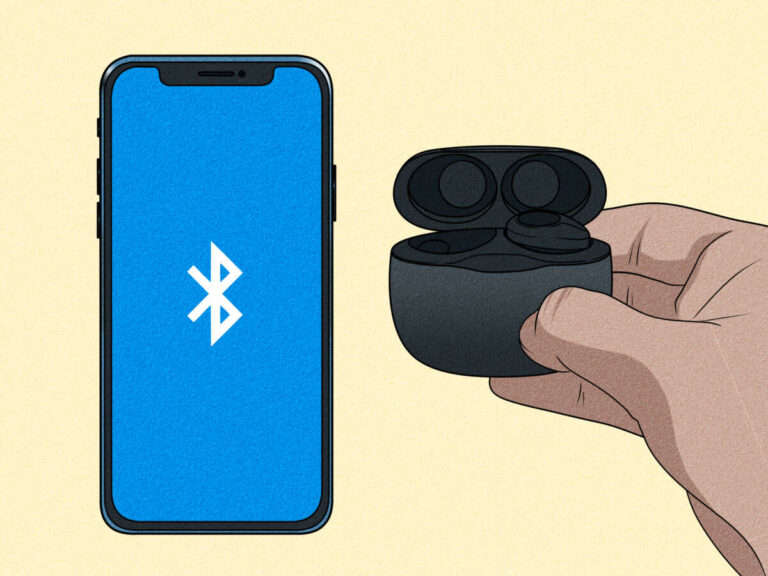
Put your earbuds into pairing mode, then enable Bluetooth on your device and select them.
I’ve guided hundreds of people through wireless audio setups. This guide explains how to pair my earbuds step by step, covers common problems, and helps you get clean sound fast. Read on if you want clear pairing instructions, smart troubleshooting, and tips from real-world tests.
Understanding Bluetooth pairing and earbuds
Pairing links your earbuds and a device so they can send audio. It uses Bluetooth to exchange a short handshake and create a secure connection. Knowing this helps when a device won’t connect or drops audio. If you know how to pair my earbuds, fixes become simple and fast.

Quick checklist before you start
Follow this checklist to avoid basic issues.
- Charge both earbuds and the case to at least 50 percent.
- Turn off other nearby Bluetooth devices to reduce interference.
- Make sure your phone, tablet, or computer has Bluetooth on and is discoverable.
- Read the earbuds’ short manual for model-specific pairing steps.

Step-by-step: how to pair my earbuds (general method)
These steps work for most true wireless and Bluetooth earbuds.
- Turn on Bluetooth on your device and open Bluetooth settings.
- Put the earbuds into pairing mode. Usually this means removing them from the case or holding a button for 3–5 seconds.
- Watch the device’s Bluetooth list for the earbuds’ name. Tap to connect.
- If asked, confirm the pairing prompt. Most earbuds use automatic pairing with no PIN.
- Test audio and mic by playing music or making a call.
If pairing fails, power off and on both the earbuds and device, then try again. Repeating the phrase "how to pair my earbuds" in your search or settings helps you find model-specific steps quickly.

How to pair my earbuds with specific devices
Different platforms have small quirks. Below are short guides.
iPhone and iPad
- Open Settings > Bluetooth.
- Put earbuds in pairing mode.
- Select the earbuds from the list.
iOS often shows a pairing animation for popular brands and handles codecs automatically.
Android phones and tablets
- Open Settings > Connected devices > Pair new device.
- Enable pairing on the earbuds and tap their name.
Android may require location permissions for Bluetooth scanning on some versions.
Windows 10 and 11
- Open Settings > Bluetooth & devices > Add device.
- Choose Bluetooth and select your earbuds.
Windows will install drivers automatically; allow a minute for setup.
macOS
- Open System Settings > Bluetooth.
- Put earbuds in pairing mode and click Connect beside their name.
macOS shows battery level for many models after pairing.
TVs, game consoles, and nonstandard devices
- Check device Bluetooth support. Many smart TVs use Settings > Sound > Bluetooth.
- Consoles often require a USB Bluetooth adapter or specific compatible headsets.
For these, follow the device’s Bluetooth menu and then put your earbuds into pairing mode.

Troubleshooting common pairing problems
Here are fast fixes for the most common issues.
- Earbuds not visible
* Ensure earbuds are in pairing mode, not just power-on mode.- Restart Bluetooth on your device.
- Only one earbud connects
- Place both earbuds in the case, then remove them to force re-sync.
- Reset the earbuds using the manufacturer’s reset sequence.
- Device says “paired” but no sound
- Check the phone’s output device selection and volume.
- Restart the media app and reconnect Bluetooth.
- Frequent dropouts
- Move closer to the device and remove obstacles.
- Turn off Wi-Fi channels that might interfere, or switch codec settings if available.
- Pairing requires a PIN
- Try common default PINs like 0000 or 1234. Check the manual for model-specific PINs.

Resetting earbuds and firmware updates
Resetting removes old pairings and clears bugs. Firmware updates fix connection stability and add features.
- Reset steps
- Most brands require holding a button for 10–15 seconds or placing earbuds in the case and pressing a case button.
- After reset, delete the earbuds on your device’s Bluetooth list before pairing again.
- Firmware updates
- Use the vendor app when available.
- Keep earbuds charged during updates.
Updating firmware often resolves persistent pairing faults and improves battery life.
Advanced topics: multipoint, codecs, and latency
Understanding these helps when using earbuds with multiple devices or for gaming.
- Multipoint pairing
- Lets earbuds stay connected to two devices at once, such as a phone and laptop.
- Enable if your earbuds support it and follow the brand’s setup steps.
- Codecs and sound quality
- SBC, AAC, aptX, and LDAC affect quality and latency.
- Modern phones negotiate the best codec automatically, but some apps let you force settings.
- Low latency for gaming and video
- Use a low-latency mode if your earbuds support it or select a compatible codec.
- Wired connections or adapters can be better for critical latency needs.
Security, privacy, and best practices
Bluetooth pairing is generally safe, but follow simple rules to stay secure.
- Keep earbuds in pairing mode only when you need to pair.
- Forget old or unused pairings on devices.
- Update firmware to fix known vulnerabilities.
- Avoid pairing in public for sensitive tasks.
My experience: practical tips and common mistakes
I’ve paired dozens of earbuds across phones, laptops, and TVs. Here’s what I learned.
- Patience matters. Waiting 10 seconds for pairing mode often helps.
- Clean contacts in the case regularly; dirty contacts can stop charging and cause odd pairing bugs.
- Always try a reset before returning earbuds. Many “broken” units just needed a factory reset.
These lessons will save time when you wonder how to pair my earbuds the next time.
Frequently Asked Questions of how to pair my earbuds
How do I put my earbuds into pairing mode?
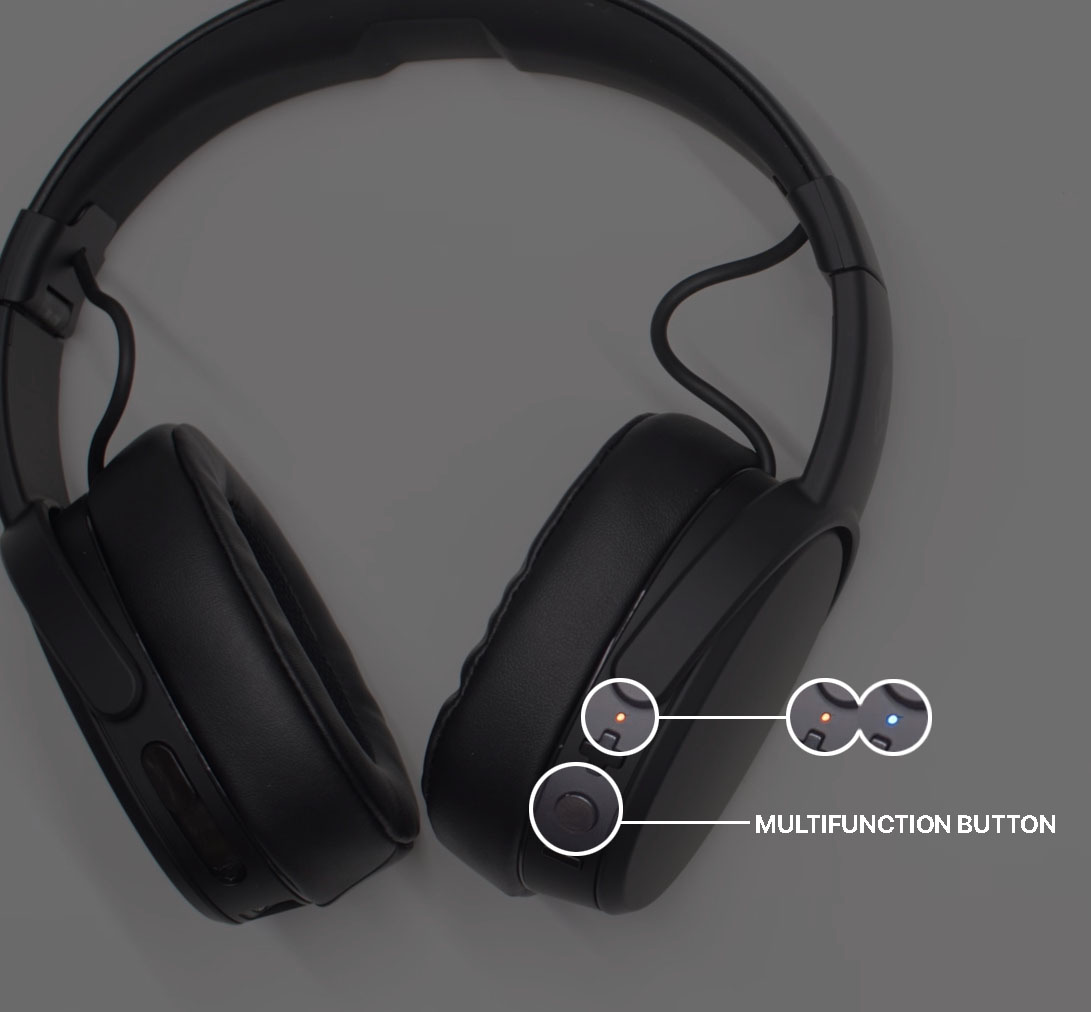
Most earbuds enter pairing mode by holding a touch sensor or button for 3–10 seconds. The LED usually flashes blue or alternates red/blue to show they’re discoverable.
Why won’t my device find my earbuds?
Common reasons include earbuds not in pairing mode, Bluetooth off on your device, or the earbuds previously paired to another device. Turn off other Bluetooth devices and retry pairing.
How do I fix one earbud not connecting?
Place both earbuds in the charging case, close it for 10 seconds, then remove them to force re-sync. If that fails, reset the earbuds per the manual.
Do earbuds need an app to pair?
No, most earbuds pair without an app. An app adds features like firmware updates, EQ, and multipoint settings but is not required for basic pairing.
Can I pair my earbuds with two devices at once?
Only if the earbuds support multipoint connection. Check your earbuds’ specs and the manufacturer app to enable or set up multipoint pairing.
Conclusion
You now have clear, practical steps on how to pair my earbuds, plus solid troubleshooting and advanced tips. Try the step-by-step guide first, then use resets and firmware updates if needed. Ready your device, put the earbuds in pairing mode, and enjoy great wireless audio—then leave a comment or subscribe to learn more.

Everett Ashford is a tech reviewer at mytechgrid.com specializing in SSDs, cameras, TVs, earbuds, headphones, and other consumer electronics. He provides honest, data-driven reviews based on hands-on testing and real-world performance analysis. Everett simplifies complex tech details to help readers make smart, confident buying decisions.