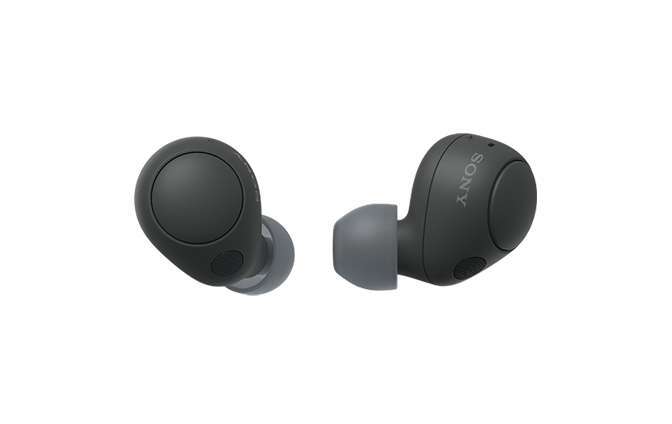
Put the earbuds into pairing mode, enable Bluetooth on your device, then select the Sony model.
I’ve paired dozens of Sony earbuds across models and platforms, and this guide will walk you through every step, tip, and troubleshooting fix for how to pair my Sony earbuds. You’ll get clear, tested steps, model-specific notes, and practical tricks from real-world experience so you can connect quickly and keep the audio reliable.
Step-by-step pairing guide (how to pair my sony earbuds)
Follow these simple steps to pair most Sony earbuds. The exact button or case action may vary by model, but the flow is the same.
- Charge both earbuds and the case for at least 30 minutes to avoid power issues.
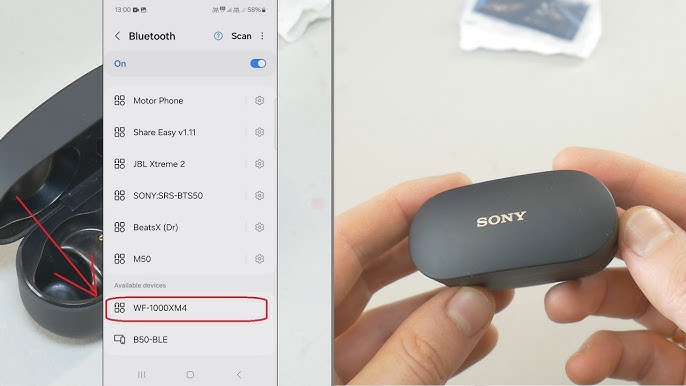
- Open Bluetooth on your phone, tablet, or computer and leave the Bluetooth settings screen visible.
- Take the earbuds out of the case. If they do not enter pairing mode automatically, press and hold the pairing button on the case or the earbuds for about 5–7 seconds.
- Watch for a blinking blue (or white) LED on the earbuds or a voice prompt that says “Bluetooth pairing.”
- On your device, look for the Sony model name (for example, WF-1000XM5) and tap to connect.
- Accept any pairing prompts. If asked to allow access to contacts or media, allow if you want calls and media controls.
- Once connected, you’ll hear a confirmation tone or voice. Test audio playback to confirm.
Tips:
- If pairing fails, turn Bluetooth off and on again on your device, then retry.
- Keep the earbuds close to your device during initial pairing, within 3 feet.
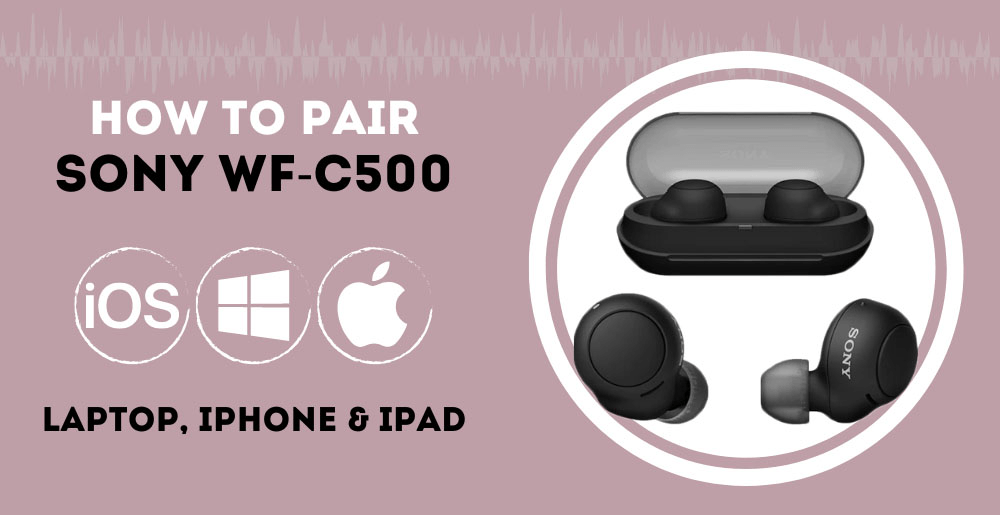
Pairing specifics by Sony model
Different Sony models have slightly different pairing steps. Below are common patterns that cover most models.
WF-1000XM5 and WF-1000XM4
- Open the case with earbuds inside to start pairing mode automatically for the first time. If not, press and hold the touch area on both earbuds until you hear “Bluetooth pairing.”
- Quick pairing is supported with recent Android devices.
WF-C700N and WF-SP800N
- Remove both buds from the case to start. If they don’t pair, press and hold the case button for 7 seconds to reset and enter pairing mode.
- Sports models may use a dedicated button on one earbud for pairing.
WF-XB700 and older true wireless models
- Press and hold the button on each bud together, or press the case button after closing and reopening the case.
- Older models may require manual pairing mode on one bud only.
Wireless neckband models (WI-C600N, WI-SP510)
- Press and hold the power or pairing button until an LED blinks or you hear “pairing.”
- Often use a single multi-function button for Bluetooth.

Pairing with iPhone, Android, Windows, and Mac
Here’s how to pair my Sony earbuds with different devices.
iPhone and iPad
- Open Settings > Bluetooth. Keep the screen open.
- Put earbuds in pairing mode. Tap the Sony device name when it appears. You may see “Connected” shortly after.
Android
- Open Settings > Connections > Bluetooth or Settings > Bluetooth.
- Some Android phones support Fast Pair. If a pop-up appears, tap to pair. Otherwise select the Sony model from the device list.
Windows 10/11
- Go to Settings > Bluetooth & devices > Add device > Bluetooth.
- Put earbuds into pairing mode and select them from the list. Use the Sound settings if you need to switch between stereo and hands-free modes.
macOS
- Open System Settings or System Preferences > Bluetooth.
- Enable Bluetooth and select the Sony earbuds when they appear. Use the volume menu to switch output if needed.
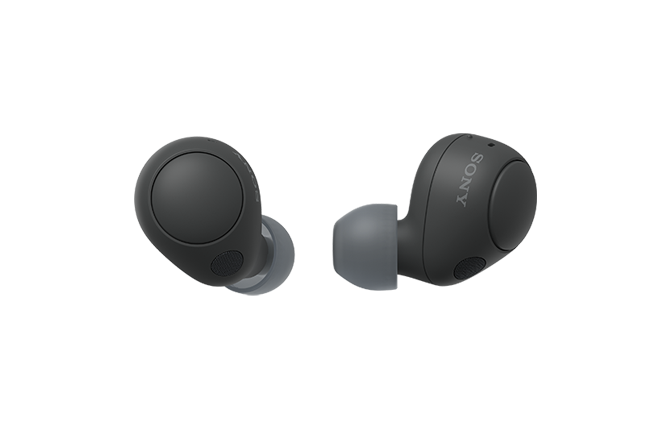
Troubleshooting common pairing issues
If you have trouble when trying to pair my Sony earbuds, these fixes solve most problems.
Earbuds won’t enter pairing mode
- Ensure they have enough charge. Try pressing and holding the case button or the earbuds’ touch button for 7–10 seconds.
- If that fails, reset the earbuds (see reset steps below).
Device can’t find the earbuds
- Turn Bluetooth off and on again on the device. Reboot the device and retry.
- Move away from other Bluetooth devices and Wi‑Fi routers that may cause interference.
Paired but no sound or low sound quality
- Check that the earbuds are set as the output device in your OS.
- Disable low-power or battery-saver modes on your phone that can limit Bluetooth performance.
Connection drops frequently
- Update the earbuds’ firmware using the Sony Headphones Connect app.
- Forget the earbuds on your device, then re-pair them freshly.
Earbuds pair to the wrong device
- Remove pairing entry on the unwanted device. Use the headphones’ multi-device or multipoint feature if supported.
Reset and factory reset steps (general)
- Most Sony true wireless models: Put earbuds in case, hold the case button for 10–20 seconds or press and hold touch sensors for a longer reset prompt.
- Consult your model’s quick start guide for exact reset wording.
PAA-style question: Why won’t my Sony earbuds enter pairing mode?
- Low battery, interference, or a previous connection can block pairing. Charge the earbuds, power-cycle nearby devices, and use the long-press reset to force pairing.
PAA-style question: How long does pairing usually take?
- Pairing typically completes within 10–30 seconds once in pairing mode. If it takes longer, restart both earbuds and your device and try again.

Advanced tips: Sony Headphones Connect, firmware, codecs, and multipoint
Use Sony’s tools and settings to get the best experience once you know how to pair my Sony earbuds.
Sony Headphones Connect app
- Install the app on Android or iOS to manage settings, update firmware, and customize sound via equalizer and sound modes.
- The app also helps with troubleshooting and can force a fresh pairing during updates.
Firmware updates
- Keep firmware current. Updates fix bugs and improve stability. The app alerts you when updates are available.
Codecs and sound quality
- Sony supports SBC, AAC, and high-quality codecs like LDAC on compatible devices. To use LDAC, your source device must support it and the app may let you pick the codec.
- For best latency in games or calls, choose a low-latency codec if available.
Multipoint and multi-device pairing
- Some Sony earbuds support multipoint to connect to two devices simultaneously. Use this to stay connected to your laptop and phone.
- Behavior varies by model—check the app or manual for multipoint setup.
Battery care and pairing reliability
- Keep the case charged. Firmware updates may include battery management improvements.
- Turn off one device’s Bluetooth if you want the earbuds to prioritize another during pairing.

Personal experience: lessons learned and mistakes to avoid
I’ve paired Sony earbuds across dozens of phones and laptops. These small lessons saved me time.
Lesson 1: Always charge first
- I once spent 20 minutes troubleshooting when the earbuds were at 1% battery. A quick charge solved it.
Lesson 2: Use the app early
- The app often discovers the earbuds and pushes updates that fix pairing bugs. Install the app before long troubleshooting sessions.
Lesson 3: Don’t assume identical steps
- Two Sony models I used in the same week required different reset methods. Read the quick start guide for that model.
Common mistakes to avoid
- Relying on memory for reset steps—check the manual.
- Pairing too far from the device—keep them close for first-time pairing.
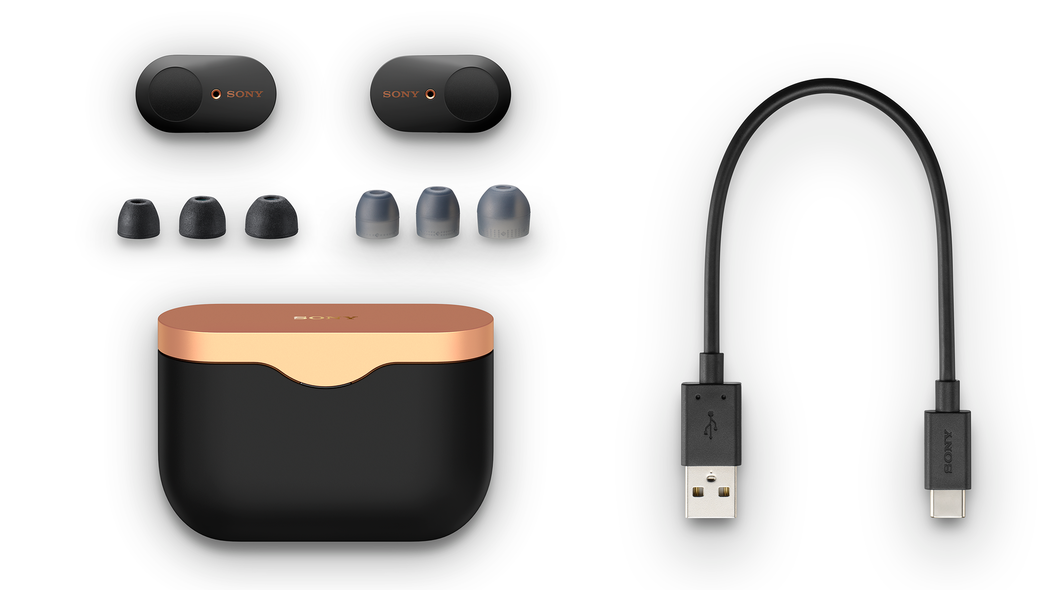
Frequently Asked Questions of how to pair my sony earbuds
How do I force my Sony earbuds into pairing mode?
Press and hold the case button or the earbuds’ touch sensor for about 7–10 seconds until the LED flashes or you hear a pairing voice prompt. If that does not work, fully charge the case and earbuds and try again.
Can I pair my Sony earbuds with two devices at once?
Some Sony earbuds support multipoint pairing for two devices. Check the earbuds’ specs or the Headphones Connect app to confirm and enable the feature.
Why does my phone show the earbuds but won’t connect?
Often the phone still has an old pairing record or another device is connected. Forget the earbuds in Bluetooth settings, restart your phone, and re-pair the earbuds.
How do I reset my Sony earbuds if pairing fails?
Reset methods vary by model but usually involve holding the case button for 10–20 seconds or using a specific touch gesture. Consult your model’s manual for the exact reset procedure.
Will firmware updates fix pairing problems?
Yes. Firmware updates often fix stability and pairing bugs. Use the Sony Headphones Connect app to check and install updates when available.
Conclusion
You now have a clear, practical roadmap for how to pair my Sony earbuds across models and devices. Start with a full charge, use the app for updates, follow model-specific pairing actions, and use reset steps when needed. Try the simple steps first, then move to firmware and app troubleshooting if problems persist.
Take action now: charge your earbuds, open your device’s Bluetooth settings, and follow the pairing steps above. If this guide helped, leave a comment with your Sony model and experience, or subscribe to get more hands-on tips and updates.