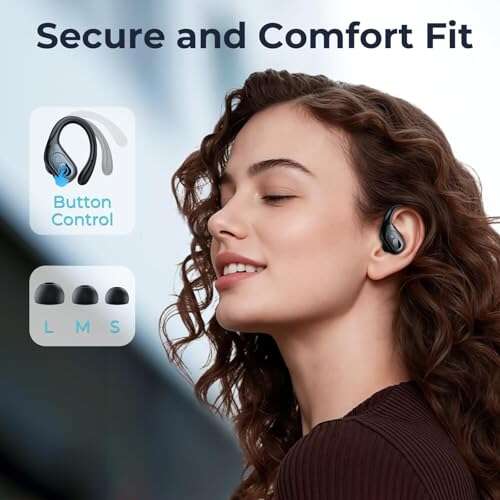
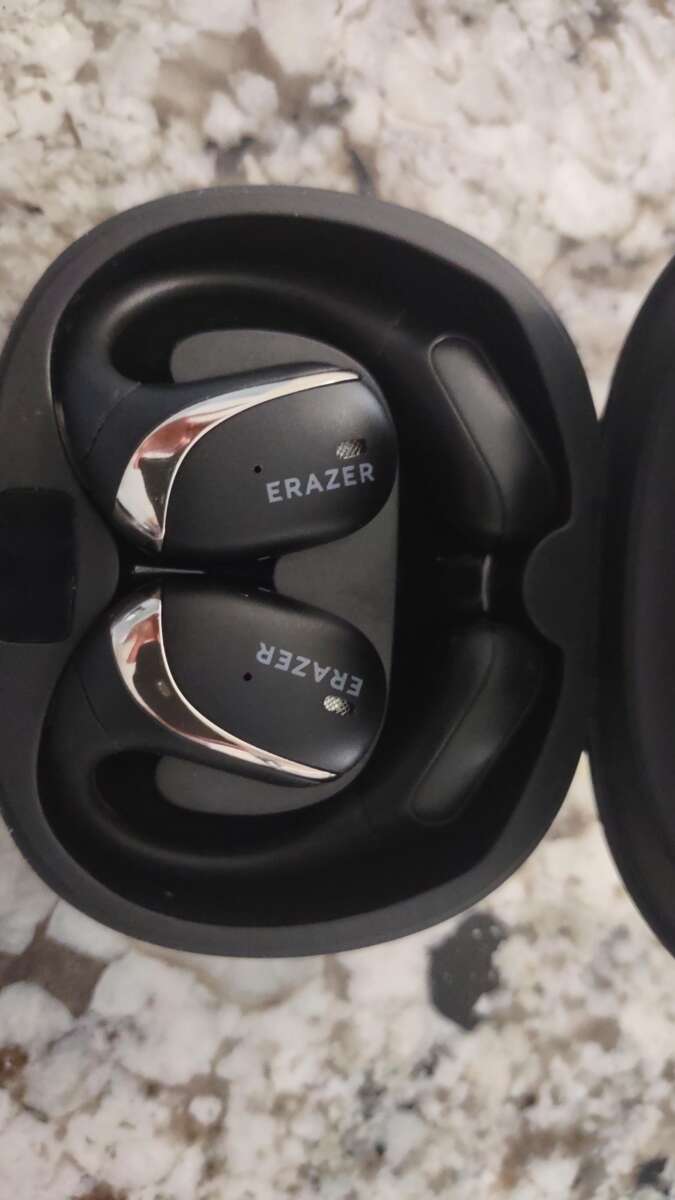
Press and hold both earbuds for about 3–5 seconds to disconnect from your device.
I’ve worked with many earbuds and tested JLab gear across phones and laptops. This guide explains exactly how to disconnect Jlab earbuds, why a simple disconnect is different from unpairing or resetting, and which steps work best for each common JLab model. Read on for clear, tested steps, handy tips, and troubleshooting advice so you can manage connections like a pro.

Understanding what “disconnect” means and why it matters for how to disconnect jlab earbuds
Disconnecting ends the active audio link between earbuds and a device without removing the Bluetooth record. This lets you reconnect quickly later. Unpairing removes the saved Bluetooth profile and forces a fresh pairing next time.
Knowing this helps you pick the right action. If you want to switch devices, a quick disconnect works. If you want to stop auto-reconnect or give the earbuds to someone else, unpair or reset.
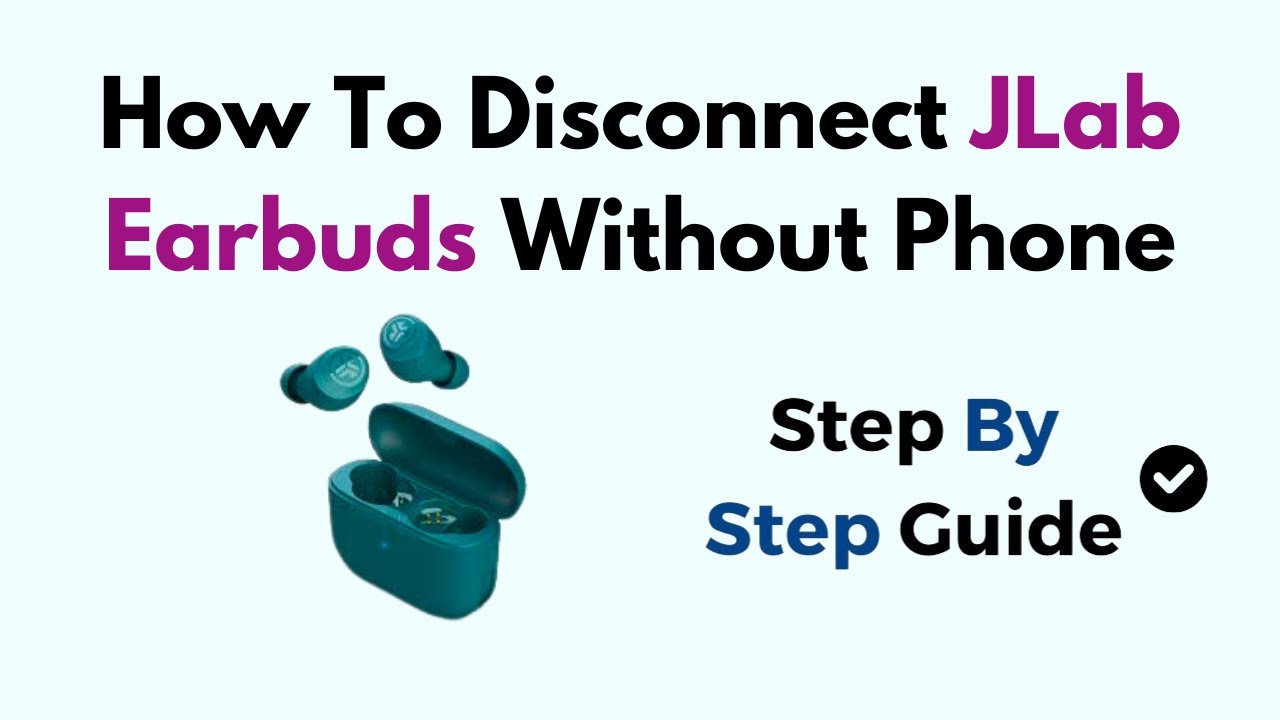
Quick steps to disconnect JLab earbuds from a phone (iPhone and Android)
Follow these short steps when you want to stop audio or switch devices. These examples show how to disconnect jlab earbuds from common phones.
- On iPhone: Open Control Center or the Bluetooth settings. Tap the audio source or the small “i” and choose Disconnect.
- On Android: Open Bluetooth settings, tap your JLab device name, and select Disconnect.
- From the media app: Pause or stop playback to end audio immediately without changing Bluetooth state.
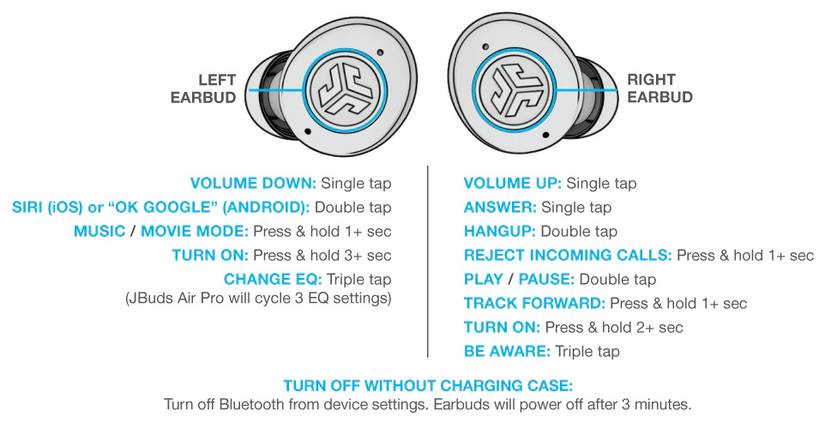
- From the earbuds: Press and hold the main touch or button control for 3–5 seconds to force a disconnect on many JLab models.
These methods let you control how to disconnect jlab earbuds without erasing pairing info.

Disconnecting using the JLab earbuds’ controls
Many JLab earbuds support a direct control to disconnect. Try these tested gestures for how to disconnect jlab earbuds with the hardware.
- Single-earbud tap or hold: Press and hold the primary earbud for 3–5 seconds to drop the connection on some models.
- Dual-earbud hold: Hold both earbuds’ buttons for 3–10 seconds to disconnect and enter pairing mode on true wireless models.
- Quick tap sequence: On certain JLab models, two quick taps on the right bud stop playback and can disconnect the stream.
- Put buds in the case: Closing the charging case usually disconnects and pauses audio immediately.
If a control doesn’t work, consult your model’s manual or try the phone method. Model behavior varies, so test these once to learn how to disconnect jlab earbuds you own.

How to unpair or “forget” JLab earbuds from your device
Unpairing is a one-time step if you want to fully remove the device profile. Here’s how to unpair JLab earbuds from common platforms.
- iPhone: Settings > Bluetooth > tap the “i” next to the JLab name > Forget This Device. Confirm to remove.
- Android: Settings > Connected devices > Bluetooth > tap the gear or name > Unpair or Forget.
- Windows PC: Settings > Bluetooth & devices > Devices > JLab entry > Remove device.
- macOS: System Settings > Bluetooth > hover on device > click X or right-click > Remove.
After unpairing, the earbuds won’t auto-reconnect until you pair them again. This is useful when you want to stop accidental reconnects.

Factory reset and when to use it for how to disconnect jlab earbuds
A reset clears internal settings and pairing lists. Use it when disconnecting or unpairing doesn’t fix problems.
- Common reset method: With earbuds out, press and hold both buttons for 10–20 seconds until lights flash or you hear a tone.
- Model-specific reset: Some JLab models use a sequence like tap-right, tap-left, then hold both. Check the quick start guide if needed.
- After reset: You must pair the earbuds again. This ensures a clean state and removes old device records.
Resetting is a stronger step than disconnecting. It fixes persistent reconnect or audio routing issues.
Troubleshooting common problems when you try to disconnect jlab earbuds
If a simple disconnect fails, try these quick checks and fixes.
- Audio still plays from phone: Force stop the media app or switch output in the phone’s audio picker.
- Earbuds reconnect instantly: Turn off Bluetooth on the previous device or forget the device on that device.
- One bud stays connected: Re-seat both earbuds in the case, remove and replace them, or reset the pair.
- No response to controls: Charge both buds, then try the control hold sequences again.
I’ve found that charging and then resetting fixes odd reconnect loops most of the time.
Tips to avoid accidental reconnects and manage multi-device setups
A few habits make connections smoother when you learn how to disconnect jlab earbuds.
- Turn off Bluetooth on unused devices to prevent auto-reconnect.
- Use app-level audio output controls when switching between apps or devices.
- Keep firmware updated to reduce connection bugs.
- Store earbuds in the case when not in use to force a disconnect and save battery.
These small habits save time and frustration when juggling several devices.

Personal experience: lessons I learned about how to disconnect jlab earbuds
I once had earbuds keep jumping between my phone and laptop during a video call. I learned to always unpair old devices when troubleshooting. Testing multiple JLab models showed that a short press often just pauses playback, while a longer hold reliably disconnects.
My main lesson: try a sequence—put in case, then use phone settings to disconnect, then reset if needed. This method handled most odd behaviors in under five minutes.
Related concepts: pairing, reconnecting, firmware, and battery status
Understanding related ideas helps you control your earbuds better when learning how to disconnect jlab earbuds.
- Pairing: The process that creates the saved link between device and earbuds.
- Reconnecting: When a paired device automatically resumes the Bluetooth link.
- Firmware: Software inside earbuds that can change how disconnects behave. Keep it updated.
- Battery and case: Low battery can make controls inconsistent, so charge before troubleshooting.
Knowing these terms helps you decide whether to disconnect, unpair, or reset.
Frequently Asked Questions of how to disconnect jlab earbuds(make it h2 tag)
How do I disconnect JLab earbuds quickly?
Press and hold the primary earbud or both earbuds for about 3–5 seconds. Alternatively, put them back in the case to end the connection fast.
Will forgetting the device stop automatic reconnects?
Yes. Forgetting or unpairing the earbuds from a device removes the Bluetooth profile and stops auto-reconnect until you pair again.
How do I disconnect only one JLab earbud?
Place the earbud you don’t want to use back into the case or use single-earbud mode in your device if supported. Some models let you pause or stop audio on one side via touch controls.
Do I need to reset my JLab earbuds to disconnect them?
No. Resetting is not required just to disconnect. Reset only if disconnection or reconnect issues persist or if you want to clear all paired devices.
Why do my JLab earbuds keep reconnecting to my phone?
They may be paired to multiple devices or your phone may have Bluetooth on and set to auto-connect. Forget other devices or turn off Bluetooth on unused gadgets to stop this behavior.
Can I disconnect JLab earbuds from a laptop?
Yes. Use the Bluetooth settings on your laptop to disconnect or remove the JLab device. Closing the case or using the earbuds’ hold controls also works.
Conclusion
You now have clear, practical ways to manage how to disconnect jlab earbuds on phones, laptops, and with the earbuds themselves. Use quick holds for everyday disconnects, forget the device to stop auto-reconnects, and reset only when needed. Try the step sequence I shared: case, disconnect via device, then reset if problems persist.
Take action now: test these steps with your JLab model, keep firmware up to date, and leave a comment sharing which method worked best for you.

Everett Ashford is a tech reviewer at mytechgrid.com specializing in SSDs, cameras, TVs, earbuds, headphones, and other consumer electronics. He provides honest, data-driven reviews based on hands-on testing and real-world performance analysis. Everett simplifies complex tech details to help readers make smart, confident buying decisions.